> ## Documentation Index
> Fetch the complete documentation index at: https://koreai.mintlify.site/llms.txt
> Use this file to discover all available pages before exploring further.
# Workflows
Workflows enable you to build durable, multi-step automations that coordinate agents, APIs, integrations, human approvals, and business logic across systems. Use workflows to automate business processes that span multiple systems or require structured orchestration beyond a single agent conversation.
You can build deterministic workflows using structured workflow steps or create semi-autonomous workflows by adding Agent nodes that support AI-driven reasoning and decision-making during workflow execution.
Typical workflow use cases include:
* Order processing
* Leave approval workflows
* Claims and underwriting processes
* Human approval tasks
## Key Features
* Durable multi-step workflow orchestration across agents, integrations, APIs, and human tasks.
* Visual workflow builder with configurable workflow nodes and execution paths.
* Human-in-the-loop execution using Approval and Data Entry nodes with Inbox-based task handling.
* Trigger-based execution using webhooks, schedules, and external application events.
* Workflow execution monitoring with execution history, flow logs, runtime metrics, and execution details inspection.
The platform maintains a one-to-one mapping between the visual configuration interface and the DSL/ABL definition. You can configure workflows and tools using either the visual interface or the DSL/ABL definition. Changes made in one view are automatically reflected in the other.
***
## Understand Workflows vs. Agent Flows
Use workflows and agent flows for different execution scenarios.
| Use case | Recommended capability |
| -------------------------------------------------------------- | ---------------------- |
| Interaction-level deterministic steps during a conversation | Agent Flow |
| Long-running orchestration outside the interaction boundary | Workflow |
| Human approvals or asynchronous waits | Workflow |
| Scheduled or event-driven execution | Workflow |
| Multi-system backend automation | Workflow |
| Agent-triggered orchestration | Workflow |
| Conversational interactions with deterministic execution steps | Agent Flow |
A workflow can also be exposed as a tool and invoked by an agent during runtime.
***
# Create a Workflow
1. From the Workflows page, select **Create Workflow**.
2. In the creation dialog, enter **Name** and **Description** (optional).
3. Select **Create**.
After you create a workflow, the workflow opens in the **Overview** tab.
***
# Workflow Overview
The workflow detail page provides a comprehensive view of the workflow's configuration, execution steps, and run history.
| Section | Description |
| -------- | --------------------------------------------------------------------------------------------------------------------- |
| Details | Displays workflow details and lets you update the workflow name and description. |
| Metadata | Displays workflow metadata, including created date, last updated date, configured triggers, and total workflow steps. |
| Used by | Displays workflow tools that reference the workflow. |
 ***
# Flow Builder
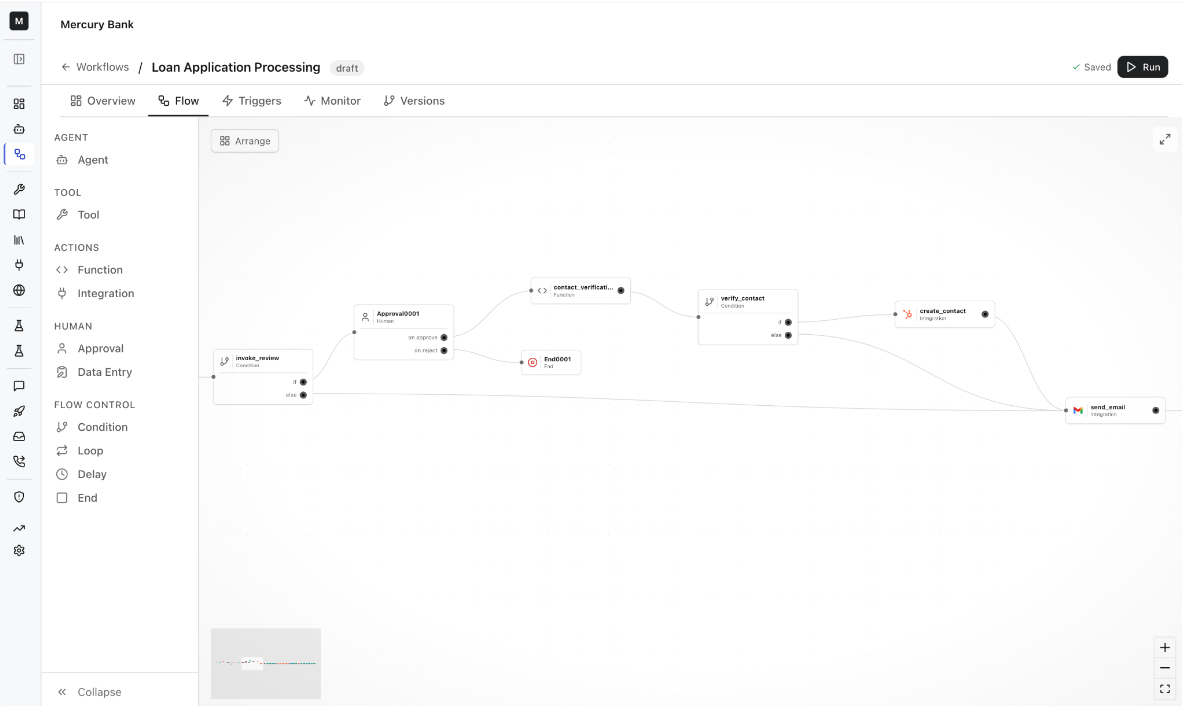
Use the **Flow** tab to build and configure workflow steps.
The workflow builder provides a visual canvas where you can add workflow nodes, configure execution logic, and define step relationships.
Every workflow starts with a **Start** step and ends with an **End** step. Add workflow steps between the Start and End steps to define workflow execution logic.
The workflow builder contains the following areas.
| Area | Description |
| ------------------- | -------------------------------------------------------------- |
| Node panel | Displays available workflow nodes grouped by category. |
| Flow canvas | Add workflow structure and execution path. |
| Configuration panel | Displays configuration options for the selected workflow step. |
***
# Flow Builder
Use the **Flow** tab to build and configure workflow steps.
The workflow builder provides a visual canvas where you can add workflow nodes, configure execution logic, and define step relationships.
Every workflow starts with a **Start** step and ends with an **End** step. Add workflow steps between the Start and End steps to define workflow execution logic.
The workflow builder contains the following areas.
| Area | Description |
| ------------------- | -------------------------------------------------------------- |
| Node panel | Displays available workflow nodes grouped by category. |
| Flow canvas | Add workflow structure and execution path. |
| Configuration panel | Displays configuration options for the selected workflow step. |
 ## Add Workflow Steps
To add a workflow step:
1. Open the **Flow** tab.
2. Select a node from the node panel. The node appears on the flow canvas.
3. Configure the node settings.
4. Connect the node to the workflow path.
## Configure Workflow Steps
Select a workflow step to open its configuration panel.
Configuration options vary by node type. Typical configuration options include:
* Step name
* Input parameters
* Output mappings
* Timeout settings
* Approval assignments
* Integration settings
* Conditional expressions
## Build Workflow Logic
Connect nodes visually on the canvas to define execution order.
Workflows support:
* Sequential execution
* Conditional branching
* Parallel execution patterns
## Use Workflow Variables
Each node exposes configurable inputs and outputs.
Workflow data is passed through the workflow context object.
Use the following syntax patterns to reference workflow data between steps.
| Variable type | Syntax |
| -------------- | ------------------------------------ |
| Input variable | `context.steps.start.` |
| Step output | `context.steps..output` |
***
## Node Types
| Node type | Group | Description |
| -------------------------------- | ----------------- | --------------------------------------------------------------------------- |
| [Agent](#agent-node) | Agent | Executes an agent within the workflow to handle part of the process. |
| [Tool](#tool-node) | Tools | Executes a configured tool within the workflow (HTTP call, code execution). |
| [Function](#function-node) | Actions | Executes custom JavaScript logic for data transformation or processing. |
| [Integration](#integration-node) | Actions | Executes actions using configured integrations and external services. |
| [Approval](#approval-node) | Human-in-the-loop | Waits for user approval before continuing execution. |
| [Data Entry](#data-entry-node) | Human-in-the-loop | Collects user input during workflow execution. |
| [Condition](#condition-node) | Flow control | Routes workflow execution based on conditions. |
| [Delay](#delay-node) | Flow control | Pauses workflow execution for a configured duration. |
| [End](#end-node) | Flow control | Completes workflow execution and defines workflow outputs. |
***
### Start Node
Use the Start node to define workflow entry parameters.
| Field | Description |
| ---------------- | ----------------------------------------- |
| Input parameters | Defines workflow input data |
| Parameter name | Variable name used in context |
| Data type | String, number, boolean, object, or array |
| Required | Marks parameter as mandatory |
| Default value | Optional fallback value |
Example
```text theme={null}
{{context.steps.start.input.email_text}}
```
***
### Agent Node
Use the Agent node to invoke an agent during workflow execution.
Agent nodes are typically used when workflow execution requires AI-driven reasoning, classification, decision-making, or conversational processing before continuing to the next workflow step.
| Field | Description |
| --------------------- | ------------------------------------------------------------------------------------------------- |
| Agent | Selects the agent to execute during workflow execution. |
| Create an agent | Opens the Agents page to create a new agent if no suitable agent exists. |
| Input | Defines the input passed to the agent. You can reference workflow variables and trigger payloads. |
| Session ID (optional) | Defines the session identifier used during execution. Leave blank to create a new session. |
| Timeout (seconds) | Defines how long the workflow waits for the agent response before timing out. |
| On failure | Defines the behavior when agent execution fails. |
***
### Tool Node
Use the Tool node to execute a registered tool during workflow execution.
Tool nodes are typically used to invoke reusable capabilities such as workflow tools, APIs, integrations, or external operations defined in the project.
| Field | Description |
| ----------------- | ---------------------------------------------------------------------------------------------------------- |
| Create a tool | Opens the Tools page to create a new tool if no suitable tool exists. |
| Parameters | Defines the input parameters passed to the tool. Parameters can use static values or workflow expressions. |
| Timeout (seconds) | Defines how long the workflow waits for tool execution before timing out. |
| On failure | Defines the behavior when tool execution fails. |
The timeout configured for a Tool node in a workflow overrides the timeout specified in the tool configuration.
***
### Function Node
Use the Function node to execute custom JavaScript logic during workflow execution.
Function nodes are typically used for data transformation, validation, formatting, filtering, enrichment, and intermediate processing between workflow steps.
| Field | Description |
| ----------------- | ------------------------------------------------------------------------------- |
| Context object | Use the `context` object to read and write workflow data within Function nodes. |
| JavaScript | Defines the JavaScript logic executed during workflow execution. |
| Timeout (seconds) | Defines how long the workflow waits for script execution before timing out. |
| On failure | Defines the behavior when function execution fails. |
**Use Workflow Context in Function Nodes**
Use the `context` object to access workflow data.
| Usage | Syntax |
| --------------------- | --------------------------------- |
| Trigger payload | `context.trigger.payload` |
| Previous step output | `context.steps..output` |
| Write workflow values | `context. = value` |
Values written to the context object can be referenced in downstream workflow steps.
***
### Integration Node
Use the Integration node to execute integration connector actions during workflow execution.
Integration nodes allow workflows to execute actions using configured integrations such as Gmail, Slack, GitHub, Microsoft Teams, Salesforce, HubSpot, Twilio, OpenAI, and other available connectors.
| Field | Description |
| --------------------------- | ----------------------------------------------------------------------------------------------------------- |
| Select Integration & Action | Opens the integration catalog and available actions for the selected connector. |
| Action Inputs | Configure the action-specific input fields. Available fields vary based on the selected integration action. |
| On failure | Defines the behavior when integration execution fails. |
For example, a Gmail integration may expose actions such as:
* Send Email
* Request Approval in Email
* Reply to Email
* Find Email
* Custom API Call
Depending on the selected action, additional fields may include:
* Connection selection
* Recipient email addresses
* Subject and message content
* Approval request settings
* Search parameters
* API request details
If no integration connection exists, create an **auth profile** and **integration connection** before configuring the integration action.
***
### Human-in-the-loop Nodes
Human-in-the-loop nodes pause workflow execution to collect input or approval from assigned users before execution continues. The platform supports two types of human-in-the-loop nodes: Data Entry and Approval.
When a workflow reaches a Data Entry or Approval node:
1. A pending task is created in Inbox.
2. Assigned users receive notifications.
3. Workflow execution pauses until the task is completed.
4. The workflow resumes after approval, rejection, or data submission.
Assigned users can open Inbox tasks to review, approve, reject, or submit the requested information. For more information, see [Inbox](/agent-platform/inbox).
For more information about human-in-the-loop workflows and approvals, see [Human-in-the-loop Workflows](/agent-platform/human-in-the-loop).
#### Approval Node
Use the Approval node to pause workflow execution until an approval or rejection response is received.
Approval nodes support human-in-the-loop workflow scenarios such as review tasks, approval checkpoints, and business decision flows.
When workflow execution reaches this node,
* A human task is created.
* The task appears in the Inbox.
* Workflow execution pauses.
* A user reviews or completes the task.
* Workflow execution resumes after task completion.
| Field | Description |
| -------------- | --------------------------------------------------------- |
| Subject | Defines the approval request title shown to the approver. |
| Message | Defines the approval request instructions or details. |
| Assign To | Assigns the approval task to everyone or specific users. |
| Enable timeout | Configures timeout handling for approval tasks. |
| On failure | Defines workflow behavior when the approval step fails. |
The Approval node provides separate execution paths for:
* on approve
* on reject
#### Data Entry Node
Use the Data Entry node to collect structured user input during workflow execution.
Data Entry nodes support workflows that require users to manually provide information before execution can continue.
| Field | Description |
| ----------------- | ------------------------------------------------------------------------------------------------------------------------------------------------------------------------------------- |
| Subject | Defines the data entry request title. |
| Message | Defines instructions shown to the user. |
| Form Fields | Use **Add Field** to add additional form inputs to the request. Configure the fields users must complete before submission, including field name, type, label, and required settings. |
| Assign To | Assigns the task to everyone or specific users. |
| Enable timeout | Enables timeout handling for the task. |
| Duration and Unit | Defines the timeout duration and unit. |
| On Timeout | Defines workflow behavior when the task times out. |
| On failure | Defines workflow behavior when execution fails. |
Available timeout actions include:
* **Terminate workflow** - Stops workflow execution when the timeout is reached.
* **Skip this step** - Continues workflow execution without waiting for the task response.
***
### Condition Node
Use the Condition node to branch workflow execution based on conditional logic.
Condition nodes evaluate expressions and route execution through different workflow paths depending on the evaluation result.
The Condition node supports:
* if
* else if
* else
| Field | Description |
| -------- | --------------------------------------------------------- |
| Field | Defines the workflow variable or step output to evaluate. |
| Operator | Defines the comparison operator used in the condition. |
| Value | Defines the comparison value for the condition. |
The **Else (default path)** executes when none of the configured conditions evaluate to true. Use **Add Else If** to configure additional conditional branches.
Condition expressions can reference workflow variables and outputs from previous workflow steps.
For example:
```text theme={null}
{{context.steps.NodeName.output.field}}
```
Use Condition nodes to:
* Route workflows based on API responses
* Branch execution based on approval outcomes
* Evaluate workflow variables
* Handle success and failure scenarios
* Create decision-based workflow paths
***
### Delay Node
Use the Delay node to pause workflow execution for a specified duration before continuing to the next workflow step.
Delay nodes support scheduled continuation, wait periods, retry delays, and time-based workflow orchestration.
| Field | Description |
| ---------- | ------------------------------------------------------------------------ |
| Duration | Defines the amount of time the workflow waits before resuming execution. |
| Unit | Defines the duration unit. |
| On failure | Defines the workflow step to execute if the delay step fails. |
Supported duration units depend on the configured delay range.
The allowed delay range is: 30 seconds to 24 hours
Use Delay nodes to:
* Pause workflows before continuing execution
* Add retry wait periods
* Delay notifications or follow-up actions
* Coordinate scheduled workflow execution
***
### End Node
Use the End node to complete workflow execution and define the workflow output structure.
The End node declares the workflow outputs returned after workflow execution completes.
| Field | Description |
| ------------------ | ------------------------------------------------------------ |
| Output field | Defines the output field name exposed by the workflow. |
| Type | Defines the output data type. |
| Expression | Maps workflow variables or step outputs to the output field. |
| Description | Defines the output field description. |
| Add output mapping | Adds additional workflow output mappings. |
Output expressions can reference workflow variables and outputs from previous workflow steps.
For example:
```text theme={null}
{{context.steps.NodeName.output}}
```
The End node generates the final workflow response returned after workflow execution completes.
***
## Execute and Inspect Workflows
After configuring workflow nodes and triggers, run the workflow to validate workflow behavior and inspect execution details.
### Run a Workflow
1. Open the workflow.
2. Go to the **Flow** tab.
3. Click **Run**.
During execution:
* Workflow execution status is displayed.
* Human workflow nodes pause execution until user action is completed.
### Execution Details Panel
When a workflow runs, the execution details panel opens on the right side of the canvas.
The execution details panel displays:
* Execution status
* Execution duration
* Flow log
* Node inputs and outputs
* Context data
* Final workflow output
Select nodes from the execution flow to inspect execution details for individual workflow steps.
***
## Configure Triggers
Triggers define how workflows are started.
Open the **Triggers** tab from the workflow toolbar to create and manage workflow triggers.
The workflow builder currently supports the following trigger types:
| Trigger type | Description |
| ------------- | ------------------------------------------------------------ |
| Webhook | Starts workflows through external HTTP requests. |
| Cron Schedule | Runs workflows automatically on a schedule. |
| App Triggers | Starts workflows from supported external application events. |
### Webhook Trigger
Use webhook triggers to invoke workflows from external systems, applications, or APIs.
When a webhook trigger is created:
* A webhook endpoint URL is automatically generated.
* You can generate an API key for secure access.
* Quick-start request examples are displayed for testing and integration.
Webhook execution modes include:
| Mode | Description |
| ------------ | ----------------------------------------- |
| Sync | Waits for workflow response |
| Async | Executes independently |
| Async + Poll | External system polls for results |
| Async Push | Workflow returns results through callback |
After a webhook trigger is created, a webhook URL is generated automatically. The Triggers page also displays the **Webhook Quick Start** section with the generated endpoint URL, supported execution modes, API key options, and sample requests.
### Cron Schedule Trigger
Use cron schedule triggers to execute workflows automatically at configured intervals.
Typical use cases include:
* Daily processing jobs
* Weekly reporting
* Scheduled synchronization tasks
* Periodic maintenance workflows
### App Triggers
Use app triggers to start workflows from external application events.
App triggers allow workflows to respond automatically to supported integration events.
Examples include:
* New Google Drive file
* Incoming email
* CRM updates
* External system events
Depending on the selected integration, additional trigger configuration options are available.
***
## Monitor Workflow Execution
Use the **Monitor** tab to view workflow execution metrics and execution history.
The Monitor view displays a history of workflow executions (runs), including execution status, start time, duration, and workflow progress details.
The monitor displays:
* Total workflow runs
* In-progress executions
* Response time metrics
* Failure rate statistics
The Execution History section displays:
* Execution ID
* Execution status
* Trigger type (Studio, Agent, Webhook, Cron, App trigger)
* Start time
* Execution duration
* Step completion progress
Use the Monitor view to:
* Track workflow execution status
* Identify failed or long-running executions
* Monitor workflow performance trends
* Review workflow run history
* Verify workflow completion progress during execution
Select an execution from the execution history to open the execution details panel. For more information, see *Execution details panel*.
***
## Workflow Versions
Workflows support version management through draft and published versions.
Each workflow starts with a draft version, which is used for editing and configuration changes.
When a workflow is published:
* A new workflow version is created.
* The published version becomes available for execution.
* The draft can continue to be updated independently.
Use the **Versions** tab to:
* View workflow versions
* View version status and publishing details
* Manage published workflow versions
The Versions view displays:
* Version number or draft state
* Workflow status
* Environment
* Publishing information
* Version actions
***
## Attach Workflows to Agents
Workflows can be attached to agents as reusable tools. This allows agents to invoke durable workflows during runtime interactions.
Attached workflows allow agents to execute workflow logic during conversations and task execution.
### Register Workflow as a Tool
1. Go to **Tools > Workflow Tools.**
2. Click **Register Workflow**.
3. Configure the workflow tool settings.
4. Select the workflow and workflow version.
5. Select the trigger and execution mode (sync or async).
6. Click **Register Workflow**.
### Workflow Tool Definition
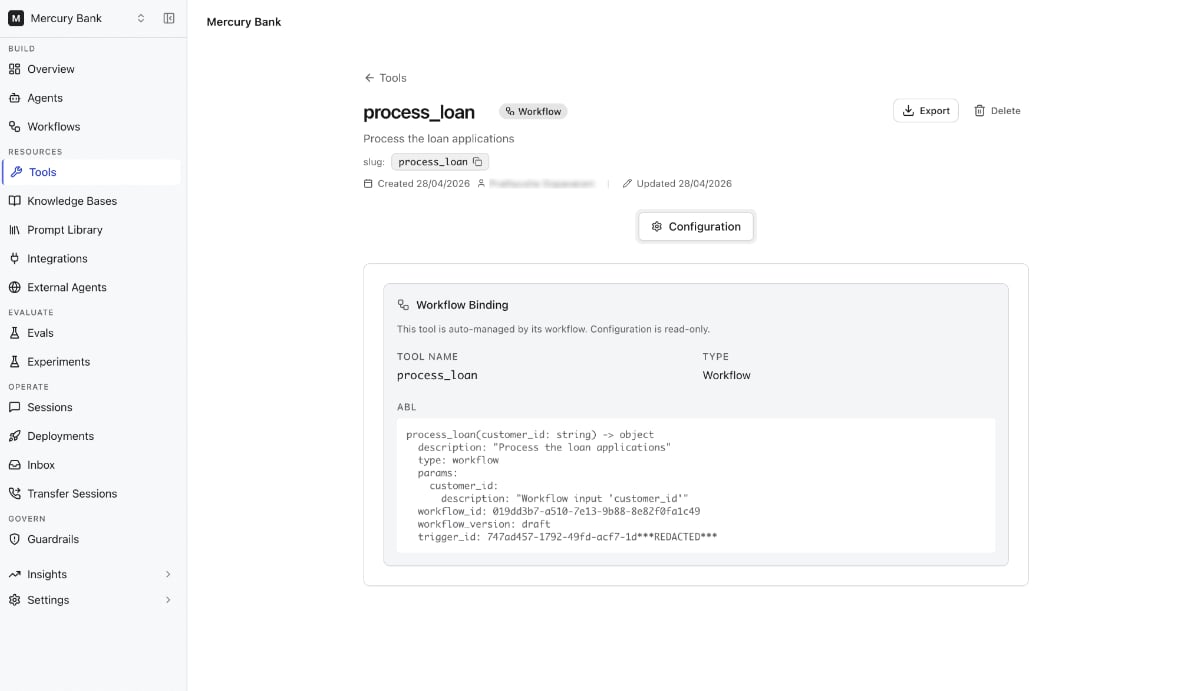
After a workflow is registered, it can be attached to agents as a workflow tool.
The platform automatically generates a DSL/ABL definition for the registered workflow tool. Workflow inputs are exposed as tool parameters in the generated definition.
The generated definition includes:
* Tool metadata
* Workflow and trigger identifiers
* Input parameters
* Tool description
Example:
```yaml theme={null}
TOOLS:
sendemail(email_text: string) -> object
description: "This tool will send an email using Google Gmail"
type: workflow
```
The generated definition is available from the DSL editor and can be used together with visual agent configuration on the interface.
The platform maintains a one-to-one mapping between the visual configuration interface and the DSL/ABL definition. Changes made in one view are reflected in the other.
### Attach Workflow Tools to Agents
After registering the workflow tool:
1. Open the agent.
2. Go to **Capabilities > Tools**.
3. Attach the workflow tool.
4. Configure tool settings if required.
5. Configure required input collection under **Capabilities > Gather Fields**.
6. Save the agent.
The agent can now invoke the workflow during runtime.
The visual configuration interface and DSL/ABL definition are a one-to-one mapping. The UI configuration is derived from the DSL definition. Changes made in the UI are reflected in the DSL, and changes made in the DSL are reflected in the UI.
### Understand Gather and Workflow Inputs
Gather fields can be configured from: **Capabilities > Gather Fields**
Workflow tools can collect inputs using:
* Automatic parameter inference
* Gather fields
Automatic parameter inference allows the agent to infer required tool inputs from the conversation context.
Gather fields provide explicit input collection and validation for workflow tool parameters.
Use gather fields when you need:
* Structured prompting
* Controlled input collection
* Required field enforcement
* Validation and extraction guidance
* More deterministic workflow execution
## Add Workflow Steps
To add a workflow step:
1. Open the **Flow** tab.
2. Select a node from the node panel. The node appears on the flow canvas.
3. Configure the node settings.
4. Connect the node to the workflow path.
## Configure Workflow Steps
Select a workflow step to open its configuration panel.
Configuration options vary by node type. Typical configuration options include:
* Step name
* Input parameters
* Output mappings
* Timeout settings
* Approval assignments
* Integration settings
* Conditional expressions
## Build Workflow Logic
Connect nodes visually on the canvas to define execution order.
Workflows support:
* Sequential execution
* Conditional branching
* Parallel execution patterns
## Use Workflow Variables
Each node exposes configurable inputs and outputs.
Workflow data is passed through the workflow context object.
Use the following syntax patterns to reference workflow data between steps.
| Variable type | Syntax |
| -------------- | ------------------------------------ |
| Input variable | `context.steps.start.` |
| Step output | `context.steps..output` |
***
## Node Types
| Node type | Group | Description |
| -------------------------------- | ----------------- | --------------------------------------------------------------------------- |
| [Agent](#agent-node) | Agent | Executes an agent within the workflow to handle part of the process. |
| [Tool](#tool-node) | Tools | Executes a configured tool within the workflow (HTTP call, code execution). |
| [Function](#function-node) | Actions | Executes custom JavaScript logic for data transformation or processing. |
| [Integration](#integration-node) | Actions | Executes actions using configured integrations and external services. |
| [Approval](#approval-node) | Human-in-the-loop | Waits for user approval before continuing execution. |
| [Data Entry](#data-entry-node) | Human-in-the-loop | Collects user input during workflow execution. |
| [Condition](#condition-node) | Flow control | Routes workflow execution based on conditions. |
| [Delay](#delay-node) | Flow control | Pauses workflow execution for a configured duration. |
| [End](#end-node) | Flow control | Completes workflow execution and defines workflow outputs. |
***
### Start Node
Use the Start node to define workflow entry parameters.
| Field | Description |
| ---------------- | ----------------------------------------- |
| Input parameters | Defines workflow input data |
| Parameter name | Variable name used in context |
| Data type | String, number, boolean, object, or array |
| Required | Marks parameter as mandatory |
| Default value | Optional fallback value |
Example
```text theme={null}
{{context.steps.start.input.email_text}}
```
***
### Agent Node
Use the Agent node to invoke an agent during workflow execution.
Agent nodes are typically used when workflow execution requires AI-driven reasoning, classification, decision-making, or conversational processing before continuing to the next workflow step.
| Field | Description |
| --------------------- | ------------------------------------------------------------------------------------------------- |
| Agent | Selects the agent to execute during workflow execution. |
| Create an agent | Opens the Agents page to create a new agent if no suitable agent exists. |
| Input | Defines the input passed to the agent. You can reference workflow variables and trigger payloads. |
| Session ID (optional) | Defines the session identifier used during execution. Leave blank to create a new session. |
| Timeout (seconds) | Defines how long the workflow waits for the agent response before timing out. |
| On failure | Defines the behavior when agent execution fails. |
***
### Tool Node
Use the Tool node to execute a registered tool during workflow execution.
Tool nodes are typically used to invoke reusable capabilities such as workflow tools, APIs, integrations, or external operations defined in the project.
| Field | Description |
| ----------------- | ---------------------------------------------------------------------------------------------------------- |
| Create a tool | Opens the Tools page to create a new tool if no suitable tool exists. |
| Parameters | Defines the input parameters passed to the tool. Parameters can use static values or workflow expressions. |
| Timeout (seconds) | Defines how long the workflow waits for tool execution before timing out. |
| On failure | Defines the behavior when tool execution fails. |
The timeout configured for a Tool node in a workflow overrides the timeout specified in the tool configuration.
***
### Function Node
Use the Function node to execute custom JavaScript logic during workflow execution.
Function nodes are typically used for data transformation, validation, formatting, filtering, enrichment, and intermediate processing between workflow steps.
| Field | Description |
| ----------------- | ------------------------------------------------------------------------------- |
| Context object | Use the `context` object to read and write workflow data within Function nodes. |
| JavaScript | Defines the JavaScript logic executed during workflow execution. |
| Timeout (seconds) | Defines how long the workflow waits for script execution before timing out. |
| On failure | Defines the behavior when function execution fails. |
**Use Workflow Context in Function Nodes**
Use the `context` object to access workflow data.
| Usage | Syntax |
| --------------------- | --------------------------------- |
| Trigger payload | `context.trigger.payload` |
| Previous step output | `context.steps..output` |
| Write workflow values | `context. = value` |
Values written to the context object can be referenced in downstream workflow steps.
***
### Integration Node
Use the Integration node to execute integration connector actions during workflow execution.
Integration nodes allow workflows to execute actions using configured integrations such as Gmail, Slack, GitHub, Microsoft Teams, Salesforce, HubSpot, Twilio, OpenAI, and other available connectors.
| Field | Description |
| --------------------------- | ----------------------------------------------------------------------------------------------------------- |
| Select Integration & Action | Opens the integration catalog and available actions for the selected connector. |
| Action Inputs | Configure the action-specific input fields. Available fields vary based on the selected integration action. |
| On failure | Defines the behavior when integration execution fails. |
For example, a Gmail integration may expose actions such as:
* Send Email
* Request Approval in Email
* Reply to Email
* Find Email
* Custom API Call
Depending on the selected action, additional fields may include:
* Connection selection
* Recipient email addresses
* Subject and message content
* Approval request settings
* Search parameters
* API request details
If no integration connection exists, create an **auth profile** and **integration connection** before configuring the integration action.
***
### Human-in-the-loop Nodes
Human-in-the-loop nodes pause workflow execution to collect input or approval from assigned users before execution continues. The platform supports two types of human-in-the-loop nodes: Data Entry and Approval.
When a workflow reaches a Data Entry or Approval node:
1. A pending task is created in Inbox.
2. Assigned users receive notifications.
3. Workflow execution pauses until the task is completed.
4. The workflow resumes after approval, rejection, or data submission.
Assigned users can open Inbox tasks to review, approve, reject, or submit the requested information. For more information, see [Inbox](/agent-platform/inbox).
For more information about human-in-the-loop workflows and approvals, see [Human-in-the-loop Workflows](/agent-platform/human-in-the-loop).
#### Approval Node
Use the Approval node to pause workflow execution until an approval or rejection response is received.
Approval nodes support human-in-the-loop workflow scenarios such as review tasks, approval checkpoints, and business decision flows.
When workflow execution reaches this node,
* A human task is created.
* The task appears in the Inbox.
* Workflow execution pauses.
* A user reviews or completes the task.
* Workflow execution resumes after task completion.
| Field | Description |
| -------------- | --------------------------------------------------------- |
| Subject | Defines the approval request title shown to the approver. |
| Message | Defines the approval request instructions or details. |
| Assign To | Assigns the approval task to everyone or specific users. |
| Enable timeout | Configures timeout handling for approval tasks. |
| On failure | Defines workflow behavior when the approval step fails. |
The Approval node provides separate execution paths for:
* on approve
* on reject
#### Data Entry Node
Use the Data Entry node to collect structured user input during workflow execution.
Data Entry nodes support workflows that require users to manually provide information before execution can continue.
| Field | Description |
| ----------------- | ------------------------------------------------------------------------------------------------------------------------------------------------------------------------------------- |
| Subject | Defines the data entry request title. |
| Message | Defines instructions shown to the user. |
| Form Fields | Use **Add Field** to add additional form inputs to the request. Configure the fields users must complete before submission, including field name, type, label, and required settings. |
| Assign To | Assigns the task to everyone or specific users. |
| Enable timeout | Enables timeout handling for the task. |
| Duration and Unit | Defines the timeout duration and unit. |
| On Timeout | Defines workflow behavior when the task times out. |
| On failure | Defines workflow behavior when execution fails. |
Available timeout actions include:
* **Terminate workflow** - Stops workflow execution when the timeout is reached.
* **Skip this step** - Continues workflow execution without waiting for the task response.
***
### Condition Node
Use the Condition node to branch workflow execution based on conditional logic.
Condition nodes evaluate expressions and route execution through different workflow paths depending on the evaluation result.
The Condition node supports:
* if
* else if
* else
| Field | Description |
| -------- | --------------------------------------------------------- |
| Field | Defines the workflow variable or step output to evaluate. |
| Operator | Defines the comparison operator used in the condition. |
| Value | Defines the comparison value for the condition. |
The **Else (default path)** executes when none of the configured conditions evaluate to true. Use **Add Else If** to configure additional conditional branches.
Condition expressions can reference workflow variables and outputs from previous workflow steps.
For example:
```text theme={null}
{{context.steps.NodeName.output.field}}
```
Use Condition nodes to:
* Route workflows based on API responses
* Branch execution based on approval outcomes
* Evaluate workflow variables
* Handle success and failure scenarios
* Create decision-based workflow paths
***
### Delay Node
Use the Delay node to pause workflow execution for a specified duration before continuing to the next workflow step.
Delay nodes support scheduled continuation, wait periods, retry delays, and time-based workflow orchestration.
| Field | Description |
| ---------- | ------------------------------------------------------------------------ |
| Duration | Defines the amount of time the workflow waits before resuming execution. |
| Unit | Defines the duration unit. |
| On failure | Defines the workflow step to execute if the delay step fails. |
Supported duration units depend on the configured delay range.
The allowed delay range is: 30 seconds to 24 hours
Use Delay nodes to:
* Pause workflows before continuing execution
* Add retry wait periods
* Delay notifications or follow-up actions
* Coordinate scheduled workflow execution
***
### End Node
Use the End node to complete workflow execution and define the workflow output structure.
The End node declares the workflow outputs returned after workflow execution completes.
| Field | Description |
| ------------------ | ------------------------------------------------------------ |
| Output field | Defines the output field name exposed by the workflow. |
| Type | Defines the output data type. |
| Expression | Maps workflow variables or step outputs to the output field. |
| Description | Defines the output field description. |
| Add output mapping | Adds additional workflow output mappings. |
Output expressions can reference workflow variables and outputs from previous workflow steps.
For example:
```text theme={null}
{{context.steps.NodeName.output}}
```
The End node generates the final workflow response returned after workflow execution completes.
***
## Execute and Inspect Workflows
After configuring workflow nodes and triggers, run the workflow to validate workflow behavior and inspect execution details.
### Run a Workflow
1. Open the workflow.
2. Go to the **Flow** tab.
3. Click **Run**.
During execution:
* Workflow execution status is displayed.
* Human workflow nodes pause execution until user action is completed.
### Execution Details Panel
When a workflow runs, the execution details panel opens on the right side of the canvas.
The execution details panel displays:
* Execution status
* Execution duration
* Flow log
* Node inputs and outputs
* Context data
* Final workflow output
Select nodes from the execution flow to inspect execution details for individual workflow steps.
***
## Configure Triggers
Triggers define how workflows are started.
Open the **Triggers** tab from the workflow toolbar to create and manage workflow triggers.
The workflow builder currently supports the following trigger types:
| Trigger type | Description |
| ------------- | ------------------------------------------------------------ |
| Webhook | Starts workflows through external HTTP requests. |
| Cron Schedule | Runs workflows automatically on a schedule. |
| App Triggers | Starts workflows from supported external application events. |
### Webhook Trigger
Use webhook triggers to invoke workflows from external systems, applications, or APIs.
When a webhook trigger is created:
* A webhook endpoint URL is automatically generated.
* You can generate an API key for secure access.
* Quick-start request examples are displayed for testing and integration.
Webhook execution modes include:
| Mode | Description |
| ------------ | ----------------------------------------- |
| Sync | Waits for workflow response |
| Async | Executes independently |
| Async + Poll | External system polls for results |
| Async Push | Workflow returns results through callback |
After a webhook trigger is created, a webhook URL is generated automatically. The Triggers page also displays the **Webhook Quick Start** section with the generated endpoint URL, supported execution modes, API key options, and sample requests.
### Cron Schedule Trigger
Use cron schedule triggers to execute workflows automatically at configured intervals.
Typical use cases include:
* Daily processing jobs
* Weekly reporting
* Scheduled synchronization tasks
* Periodic maintenance workflows
### App Triggers
Use app triggers to start workflows from external application events.
App triggers allow workflows to respond automatically to supported integration events.
Examples include:
* New Google Drive file
* Incoming email
* CRM updates
* External system events
Depending on the selected integration, additional trigger configuration options are available.
***
## Monitor Workflow Execution
Use the **Monitor** tab to view workflow execution metrics and execution history.
The Monitor view displays a history of workflow executions (runs), including execution status, start time, duration, and workflow progress details.
The monitor displays:
* Total workflow runs
* In-progress executions
* Response time metrics
* Failure rate statistics
The Execution History section displays:
* Execution ID
* Execution status
* Trigger type (Studio, Agent, Webhook, Cron, App trigger)
* Start time
* Execution duration
* Step completion progress
Use the Monitor view to:
* Track workflow execution status
* Identify failed or long-running executions
* Monitor workflow performance trends
* Review workflow run history
* Verify workflow completion progress during execution
Select an execution from the execution history to open the execution details panel. For more information, see *Execution details panel*.
***
## Workflow Versions
Workflows support version management through draft and published versions.
Each workflow starts with a draft version, which is used for editing and configuration changes.
When a workflow is published:
* A new workflow version is created.
* The published version becomes available for execution.
* The draft can continue to be updated independently.
Use the **Versions** tab to:
* View workflow versions
* View version status and publishing details
* Manage published workflow versions
The Versions view displays:
* Version number or draft state
* Workflow status
* Environment
* Publishing information
* Version actions
***
## Attach Workflows to Agents
Workflows can be attached to agents as reusable tools. This allows agents to invoke durable workflows during runtime interactions.
Attached workflows allow agents to execute workflow logic during conversations and task execution.
### Register Workflow as a Tool
1. Go to **Tools > Workflow Tools.**
2. Click **Register Workflow**.
3. Configure the workflow tool settings.
4. Select the workflow and workflow version.
5. Select the trigger and execution mode (sync or async).
6. Click **Register Workflow**.
### Workflow Tool Definition
After a workflow is registered, it can be attached to agents as a workflow tool.
The platform automatically generates a DSL/ABL definition for the registered workflow tool. Workflow inputs are exposed as tool parameters in the generated definition.
The generated definition includes:
* Tool metadata
* Workflow and trigger identifiers
* Input parameters
* Tool description
Example:
```yaml theme={null}
TOOLS:
sendemail(email_text: string) -> object
description: "This tool will send an email using Google Gmail"
type: workflow
```
The generated definition is available from the DSL editor and can be used together with visual agent configuration on the interface.
The platform maintains a one-to-one mapping between the visual configuration interface and the DSL/ABL definition. Changes made in one view are reflected in the other.
### Attach Workflow Tools to Agents
After registering the workflow tool:
1. Open the agent.
2. Go to **Capabilities > Tools**.
3. Attach the workflow tool.
4. Configure tool settings if required.
5. Configure required input collection under **Capabilities > Gather Fields**.
6. Save the agent.
The agent can now invoke the workflow during runtime.
The visual configuration interface and DSL/ABL definition are a one-to-one mapping. The UI configuration is derived from the DSL definition. Changes made in the UI are reflected in the DSL, and changes made in the DSL are reflected in the UI.
### Understand Gather and Workflow Inputs
Gather fields can be configured from: **Capabilities > Gather Fields**
Workflow tools can collect inputs using:
* Automatic parameter inference
* Gather fields
Automatic parameter inference allows the agent to infer required tool inputs from the conversation context.
Gather fields provide explicit input collection and validation for workflow tool parameters.
Use gather fields when you need:
* Structured prompting
* Controlled input collection
* Required field enforcement
* Validation and extraction guidance
* More deterministic workflow execution