> ## Documentation Index
> Fetch the complete documentation index at: https://koreai.mintlify.site/llms.txt
> Use this file to discover all available pages before exploring further.
# Guardrails
Ensure AI-generated responses are safe, appropriate, and compliant by adding guardrail scanners to your workflows.
## Overview
Guardrails are scanners that evaluate user inputs and model outputs to maintain safe, responsible AI interactions. Deploy the scanners you need, then add them to individual workflows as input or output scanners.
```
User Input → Input Scanners → LLM Node → Output Scanners → Response
```
## Available Scanners
| Scanner | Description | Applies To |
| -------------------- | -------------------------------------------------------------------------------------------------------------------------------------------------------------------- | ------------- |
| **Regex** | Validates prompts using user-defined regular expression patterns. Supports defining desirable ("good") and undesirable ("bad") patterns for fine-grained validation. | Input |
| **Anonymize** | Removes sensitive data from user prompts to maintain privacy and prevent exposure of personal information. | Input |
| **Ban Topics** | Blocks specific topics (for example, religion) from appearing in prompts to avoid sensitive or inappropriate discussions. | Input |
| **Prompt Injection** | Detects attempts to manipulate or override model behavior, protecting the LLM from malicious or crafted inputs. | Input |
| **Toxicity** | Analyzes prompts or responses for toxic or harmful language to ensure safe and respectful interactions. | Input, Output |
| **Bias Detection** | Examines model outputs for potential bias to help maintain neutrality and fairness in generated responses. | Output |
| **Deanonymize** | Replaces placeholders in model outputs with actual values to restore necessary information when needed. | Output |
| **Relevance** | Measures similarity between the user's prompt and the model's output and provides a relevance score to ensure responses stay contextually aligned. | Output |
## Deploy Guardrails
Before adding scanners to a workflow, you must deploy them. A deployed scanner is available across all your workflows on the platform.
To deploy a scanner:
1. Click **Settings** on the top navigation bar.
2. Click **Manage Guardrails** on the left menu.
3. On the Manage guardrail models page, click **Deploy** next to the scanner you want to deploy.
The status changes to **Deploying**. Once deployed, the scanner is available when you add scanners to a workflow.
To remove a scanner from the platform, click **Undeploy** next to the scanner.
## Add Scanners
After deploying the required scanners, add them to a workflow. Input scanners evaluate prompts sent to the LLM node; output scanners evaluate responses returned from the LLM. Add input and output scanners separately based on your requirements.
To add a scanner:
1. In the **Workflows** section, open the workflow where you want to add the scanner.
2. In the left navigation pane, click **Guardrails**.
3. In the **Input Scanners** section, click **Add Scanner**, select the scanners you need, then click **Done**. The selected scanners appear in the list.
4. Click a scanner to configure its settings. Available options vary by scanner. For example, **Toxicity** has **Threshold** and **End the flow if the risk score is above** settings; **Regex** has **Enter patterns to ban**, **End the flow if the risk score is above**, and **Match type** settings.
5. To add more scanners, click the **Add Scanner** (+) icon. To remove a scanner, click the **Remove Scanner** (−) icon.
## Test Scanners
After adding and configuring scanners, verify that they perform as expected. You can test an individual scanner or all scanners together, then adjust settings as needed.
To test guardrails:
1. On the Guardrails page, click **Test**.
2. In the **Prompt input** box, enter a prompt or select **Input template** to choose a template.
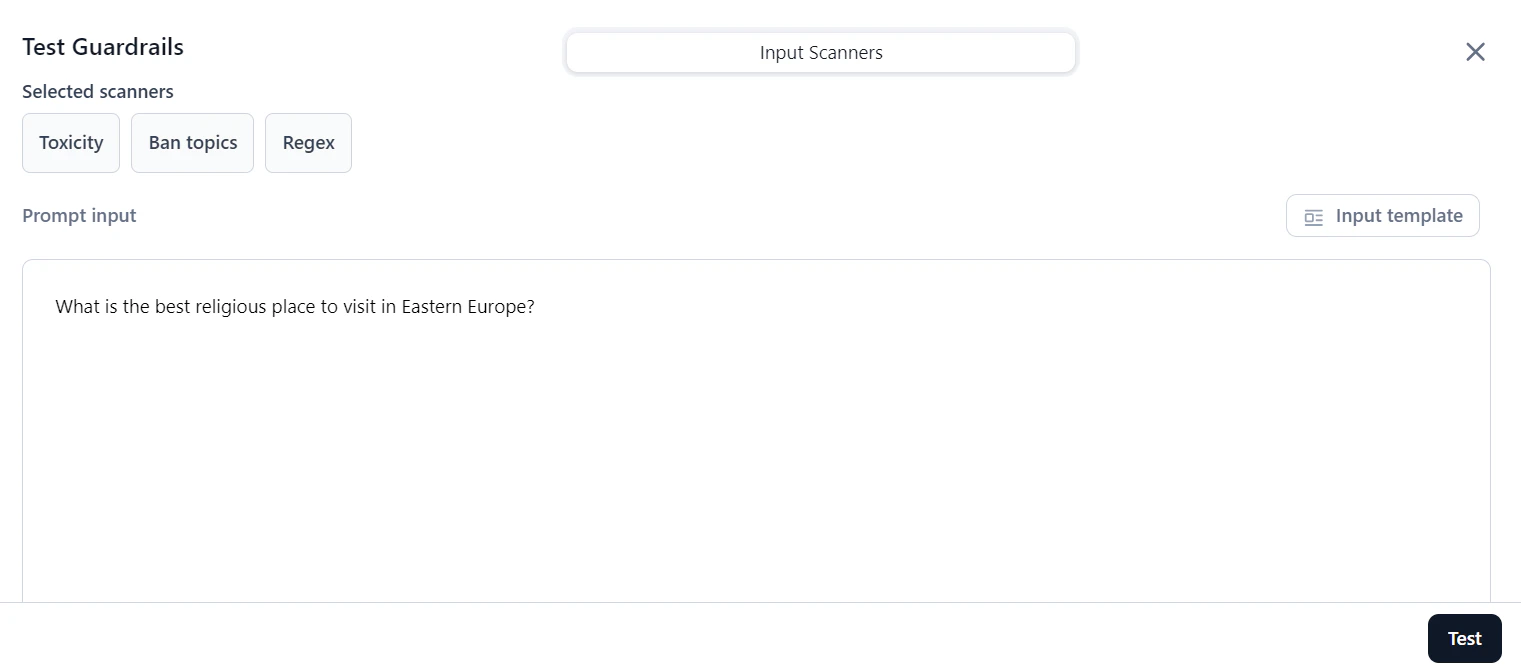 3. Click **Test**. Under **Scores and Results**, review the output.
| Field | Description |
| -------------- | ----------------------------------------------------------------------------------------------------------------------------------------------------------------------------------------- |
| **Validity** | Indicates whether the prompt meets the scanner's criteria. For example, if it doesn't detect any toxicity then Validity is \`\`True\`. |
| **Risk Score** | The prompt's risk level, calculated as: `(Threshold - Scanner Score) / Threshold`. For the Relevance scanner, the score is `1` if similarity is below the threshold; otherwise it is `0`. |
| **Duration** | The time taken by the scanner to process the prompt. |
4. Based on the results, adjust scanner settings and retest as needed.
3. Click **Test**. Under **Scores and Results**, review the output.
| Field | Description |
| -------------- | ----------------------------------------------------------------------------------------------------------------------------------------------------------------------------------------- |
| **Validity** | Indicates whether the prompt meets the scanner's criteria. For example, if it doesn't detect any toxicity then Validity is \`\`True\`. |
| **Risk Score** | The prompt's risk level, calculated as: `(Threshold - Scanner Score) / Threshold`. For the Relevance scanner, the score is `1` if similarity is below the threshold; otherwise it is `0`. |
| **Duration** | The time taken by the scanner to process the prompt. |
4. Based on the results, adjust scanner settings and retest as needed.