> ## Documentation Index
> Fetch the complete documentation index at: https://koreai.mintlify.site/llms.txt
> Use this file to discover all available pages before exploring further.
# Inbox: Review Human-in-the-Loop Requests
The Inbox is a centralized tab for managing Human-in-the-Loop (HITL) approval requests. When a workflow reaches a Human node, an approval request automatically appears in the assigned reviewers' Inbox — in the **Personal** tab or the shared **Group** tab, depending on the node configuration.
With the Inbox, you can:
* View, process, and track all pending and completed approval requests in one place.
* Filter and search requests by requester, status, or keyword.
* Handle both individual and group-based review workflows.
* Monitor real-time status updates and workflow progress in Workflow Monitor.
***
## Access the Inbox
1. Log in to AI for Process.
2. In the top navigation bar, click **Inbox**.
3. Select a tab:
* **Personal** — Approval requests assigned to you.
* **Group** — Requests assigned to a team or group. You can claim any request to take ownership.
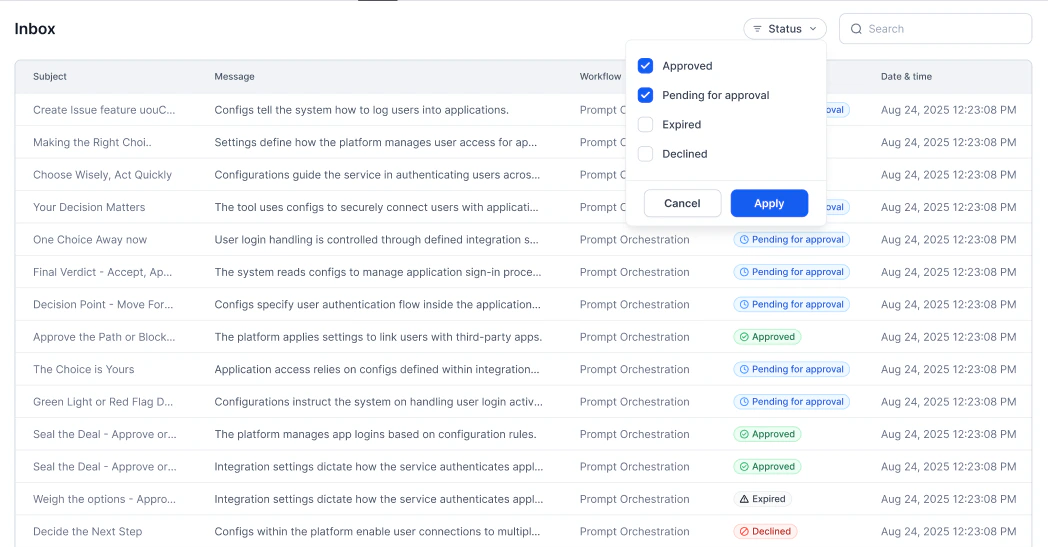
4. Use the **Status** filter to narrow results: **Pending for Approval** (default), **Approved**, **Declined**, or **Expired**.
 ***
## Respond to a Request
1. On the **Inbox** page, open the **Personal** tab.
2. Select a request to open its detail view. Each request shows:
| Field | Description |
| --------------- | ------------------------------------------------------- |
| **Subject** | Title or summary of the approval request. |
| **Description** | Additional details or context about the workflow step. |
| **Message** | Instructions or notes provided by the workflow creator. |
3. Click **Approve** or **Decline**.
4. *(Optional)* Add comments in the **Response** field to explain your decision.
After you submit, the request is removed from the pending list. Its status updates in real time in both the Inbox and Workflow Monitor.
***
## View Completed Requests
1. On the **Personal** tab, use the **Status** filter to select **Approved**, **Declined**, or **Expired**.
2. Click any completed request to view its final status, the reviewer who acted on it, and the timestamp.
***
## Handle Group Requests
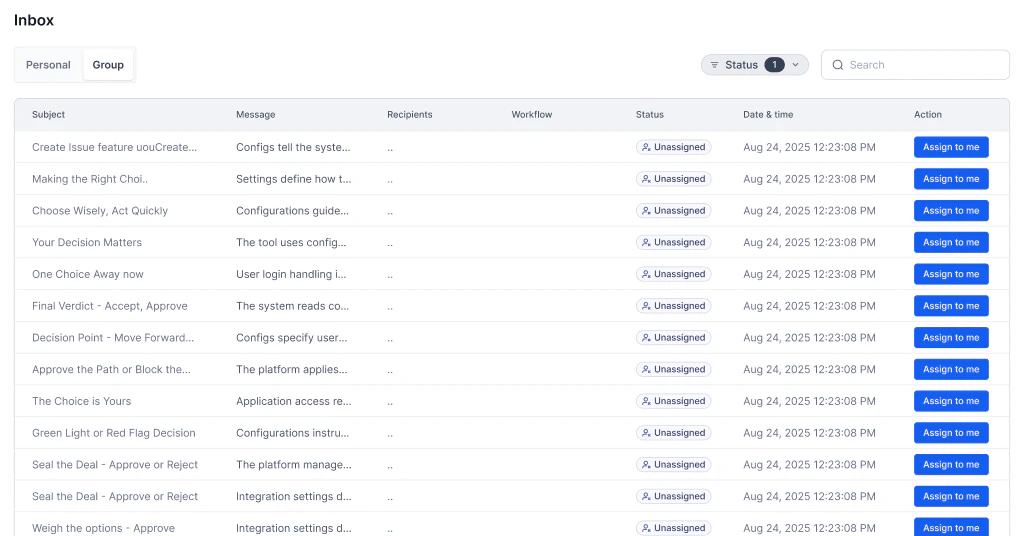
Requests assigned to a group appear in the **Group** tab. Any group member can view them, but only one reviewer can act on each item.
1. Open the **Group** tab and locate the pending request.
2. Assign the request to yourself to claim ownership. The request moves to your **Personal** tab.
***
## Respond to a Request
1. On the **Inbox** page, open the **Personal** tab.
2. Select a request to open its detail view. Each request shows:
| Field | Description |
| --------------- | ------------------------------------------------------- |
| **Subject** | Title or summary of the approval request. |
| **Description** | Additional details or context about the workflow step. |
| **Message** | Instructions or notes provided by the workflow creator. |
3. Click **Approve** or **Decline**.
4. *(Optional)* Add comments in the **Response** field to explain your decision.
After you submit, the request is removed from the pending list. Its status updates in real time in both the Inbox and Workflow Monitor.
***
## View Completed Requests
1. On the **Personal** tab, use the **Status** filter to select **Approved**, **Declined**, or **Expired**.
2. Click any completed request to view its final status, the reviewer who acted on it, and the timestamp.
***
## Handle Group Requests
Requests assigned to a group appear in the **Group** tab. Any group member can view them, but only one reviewer can act on each item.
1. Open the **Group** tab and locate the pending request.
2. Assign the request to yourself to claim ownership. The request moves to your **Personal** tab.
 3. Open the request from your **Personal** tab and review its details.
4. Click **Approve** or **Decline**, and optionally add comments.
After you act, the request is removed from the unassigned list for all group members. Its status updates automatically in the Inbox and Workflow Monitor. You can view it later under the appropriate status filter in either the **Group** or **Personal** tab.
3. Open the request from your **Personal** tab and review its details.
4. Click **Approve** or **Decline**, and optionally add comments.
After you act, the request is removed from the unassigned list for all group members. Its status updates automatically in the Inbox and Workflow Monitor. You can view it later under the appropriate status filter in either the **Group** or **Personal** tab.