> ## Documentation Index
> Fetch the complete documentation index at: https://koreai.mintlify.site/llms.txt
> Use this file to discover all available pages before exploring further.
# Dashboard
[Back to Admin Console](/ai-for-service/administration/overview)
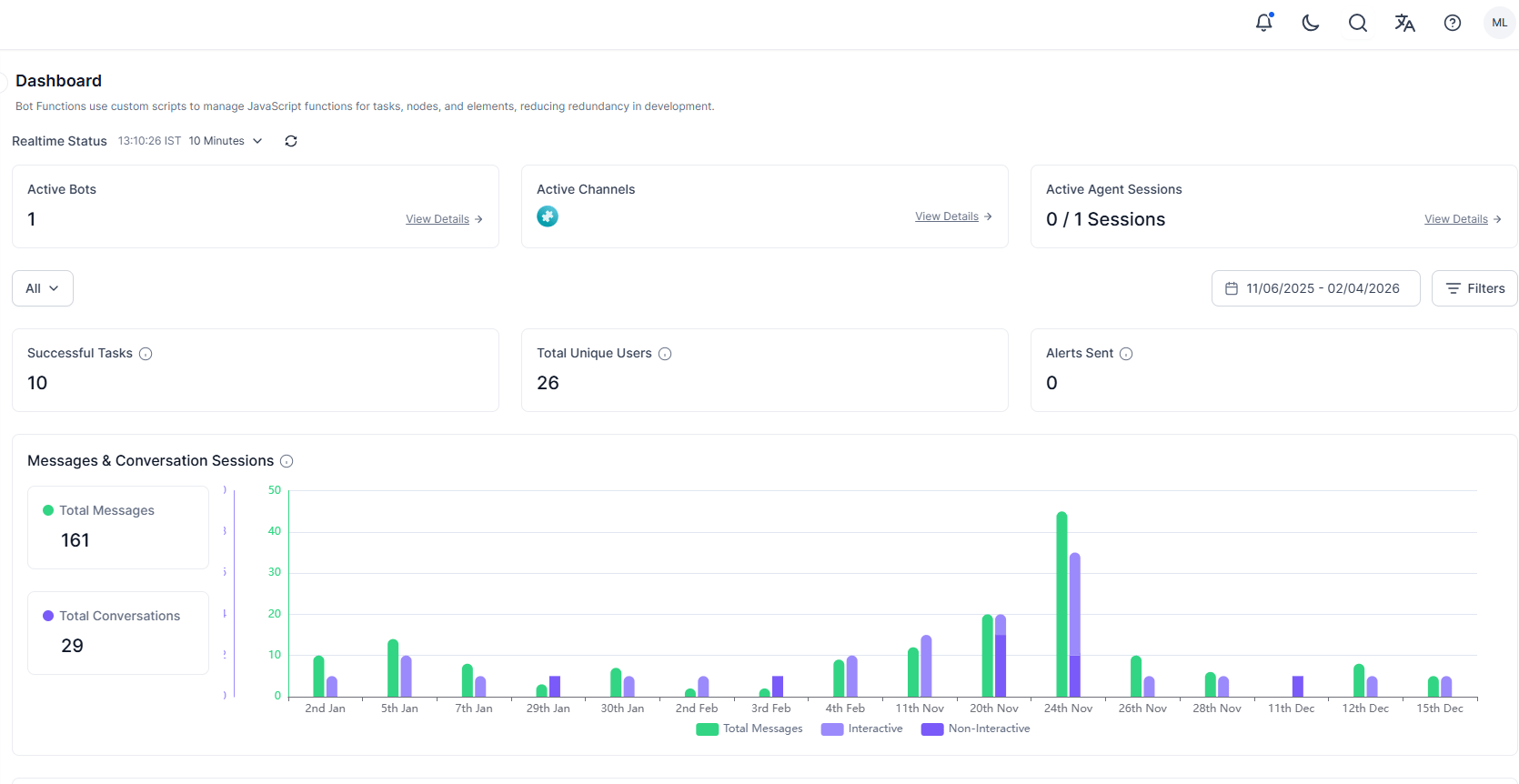
The Admin Console Dashboard is the landing page after signing in. It provides real-time AI Agent's activity and user overview metrics for your company account.
 ## Dashboard Metrics
### Real-time Status
This gives an overview of your entire enterprise account at a given point in time. It's set to refresh every 10 minutes, which can be customized using the dropdown.
The Real Time Status includes:
* **Active Apps** – AI Agents that have one or more active sessions. Click **View Details** to display the name of the Active App along with the number of users interacting with it.
* **Active Channels** – Click **View Details** to display the list of active channels along with the number of users using the same.
* **Active Agent Sessions** – agent sessions that are in progress at a given instance.
### App Metrics
By default, App metrics based on usage of **all apps** during the **last 24 hours** is displayed. You can customize the metrics displayed by the time period and app selection.
Select the **App** for which you want to see the metrics and further select a **Task** (multiple selections allowed) within the assistant if needed. By default, the metrics for all Apps are displayed
The **Time Periods** you can select are:
* **Last 24 Hours** – Data aggregated during the preceding 24 hours is displayed. This is the default setting.
* **Last 7 Days**
* **Last 90 Days**
* **Custom Date Range**
* **Filters** can be applied to display Metrics for the following:
* **conversation session type** – [see here for more details on the conversation sessions](/ai-for-service//app-settings/advanced-settings/bot-sessions) can be either one or both (default setting) of the following:
* *interactive sessions* – the conversation which include one or more messages from the user;
* *non-interactive sessions* – conversations where only assistant messages are presented without any message from the user;
* over a specified **Channel;**
* based upon the **meta tags** added at a message, user, or session levels. Multiple tags can be selected wherein the *'AND'* condition is applied ([see below](#tag-based-filters) for the applicability of the filter on widgets).
App Metrics provide access to the following information:
* An overview of the number of successfully **Completed Tasks**, **Total Users** (unique users) who have interacted with the assistant, and number of **Alerts Sent** is displayed.
* A graphic illustration of the **Messages and Conversation Sessions** by the hour. This includes
* **Number of Messages** per hour/day based upon the time period selected. A message is defined as an interaction between the user and the assistant.
* The number of **Conversation Sessions** per hour/day based upon the time period selected – Conversation Session is defined as the uninterrupted exchange of messages between the user and the assistant without change of intent even after a considerable idle time based on the assistant's settings ([refer here for sessions configuration](/ai-for-service/app-settings/advanced-settings/bot-sessions)).
* Hourly (or Daily) details of the **Successful Tasks** and **Active User** is displayed.
* The activity related to **Successful Tasks**, **Apps Used**, **Active Users**, and **Billing Sessions** are also displayed.
## Tag based Filters
Meta tag filtering is available for app metrics when a single assistant is selected. Multiple tag values use an AND condition. Changing the app selection resets tag filters.
Tag-based filters are available only when a single assistant is selected.
The following table provides the widget-wise applicability of meta tags on the dashboard.
| Widget | Session Tags | User Tags | Message Tags |
| -------------------------------- | ------------ | --------- | -------------- |
| Realtime Widgets | — | — | — |
| Completed Tasks | ✓ | ✓ | — |
| Alerts Sent | ✓ | ✓ | — |
| Total Users | ✓ | ✓ | — |
| Messages & Conversation Sessions | ✓ | ✓ | ✓ (chats only) |
| Successful Tasks | ✓ | ✓ | — |
| Active Users | ✓ | ✓ | — |
| Apps Used | ✓ | ✓ | — |
| Sessions Count | — | — | — |
## Dashboard Metrics
### Real-time Status
This gives an overview of your entire enterprise account at a given point in time. It's set to refresh every 10 minutes, which can be customized using the dropdown.
The Real Time Status includes:
* **Active Apps** – AI Agents that have one or more active sessions. Click **View Details** to display the name of the Active App along with the number of users interacting with it.
* **Active Channels** – Click **View Details** to display the list of active channels along with the number of users using the same.
* **Active Agent Sessions** – agent sessions that are in progress at a given instance.
### App Metrics
By default, App metrics based on usage of **all apps** during the **last 24 hours** is displayed. You can customize the metrics displayed by the time period and app selection.
Select the **App** for which you want to see the metrics and further select a **Task** (multiple selections allowed) within the assistant if needed. By default, the metrics for all Apps are displayed
The **Time Periods** you can select are:
* **Last 24 Hours** – Data aggregated during the preceding 24 hours is displayed. This is the default setting.
* **Last 7 Days**
* **Last 90 Days**
* **Custom Date Range**
* **Filters** can be applied to display Metrics for the following:
* **conversation session type** – [see here for more details on the conversation sessions](/ai-for-service//app-settings/advanced-settings/bot-sessions) can be either one or both (default setting) of the following:
* *interactive sessions* – the conversation which include one or more messages from the user;
* *non-interactive sessions* – conversations where only assistant messages are presented without any message from the user;
* over a specified **Channel;**
* based upon the **meta tags** added at a message, user, or session levels. Multiple tags can be selected wherein the *'AND'* condition is applied ([see below](#tag-based-filters) for the applicability of the filter on widgets).
App Metrics provide access to the following information:
* An overview of the number of successfully **Completed Tasks**, **Total Users** (unique users) who have interacted with the assistant, and number of **Alerts Sent** is displayed.
* A graphic illustration of the **Messages and Conversation Sessions** by the hour. This includes
* **Number of Messages** per hour/day based upon the time period selected. A message is defined as an interaction between the user and the assistant.
* The number of **Conversation Sessions** per hour/day based upon the time period selected – Conversation Session is defined as the uninterrupted exchange of messages between the user and the assistant without change of intent even after a considerable idle time based on the assistant's settings ([refer here for sessions configuration](/ai-for-service/app-settings/advanced-settings/bot-sessions)).
* Hourly (or Daily) details of the **Successful Tasks** and **Active User** is displayed.
* The activity related to **Successful Tasks**, **Apps Used**, **Active Users**, and **Billing Sessions** are also displayed.
## Tag based Filters
Meta tag filtering is available for app metrics when a single assistant is selected. Multiple tag values use an AND condition. Changing the app selection resets tag filters.
Tag-based filters are available only when a single assistant is selected.
The following table provides the widget-wise applicability of meta tags on the dashboard.
| Widget | Session Tags | User Tags | Message Tags |
| -------------------------------- | ------------ | --------- | -------------- |
| Realtime Widgets | — | — | — |
| Completed Tasks | ✓ | ✓ | — |
| Alerts Sent | ✓ | ✓ | — |
| Total Users | ✓ | ✓ | — |
| Messages & Conversation Sessions | ✓ | ✓ | ✓ (chats only) |
| Successful Tasks | ✓ | ✓ | — |
| Active Users | ✓ | ✓ | — |
| Apps Used | ✓ | ✓ | — |
| Sessions Count | — | — | — |