> ## Documentation Index
> Fetch the complete documentation index at: https://koreai.mintlify.site/llms.txt
> Use this file to discover all available pages before exploring further.
# Bot Override and Automation
During a customer interaction, the Agent AI app suggests automations based on customer intent. Agents can run these automations, override inputs when needed, terminate tasks, search for answers, and run automations independently.
***
## Override App Inputs
When automation fails to understand a customer's input, a "try again" error appears. If errors repeat, you can intervene and correct the input manually.
**To override an app input:**
1. Select **Override Input** below the automation step.
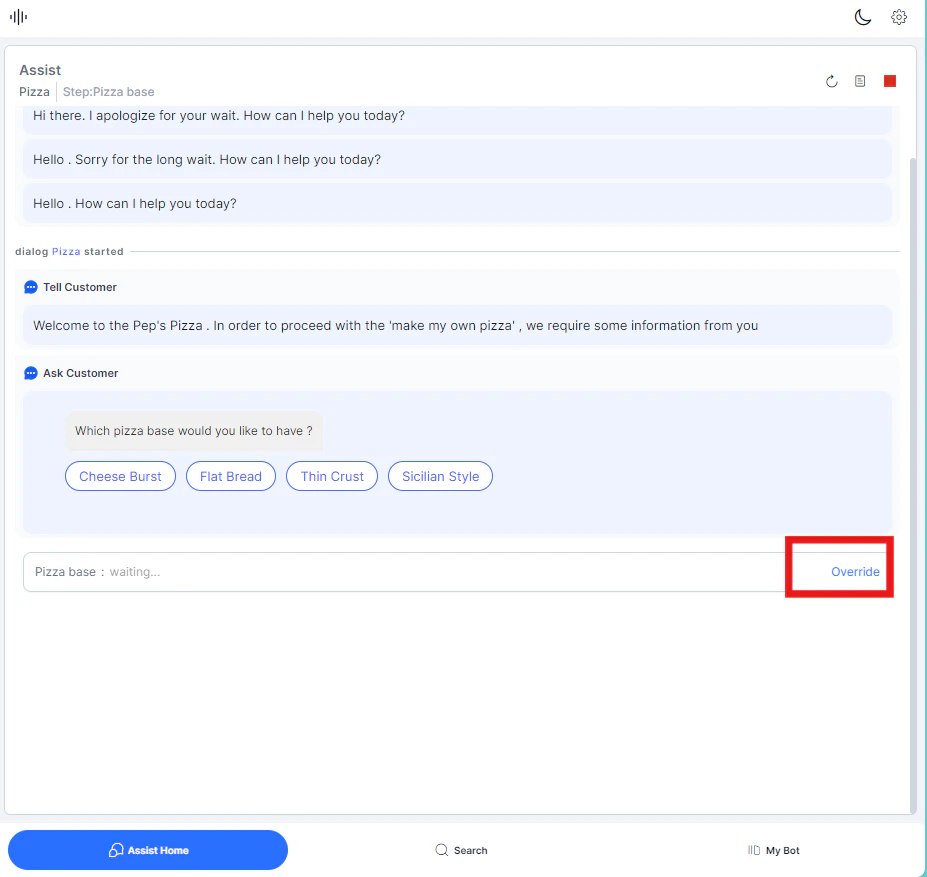 2. The **Type to continue** box appears. Enter the correct value.
 The automation resumes with the corrected input.
***
## Terminate an Automation
Stop an automation at any point during the interaction. Common reasons include accidental trigger, unexpected behavior, or a change in customer intent.
**To terminate an automation:**
1. On the **Assist** or **My AI Agent (Bot)** tab, select **Terminate** next to the automation step.
2. Select **Yes, Terminate** to confirm.
The automation resumes with the corrected input.
***
## Terminate an Automation
Stop an automation at any point during the interaction. Common reasons include accidental trigger, unexpected behavior, or a change in customer intent.
**To terminate an automation:**
1. On the **Assist** or **My AI Agent (Bot)** tab, select **Terminate** next to the automation step.
2. Select **Yes, Terminate** to confirm.
 ***
## Sentiment Analysis
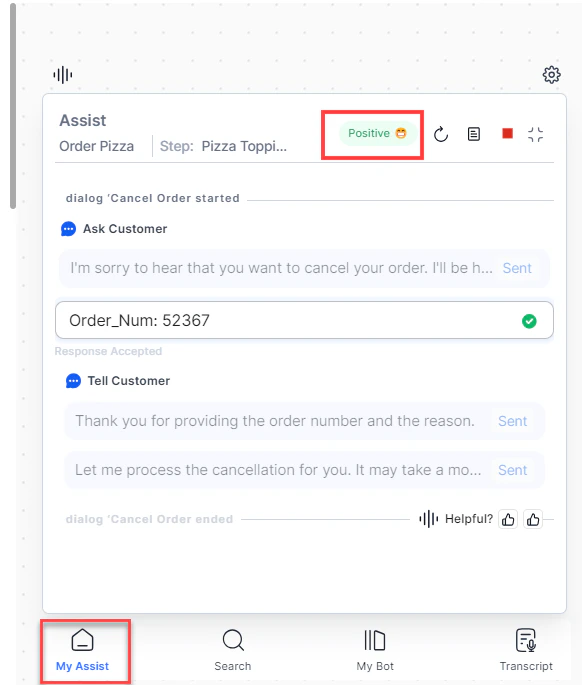
The Agent AI widget continuously analyzes and displays the customer's sentiment in real time, based on their messages. This helps agents handling multiple conversations quickly assess customer emotion when switching between interactions.
The sentiment indicator appears at the top-right of the widget.
***
## Sentiment Analysis
The Agent AI widget continuously analyzes and displays the customer's sentiment in real time, based on their messages. This helps agents handling multiple conversations quickly assess customer emotion when switching between interactions.
The sentiment indicator appears at the top-right of the widget.
 ***
## Search and Ask a Question
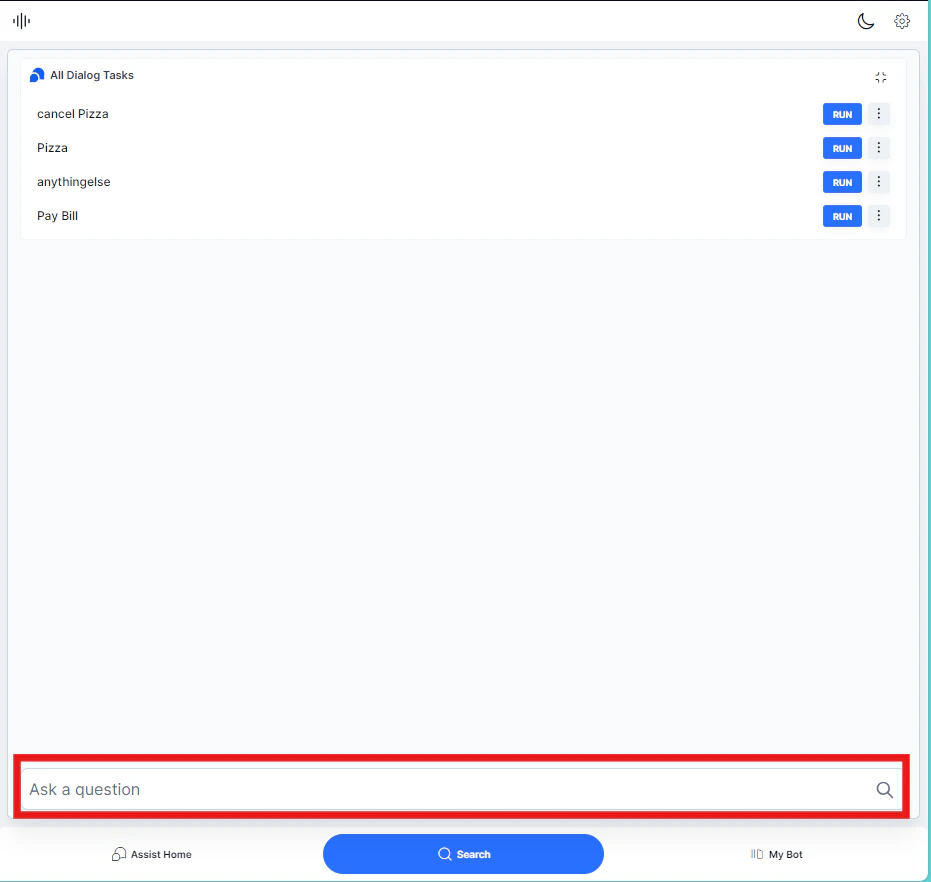
Use the search bar to look up FAQs and automations without leaving the conversation.
**To search:**
1. Type a question in the **Ask a question** search bar.
2. Press **Enter**. Agent AI shows matching results you can use to respond.
***
## Search and Ask a Question
Use the search bar to look up FAQs and automations without leaving the conversation.
**To search:**
1. Type a question in the **Ask a question** search bar.
2. Press **Enter**. Agent AI shows matching results you can use to respond.
 ***
## Run Automation with Agent Input
You can run an automation using customer inputs or agent inputs. Using agent inputs lets you control the entire automation process independently — without prompting the customer for each value.
This is useful for retrieving information in parallel while the customer waits, or when you already have the required data.
**To run automation with agent input:**
1. In the **Search** tab, select the ellipsis next to a Dialog Task.
2. Select **Run with agent's input**. The automation starts in the **My AI Agent (Bot)** tab as a parallel session.
The automation runs independently and doesn't affect the customer-facing interaction.
You can also use the **Run** button to start a configured Dialog Task directly.
***
***
## Run Automation with Agent Input
You can run an automation using customer inputs or agent inputs. Using agent inputs lets you control the entire automation process independently — without prompting the customer for each value.
This is useful for retrieving information in parallel while the customer waits, or when you already have the required data.
**To run automation with agent input:**
1. In the **Search** tab, select the ellipsis next to a Dialog Task.
2. Select **Run with agent's input**. The automation starts in the **My AI Agent (Bot)** tab as a parallel session.
The automation runs independently and doesn't affect the customer-facing interaction.
You can also use the **Run** button to start a configured Dialog Task directly.
***