> ## Documentation Index
> Fetch the complete documentation index at: https://koreai.mintlify.site/llms.txt
> Use this file to discover all available pages before exploring further.
# Conversation Events
Conversation Events let you configure actions that trigger automatically at the start and end of a conversation. Use this section to configure Welcome Events and Exit Events.
| Event | Description |
| ------------------ | -------------------------------------------------------------------------------------------- |
| **Welcome Events** | Dialog tasks and greeting messages that trigger when a conversation is assigned to an agent. |
| **Exit Events** | Dialog tasks or conversation summaries that run when the end-of-conversation event triggers. |
***
## Welcome Events
Welcome Events are preconfigured messages or prompts that trigger automatically when a conversation is assigned to an agent in the Agent AI widget. They guide agents from the start, reduce Average Handle Time (AHT), and improve customer satisfaction.
Configure Welcome Events in three sections:
* Configure On-Connect Dialog Task
* Configure Greeting Messages
* Priority Settings
***
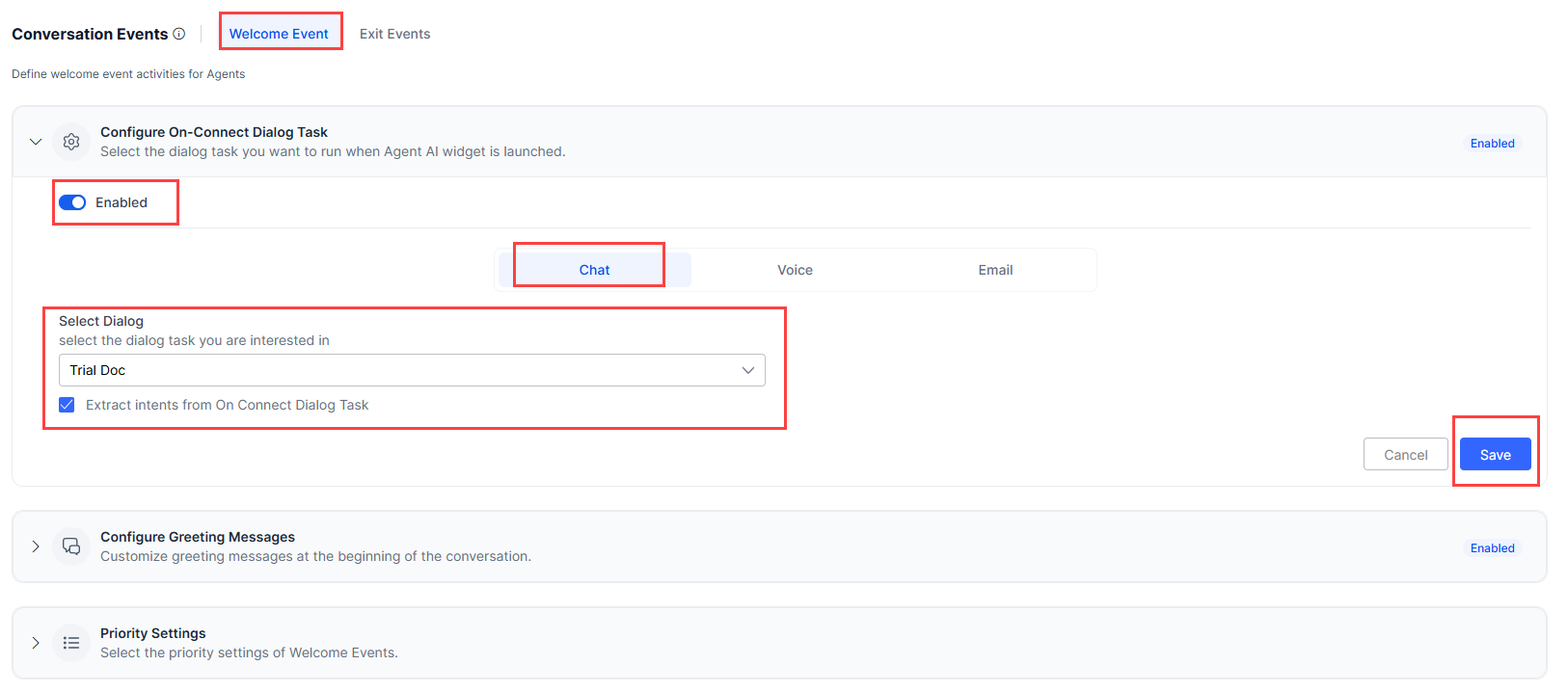
### Configure On-Connect Dialog Task
Select a dialog task to run automatically when the Agent AI widget launches.
1. Sign in to **AI for Service**.
2. Go to **Agent AI** > **Configurations** > **Conversation Events** > **Welcome Events**.
3. Expand **Configure On-Connect Dialog Task**.
4. Turn on the toggle if it's off.
5. Select a channel — **Chat**, **Voice**, or **Email**.
6. Select a dialog task from the **Select Dialog** list.
7. Select **Extract intents from On Connect Dialog task** to identify Next Best Actions from the dialog.
When enabled, the system terminates the current dialog and uses the message node's content to identify suggestions. Ensure the dialog flow contains only one message node, preferably at the end.
8. Select **Save**.
 ***
### Configure Greeting Messages
Customize greeting messages displayed at the start of a conversation. Agents can use these messages when communicating with customers through the Agent AI widget.
1. Go to **Configurations** > **Conversation Events** > **Welcome Events**.
2. Expand **Configure Greeting Messages**.
3. Turn on the toggle if it's turned off.
4. Select a channel — **Chat**, **Voice**, or **Email**.
5. Select a language. The app's default language is pre-selected.
6. Select **+ Add Message** > **New Messages** to add a greeting message.
7. Enter the message in the **Message** box and select **Add**.
8. To copy messages from another channel, select **+ Add Message** > **Copy from Chat** (or **Copy from Voice** for the Chat channel).
**Copy from Voice** appears for the Chat channel. **Copy from Chat** appears for the Voice channel.
***
### Configure Greeting Messages
Customize greeting messages displayed at the start of a conversation. Agents can use these messages when communicating with customers through the Agent AI widget.
1. Go to **Configurations** > **Conversation Events** > **Welcome Events**.
2. Expand **Configure Greeting Messages**.
3. Turn on the toggle if it's turned off.
4. Select a channel — **Chat**, **Voice**, or **Email**.
5. Select a language. The app's default language is pre-selected.
6. Select **+ Add Message** > **New Messages** to add a greeting message.
7. Enter the message in the **Message** box and select **Add**.
8. To copy messages from another channel, select **+ Add Message** > **Copy from Chat** (or **Copy from Voice** for the Chat channel).
**Copy from Voice** appears for the Chat channel. **Copy from Chat** appears for the Voice channel.
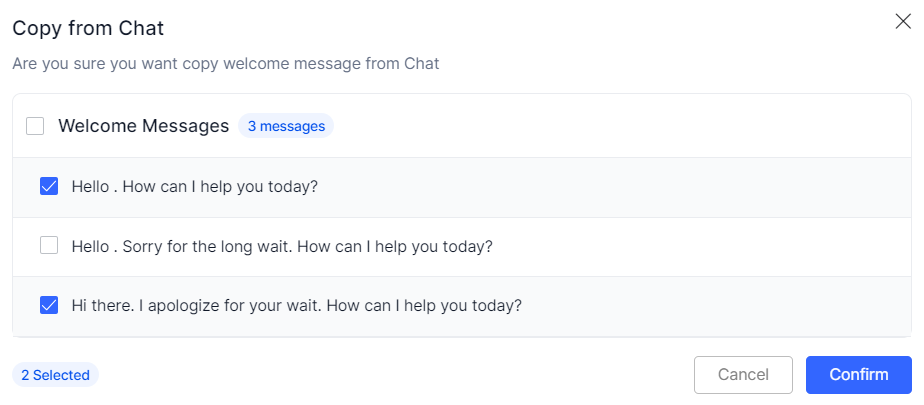 1. Select **Welcome Messages** to select all existing messages, or select individual messages.
2. Select **Confirm**.
9. Select **Display Random Message** to randomly show any three configured messages to the agent.
1. Select **Welcome Messages** to select all existing messages, or select individual messages.
2. Select **Confirm**.
9. Select **Display Random Message** to randomly show any three configured messages to the agent.
 10. Select the **down-arrow** to change the message language.
11. Select the **edit** button on a message to modify it, then select **Update**.
12. Select the **delete** button on a message to remove it. Confirm by selecting **Yes**.
13. Use the **enable/disable** toggle on a message to activate or deactivate it.
14. Select **Save**.
***
### Priority Settings
Define whether the dialog task or greeting messages run first.
1. Go to **Configurations** > **Welcome Events**.
2. Expand **Priority Settings**.
3. Select **On-Connect Dialog Task** or **Greeting Messages**.
10. Select the **down-arrow** to change the message language.
11. Select the **edit** button on a message to modify it, then select **Update**.
12. Select the **delete** button on a message to remove it. Confirm by selecting **Yes**.
13. Use the **enable/disable** toggle on a message to activate or deactivate it.
14. Select **Save**.
***
### Priority Settings
Define whether the dialog task or greeting messages run first.
1. Go to **Configurations** > **Welcome Events**.
2. Expand **Priority Settings**.
3. Select **On-Connect Dialog Task** or **Greeting Messages**.
 4. Select **Save**.
If you turn on Agentic Copilot in **Widget Settings** > **Agent AI Channel Specific Settings**, the message *"Whenever Agentic Copilot is enabled, it will run after the configured Welcome Events"* displays in this section.
***
## Exit Events
Exit Events mark the end of a customer interaction. Configure a dialog task, conversation summary, or Agentic app to run automatically when the conversation ends.
Select one of the following combinations:
* **Configure End of Conversation Dialog Task** + **Conversation Summary (OOTB Kore Summarization)**
* **Conversation Summary (Custom Dialog Task)** + **Configure End of Conversation Agentic App**
***
### Configure End of Conversation Dialog Task
Select a dialog task to run automatically at conversation end. To enable this, disable both **Conversation Summary** > **Custom Dialog Task** and **Configure End of Conversation Agentic App**.
1. Sign in to **AI for Service** > **Agent AI**.
2. Go to **Configurations** > **Conversation Events** > **Exit Events**.
3. Select a channel — **Chat**, **Voice**, or **Email**.
4. Turn on the **Configure End of Conversation Dialog Task** toggle.
* If **Conversation Summary** > **Custom Dialog Task** is on, a confirmation message appears.
For new accounts, **Conversation Summary** > **OOTB Kore Summarization** is available by default.
* If **Configure End of Conversation Agentic App** is on, a confirmation message appears.
5. Select **Yes, Proceed**.
6. Expand **Configure End of Conversation Dialog Task**.
7. Select a dialog task from the **Select Dialog** list.
4. Select **Save**.
If you turn on Agentic Copilot in **Widget Settings** > **Agent AI Channel Specific Settings**, the message *"Whenever Agentic Copilot is enabled, it will run after the configured Welcome Events"* displays in this section.
***
## Exit Events
Exit Events mark the end of a customer interaction. Configure a dialog task, conversation summary, or Agentic app to run automatically when the conversation ends.
Select one of the following combinations:
* **Configure End of Conversation Dialog Task** + **Conversation Summary (OOTB Kore Summarization)**
* **Conversation Summary (Custom Dialog Task)** + **Configure End of Conversation Agentic App**
***
### Configure End of Conversation Dialog Task
Select a dialog task to run automatically at conversation end. To enable this, disable both **Conversation Summary** > **Custom Dialog Task** and **Configure End of Conversation Agentic App**.
1. Sign in to **AI for Service** > **Agent AI**.
2. Go to **Configurations** > **Conversation Events** > **Exit Events**.
3. Select a channel — **Chat**, **Voice**, or **Email**.
4. Turn on the **Configure End of Conversation Dialog Task** toggle.
* If **Conversation Summary** > **Custom Dialog Task** is on, a confirmation message appears.
For new accounts, **Conversation Summary** > **OOTB Kore Summarization** is available by default.
* If **Configure End of Conversation Agentic App** is on, a confirmation message appears.
5. Select **Yes, Proceed**.
6. Expand **Configure End of Conversation Dialog Task**.
7. Select a dialog task from the **Select Dialog** list.
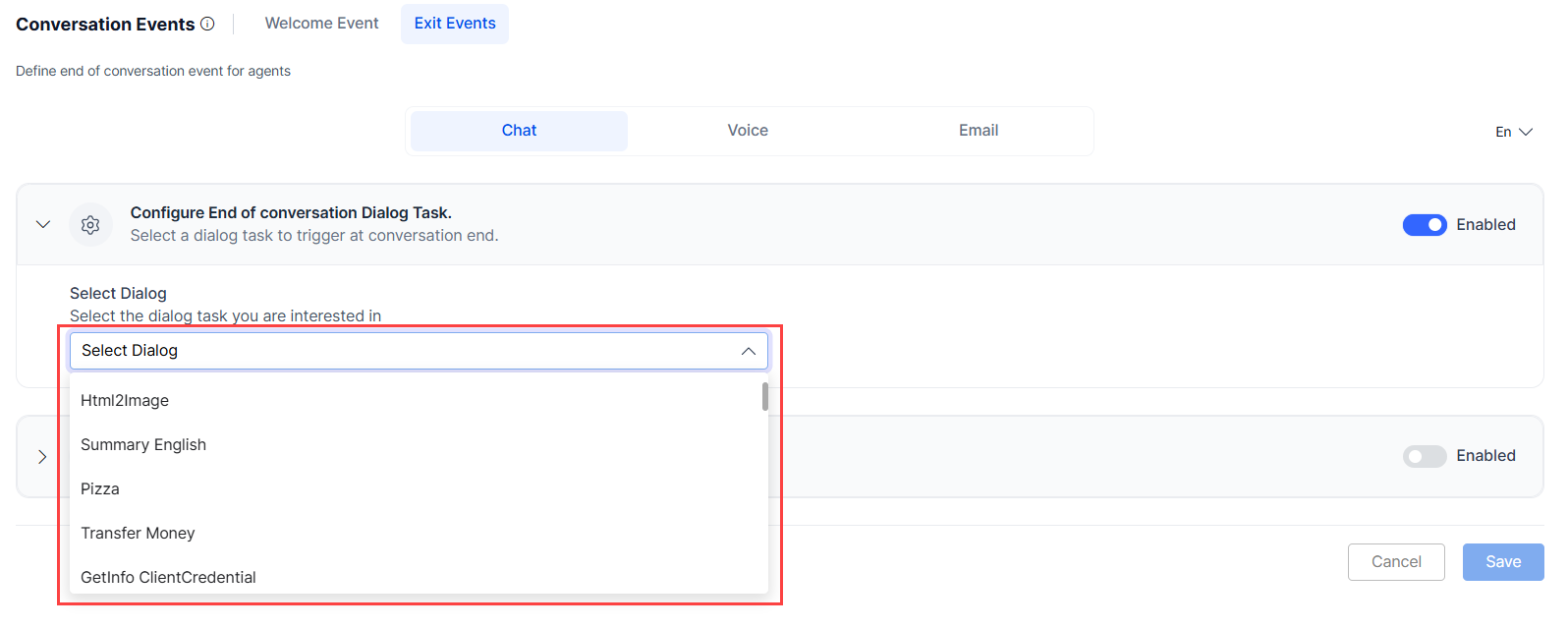 8. Select **Save**.
***
### Configure End of Conversation Agentic App
Select an Agentic App to trigger when the conversation ends. This toggle is only available when **Agentic Copilot** is enabled in **Widget Settings** > **Agent AI Channel Specific Settings**. Enabling this disables **Configure End of Conversation Dialog Task**.
| Option | Description |
| ----------------------------------- | ------------------------------------------------- |
| **Use same app as Agentic Copilot** | Uses the same app configured for Agentic Copilot. |
| **Select a different Agentic App** | Choose a different app from the available list. |
**Steps:**
1. Sign in to **AI for Service** > **Agent AI**.
2. Go to **Configurations** > **Conversation Events** > **Exit Events**.
3. Select a channel — **Chat**, **Voice**, or **Email**.
4. Turn on the **Configure End of Conversation Agentic App** toggle. A confirmation appears if **Configure End of Conversation Dialog Task** was enabled.
8. Select **Save**.
***
### Configure End of Conversation Agentic App
Select an Agentic App to trigger when the conversation ends. This toggle is only available when **Agentic Copilot** is enabled in **Widget Settings** > **Agent AI Channel Specific Settings**. Enabling this disables **Configure End of Conversation Dialog Task**.
| Option | Description |
| ----------------------------------- | ------------------------------------------------- |
| **Use same app as Agentic Copilot** | Uses the same app configured for Agentic Copilot. |
| **Select a different Agentic App** | Choose a different app from the available list. |
**Steps:**
1. Sign in to **AI for Service** > **Agent AI**.
2. Go to **Configurations** > **Conversation Events** > **Exit Events**.
3. Select a channel — **Chat**, **Voice**, or **Email**.
4. Turn on the **Configure End of Conversation Agentic App** toggle. A confirmation appears if **Configure End of Conversation Dialog Task** was enabled.
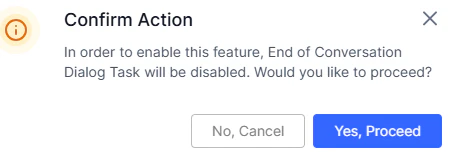 5. Select **Yes, Proceed**.
6. Select **Use same app as Agentic Copilot** or **Select a different Agentic App**.
* If you select **Select a different Agentic App**, a dropdown appears.
5. Select **Yes, Proceed**.
6. Select **Use same app as Agentic Copilot** or **Select a different Agentic App**.
* If you select **Select a different Agentic App**, a dropdown appears.
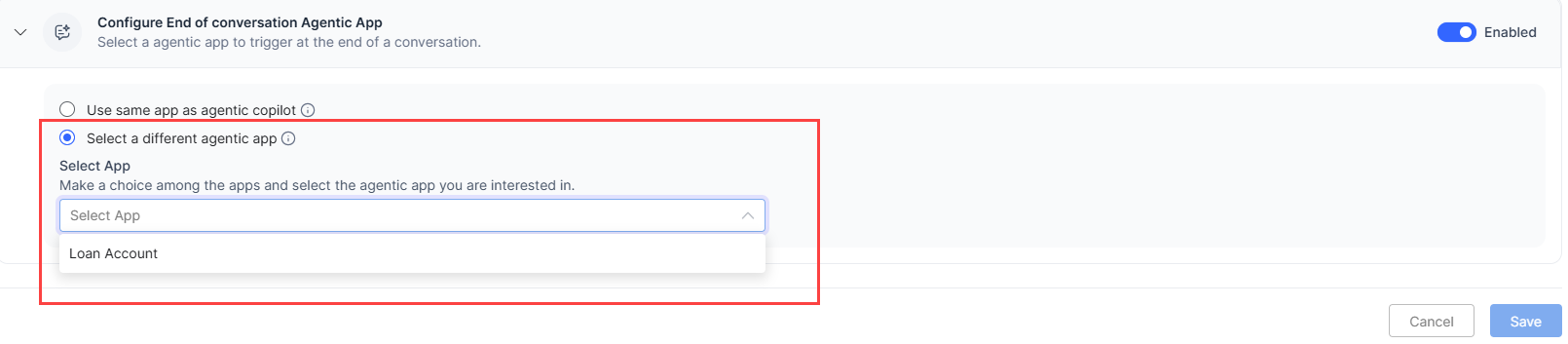 * Select an Agentic App from the list.
7. Select **Save**.
***
* Select an Agentic App from the list.
7. Select **Save**.
***