> ## Documentation Index
> Fetch the complete documentation index at: https://koreai.mintlify.site/llms.txt
> Use this file to discover all available pages before exploring further.
# NICE MAX Desktop Chat and Voice
[Back to TOC](/ai-for-service/index)
This guide covers integrating the Agent AI widget into the NICE MAX Desktop environment. The integration supports all key Agent AI features including Automation, [Agent Coaching](/ai-for-service/agentai/agent-experience/agent-realtime-coaching), [Agent Playbook](/ai-for-service/agentai/agent-experience/playbook), [Sentiment Analysis](/ai-for-service/agentai/agent-experience/agent-assist-widget-v3), [Transcription](/ai-for-service/agentai/agent-experience/agent-assist-widget-v3#transcript-tab), end-of-call summary, and Custom Data passing (such as agent name and ID) to the Agent AI widget.
## Shared Responsibilities
### NICE CXOne Admin
* **ACD Configuration:** CXOne customers are responsible for creating and mapping skills within the ACD system to ensure proper routing of interactions.
* **Campaign Setup:** Customers must set up campaigns, including specifying routing and agent availability, on the CXOne platform.
* **Signal API Access:** Customers must configure NICE CXOne authentication to allow Platform to interact with CXOne's Signal API.
* **Agent Assist Hub Configuration:** CXOne customers are responsible for configuring the Agent Assist Hub settings within NICE Studio.
### Kore.ai Admin
* **Provide Studio Script for Chat and Voice:** The support team assists you in provisioning the Studio script to ensure seamless integration with the CXOne platform.
## Prerequisites
* NiceCX administrator having access to a NICE CX Account with privileges to set up the following configurations and able to receive calls and chats on agent desktop.
* [NICE CX Studio](https://help.nice-incontact.com/content/studio/studio.htm) installed on your Windows device.
* Agent Assist Hub enabled for your account. Contact your NICE CX representative. Note this requires an extra license cost.
* Access to Kore AgentAssist application and familiarity with creating and configuring a Kore AI Agent.
* Kore.ai App credentials such as Agent AI Widget URL, Bot ID, Client ID, Client Secret, Account ID and SIP URI. Read [Voice Gateway](/ai-for-service/channels#configure-voice-gateway) and [Chat](/ai-for-service/channels/add-web-mobile-client#adding-the-web/mobile-client-channel) for a walkthrough.
* Ensure that Voice Interaction Streams are enabled via NICE.
## Definitions
| Section | Key | Definition | Reference |
| --------------------------------------------------------------------------------------------------------------------------------- | -------------------- | ------------------------------------------------------------------------------------------------------------------------------------ | ------------------------------------------------------------------------------------------------------------------------------------------------------------------------------------------------------------------------------------ |
| Nice CX Integration Hubs > Add Agent Assist App | Agent AI URL | The domain of the Agent AI. | If it's legacy Agent AI, URL is [https://agentassist.kore.ai](https://agentassist.kore.ai)
If it's AI for Service, URL is `https://platform.kore.ai`
If it's on-prem, the URL is the origin where your Agent AI is hosted. |
| NICE CX Studio > Import Chat & Voice Scripts and Configure Parameters | AgentAssistWidgetURL | URL that points to the Agent AI widget. For example, `https://agentassist.kore.ai/koreagentassist-sdk-v3/UI/agentassist-iframe.html` | **Channels > Chat** section of the [Agent AI](https://agentassist.kore.ai) configuration portal. |
| Nice CX Integration Hubs > Add Agent Assist App
+
NICE CX Studio > Import Chat & Voice Scripts and Configure Parameters | BotId | A unique identifier assigned to an AI Agent. | **Channels > Chat** section of the [Agent AI](https://agentassist.kore.ai) configuration portal. |
| Nice CX Integration Hubs > Add Agent Assist App
+
NICE CX Studio > Import Chat & Voice Scripts and Configure Parameters | ClientId | An identifier provided to a client application. | **Channels > Chat** section of the [Agent AI](https://agentassist.kore.ai) configuration portal. |
| Nice CX Integration Hubs > Add Agent Assist App
+
NICE CX Studio > Import Chat & Voice Scripts and Configure Parameters | ClientSecret | A secret key or password associated with the ClientId. | **Channels > Chat** section of the [Agent AI](https://agentassist.kore.ai) configuration portal. |
| Nice CX Integration Hubs > Add Agent Assist App | AccountID | A unique identifier assigned to an account. | **Channels > Chat** section of the [Agent AI](https://agentassist.kore.ai) configuration portal. |
| Nice CX Integration Hubs > Add Agent Assist App | Voice Gateway(VG) | For the US region, value is `wss://savg-webserver.kore.ai`
For on-prem, refer to the corresponding host | |
**Region Specific URLs**
| **Region** | **Agent AI URL** | **AI for Service URL** | **WSS URL** | **DNS** |
| ---------- | ---------------------------------------------------------------- | ---------------------------------------------------------- | ---------------------------------- | ----------------------------------------------------------------------- |
| US | [https://agentassist.kore.ai](https://agentassist.kore.ai) | `https://platform.kore.ai` | `wss://savg-webserver.kore.ai` | @savg-us-prod-sbc-in-nlb-0d9a4c651955ff47.elb.us-east-1.amazonaws.com |
| JP | [https://agentassist-jp.kore.ai](https://agentassist-jp.kore.ai) | [https://jp-platform.kore.ai](https://jp-platform.kore.ai) | wss\://jp-savg-audiosocket.kore.ai | @savg-jp-prod-int-nlb-3989d946fc1ced3b.elb.ap-northeast-1.amazonaws.com |
## Configuration Steps
Complete the following steps to integrate Kore Agent AI with NICE MAX Desktop:
1. [NICE CX Integration Hubs, Add Agent Assist Hub](#nice-cx-integration-hubs->-add-agent-assist-hub)
2. [NICE CX Studio, Import Chat and Voice Scripts and Configure Parameters](#nice-cx-studio->-import-chat-%26-voice-scripts-and-configure-parameters)
3. [NICE CX Setup, Attach Point of Contact with Chat/Voice Script](#nice-cx-setup->-attach-point-of-contact-with-chat%2Fvoice-script)
4. [Chat Simulation](#chat-simulation)
5. [Voice Simulation](#voice-simulation)
## Nice CX Integration Hubs > Add Agent Assist Hub
1. Sign in to your **NICE** account with the user name and password provided by NICE customer support.
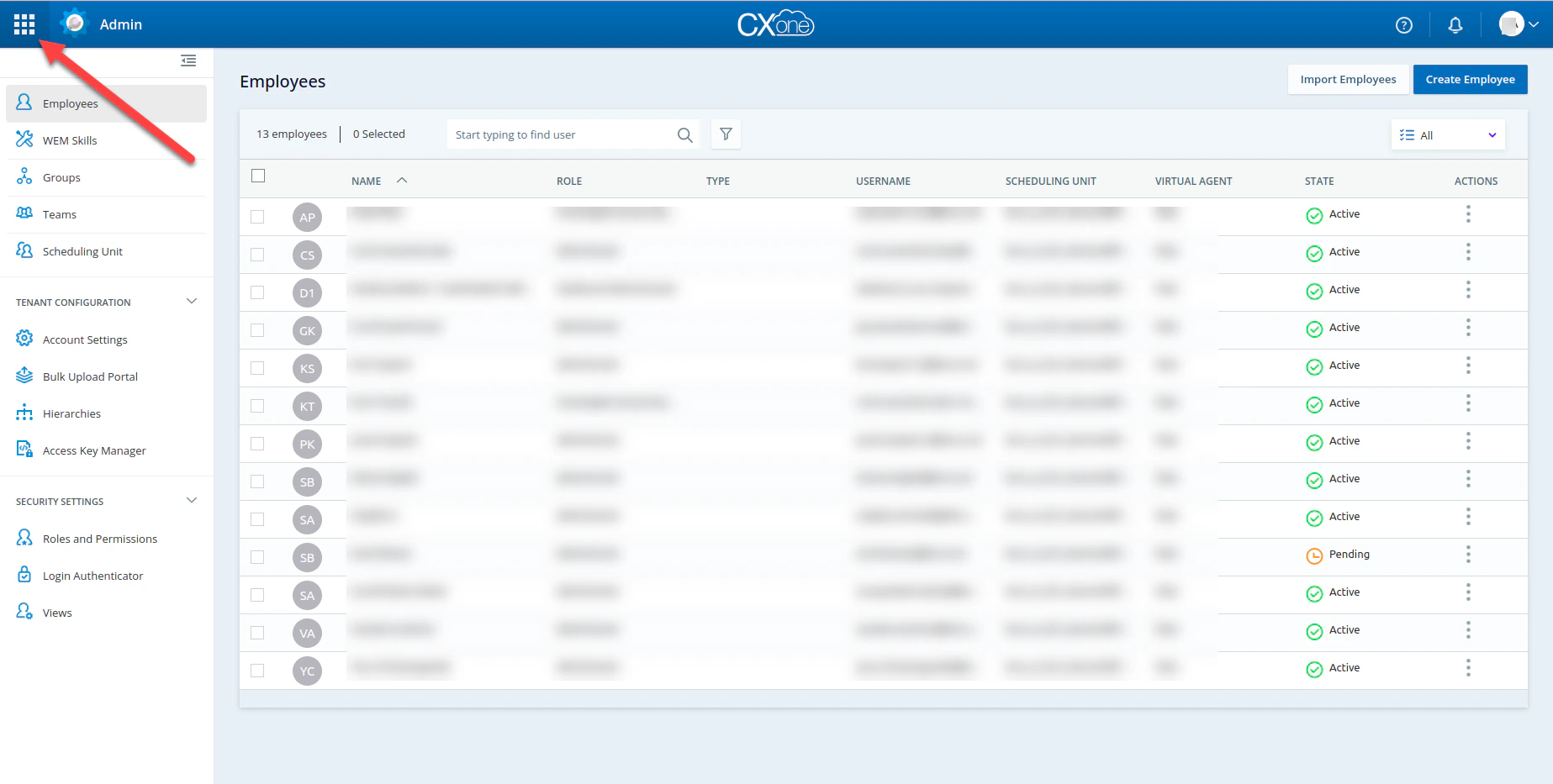
2. Click the **Applications Launcher** button.
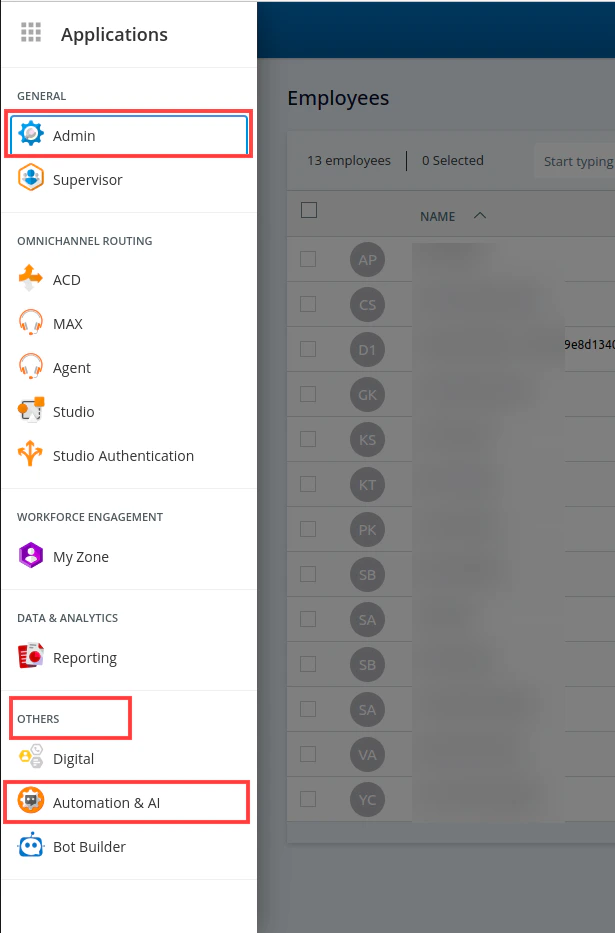
 3. A menu opens from the left side of the page. Click **OTHERS** > **Automation & AI**.
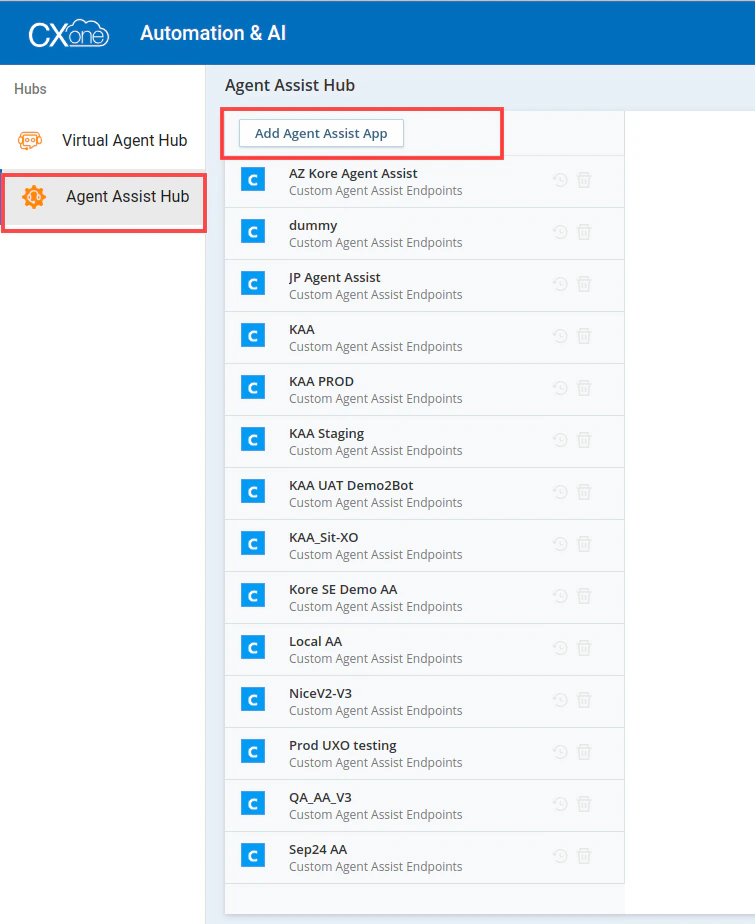
 4. Click **Agent Assist Hub** > **Add Agent Assist App**.
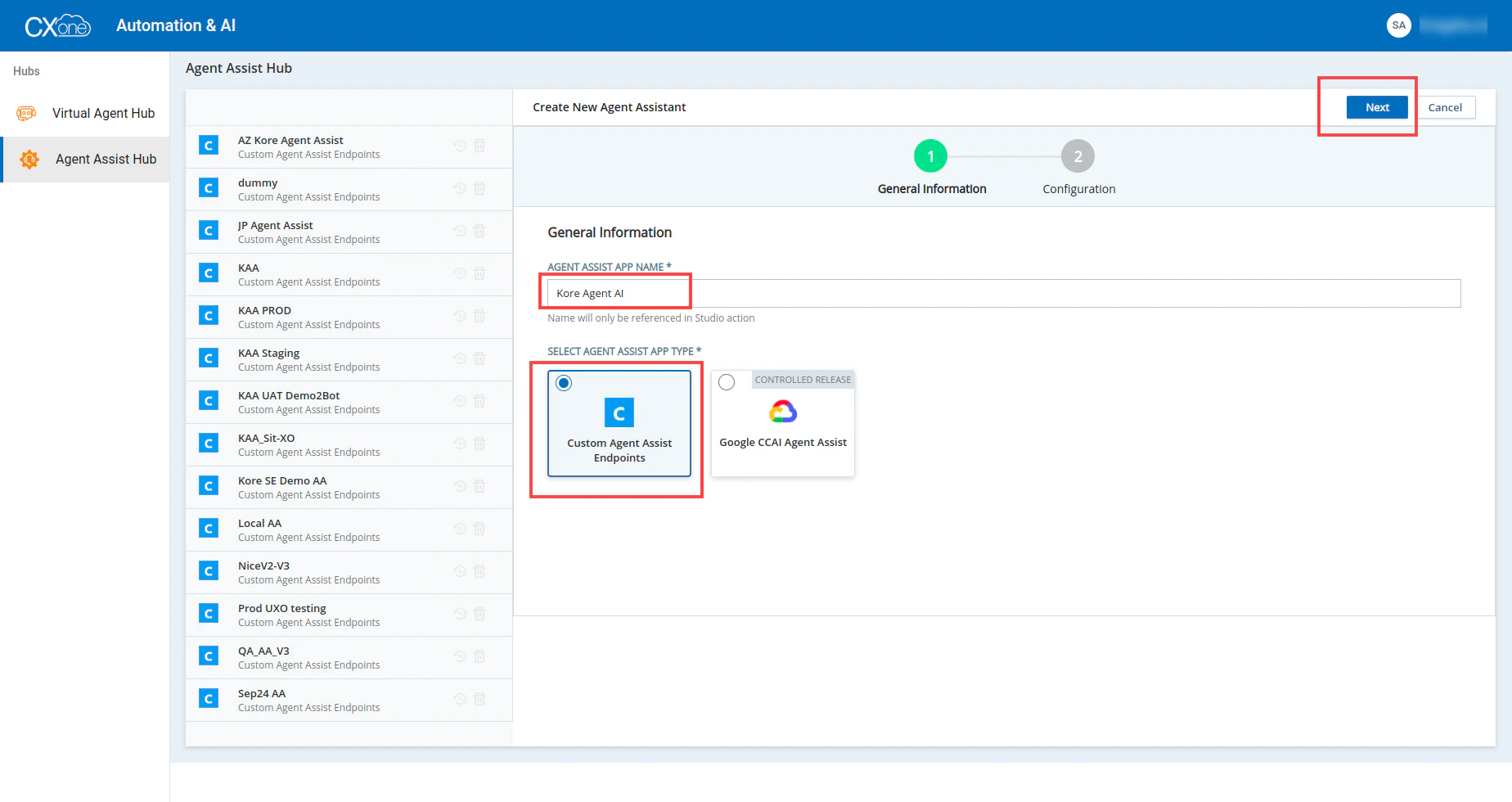
 5. Enter the name of the **Agent Assist App** in the **AGENT ASSIST APP NAME** field.
6. Select **Custom Agent Assist Endpoints**.
7. Click **Next**.
5. Enter the name of the **Agent Assist App** in the **AGENT ASSIST APP NAME** field.
6. Select **Custom Agent Assist Endpoints**.
7. Click **Next**.
 8. Add the following settings with config parameters:
1. Agent UI Option: Available by default
2. App URL: `{Agent AI URL}/integrations/nice/iframe/?params={scriptparams}`
3. App Title: Kore Agent AI (change as needed)
4. Participants: Both
5. Text Relay Endpoint: `{Agent AI URL}/integrations/nice/relay/toKore`
8. Add the following settings with config parameters:
1. Agent UI Option: Available by default
2. App URL: `{Agent AI URL}/integrations/nice/iframe/?params={scriptparams}`
3. App Title: Kore Agent AI (change as needed)
4. Participants: Both
5. Text Relay Endpoint: `{Agent AI URL}/integrations/nice/relay/toKore`
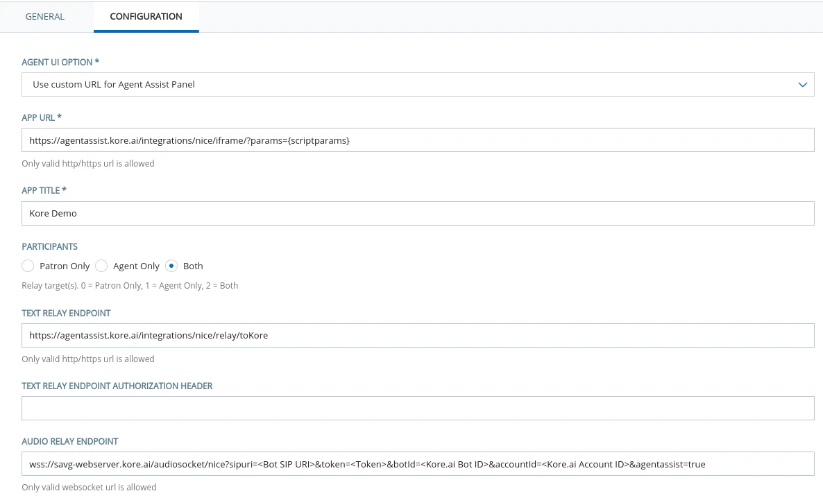 6. Audio Relay Endpoint: `{Voice Gateway(VG)}/audiosocket/nice?sipuri=&token=&botId=&accountId=&agentassist=true`
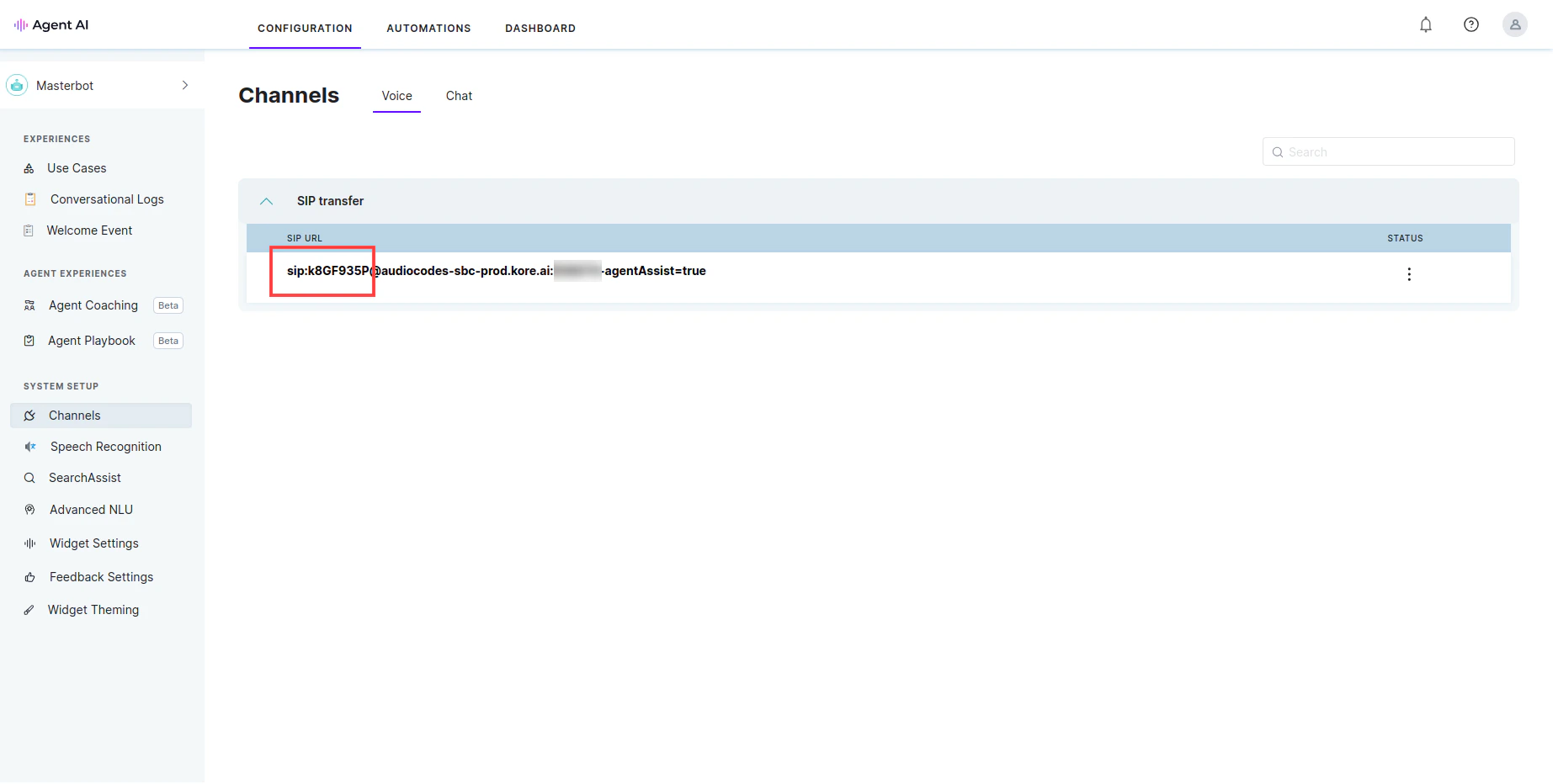
* Bot SIP URI: **Channels > Voice** section of the **[Agent AI](https://agentassist.kore.ai)** configuration portal.
6. Audio Relay Endpoint: `{Voice Gateway(VG)}/audiosocket/nice?sipuri=&token=&botId=&accountId=&agentassist=true`
* Bot SIP URI: **Channels > Voice** section of the **[Agent AI](https://agentassist.kore.ai)** configuration portal.
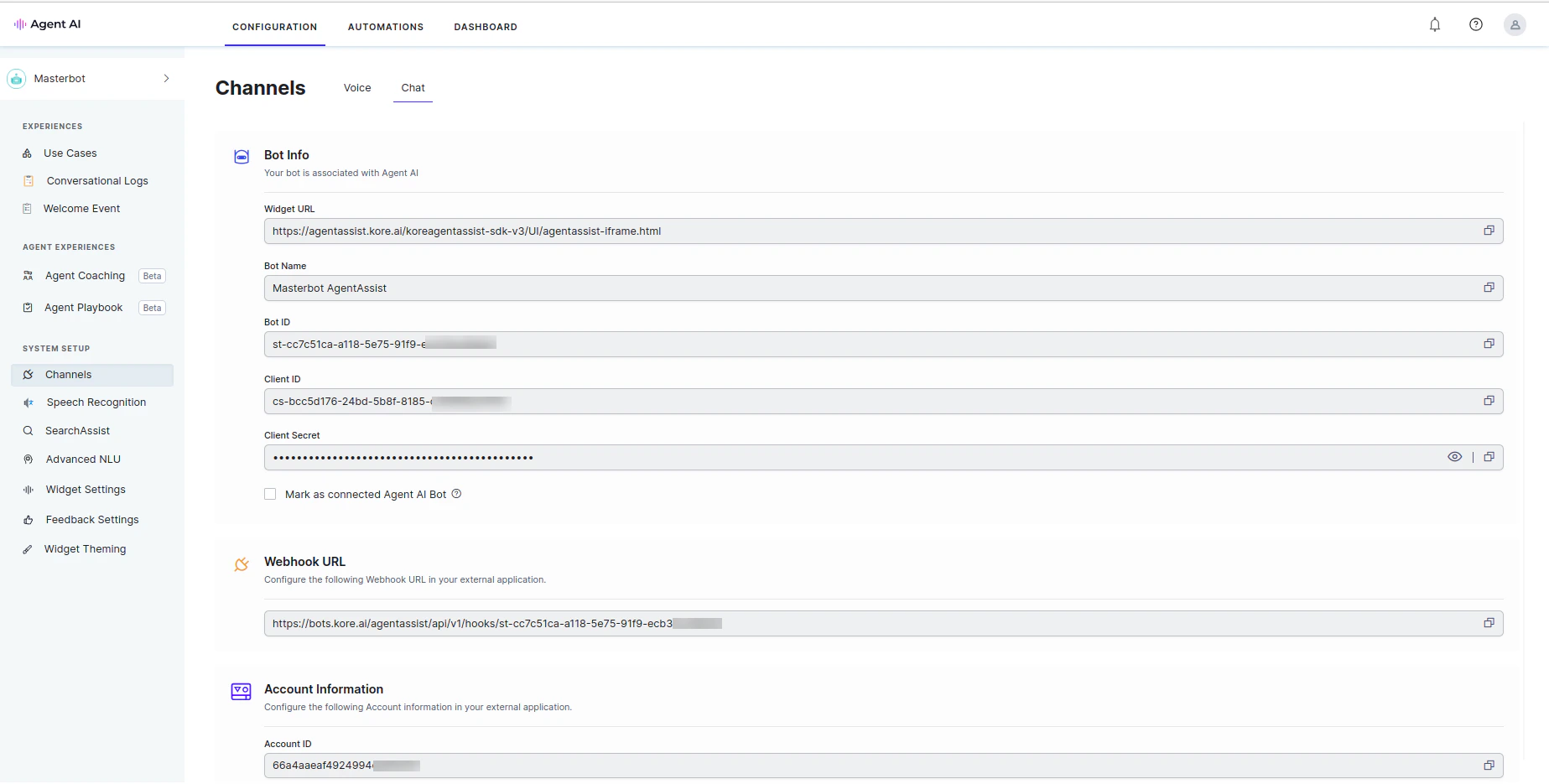
 * Bot ID and Account ID: **Channels** > **Chat** section of the **[Agent AI](https://agentassist.kore.ai)** configuration portal.
 * Token: Create a **JSON Web Token** on jwt.io with the following details:
* Payload: `{"appId": }`
* Header: `{"alg": "HS256","typ": "JWT"}`
* Secret: Bot Client Secret.
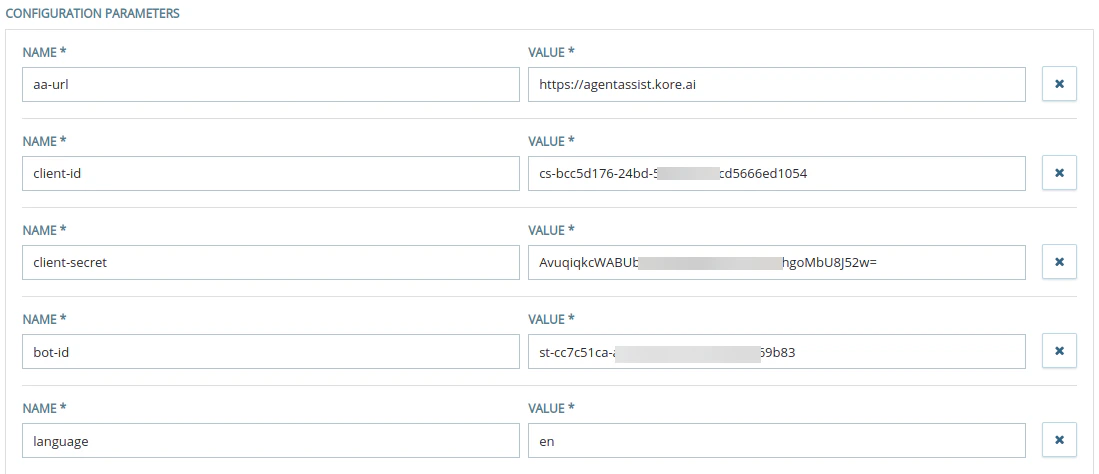
9. Scroll down and add the following Configuration Parameters. (Only for chat.)
If the language parameter isn't provided, English (en) is used as the default. Refer to this [doc](/ai-for-service/agentai/agent-experience/supported-languages) to obtain the language code corresponding to your AI Agent's language.
* Token: Create a **JSON Web Token** on jwt.io with the following details:
* Payload: `{"appId": }`
* Header: `{"alg": "HS256","typ": "JWT"}`
* Secret: Bot Client Secret.
9. Scroll down and add the following Configuration Parameters. (Only for chat.)
If the language parameter isn't provided, English (en) is used as the default. Refer to this [doc](/ai-for-service/agentai/agent-experience/supported-languages) to obtain the language code corresponding to your AI Agent's language.
 10. Click **Create**.
## NICE CX Studio > Import Chat & Voice Scripts and Configure Parameters
1. Download the [xml script](https://raw.githubusercontent.com/Koredotcom/docs-v2/refs/heads/main/ai-for-service/assets/nice-agentassistchat.xml) or [json script](https://raw.githubusercontent.com/Koredotcom/docs-v2/refs/heads/main/ai-for-service/assets/nice-agentassistchat.json) for chat / [xml script](https://raw.githubusercontent.com/Koredotcom/docs-v2/refs/heads/main/ai-for-service/assets/nice-agentassistvoice.xml) or [json script](https://raw.githubusercontent.com/Koredotcom/docs-v2/refs/heads/main/ai-for-service/assets/nice-agentassistvoice.json) for voice from the **Kore.ai Nice integration** repository.
2. Open the **NICE CX Studio** app from your desktop.
3. Click **File** > **Import from File**.
4. Select the **downloaded script** for chat / voice.
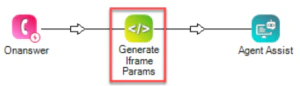
5. Double-click the **Generate Iframe Params** tile.
10. Click **Create**.
## NICE CX Studio > Import Chat & Voice Scripts and Configure Parameters
1. Download the [xml script](https://raw.githubusercontent.com/Koredotcom/docs-v2/refs/heads/main/ai-for-service/assets/nice-agentassistchat.xml) or [json script](https://raw.githubusercontent.com/Koredotcom/docs-v2/refs/heads/main/ai-for-service/assets/nice-agentassistchat.json) for chat / [xml script](https://raw.githubusercontent.com/Koredotcom/docs-v2/refs/heads/main/ai-for-service/assets/nice-agentassistvoice.xml) or [json script](https://raw.githubusercontent.com/Koredotcom/docs-v2/refs/heads/main/ai-for-service/assets/nice-agentassistvoice.json) for voice from the **Kore.ai Nice integration** repository.
2. Open the **NICE CX Studio** app from your desktop.
3. Click **File** > **Import from File**.
4. Select the **downloaded script** for chat / voice.
5. Double-click the **Generate Iframe Params** tile.
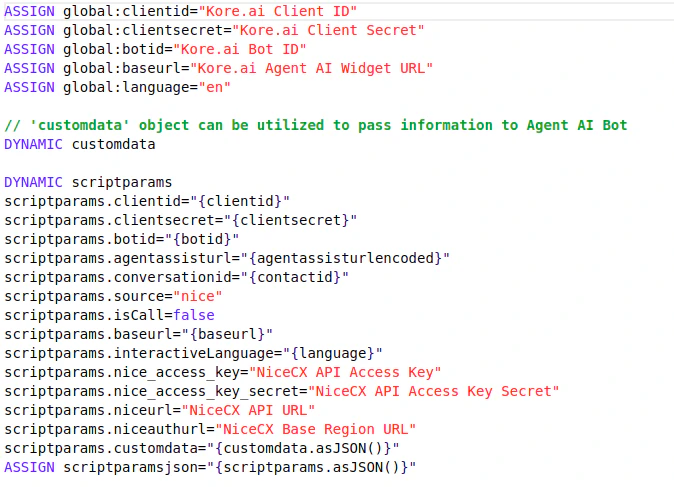 6. Update the values for the corresponding parameters:
1. Kore.ai Parameters
1. Bot Client ID
2. Bot Client Secret
3. Bot ID
4. Agent AI Widget URL
5. Bot Language Code - **en** is set as the default language. Refer to [Supported Languages](/ai-for-service/agentai/agent-experience/supported-languages) to provide the language code for your AI Agent's language.
2. Custom Data: Use the **customdata** object in the script to pass information to the Kore AI Agent. During runtime, this custom data is accessible in the UserContext of the AI Agent. Refer to [Access Custom Data in Agent AI Bot](/ai-for-service/agentai/agent-experience#access-custom-data) for instructions on how to access custom data in the AI Agent.
Include your data in the customdata object (one key-value pair per line). For example:
1. `customdata.agentName="Agent"`
2. `customdata.agentID="1234"`
3. NICE CX Credentials: Base region URL is the Host URL of the login page. If the URL for ACD is `https://home-abc.nice-incontact.com`, then the API URL would be `https://api-abc.nice-incontact.com`. Use the URLs without the trailing slash.
1. NICE CX API Access Key
2. NICE CX API Access Key Secret
3. NICE CX API URL
4. NICE CX Base Region URL
Refer to [https://help.nice-incontact.com/content/admin/security/manageaccesskeys.htm](https://help.nice-incontact.com/content/admin/security/manageaccesskeys.htm) to create NICE CX API Access Key and NICE CX API Access Key Secret.
7. Double-click the **Agent Assist** tile.
6. Update the values for the corresponding parameters:
1. Kore.ai Parameters
1. Bot Client ID
2. Bot Client Secret
3. Bot ID
4. Agent AI Widget URL
5. Bot Language Code - **en** is set as the default language. Refer to [Supported Languages](/ai-for-service/agentai/agent-experience/supported-languages) to provide the language code for your AI Agent's language.
2. Custom Data: Use the **customdata** object in the script to pass information to the Kore AI Agent. During runtime, this custom data is accessible in the UserContext of the AI Agent. Refer to [Access Custom Data in Agent AI Bot](/ai-for-service/agentai/agent-experience#access-custom-data) for instructions on how to access custom data in the AI Agent.
Include your data in the customdata object (one key-value pair per line). For example:
1. `customdata.agentName="Agent"`
2. `customdata.agentID="1234"`
3. NICE CX Credentials: Base region URL is the Host URL of the login page. If the URL for ACD is `https://home-abc.nice-incontact.com`, then the API URL would be `https://api-abc.nice-incontact.com`. Use the URLs without the trailing slash.
1. NICE CX API Access Key
2. NICE CX API Access Key Secret
3. NICE CX API URL
4. NICE CX Base Region URL
Refer to [https://help.nice-incontact.com/content/admin/security/manageaccesskeys.htm](https://help.nice-incontact.com/content/admin/security/manageaccesskeys.htm) to create NICE CX API Access Key and NICE CX API Access Key Secret.
7. Double-click the **Agent Assist** tile.
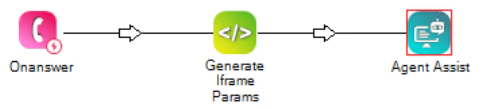 8. Select the **checkbox** against the Agent Assist instance you created in the above step.
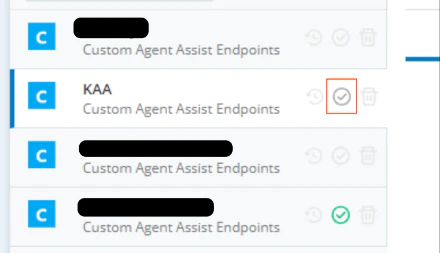 9. Click **Yes**.
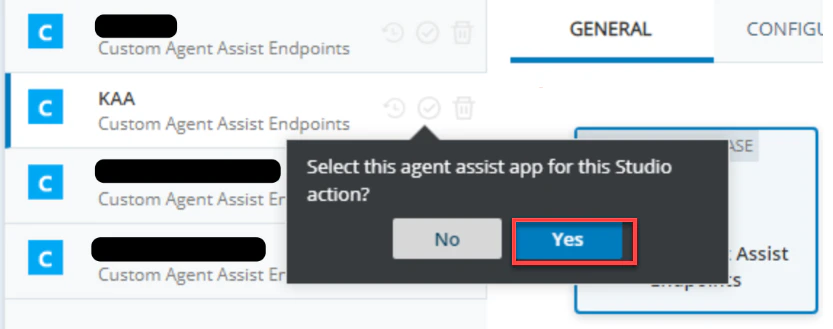 10. After selecting **Agent Assist**, click the **Close** button on the bottom-right corner of the page.
Don't click the **X** button to close the window as this doesn't save the changes.
## NICE CX Setup > Attach Point of Contact with Chat/Voice Script
1. Go to the **NICE** home page.
2. Click the **Application Launcher** button.
3. Click **ACD**.
4. Click **Points of Contact**.
5. Click the **Chat Endpoint** you want to attach with AgentAssist. For voice, click the **number** you want to attach with AgentAssist.
6. Click **Edit**.
7. Change the **script** based on your needs.
8. Click **Done** to save it.
To view the summary pop-up in the Agent AI widget, you must assign a disposition to the skill. If you don't, the chat/voice screen automatically closes once the session ends.
## Chat Simulation
1. Go to the **NICE** home page.
2. Click the **Application Launcher** button.
3. Click **MAX**.
10. After selecting **Agent Assist**, click the **Close** button on the bottom-right corner of the page.
Don't click the **X** button to close the window as this doesn't save the changes.
## NICE CX Setup > Attach Point of Contact with Chat/Voice Script
1. Go to the **NICE** home page.
2. Click the **Application Launcher** button.
3. Click **ACD**.
4. Click **Points of Contact**.
5. Click the **Chat Endpoint** you want to attach with AgentAssist. For voice, click the **number** you want to attach with AgentAssist.
6. Click **Edit**.
7. Change the **script** based on your needs.
8. Click **Done** to save it.
To view the summary pop-up in the Agent AI widget, you must assign a disposition to the skill. If you don't, the chat/voice screen automatically closes once the session ends.
## Chat Simulation
1. Go to the **NICE** home page.
2. Click the **Application Launcher** button.
3. Click **MAX**.
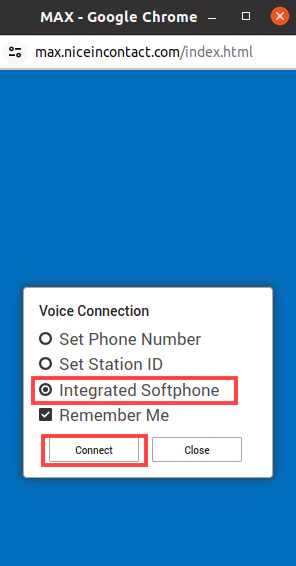 4. Select **Integrated Softphone,** and click **Connect**.
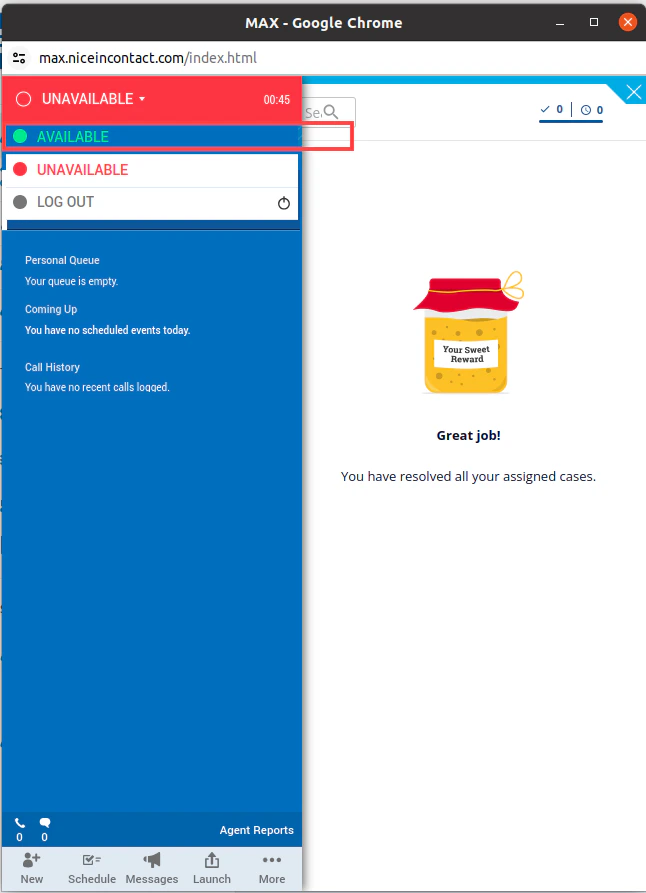
5. Change the status to **Available**.
4. Select **Integrated Softphone,** and click **Connect**.
5. Change the status to **Available**.
 6. Go back to the **NICE** home page, and click **Application Launcher** > **ACD**.
7. Click **Points of Contact**.
8. Click the Chat **Point of Contact** you have created.
6. Go back to the **NICE** home page, and click **Application Launcher** > **ACD**.
7. Click **Points of Contact**.
8. Click the Chat **Point of Contact** you have created.
 9. Copy the **Point of Contact URL**, and open it in a new tab.
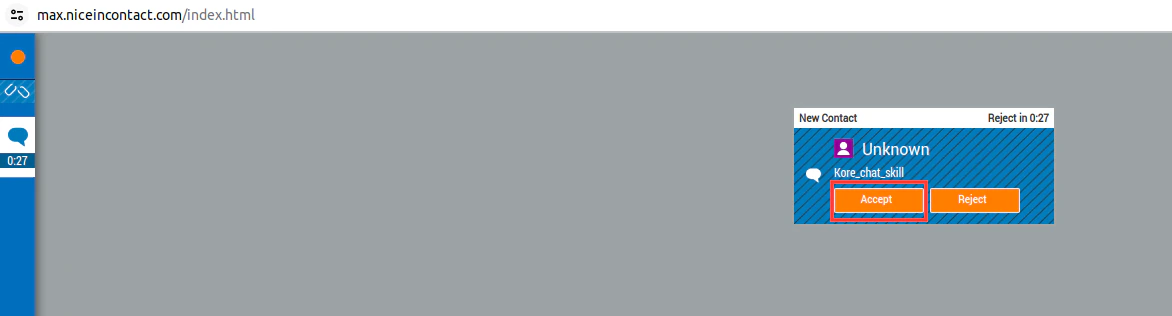
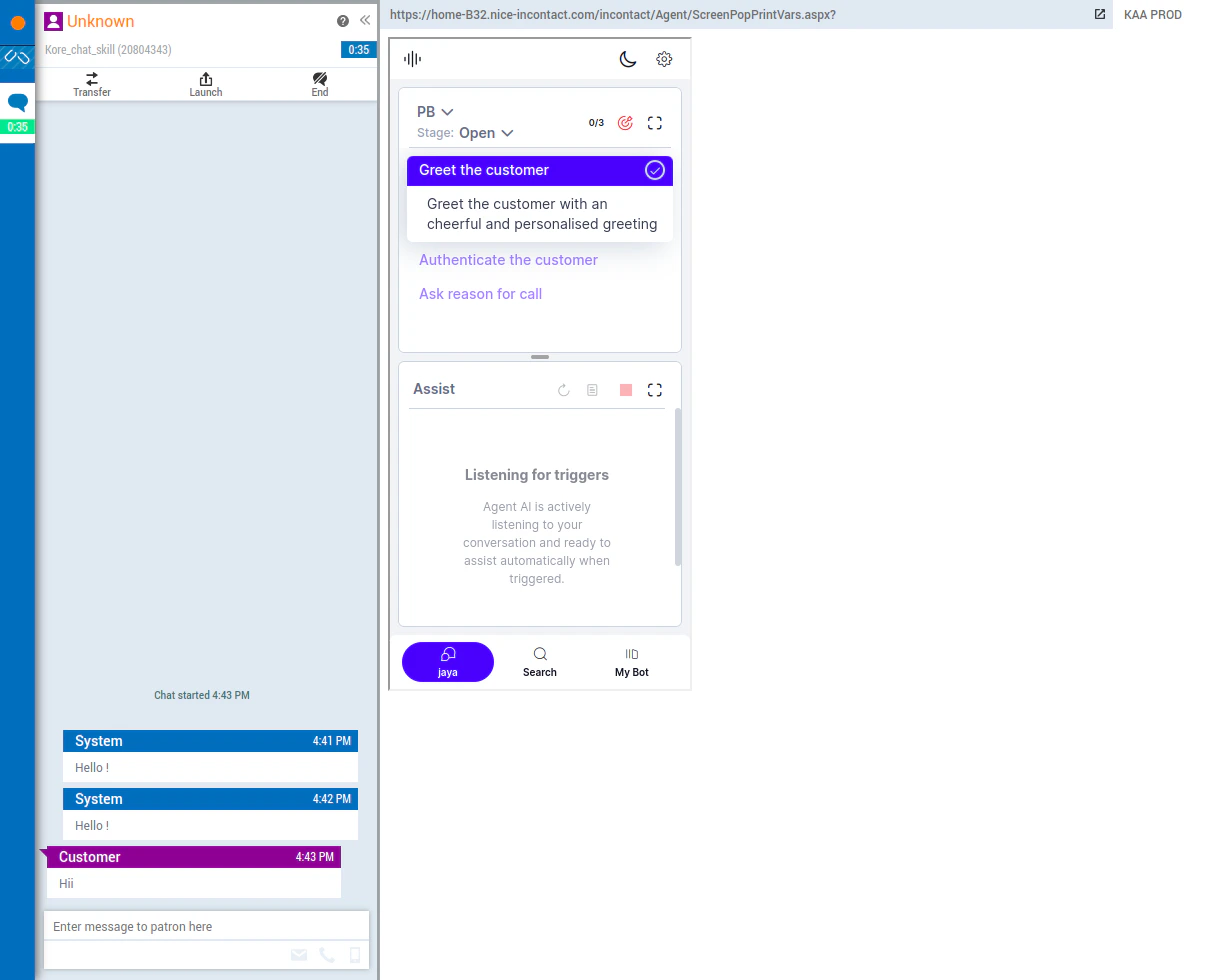
10. Initiate the chat from here. A chat request appears on the **MAX** desktop.
11. Click **Accept**.
9. Copy the **Point of Contact URL**, and open it in a new tab.
10. Initiate the chat from here. A chat request appears on the **MAX** desktop.
11. Click **Accept**.
 12. Click **End** to disconnect the chat.
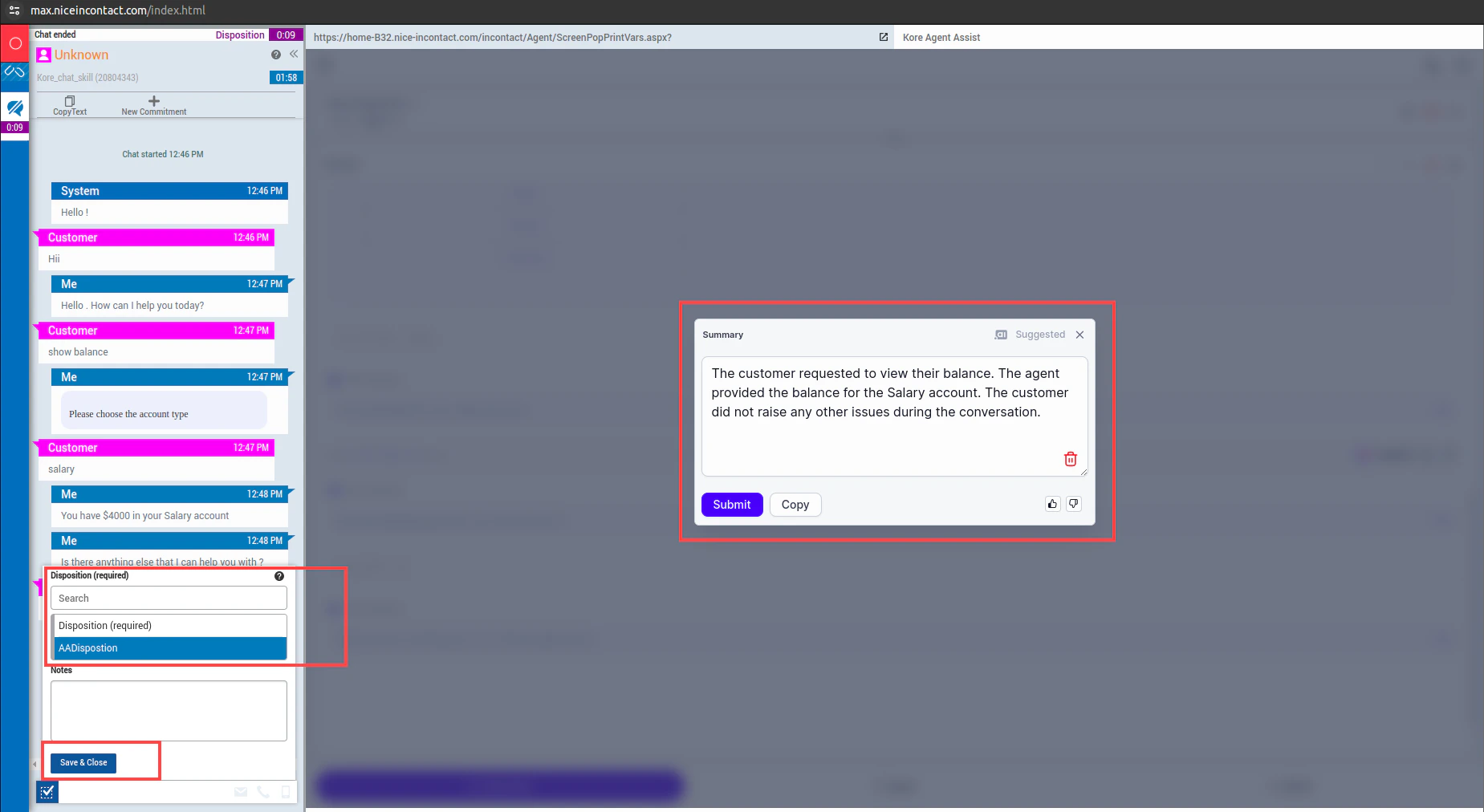
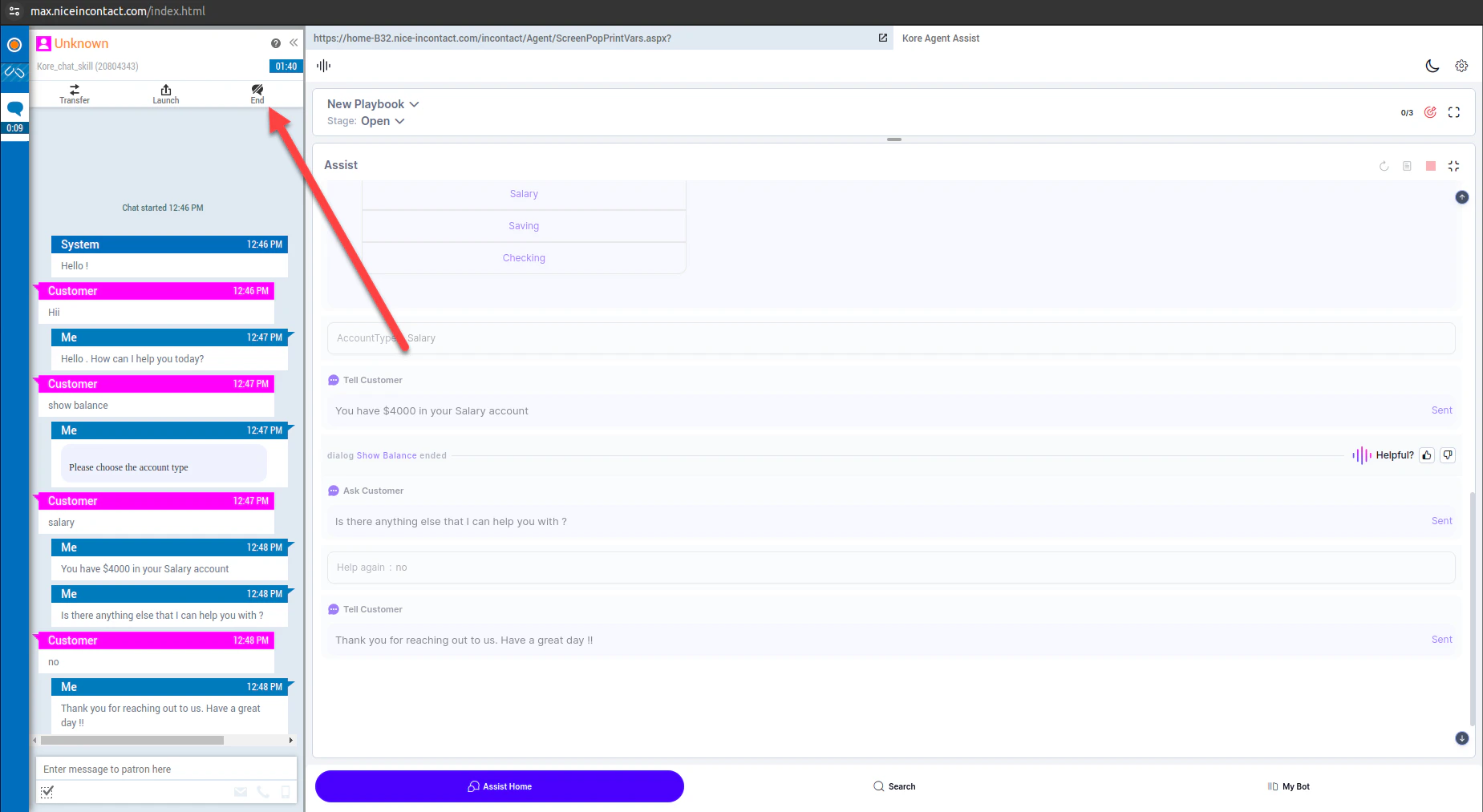 13. Click **End** again to confirm ending the chat. The Chat **summary** pop-up triggers at the end of the chat session.
14. Select the **disposition**, and click **Save & Close**.
13. Click **End** again to confirm ending the chat. The Chat **summary** pop-up triggers at the end of the chat session.
14. Select the **disposition**, and click **Save & Close**.
 ## Voice Simulation
1. Go to the **NICE** home page.
2. Click **Application Launcher** > **MAX**.
## Voice Simulation
1. Go to the **NICE** home page.
2. Click **Application Launcher** > **MAX**.
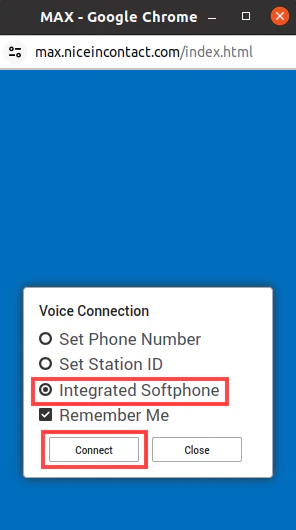 3. Select **Integrated Softphone**, and click **Connect**.
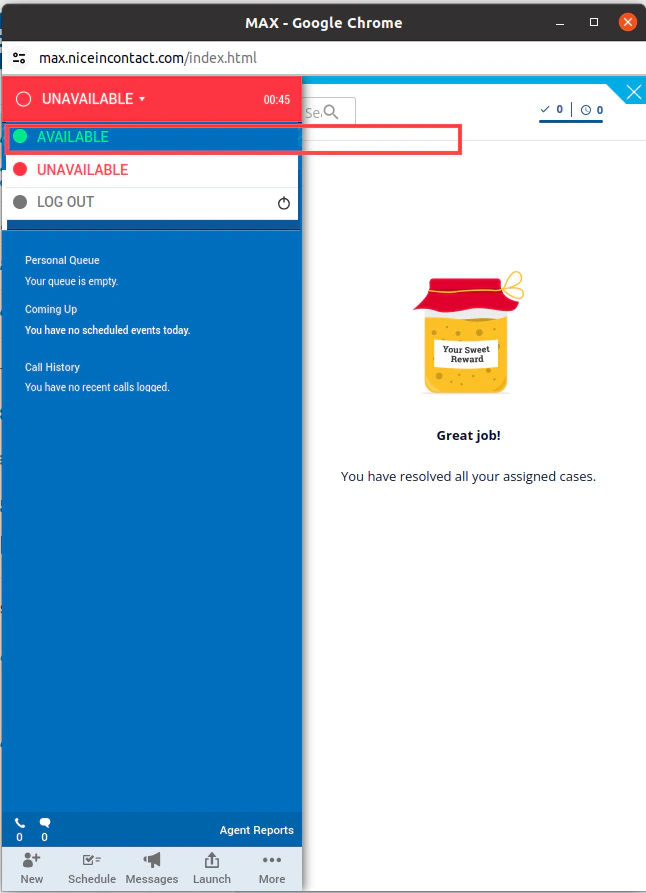
4. Change the status to **Available**.
3. Select **Integrated Softphone**, and click **Connect**.
4. Change the status to **Available**.
 5. Go back to the **NICE** home page, and click **Application Launcher** > **ACD**.
6. Click **Points of Contact**.
7. Click the Voice **Point of Contact** you have created.
5. Go back to the **NICE** home page, and click **Application Launcher** > **ACD**.
6. Click **Points of Contact**.
7. Click the Voice **Point of Contact** you have created.
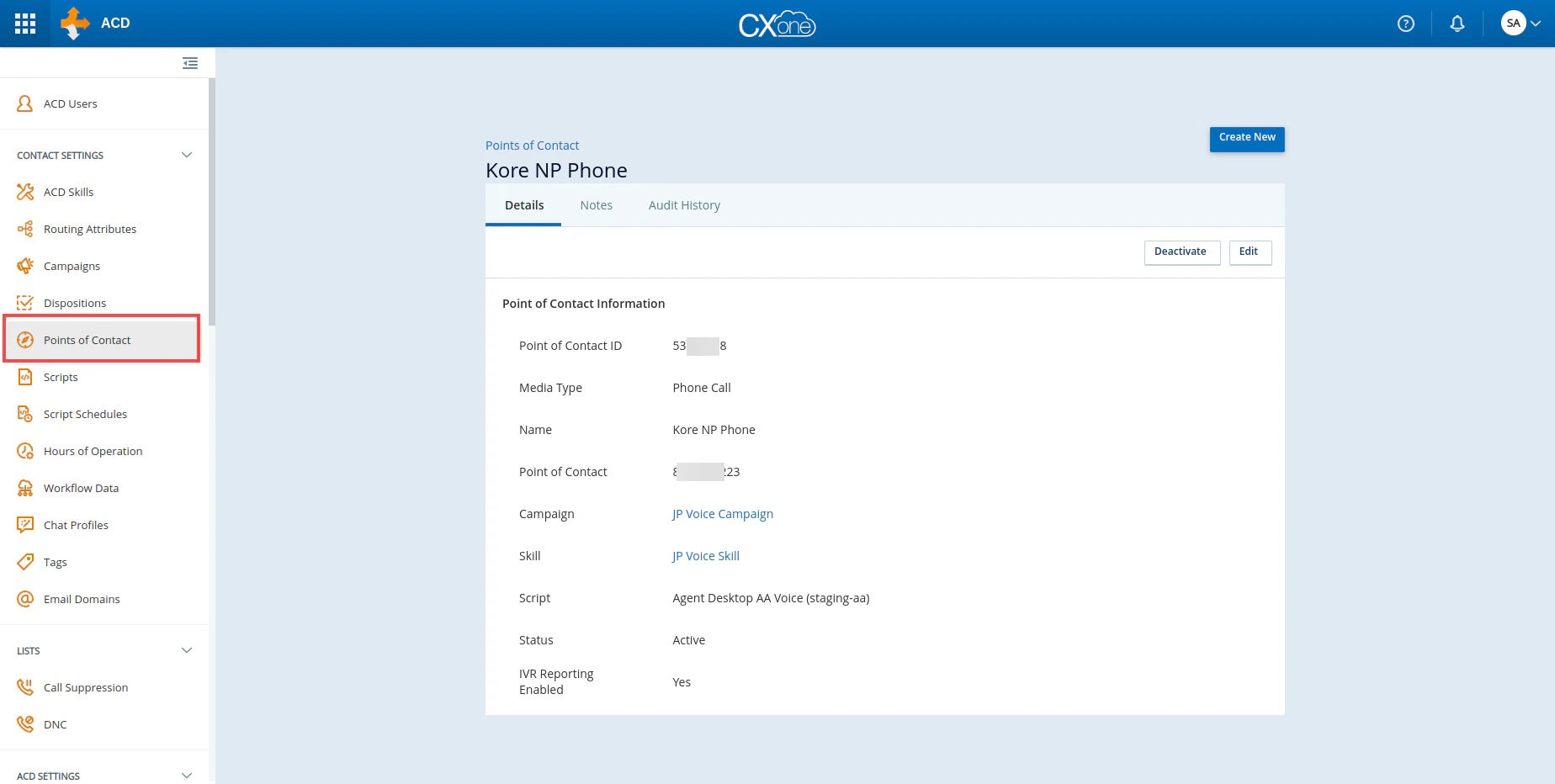 8. Copy the **Phone Number,** and initiate the call.
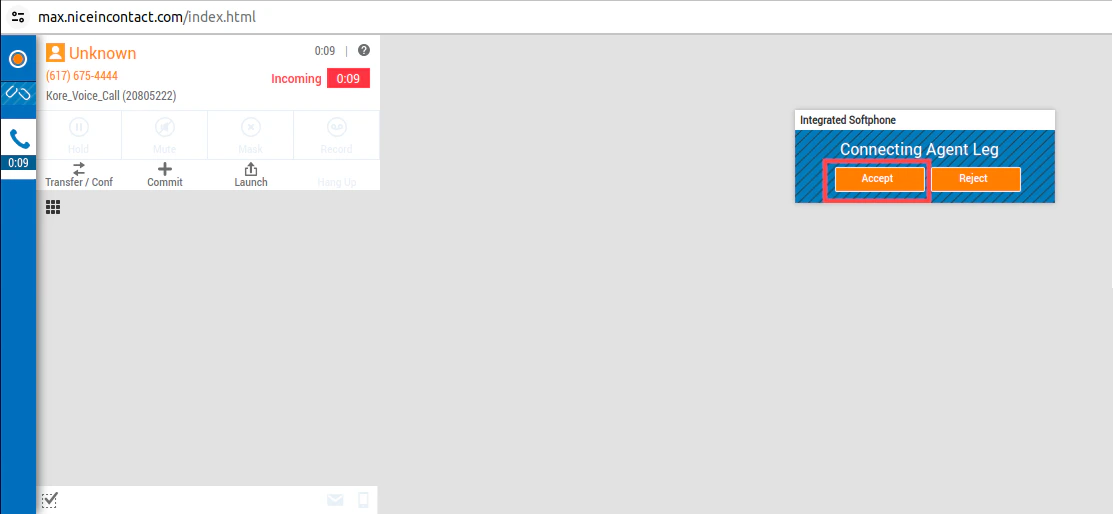
9. A voice request appears on the **MAX** desktop. Click **Accept**.
8. Copy the **Phone Number,** and initiate the call.
9. A voice request appears on the **MAX** desktop. Click **Accept**.
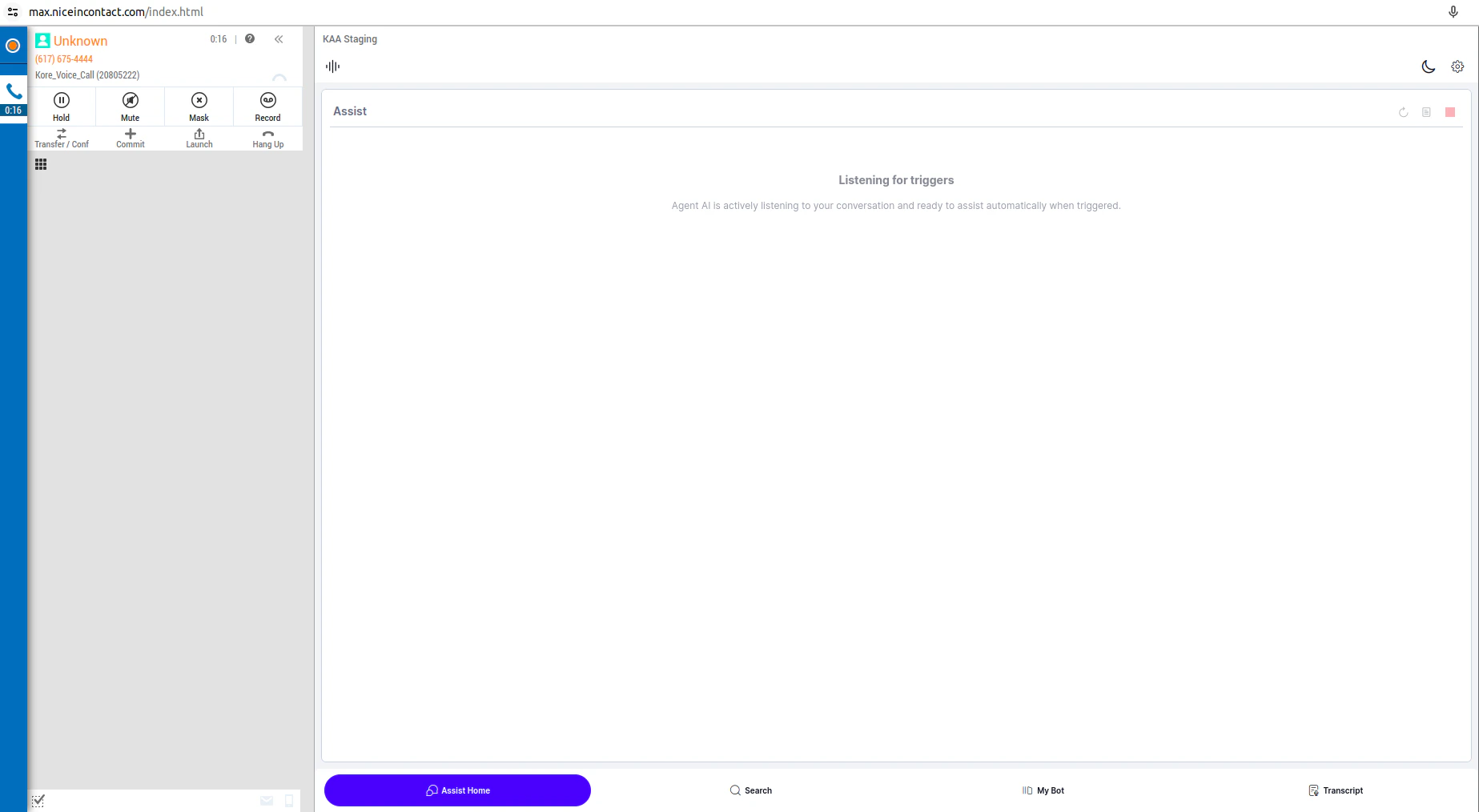 10. Click **Hang Up** to disconnect the call.
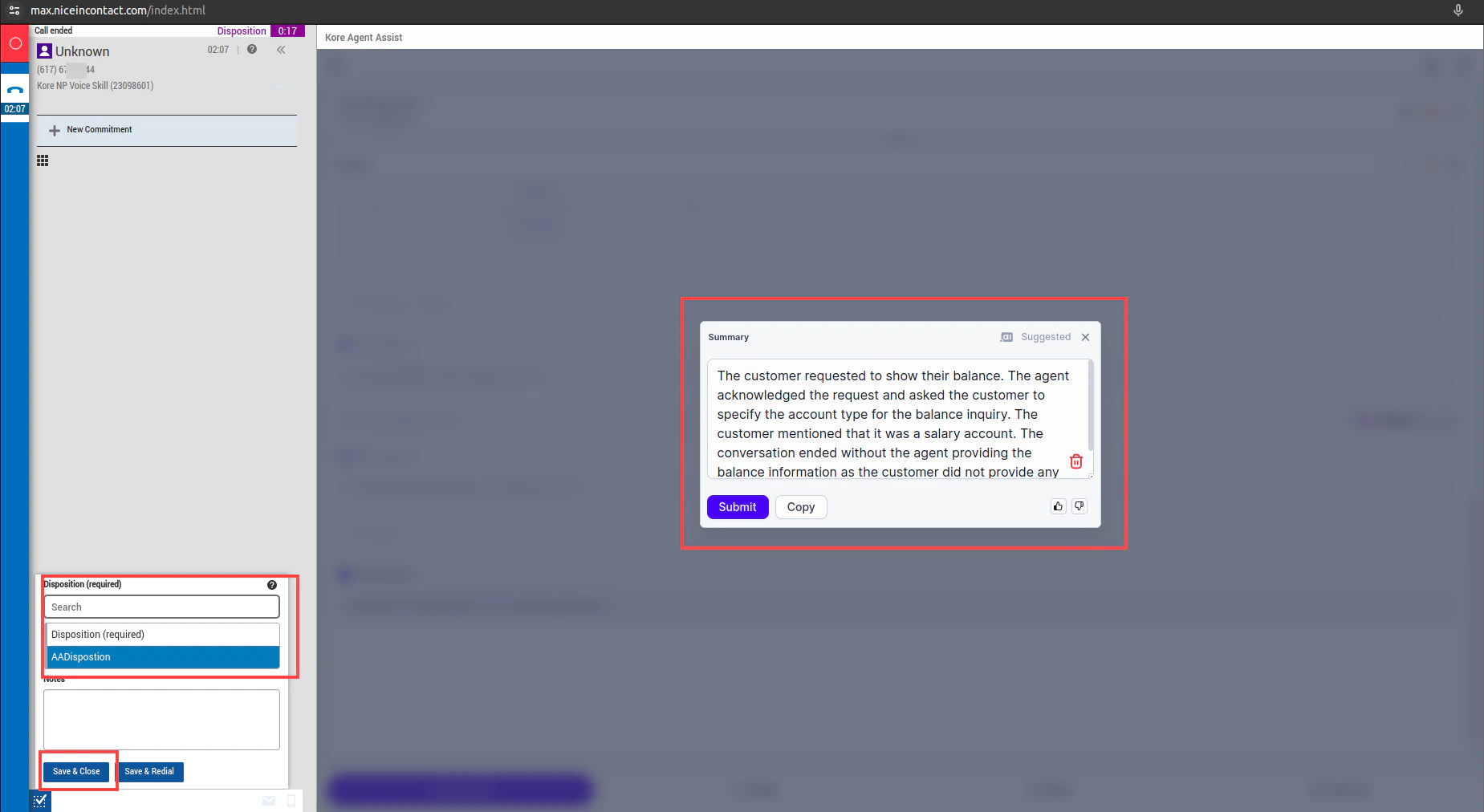
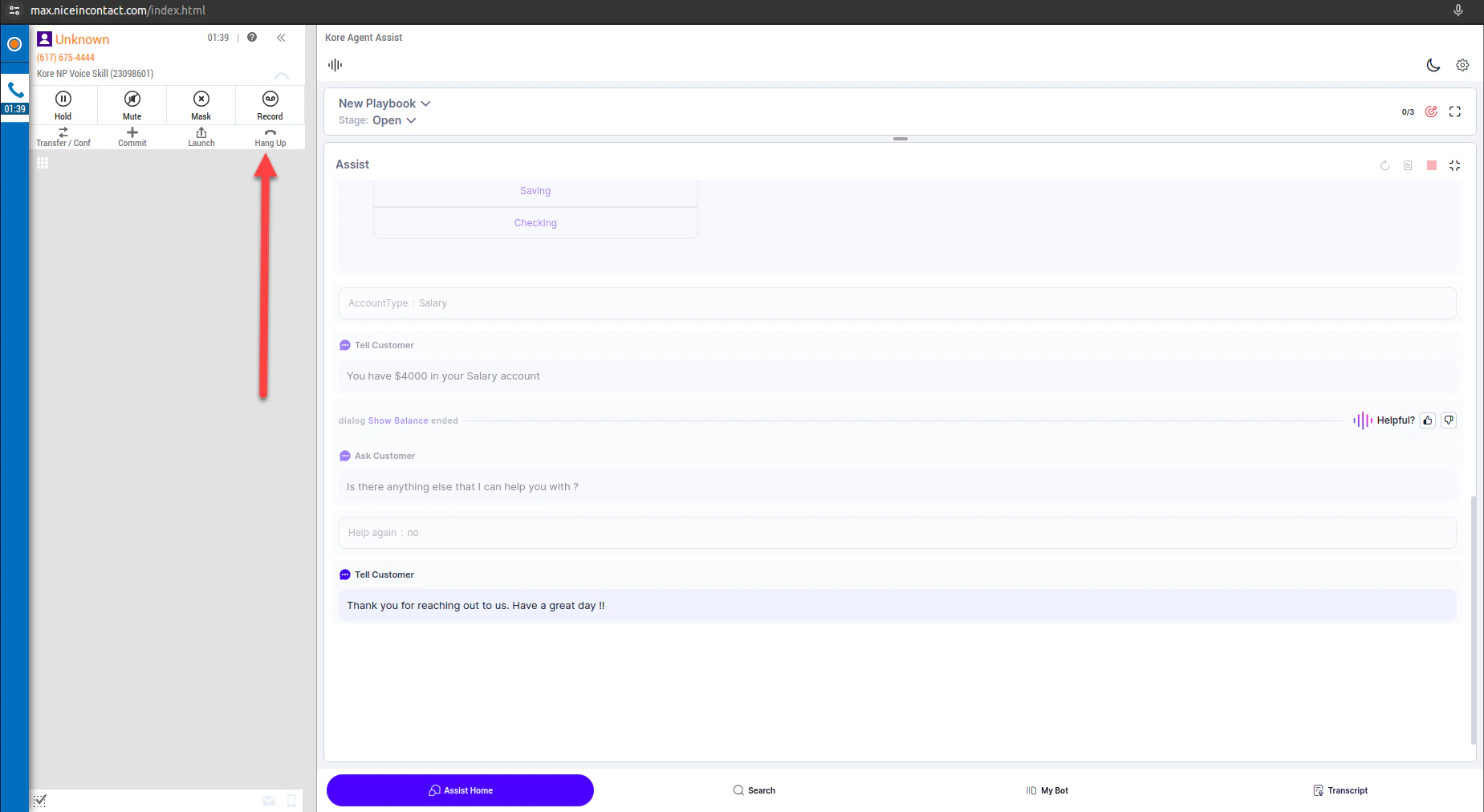 11. Click **Hang Up** again to confirm disconnection of the call. The Call **summary** pop-up gets triggered at the end of the call session.
12. Select the **disposition**, and click **Save & Close**.
11. Click **Hang Up** again to confirm disconnection of the call. The Call **summary** pop-up gets triggered at the end of the call session.
12. Select the **disposition**, and click **Save & Close**.
 ***
***