> ## Documentation Index
> Fetch the complete documentation index at: https://koreai.mintlify.site/llms.txt
> Use this file to discover all available pages before exploring further.
# Conversation Insights
[Back to Analytics Overview](/ai-for-service/analytics/overview)
Conversation Insights groups user utterances into semantic clusters to help you efficiently categorize them as True Positives, True Negatives, False Positives, and False Negatives without reviewing each utterance individually.
To view the Conversation Insights dashboard:
1. Click **Analytics** on the left navigation pane. The Analytics panel opens with the list of reports.
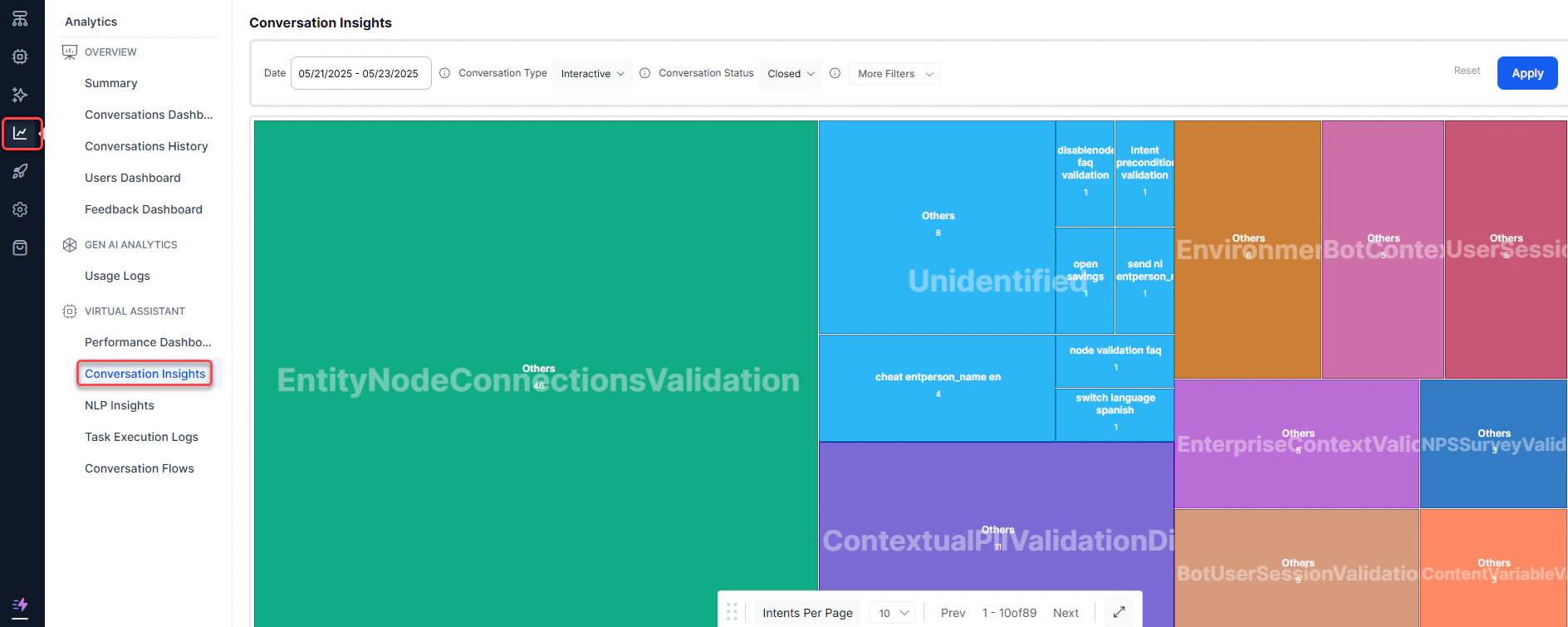 2. Click **Conversation Insights** under the **Automation** section of the Analytics panel.
3. Select appropriate filters and click **Apply**.
The platform groups utterances into clusters based on semantic meaning and assigns a name to each group. Based on whether utterances are identified or unidentified, cluster groups can be part of one or more intents. The following screenshot shows intents and utterance groups plotted in a treemap.
2. Click **Conversation Insights** under the **Automation** section of the Analytics panel.
3. Select appropriate filters and click **Apply**.
The platform groups utterances into clusters based on semantic meaning and assigns a name to each group. Based on whether utterances are identified or unidentified, cluster groups can be part of one or more intents. The following screenshot shows intents and utterance groups plotted in a treemap.
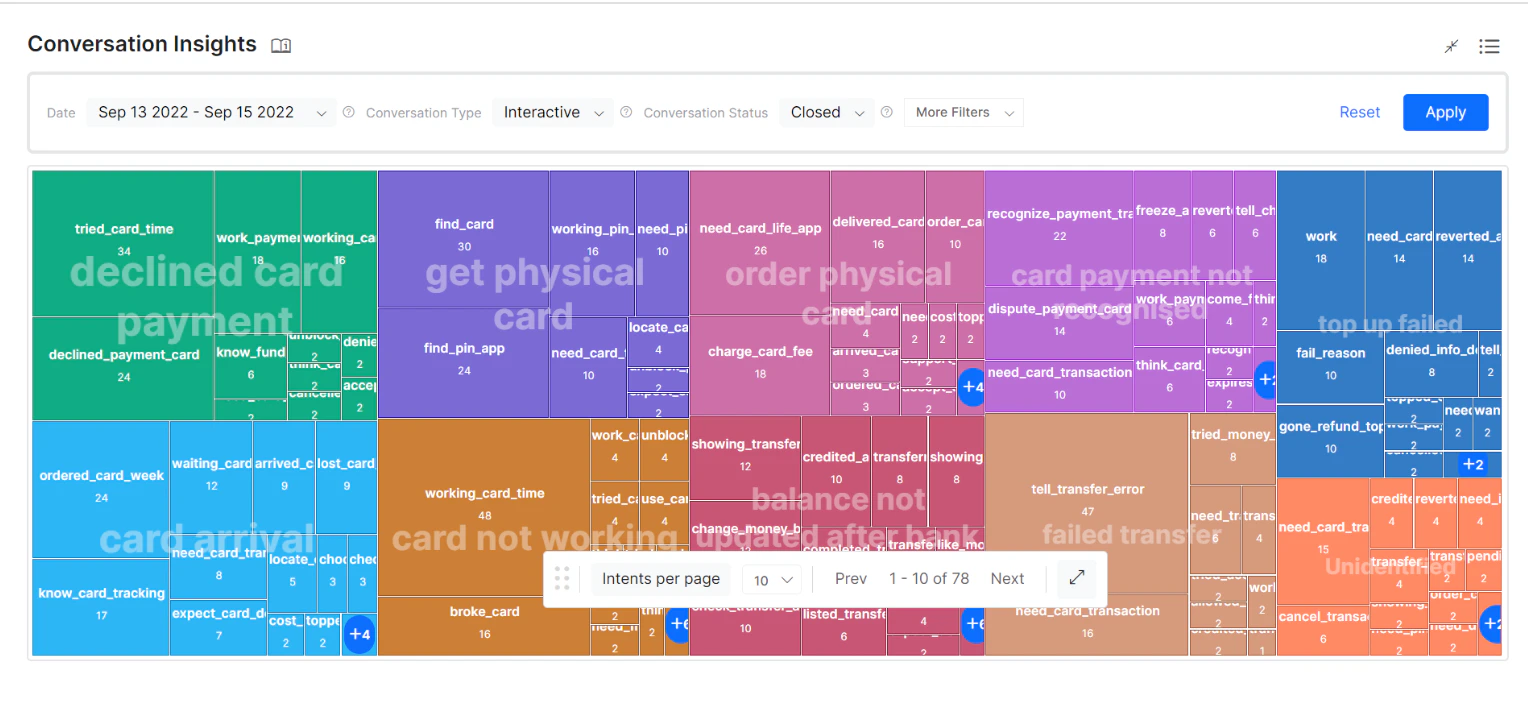 The platform groups similar utterances to form a cluster and names each cluster. Conversation Insights allows AI Agent designers to identify FPs and FNs, create new intents, and take other corrective actions. Cluster labeling is crucial for decision-making in these scenarios.
Utterances are grouped using an algorithm that identifies the most frequently occurring **subject-verb-object** to create a cluster label. For example, in the utterance "*When will I get my ATM Card?*" — verb = get, subject = card, object = atm — and the cluster label is created accordingly.
***
## Clustering Views
Conversation Insights represents the relationship between intents and clusters in two different views:
* Treemap View
* Grid View
### Treemap View
The default view is the treemap, a visual method for displaying hierarchical data using nested rectangles. It shows the relationship between intents and clusters.
The platform groups similar utterances to form a cluster and names each cluster. Conversation Insights allows AI Agent designers to identify FPs and FNs, create new intents, and take other corrective actions. Cluster labeling is crucial for decision-making in these scenarios.
Utterances are grouped using an algorithm that identifies the most frequently occurring **subject-verb-object** to create a cluster label. For example, in the utterance "*When will I get my ATM Card?*" — verb = get, subject = card, object = atm — and the cluster label is created accordingly.
***
## Clustering Views
Conversation Insights represents the relationship between intents and clusters in two different views:
* Treemap View
* Grid View
### Treemap View
The default view is the treemap, a visual method for displaying hierarchical data using nested rectangles. It shows the relationship between intents and clusters.
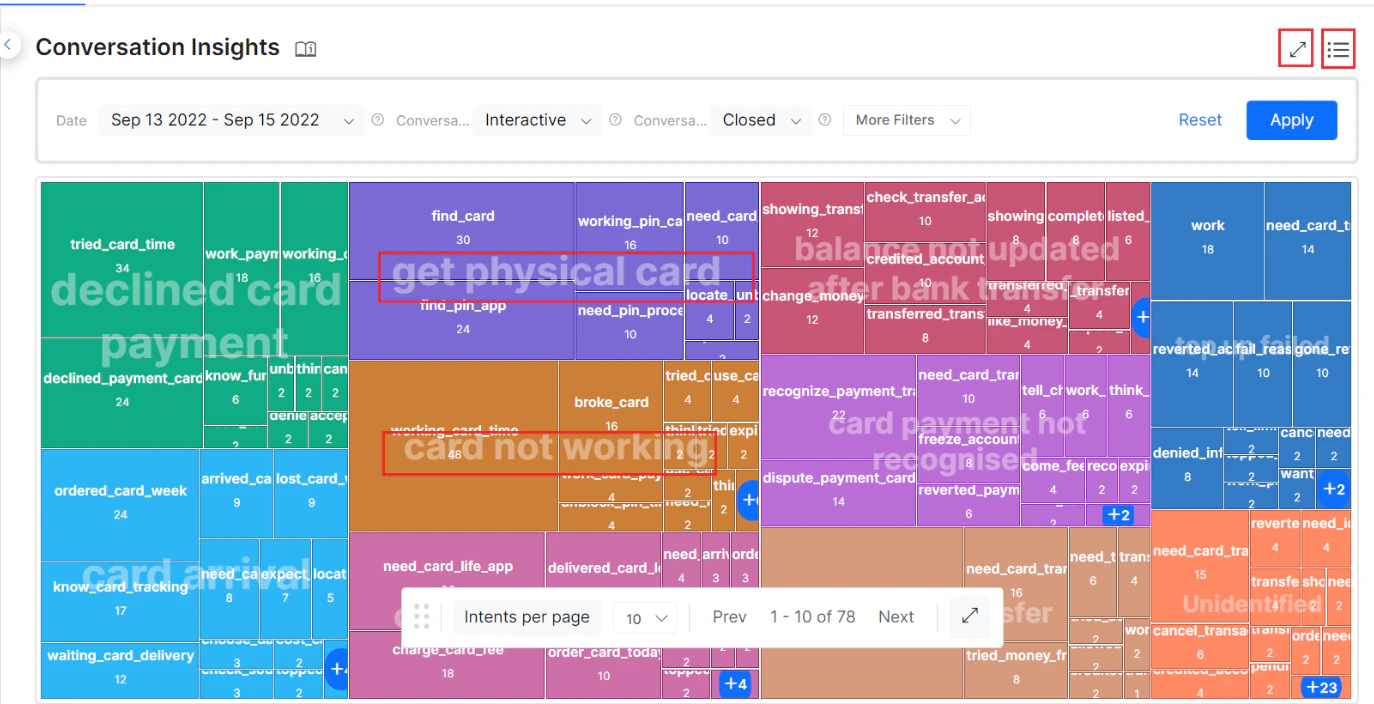 Use the Maximize icon to view insights in full-screen mode. The toggle next to it switches between treemap and grid views.
Each rectangle represents an intent with clusters, where the area is proportional to the count of utterances it contains. The Expand icon provides full-screen view with **Zoom in** and **Zoom out** capabilities.
Use the Maximize icon to view insights in full-screen mode. The toggle next to it switches between treemap and grid views.
Each rectangle represents an intent with clusters, where the area is proportional to the count of utterances it contains. The Expand icon provides full-screen view with **Zoom in** and **Zoom out** capabilities.
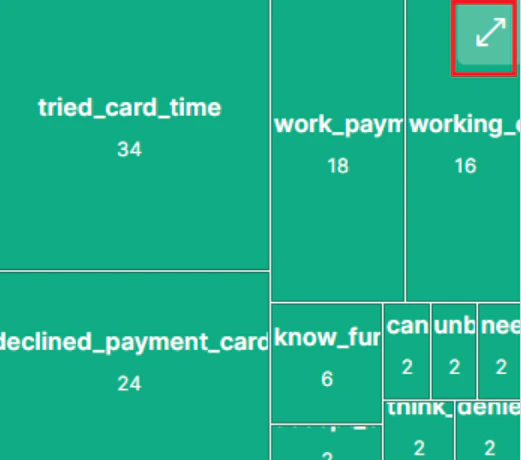 All identified and unidentified intents are displayed as rectangles. Intents form the outer rectangle (for example, **card not working**, **get a physical card**). Each intent consists of one or more clusters, also represented as rectangles.
Hovering on an individual cluster highlights that cluster wherever it appears across all intents. The tooltip displays the total utterances of the cluster and utterance counts across various intents.
All identified and unidentified intents are displayed as rectangles. Intents form the outer rectangle (for example, **card not working**, **get a physical card**). Each intent consists of one or more clusters, also represented as rectangles.
Hovering on an individual cluster highlights that cluster wherever it appears across all intents. The tooltip displays the total utterances of the cluster and utterance counts across various intents.
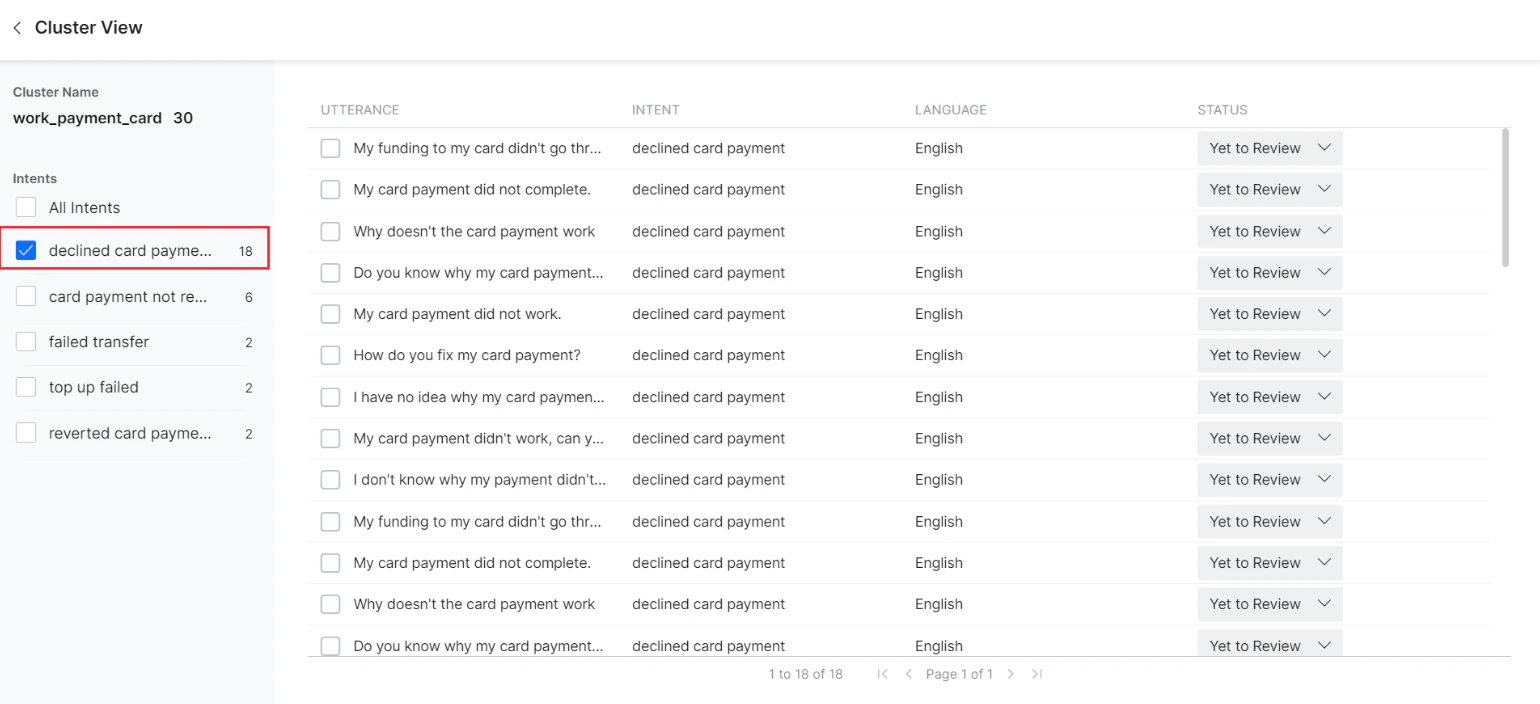
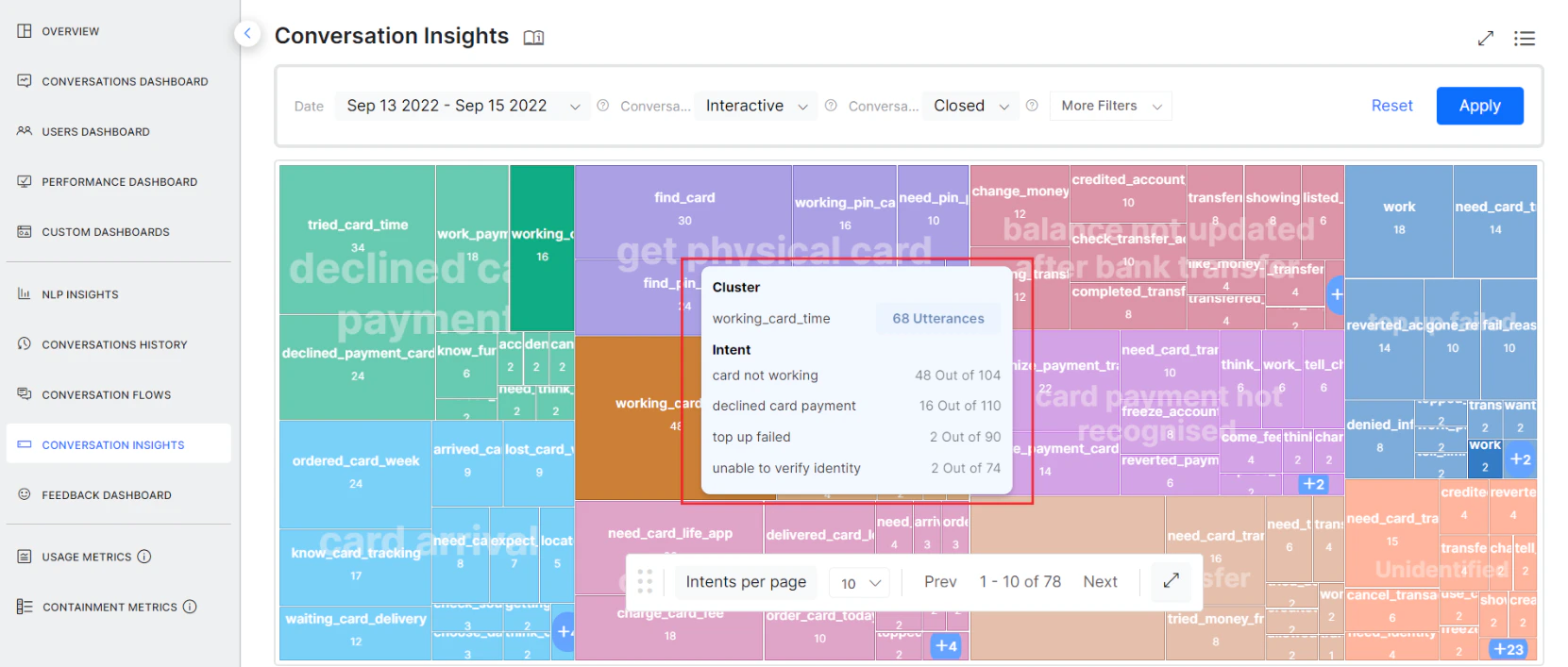 Clicking any cluster navigates to the **Cluster View** page, where you can view all intents and utterances the cluster is part of.
 #### Display More Intents and Clusters
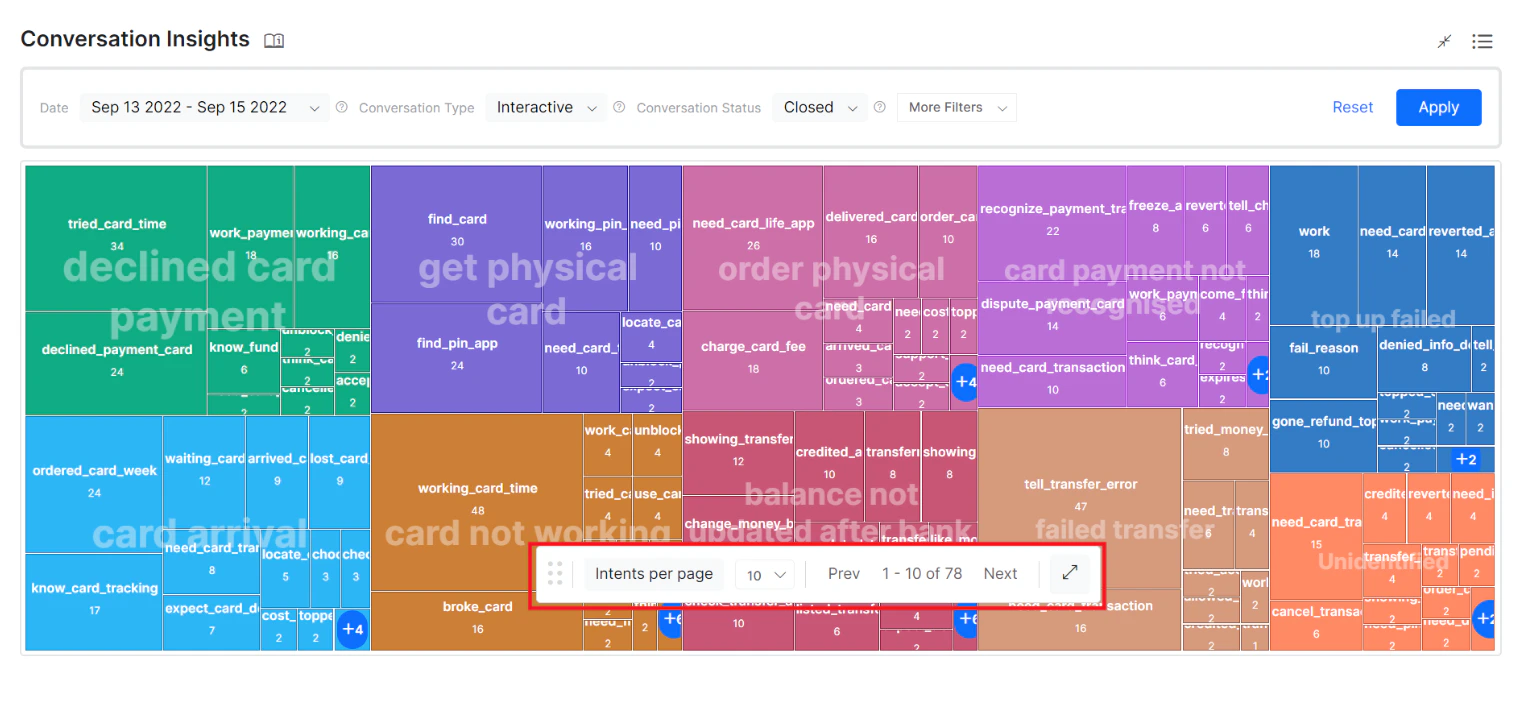
Use the **Intents per page** drop-down in the treemap view to adjust the number of intents displayed. Click **Next** to view the next page of intents.
If you select 10 "Intents per page," the top 10 intents are displayed on the first page. The platform shows the total number of pages in the navigation bar.
#### Display More Intents and Clusters
Use the **Intents per page** drop-down in the treemap view to adjust the number of intents displayed. Click **Next** to view the next page of intents.
If you select 10 "Intents per page," the top 10 intents are displayed on the first page. The platform shows the total number of pages in the navigation bar.
 ***
### Grid View
The grid view displays all intent and cluster details in a tabular format. This view is helpful when there is a large number of intents.
The grid shows **Intent Name**, **Cluster Count**, and **Utterance Count**.
***
### Grid View
The grid view displays all intent and cluster details in a tabular format. This view is helpful when there is a large number of intents.
The grid shows **Intent Name**, **Cluster Count**, and **Utterance Count**.
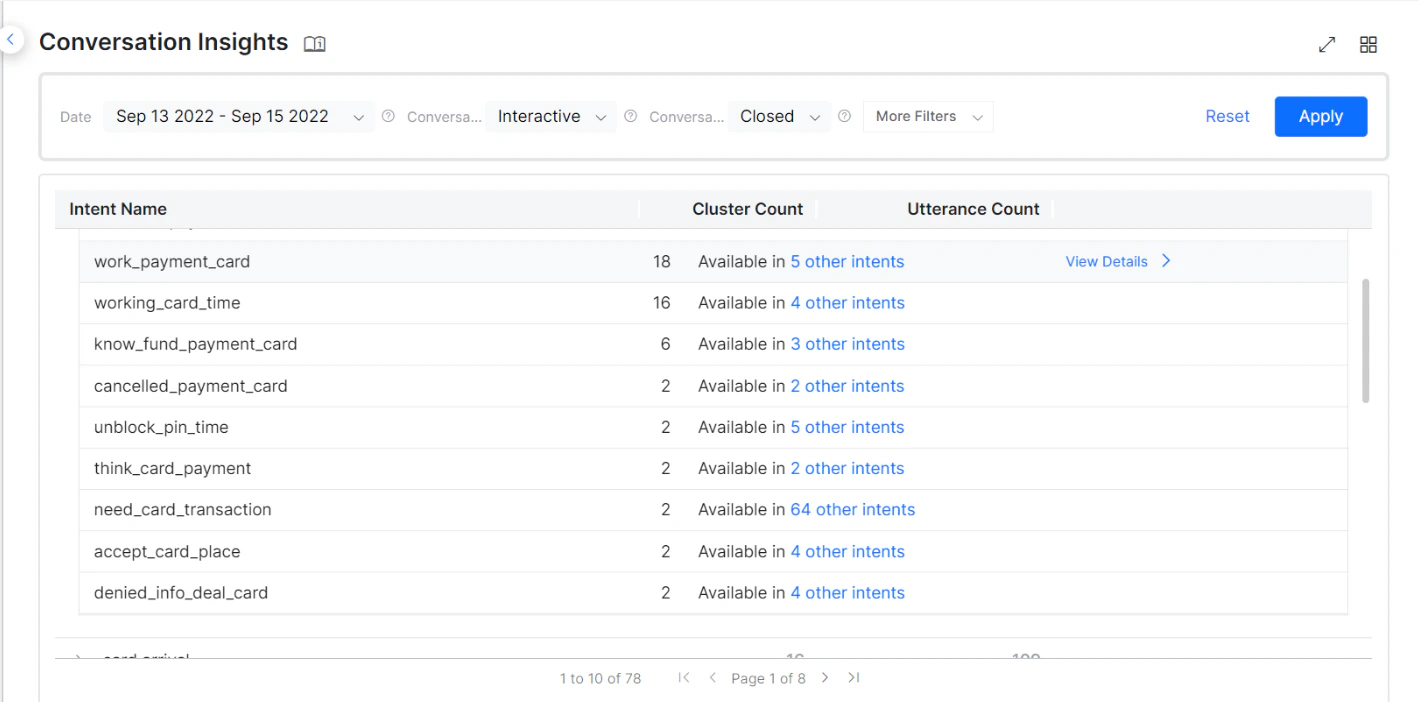 Expand an intent name to see:
* **Clusters**: The clusters available for the specific intent.
* **Utterance Count**: The utterance count of each cluster.
* **Details**: The availability of the cluster in other intents.
Expand an intent name to see:
* **Clusters**: The clusters available for the specific intent.
* **Utterance Count**: The utterance count of each cluster.
* **Details**: The availability of the cluster in other intents.
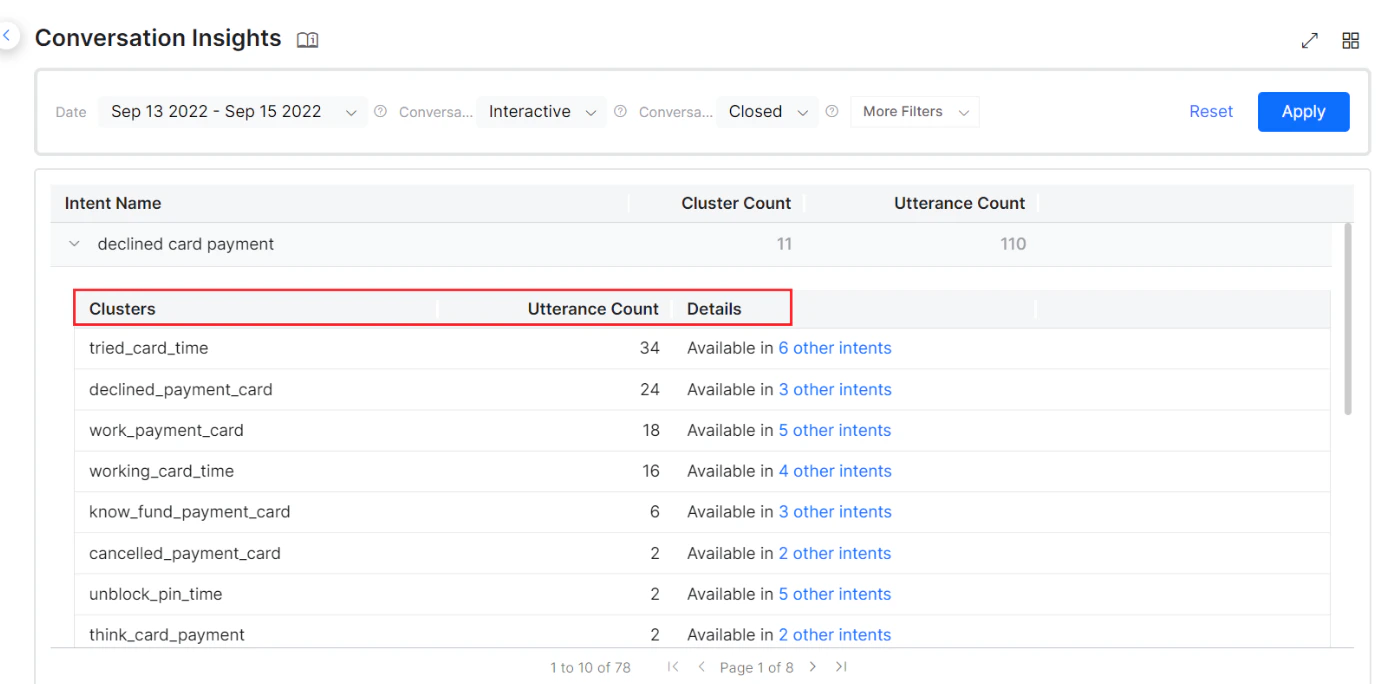 Click the toggle to go back to the treemap view.
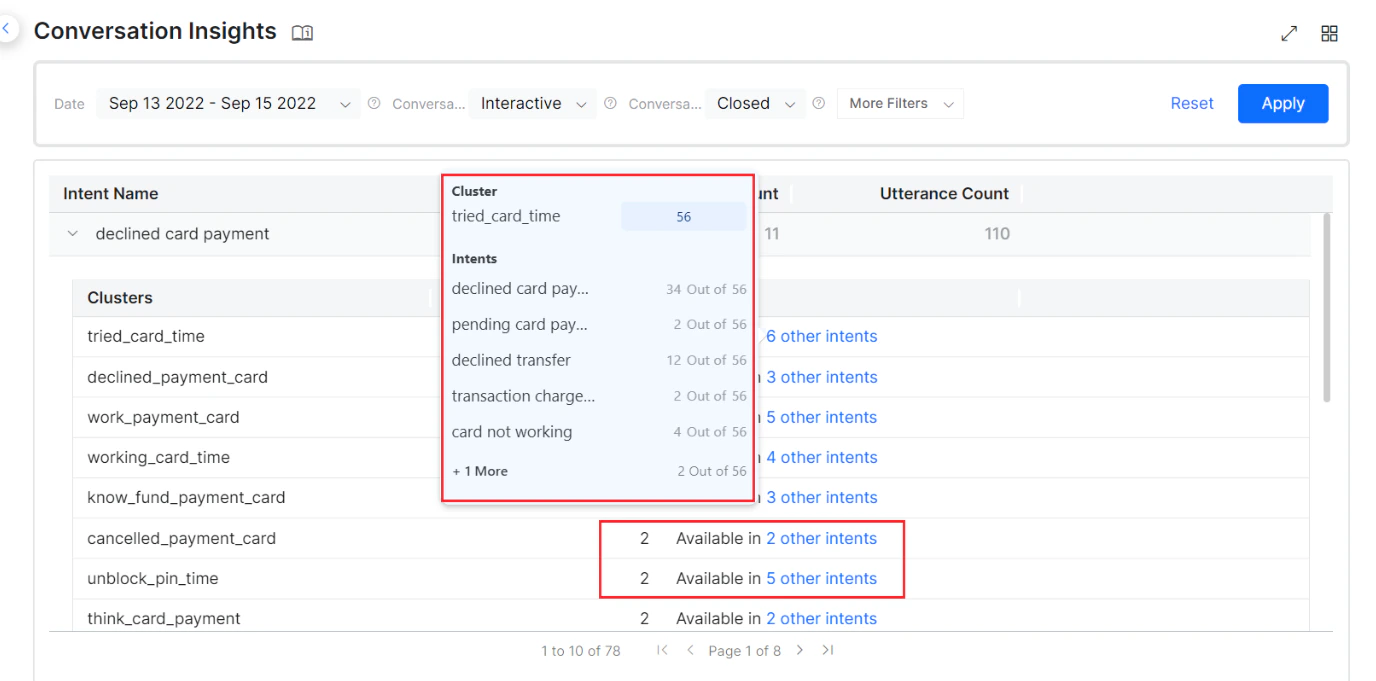 Clicking the **Available in # other intents** link under **Details** opens a pop-up with all intent details the cluster is part of and the number of utterances across each intent for that cluster.
#### Cluster View
Click the **View Details** link corresponding to the cluster name to go to the **Cluster View** page.
Clicking the **Available in # other intents** link under **Details** opens a pop-up with all intent details the cluster is part of and the number of utterances across each intent for that cluster.
#### Cluster View
Click the **View Details** link corresponding to the cluster name to go to the **Cluster View** page.
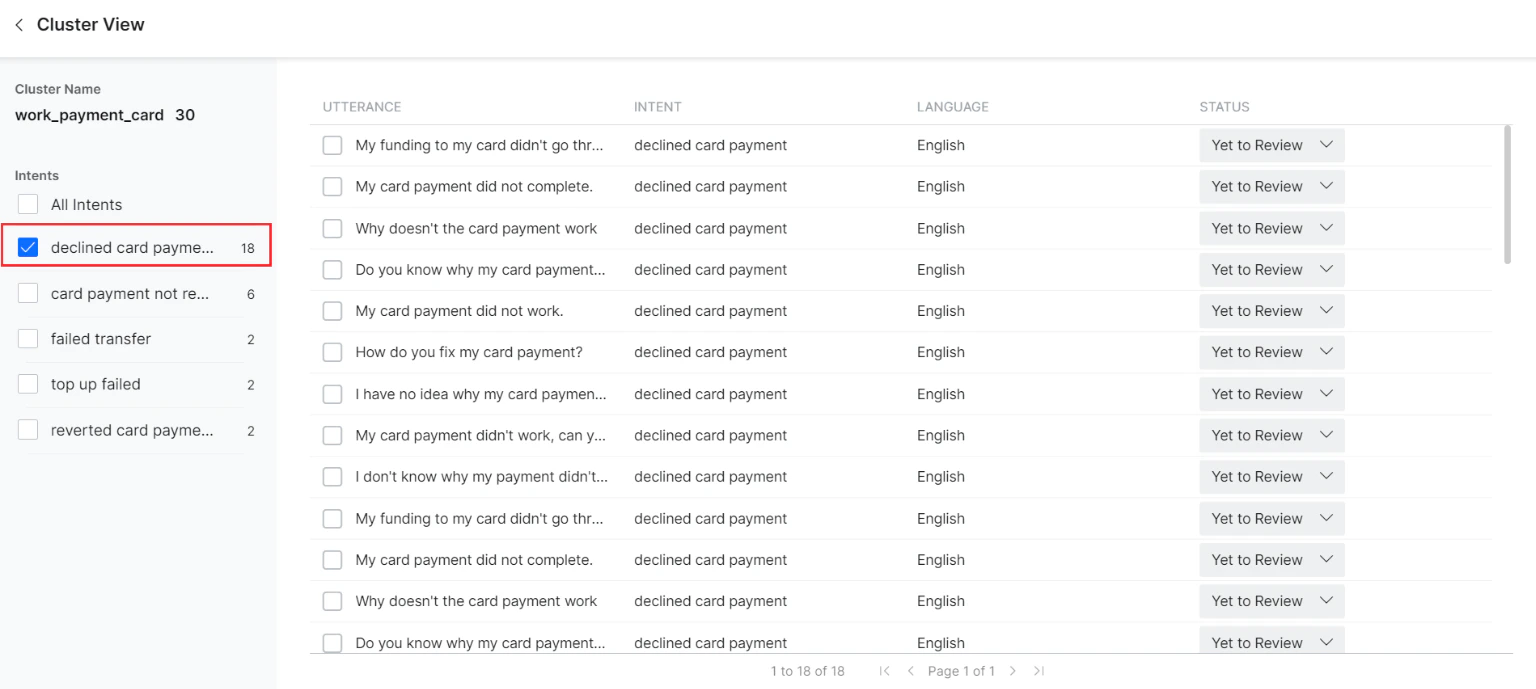
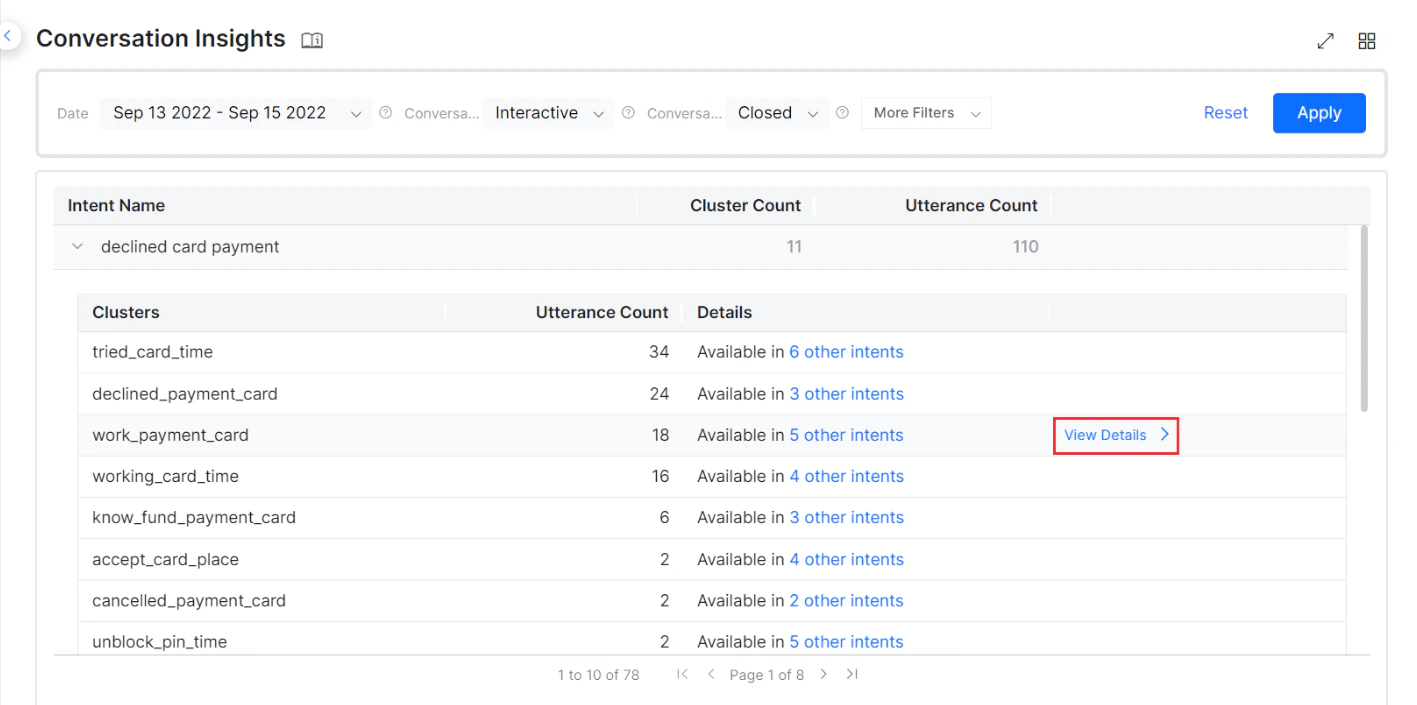 The Cluster View page displays all intents and utterances for that cluster. By default, the platform displays utterances for the intent selected on the Conversation Insights page.
 #### Intent View
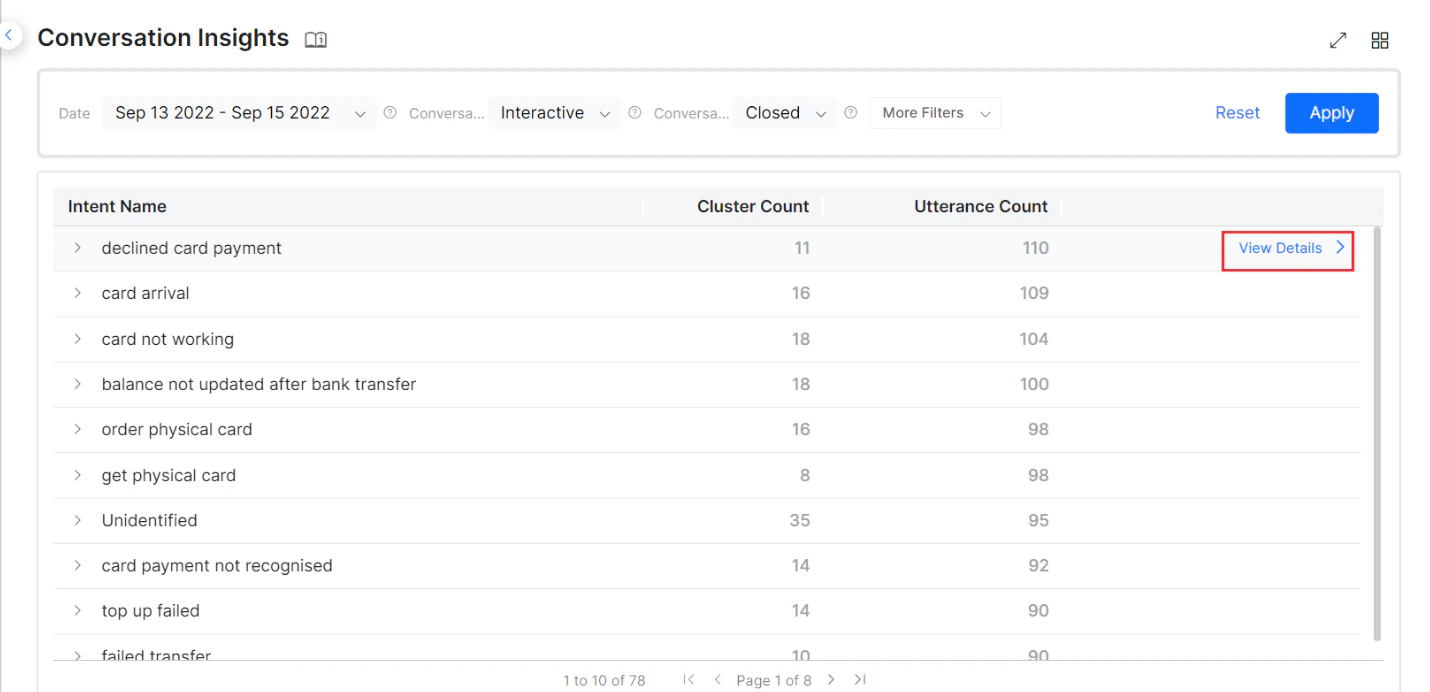
Click the **View Details** link corresponding to each intent to go to the **Intent View** page.
#### Intent View
Click the **View Details** link corresponding to each intent to go to the **Intent View** page.
 The Intent View page displays all available clusters, utterances, and other details. By default, the platform displays all utterances for the cluster with the maximum number of utterances. Select any cluster within an intent to view its utterances and take actions.
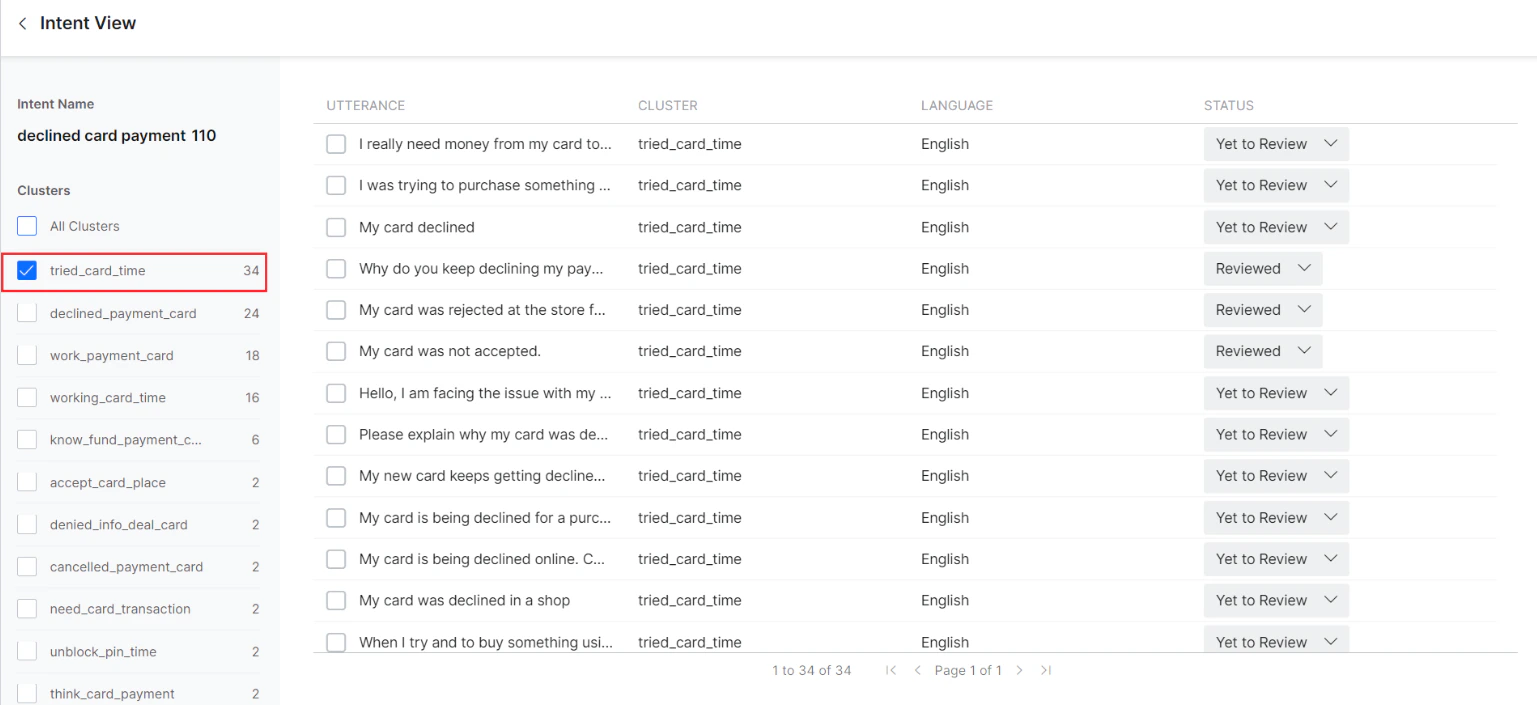 The number next to the Intent Name and Cluster Names represents the number of utterances.
#### Export Insight Data
The conversation insights dashboard includes an export option to download clustered insights data as a .CSV file. To maintain consistency between the dashboard and the generated file, the exported data incorporates the user's active date ranges, applied filters, and UI labels.
## Utterance Validation
Utterances grouped in clusters can be validated and trained for an existing intent or a new intent based on your requirements.
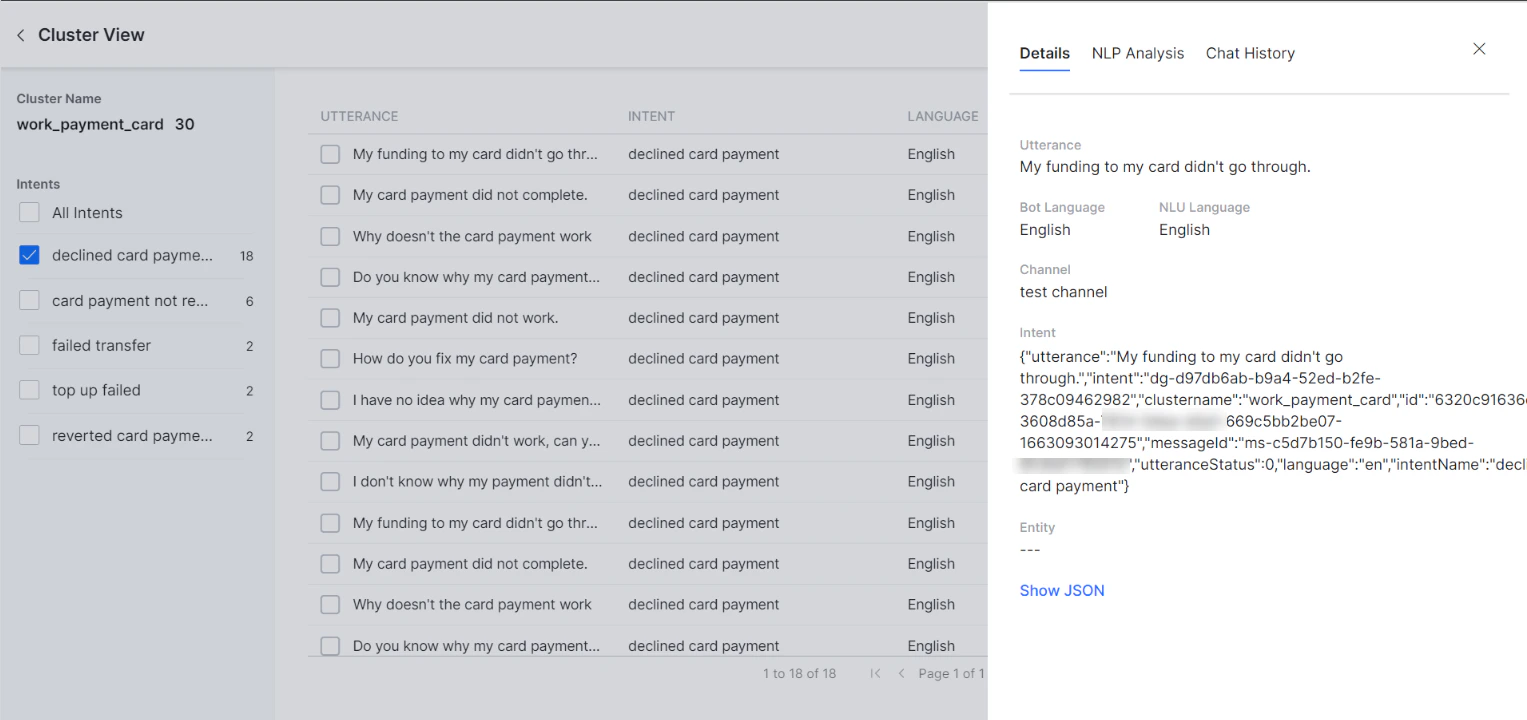
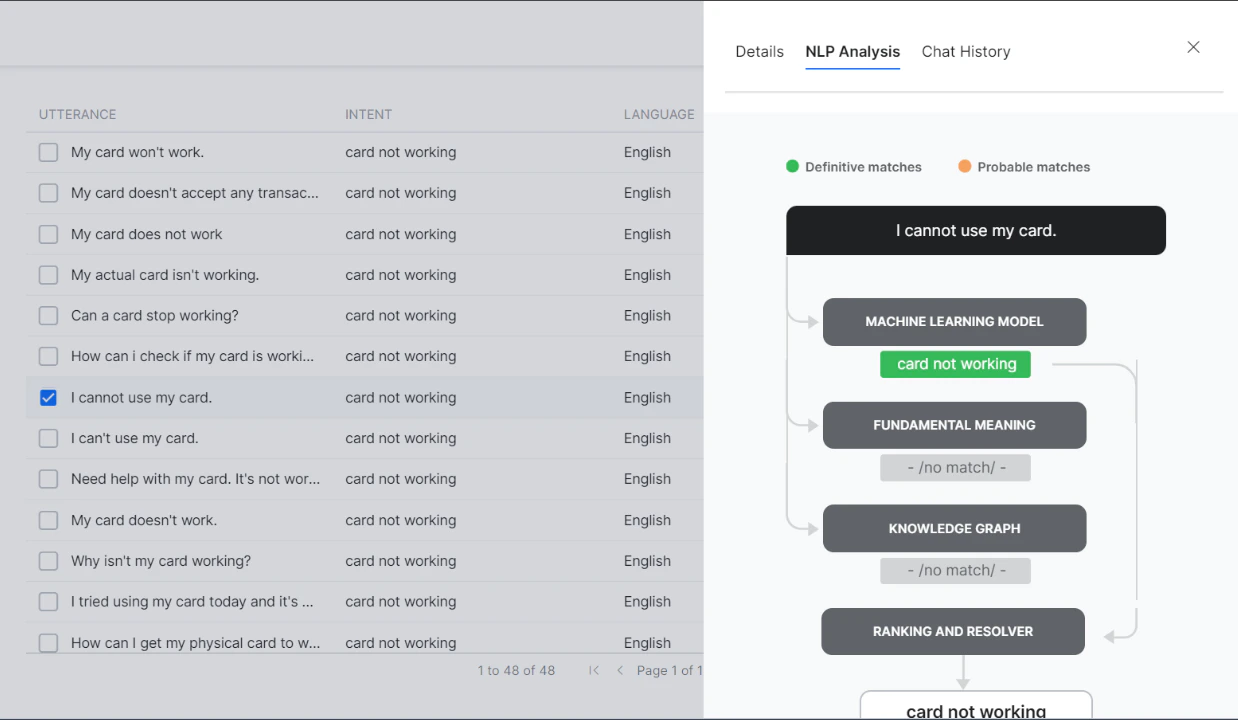
Click any utterance displayed in the grid on the **Intent View** or **Cluster View** pages to view utterance details, NLP Analysis, and Chat History — the same as in NLP Insights.
The number next to the Intent Name and Cluster Names represents the number of utterances.
#### Export Insight Data
The conversation insights dashboard includes an export option to download clustered insights data as a .CSV file. To maintain consistency between the dashboard and the generated file, the exported data incorporates the user's active date ranges, applied filters, and UI labels.
## Utterance Validation
Utterances grouped in clusters can be validated and trained for an existing intent or a new intent based on your requirements.
Click any utterance displayed in the grid on the **Intent View** or **Cluster View** pages to view utterance details, NLP Analysis, and Chat History — the same as in NLP Insights.
 ### Train the Utterances
1. Click the cluster in the treemap view or grid view to display all intents and utterances the cluster is part of.
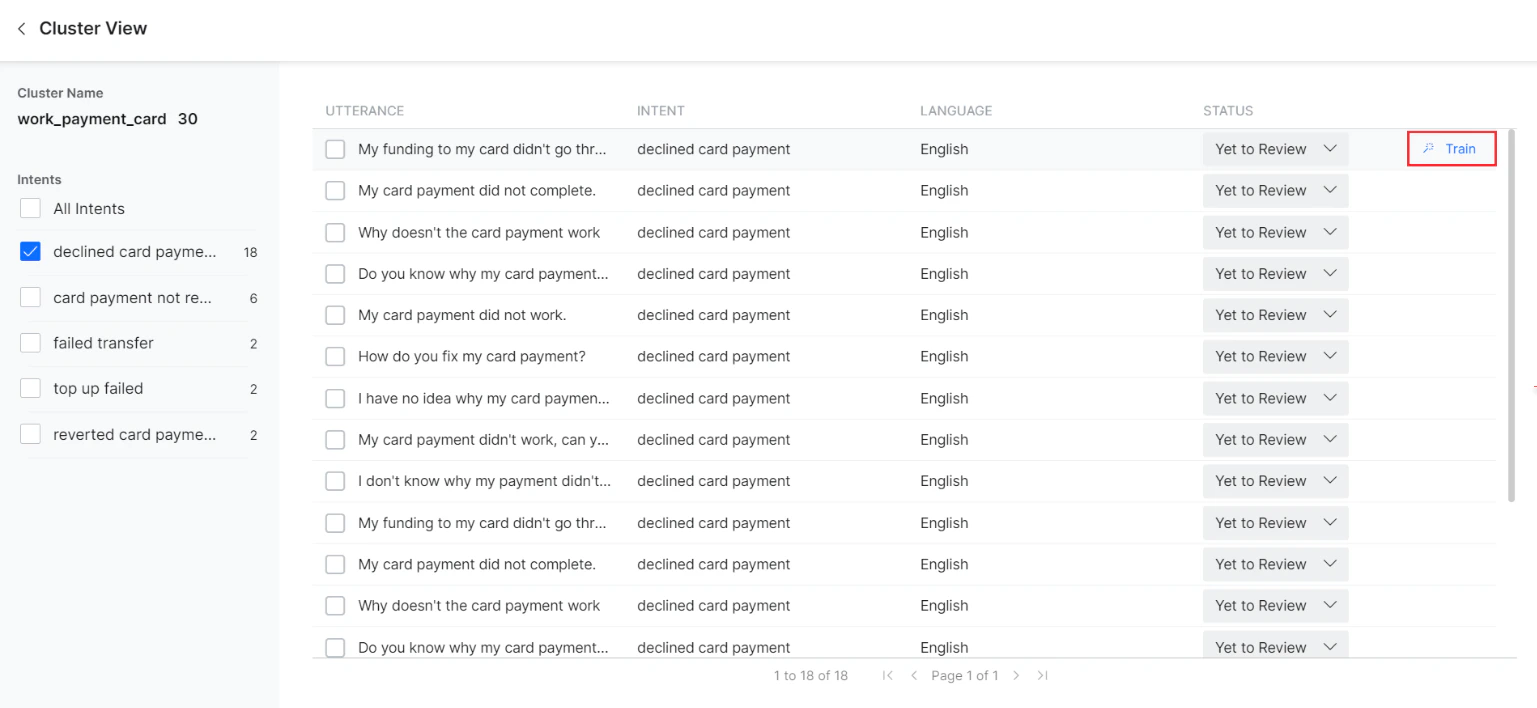
All utterances that are part of the clicked Cluster-Intent pair are displayed. Select one or all utterances to initiate training. You can also go to the intent view by clicking View Details next to the intent name from the grid view.
### Train the Utterances
1. Click the cluster in the treemap view or grid view to display all intents and utterances the cluster is part of.
All utterances that are part of the clicked Cluster-Intent pair are displayed. Select one or all utterances to initiate training. You can also go to the intent view by clicking View Details next to the intent name from the grid view.
 The identified utterances belong to one of the following categories:
* **Identified as Incorrect Intents** (False Positives)
* **Unidentified due to insufficient training** (False Negatives)
* **Unidentified since the intent wasn't created** (You can add a new intent here)
Utterances categorized as Identified as Incorrect Intents or Unidentified due to insufficient training are mainly caused by insufficient or incorrect training.
2. Click the **Train** button next to an utterance to initiate training. For bulk training, select multiple utterances and choose an option from the **Train** drop-down.
The identified utterances belong to one of the following categories:
* **Identified as Incorrect Intents** (False Positives)
* **Unidentified due to insufficient training** (False Negatives)
* **Unidentified since the intent wasn't created** (You can add a new intent here)
Utterances categorized as Identified as Incorrect Intents or Unidentified due to insufficient training are mainly caused by insufficient or incorrect training.
2. Click the **Train** button next to an utterance to initiate training. For bulk training, select multiple utterances and choose an option from the **Train** drop-down.
 NLP Analysis and Utterance testing panels are displayed the same as in NLP Insights. The training process is the same as utterance training in NLP Insights.
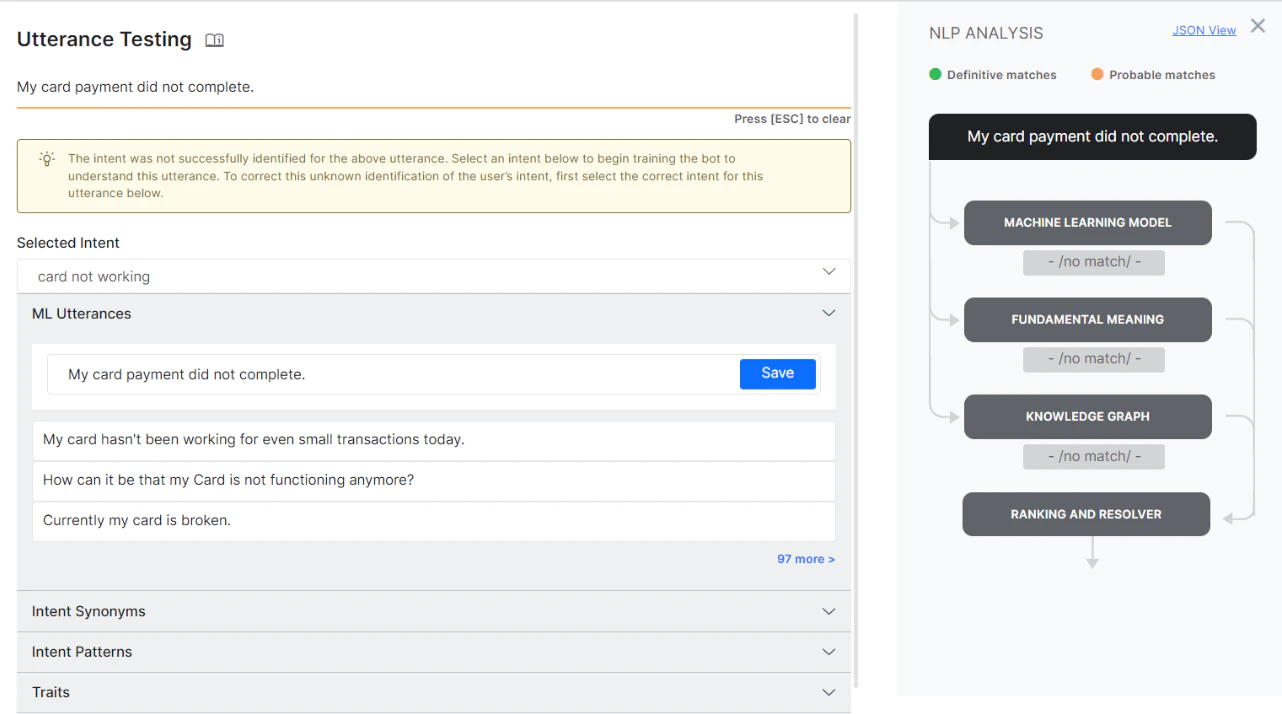 3. Select a matching intent from the **Selected Intent** drop-down and click **Save** to initiate the training. You can also add intent synonyms, patterns, and traits as required.
If the task is already published, the following message is displayed. Click **Upgrade** to change the task status to Development.
3. Select a matching intent from the **Selected Intent** drop-down and click **Save** to initiate the training. You can also add intent synonyms, patterns, and traits as required.
If the task is already published, the following message is displayed. Click **Upgrade** to change the task status to Development.
 A message, **Utterance Uploaded Successfully**, is displayed.
Click **Re-Run Utterance** to train the utterance again.
A message, **Utterance Uploaded Successfully**, is displayed.
Click **Re-Run Utterance** to train the utterance again.
 In bulk utterance training, select multiple utterances and train them for existing intents using the **Train** drop-down, or add new intents using the **Add Intent** drop-down. The steps are the same as single utterance training.
***
### Add Existing Intent
To map an existing Dialog Task or FAQ to an utterance:
1. Click the **Train** drop-down.
2. Click **Dialog Task** to choose the matching intent.
In bulk utterance training, select multiple utterances and train them for existing intents using the **Train** drop-down, or add new intents using the **Add Intent** drop-down. The steps are the same as single utterance training.
***
### Add Existing Intent
To map an existing Dialog Task or FAQ to an utterance:
1. Click the **Train** drop-down.
2. Click **Dialog Task** to choose the matching intent.
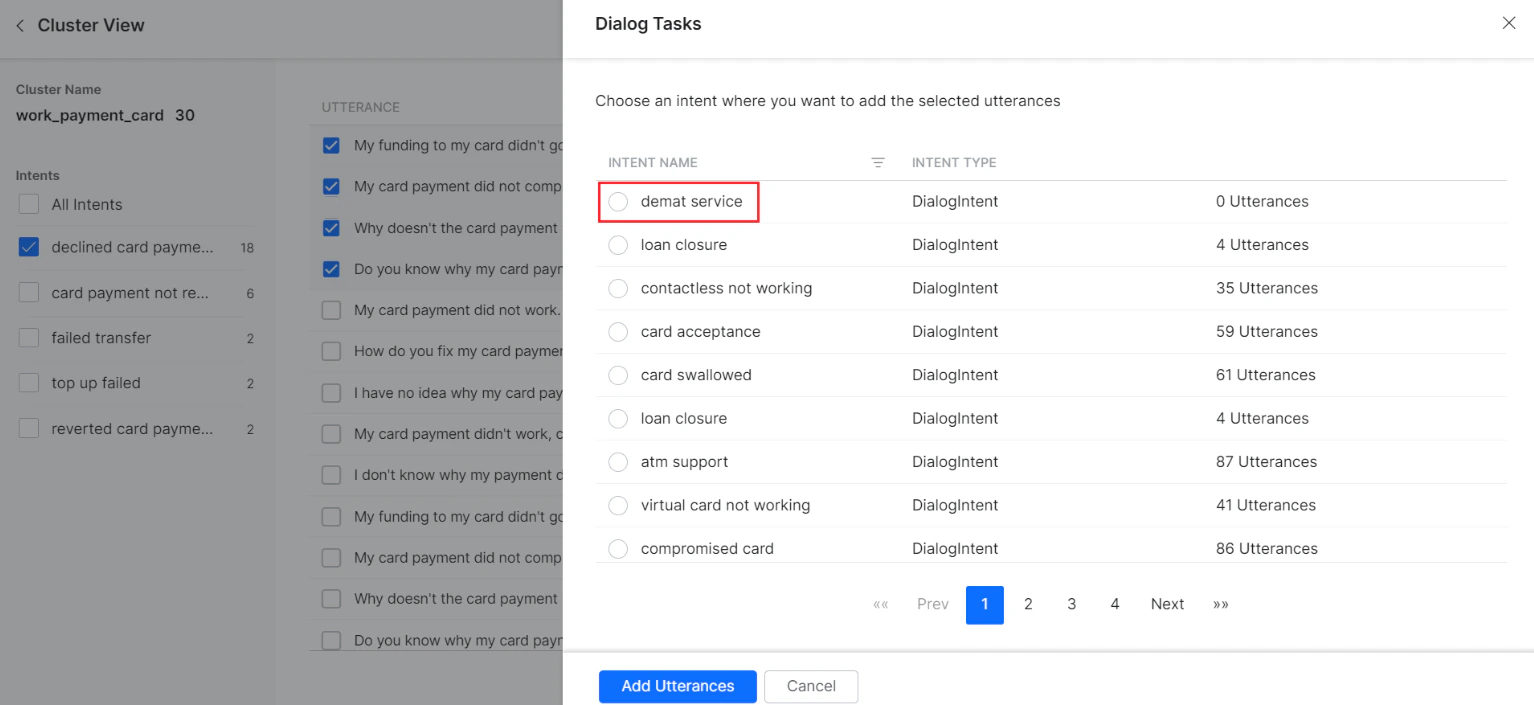 3. Click **Add Utterances** to add the intent. Click **Yes, Mark as Reviewed** to change the status to Reviewed, or click **No**.
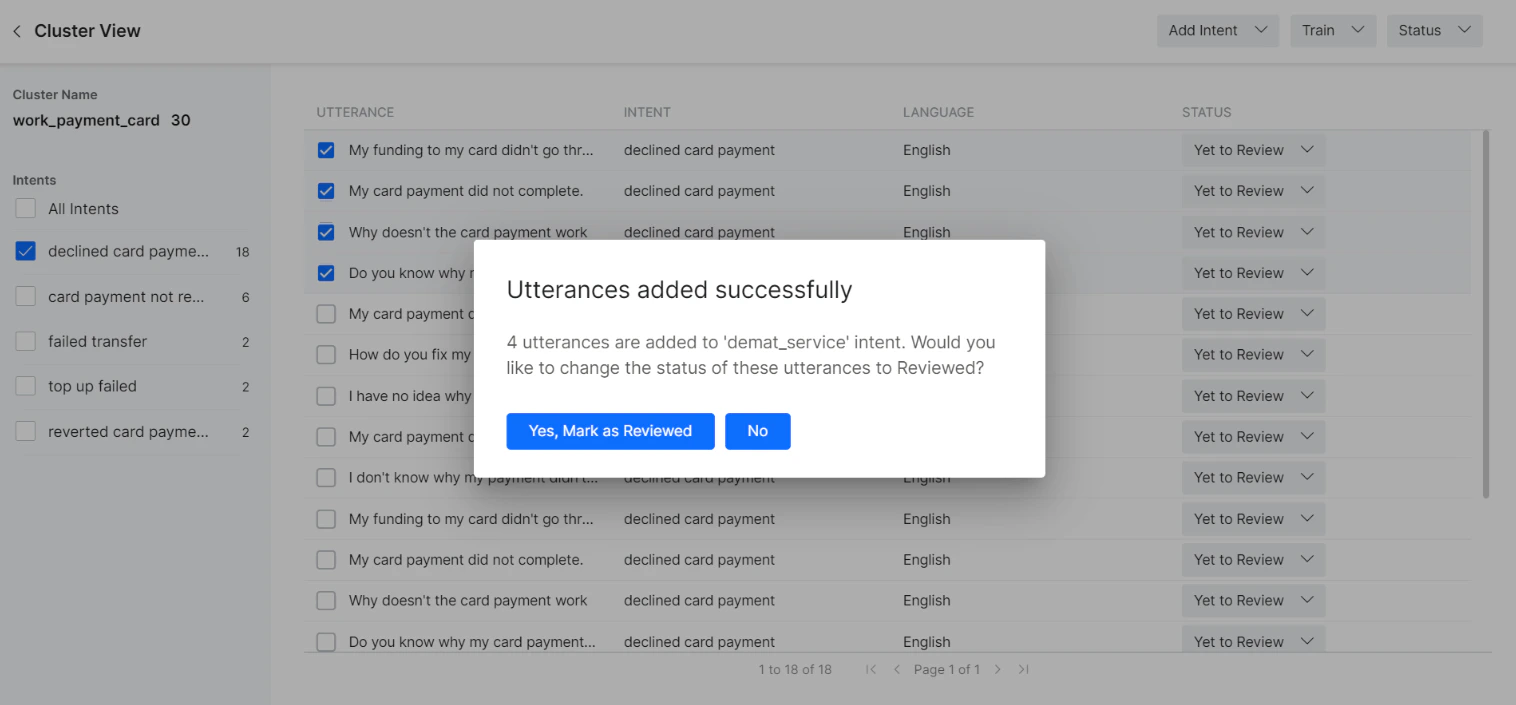 4. To add an existing FAQ, click the **FAQ** option from the **Train** drop-down.
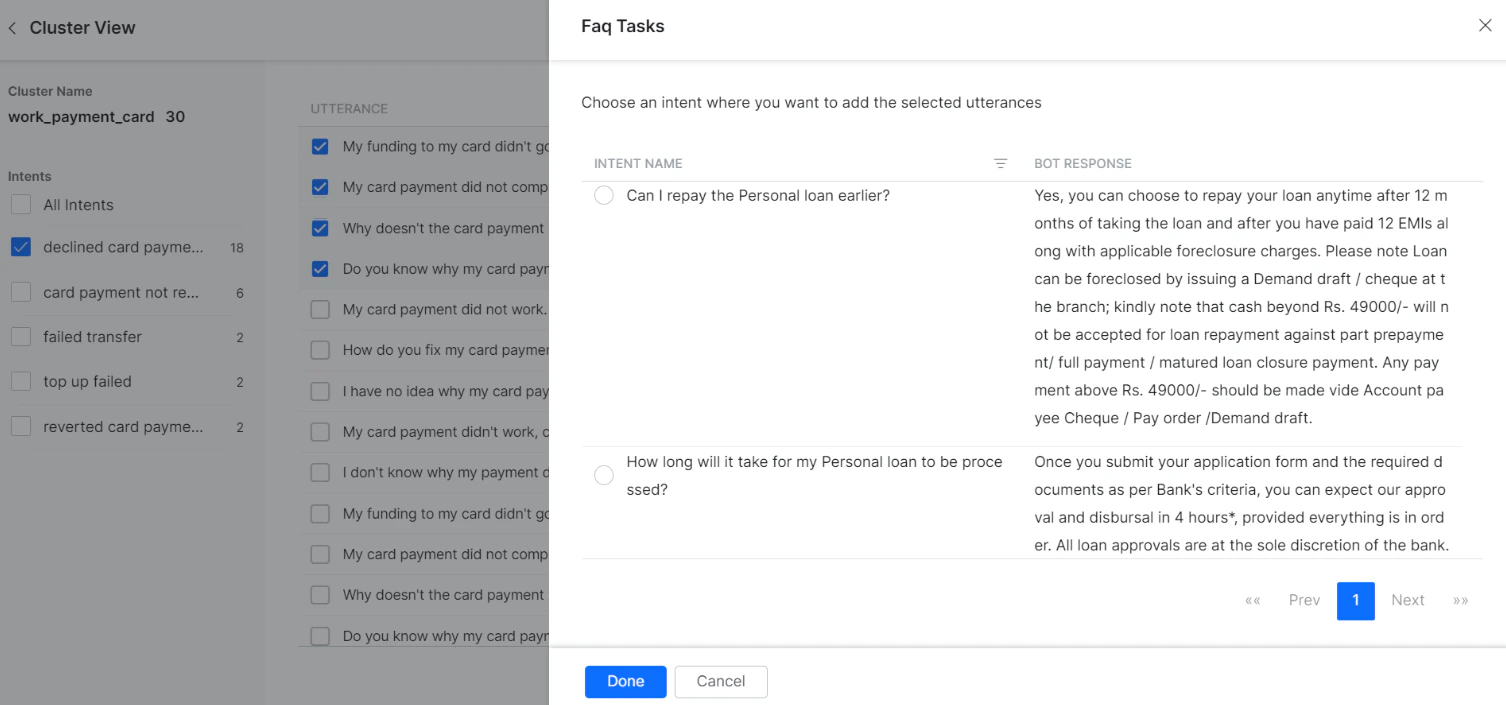 5. Upon adding the FAQ successfully, click **Yes, Mark as Reviewed** to change the status to Reviewed, or click **No**.
***
### Add New Intent
When utterances can't be mapped to any existing intent, create a new intent:
1. Click the **Add Intent** drop-down.
5. Upon adding the FAQ successfully, click **Yes, Mark as Reviewed** to change the status to Reviewed, or click **No**.
***
### Add New Intent
When utterances can't be mapped to any existing intent, create a new intent:
1. Click the **Add Intent** drop-down.
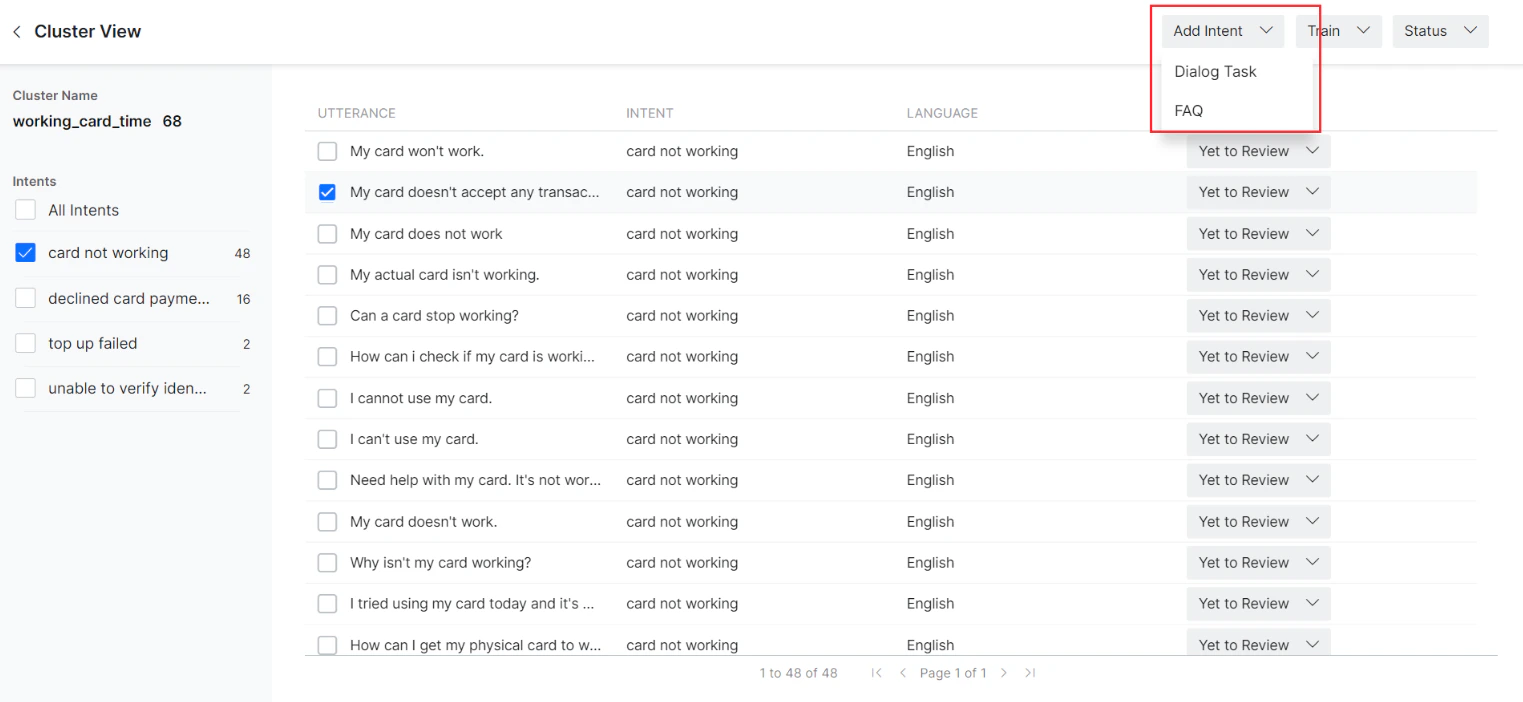 2. Click **Dialog Task** to create a new intent for the selected utterance.
3. The **Create Dialog** panel is displayed. Enter the required details and click **Proceed**.
2. Click **Dialog Task** to create a new intent for the selected utterance.
3. The **Create Dialog** panel is displayed. Enter the required details and click **Proceed**.
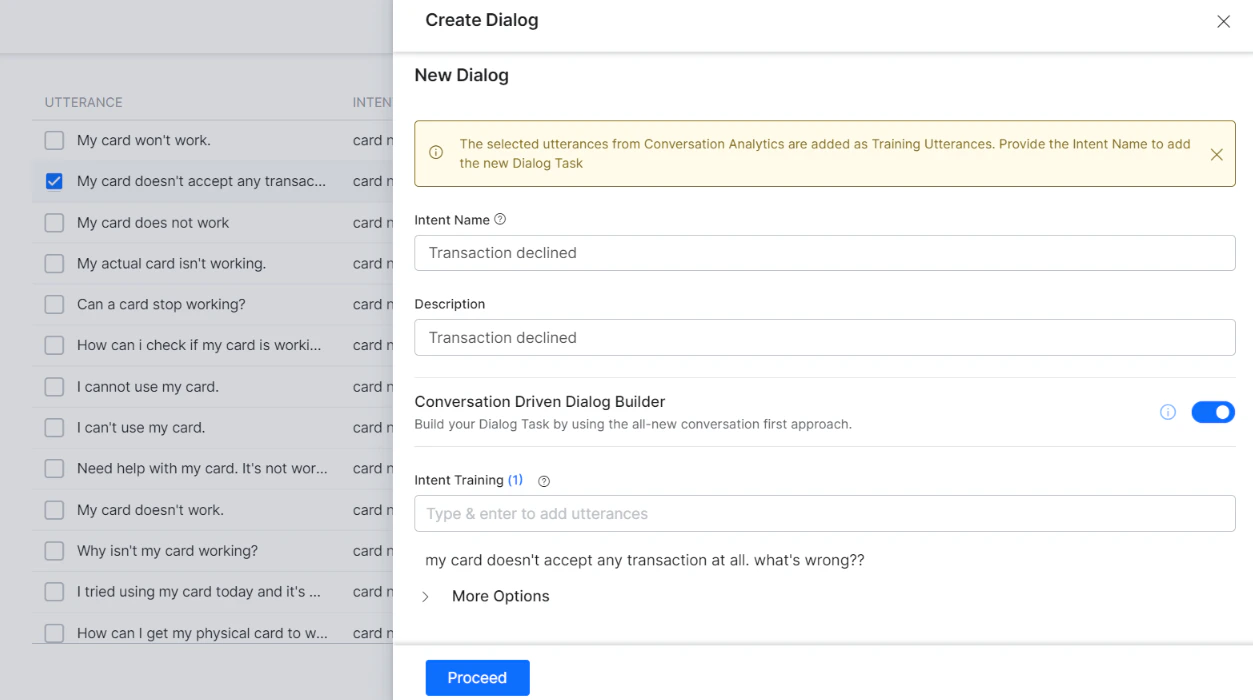 4. Click **Yes, Mark as Reviewed** to change the status to Reviewed, or click **No**.
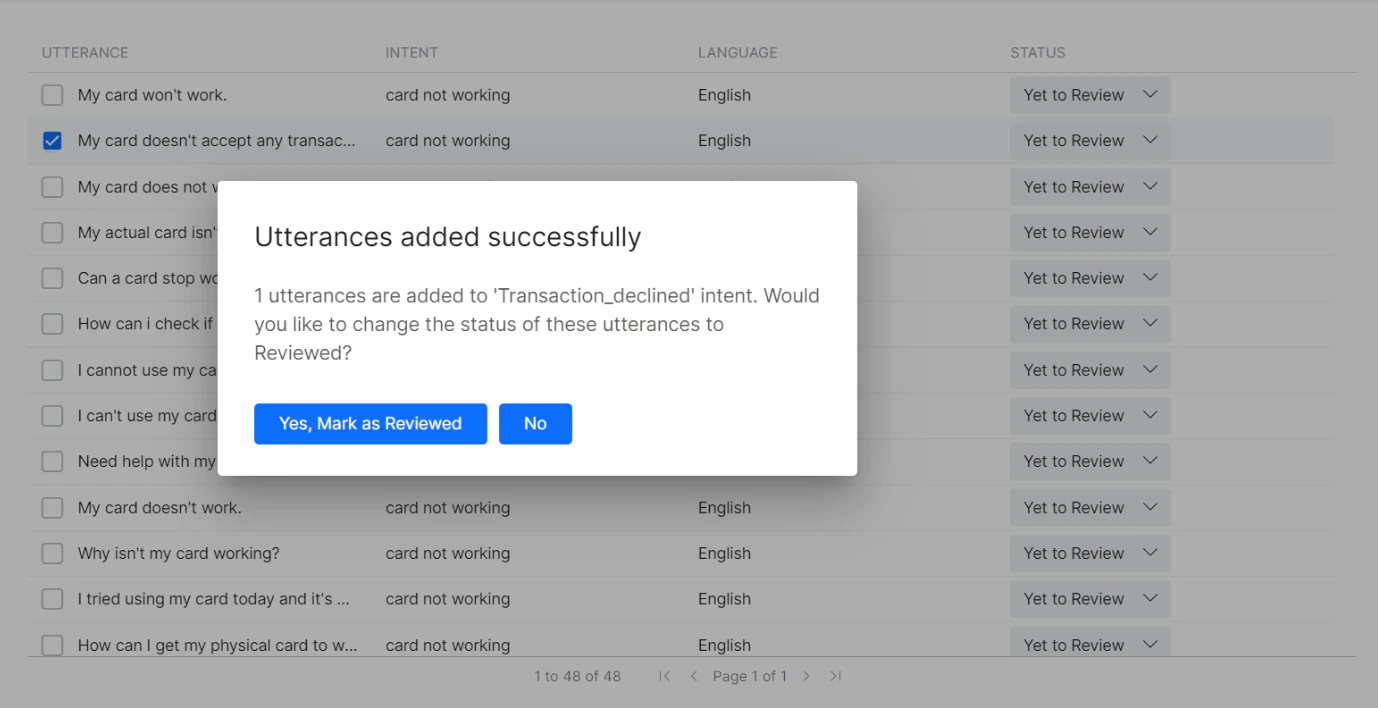 5. To add a new FAQ, click the **FAQ** option in the **Add Intent** drop-down.
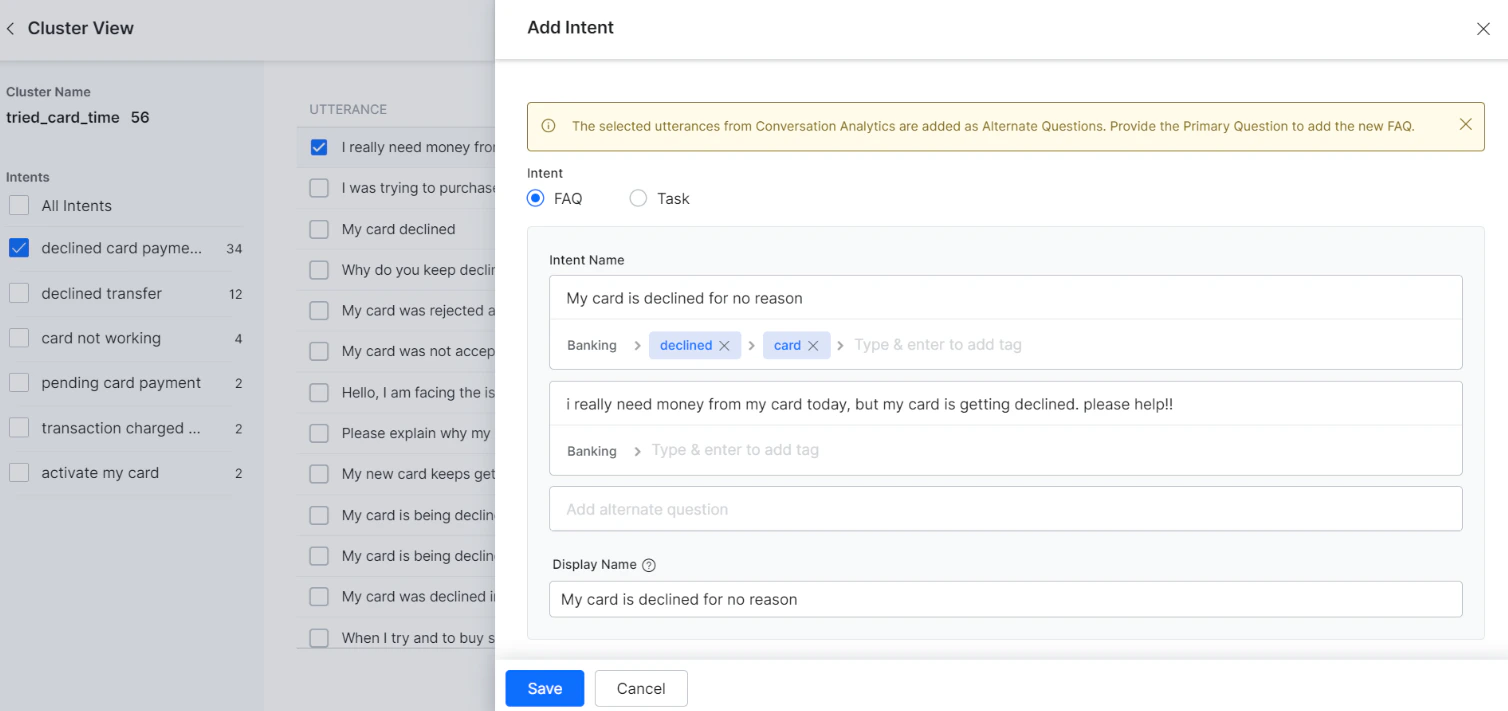 6. Click **Yes, Mark as Reviewed** to change the status to Reviewed, or click **No**.
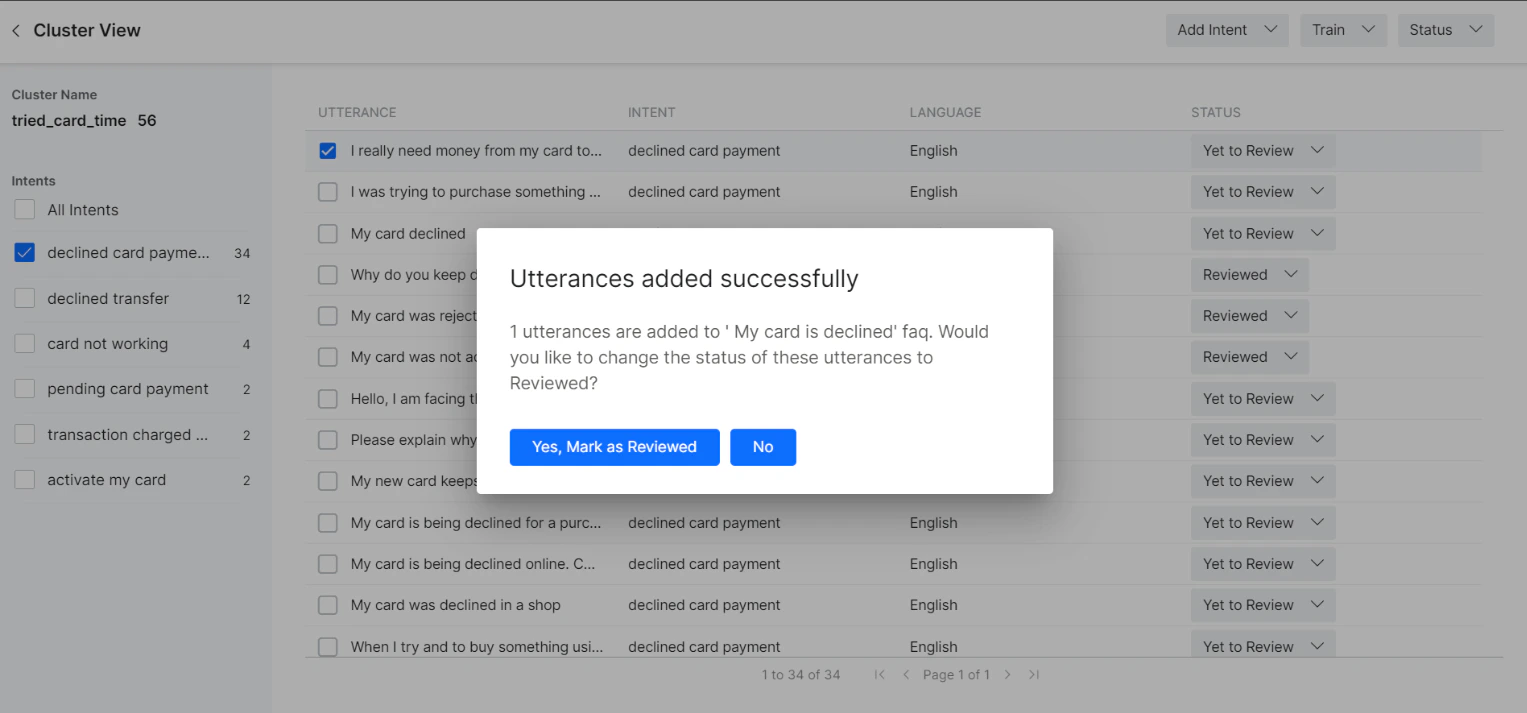 ***
### Status Review
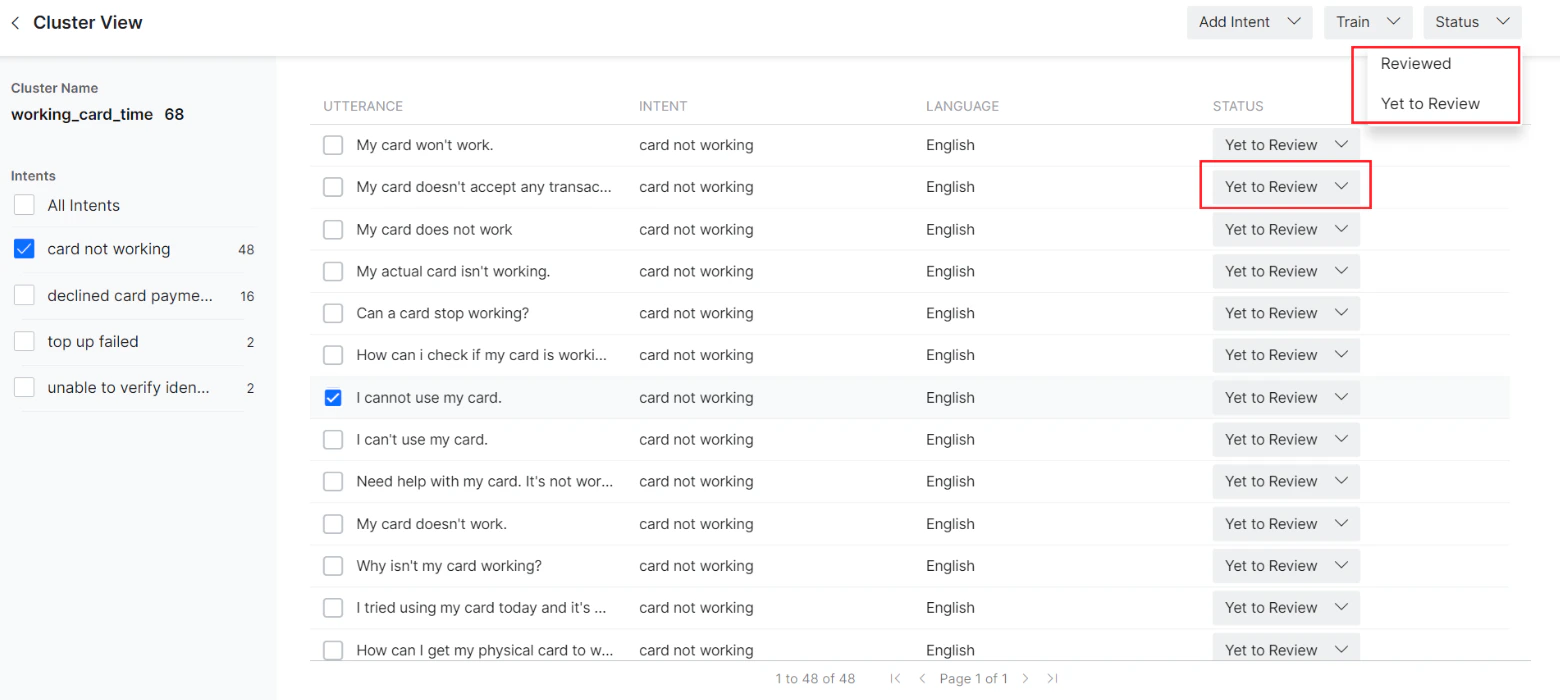
The status of all utterances is **Yet to Review** by default. You can change the status of an individual utterance between **Yet to Review** and **Reviewed**.
Use the Status drop-down in the top right corner of the page to change the status of one or more selected utterances.
***
### Status Review
The status of all utterances is **Yet to Review** by default. You can change the status of an individual utterance between **Yet to Review** and **Reviewed**.
Use the Status drop-down in the top right corner of the page to change the status of one or more selected utterances.
 Click any utterance from the list to display the **Details**, **NLP Analysis**, and **Chat History** panel.
 ***
### Dataset Filters
Once an AI Agent is published, filter the datasets on the Conversation Insights dashboard to analyze data from multiple conversations. Available filter criteria include **Date**, **Conversation Type**, **Conversation Status**, and under **More Filters** — **Intent Type**, **Utterance Status**, and others.
***
### Dataset Filters
Once an AI Agent is published, filter the datasets on the Conversation Insights dashboard to analyze data from multiple conversations. Available filter criteria include **Date**, **Conversation Type**, **Conversation Status**, and under **More Filters** — **Intent Type**, **Utterance Status**, and others.
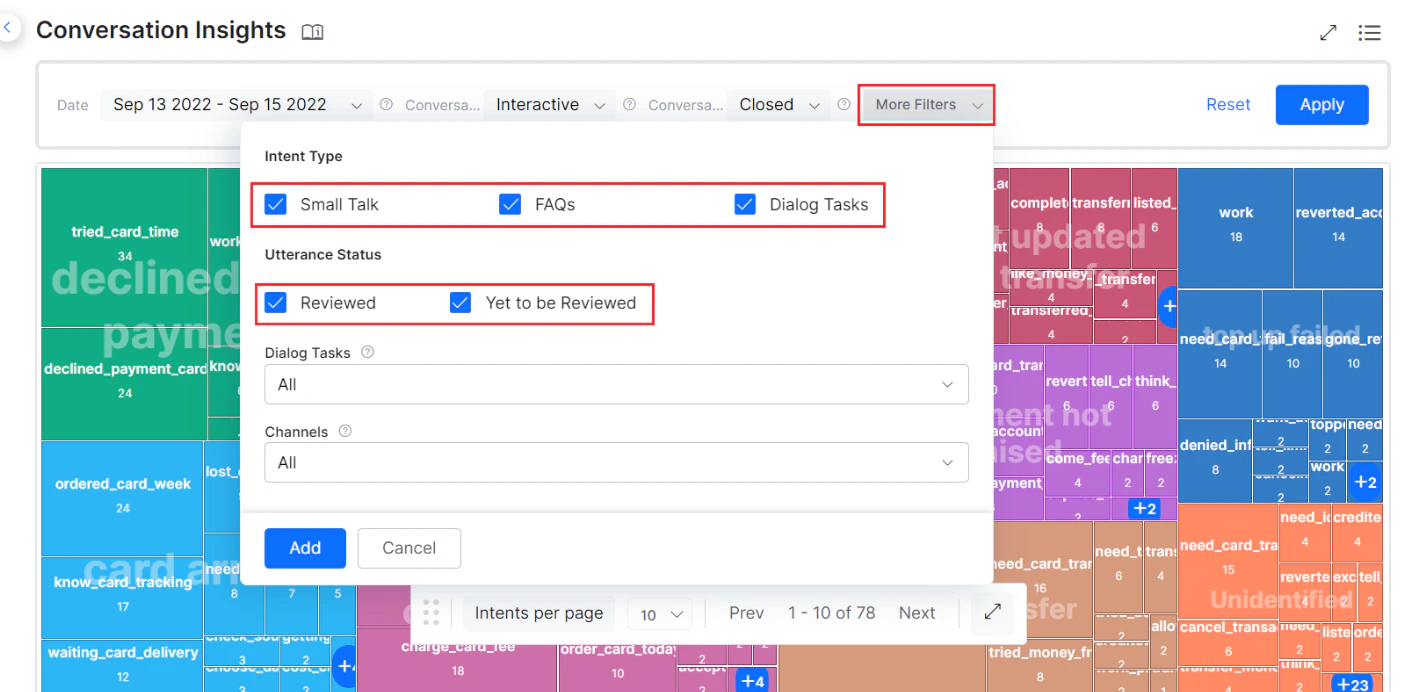 For more information on filter criteria, descriptions, and the availability matrix, see Analytics Dashboard Filters.
***
## Appendix: TP, TN, FP, and FN Scenarios
**True Positive**
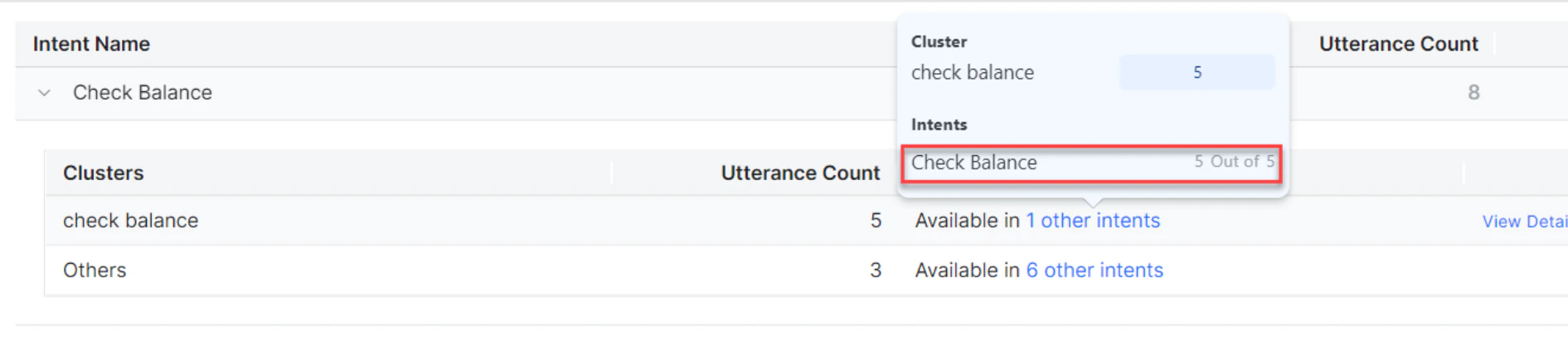
True Positives (TP) occur when the AI Agent correctly identifies the intent of an utterance. In the example below, the intent is correctly mapped to **Check Balance**.
For more information on filter criteria, descriptions, and the availability matrix, see Analytics Dashboard Filters.
***
## Appendix: TP, TN, FP, and FN Scenarios
**True Positive**
True Positives (TP) occur when the AI Agent correctly identifies the intent of an utterance. In the example below, the intent is correctly mapped to **Check Balance**.
 **True Negative**
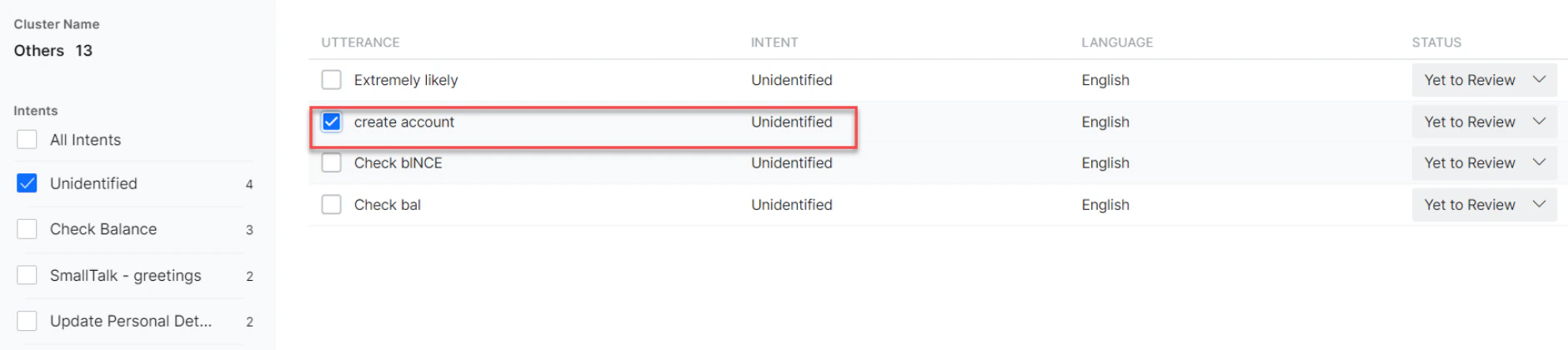
True Negatives (TN) occur when the AI Agent correctly identifies that an utterance didn't match any defined intent. In the example below, the utterance "Extremely Likely" didn't match any defined intent and is categorized as an Unidentified intent.
**True Negative**
True Negatives (TN) occur when the AI Agent correctly identifies that an utterance didn't match any defined intent. In the example below, the utterance "Extremely Likely" didn't match any defined intent and is categorized as an Unidentified intent.
 **False Positive**
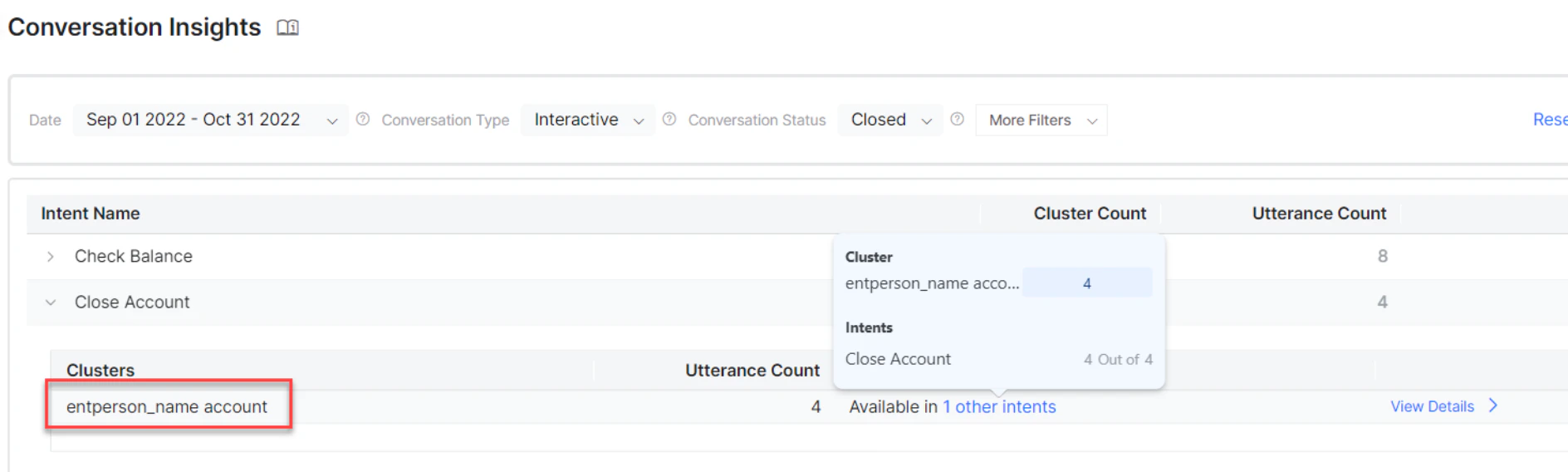
False Positives (FP) occur when the AI Agent incorrectly identifies the intent of an utterance. For example, if the user provides a bank account name and the AI Agent incorrectly identifies the intent as "Close Account."
**False Positive**
False Positives (FP) occur when the AI Agent incorrectly identifies the intent of an utterance. For example, if the user provides a bank account name and the AI Agent incorrectly identifies the intent as "Close Account."
 **False Negative**
False Negatives (FN) occur when the AI Agent incorrectly identifies that an utterance didn't match any defined intent. In the example below, the "create account" utterance is wrongly mapped as an Unidentified intent.
**False Negative**
False Negatives (FN) occur when the AI Agent incorrectly identifies that an utterance didn't match any defined intent. In the example below, the "create account" utterance is wrongly mapped as an Unidentified intent.