> ## Documentation Index
> Fetch the complete documentation index at: https://koreai.mintlify.site/llms.txt
> Use this file to discover all available pages before exploring further.
# Introduction to Reports-Key Concepts and Capabilities
[Back to Reports List](/ai-for-service/analytics/contact-center/reports/reports-list)
Contact Center AI reports enable supervisors to assess performance across agents, queues, and calls, with metrics such as Average Handle Time (AHT), Average Speed of Answer (ASA), and Customer Satisfaction (CSAT).
To access reports, go to **Contact Center AI** > **Analytics** > **CONTACT CENTER** > **Reports**.
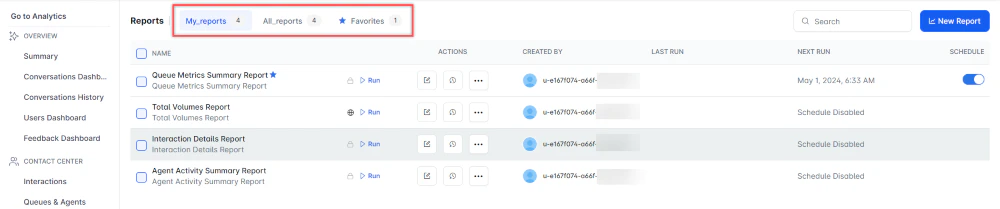
You can filter the reports list using the following tabs:
* **My Reports**: Shows only reports created by the current user.
* **All Reports**: Shows all reports.
* **Favorites**: Shows reports marked as favorites by the current user.
 ***
## Creating a New Report
To create a new report, follow these steps:
1. On the Reports page, select **New Report**.
2. From the list of reports, select a report type to generate. For example, **Interaction Details Report**.
3. Enter the **Report Name** and **Report Description**.
4. Select a **Time Period**.
5. Select **Data Filters**.
6. Select **Report Generation** and choose **Run On Demand** or **Schedule**, where you can create up to six schedules (only one for the Hourly option).
7. Select the desired format.
8. Enter a **Send To** address (single email address or mailing list).
9. Select **Create** to create the report.
10. Select the **Run** option to generate the report. **Run On Demand** generates the report as and when needed, while **Schedule** configures automatic generation at the specified date and time. Use the toggle to enable or disable the schedule (applies only to scheduled reports).
11. Select the option to download the report.
Contact Center AI supports filters, scheduled report runs, on-demand runs, format and filter modifications, on reports.
The red dot beside the report indicates it was generated within the last 24 hours.
***
### Availability
You can restrict report visibility using one of two permissions:
1. **Public** (default)-visible to all users.
2. **Private**-visible only to the creator.
To change report access:
1. Select **⋮** under **ACTIONS** for the report.
2. Select **Switch to Private** to restrict access, or **Switch to Public** to make it available to everyone.
A private report isn't visible to other users on the REPORTS page.
***
## Bulk Actions
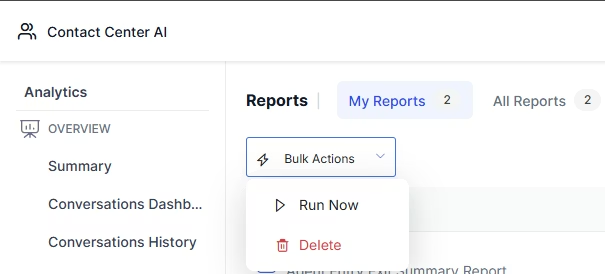
Bulk actions let you run or delete multiple reports at once. Select **Run Now** or **Delete** and then follow the on-screen instructions.
***
## Creating a New Report
To create a new report, follow these steps:
1. On the Reports page, select **New Report**.
2. From the list of reports, select a report type to generate. For example, **Interaction Details Report**.
3. Enter the **Report Name** and **Report Description**.
4. Select a **Time Period**.
5. Select **Data Filters**.
6. Select **Report Generation** and choose **Run On Demand** or **Schedule**, where you can create up to six schedules (only one for the Hourly option).
7. Select the desired format.
8. Enter a **Send To** address (single email address or mailing list).
9. Select **Create** to create the report.
10. Select the **Run** option to generate the report. **Run On Demand** generates the report as and when needed, while **Schedule** configures automatic generation at the specified date and time. Use the toggle to enable or disable the schedule (applies only to scheduled reports).
11. Select the option to download the report.
Contact Center AI supports filters, scheduled report runs, on-demand runs, format and filter modifications, on reports.
The red dot beside the report indicates it was generated within the last 24 hours.
***
### Availability
You can restrict report visibility using one of two permissions:
1. **Public** (default)-visible to all users.
2. **Private**-visible only to the creator.
To change report access:
1. Select **⋮** under **ACTIONS** for the report.
2. Select **Switch to Private** to restrict access, or **Switch to Public** to make it available to everyone.
A private report isn't visible to other users on the REPORTS page.
***
## Bulk Actions
Bulk actions let you run or delete multiple reports at once. Select **Run Now** or **Delete** and then follow the on-screen instructions.
 ***
## Actions
The following actions are available for each report:
| Action | Icon | Steps |
| :------------------ | :------------------------------------------------------------------------------------------------------------------------------------------------------------------------------------------------------------------------------------------------------------------------------------------------------------------------------------------------------------------------------------------------------------------------------------------------------------------------------------------------------------------------------------------------------------------------------------------------------------------------------------------------------------------------------------------------------------------------------------------------------------------------------------------------------------------------------------------------------------------------------------------------------------------------------------------------------------------------------------------------------------------------------------------------------------------------------------------------------------------------------------------------------------------------------------------------------------------------------------------------------------------------------------------------------------------------------------------------------------------------------------------------------------------------------------------------------------------------------------------------------------------------------------------------------------------------------------------------------------------------------------------------------------------------------------------------------------------------------ | :----------------------------------------------------------------------------------------------------- |
| Edit |
***
## Actions
The following actions are available for each report:
| Action | Icon | Steps |
| :------------------ | :------------------------------------------------------------------------------------------------------------------------------------------------------------------------------------------------------------------------------------------------------------------------------------------------------------------------------------------------------------------------------------------------------------------------------------------------------------------------------------------------------------------------------------------------------------------------------------------------------------------------------------------------------------------------------------------------------------------------------------------------------------------------------------------------------------------------------------------------------------------------------------------------------------------------------------------------------------------------------------------------------------------------------------------------------------------------------------------------------------------------------------------------------------------------------------------------------------------------------------------------------------------------------------------------------------------------------------------------------------------------------------------------------------------------------------------------------------------------------------------------------------------------------------------------------------------------------------------------------------------------------------------------------------------------------------------------------------------------------ | :----------------------------------------------------------------------------------------------------- |
| Edit |  | 1. Select **Edit** on the report.
2. In the pop-up, make your changes and select **Save**. |
| View History |  | 1. Select **View History** to see the last 5 runs.
2. Select the **PDF** icon to download a run. |
| Clone | 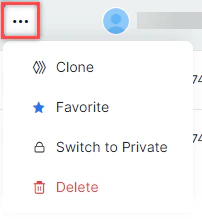 | 1. Select **⋮** > **Clone**.
2. In the pop-up, select **Save**. |
| Favorite/Unfavorite | | 1. Select **⋮** > **Favorite** or **Unfavorite**.
2. Confirm in the pop-up. |
| Delete | | 1. Select **⋮** > **Delete**.
2. In the confirmation pop-up, select **Yes, Delete**. |
***