> ## Documentation Index
> Fetch the complete documentation index at: https://koreai.mintlify.site/llms.txt
> Use this file to discover all available pages before exploring further.
# Queue Chat Metrics Interval Report
[Back to Reports List](/ai-for-service/analytics/contact-center/reports/reports-list)
The Queue Chat Metrics Interval Report summarizes queue performance metrics relevant to chat conversations, aggregated over configurable intervals (30-minute default).
***
## Generate and Manage the Report
To create a new report, follow these steps:
1. On the Reports page, select **New Report**.
2. From the list of reports, select a report type to generate. For example, **Interaction Details Report**.
3. Enter the **Report Name** and **Report Description**.
4. Select a **Time Period**.
5. Select **Data Filters**.
6. Select **Report Generation** and choose **Run On Demand** or **Schedule**, where you can create up to six schedules (only one for the Hourly option).
7. Select the desired format.
8. Enter a **Send To** address (single email address or mailing list).
9. Select **Create** to create the report.
10. Select the **Run** option to generate the report. **Run On Demand** generates the report as and when needed, while **Schedule** configures automatic generation at the specified date and time. Use the toggle to enable or disable the schedule (applies only to scheduled reports).
11. Select the option to download the report.
Contact Center AI supports filters, scheduled report runs, on-demand runs, format and filter modifications, on reports.
The red dot beside the report indicates it was generated within the last 24 hours.
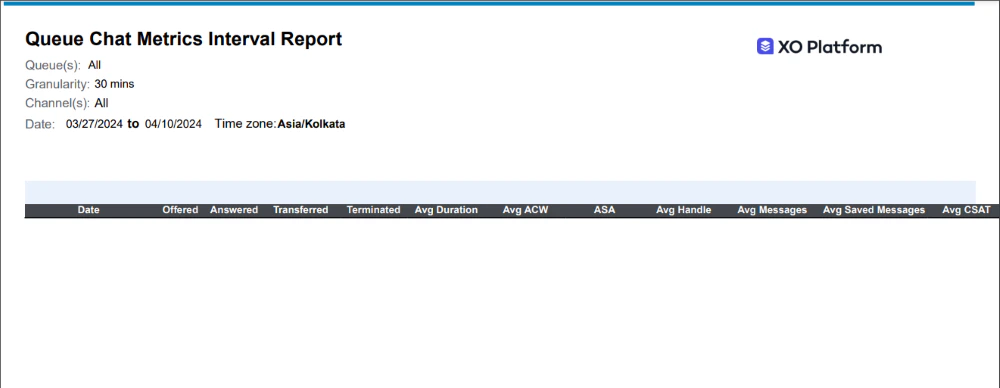 ***
## Report Fields
| Column Name | Description |
| :-------------- | :---------------------------------------------------------------------------------------------------- |
| `Date` | Date of the conversation. |
| `Incoming` | Number of conversations offered (add for summary). |
| `Accepted` | Number of conversations accepted (add for summary). |
| `Abandoned` | Number of conversations abandoned (add for summary). |
| `Transferred` | Number of conversations transferred (add for summary). |
| `Avg Duration` | Total conversation time (excluding ACW) / number of accepted conversations (average for summary). |
| `Avg ACW` | Total ACW time / number of accepted conversations (average for summary). |
| `Avg Messages` | Total messages between callers and agents / number of accepted conversations (average for summary). |
| `Avg Use Saved` | Total saved messages on all conversations / number of accepted conversations (average for summary). |
| `CSAT` | Average CSAT across all conversations / number of conversations with CSAT data (average for summary). |
| `Concurrency` | Total handle time of all chats / total actual time spent on all chats. |
***
***
## Report Fields
| Column Name | Description |
| :-------------- | :---------------------------------------------------------------------------------------------------- |
| `Date` | Date of the conversation. |
| `Incoming` | Number of conversations offered (add for summary). |
| `Accepted` | Number of conversations accepted (add for summary). |
| `Abandoned` | Number of conversations abandoned (add for summary). |
| `Transferred` | Number of conversations transferred (add for summary). |
| `Avg Duration` | Total conversation time (excluding ACW) / number of accepted conversations (average for summary). |
| `Avg ACW` | Total ACW time / number of accepted conversations (average for summary). |
| `Avg Messages` | Total messages between callers and agents / number of accepted conversations (average for summary). |
| `Avg Use Saved` | Total saved messages on all conversations / number of accepted conversations (average for summary). |
| `CSAT` | Average CSAT across all conversations / number of conversations with CSAT data (average for summary). |
| `Concurrency` | Total handle time of all chats / total actual time spent on all chats. |
***