> ## Documentation Index
> Fetch the complete documentation index at: https://koreai.mintlify.app/llms.txt
> Use this file to discover all available pages before exploring further.
# Conversations
[Back to Analytics Overview](/ai-for-service/analytics/overview)
The Conversations page provides insights into AI Agent conversations and allows you to review performance and troubleshoot issues.
## View Conversations
1. Go to **Analytics** > **Overview** > **Conversations**.
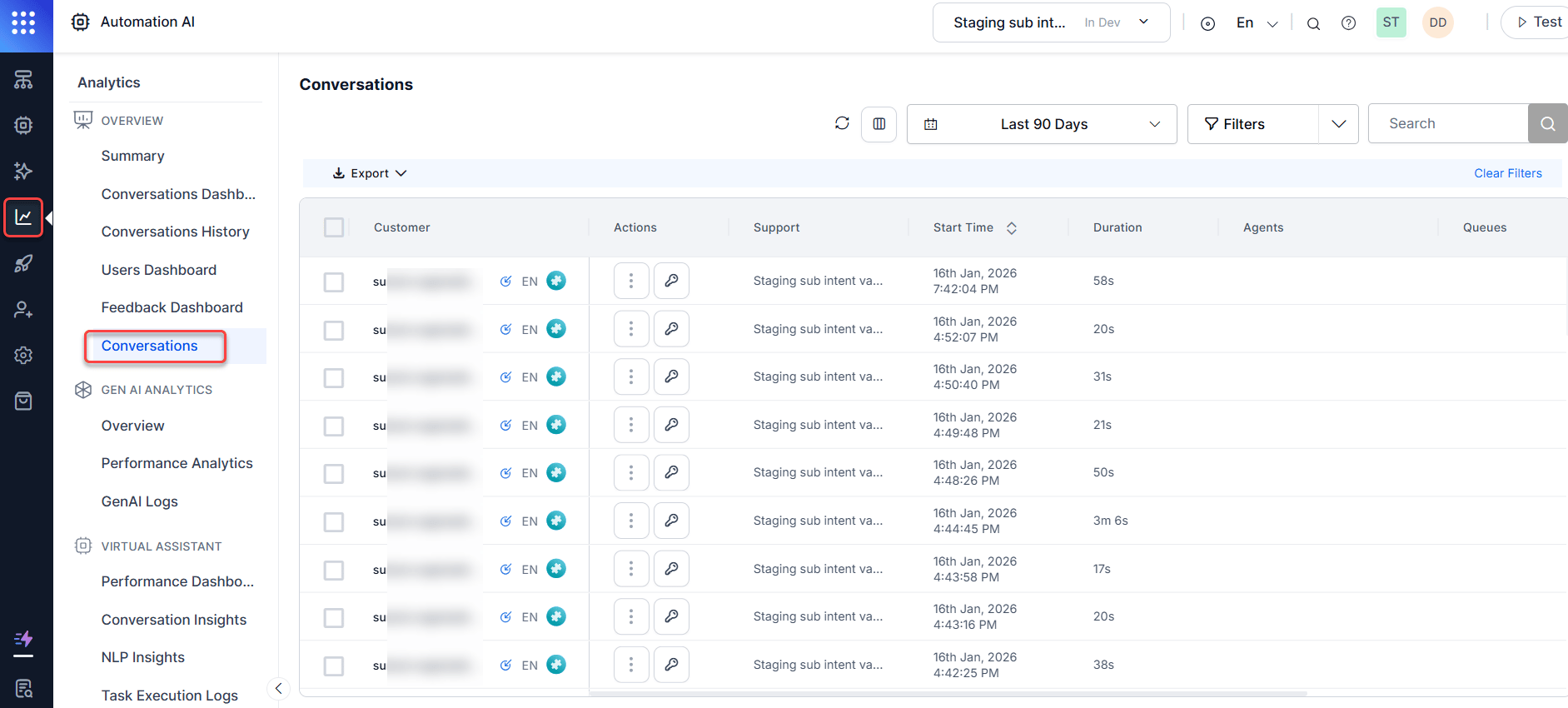 2. The following details appear in a table:
* **CUSTOMER**: The contact who initiated the conversation.
* Direction (icon): Inbound or Outbound.
* Language (icon): Language of the conversation.
* Channel (icon): Voice, Chat, or Email.
Administrators can configure the system to hide customer email IDs and phone numbers in Conversations, the Details slider, and export files. The system displays the internal User ID instead. [Learn more](../../contactcenter/configurations/settings/obscure-customer-info-in-analytics-interactions.md).
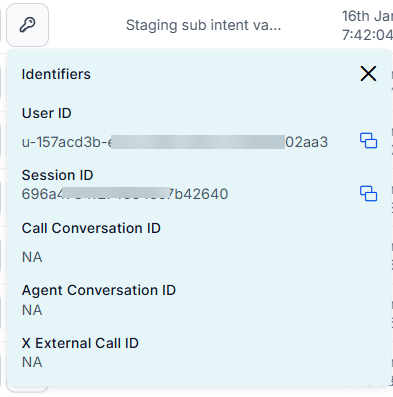
* **ACTIONS**: Download recordings and transcripts, and copy the following identifiers:
* User ID
* Session ID
* Call Conversation ID
* Agent Conversation ID
* X External Call ID
2. The following details appear in a table:
* **CUSTOMER**: The contact who initiated the conversation.
* Direction (icon): Inbound or Outbound.
* Language (icon): Language of the conversation.
* Channel (icon): Voice, Chat, or Email.
Administrators can configure the system to hide customer email IDs and phone numbers in Conversations, the Details slider, and export files. The system displays the internal User ID instead. [Learn more](../../contactcenter/configurations/settings/obscure-customer-info-in-analytics-interactions.md).
* **ACTIONS**: Download recordings and transcripts, and copy the following identifiers:
* User ID
* Session ID
* Call Conversation ID
* Agent Conversation ID
* X External Call ID
 * **Support**: The agent who handled the conversation.
* **Start Time**: Date and time the conversation was logged. Select the arrow icon to sort newest to oldest or oldest to newest.
* **Duration**: Duration of the inbound conversation.
* **Agents**: Profile pictures of agents who participated, in the order they joined. Hover to see agent names.
* **Queues**: The last queue name, with +N for additional queues. Hover to see the order in which queues were entered.
* **Skills**: One skill shown with +N for more. Hover to see all skills associated with the conversation.
* **Status**: Conversation statuses include:
* **In Progress**: An ongoing conversation, displayed immediately in the Conversations tab.
* **Error**: A disruption to an ongoing conversation resulting in an error message, typically from integrated system failures.
* **Completed (Drop Off)**: A voice call where there was no user response and the conversation ended.
* **Completed (User Hangup)**: A voice call where the user ended the conversation.
* **Completed (AI Agents Hangup)**: A voice call where the AI Agent completed the task and ended the call.
* **Completed**: A chat conversation where the AI Agent completed the task and ended the session.
* **CSAT**: Displays the CSAT survey score. A gray icon means the survey was triggered but no response was submitted.
* **NPS**: Displays the NPS score. A gray icon means the survey was triggered but no response was submitted.
* **Like/Dislike**: Displays the Like or Dislike selection. A highlighted icon means the user submitted a response. A gray icon means no response was submitted.
***
## Supervisor Actions
Supervisors can view ongoing conversations and intervene directly from the Conversations tab, similar to the Monitor tab.
1. Select **Conversations** under the **Overview** section of the Analytics panel.
2. Select **⋮** under ACTIONS, then select **Supervisor View**.
* **Support**: The agent who handled the conversation.
* **Start Time**: Date and time the conversation was logged. Select the arrow icon to sort newest to oldest or oldest to newest.
* **Duration**: Duration of the inbound conversation.
* **Agents**: Profile pictures of agents who participated, in the order they joined. Hover to see agent names.
* **Queues**: The last queue name, with +N for additional queues. Hover to see the order in which queues were entered.
* **Skills**: One skill shown with +N for more. Hover to see all skills associated with the conversation.
* **Status**: Conversation statuses include:
* **In Progress**: An ongoing conversation, displayed immediately in the Conversations tab.
* **Error**: A disruption to an ongoing conversation resulting in an error message, typically from integrated system failures.
* **Completed (Drop Off)**: A voice call where there was no user response and the conversation ended.
* **Completed (User Hangup)**: A voice call where the user ended the conversation.
* **Completed (AI Agents Hangup)**: A voice call where the AI Agent completed the task and ended the call.
* **Completed**: A chat conversation where the AI Agent completed the task and ended the session.
* **CSAT**: Displays the CSAT survey score. A gray icon means the survey was triggered but no response was submitted.
* **NPS**: Displays the NPS score. A gray icon means the survey was triggered but no response was submitted.
* **Like/Dislike**: Displays the Like or Dislike selection. A highlighted icon means the user submitted a response. A gray icon means no response was submitted.
***
## Supervisor Actions
Supervisors can view ongoing conversations and intervene directly from the Conversations tab, similar to the Monitor tab.
1. Select **Conversations** under the **Overview** section of the Analytics panel.
2. Select **⋮** under ACTIONS, then select **Supervisor View**.
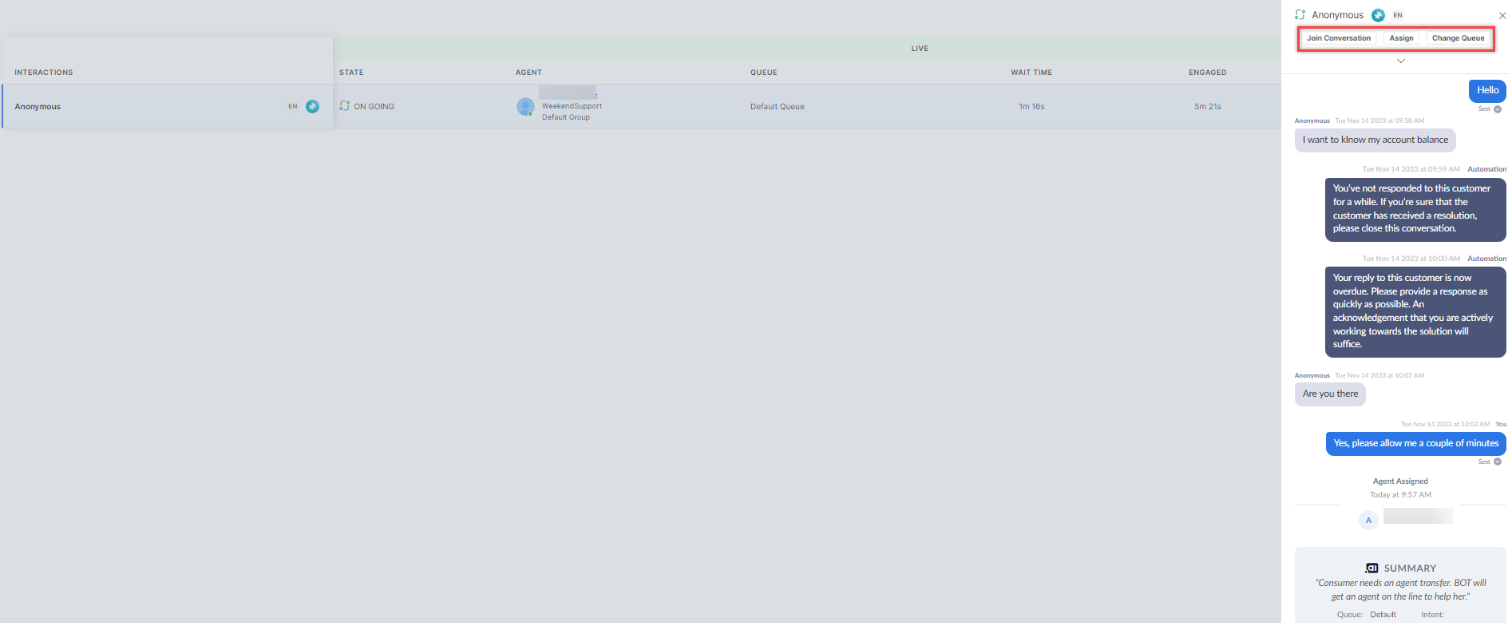
 3. You are redirected to the Conversations section on the Monitor tab.
 4. Select an ongoing conversation. You can perform the following actions:
* Join Conversation
* Assign
* Change Queue
4. Select an ongoing conversation. You can perform the following actions:
* Join Conversation
* Assign
* Change Queue
 ***
## Search Conversations
Use the search field on the top right of the Conversations tab to find specific conversations. The system supports keyword search across chats, call transcripts, agent notes, and disposition notes. Common words are ignored and results are ranked by relevance by default. You can sort by Start Time when needed.
### Recent Searches
The system stores up to the last ten search phrases for the current user and displays them in the dropdown. You can select a previous phrase or enter a new one. After each search, the system saves the phrase as the most recent entry, removing duplicates and updating position.
***
## Export and Download
You can download recordings, transcripts, latency reports, and events from the dashboard.
### Export Conversation Data and Transcripts
1. Select the conversations and click **Export**.
***
## Search Conversations
Use the search field on the top right of the Conversations tab to find specific conversations. The system supports keyword search across chats, call transcripts, agent notes, and disposition notes. Common words are ignored and results are ranked by relevance by default. You can sort by Start Time when needed.
### Recent Searches
The system stores up to the last ten search phrases for the current user and displays them in the dropdown. You can select a previous phrase or enter a new one. After each search, the system saves the phrase as the most recent entry, removing duplicates and updating position.
***
## Export and Download
You can download recordings, transcripts, latency reports, and events from the dashboard.
### Export Conversation Data and Transcripts
1. Select the conversations and click **Export**.
 2. Select **Export Conversation Data**, **Export Transcripts**, or **Export Events**.
Or select **Download Chat Transcript** or **Download Latency Report**. These download as .csv files.
2. Select **Export Conversation Data**, **Export Transcripts**, or **Export Events**.
Or select **Download Chat Transcript** or **Download Latency Report**. These download as .csv files.
 * **Export Conversation Data** exports metadata for all selected conversations.
* **Export Transcripts** exports transcript files compressed into a zip named `transcripts-YYYY-MM-DD-HH24-mm-SS.zip`.
* You can select up to 25 conversations for transcript export. Conversations without a transcript include a blank transcript in the export.
* A status message appears when the export starts. The file downloads automatically on completion.
* To enable Download Latency Report, add the following Call Control Parameters: `notifySttLatency = true`, `vadEnable = true`, `vadVendor = silero`.
* When permissions are not granted or are disabled, download buttons are inactive and an access restriction message appears on hover.
3. A status message appears at the start of the export. The file downloads on completion.
### Preview and Download Events
1. Select the conversations, click **Export**, or click the **⋮** icon under Actions.
* **Export Conversation Data** exports metadata for all selected conversations.
* **Export Transcripts** exports transcript files compressed into a zip named `transcripts-YYYY-MM-DD-HH24-mm-SS.zip`.
* You can select up to 25 conversations for transcript export. Conversations without a transcript include a blank transcript in the export.
* A status message appears when the export starts. The file downloads automatically on completion.
* To enable Download Latency Report, add the following Call Control Parameters: `notifySttLatency = true`, `vadEnable = true`, `vadVendor = silero`.
* When permissions are not granted or are disabled, download buttons are inactive and an access restriction message appears on hover.
3. A status message appears at the start of the export. The file downloads on completion.
### Preview and Download Events
1. Select the conversations, click **Export**, or click the **⋮** icon under Actions.
 2. Select **Preview Events**.
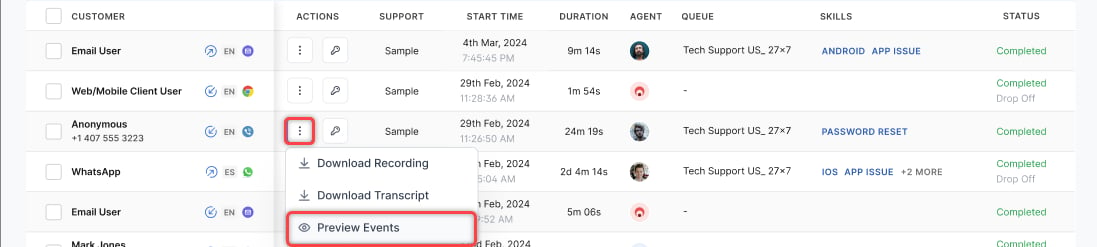 3. Select **Download Events**.
* The Download Events option is unavailable for conversations older than 30 days.
* Events are recorded periodically, so the exported document may not always reflect the complete event history. For a comprehensive record, download events after the conversation has ended.
3. Select **Download Events**.
* The Download Events option is unavailable for conversations older than 30 days.
* Events are recorded periodically, so the exported document may not always reflect the complete event history. For a comprehensive record, download events after the conversation has ended.
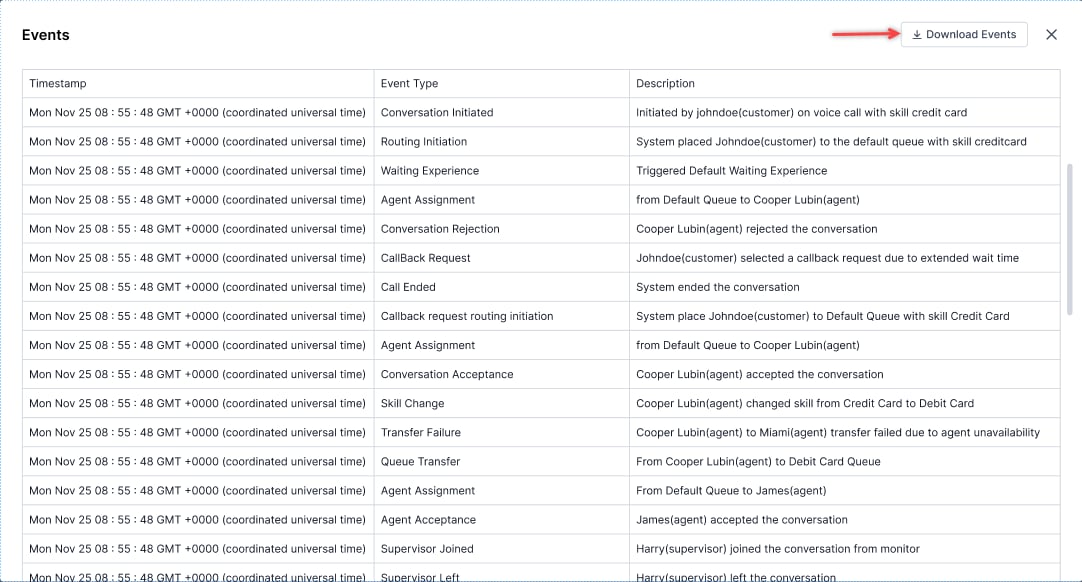 4. A confirmation appears when the export completes.
 The system exports the following events and their timestamps for chat and voice conversations:
* Routing Initiation
* Conversation Acceptance
* Conversation Rejection
* Conversation Transfer
* Transfer Failures
* Agent Join
* Agent Left
* Agent Consultation
* Skill Change
* Disposition Updates
* After-Call Work (ACW)
* Conversation Closure
***
## Latency Metrics (Beta)
The Latency Metrics feature measures the duration of each stage in a voice interaction: ASR, bot processing, TTS, and end-to-end response time.
* **ASR Latency**: Time between when the user stops speaking and when the ASR provider returns the full transcription.
Formula: `ASR Latency = User stops speaking → ASR returns full transcript`
Example: User stops speaking at `10:00:05.000`; ASR returns transcript at `10:00:05.450` → ASR Latency = 450 ms
* **Bot Latency**: Time between when the Voice Gateway (VG) sends the transcription to the platform and when VG receives the full response.
Formula: `Bot Latency = VG sends transcript → VG receives bot response`
Example: Transcript sent at `10:00:05.450`; bot response received at `10:00:06.300` → Bot Latency = 850 ms
* **TTS Latency**: Time between when VG sends the bot's response text to the TTS provider and when VG receives the first byte of synthesized audio (Time to First Byte). Total TTS audio-generation time is not shown.
Formula: `TTS Latency = VG sends TTS request → VG receives first audio byte`
Example: TTS request sent at `10:00:06.300`; first audio byte received at `10:00:06.700` → TTS Latency = 400 ms
* **End-to-End Latency**: Total time between when the user stops speaking and when the first audio byte plays back to the user.
Formula: `End-to-End Latency = User stops speaking → First audio byte heard`
Example: User stops speaking at `10:00:05.000`; first audio byte heard at `10:00:06.700` → End-to-End Latency = 1.7 seconds
| Metric | Measures Time Between | Represents | Example |
| ------------------ | --------------------------------------------------- | --------------------------------------- | ------- |
| ASR Latency | User stops speaking → ASR full transcript | Speed of speech recognition | 450 ms |
| Bot Latency | VG sends transcript → VG gets bot response | Bot processing and platform delays | 850 ms |
| TTS Latency | VG sends TTS request → VG receives first audio byte | TTS responsiveness (Time to First Byte) | 400 ms |
| End-to-End Latency | User stops speaking → user hears first audio byte | Full round-trip delay | 1.7 s |
***
## Edit Dispositions from the Conversations Tab
Supervisors can edit or override disposition codes after a conversation ends. Agents assign dispositions during live sessions, but supervisors can review and revise them from the Conversations tab once the session is complete.
Key highlights:
* Improved auditing and compliance
* Accurate reporting and resolution tracking
* Reduced dependency on agents for post-call updates
* Agents receive a notification when a supervisor updates a disposition
Steps to edit dispositions:
1. Select a completed interaction to revise.
2. Select the **DETAILS** tab in the Insights to Logs window.
3. Select **Edit Disposition**.
The system exports the following events and their timestamps for chat and voice conversations:
* Routing Initiation
* Conversation Acceptance
* Conversation Rejection
* Conversation Transfer
* Transfer Failures
* Agent Join
* Agent Left
* Agent Consultation
* Skill Change
* Disposition Updates
* After-Call Work (ACW)
* Conversation Closure
***
## Latency Metrics (Beta)
The Latency Metrics feature measures the duration of each stage in a voice interaction: ASR, bot processing, TTS, and end-to-end response time.
* **ASR Latency**: Time between when the user stops speaking and when the ASR provider returns the full transcription.
Formula: `ASR Latency = User stops speaking → ASR returns full transcript`
Example: User stops speaking at `10:00:05.000`; ASR returns transcript at `10:00:05.450` → ASR Latency = 450 ms
* **Bot Latency**: Time between when the Voice Gateway (VG) sends the transcription to the platform and when VG receives the full response.
Formula: `Bot Latency = VG sends transcript → VG receives bot response`
Example: Transcript sent at `10:00:05.450`; bot response received at `10:00:06.300` → Bot Latency = 850 ms
* **TTS Latency**: Time between when VG sends the bot's response text to the TTS provider and when VG receives the first byte of synthesized audio (Time to First Byte). Total TTS audio-generation time is not shown.
Formula: `TTS Latency = VG sends TTS request → VG receives first audio byte`
Example: TTS request sent at `10:00:06.300`; first audio byte received at `10:00:06.700` → TTS Latency = 400 ms
* **End-to-End Latency**: Total time between when the user stops speaking and when the first audio byte plays back to the user.
Formula: `End-to-End Latency = User stops speaking → First audio byte heard`
Example: User stops speaking at `10:00:05.000`; first audio byte heard at `10:00:06.700` → End-to-End Latency = 1.7 seconds
| Metric | Measures Time Between | Represents | Example |
| ------------------ | --------------------------------------------------- | --------------------------------------- | ------- |
| ASR Latency | User stops speaking → ASR full transcript | Speed of speech recognition | 450 ms |
| Bot Latency | VG sends transcript → VG gets bot response | Bot processing and platform delays | 850 ms |
| TTS Latency | VG sends TTS request → VG receives first audio byte | TTS responsiveness (Time to First Byte) | 400 ms |
| End-to-End Latency | User stops speaking → user hears first audio byte | Full round-trip delay | 1.7 s |
***
## Edit Dispositions from the Conversations Tab
Supervisors can edit or override disposition codes after a conversation ends. Agents assign dispositions during live sessions, but supervisors can review and revise them from the Conversations tab once the session is complete.
Key highlights:
* Improved auditing and compliance
* Accurate reporting and resolution tracking
* Reduced dependency on agents for post-call updates
* Agents receive a notification when a supervisor updates a disposition
Steps to edit dispositions:
1. Select a completed interaction to revise.
2. Select the **DETAILS** tab in the Insights to Logs window.
3. Select **Edit Disposition**.
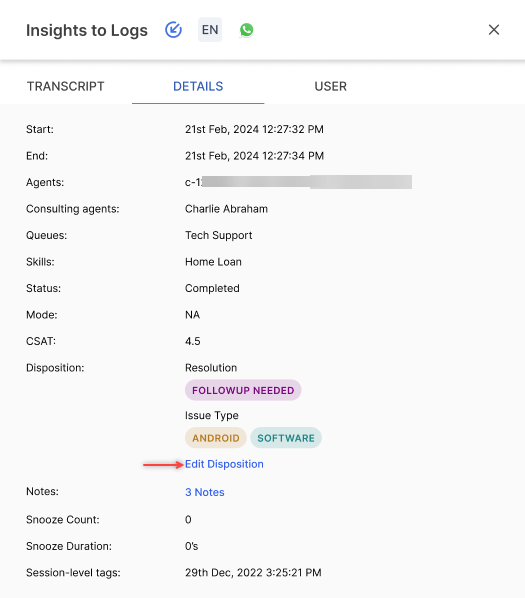 4. Make the necessary changes and select **Save**.
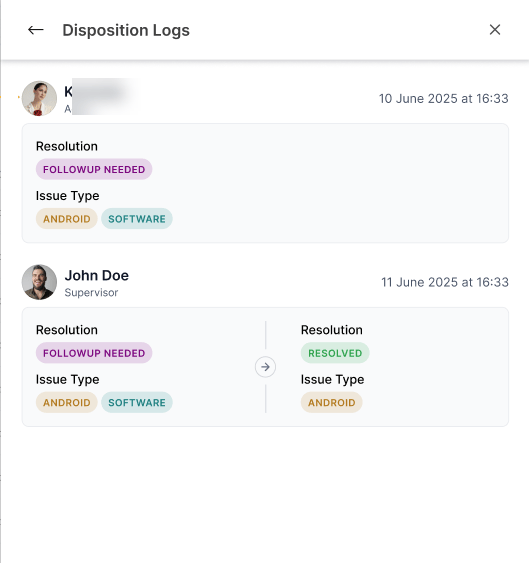
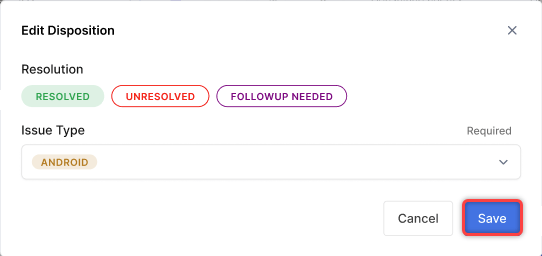 5. Select **View Logs**.
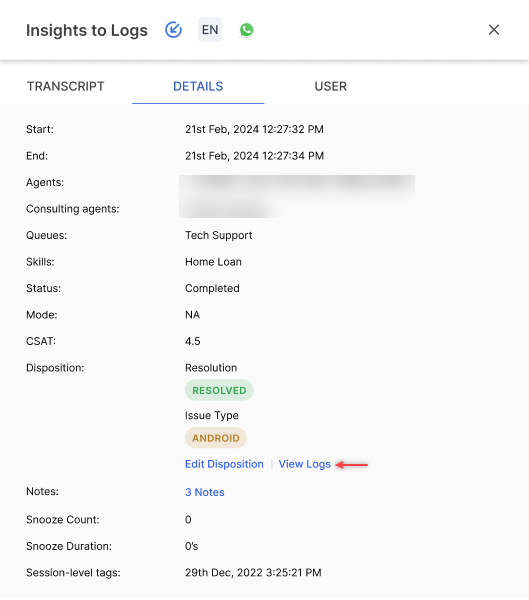 The disposition logs appear.
 ***
## Filters
You can create and save multiple filters on the Conversations tab to avoid re-entering your filter selections repeatedly.
### Create Filter
1. Select the **Filter** icon.
***
## Filters
You can create and save multiple filters on the Conversations tab to avoid re-entering your filter selections repeatedly.
### Create Filter
1. Select the **Filter** icon.
 2. Select **New Filter**.
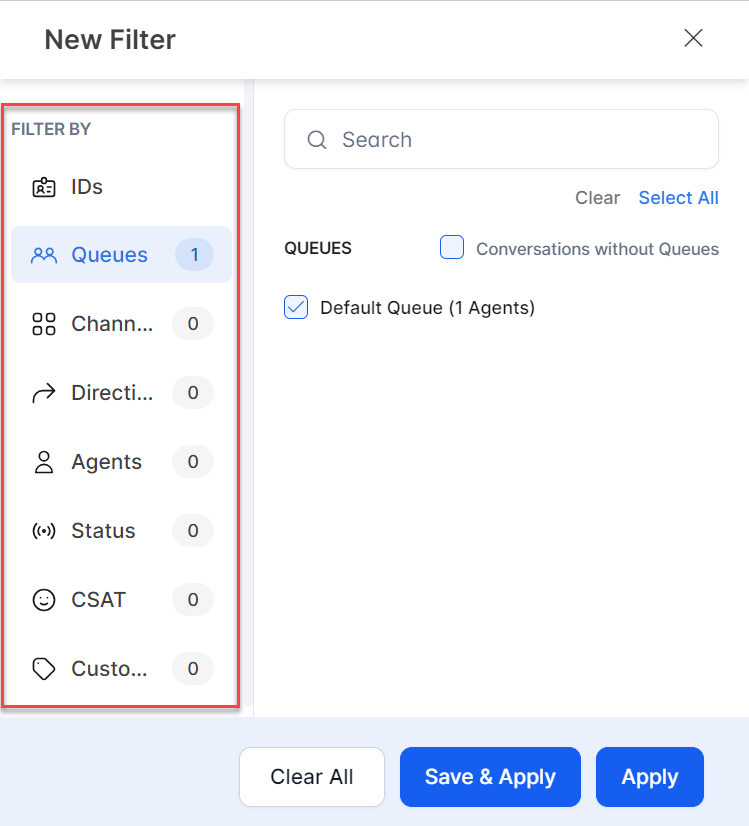
3. Select the IDs, Queues, Channels, Agents, Status, CSAT, and Custom Tags.
2. Select **New Filter**.
3. Select the IDs, Queues, Channels, Agents, Status, CSAT, and Custom Tags.
 Available options:
* **Clear**: Clears the selection.
* **Save & Apply**: Saves the filter for future use.
* **Apply**: Applies for one instance without saving.
4. Select **Save & Apply**.
5. In the pop-up, enter a name for the filter and select **Save & Apply**.
A confirmation message appears and the filter is created.
#### SmartStatus
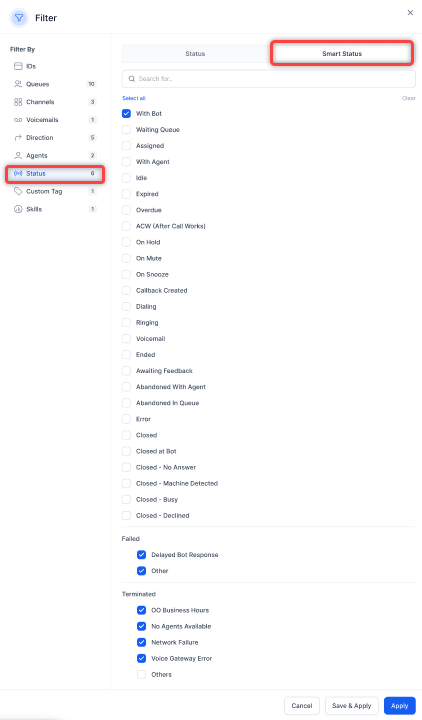
SmartStatus is a fine-grained, business-relevant version of conversation status. It detects events such as call handling, messaging activity, inactivity, or disconnections and updates the conversation status accordingly.
Available options:
* **Clear**: Clears the selection.
* **Save & Apply**: Saves the filter for future use.
* **Apply**: Applies for one instance without saving.
4. Select **Save & Apply**.
5. In the pop-up, enter a name for the filter and select **Save & Apply**.
A confirmation message appears and the filter is created.
#### SmartStatus
SmartStatus is a fine-grained, business-relevant version of conversation status. It detects events such as call handling, messaging activity, inactivity, or disconnections and updates the conversation status accordingly.
 #### Filter for Custom Tags
You can filter conversations using custom tags.
1. Select the **Filter for Custom Tags (Beta)** checkbox. The following fields appear:
1. Tag name
2. Predicate dropdown (CONTAINS and DOES NOT CONTAIN)
3. AND to create a new clause
2. Select values for the custom tag fields and select **AND** to add another clause.
3. Select values for the second clause and select **Apply**.
#### Filter for Custom Tags
You can filter conversations using custom tags.
1. Select the **Filter for Custom Tags (Beta)** checkbox. The following fields appear:
1. Tag name
2. Predicate dropdown (CONTAINS and DOES NOT CONTAIN)
3. AND to create a new clause
2. Select values for the custom tag fields and select **AND** to add another clause.
3. Select values for the second clause and select **Apply**.
 A confirmation appears. Select **(-)** to delete a clause.
You can add up to 5 clauses.
Conversations matching all selected clauses appear in the results.
### Edit Filter
1. Select the **Filters** tab. The saved filter name appears.
2. Select **Edit**.
3. Make the necessary changes and select **Save & Apply**.
A confirmation message appears and the filter is updated.
### Copy Filter
1. Select **Duplicate**.
2. In the **Rename Filter** window, enter a name and select **Save**.
A confirmation appears and a copy of the filter is created.
### Mark as Default
1. Select **Mark as Default**. A confirmation message appears and the filter is set as default.
### Delete Filter
1. Select **Delete**.
2. Select **Delete** on the confirmation message.
A confirmation appears and the filter is deleted.
***
## Insights to Logs
The Insights to Logs panel shows conversation details between the contact and the agent.
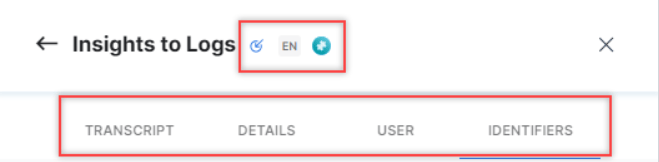
Select an interaction to view the panel. The following tabs appear:
* Transcript (formerly Chat History)
* Details
* User
* Identifiers
Icons beside the Insights to Logs header show:
* Direction (inbound or outbound)
* Language
* Sentiment (Positive, Neutral, etc.)
* Channel (Voice, Chat, or Email)
A confirmation appears. Select **(-)** to delete a clause.
You can add up to 5 clauses.
Conversations matching all selected clauses appear in the results.
### Edit Filter
1. Select the **Filters** tab. The saved filter name appears.
2. Select **Edit**.
3. Make the necessary changes and select **Save & Apply**.
A confirmation message appears and the filter is updated.
### Copy Filter
1. Select **Duplicate**.
2. In the **Rename Filter** window, enter a name and select **Save**.
A confirmation appears and a copy of the filter is created.
### Mark as Default
1. Select **Mark as Default**. A confirmation message appears and the filter is set as default.
### Delete Filter
1. Select **Delete**.
2. Select **Delete** on the confirmation message.
A confirmation appears and the filter is deleted.
***
## Insights to Logs
The Insights to Logs panel shows conversation details between the contact and the agent.
Select an interaction to view the panel. The following tabs appear:
* Transcript (formerly Chat History)
* Details
* User
* Identifiers
Icons beside the Insights to Logs header show:
* Direction (inbound or outbound)
* Language
* Sentiment (Positive, Neutral, etc.)
* Channel (Voice, Chat, or Email)
 **Transcript**: Shows the transcript of the voice conversation, including supervisor whispers.
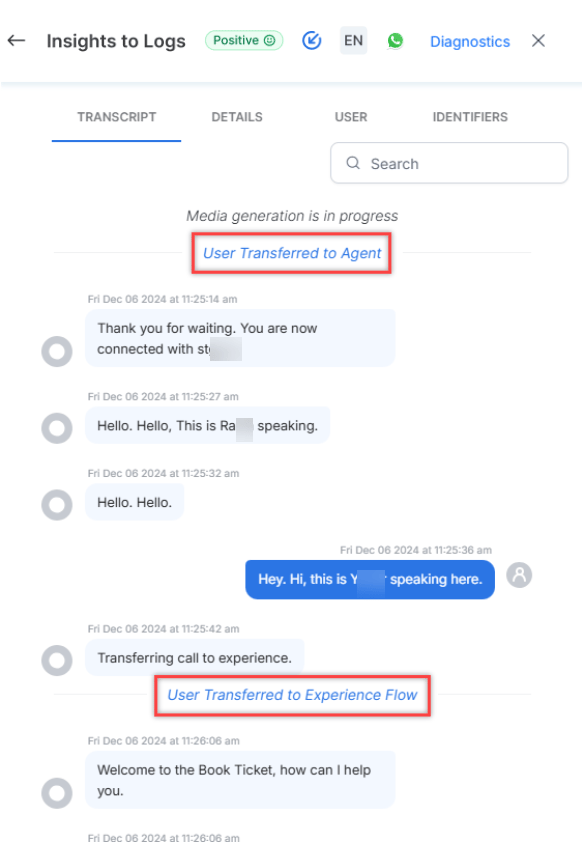
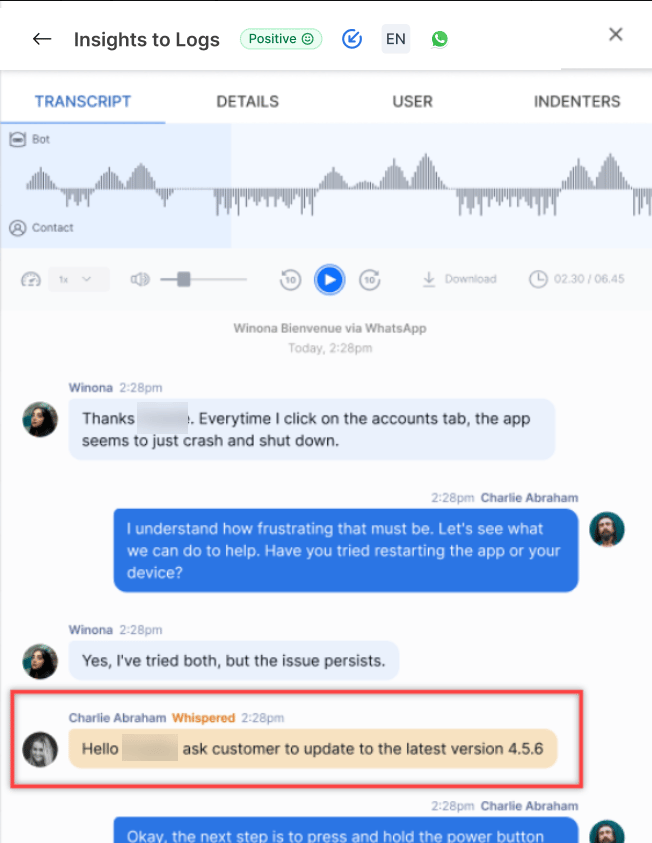 The Transcript tab also shows call transfer stages:
* **User transferred to Agent**: When Automation transfers the voice call to an agent.
* **User transferred to Automation**: When the agent transfers the voice call back to Automation.
The Transcript tab also shows call transfer stages:
* **User transferred to Agent**: When Automation transfers the voice call to an agent.
* **User transferred to Automation**: When the agent transfers the voice call back to Automation.
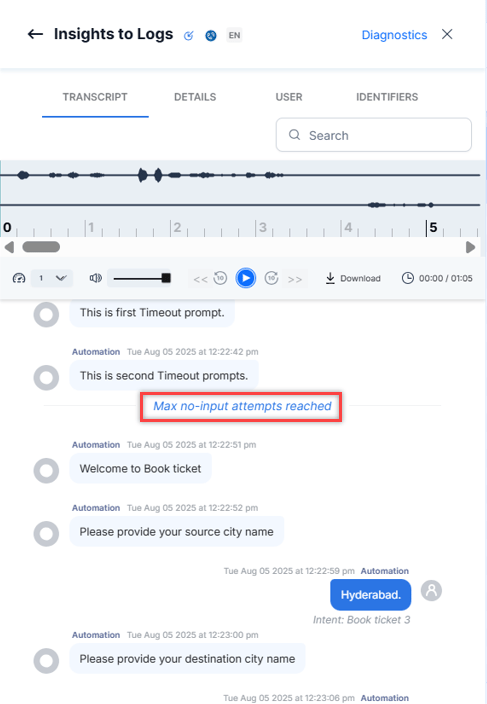
 * **Max no-input attempts reached**: When automation triggers the AI Agent behavior for exceeding maximum retries.
 - Customer speech during hold periods is not recorded or displayed in transcripts, regardless of who initiated the hold.
- To redact PII in the transcript, select **De-identify PII data while presenting it to the user** from the entity node.
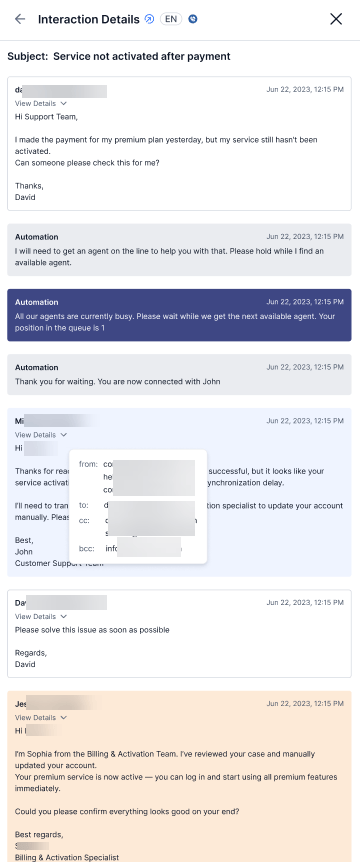
For email conversations, the Transcript tab displays:
* Subject at the beginning of the transcript.
* Each email entry with a View Details pop-up.
* The pop-up shows From, To, CC, and BCC fields.
- Customer speech during hold periods is not recorded or displayed in transcripts, regardless of who initiated the hold.
- To redact PII in the transcript, select **De-identify PII data while presenting it to the user** from the entity node.
For email conversations, the Transcript tab displays:
* Subject at the beginning of the transcript.
* Each email entry with a View Details pop-up.
* The pop-up shows From, To, CC, and BCC fields.
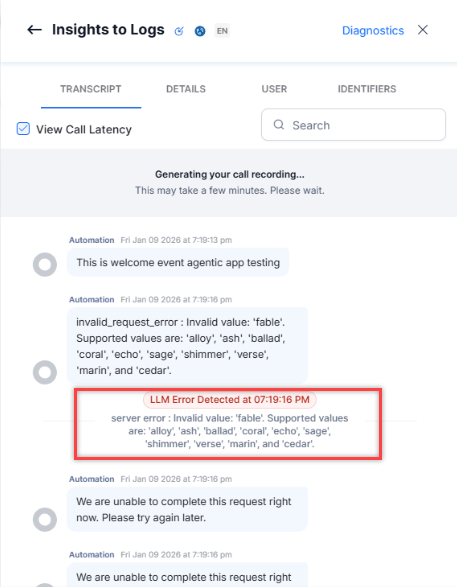
 **LLM Error Detected**: An error message appears when real-time voice APIs in Agentic apps disconnect after receiving an error.
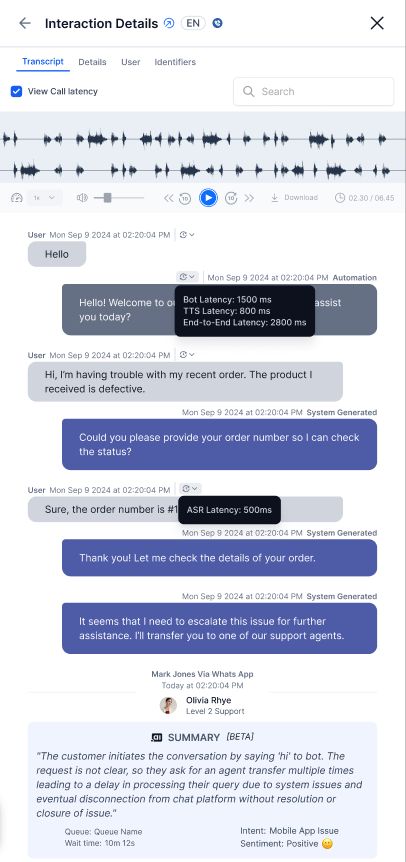
 **Latency Metrics for Voice Conversations**: Displays ASR, Bot, TTS, and End-to-End latency values.
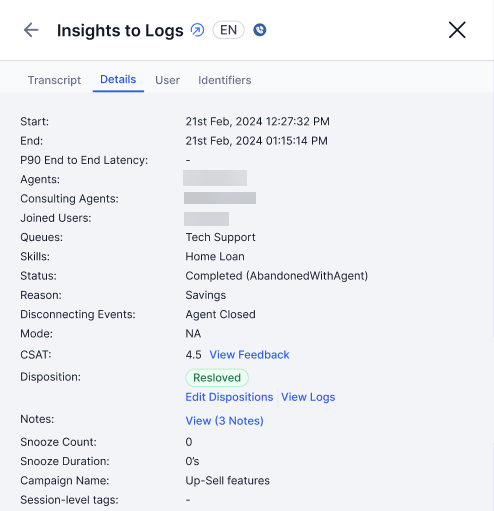
 **Details**: Shows the following information.
| Field | Description |
| ------------------ | ----------------------------------------------- |
| Start | Conversation start time |
| End | Conversation end time |
| Agents | Name of the agent |
| Consulting agents | Name of the consulting agent |
| Joined Users | Names of users who joined |
| Queues | Queues that handled the call |
| Status | Conversation status (SmartStatus) |
| Mode | Mode of the conversation |
| CSAT | CSAT survey score and feedback |
| Disposition | Dispositions assigned |
| Notes | Notes added to the conversation (view only) |
| Snooze Count | Number of times the conversation was snoozed |
| Snooze Duration | Duration the conversation was snoozed |
| Campaign Name | Campaign name (applicable for campaigns) |
| Session-level tags | Session-level tags assigned to the conversation |
**Details**: Shows the following information.
| Field | Description |
| ------------------ | ----------------------------------------------- |
| Start | Conversation start time |
| End | Conversation end time |
| Agents | Name of the agent |
| Consulting agents | Name of the consulting agent |
| Joined Users | Names of users who joined |
| Queues | Queues that handled the call |
| Status | Conversation status (SmartStatus) |
| Mode | Mode of the conversation |
| CSAT | CSAT survey score and feedback |
| Disposition | Dispositions assigned |
| Notes | Notes added to the conversation (view only) |
| Snooze Count | Number of times the conversation was snoozed |
| Snooze Duration | Duration the conversation was snoozed |
| Campaign Name | Campaign name (applicable for campaigns) |
| Session-level tags | Session-level tags assigned to the conversation |
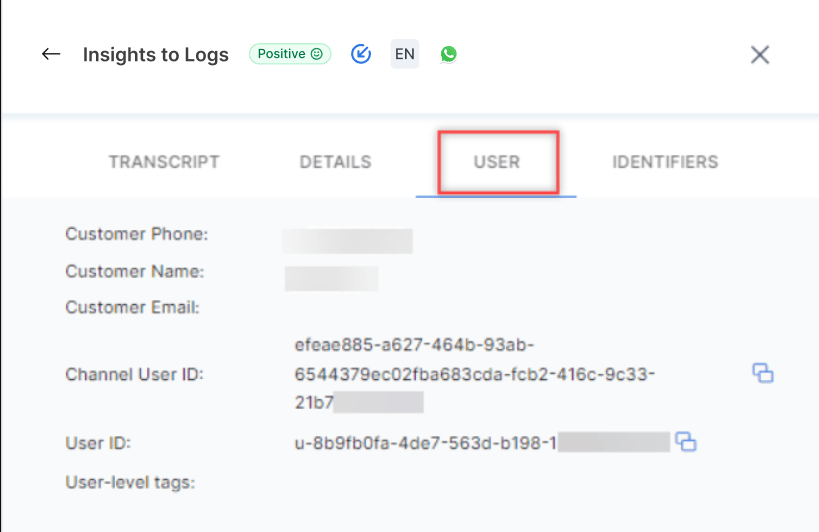
 **User**: Shows the following information.
| Field | Description |
| --------------- | -------------------------------------------- |
| Customer Phone | Customer's phone number |
| Customer Name | Customer's name |
| Customer Email | Customer's email address |
| Channel User ID | User ID of the conversation channel |
| User ID | Agent's user ID |
| User-level tags | User-level tags assigned to the conversation |
**User**: Shows the following information.
| Field | Description |
| --------------- | -------------------------------------------- |
| Customer Phone | Customer's phone number |
| Customer Name | Customer's name |
| Customer Email | Customer's email address |
| Channel User ID | User ID of the conversation channel |
| User ID | Agent's user ID |
| User-level tags | User-level tags assigned to the conversation |
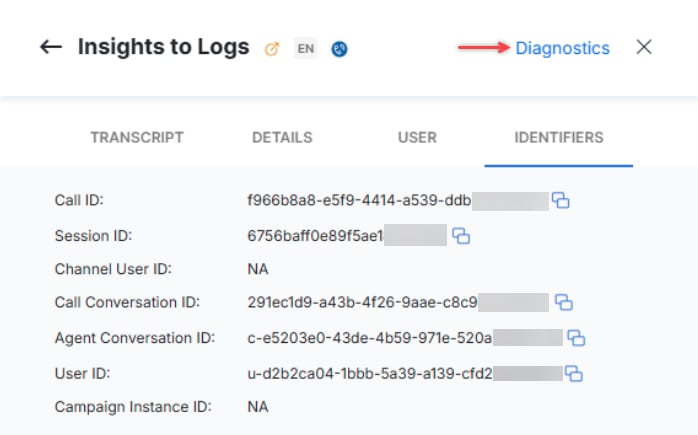
 **Identifiers**: Shows the following information.
| Field | Description |
| --------------------- | ------------------------------------ |
| Call ID | The call ID (for voice calls) |
| Session ID | The session ID |
| Channel User ID | User ID of the conversation channel |
| Call Conversation ID | Conversation ID (for voice calls) |
| Agent Conversation ID | Agent conversation ID |
| User ID | Agent's user ID |
| Campaign Instance ID | Campaign instance ID (for campaigns) |
Select **Copy All** to copy all identifier details including Start Time, End Time, Caller ID, Session ID, Channel User ID, Call Conversation ID, Agent Conversation ID, User ID, Caller, and Callee.
### Call Recording
The Call Recording feature plays past conversations between a contact and an agent from the Chat History section in the Insights to Logs panel. Recordings are captured automatically and are useful for quality analysis and auditing.
Configure the following settings:
* **Play Audio**: Select the Play icon to play the audio waveform.
* **Playback Speed**: Select the speed drop-down to change playback speed.
**Identifiers**: Shows the following information.
| Field | Description |
| --------------------- | ------------------------------------ |
| Call ID | The call ID (for voice calls) |
| Session ID | The session ID |
| Channel User ID | User ID of the conversation channel |
| Call Conversation ID | Conversation ID (for voice calls) |
| Agent Conversation ID | Agent conversation ID |
| User ID | Agent's user ID |
| Campaign Instance ID | Campaign instance ID (for campaigns) |
Select **Copy All** to copy all identifier details including Start Time, End Time, Caller ID, Session ID, Channel User ID, Call Conversation ID, Agent Conversation ID, User ID, Caller, and Callee.
### Call Recording
The Call Recording feature plays past conversations between a contact and an agent from the Chat History section in the Insights to Logs panel. Recordings are captured automatically and are useful for quality analysis and auditing.
Configure the following settings:
* **Play Audio**: Select the Play icon to play the audio waveform.
* **Playback Speed**: Select the speed drop-down to change playback speed.
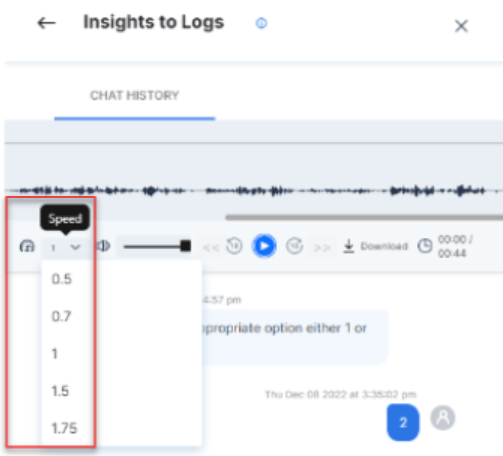 * **Volume**: Adjust the slider to increase or decrease volume.
* **Mute**: Select Mute to silence the audio.
* **Rewind**: Select the Backward icon to rewind 10 seconds.
* **Forward**: Select the Forward icon to fast-forward 10 seconds.
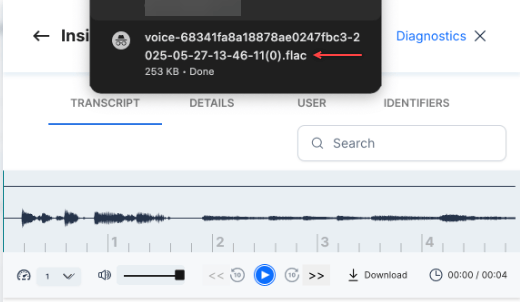
* **Download**: Select the Download icon to download the recording as a single file or separate files.
- The retention period for voice call recordings can be configured in Data Retention Period settings.
- When the configured retention period ends, recordings are permanently deleted.
- Customers who opt in receive an email 7 days before deletion and a confirmation email after deletion.
- After deletion, users see: "Recording not available. It may have been deleted as per your data retention policy."
- All actions, including retention configuration and recording deletions, are logged in the Admin Console.
* **Download as a single file**: Downloads all files in the conversation as a single file.
* **Download as separate files**: Lets you select individual files to download.
The downloaded file format is .flac across all operating systems (Windows, macOS, and Linux).
* **Volume**: Adjust the slider to increase or decrease volume.
* **Mute**: Select Mute to silence the audio.
* **Rewind**: Select the Backward icon to rewind 10 seconds.
* **Forward**: Select the Forward icon to fast-forward 10 seconds.
* **Download**: Select the Download icon to download the recording as a single file or separate files.
- The retention period for voice call recordings can be configured in Data Retention Period settings.
- When the configured retention period ends, recordings are permanently deleted.
- Customers who opt in receive an email 7 days before deletion and a confirmation email after deletion.
- After deletion, users see: "Recording not available. It may have been deleted as per your data retention policy."
- All actions, including retention configuration and recording deletions, are logged in the Admin Console.
* **Download as a single file**: Downloads all files in the conversation as a single file.
* **Download as separate files**: Lets you select individual files to download.
The downloaded file format is .flac across all operating systems (Windows, macOS, and Linux).
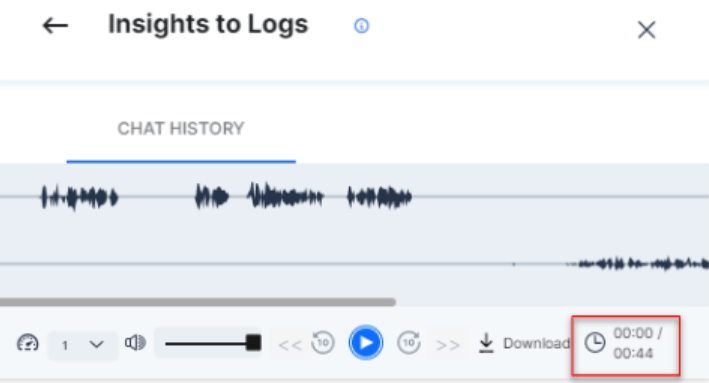
 * **Duration**: The increment and countdown counters appear during playback. Total duration appears before playback begins.
 * Customer speech during hold periods is not recorded or displayed, regardless of who initiated the hold.
* If Pause/Resume Call Recording is enabled, paused durations are not recorded.
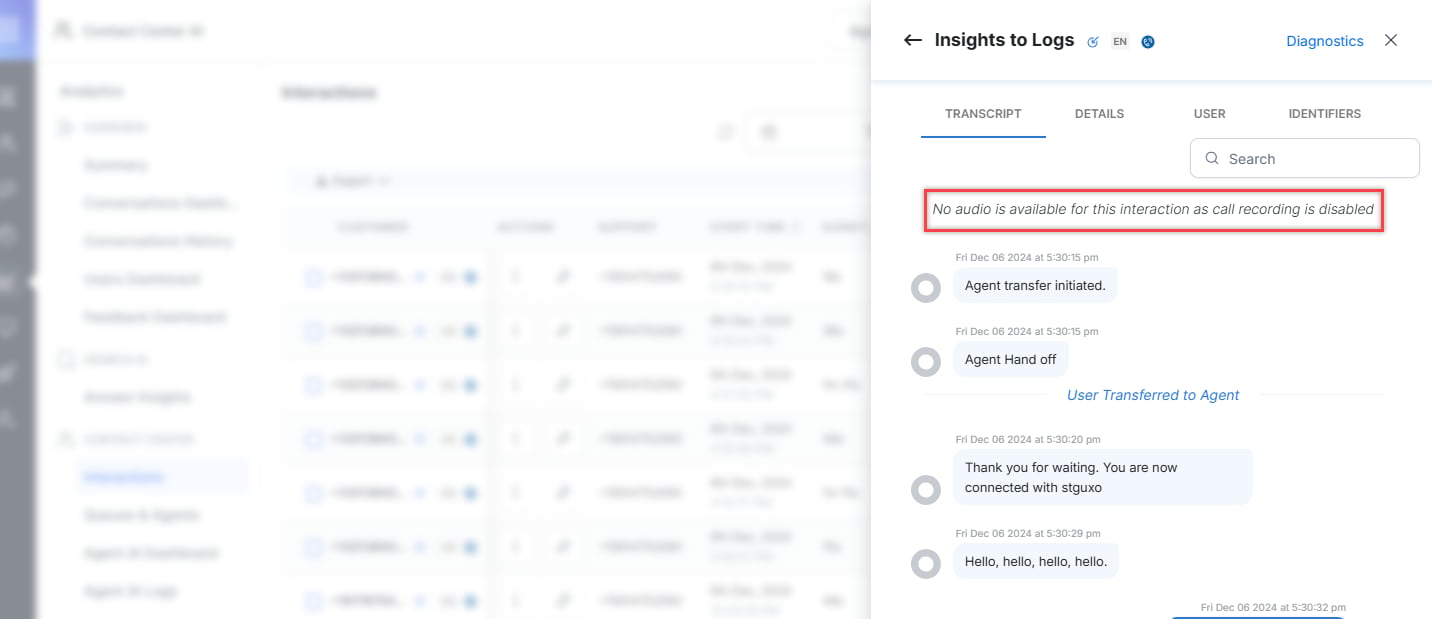
A message appears on the Transcript tab when Call Recording Control is disabled in Agent Settings.
* Customer speech during hold periods is not recorded or displayed, regardless of who initiated the hold.
* If Pause/Resume Call Recording is enabled, paused durations are not recorded.
A message appears on the Transcript tab when Call Recording Control is disabled in Agent Settings.
 **Recording status messages:**
| State | Message |
| ------------------------- | ------------------------------------------------------------------------------------------------------------------- |
| `failed` | Media generation failed due to a technical issue. Please contact your administrator. |
| `media_unavailable` | No audio recording found on the server. Please contact your administrator. |
| `call_in_progress` | Media unavailable while the call is in progress. Please recheck once the call has ended. |
| `media_in_progress` | Media generation is in progress. Please wait for a few minutes. |
| `partial_download_failed` | Unable to fetch the recording. Please click the button below to retry. |
| `partial_upload_failed` | Unable to fetch the recording. Please click the button below to retry. |
| `partial_failed` | Unable to fetch the recording. Please click the button below to retry. |
| `fetching_in_progress` | Generating your call recording... This may take a few minutes. Please wait. |
| `initial_fetch_failed` | We couldn't load the call recording. Please try again. |
| `retry_failed` | Still unable to fetch the recording. Please try again after 15 minutes. |
| `24hr_retry_failed` | We couldn't generate the call recording due to a technical issue. Please contact your administrator for assistance. |
### Troubleshooting
**Why can't I see my call recording?**
After every voice call, the system automatically tries to fetch the call recording from the recording server. The recording is usually available within 10 minutes. Delays or temporary issues may prevent it from appearing immediately.
**Status messages and what to do:**
| Status message | What it means | What you can do |
| ------------------------------------------------------------------------------------------------------------------- | ------------------------------------------------------------- | -------------------------------------------------------- |
| Generating your call recording... This may take a few minutes. | The recording server is processing the call audio. | No action needed — wait 10 minutes and refresh the page. |
| We couldn't load the call recording. Please try again. | There was a temporary issue fetching the recording. | Select **Retry** to try again. |
| Still unable to fetch the recording. Please try again after 15 minutes. | The system retried but couldn't retrieve the recording. | Wait 15 minutes and select **Retry** again. |
| We couldn't generate the call recording due to a technical issue. Please contact your administrator for assistance. | Multiple attempts including automated background jobs failed. | Contact your administrator or support team. |
**Behind the scenes:** The platform automatically attempts to fetch the recording 10 minutes after the call ends. If the recording is unavailable, users can manually retry. The system also retries automatically after 24 hours. Background jobs continue periodic attempts regardless of manual retries.
**Common reasons for delay or failure:**
* Temporary network or connectivity issues between Kore's system and the recording server.
* High server load delaying recording generation.
* The recording file has not been finalized or is still being processed.
* A system error or missing call metadata prevents retrieval.
**Tips:**
* Wait at least 10 minutes after the call ends before expecting the recording.
* Use **Retry** if the recording does not appear.
* If the issue persists beyond 24 hours, contact your administrator or raise a support ticket with the **Call ID**, **Timestamp**, and **Caller Number**.
If your call recording is still unavailable after following these steps, [contact Support](https://support.kore.ai) or your system administrator with your call details.
***
## Diagnostics
Access Diagnostics from the top-right corner of Insights to Logs.
This option is available only for voice conversations.
**Recording status messages:**
| State | Message |
| ------------------------- | ------------------------------------------------------------------------------------------------------------------- |
| `failed` | Media generation failed due to a technical issue. Please contact your administrator. |
| `media_unavailable` | No audio recording found on the server. Please contact your administrator. |
| `call_in_progress` | Media unavailable while the call is in progress. Please recheck once the call has ended. |
| `media_in_progress` | Media generation is in progress. Please wait for a few minutes. |
| `partial_download_failed` | Unable to fetch the recording. Please click the button below to retry. |
| `partial_upload_failed` | Unable to fetch the recording. Please click the button below to retry. |
| `partial_failed` | Unable to fetch the recording. Please click the button below to retry. |
| `fetching_in_progress` | Generating your call recording... This may take a few minutes. Please wait. |
| `initial_fetch_failed` | We couldn't load the call recording. Please try again. |
| `retry_failed` | Still unable to fetch the recording. Please try again after 15 minutes. |
| `24hr_retry_failed` | We couldn't generate the call recording due to a technical issue. Please contact your administrator for assistance. |
### Troubleshooting
**Why can't I see my call recording?**
After every voice call, the system automatically tries to fetch the call recording from the recording server. The recording is usually available within 10 minutes. Delays or temporary issues may prevent it from appearing immediately.
**Status messages and what to do:**
| Status message | What it means | What you can do |
| ------------------------------------------------------------------------------------------------------------------- | ------------------------------------------------------------- | -------------------------------------------------------- |
| Generating your call recording... This may take a few minutes. | The recording server is processing the call audio. | No action needed — wait 10 minutes and refresh the page. |
| We couldn't load the call recording. Please try again. | There was a temporary issue fetching the recording. | Select **Retry** to try again. |
| Still unable to fetch the recording. Please try again after 15 minutes. | The system retried but couldn't retrieve the recording. | Wait 15 minutes and select **Retry** again. |
| We couldn't generate the call recording due to a technical issue. Please contact your administrator for assistance. | Multiple attempts including automated background jobs failed. | Contact your administrator or support team. |
**Behind the scenes:** The platform automatically attempts to fetch the recording 10 minutes after the call ends. If the recording is unavailable, users can manually retry. The system also retries automatically after 24 hours. Background jobs continue periodic attempts regardless of manual retries.
**Common reasons for delay or failure:**
* Temporary network or connectivity issues between Kore's system and the recording server.
* High server load delaying recording generation.
* The recording file has not been finalized or is still being processed.
* A system error or missing call metadata prevents retrieval.
**Tips:**
* Wait at least 10 minutes after the call ends before expecting the recording.
* Use **Retry** if the recording does not appear.
* If the issue persists beyond 24 hours, contact your administrator or raise a support ticket with the **Call ID**, **Timestamp**, and **Caller Number**.
If your call recording is still unavailable after following these steps, [contact Support](https://support.kore.ai) or your system administrator with your call details.
***
## Diagnostics
Access Diagnostics from the top-right corner of Insights to Logs.
This option is available only for voice conversations.
 ### Flow
The Flow tab provides a detailed timeline of call signaling and media flow between endpoints. It displays the sequence of SIP messages and RTCP packets exchanged during a call, allowing agents and supervisors to track the complete communication flow and troubleshoot connection issues.
### Flow
The Flow tab provides a detailed timeline of call signaling and media flow between endpoints. It displays the sequence of SIP messages and RTCP packets exchanged during a call, allowing agents and supervisors to track the complete communication flow and troubleshoot connection issues.
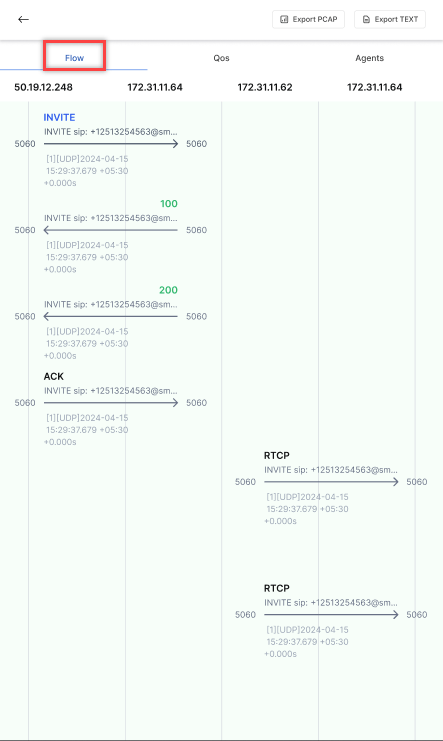 The top row displays the IP addresses of all endpoints involved in the communication.
**SIP Message Flow**
The interface shows SIP signaling messages exchanged between endpoints:
1. **INVITE** – Direction: 50.19.12.248 to 172.31.11.64, Port: 5060 → 5060
2. **100 (Trying)** – Direction: 172.31.11.64 to 50.19.12.248, Port: 5060 ← 5060
3. **200 (OK)** – Direction: 172.31.11.64 to 50.19.12.248, Port: 5060 ← 5060
4. **ACK** – Direction: 50.19.12.248 to 172.31.11.64, Port: 5060 → 5060
The interface also shows RTCP media packets exchanged between endpoints:
1. **RTCP (First packet)** – Direction: 172.31.11.62 to 172.31.11.64, Port: 5060 → 5060
2. **RTCP (Second packet)** – Direction: 172.31.11.62 to 172.31.11.64, Port: 5060 → 5060
**How to use the Flow tab:**
1. **Track Call Setup**: Follow the INVITE, 100 Trying, 200 OK, and ACK sequence to verify proper call establishment.
2. **Analyze Response Times**: Use timestamps to identify delays in message processing.
3. **Monitor Media Flow**: Review RTCP packets to confirm media is flowing properly.
4. **Identify Issues**: Look for missing messages or unexpected responses indicating connection problems.
5. **Export Data**: Use the export options to save the communication flow for further analysis.
### QoS (Quality of Service)
The QoS tab provides detailed network metrics for call monitoring and troubleshooting.
The top row displays the IP addresses of all endpoints involved in the communication.
**SIP Message Flow**
The interface shows SIP signaling messages exchanged between endpoints:
1. **INVITE** – Direction: 50.19.12.248 to 172.31.11.64, Port: 5060 → 5060
2. **100 (Trying)** – Direction: 172.31.11.64 to 50.19.12.248, Port: 5060 ← 5060
3. **200 (OK)** – Direction: 172.31.11.64 to 50.19.12.248, Port: 5060 ← 5060
4. **ACK** – Direction: 50.19.12.248 to 172.31.11.64, Port: 5060 → 5060
The interface also shows RTCP media packets exchanged between endpoints:
1. **RTCP (First packet)** – Direction: 172.31.11.62 to 172.31.11.64, Port: 5060 → 5060
2. **RTCP (Second packet)** – Direction: 172.31.11.62 to 172.31.11.64, Port: 5060 → 5060
**How to use the Flow tab:**
1. **Track Call Setup**: Follow the INVITE, 100 Trying, 200 OK, and ACK sequence to verify proper call establishment.
2. **Analyze Response Times**: Use timestamps to identify delays in message processing.
3. **Monitor Media Flow**: Review RTCP packets to confirm media is flowing properly.
4. **Identify Issues**: Look for missing messages or unexpected responses indicating connection problems.
5. **Export Data**: Use the export options to save the communication flow for further analysis.
### QoS (Quality of Service)
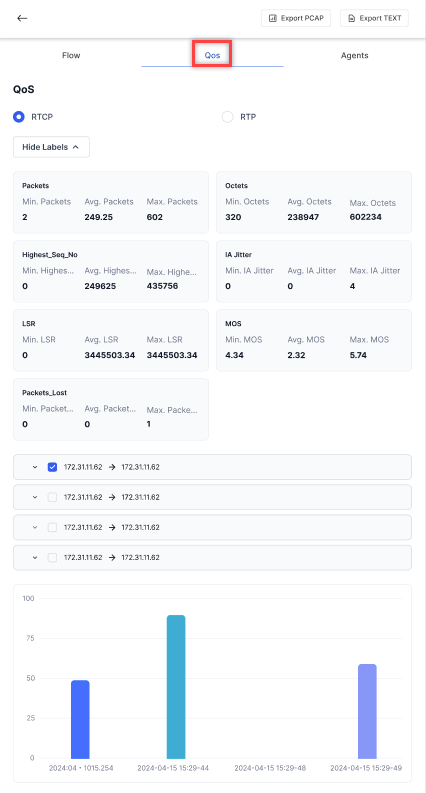
The QoS tab provides detailed network metrics for call monitoring and troubleshooting.
 **Packets**
| Metric | Description |
| ------------ | ---------------------------------------------- |
| Min. Packets | Minimum number of packets transmitted (320) |
| Avg. Packets | Average number of packets transmitted (249.25) |
| Max. Packets | Maximum number of packets transmitted (602) |
**Octets**
| Metric | Description |
| ----------- | --------------------------------------------------- |
| Min. Octets | Minimum number of octets/bytes transmitted (238047) |
| Avg. Octets | Average number of octets/bytes transmitted (238047) |
| Max. Octets | Maximum number of octets/bytes transmitted (802234) |
**Highest\_Seq\_No**
| Metric | Description |
| --------------------- | -------------------------------- |
| Min. Highest\_Seq\_No | Minimum sequence number (2) |
| Avg. Highest\_Seq\_No | Average sequence number (249625) |
| Max. Highest\_Seq\_No | Maximum sequence number (435756) |
**IA (Inter Arrival) Jitter**
| Metric | Description |
| -------------- | -------------------------------- |
| Min. IA Jitter | Minimum inter-arrival jitter (0) |
| Avg. IA Jitter | Average inter-arrival jitter (0) |
| Max. IA Jitter | Maximum inter-arrival jitter (4) |
**LSR (Last Sender Report)**
| Metric | Description |
| -------- | --------------------------------------- |
| Min. LSR | Minimum last sender report (0) |
| Avg. LSR | Average last sender report (3445503.34) |
| Max. LSR | Maximum last sender report (3445503.34) |
**MOS (Mean Opinion Score)**
| Metric | Description |
| -------- | --------------------------------- |
| Min. MOS | Minimum Mean Opinion Score (4.34) |
| Avg. MOS | Average Mean Opinion Score (2.32) |
| Max. MOS | Maximum Mean Opinion Score (5.74) |
**Packets\_Lost**
| Metric | Description |
| ------------------ | ---------------------------------- |
| Min. Packets\_Lost | Minimum number of lost packets (0) |
| Avg. Packets\_Lost | Average number of lost packets (0) |
| Max. Packets\_Lost | Maximum number of lost packets (1) |
The interface displays IP connection information in expandable rows showing source and destination IP addresses. The bottom bar chart visualizes call metrics over time, with timestamps on the X-axis and metric values from 0 to 100 on the Y-axis.
### Agents
The Agents tab provides a per-agent view of participation and call quality metrics for a specific interaction. It helps identify which agents joined, view their join and exit timestamps, understand how the call ended, and analyze call quality per agent.
**Packets**
| Metric | Description |
| ------------ | ---------------------------------------------- |
| Min. Packets | Minimum number of packets transmitted (320) |
| Avg. Packets | Average number of packets transmitted (249.25) |
| Max. Packets | Maximum number of packets transmitted (602) |
**Octets**
| Metric | Description |
| ----------- | --------------------------------------------------- |
| Min. Octets | Minimum number of octets/bytes transmitted (238047) |
| Avg. Octets | Average number of octets/bytes transmitted (238047) |
| Max. Octets | Maximum number of octets/bytes transmitted (802234) |
**Highest\_Seq\_No**
| Metric | Description |
| --------------------- | -------------------------------- |
| Min. Highest\_Seq\_No | Minimum sequence number (2) |
| Avg. Highest\_Seq\_No | Average sequence number (249625) |
| Max. Highest\_Seq\_No | Maximum sequence number (435756) |
**IA (Inter Arrival) Jitter**
| Metric | Description |
| -------------- | -------------------------------- |
| Min. IA Jitter | Minimum inter-arrival jitter (0) |
| Avg. IA Jitter | Average inter-arrival jitter (0) |
| Max. IA Jitter | Maximum inter-arrival jitter (4) |
**LSR (Last Sender Report)**
| Metric | Description |
| -------- | --------------------------------------- |
| Min. LSR | Minimum last sender report (0) |
| Avg. LSR | Average last sender report (3445503.34) |
| Max. LSR | Maximum last sender report (3445503.34) |
**MOS (Mean Opinion Score)**
| Metric | Description |
| -------- | --------------------------------- |
| Min. MOS | Minimum Mean Opinion Score (4.34) |
| Avg. MOS | Average Mean Opinion Score (2.32) |
| Max. MOS | Maximum Mean Opinion Score (5.74) |
**Packets\_Lost**
| Metric | Description |
| ------------------ | ---------------------------------- |
| Min. Packets\_Lost | Minimum number of lost packets (0) |
| Avg. Packets\_Lost | Average number of lost packets (0) |
| Max. Packets\_Lost | Maximum number of lost packets (1) |
The interface displays IP connection information in expandable rows showing source and destination IP addresses. The bottom bar chart visualizes call metrics over time, with timestamps on the X-axis and metric values from 0 to 100 on the Y-axis.
### Agents
The Agents tab provides a per-agent view of participation and call quality metrics for a specific interaction. It helps identify which agents joined, view their join and exit timestamps, understand how the call ended, and analyze call quality per agent.
 Each section represents one agent join event. The system creates a record only when an agent accepts a call invitation (inbound or consult) or joins the interaction, including supervisor join.
The system does not create records for routing attempts, ringing duration, rejected invitations, or supervisor listen/whisper sessions. If an agent leaves and rejoins, the system creates multiple rows, one per join instance.
**Agent Details**
| Field | Description |
| ---------- | -------------------------------------------------------- |
| Agent Name | Identifies the agent who participated in the interaction |
| Status | Indicates whether the agent left the interaction |
| Start Time | Shows when the agent accepted and joined the call |
| End Time | Shows when the agent exited the call |
The time between Start and End reflects the agent's actual call handling duration.
**Call Exit Details**
| Field | Description |
| --------------------- | -------------------------------------------------------------------------- |
| Call Exit Reason | High-level termination status (for example, Terminated) |
| Call Exit Description | Specific termination reason (for example, Agent Hangup or Customer Hangup) |
**Call Quality Metrics (per agent session)**
| Metric | Description |
| ---------------------------- | ------------------------------------------------------------------- |
| MOS (Min, Max, Avg) | Perceived audio quality. Scale: 1 = Poor, 5 = Excellent. |
| Jitter (Min, Max, Avg) | Variation in packet timing. Higher values can affect audio clarity. |
| Packets Lost (Min, Max, Avg) | Number of audio packets lost during the session. |
These metrics reflect only the agent's session duration, not the entire call.
The view displays only actual joined sessions and excludes routing attempts. If an agent appears multiple times, it indicates multiple join instances.
### Export
You can export the following reports from the Diagnostics panel:
* Export PCAP
* Export TEXT
Each section represents one agent join event. The system creates a record only when an agent accepts a call invitation (inbound or consult) or joins the interaction, including supervisor join.
The system does not create records for routing attempts, ringing duration, rejected invitations, or supervisor listen/whisper sessions. If an agent leaves and rejoins, the system creates multiple rows, one per join instance.
**Agent Details**
| Field | Description |
| ---------- | -------------------------------------------------------- |
| Agent Name | Identifies the agent who participated in the interaction |
| Status | Indicates whether the agent left the interaction |
| Start Time | Shows when the agent accepted and joined the call |
| End Time | Shows when the agent exited the call |
The time between Start and End reflects the agent's actual call handling duration.
**Call Exit Details**
| Field | Description |
| --------------------- | -------------------------------------------------------------------------- |
| Call Exit Reason | High-level termination status (for example, Terminated) |
| Call Exit Description | Specific termination reason (for example, Agent Hangup or Customer Hangup) |
**Call Quality Metrics (per agent session)**
| Metric | Description |
| ---------------------------- | ------------------------------------------------------------------- |
| MOS (Min, Max, Avg) | Perceived audio quality. Scale: 1 = Poor, 5 = Excellent. |
| Jitter (Min, Max, Avg) | Variation in packet timing. Higher values can affect audio clarity. |
| Packets Lost (Min, Max, Avg) | Number of audio packets lost during the session. |
These metrics reflect only the agent's session duration, not the entire call.
The view displays only actual joined sessions and excludes routing attempts. If an agent appears multiple times, it indicates multiple join instances.
### Export
You can export the following reports from the Diagnostics panel:
* Export PCAP
* Export TEXT
 Built with [Mintlify](https://mintlify.com).