> ## Documentation Index
> Fetch the complete documentation index at: https://koreai.mintlify.site/llms.txt
> Use this file to discover all available pages before exploring further.
# Agent Performance Report
[Back to Reports List](/ai-for-service/analytics/quality-ai/reports/qm-reports-list)
This report provides a consolidated view of agent performance across selected scorecards, including channel (Voice/Chat) and contact direction (Inbound/Outbound/All Directions). It covers scorecard scores, attribute ratings, metric adherence, coaching assignments, and direction-based trends to evaluate performance across inbound and outbound interactions.
Only evaluated interactions are included. Below Threshold and Duration Unavailable contacts are excluded from aggregates unless manually evaluated. Supports exports by scorecard with optional agent attributes and direction filters.
## Generate the Report
1. **Create the New Report**
1. On the **Reports** tab, select **+ New Report**.
2. From the **Create New Report** list, select the **Agent Performance Report**.
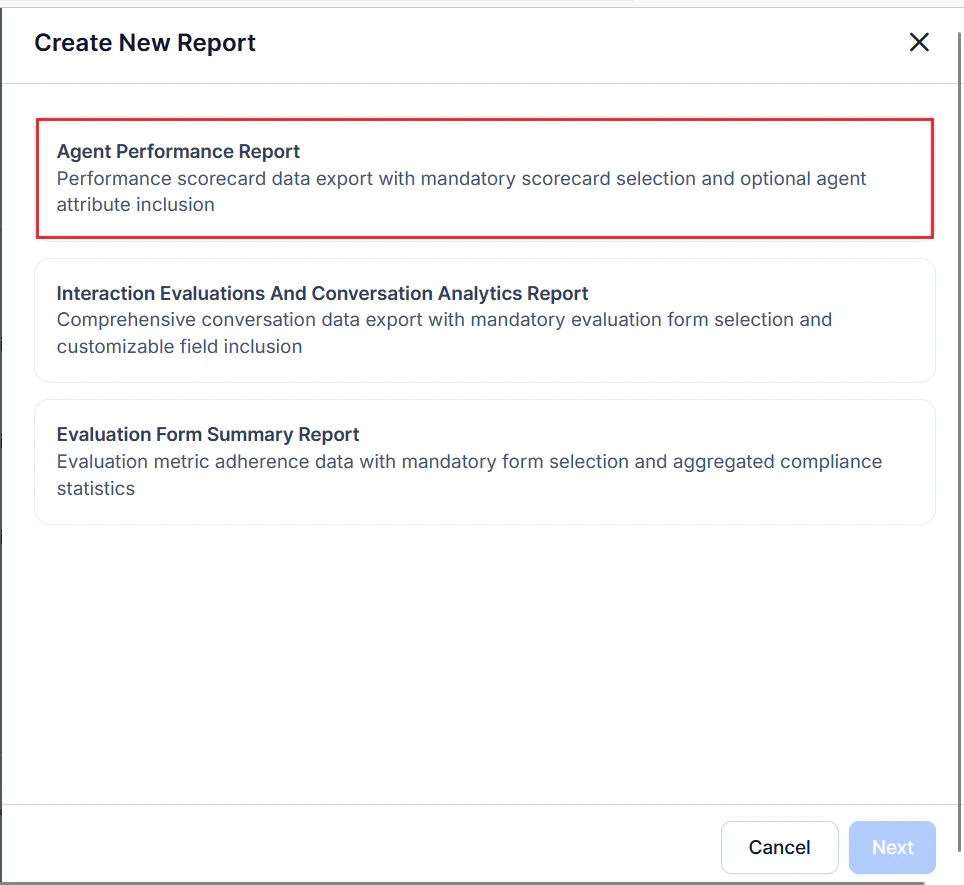 3. Select **Next**.
2. Complete the **General** settings.
1. Enter a unique **Name** for the report.
2. Enter a **Description** for the report.
3. Select **Next**.
3. Select **Next**.
2. Complete the **General** settings.
1. Enter a unique **Name** for the report.
2. Enter a **Description** for the report.
3. Select **Next**.
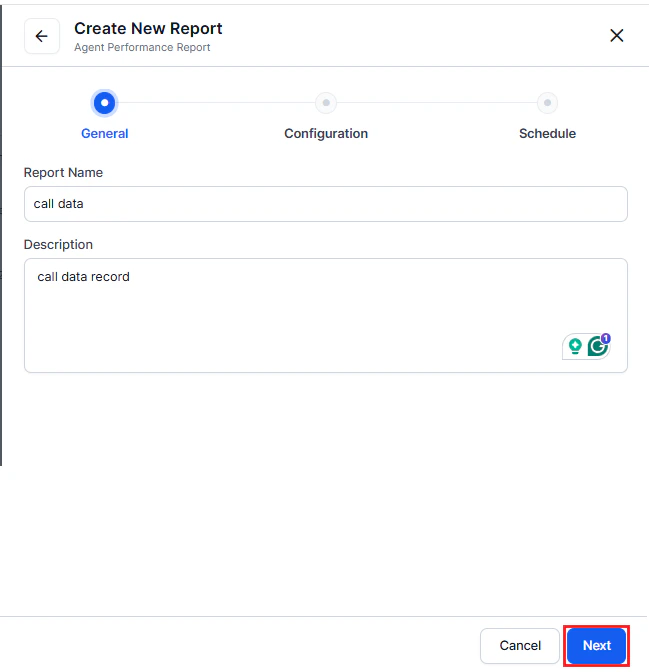 3. Complete the **Configuration** — **Filters and Options**.
1. Select at least one **Agent Scorecard** from the dropdown to define the data scope and included agents, enable comparison across multiple scorecards, and display only agents with assigned scorecards in the report.
2. Select a **Date** range from the dropdown, such as Today, Yesterday, Last 7 days, Last Week, Week to Date.
3. Select a **Timezone** (defaults to device local timezone) from the dropdown.
4. Configure the required Filter.
1. Select the required filter options such as **Channel** (**Voice** or **Chat**) with Contact Direction (**Inbound** or **Outbound** or **All Directions**), **Queue**, **Language**, **Agents**, **Agent Groups**, and **Duration Status** (evaluated, below threshold, and duration threshold).
2. Set the corresponding values for the selected/added filters.
5. Select **Optional Fields** to add additional columns to the report export.
6. Enter one or more addresses in the **Send Email to** field to send the automated reports (minimum one required).
7. Select **Next**.
3. Complete the **Configuration** — **Filters and Options**.
1. Select at least one **Agent Scorecard** from the dropdown to define the data scope and included agents, enable comparison across multiple scorecards, and display only agents with assigned scorecards in the report.
2. Select a **Date** range from the dropdown, such as Today, Yesterday, Last 7 days, Last Week, Week to Date.
3. Select a **Timezone** (defaults to device local timezone) from the dropdown.
4. Configure the required Filter.
1. Select the required filter options such as **Channel** (**Voice** or **Chat**) with Contact Direction (**Inbound** or **Outbound** or **All Directions**), **Queue**, **Language**, **Agents**, **Agent Groups**, and **Duration Status** (evaluated, below threshold, and duration threshold).
2. Set the corresponding values for the selected/added filters.
5. Select **Optional Fields** to add additional columns to the report export.
6. Enter one or more addresses in the **Send Email to** field to send the automated reports (minimum one required).
7. Select **Next**.
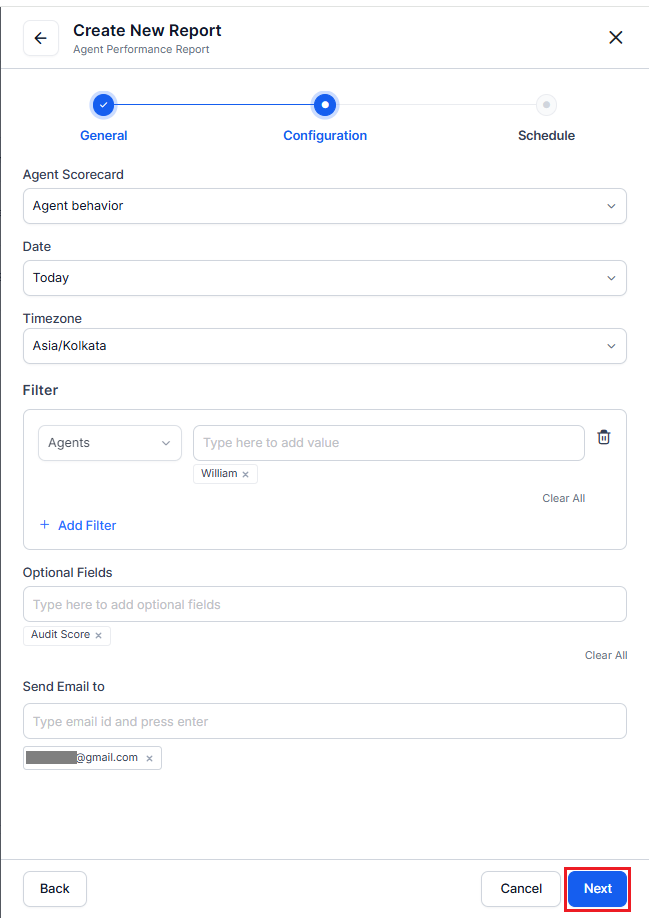 4. Complete the **Schedule** to generate a report with the current configuration.
1. Choose **Run on Demand** or **Schedule**.
* **Run on Demand**: Generates the report immediately.
* **Schedule**: Generates the report automatically.
2. If you select **Schedule**:
1. Choose a **Frequency or Repeat** (Hourly, Daily, Weekly, Monthly, Quarterly, or Yearly).
2. Select a **Start Date** and **Timezone**.
3. Select **Save** to confirm and activate the schedule.
This report includes only evaluated interactions in all aggregated metrics. Interactions below the duration threshold aren't included in any aggregated metrics.
***
## Report Fields
### Agent Performance Summary
Summarizes agent performance across evaluated interactions, including scores, adherence, coaching indicators, and attribute-level results; includes evaluated interactions only, excludes `Below Threshold` and `Duration Unavailable` from scores, includes manual evaluations, and supports inbound vs. outbound analysis using the Contact Direction field.
| Agent Name | Contact Direction | Total Evaluated Interactions | Kore Evaluation Score | Scorecard Score | Audit Score | Fail % | Coaching Assignments | Attribute Group | Metric Name | Threshold | Value / Adherence | Duration Status |
| --------------- | ----------------- | ---------------------------- | --------------------- | --------------- | ----------- | ------ | -------------------- | --------------- | --------------------- | --------- | ----------------- | --------------------- |
| John Dow | Outbound | 1 | -63 | 0.00% | N/A | N/A | N/A | ATT-3 | Speech Dead Air | 30% | N/A | below\_threshold |
| John Supervisor | Inbound | 1 | -63 | 0.00% | N/A | N/A | N/A | ATT-3 | Speech Rate Violation | 20% | 0.00% | duration\_unavailable |
***
### View and Download the Report
1. On the **Reports** tab, locate the report in the **Actions** column.
2. Select More options (⋮), then select **History**.
3. Select **Download** to save the report as a CSV file.
### Report Format
* **Format**: CSV file
* **File Name**: `[ReportName]-YYYY-MM-DD-HH-MM-SS.csv`
4. Complete the **Schedule** to generate a report with the current configuration.
1. Choose **Run on Demand** or **Schedule**.
* **Run on Demand**: Generates the report immediately.
* **Schedule**: Generates the report automatically.
2. If you select **Schedule**:
1. Choose a **Frequency or Repeat** (Hourly, Daily, Weekly, Monthly, Quarterly, or Yearly).
2. Select a **Start Date** and **Timezone**.
3. Select **Save** to confirm and activate the schedule.
This report includes only evaluated interactions in all aggregated metrics. Interactions below the duration threshold aren't included in any aggregated metrics.
***
## Report Fields
### Agent Performance Summary
Summarizes agent performance across evaluated interactions, including scores, adherence, coaching indicators, and attribute-level results; includes evaluated interactions only, excludes `Below Threshold` and `Duration Unavailable` from scores, includes manual evaluations, and supports inbound vs. outbound analysis using the Contact Direction field.
| Agent Name | Contact Direction | Total Evaluated Interactions | Kore Evaluation Score | Scorecard Score | Audit Score | Fail % | Coaching Assignments | Attribute Group | Metric Name | Threshold | Value / Adherence | Duration Status |
| --------------- | ----------------- | ---------------------------- | --------------------- | --------------- | ----------- | ------ | -------------------- | --------------- | --------------------- | --------- | ----------------- | --------------------- |
| John Dow | Outbound | 1 | -63 | 0.00% | N/A | N/A | N/A | ATT-3 | Speech Dead Air | 30% | N/A | below\_threshold |
| John Supervisor | Inbound | 1 | -63 | 0.00% | N/A | N/A | N/A | ATT-3 | Speech Rate Violation | 20% | 0.00% | duration\_unavailable |
***
### View and Download the Report
1. On the **Reports** tab, locate the report in the **Actions** column.
2. Select More options (⋮), then select **History**.
3. Select **Download** to save the report as a CSV file.
### Report Format
* **Format**: CSV file
* **File Name**: `[ReportName]-YYYY-MM-DD-HH-MM-SS.csv`
 ***
***