> ## Documentation Index
> Fetch the complete documentation index at: https://koreai.mintlify.site/llms.txt
> Use this file to discover all available pages before exploring further.
# Evaluation Form Summary Report
[Back to Reports List](/ai-for-service/analytics/quality-ai/reports/qm-reports-list)
The Evaluation Form Summary Report provides interaction-level evaluation results across selected evaluation forms. It combines conversation details, evaluation outcomes, sentiment analysis, audit information, contact direction, duration status, evaluation form details, and evaluation metric results to help supervisors analyze evaluated interactions across channels, queues, and agents.
The report exports interaction metadata together with evaluation results, including conversation identifiers, queue information, language, scored agent, sentiment score, detected topics, escalation status, evaluation score, pass/fail status, fatal interaction indicators, audit score, contact direction, duration status, evaluation form, and metric-level evaluation details for each applicable evaluation criterion.
## Generate Evaluation Form Summary Report
1. **Create the New Report**
1. On the **Reports** tab, select **+ New Report**.
2. From the **Create New Report** list, select the **Evaluation Form Summary Report**.
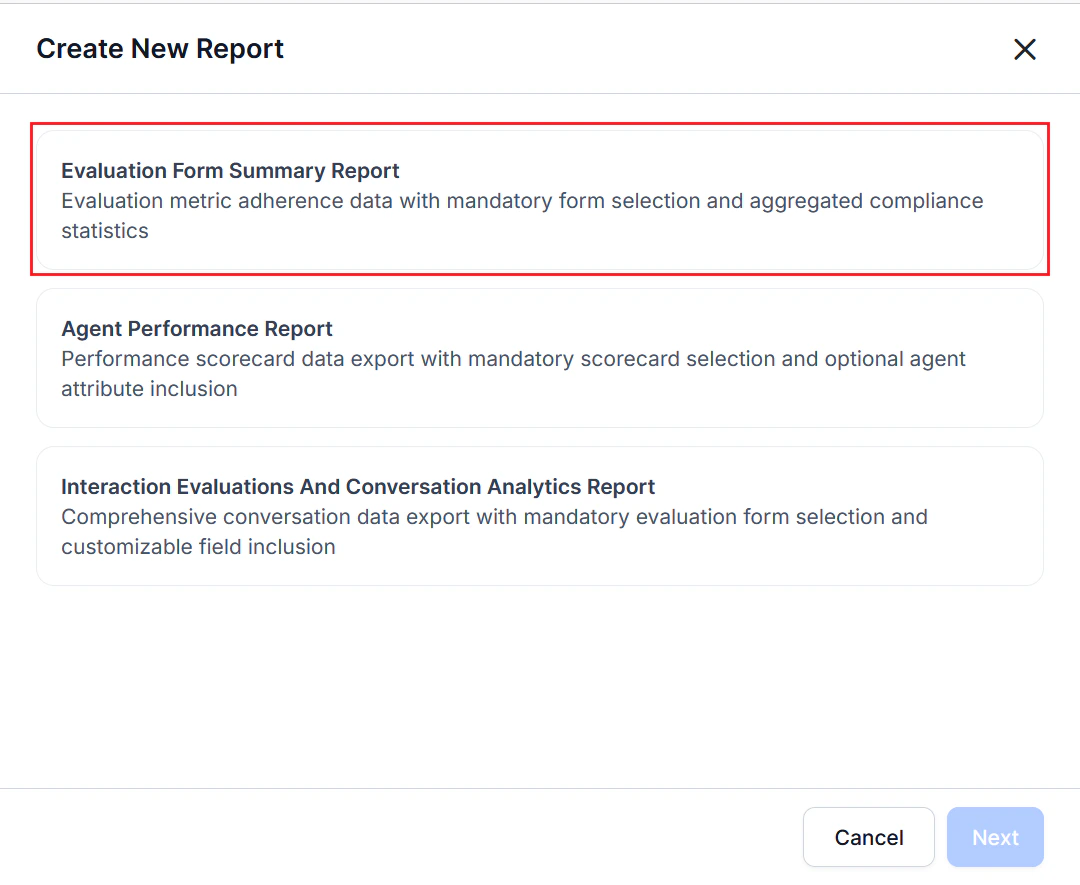 3. Select **Next**.
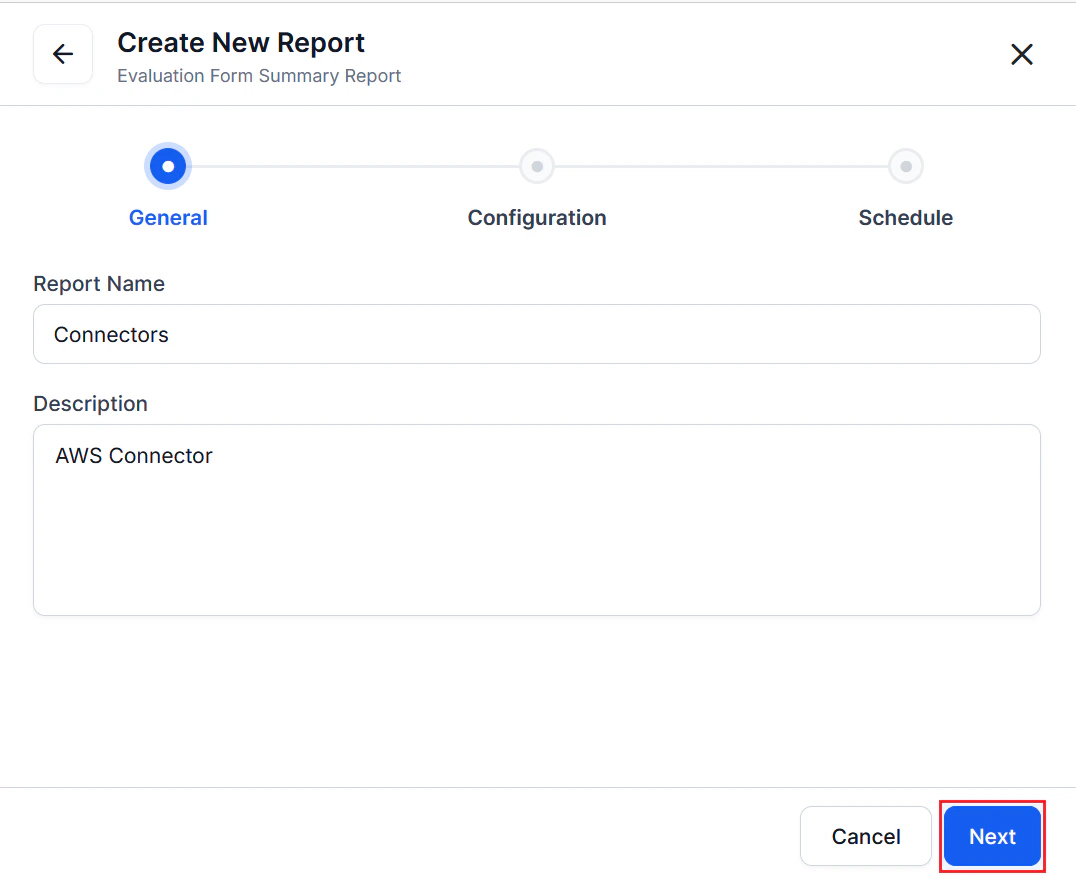
2. Complete the **General** settings.
1. Enter a unique **Name** for the report.
2. Enter a **Description**.
3. Select **Next**.
3. Select **Next**.
2. Complete the **General** settings.
1. Enter a unique **Name** for the report.
2. Enter a **Description**.
3. Select **Next**.
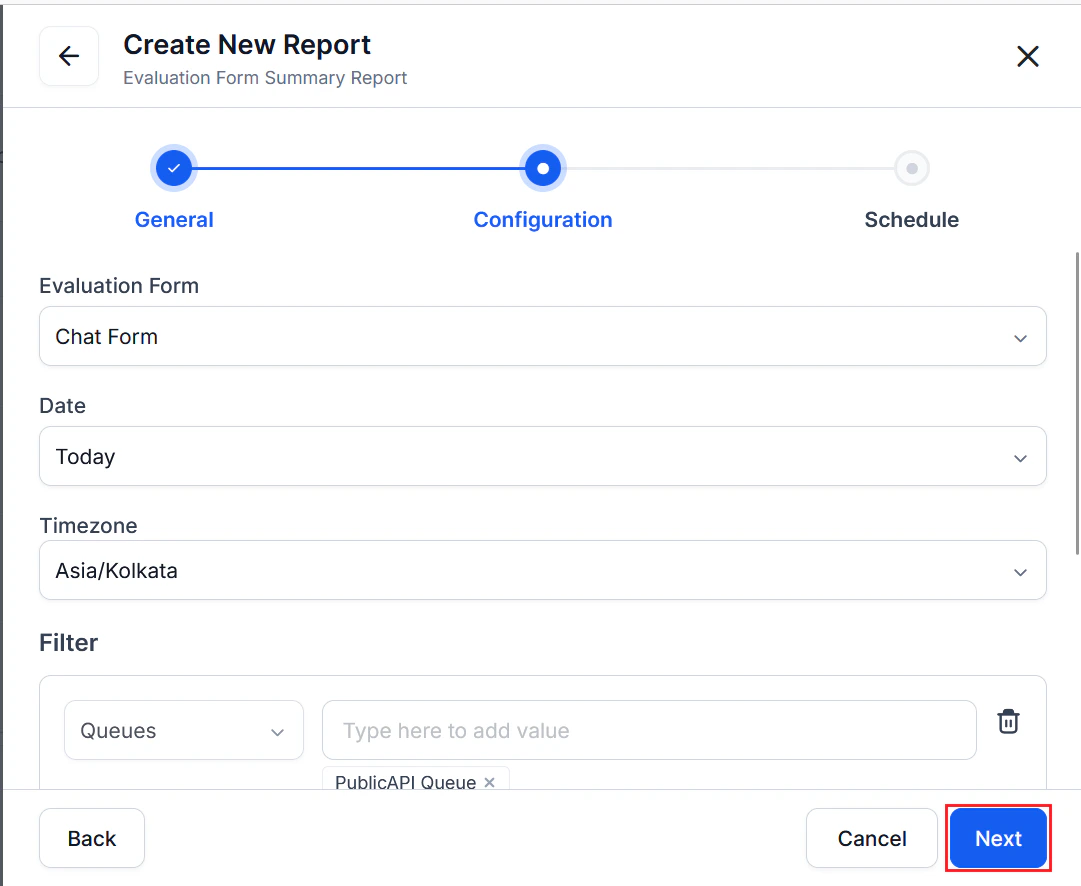
 3. Complete the **Configuration** — **Filters and Options**.
1. Select an **Evaluation Form** to define the data scope (at least one form is required).
2. Select a **Date** or date range.
3. Select a **Timezone**.
4. Configure the required Filter.
1. Select one or more filters to refine the report, including **Channel** (**Voice** or **Chat**) with **Contact Direction** (**Inbound** or **Outbound** or **All Directions**), **Queue**, **Language**, **Agents**, **Agent Groups**, and **Duration Status** (evaluated, below threshold, and duration unavailable).
2. Set the corresponding values for the selected/added filters.
5. Select **Optional Fields** to add additional columns to the report export.
6. Enter one or more addresses in the **Send Email to** field to send the automated reports (minimum one required).
7. Select **Next**.
3. Complete the **Configuration** — **Filters and Options**.
1. Select an **Evaluation Form** to define the data scope (at least one form is required).
2. Select a **Date** or date range.
3. Select a **Timezone**.
4. Configure the required Filter.
1. Select one or more filters to refine the report, including **Channel** (**Voice** or **Chat**) with **Contact Direction** (**Inbound** or **Outbound** or **All Directions**), **Queue**, **Language**, **Agents**, **Agent Groups**, and **Duration Status** (evaluated, below threshold, and duration unavailable).
2. Set the corresponding values for the selected/added filters.
5. Select **Optional Fields** to add additional columns to the report export.
6. Enter one or more addresses in the **Send Email to** field to send the automated reports (minimum one required).
7. Select **Next**.
 4. Complete the **Schedule** to generate a report with the current configuration.
1. Choose **Run on Demand** or **Schedule**.
* **Run on Demand**: Generates the report immediately.
* **Schedule**: Generates the report automatically.
2. If you select **Schedule**:
1. Choose a **Frequency or Repeat** (Hourly, Daily, Weekly, Monthly, Quarterly, or Yearly).
2. Select a **Start Date** and **Timezone**.
3. Select **Save**.
***
## Report Fields
### Interaction Evaluation Summary Report
The report exports one row for each evaluated interaction and includes conversation details, evaluation outcomes, sentiment analysis, audit information, interaction status, evaluation form, metric-level evaluation details for each applicable evaluation criterion, and any optional fields selected during report configuration.
| Field | Description |
| ----------------------------- | ------------------------------------------------------------------------------------------------------------------------------------------------------------------------------------------------------------------------------------- |
| **Conversation ID** | Unique identifier for the interaction. |
| **Channel** | Interaction channel (Voice or Chat). |
| **Queue** | Queue associated with the interaction. |
| **Last Queue** | Final queue that handled the interaction. |
| **Language** | Language detected for the interaction. |
| **Agent** | Agent who handled the interaction. |
| **Scored Agent** | Agent whose performance was evaluated. |
| **Start Time** | Date and time when the interaction started. |
| **Sentiment Score** | Overall sentiment score calculated for the interaction. |
| **Topics** | Topics identified during conversation analysis. |
| **Escalation** | Indicates whether the interaction was escalated. |
| **Kore Evaluation Score** | Overall evaluation score assigned to the interaction. |
| **Is Passed** | Indicates whether the interaction passed the evaluation criteria. |
| **Is Fatal Interaction** | Indicates whether the interaction contains one or more fatal evaluation failures. |
| **Audit Score** | Manual audit score, when available. Displays **N/A** if no manual audit exists. |
| **Contact Direction** | Indicates whether the interaction is Inbound or Outbound. |
| **Duration Status** | Indicates the interaction duration status. The exported report includes only interactions with a value of **Evaluated**. |
| **Evaluation Form** | Evaluation form used to evaluate the interaction. |
| **Evaluation Metric Columns** | Displays the evaluation results for each applicable metric in the selected evaluation form. Depending on the evaluation form configuration, separate columns may be exported for metric values, metric scores, or evaluation results. |
The exported report contains only evaluated interactions. Interactions below the configured duration threshold are excluded from the report.
***
### View and Download the Report
1. On the **Reports** tab, locate the report in the **Actions** column.
2. Select More options (⋮), then select **History**.
3. Select **Download** to save the report as a CSV file.
### Report Format
#### Generated CSV Fields
* **Format**: CSV file
* **File Name**: `[ReportName]-YYYY-MM-DD-HH-MM-SS.csv`
The generated CSV exports one row for each evaluated interaction and includes interaction metadata, evaluation outcomes, sentiment analysis, audit information, contact direction, duration status, evaluation form details, metric-level evaluation results, and any selected optional fields.
**Typical exported information includes**: Conversation ID, Channel, Queue, Last Queue, Language, Agent, Scored Agent, Start Time, Sentiment Score, Topics, Escalation, Kore Evaluation Score, Is Passed, Is Fatal Interaction, Audit Score, Contact Direction, Duration Status, Evaluation Form, Evaluation Metric Columns, and Optional Fields.
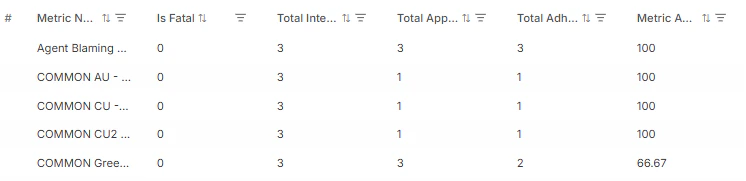
The exported report includes additional metric columns based on the metrics configured in the selected evaluation form. Depending on the evaluation form configuration, these columns can include metric values, metric scores, and evaluation results for each applicable evaluation criterion.
| Conversation ID | Channel | Queue | Duration Status | Evaluation Form | Agent Blaming Customer | COMMON AU - GEN | Greeting | Price | Resolution | Voice |
| --------------- | ------- | ------------- | --------------- | ---------------- | ---------------------: | --------------: | -------: | -----: | ---------: | ----: |
| c-019811... | Voice | Billing Queue | Evaluated | Valid Voice Form | 0 | 0 | 10 | -77.00 | -33.00 | 38.40 |
Additional metric columns are included based on the metrics defined in the selected evaluation form.
4. Complete the **Schedule** to generate a report with the current configuration.
1. Choose **Run on Demand** or **Schedule**.
* **Run on Demand**: Generates the report immediately.
* **Schedule**: Generates the report automatically.
2. If you select **Schedule**:
1. Choose a **Frequency or Repeat** (Hourly, Daily, Weekly, Monthly, Quarterly, or Yearly).
2. Select a **Start Date** and **Timezone**.
3. Select **Save**.
***
## Report Fields
### Interaction Evaluation Summary Report
The report exports one row for each evaluated interaction and includes conversation details, evaluation outcomes, sentiment analysis, audit information, interaction status, evaluation form, metric-level evaluation details for each applicable evaluation criterion, and any optional fields selected during report configuration.
| Field | Description |
| ----------------------------- | ------------------------------------------------------------------------------------------------------------------------------------------------------------------------------------------------------------------------------------- |
| **Conversation ID** | Unique identifier for the interaction. |
| **Channel** | Interaction channel (Voice or Chat). |
| **Queue** | Queue associated with the interaction. |
| **Last Queue** | Final queue that handled the interaction. |
| **Language** | Language detected for the interaction. |
| **Agent** | Agent who handled the interaction. |
| **Scored Agent** | Agent whose performance was evaluated. |
| **Start Time** | Date and time when the interaction started. |
| **Sentiment Score** | Overall sentiment score calculated for the interaction. |
| **Topics** | Topics identified during conversation analysis. |
| **Escalation** | Indicates whether the interaction was escalated. |
| **Kore Evaluation Score** | Overall evaluation score assigned to the interaction. |
| **Is Passed** | Indicates whether the interaction passed the evaluation criteria. |
| **Is Fatal Interaction** | Indicates whether the interaction contains one or more fatal evaluation failures. |
| **Audit Score** | Manual audit score, when available. Displays **N/A** if no manual audit exists. |
| **Contact Direction** | Indicates whether the interaction is Inbound or Outbound. |
| **Duration Status** | Indicates the interaction duration status. The exported report includes only interactions with a value of **Evaluated**. |
| **Evaluation Form** | Evaluation form used to evaluate the interaction. |
| **Evaluation Metric Columns** | Displays the evaluation results for each applicable metric in the selected evaluation form. Depending on the evaluation form configuration, separate columns may be exported for metric values, metric scores, or evaluation results. |
The exported report contains only evaluated interactions. Interactions below the configured duration threshold are excluded from the report.
***
### View and Download the Report
1. On the **Reports** tab, locate the report in the **Actions** column.
2. Select More options (⋮), then select **History**.
3. Select **Download** to save the report as a CSV file.
### Report Format
#### Generated CSV Fields
* **Format**: CSV file
* **File Name**: `[ReportName]-YYYY-MM-DD-HH-MM-SS.csv`
The generated CSV exports one row for each evaluated interaction and includes interaction metadata, evaluation outcomes, sentiment analysis, audit information, contact direction, duration status, evaluation form details, metric-level evaluation results, and any selected optional fields.
**Typical exported information includes**: Conversation ID, Channel, Queue, Last Queue, Language, Agent, Scored Agent, Start Time, Sentiment Score, Topics, Escalation, Kore Evaluation Score, Is Passed, Is Fatal Interaction, Audit Score, Contact Direction, Duration Status, Evaluation Form, Evaluation Metric Columns, and Optional Fields.
The exported report includes additional metric columns based on the metrics configured in the selected evaluation form. Depending on the evaluation form configuration, these columns can include metric values, metric scores, and evaluation results for each applicable evaluation criterion.
| Conversation ID | Channel | Queue | Duration Status | Evaluation Form | Agent Blaming Customer | COMMON AU - GEN | Greeting | Price | Resolution | Voice |
| --------------- | ------- | ------------- | --------------- | ---------------- | ---------------------: | --------------: | -------: | -----: | ---------: | ----: |
| c-019811... | Voice | Billing Queue | Evaluated | Valid Voice Form | 0 | 0 | 10 | -77.00 | -33.00 | 38.40 |
Additional metric columns are included based on the metrics defined in the selected evaluation form.
 ***
***