> ## Documentation Index
> Fetch the complete documentation index at: https://koreai.mintlify.site/llms.txt
> Use this file to discover all available pages before exploring further.
# Interaction Evaluation and Conversation Analytics Report
[Back to Reports List](/ai-for-service/analytics/quality-ai/reports/qm-reports-list)
This report provides interaction-level insights for quality evaluation and business analysis across customer conversations. It exports structured data based on selected evaluation forms and supports configurable standard and custom fields for flexible reporting.
It includes evaluation scores, sentiment and topic analysis, contact direction insights, duration status, manual audit details, AI-generated justifications, and business metadata. Filters such as channel, queue, language, agents, agent groups, contact direction, and duration status help generate targeted reports across different interaction segments (for example, inbound/outbound or chat/voice-specific views).
By default, exports include only processed conversations. Administrators can optionally include unprocessed and validation-failed conversations to ensure full visibility across the conversation lifecycle.
Custom fields appear as optional columns and update dynamically based on the selected date range.
## Generate the Report
1. **Create the New Report**
1. On the **Reports** tab, select **+ New Report**.
2. From the **Create New Report** list, select the **Interaction Evaluations and Conversation Analytics Report**.
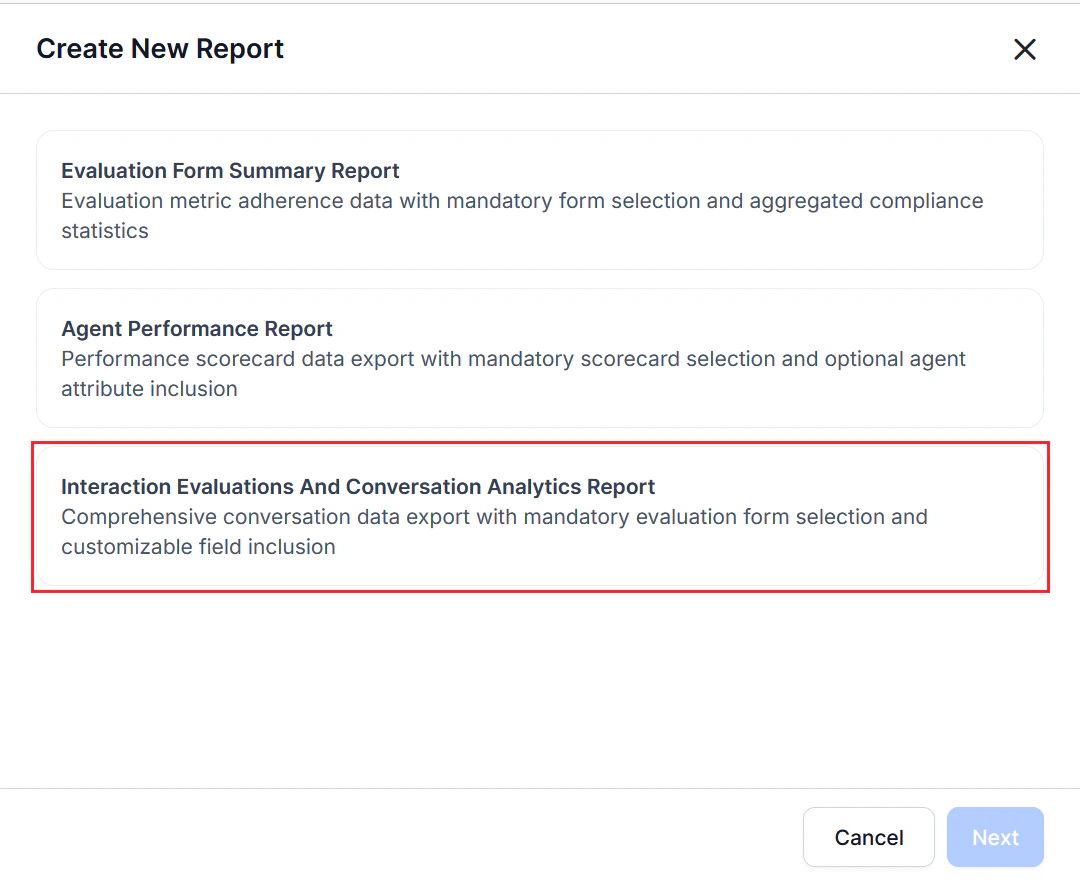 3. Select **Next**.
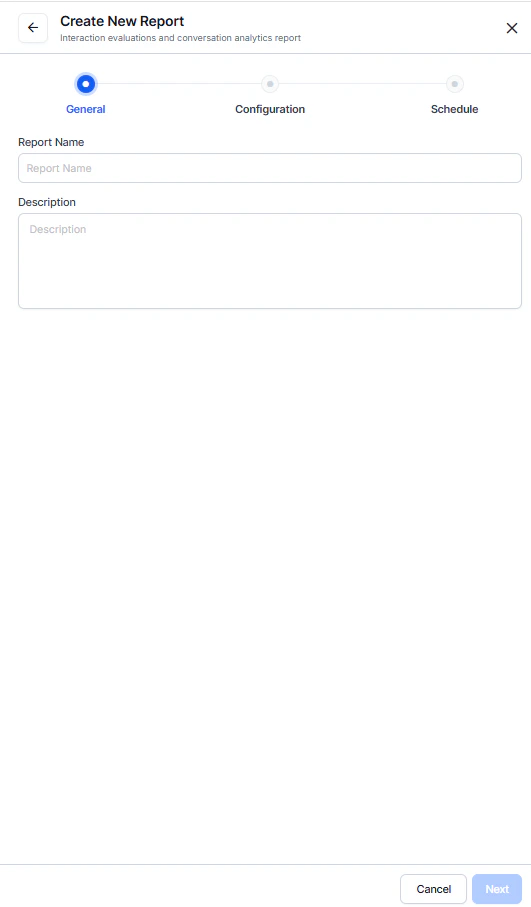
2. Complete the **General** settings.
1. Enter a unique **Name** for the report.
2. Enter a **Description**.
3. Select **Next**.
3. Select **Next**.
2. Complete the **General** settings.
1. Enter a unique **Name** for the report.
2. Enter a **Description**.
3. Select **Next**.
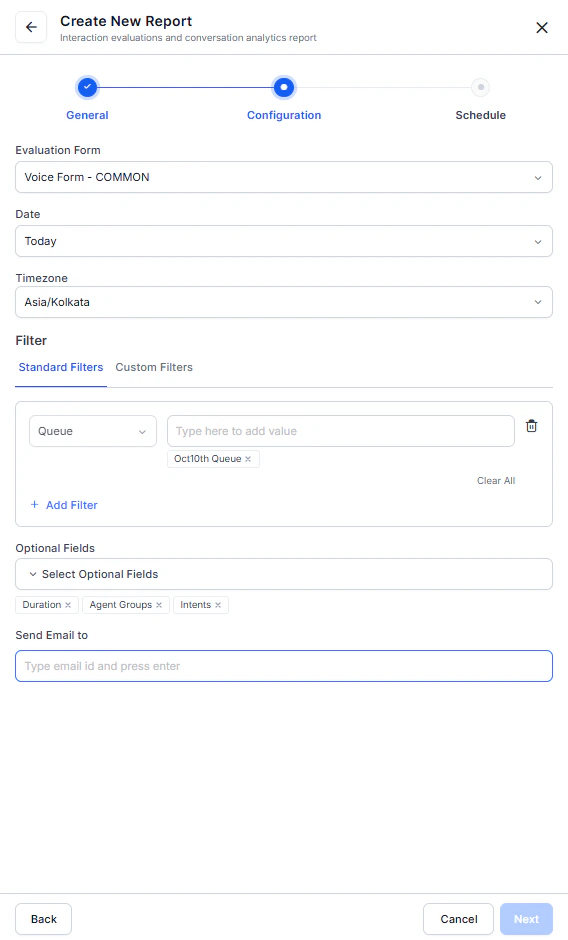
 3. Complete the **Configuration** — **Filters and Options**.
1. Select an evaluation **Form** (at least one form is required).
2. Select a **Date** or date range.
3. Select a **Timezone**.
4. Select **+ Add Filter** to apply filters:
1. Select Standard filters.
1. Select the Predefined system attributes filter options such as **Channel** (**Voice** or **Chat**) with **Contact Direction** (**Inbound** or **Outbound** or **All Directions**), **Queue**, **Language**, **Agents**, **Agent Groups**, and **Duration Status** to consistently segment and analyze interactions across reports.
2. Set the corresponding values for the selected/added filters.
2. Select **Custom Filters**, which are dynamically generated, business-specific fields based on the selected date range and available data to enable granular and tailored reporting.
1. Dropdown selection for ≤10 distinct values.
2. Text input for >10 values (supports partial or exact match).
5. Add **Optional Fields** to include additional metrics or attributes in the report that provide an extended interaction performance and customer context.
1. **Standard Optional Fields**: Predefined system-defined (metrics, sentiment, duration, intents, scores) and ready-to-use for consistent reporting.
2. **Predefined System Attributes** (such as channel, direction, queue, agent, and duration) are used to consistently segment and analyze interactions across reports.
3. **Custom Optional Fields**: Organization-defined (from CRM, APIs, bot data) and adds business-specific context, such as Account ID, Status ID.
6. Enter one or more addresses in the **Send Email to** field to send the automated reports (minimum one required).
7. Select **Next**.
3. Complete the **Configuration** — **Filters and Options**.
1. Select an evaluation **Form** (at least one form is required).
2. Select a **Date** or date range.
3. Select a **Timezone**.
4. Select **+ Add Filter** to apply filters:
1. Select Standard filters.
1. Select the Predefined system attributes filter options such as **Channel** (**Voice** or **Chat**) with **Contact Direction** (**Inbound** or **Outbound** or **All Directions**), **Queue**, **Language**, **Agents**, **Agent Groups**, and **Duration Status** to consistently segment and analyze interactions across reports.
2. Set the corresponding values for the selected/added filters.
2. Select **Custom Filters**, which are dynamically generated, business-specific fields based on the selected date range and available data to enable granular and tailored reporting.
1. Dropdown selection for ≤10 distinct values.
2. Text input for >10 values (supports partial or exact match).
5. Add **Optional Fields** to include additional metrics or attributes in the report that provide an extended interaction performance and customer context.
1. **Standard Optional Fields**: Predefined system-defined (metrics, sentiment, duration, intents, scores) and ready-to-use for consistent reporting.
2. **Predefined System Attributes** (such as channel, direction, queue, agent, and duration) are used to consistently segment and analyze interactions across reports.
3. **Custom Optional Fields**: Organization-defined (from CRM, APIs, bot data) and adds business-specific context, such as Account ID, Status ID.
6. Enter one or more addresses in the **Send Email to** field to send the automated reports (minimum one required).
7. Select **Next**.
 AI Justifications, available only for Gen AI by Question metrics, provide AI-generated explanations for each evaluation score. They appear in Interaction Evaluations and Conversation Analytics reports, and are accessible via APIs.
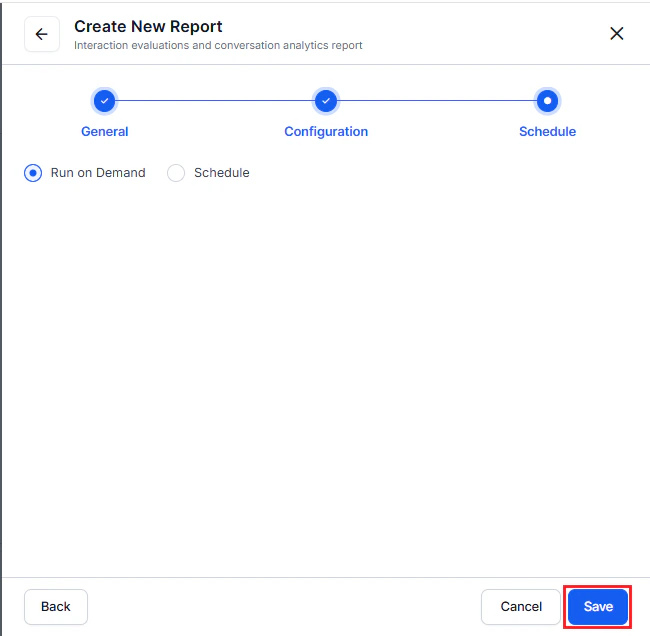
4. Complete the **Schedule** to generate a report with the current configuration.
1. Choose **Run on Demand** or **Schedule**.
* **Run on Demand**: Generates the report immediately.
* **Schedule**: Generates the report automatically.
2. If you select **Schedule**:
1. Choose a **Frequency or Repeat** (Hourly, Daily, Weekly, Monthly, Quarterly, or Yearly).
2. Select a **Start Date** and **Timezone**.
3. Select **Save**.
AI Justifications, available only for Gen AI by Question metrics, provide AI-generated explanations for each evaluation score. They appear in Interaction Evaluations and Conversation Analytics reports, and are accessible via APIs.
4. Complete the **Schedule** to generate a report with the current configuration.
1. Choose **Run on Demand** or **Schedule**.
* **Run on Demand**: Generates the report immediately.
* **Schedule**: Generates the report automatically.
2. If you select **Schedule**:
1. Choose a **Frequency or Repeat** (Hourly, Daily, Weekly, Monthly, Quarterly, or Yearly).
2. Select a **Start Date** and **Timezone**.
3. Select **Save**.
 The report returns all interactions matching the selected filters. Use the **Duration Status** filter to narrow results by evaluation eligibility. Interactions ingested before duration threshold support may display a `null duration_status` value.
***
### Processing Status Options in Reports
The following options determine whether pending or validation-failed conversations are included when exporting reports.
| Option | What Is Exported |
| -------------------------------------------------------------- | --------------------------------------------------------------------------------------------------------------------------------------------------------------- |
| **Include pending conversations** *(Off by default)* | Exports conversation metadata for pending conversations. Evaluation scores and Conversation Intelligence fields remain empty because processing isn't complete. |
| **Include validation-failed conversations** *(Off by default)* | Exports conversation metadata for validation-failed conversations, along with the validation failure reason. |
Exported reports include a **Processing Status** column with one of the following values: **Processed**, **Pending**, or **Validation Failed**. For **Validation Failed** entries, the report also includes the corresponding validation failure reason.
***
### Important behavior
* AI justifications are available only for Gen AI by Question metrics.
* Custom fields may vary by date range.
* Only selected optional and custom fields are included in the export.
* By default, the report includes all interactions that match the selected filters.
* Use Duration Status to filter by `evaluated`, `below_threshold`, or `duration_unavailable`.
* For older interactions ingested before this feature release, `duration_status` may return null.
* When available, `contactDirection` is included as a standard field and shows `Inbound`, `Outbound`, or `All Directions`.
## Report Fields
### Conversation Summary
The report includes mandatory standard fields, direction-aware interaction fields, and any selected optional custom field columns.
| accountId | contactId | conversationId | channel | contactDirection | queueId | entryDate | duration\_status |
| --------- | --------- | ------------------- | ------- | ---------------- | -------------- | ------------------- | ---------------- |
| 32852243 | 22605953 | AWS\_Trans\_02April | Voice | Outbound | AWSPublicQueue | 2026-03-29 11:03:54 | evaluated |
The report returns all interactions that match the selected filters. Use the Duration Status filter to narrow results by evaluation eligibility. For interactions ingested before the duration-threshold feature release, the duration\_status field may return null.
***
### View and Download the Report
1. On the **Reports** tab, locate the report in the **Actions** column.
2. Select More options (⋮), then select **History**.
3. Select **Download** to save the report as a CSV file.
### Report Format
* **Format**: CSV
* **File Name**: \[ReportName]-YYYY-MM-DD-HH-MM-SS.csv
The report returns all interactions matching the selected filters. Use the **Duration Status** filter to narrow results by evaluation eligibility. Interactions ingested before duration threshold support may display a `null duration_status` value.
***
### Processing Status Options in Reports
The following options determine whether pending or validation-failed conversations are included when exporting reports.
| Option | What Is Exported |
| -------------------------------------------------------------- | --------------------------------------------------------------------------------------------------------------------------------------------------------------- |
| **Include pending conversations** *(Off by default)* | Exports conversation metadata for pending conversations. Evaluation scores and Conversation Intelligence fields remain empty because processing isn't complete. |
| **Include validation-failed conversations** *(Off by default)* | Exports conversation metadata for validation-failed conversations, along with the validation failure reason. |
Exported reports include a **Processing Status** column with one of the following values: **Processed**, **Pending**, or **Validation Failed**. For **Validation Failed** entries, the report also includes the corresponding validation failure reason.
***
### Important behavior
* AI justifications are available only for Gen AI by Question metrics.
* Custom fields may vary by date range.
* Only selected optional and custom fields are included in the export.
* By default, the report includes all interactions that match the selected filters.
* Use Duration Status to filter by `evaluated`, `below_threshold`, or `duration_unavailable`.
* For older interactions ingested before this feature release, `duration_status` may return null.
* When available, `contactDirection` is included as a standard field and shows `Inbound`, `Outbound`, or `All Directions`.
## Report Fields
### Conversation Summary
The report includes mandatory standard fields, direction-aware interaction fields, and any selected optional custom field columns.
| accountId | contactId | conversationId | channel | contactDirection | queueId | entryDate | duration\_status |
| --------- | --------- | ------------------- | ------- | ---------------- | -------------- | ------------------- | ---------------- |
| 32852243 | 22605953 | AWS\_Trans\_02April | Voice | Outbound | AWSPublicQueue | 2026-03-29 11:03:54 | evaluated |
The report returns all interactions that match the selected filters. Use the Duration Status filter to narrow results by evaluation eligibility. For interactions ingested before the duration-threshold feature release, the duration\_status field may return null.
***
### View and Download the Report
1. On the **Reports** tab, locate the report in the **Actions** column.
2. Select More options (⋮), then select **History**.
3. Select **Download** to save the report as a CSV file.
### Report Format
* **Format**: CSV
* **File Name**: \[ReportName]-YYYY-MM-DD-HH-MM-SS.csv
 ***
***