> ## Documentation Index
> Fetch the complete documentation index at: https://koreai.mintlify.site/llms.txt
> Use this file to discover all available pages before exploring further.
# Manage Attachment and Chat History URLs
[Back to App Settings](/ai-for-service/app-settings)
## Overview
The **Manage URLs** section under **Advanced Settings** allows administrators to control the validity, access behavior, and reuse limits of secure, token-based URLs generated for attachments and chat history. These settings help prevent unintended sharing, enhance security, and align URL usage with organizational compliance requirements.
> **Important Points:**
>
> * These settings apply only to newly generated URLs. Existing URLs continue to follow the platform-defined defaults and aren't affected by changes made in this section.
> * Generated URLs don't require authentication.
> * Anyone with the URL can access the associated content until the URL expires or the access limit is reached.
> * Users can configure appropriate expiration durations and access limits in accordance with organizational security, privacy, and compliance policies.
***
## Configuration Steps
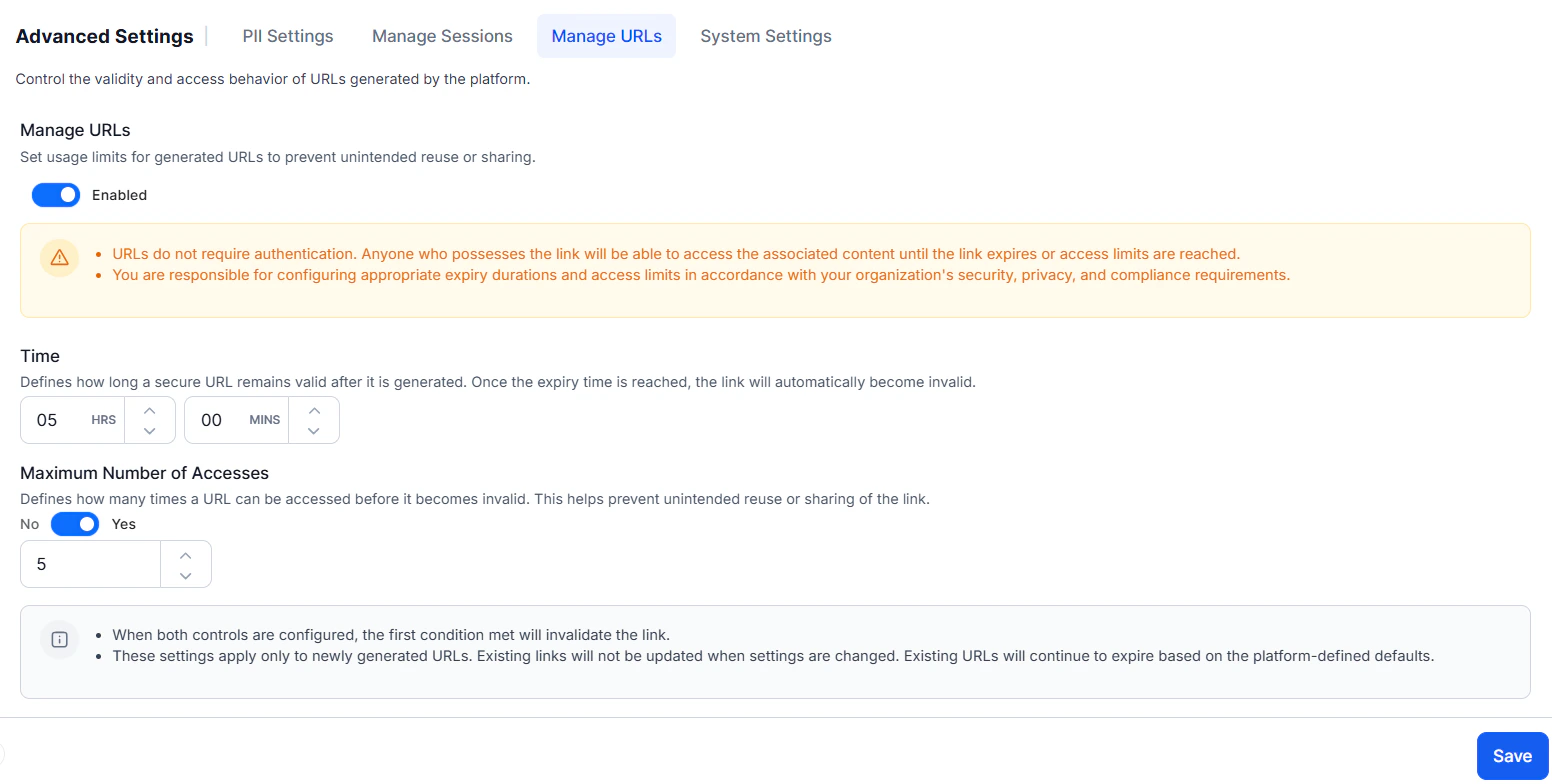
1. Navigate to **App Settings** > **Advanced Settings** > **Manage URLs**.
2. Enable the toggle under **Manage URLs**. This allows you to configure expiry time and access limits for newly generated URLs.
3. In the **Time** section, set how long a URL should remain valid after generation. Once this duration is reached, the URL automatically expires and becomes invalid.
4. In the **Maximum Number of Accesses** section, toggle from **No** to **Yes** to enable access limits.
5. Enter the maximum number of times the URL can be accessed.
6. Click **Save**. The configuration takes effect immediately for all newly generated URLs.
* To enable these configurations, setting a time limit is mandatory; configuring the maximum number of accesses is optional.
* If both a time limit and a maximum number of accesses are configured, the limit reached first takes precedence.
* Users are responsible for determining appropriate limits that align with their specific use case.
* This isn't applicable for attachment URLs generated by XO10.
 ***
## Default Configuration
| Setting | Details |
| ------------------------------------------------ | -------------------------------------------------------- |
| **Link Expiry Time — Minimum allowed** | 1 minute |
| **Link Expiry Time — Maximum allowed** | 6 hours |
| **Maximum Number of Accesses — Default** | Toggle OFF (unlimited accesses within the expiry window) |
| **Maximum Number of Accesses — Minimum allowed** | 1 access |
| **Maximum Number of Accesses — Maximum allowed** | 20 accesses |
***
***
## Default Configuration
| Setting | Details |
| ------------------------------------------------ | -------------------------------------------------------- |
| **Link Expiry Time — Minimum allowed** | 1 minute |
| **Link Expiry Time — Maximum allowed** | 6 hours |
| **Maximum Number of Accesses — Default** | Toggle OFF (unlimited accesses within the expiry window) |
| **Maximum Number of Accesses — Minimum allowed** | 1 access |
| **Maximum Number of Accesses — Maximum allowed** | 20 accesses |
***