> ## Documentation Index
> Fetch the complete documentation index at: https://koreai.mintlify.site/llms.txt
> Use this file to discover all available pages before exploring further.
# System Settings
[Back to App Settings](/ai-for-service/app-settings)
## Overview
System Settings allow administrators to configure key platform features that control call handling, data management, and system behavior. From this section, administrators can manage Call Recording Control, configure whether calls are answered on the first Bot or AI Agent response, and set the Data Retention Period for stored information. These settings ensure consistent system operation, compliance with policies, and efficient handling of conversations.
Navigate to **Automation AI > App Settings > Advanced Settings > System Settings** to access and configure these functionalities.
 ***
## Call Recording Control
By default, Contact Center AI records all voice interactions. Administrators can disable call recording for all voice interactions.
### Steps to disable Call Recording Control
1. Click **Call Recording Control**.
***
## Call Recording Control
By default, Contact Center AI records all voice interactions. Administrators can disable call recording for all voice interactions.
### Steps to disable Call Recording Control
1. Click **Call Recording Control**.
 2. Turn off the toggle to disable call recording for all voice interactions.
 ***
## Screen Recording Control
If enabled, agent screens are automatically recorded during inbound or outbound call interactions. [Learn more](/ai-for-service/contact-center/agent-console#screen-recording-for-voice-calls).
Steps to enable Screen Recording Control:
1. Select **Screen Recording Control**.
***
## Screen Recording Control
If enabled, agent screens are automatically recorded during inbound or outbound call interactions. [Learn more](/ai-for-service/contact-center/agent-console#screen-recording-for-voice-calls).
Steps to enable Screen Recording Control:
1. Select **Screen Recording Control**.
 2. Turn on the toggle to enable screen recording for all voice interactions.
***
## Video Call Recording Control
When enabled, agents with video call permission see the Video Call Record On option during active video calls. Disabled by default. [Learn more](/ai-for-service/contact-center/agent-console#video-call-recording).
To enable Video Call Recording:
1. Select **Video Call Recording**.
2. Turn on the toggle.
3. (Optional) Turn off **Display Recording Consent Prompt**. When turned off, agents are not prompted to provide consent before a call is recorded.
4. (Optional) Turn on the **Allow Agents to Pause/Resume Video Call recording** toggle to let them pause/resume the recording.
2. Turn on the toggle to enable screen recording for all voice interactions.
***
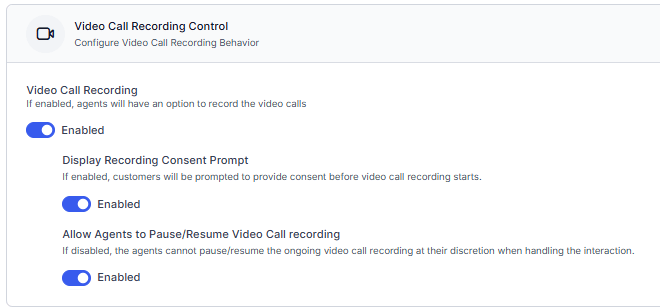
## Video Call Recording Control
When enabled, agents with video call permission see the Video Call Record On option during active video calls. Disabled by default. [Learn more](/ai-for-service/contact-center/agent-console#video-call-recording).
To enable Video Call Recording:
1. Select **Video Call Recording**.
2. Turn on the toggle.
3. (Optional) Turn off **Display Recording Consent Prompt**. When turned off, agents are not prompted to provide consent before a call is recorded.
4. (Optional) Turn on the **Allow Agents to Pause/Resume Video Call recording** toggle to let them pause/resume the recording.
 ***
## Answer Call on First Bot/AI Agent Response
This feature plays a dial tone to the caller if there is a delay before the AI Agent delivers its first response on inbound calls. This improves the caller experience by indicating the call is still connected, preventing confusion or the impression of a dropped call. Administrators can enable or disable this behavior using a configuration flag.
### Steps to enable Answer Call on First Bot/AI Agent Response
1. Click **Answer Call on First Bot Response**.
***
## Answer Call on First Bot/AI Agent Response
This feature plays a dial tone to the caller if there is a delay before the AI Agent delivers its first response on inbound calls. This improves the caller experience by indicating the call is still connected, preventing confusion or the impression of a dropped call. Administrators can enable or disable this behavior using a configuration flag.
### Steps to enable Answer Call on First Bot/AI Agent Response
1. Click **Answer Call on First Bot Response**.
 2. Turn on the toggle to enable the functionality.
 When calls transfer from an existing telephony provider to the platform, a connection event triggers once the call connects and the bot begins responding. In rare cases, the AI Agent's response may be delayed due to processing or latency. This setting sends the connection event only when the AI Agent's first response plays, and plays a dial tone in the meantime to keep callers engaged.
***
## Data Retention Period
Use the **Data Retention Period** feature to configure how long voice call recordings are retained. Select a retention period from 1 day to 7 years. New applications use a default retention period of 3 months, which administrators can change. Enable email notifications before recording deletion. Email notifications are unavailable when the retention period is less than 1 month. Administrators must acknowledge recording deletion before the system deletes recordings. The system records retention setting changes, email preference updates, and successful and failed recording deletions in the audit logs. Only **App Owners** and **Supervisors** can modify these settings.
### Attachment Retention Period
The Attachment Retention Period feature allows administrators to configure a separate retention period for attachments in user-bot conversations. The attachment retention period must always be shorter than the conversation retention period, allowing attachments to be deleted earlier if required. All changes to attachment retention settings are recorded in audit logs for traceability and compliance. Only App Owners can modify these settings.
### Steps to configure the Data Retention Period
1. Click **Data Retention Period**.
When calls transfer from an existing telephony provider to the platform, a connection event triggers once the call connects and the bot begins responding. In rare cases, the AI Agent's response may be delayed due to processing or latency. This setting sends the connection event only when the AI Agent's first response plays, and plays a dial tone in the meantime to keep callers engaged.
***
## Data Retention Period
Use the **Data Retention Period** feature to configure how long voice call recordings are retained. Select a retention period from 1 day to 7 years. New applications use a default retention period of 3 months, which administrators can change. Enable email notifications before recording deletion. Email notifications are unavailable when the retention period is less than 1 month. Administrators must acknowledge recording deletion before the system deletes recordings. The system records retention setting changes, email preference updates, and successful and failed recording deletions in the audit logs. Only **App Owners** and **Supervisors** can modify these settings.
### Attachment Retention Period
The Attachment Retention Period feature allows administrators to configure a separate retention period for attachments in user-bot conversations. The attachment retention period must always be shorter than the conversation retention period, allowing attachments to be deleted earlier if required. All changes to attachment retention settings are recorded in audit logs for traceability and compliance. Only App Owners can modify these settings.
### Steps to configure the Data Retention Period
1. Click **Data Retention Period**.
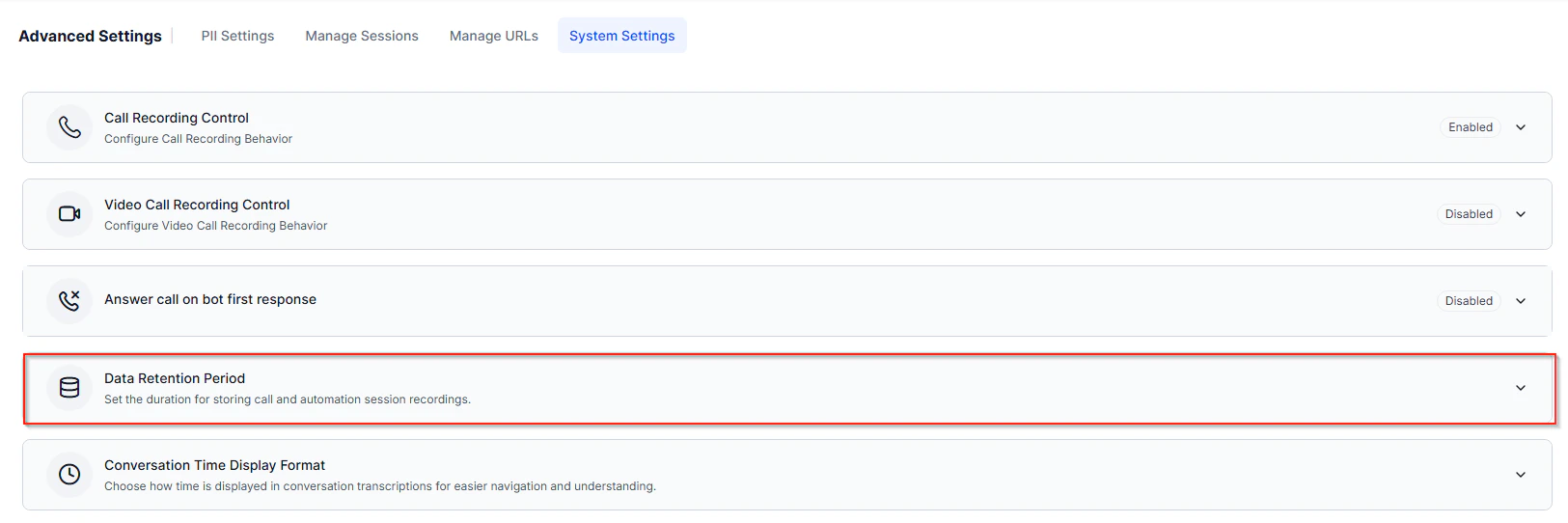 2. Select the required retention duration for voice call recordings and voice automation session recordings.
3. Optionally, select the checkbox to enable email notifications 5 days before deletion of voice call recordings. Email notifications are available only for retention periods greater than 30 days.
4. Select the required retention period for attachments in user-bot conversations. The retention period can be configured in days, months, or years, up to a maximum of 7 years. However, the configured value can't exceed the conversation retention period set at the workspace level.
2. Select the required retention duration for voice call recordings and voice automation session recordings.
3. Optionally, select the checkbox to enable email notifications 5 days before deletion of voice call recordings. Email notifications are available only for retention periods greater than 30 days.
4. Select the required retention period for attachments in user-bot conversations. The retention period can be configured in days, months, or years, up to a maximum of 7 years. However, the configured value can't exceed the conversation retention period set at the workspace level.
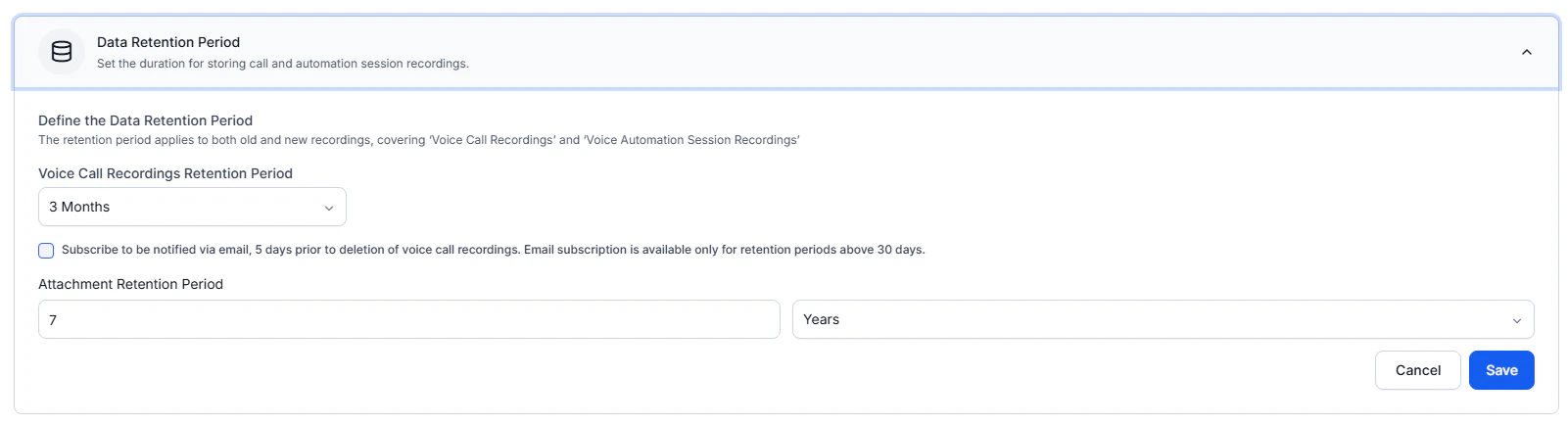 5. Select **Save** to apply the changes.
## Conversation Time Display Format
Choose how time appears in call recording transcripts. The system displays either actual timestamps or elapsed duration from the start of the call. [Learn More](/ai-for-service/analytics/overview/conversations#conversation-time-display-format)
### Steps to configure Time Display Format
1. Open **Conversation Time Display Format**.
2. Select **Standard Timestamps** or **Duration Markers**.
3. Select **Save**.
5. Select **Save** to apply the changes.
## Conversation Time Display Format
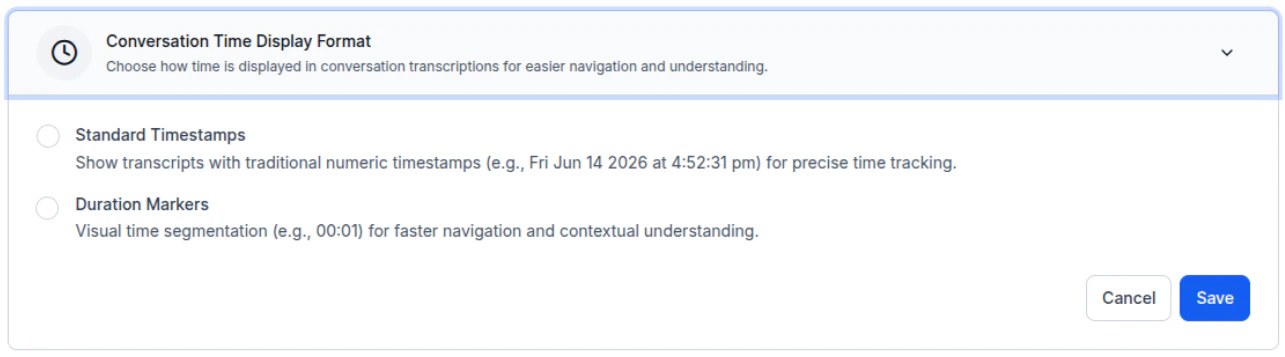
Choose how time appears in call recording transcripts. The system displays either actual timestamps or elapsed duration from the start of the call. [Learn More](/ai-for-service/analytics/overview/conversations#conversation-time-display-format)
### Steps to configure Time Display Format
1. Open **Conversation Time Display Format**.
2. Select **Standard Timestamps** or **Duration Markers**.
3. Select **Save**.
 ***
***