> ## Documentation Index
> Fetch the complete documentation index at: https://koreai.mintlify.site/llms.txt
> Use this file to discover all available pages before exploring further.
# App Functions
[Back to App Settings](/ai-for-service/app-settings)
App Function is a feature that uses a custom script file to collate and manage reusable utility JavaScript functions usable by different tasks, nodes, and other elements. Once you upload a custom script file to the assistant, all functions in the file are accessible anywhere in the assistant, reducing redundant development effort.
***
## Using the Custom Script File
Consider a Travel Planning Assistant use case to understand how the custom script file reduces development overhead. The following conversation flow frequently presents customers with options. The assistant prompts the user to select what they want to book (Flight or Hotel), then prompts them to select a Fare (Economy, Premium Economy, or First Class).
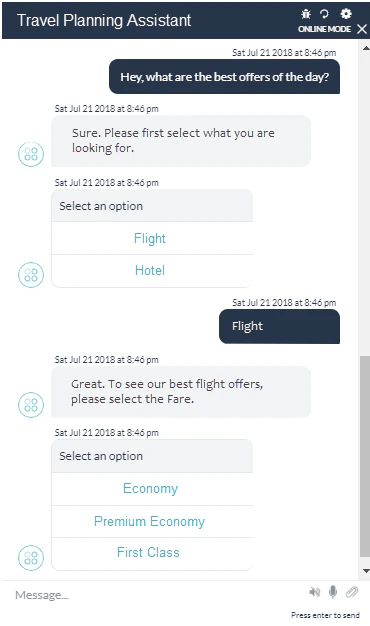 Both the booking and fare options are identical in functionality — only the displayed choices differ. Instead of hard-coding the button template functionality into each node, write a function in the custom script file that nodes invoke by passing options:
```js theme={null}
function custTemplatel(info){
var message = {
"type": "template",
"payload": {
"template_type": "button",
"text": "Select an option",
"subText": "button Template
"buttons": []}
};
for (i = 0; i < info.length; i++)
var button = {
"type": "postback",
"title": info[i],
"payload": "payloadl"
):
message.payload.buttons.push(button);
}
return JSON.stringify(message);
}
```
Call the function from nodes as follows:
```js theme={null}
var info =["Flight","Hotel"];
print(custTemplatel(info));|
```
***
### Uploading a Custom Script File
1. Select **App Settings** from the left menu.
2. Select **Dev Tools** from the menu, then the **App Function** tab.
Both the booking and fare options are identical in functionality — only the displayed choices differ. Instead of hard-coding the button template functionality into each node, write a function in the custom script file that nodes invoke by passing options:
```js theme={null}
function custTemplatel(info){
var message = {
"type": "template",
"payload": {
"template_type": "button",
"text": "Select an option",
"subText": "button Template
"buttons": []}
};
for (i = 0; i < info.length; i++)
var button = {
"type": "postback",
"title": info[i],
"payload": "payloadl"
):
message.payload.buttons.push(button);
}
return JSON.stringify(message);
}
```
Call the function from nodes as follows:
```js theme={null}
var info =["Flight","Hotel"];
print(custTemplatel(info));|
```
***
### Uploading a Custom Script File
1. Select **App Settings** from the left menu.
2. Select **Dev Tools** from the menu, then the **App Function** tab.
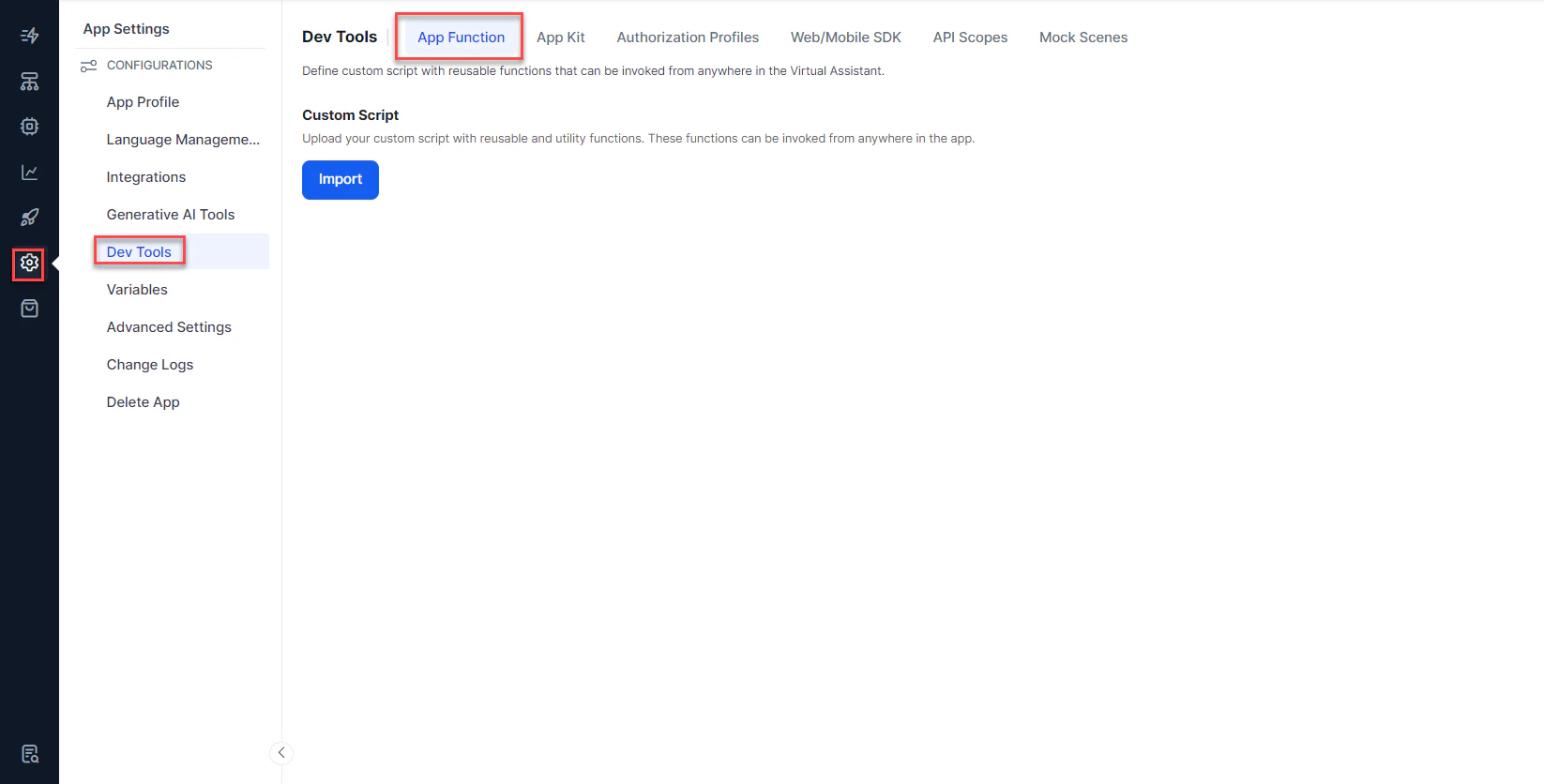 3. Under **Custom Script**, select **Import**.
4. In the **Import Custom Script** dialog, select **Browse** and navigate to the script file on your local machine. Click **Import**. You can also drag and drop the script file.
5. After the import succeeds, select **Done**.
***
### Updating the Custom Script File
Add or modify functions by downloading the file, making changes, and re-importing it. Importing a new custom script file replaces the existing file, which can't be retrieved later. Keep a copy of the downloaded file as a backup.
1. Select **App Settings** from the left menu.
2. Select **Dev Tools** from the menu, then the **App Function** tab.
3. Under **Custom Script**, click **Download** to save a copy to your local computer.
4. After making changes to the file, click **Import New**.
5. Click **Browse**, locate the custom script file on your local computer, then click **Import**.
6. Click **Done** when the import is complete.
***
3. Under **Custom Script**, select **Import**.
4. In the **Import Custom Script** dialog, select **Browse** and navigate to the script file on your local machine. Click **Import**. You can also drag and drop the script file.
5. After the import succeeds, select **Done**.
***
### Updating the Custom Script File
Add or modify functions by downloading the file, making changes, and re-importing it. Importing a new custom script file replaces the existing file, which can't be retrieved later. Keep a copy of the downloaded file as a backup.
1. Select **App Settings** from the left menu.
2. Select **Dev Tools** from the menu, then the **App Function** tab.
3. Under **Custom Script**, click **Download** to save a copy to your local computer.
4. After making changes to the file, click **Import New**.
5. Click **Browse**, locate the custom script file on your local computer, then click **Import**.
6. Click **Done** when the import is complete.
***