> ## Documentation Index
> Fetch the complete documentation index at: https://koreai.mintlify.site/llms.txt
> Use this file to discover all available pages before exploring further.
# Conversation Management
This document covers the core conversation management features of the AI Agent: standard responses, interruption handling, small talk, and alert tasks.
| Feature | Description |
| ----------------------------------------------------------------------------------- | -------------------------------------------------------------------------------------------------------------------------------- |
| [Standard Responses](#standard-responses) | Pre-defined NLP interpreter messages triggered by events, user inputs, or system conditions. |
| [Manage Interruptions](#manage-interruptions) | Configure how the AI Agent handles mid-task interruptions such as FAQs or small talk. |
| [Small Talk](#small-talk) | Enable casual, non-task conversations to make interactions feel more natural. |
| [Alert Tasks](#alert-tasks) | Set up proactive notifications the AI Agent sends based on triggers or schedules. |
| [Digital Skills](/ai-for-service/automation/digital-skills/digital-skills-overview) | Create interactive user interfaces, digital forms and digital views, that retrieve information from users or present it to them. |
## Standard Responses
Standard responses are pre-defined NLP interpreter messages the AI Agent displays based on events, user inputs, or system conditions. All defaults can be customized, and channel-specific overrides can be added.
Go to **Automation AI > Conversation Intelligence > Conversation Management > Standard Responses**.
For each category, the trigger condition is listed alongside the default response(s). The NLP interpreter randomly selects from multiple responses at runtime.
### Response Categories
| Category | Description |
| --------------------- | ---------------------------------------------------------------------------------------------------- |
| **Statements** | Responses triggered by AI Agent or user actions — for example, task cancellation or invalid input. |
| **Queries** | Questions the AI Agent asks for more information — for example, *Which field do you want to change?* |
| **Errors & Warnings** | Messages displayed during errors — for example, *End date can't be before the start date.* |
| **Questions** | General questions posed to the user that don't fit other categories. |
| **Choices** | Yes/No prompts — for example, *Would you like to receive push notifications?* |
| **Greeting** | Initial responses when the app starts or when a user returns after inactivity. |
### Statements
Responses triggered by actions from the AI Agent or user.
| Message | When It Appears |
| --------------------------------------------------------------------------------------------- | --------------------------------------------------------------------------------------------------------------------------------------------------------------------------------------------------------------------------------------------------------------------------------------------------------------------- |
| When the user confirms to close the conversation in a language and switch to another language | User ends a conversation in one language and starts the next in a different language. |
| When only field prompt is present in the OOB | Internal field prompt for action and alert tasks. Not recommended for customization by enterprises. |
| When language preference is set | User switches language using *cheat lang* or picks from language options. |
| When task isn't accessible to user | Developer tries to access an app task they don't have permission for. |
| User confirms alert setup | An alert is set up successfully (Alert Task only). |
| User discards/abandons the current activity | User says *discard*, or the task fails due to max retries, invalid LoV, or cURL error. |
| User implies to end the conversation | User says *bye*, *good night*, etc. Shown when the Follow-up Intents list is presented at dialog end. |
| Location provided by user is invalid | AI Agent can't validate input for a Location-type entity. |
| Amending an Alert field | User says *Yes* to amend alert parameters (Alert Task only). |
| Amending a task which has no fields | Task has no entities to amend (Alert, Action, and Information Tasks). |
| Ask at least one optional field | User didn't provide any optional field value when at least one is required (Action Task only). |
| Topic retry limit exceeded | Developer mode only. Dialog looped through the same nodes beyond the allowed limit. |
| Universal fallback response | AI Agent can't generate a response for any reason, or maximum node execution limit exceeded. |
| Server returned authorization failure | Authorization failure occurred during script or API execution. |
| User selects a valid option from a list | User selects an action/alert/info task from the listed options. |
| User selects an action | User selects an action task; AI Agent confirms and asks for required parameters. |
| Alert is identified, ask for alert time | Displayed when Trigger Interval is set to *At a specific time*. |
| Alert is identified, ask for alert time interval | Displayed when Trigger Interval is set to *Every X minutes*. |
| User selects an alert | User selects an alert task; AI Agent confirms and requests required parameters. |
| Task discarded | User types *discard* mid-task. |
| App choosing the default account | Shown during alert amend when AI Agent can't parse the user's response. |
| Confirmation Dialog for Task consolidated | AI Agent confirms captured parameters before executing an Action/Info task. |
| Confirmation Dialog for Alert consolidated | AI Agent confirms all details before setting up an alert (if confirmation is enabled). |
| Confirmation Dialog for Alert consolidated without fields | Alert has no fields; AI Agent confirms before execution (if confirmation is enabled). |
| The alerts will be muted | Developer has muted alert notifications. |
| Confirmation Dialog when alerts are muted | Shown when *Mute alert notifications* is enabled for an RSS alert. |
| Alert frequency description | Confirmation of alert query frequency for web-service alert tasks. |
| Not understanding the input at confirmation | User's response during alert frequency confirmation doesn't match the expected input. |
| No results found for the search string | Typeahead field returned no results. |
| Successful task setup | Alert task set up successfully. |
| I am not sure what you mean | One or more low-confidence intents found. Usually shown as FAQ suggestions. |
| Ambiguity in intent recognition | AI Agent failed to identify user intent; prompts user to rephrase. |
| User has selected daily alert — ask for frequency or specific time | Both *frequency interval* and *specific time* options are available. |
| App needs to present filter options | Multiple filters available during alert setup. |
| App needs to present filter options with exit option | Same as above, but includes an option to skip. |
| User finished configuring filters | Filter configuration for an alert task completed. |
| User asks *Who am I* | User types *Who am I*. |
| User asks for help | User types *Help*; AI Agent lists available tasks. |
| Skipped values | Part of confirmation message for Action/Info tasks — shows skipped (optional) parameters. |
| Ask user to change dependent field | A dropdown depends on another field, but the Platform can't fetch data from that field. |
| When there is no data | User chooses to change account but responds *no* to the AI Agent's confirmation. |
| When date given in invalid format | User enters an unrecognizable date format. Valid formats: YYYY-MM-DD, DD-MM-YYYY, 1 Jan 1982, *Next Friday*. |
| Follow-up sentence post task discard | AI Agent confirms task was discarded and offers to restart. |
| Confirmation Dialog for task with skipped fields | Confirmation before executing an Action/Info task when some optional fields weren't provided. |
| Listing all tasks | Displayed when user types *Help* and no task matches. |
| Listing all alerts | Displayed when user types *Help* and the app has only alert tasks. |
| Listing all FAQs | Displayed when user types *Help* — includes Knowledge Graph collections. |
| Listing all alerts after tasks | Shown when app only has alert tasks and intent isn't identified. |
| Listing all alerts after tasks and FAQs | Shown when all task types are configured and user types *Help*. |
| Lists all actions and FAQs | No matching task found; lists actions and FAQs. |
| Lists all alerts and FAQs | No matching task found; lists alerts and FAQs. |
| When app has no tasks | Developer tries to run an app without any tasks. |
| When a server call fails | Webhook or service node call failed; task is discarded. |
| User prompt when a task is discarded due to server call failure | API call didn't complete successfully. |
| Specific app isn't available | App isn't yet published. |
| Field title and value in confirmation | Part of the confirmation step — shows captured field values for alert, action, or info tasks. |
| Recursive dialog found | AI Agent recursively called the same dialog and exceeded the limit (100). |
| Loop limit reached for a node | Same node invoked repeatedly beyond the allowed number of times. |
| Message component doesn't have a message | Message or Service node returned empty content. |
| User says thanks | User thanks the AI Agent. |
| User says OK, fine, yes | Shown after task completion when the user acknowledges positively. |
| User says no, nope | Small talk response to negative acknowledgments. |
| User says great, awesome | Shown after task completion when the user responds positively. |
| User says that helped, that was useful | Shown after positive feedback (great, cool, fair enough, that helped). |
| User says I am done | Shown when user indicates they're finished (done, that's all, that's it). |
| Successfully added filter | A filter was added to an alert. |
| After successfully adding a filter, showing filter options again | Shown when a filter is applied to an alert (Alert Task only). |
| User gave invalid input for filter | Filter name doesn't match any configured filter. |
| Resume paused task | User chooses to resume on-hold task. Shown only when Resume option is *Notify the user with a message that the on-hold task is being resumed*. |
| Notify the user that we've canceled the paused task | User chose not to resume the on-hold task during confirmation. |
| Notify the user that we've canceled the current task to switch to another | Hold option is *Discard the current task and switch to new*. |
| When an interruption is identified but hold isn't allowed | New intent detected during task execution; new intent added to follow-up list (current task continues). |
| Service call timed out | Third-party API call (webhook or service node) timed out. |
| Dialog has no transitions | Dialog task has only an Intent node and no further flow defined. |
| Manage account | User says *manage accounts*, *add phone number*, *delete account*, etc. |
***
### Queries
Questions the AI Agent asks users for more information.
| Message | When It Appears |
| ---------------------------------------------------------------------- | -------------------------------------------------------------------------------------------------------- |
| Ask if user would like to switch to a new language (multiple detected) | Multiple new languages detected mid-conversation; user asked to select preferred language. |
| Ask if user would like to switch to a new language (single detected) | A different language detected; user offered option to switch or continue. |
| Follow-up sentence post task execution or discard | Task completed or discarded; user offered option to restart. |
| Confirmation before discard | User types *Discard* or *Discard All* during task execution (applies to select clients). |
| User types *Change* or similar words | User changes their mind during alert filter setup; alert setup is discarded. |
| User prompted to enter text to search | Typeahead field prompt (Action, Alert, Info tasks). |
| Ask the user to enter alert frequency | Frequency can be interval or specific time (Alert only). |
| Ask the user to enter alert interval | Frequency is an interval, for example, every 4 hours (Alert only). |
| Ask the user to enter alert time | Frequency is a specific time, for example, daily at 9:00 am. |
| Alert identified — ask for frequency | Prompted based on schedule options defined by the alert developer. |
| Prompting user to enter name for alert instance | User installs alert in Kore messaging rooms. |
| User needs to select from a static dropdown | Filter field type is *static dropdown*. |
| User needs to select from a search results list | Filter field type is *dynamic dropdown*. |
| Request for email address for webhook instructions | Webhook alert setup — developer email needed for configuration instructions. |
| Query to get the alert instance description | User prompted to provide a description during alert setup. |
| Tell me the alphabet or unique word for the action | Displayed before a list of options when no custom template is used. |
| I am not sure what you mean after an invalid choice | User's follow-up doesn't match any of the initially identified ambiguous alerts. |
| Asking user to pick an alert | A list of alerts is shown; user prompted to select one. |
| Asking user to pick an alert after an error | User selected an invalid option from the alert list. |
| When user responded with invalid answer to confirmation dialog | User said they want to amend but the AI Agent didn't understand what — confirmation repeated. |
| Typeahead field prompt (first field in task) | First field in task is a typeahead type. |
| Ask user what to rename the alert | User chose to change/amend the alert name. |
| After user amends a parameter — ask if anything else to change | User amended a parameter; AI Agent asks if further changes are needed. |
| No results found for search string — ask to try again | Typeahead field query returned no results. |
| Follow-up sentence post discard — Part 2 | At alert confirmation, user said *no* twice. |
| Listing ambiguous tasks | User prompted to pick a task from a list; response led to ambiguity. |
| Ask if user wants to continue the paused task | Shown after the interrupting task completes (Resume option: *Get confirmation before resuming*). |
| Ask if user would like to switch | Hold & Resume is set to *Allow the end user to select the behavior*; AI Agent confirms before switching. |
### Errors & Warnings
Messages displayed when errors or validation issues occur.
| Message | When It Appears |
| ---------------------------------------------------------- | ------------------------------------------------------------------------------------------------------ |
| Agent transfer fallback response | Agent unavailable, wait time exceeded, or agent transfer failed. |
| User exceeds maximum retries for an entity (task on hold) | User exceeded max retries while another task is on hold. |
| Dialog task associated to FAQ isn't available | The dialog linked to a FAQ was suspended, deleted, or not assigned to the user. |
| User needs to authorize or re-authorize | End-user authorization or re-authorization is required. The authorization URL is appended dynamically. |
| User authorization has failed or is yet to authorize | Task requires authorization; AI Agent provides an authorization link. |
| User's intent recognized, but authorization fails | Service call needs authorization and no account has been authorized yet. |
| User authorization failed more than 3 times | User entered wrong credentials three times in a row. |
| User provided value isn't unique | User's input causes ambiguity when selecting from a partially matched intent list. |
| App didn't find any options based on user's choice | Option set is empty, or no account credentials are available. |
| Discarding task — no options found for list or lookup | User input not found in service call response (dynamic dropdown or typeahead field). |
| Task identified, but server call failed | Kore account for the third-party API expired or failed. |
| User enters invalid email | Invalid email address entered for an alert, action, or info task. |
| User enters invalid country | Invalid country name entered. |
| User enters invalid URL | Invalid URL entered. |
| User enters invalid phone number | Invalid phone number entered. |
| User enters invalid number | Non-numeric input entered for a number field. |
| Invalid date format | Invalid date format entered. |
| Missing date | No date provided for a date field. |
| Ask user to enter time for a field | Time missing for a DateTime entity in a dialog task. |
| Ask user to enter time | User provided only a date for a DateTime entity (for example, scheduled appointment). |
| Invalid time — ask to try again for a field | User's time input for a DateTime entity is missing or invalid. |
| Invalid time — ask to try again | User entered an invalid time value (for example, Aug 29 at 25). |
| Missing date/time | Error prompt for DateTime entities in Actions and Alerts. |
| You have chosen a wrong choice | Sub-response used when a user selects an invalid option from a list. |
| Can't understand your request | AI Agent fails to identify intent; lists available tasks and FAQs. |
| App is selected, user asked for reauthorization | API call failed due to expired credentials. |
| Listing all tasks after wrong choice | User selected an invalid option; app has only Actions/Dialogs/Info tasks. |
| Listing all alerts after wrong choice | User selected an invalid option; app has only Alert tasks. |
| Listing all FAQs after wrong choice | User selected an invalid option; app has only FAQs. |
| Listing all FAQs — not understanding request | App has only a Knowledge Graph and fails to understand intent. |
| Listing all actions — not understanding request | App has only Action tasks and fails to understand intent. |
| Listing all actions and alerts — not understanding request | App has only Action and Alert tasks and fails to understand intent. |
| Listing all actions and FAQs — not understanding request | App has only Actions and a Knowledge Graph and fails to understand intent. |
| Listing all alerts — not understanding request | App has only Alert tasks and fails to understand intent. |
| Listing all alerts and FAQs — not understanding request | App has only Alert tasks and a Knowledge Graph and fails to understand intent. |
| Listing all tasks — not understanding request | App fails to understand intent; shows all available tasks. |
| Listing all tasks and alerts after wrong choice | User selected an invalid option; app has tasks and alerts. |
| Listing all alerts, tasks, and FAQs after wrong choice | User selected an invalid option; app has all task types. |
| Lists all actions and FAQs after wrong choice | App has only Actions and a Knowledge Graph; user selected an invalid option. |
| Lists all alerts and FAQs after wrong choice | App has only Alerts and a Knowledge Graph; user selected an invalid option. |
| Task discarded — user exceeded maximum allowed attempts | User entered an invalid entity format five times. |
| Entity component in dialog has no error prompt | Entity node has no error prompt defined. |
| Entity component in dialog has no message attribute | Entity node has no message prompt defined. |
| User input exceeds maximum sentence or word limit | Input exceeds the allowed character or word count. |
### Questions
General questions the AI Agent poses to users.
| Message | When It Appears |
| ---------------------------------------------- | ------------------------------------------------------------- |
| When user input matches and frequency is asked | User input led to ambiguity while setting an alert frequency. |
| Ask user to input alert frequency | Prompt for frequency at which the alert task will run. |
### Choices
Yes/No prompts used during alert and task setup.
| Message | When It Appears |
| ----------------------------------------------------------------- | --------------------------------------------------------------------------------------------------------- |
| Search results displayed (type-ahead search) | User input triggered a typeahead search in an alert filter (Alert Task only). |
| Confirming alert frequency | App confirms current alert trigger frequency with the user. |
| Repeat confirmation of default alert frequency | User input doesn't match the expected frequency response. |
| Confirmation to set up alert with frequency | Confirm the trigger frequency for an alert. |
| Prompting user to set up filters | App asks whether the user wants to configure alert filters. |
| Prompting user to set up filters as soon as alert is identified | Same as above — triggered immediately on alert identification. |
| Asking user to set up push notifications | User wants to amend the alert notification setting. |
| Repeat — asking user to set up push notifications | User's response to notification setting doesn't match yes/no. |
| Amending the description | User wants to change the alert description. |
| Amending the frequency | User wants to change the alert trigger frequency. |
| Amending notification settings | User wants to change whether notifications are enabled. |
| Prompting user to choose days of the week | User selecting Weekday/Weekend for trigger frequency. |
| Query to choose interval for frequency | User prompted to select a frequency interval. |
| Query to send webhook setup instructions via email | App checks if developer wants webhook configuration instructions emailed. |
| Do you want to change the alert name? | User wants to amend the alert name. |
| Query to choose operator while setting up a filter | User prompted to select an operator for an alert filter. |
| Options to pick frequency for alert notification days | All interval options available (Daily, Weekday, Weekend). |
| When the user needs to choose from provided choices | User prompted to pick from a dropdown in alerts or actions. |
| Confirm if user wishes to reuse a pre-saved context | Prompted when a pre-saved context is available for reuse. |
| Show possible intervals for alert schedule | User entered a specific time, but only intervals are valid. |
| Show closest frequency for alert schedule | User's input doesn't match available frequencies; nearest option shown. |
| Show closest time for alert schedule | User's input doesn't match available times; nearest option shown. |
| When changing a field | User selected *No* during alert parameter confirmation. |
| Prompting to set up filters after alert identified | User provides input to set up an alert that has filters configured. |
| Ask if setup instructions should be sent via email (first prompt) | First prompt in alert setup is to ask about emailing setup instructions. |
| While choosing options | Shows options from the Platform for a typeahead entity in an action or alert. |
| After selecting task — ask about schedule | Alert selected from list; AI Agent asks how often the user wants to be notified. |
| Wrong choice for task schedule | User entered invalid frequency for an alert; AI Agent asks again. |
| After selecting task — ask for field value | First field in an action or alert is a dropdown. |
| User says *no* for alert setup confirmation | User chose not to proceed with the alert configuration; offered to amend. |
| After selecting task — user selects wrong choice in dialog | User entered an invalid choice from a non-LoV list. |
| User enters wrong choice for alert frequency | Alert frequency value doesn't match options defined by the developer. |
| User enters wrong value for a dropdown | Input doesn't match any value in the List of Values. |
| List ambiguous LoV values | Multiple partial matches for a List of Values entity; user asked to select. |
| User enters invalid choice for an action | User's response doesn't match the presented task list. |
| Ambiguous date | User entered an ambiguous date (for example, 6/9); both interpretations shown. |
| Ambiguous airport | User entered an airport name that matches multiple airports (for example, London). |
| Ambiguous location | Geocode service returned multiple location possibilities. |
| More than one account to pick from | User has multiple third-party accounts; asked to select one. |
| Intent recognized, but more than one account to pick from | Same as above, when intent is identified. |
| Custom lookup returned more than one value | Multiple results returned from a custom list query. |
| Chosen list is empty after selecting a valid choice | Dependent dropdown has no options because the parent field value returned empty results. |
| User selects an invalid choice (dependent dropdown) | Same as above; user's value for the dependent field is invalid. |
| Present follow-up tasks at end of dialog | Shown at end of dialog when Follow-up Task setting is *Yes, ask the user to select a follow-up task*. |
| Ask user to select entity to amend (ambiguous entity value) | Multiple entities share the same value during dialog execution; user asked to clarify which to amend. |
| Max on-hold quantity exceeded — ask user to cancel a task | User tried to put more tasks on hold than the configured maximum. |
| User provides intent when prompted for String/Description entity | User input matched an intent when prompted for a string/description entity; AI Agent asks how to proceed. |
### Add and Edit Responses
**To add a new standard response:**
1. Select a **category tab** and hover over the target situation.
2. Click **Add Response**.
3. In the **Add Channel Overrides** dialog:
* Select a **channel** (or **Any Channel** for all channels).
* For channel-specific responses, select a **task** and optionally a **field**.
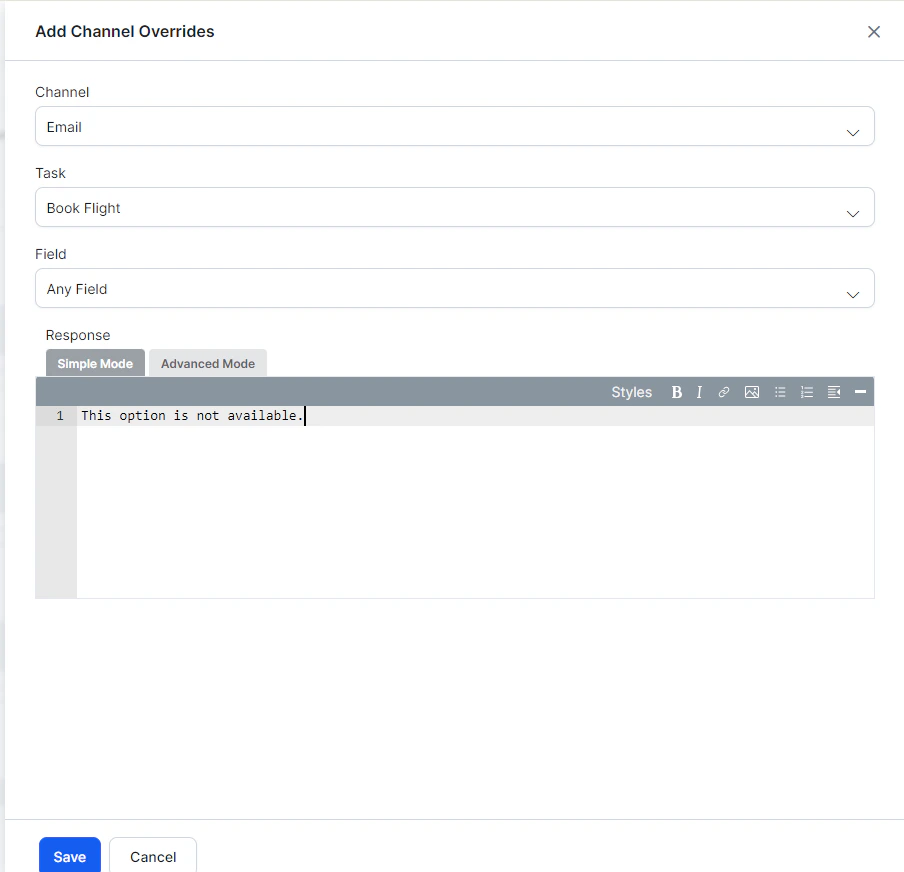 4. In the **Response** editor, choose a mode:
* **Simple Mode** — Plain text with optional formatting (bold, italics, hyperlinks, lists).
* **Advanced Mode** — JavaScript for custom channel-specific messages. Use `response.message` for the default message string and `response.choices` for the options array.
5. Click **Save**.
### Channel Override Examples
**Slack:**
```js theme={null}
var message = {};
var attachments = [];
var attachment = {
'text': "Exception occurred during API execution",
'color': '#FFCC00',
'attachment_type': 'default'
};
attachments.push(attachment);
message.attachments = attachments;
print(JSON.stringify(message));
```
**Facebook:**
```js theme={null}
var message = { text: response.message };
var buttons = [];
for (var i = 0; i < response.choices.length; i++) {
var choiceItem = response.choices[i];
if (choiceItem.length > 20) {
choiceItem = choiceItem.substring(0, 18) + '..';
}
buttons.push({
content_type: 'text',
title: choiceItem,
payload: choiceItem
});
}
message.quick_replies = buttons;
print(JSON.stringify(message));
```
**SMS:**
```js theme={null}
var message = {};
var indexArray = ['a','b','c','d','e','f','g','h','i','j','k','l','m','n','o','p','q','r','s','t','u','v','w','x','y','z'];
var text = response.message + '\n';
for (var i = 0; i < response.choices.length; i++) {
text = text.concat(indexArray[i] + ') ' + response.choices[i] + '\n');
}
message.text = text;
print(JSON.stringify(message));
```
**Email:**
```js theme={null}
var message = {};
var text = response.message + ' ';
for (var i = 0; i < response.choices.length; i++) {
text = text.concat('' + response.choices[i] + '
4. In the **Response** editor, choose a mode:
* **Simple Mode** — Plain text with optional formatting (bold, italics, hyperlinks, lists).
* **Advanced Mode** — JavaScript for custom channel-specific messages. Use `response.message` for the default message string and `response.choices` for the options array.
5. Click **Save**.
### Channel Override Examples
**Slack:**
```js theme={null}
var message = {};
var attachments = [];
var attachment = {
'text': "Exception occurred during API execution",
'color': '#FFCC00',
'attachment_type': 'default'
};
attachments.push(attachment);
message.attachments = attachments;
print(JSON.stringify(message));
```
**Facebook:**
```js theme={null}
var message = { text: response.message };
var buttons = [];
for (var i = 0; i < response.choices.length; i++) {
var choiceItem = response.choices[i];
if (choiceItem.length > 20) {
choiceItem = choiceItem.substring(0, 18) + '..';
}
buttons.push({
content_type: 'text',
title: choiceItem,
payload: choiceItem
});
}
message.quick_replies = buttons;
print(JSON.stringify(message));
```
**SMS:**
```js theme={null}
var message = {};
var indexArray = ['a','b','c','d','e','f','g','h','i','j','k','l','m','n','o','p','q','r','s','t','u','v','w','x','y','z'];
var text = response.message + '\n';
for (var i = 0; i < response.choices.length; i++) {
text = text.concat(indexArray[i] + ') ' + response.choices[i] + '\n');
}
message.text = text;
print(JSON.stringify(message));
```
**Email:**
```js theme={null}
var message = {};
var text = response.message + ' ';
for (var i = 0; i < response.choices.length; i++) {
text = text.concat('' + response.choices[i] + '
');
}
message.text = text;
print(JSON.stringify(message));
```
### Customizing Ambiguity Display with `getChoices()`
Use `getChoices()` to retrieve ambiguous intent choices and render them in a custom format (for example, as buttons):
```js theme={null}
var info = getChoices();
var message = {
"type": "template",
"payload": {
"template_type": "button",
"text": "Did you mean",
"subText": "You can now customize response for did you mean",
"buttons": []
}
};
for (var i = 0; i < info.length; i++) {
message.payload.buttons.push({
"type": "postback",
"title": info[i],
"payload": "payload1"
});
}
print(JSON.stringify(message));
```
***
## Manage Interruptions
Users rarely follow a linear conversation path — they may switch topics, ask unrelated questions, or provide a new intent mid-task. Manage Interruptions gives you granular control over how the AI Agent handles these situations.
Go to **Automation AI > Conversation Intelligence > Conversation Management > Manage Interruptions**.
### Interruptions Hierarchy
Settings at more specific levels override broader defaults.
| Level | Precedence | Where to Configure |
| --------------- | ---------------- | ------------------------------------------------------------------------------ |
| **Node** | Highest | Node **Instance** tab > **Advanced Controls** > **Interruptions Behavior** |
| **Dialog Task** | Middle | Dialog Builder > **more options** icon > **Manage Interruptions** |
| **App** | Lowest (default) | **Conversation Intelligence > Conversation Management > Manage Interruptions** |
> If no node or task-level settings exist, the app-level settings apply.
When a user provides input after 15+ minutes of inactivity and the input is within the previous session context, it's treated as an interruption. If the user starts a new utterance, the old context is discarded.
### Allow Interruptions
| Option | Behavior |
| ----------------------------------------------------------------- | ----------------------------------------------------------------------------------------------------------------------- |
| **Hold the current task and resume after the new task completes** | Switches to the new intent immediately. Requires a Resume Option (see below). |
| **Discard the current task and switch to new** | Discards the current task and switches. Sends the user a notification message. Customizable via **Manage Response**. |
| **Switch to new task without notification and discard current** | Silently discards the current task and switches. No user notification. |
| **Continue the current task and add new task to follow-up list** | Stays on the current task and adds the new intent to the `FollowupIntents` array. Customizable via **Manage Response**. |
### Do Not Allow Interruptions
Disables interruptions at the app level. Can still be overridden at the task or node level.
### Allow the End User to Select the Behavior
Prompts the user to confirm whether to switch tasks. Customize the confirmation message via **Manage Response**. Requires a Resume Option.
***
### Resume Options
Defines what happens to the on-hold task after the interrupting task completes.
| Option | Behavior |
| ------------------------------------------------------------------------ | ------------------------------------------------------------------------------------------------------------------------------- |
| **Get confirmation before resuming** | AI Agent asks the user (Yes/No) whether to resume the on-hold task. Message is customizable. |
| **Notify the user and resume** | Resumes the on-hold task automatically and notifies the user. No confirmation required. Message is customizable. |
| **Resume without any message** | Directly resumes the on-hold task with no notification. |
| **Always resume without message if the task ended in a single response** | If the interrupting task completed in a single response, resumes the on-hold task silently regardless of other resume settings. |
**Example — Get confirmation before resuming:**
```
User: Can you book me a flight for tomorrow?
AI Agent: From which city are you flying?
User: Los Angeles
AI Agent: Where to?
User: By the way, what's the weather forecast for tomorrow?
AI Agent: Please enter the city for the forecast.
User: Los Angeles
AI Agent: Weather Forecast for Los Angeles — March 15, 25°C, Mostly Sunny
AI Agent: Should I continue with the task 'Book Flight'?
User: Yes
AI Agent: Enter the name of the destination airport.
```
***
### On-Hold Quantity
Set the maximum number of tasks that can be held at once. Default: **1**. Range: 1-N.
When the limit is reached, new tasks are ignored regardless of interruption settings.
Tasks resume in reverse chronological order (most recent first). Limit on-hold tasks to 1-2 to avoid confusion.
***
### Node-Level Customization
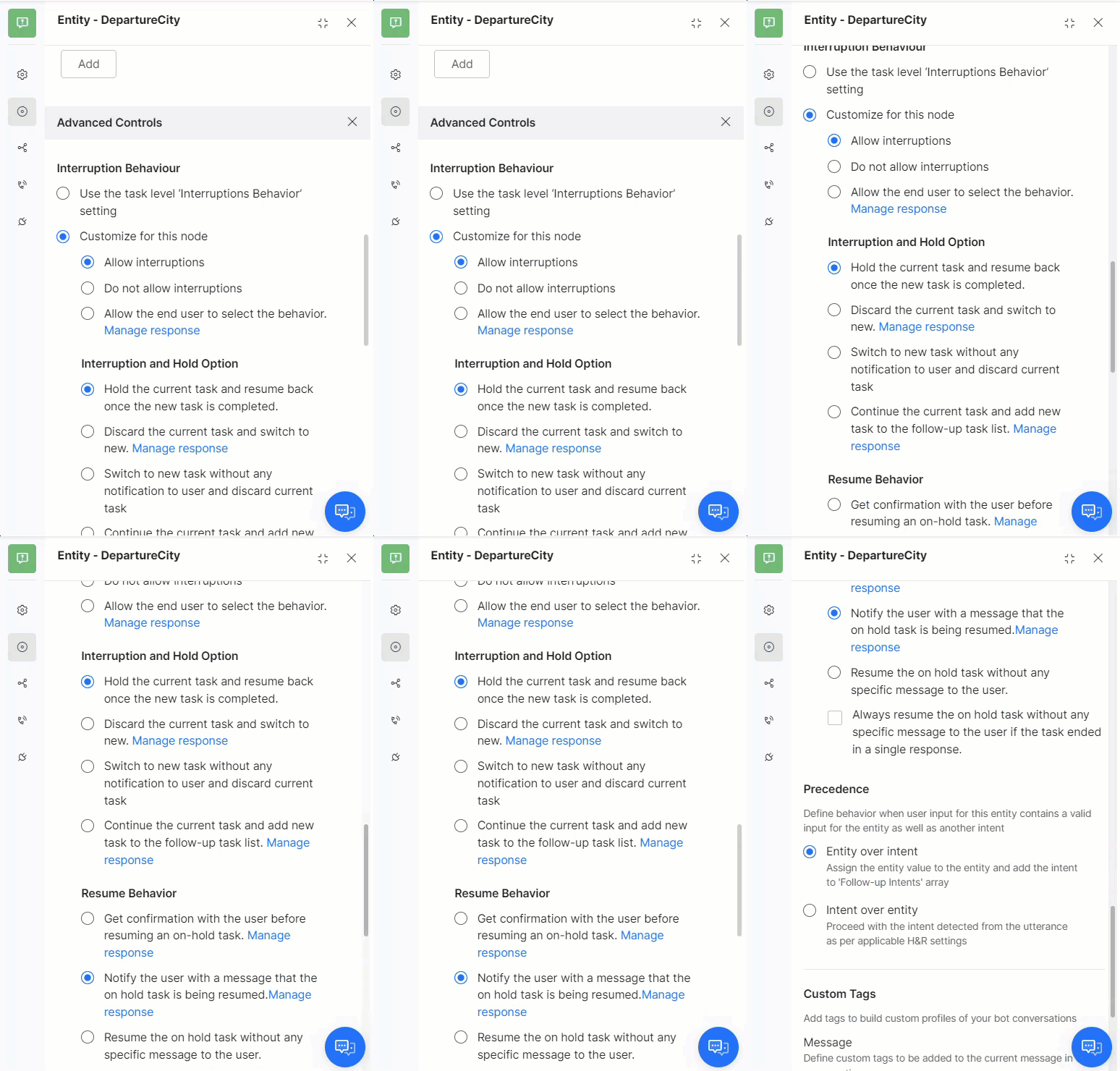
1. Open the dialog task and select the node.
2. Go to the **Instance** tab > **Advanced Controls**.
3. Under **Interruptions Behavior**, select **Customize for this node** and configure settings.
 ### Dialog-Level Customization
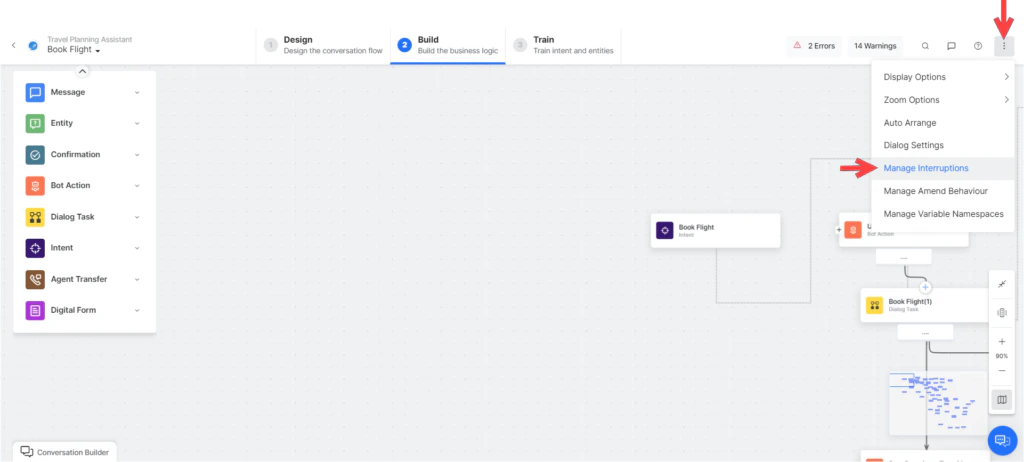
1. Open the dialog task.
2. Click the **more options** icon (top-right of Dialog Builder) > **Manage Interruptions**.
3. Under **Interruptions Behavior**, select **Customize for this task** and configure settings.
### Dialog-Level Customization
1. Open the dialog task.
2. Click the **more options** icon (top-right of Dialog Builder) > **Manage Interruptions**.
3. Under **Interruptions Behavior**, select **Customize for this task** and configure settings.
 ***
### Behavior for FAQs
| Option | Behavior |
| --------------------------------------------------------- | --------------------------------------------------------------------------------------- |
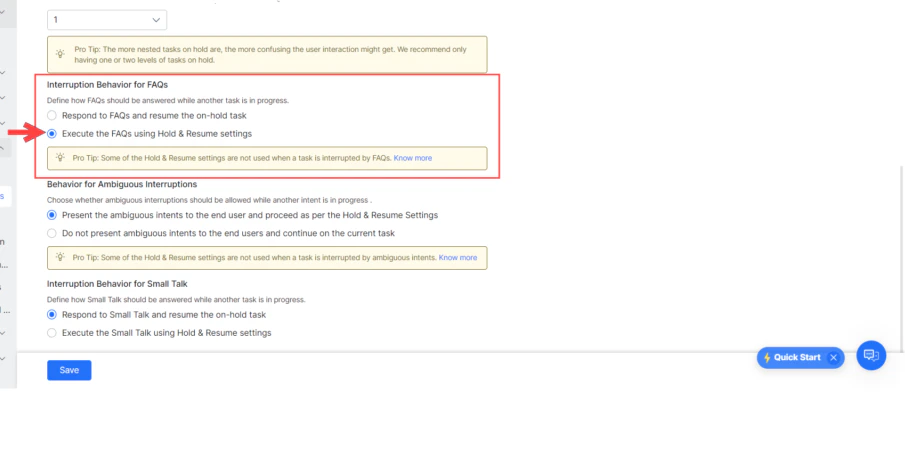
| **Respond to FAQs and resume the on-hold task** (default) | AI Agent answers the FAQ and then resumes the on-hold task. |
| **Execute the FAQs using Hold & Resume Settings** | Treats FAQ intents like any other intent and applies configured Hold & Resume settings. |
***
### Behavior for FAQs
| Option | Behavior |
| --------------------------------------------------------- | --------------------------------------------------------------------------------------- |
| **Respond to FAQs and resume the on-hold task** (default) | AI Agent answers the FAQ and then resumes the on-hold task. |
| **Execute the FAQs using Hold & Resume Settings** | Treats FAQ intents like any other intent and applies configured Hold & Resume settings. |
 ### Behavior for Ambiguous Intents
| Option | Behavior |
| ----------------------------------------------------------------------------------------- | ------------------------------------------------------------------------------ |
| **Present ambiguous intents to the end-user and proceed as per Hold and Resume settings** | User selects a task; interruption settings are applied based on the selection. |
| **Don't present ambiguous intents and continue on the current task** (default) | AI Agent ignores ambiguous intents and continues the current task. |
### Behavior for Ambiguous Intents
| Option | Behavior |
| ----------------------------------------------------------------------------------------- | ------------------------------------------------------------------------------ |
| **Present ambiguous intents to the end-user and proceed as per Hold and Resume settings** | User selects a task; interruption settings are applied based on the selection. |
| **Don't present ambiguous intents and continue on the current task** (default) | AI Agent ignores ambiguous intents and continues the current task. |
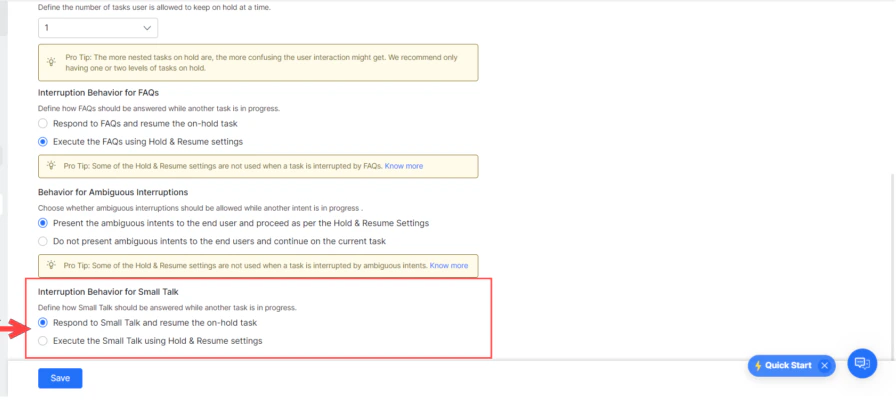
 ### Behavior for Small Talk
| Option | Behavior |
| --------------------------------------------------------------- | ------------------------------------------------------------------------------------- |
| **Respond to Small Talk and resume the on-hold task** (default) | AI Agent responds to Small Talk by putting the current task on hold, then resumes it. |
| **Execute Small Talk using Hold & Resume settings** | Applies configured Hold & Resume settings to Small Talk. |
### Behavior for Small Talk
| Option | Behavior |
| --------------------------------------------------------------- | ------------------------------------------------------------------------------------- |
| **Respond to Small Talk and resume the on-hold task** (default) | AI Agent responds to Small Talk by putting the current task on hold, then resumes it. |
| **Execute Small Talk using Hold & Resume settings** | Applies configured Hold & Resume settings to Small Talk. |
 ### Behavior for Search AI
This behavior applies only to NLP-based apps.
| Option | Behavior |
| -------------------------------------------------------------- | ------------------------------------------------------------------------------------------------ |
| **Respond to Search AI and resume the on-hold task** (default) | AI Agent responds to the Search AI request by putting the current task on hold, then resumes it. |
| **Execute the Search AI using Hold & Resume settings** | Applies the configured Hold & Resume settings to Search AI. |
### Behavior for User Authorization
When a user provides unexpected input at an authorization prompt:
1. If **Small Talk** is detected: Small Talk response is shown, and the authorization prompt is repeated.
2. The Platform checks for intents regardless of interruption settings:
* **Single intent detected** — Asks the user to confirm discarding the current task and triggering the new one.
* **Multiple intents detected** — Shows an ambiguity dialog with an option to ignore and continue the current task.
3. If **no intent** is found — User is re-prompted with the authorization link.
***
## Small Talk
Small Talk enables the AI Agent to engage users in casual conversation. AI Agents that respond to social inputs like *How are you?* create a positive impression and improve engagement.
Go to **Automation AI > Use Cases > Small Talk**.
Intents and FAQs take precedence over Small Talk. If both are detected, the intent or FAQ is handled first. Small talk is language-specific — configure it separately for each enabled language.
### Features
| Feature | Description |
| ------------------------ | ------------------------------------------------------------------------------------------------------------------------------------------------------------------------------------------------------------ |
| **Custom Small Talk** | Build a personality and train the AI Agent for casual conversations around your areas of interest. |
| **Nested conversations** | Support follow-up queries during a conversation for more engaging interactions. |
| **Emoji identification** | The Platform recognizes emojis in user utterances and responds accordingly. |
| **Intent-aware** | Interjections like *hello* at the start of an utterance aren't treated as small talk if an intent follows — for example, *Hello, I need to book a flight* triggers the book-a-flight intent, not Small Talk. |
### Default Small Talk (Greetings Group)
When you create an app, a **Greetings** group is generated automatically. The following messages are included:
| User Query | When It Appears |
| ---------------------------------------------------------------- | ------------------------------------------------------------------------ |
| User says *Hi*, *Hello*, *Hey*, etc. | Shown when the user greets or enters the app name. |
| *How are you?* | Shown for greetings like *how are you*, *how's it going*, *wassup*, etc. |
| *Who are you?* | Shown when the user asks who the AI Agent is. |
| User says *great*, *awesome*, etc. (no task in context) | Shown after task completion when the user responds positively. |
| User says *that helped*, *that was useful*, etc. | Shown after positive feedback. |
| User says *no*, *nope*, etc. (no task in context) | Small talk response to negative acknowledgments. |
| User says *I am done*, *That's it for now*, etc. | Shown when the user indicates they're finished. |
| User implies to end the conversation (*bye*, *good night*, etc.) | Shown when Follow-up Intents are presented at dialog end. |
| User says *thanks* | Shown when the user thanks the AI Agent. |
| User says *OK*, *fine*, *yes*, etc. (no task in context) | Shown after task completion when the user acknowledges positively. |
When you open Small Talk in an existing app, you are prompted to migrate Standard Response greetings to Small Talk. This migration is permanent — greetings are removed from Standard Responses and can't be retrieved if you proceed.
### Set Up Small Talk
#### Step 1: Add a Group
1. Go to **Automation AI > Use Cases > Small Talk**.
2. Click **New Group**.
3. Enter a **Group Name** and click **Proceed**.
Groups are evaluated in the order they're added.
#### Step 2: Add Query-Response Pairs
1. In the Small Talk editor, enter the **User Query** and **Bot Response**.
2. Press **Enter** or click **Add** to save the pair.
Additional options per query:
* **Alternate questions** — Additional phrasings for the same query. These are pattern-based.
* **Alternate responses** — Multiple responses; the Platform picks one at random at runtime.
* **Child queries** — Follow-up questions available only after the parent is answered. Up to 3 levels of nesting are supported.
Use the drag handle to reorder queries. Add specific queries before generic ones (for example, *how is your day today?* before *how are you*).
#### Step 3: Configure Channel-Specific Responses (Optional)
1. Hover over a response and click the **Settings** (gear) icon.
2. In the **Manage Response** window:
* Add a default message for all channels.
* Click **+ Add Response > New Prompt Message** for channel-specific responses.
* Select a **Channel**, then enter a response in **Simple** or **Advanced (JavaScript)** mode.
3. Click **Save**.
#### Import Small Talk
To import an existing Small Talk dataset:
1. Click the **more** (ellipsis) icon in the Small Talk view.
2. Select **Import**.
3. Download the sample file if needed to verify formatting (JSON or TSV).
4. Select your file and click **Next**.
Importing replaces all existing Small Talk data.
***
### Small Talk Context
Mark sections of user input patterns with `_` to capture contextual data. This data is stored in `context.smallTalk.matchData` and can be used to personalize responses.
**Example pattern:** `I am from _~location Where are you from?`
```js theme={null}
// context.smallTalk
{
"pattern": "I am from _~location Where are you from?",
"matchData": {
"_0": "chicago"
},
"previousMatchData": []
}
```
Multiple tokens are positional (`_0`, `_1`, `_2`, etc.) and may not be contiguous if an optional token is absent.
**Example pattern with optional token:** `how is the _[ climate temperature ] { at _~location } ~time`
* User says *"how is the temperature in London today"* → `_0: temperature`, `_1: London`, `_2: today`
* User says *"how is the climate today"* → `_0: climate`, `_2: today` (`_1` is absent)
Access parent-level context from child nodes via:
```js theme={null}
context.smallTalk.previousMatchData[i].matchData._0
```
**Context persistence:** The context is cleared when:
* The session ends.
* A new primary Small Talk intent is detected.
* Any non-Small Talk intent is triggered.
***
### Training
After making changes to Small Talk, click **Train** in the Small Talk editor to retrain the assistant.
Importing a Small Talk file triggers training automatically.
Key rules:
* Only 3 levels of child nodes are allowed.
* Duplicate top-level questions across groups aren't allowed.
* Questions are evaluated in the order added within a group; groups are evaluated in the order created.
***
## Alert Tasks
Alert Tasks proactively deliver information to users by polling a service on a real-time or scheduled basis. Users can configure alerts to trigger at specific times or when defined conditions are met.
Go to **Automation AI > Use Cases > Alert Tasks**.
### Example Use Cases
* Time- or location-based promotional offers
* Scheduled delivery updates
* Inventory level changes
* Critical issue notifications
* Weather alerts
* Cross-system status changes
***
### Create an Alert Task
1. Open the AI Agent.
2. Navigate to **Automation > Use Cases > Alert Tasks**.
3. Click **Create Alert Task**.
4. Configure the **General Settings**:
| Field | Description |
| ----------------------- | ------------------------------------------------------------------------------------------------------------------------------------------------------------------ |
| **Task Name** | The name displayed in the Platform. |
| **Display Name** | The name displayed in the Store. Defaults to Task Name. |
| **Connection Type** | **Webhook** — app pushes data to a Kore.ai endpoint. **RSS** — Kore.ai polls an RSS feed. **Webservice** — Kore.ai polls a web service using end-user credentials. |
| **Connection Mode** | For Webservice only: **REST** or **SOAP**. |
| **Input Preconditions** | Intent is detected only if specified context tags are present. Available via **More Options**. |
| **Context Output** | Context tags set when this intent is initiated. Available via **More Options**. |
#### Advanced Settings
| Field | Description |
| ------------------------------------- | ------------------------------------------------------------------------------------- |
| **Task Install Confirmation Message** | Message shown when the task is successfully set up. |
| **Turn Off Confirmation Messages** | **Yes** — skips NLP execution confirmation. **No** — prompts the user before running. |
| **Search Keywords** | Keywords users can use to find this task in the marketplace. |
| **Task Demo Link** | Link to display a task demo icon in the Store. |
### Authorization
Define how end-users are authenticated to receive alert notifications. Not required for Webhook connection types.
1. On the **API Request** tab, expand the **Authorization** section.
2. Select an existing **Authorization Provider** or click **Create New**.
3. Select an **Authorization Type**:
| Type | Description |
| -------------------------------- | ------------------------------------------------------------------------- |
| **Basic Auth** | Standard username/password collection over SSL. |
| **OAuth v2 Password Grant Type** | Custom authorization for non-standard web service auth flows. |
| **OAuth v1** | Protected resource access via API without exposing user credentials. |
| **OAuth v2** | Modern OAuth with specific authorization flows for web apps and services. |
| **API Key** | Token-based identification/authentication for incoming app requests. |
### API Requests
Configure the API request that fetches data for the alert. The configuration depends on the Connection Type:
| Connection Type | Configuration Guide |
| --------------- | ------------------------------------------------------------------------------------ |
| **Webhook** | Configure a webhook endpoint to receive pushed data. |
| **REST** | Define REST API parameters, initializers, pre/post-processors, and response samples. |
| **SOAP** | Define SOAP API parameters and the request envelope. |
| **RSS** | Define the RSS feed URL and polling parameters. |
You can define API Parameters, an optional API task Initializer, API Request pre/post-processors, and expected Response Samples.
***
### Bot Responses
After configuring the API request, define how alert results are displayed to the user.
| Component | Description |
| ------------------------------ | --------------------------------------------------------------------------------------------------------------------- |
| **Report Template Definition** | Displays payload data as a table, contact card, or formatted report. Not applicable to Webhook, Action, or RSS tasks. |
| **Message Definition** | Defines the look and feel of the alert message delivered to the end-user based on the webhook payload. |
### Alert Settings
Define when and how the alert fires. Not applicable to Webhook tasks.
| Setting | Description |
| --------------------- | ------------------------------------------------------------------------------------------------------------------------ |
| **Filters** | Limit alert results by criteria (name, account, amount, text match, etc.). Only matching results trigger a notification. |
| **Schedule** | Set polling frequency and schedule options presented to users during setup. |
| **Advanced Settings** | Configure the initial alert message set, alert reminders, and duplicate message prevention. |
***
### Version Namespaces
Associate Variable Namespaces to scope which variables are used during task execution.
This option is only available when Namespaces are enabled.
***
### View Logs
View logged events for published alert tasks to troubleshoot request/response behavior.
1. In **Alert Tasks**, click the **Settings** (gear) icon for the task.
2. Click **View Logs**.
Each log entry is a JSON object containing the request, response headers and body, and execution time.
```js theme={null}
{
"requestLogs": [{
"name": "Request 1",
"request": {
"endpoint": "https://www.example.com/rss/{channel}.xml",
"pathFields": {
"channel": "latestnews",
"lastRun": "2025-10-09T10:20:45Z",
"now": "2025-10-09T10:26:37Z",
"today": "2025-10-09"
},
"payloadFields": {},
"headerFields": {
"If-Modified-Since": "Thu, 09 Oct 2025 10:00:00 GMT",
"If-None-Match": "\"example-123456\""
}
},
"response": {
"status": 200,
"headers": { ... },
"body": "Example.com Latest News\n..."
},
"executionTime": "4860 ms"
}],
"alertsData": [{
"uxmap": {
"channel": "default",
"body": "<% var newLink = title; print(newLink); %>"
},
"payload": "{ ... }",
"response": {
"channel": "default",
"body": "Example.com launches new AI-powered feature\n"
}
}]
}
```
Refresh the **Logs** page to view the latest entries.
***
### Behavior for Search AI
This behavior applies only to NLP-based apps.
| Option | Behavior |
| -------------------------------------------------------------- | ------------------------------------------------------------------------------------------------ |
| **Respond to Search AI and resume the on-hold task** (default) | AI Agent responds to the Search AI request by putting the current task on hold, then resumes it. |
| **Execute the Search AI using Hold & Resume settings** | Applies the configured Hold & Resume settings to Search AI. |
### Behavior for User Authorization
When a user provides unexpected input at an authorization prompt:
1. If **Small Talk** is detected: Small Talk response is shown, and the authorization prompt is repeated.
2. The Platform checks for intents regardless of interruption settings:
* **Single intent detected** — Asks the user to confirm discarding the current task and triggering the new one.
* **Multiple intents detected** — Shows an ambiguity dialog with an option to ignore and continue the current task.
3. If **no intent** is found — User is re-prompted with the authorization link.
***
## Small Talk
Small Talk enables the AI Agent to engage users in casual conversation. AI Agents that respond to social inputs like *How are you?* create a positive impression and improve engagement.
Go to **Automation AI > Use Cases > Small Talk**.
Intents and FAQs take precedence over Small Talk. If both are detected, the intent or FAQ is handled first. Small talk is language-specific — configure it separately for each enabled language.
### Features
| Feature | Description |
| ------------------------ | ------------------------------------------------------------------------------------------------------------------------------------------------------------------------------------------------------------ |
| **Custom Small Talk** | Build a personality and train the AI Agent for casual conversations around your areas of interest. |
| **Nested conversations** | Support follow-up queries during a conversation for more engaging interactions. |
| **Emoji identification** | The Platform recognizes emojis in user utterances and responds accordingly. |
| **Intent-aware** | Interjections like *hello* at the start of an utterance aren't treated as small talk if an intent follows — for example, *Hello, I need to book a flight* triggers the book-a-flight intent, not Small Talk. |
### Default Small Talk (Greetings Group)
When you create an app, a **Greetings** group is generated automatically. The following messages are included:
| User Query | When It Appears |
| ---------------------------------------------------------------- | ------------------------------------------------------------------------ |
| User says *Hi*, *Hello*, *Hey*, etc. | Shown when the user greets or enters the app name. |
| *How are you?* | Shown for greetings like *how are you*, *how's it going*, *wassup*, etc. |
| *Who are you?* | Shown when the user asks who the AI Agent is. |
| User says *great*, *awesome*, etc. (no task in context) | Shown after task completion when the user responds positively. |
| User says *that helped*, *that was useful*, etc. | Shown after positive feedback. |
| User says *no*, *nope*, etc. (no task in context) | Small talk response to negative acknowledgments. |
| User says *I am done*, *That's it for now*, etc. | Shown when the user indicates they're finished. |
| User implies to end the conversation (*bye*, *good night*, etc.) | Shown when Follow-up Intents are presented at dialog end. |
| User says *thanks* | Shown when the user thanks the AI Agent. |
| User says *OK*, *fine*, *yes*, etc. (no task in context) | Shown after task completion when the user acknowledges positively. |
When you open Small Talk in an existing app, you are prompted to migrate Standard Response greetings to Small Talk. This migration is permanent — greetings are removed from Standard Responses and can't be retrieved if you proceed.
### Set Up Small Talk
#### Step 1: Add a Group
1. Go to **Automation AI > Use Cases > Small Talk**.
2. Click **New Group**.
3. Enter a **Group Name** and click **Proceed**.
Groups are evaluated in the order they're added.
#### Step 2: Add Query-Response Pairs
1. In the Small Talk editor, enter the **User Query** and **Bot Response**.
2. Press **Enter** or click **Add** to save the pair.
Additional options per query:
* **Alternate questions** — Additional phrasings for the same query. These are pattern-based.
* **Alternate responses** — Multiple responses; the Platform picks one at random at runtime.
* **Child queries** — Follow-up questions available only after the parent is answered. Up to 3 levels of nesting are supported.
Use the drag handle to reorder queries. Add specific queries before generic ones (for example, *how is your day today?* before *how are you*).
#### Step 3: Configure Channel-Specific Responses (Optional)
1. Hover over a response and click the **Settings** (gear) icon.
2. In the **Manage Response** window:
* Add a default message for all channels.
* Click **+ Add Response > New Prompt Message** for channel-specific responses.
* Select a **Channel**, then enter a response in **Simple** or **Advanced (JavaScript)** mode.
3. Click **Save**.
#### Import Small Talk
To import an existing Small Talk dataset:
1. Click the **more** (ellipsis) icon in the Small Talk view.
2. Select **Import**.
3. Download the sample file if needed to verify formatting (JSON or TSV).
4. Select your file and click **Next**.
Importing replaces all existing Small Talk data.
***
### Small Talk Context
Mark sections of user input patterns with `_` to capture contextual data. This data is stored in `context.smallTalk.matchData` and can be used to personalize responses.
**Example pattern:** `I am from _~location Where are you from?`
```js theme={null}
// context.smallTalk
{
"pattern": "I am from _~location Where are you from?",
"matchData": {
"_0": "chicago"
},
"previousMatchData": []
}
```
Multiple tokens are positional (`_0`, `_1`, `_2`, etc.) and may not be contiguous if an optional token is absent.
**Example pattern with optional token:** `how is the _[ climate temperature ] { at _~location } ~time`
* User says *"how is the temperature in London today"* → `_0: temperature`, `_1: London`, `_2: today`
* User says *"how is the climate today"* → `_0: climate`, `_2: today` (`_1` is absent)
Access parent-level context from child nodes via:
```js theme={null}
context.smallTalk.previousMatchData[i].matchData._0
```
**Context persistence:** The context is cleared when:
* The session ends.
* A new primary Small Talk intent is detected.
* Any non-Small Talk intent is triggered.
***
### Training
After making changes to Small Talk, click **Train** in the Small Talk editor to retrain the assistant.
Importing a Small Talk file triggers training automatically.
Key rules:
* Only 3 levels of child nodes are allowed.
* Duplicate top-level questions across groups aren't allowed.
* Questions are evaluated in the order added within a group; groups are evaluated in the order created.
***
## Alert Tasks
Alert Tasks proactively deliver information to users by polling a service on a real-time or scheduled basis. Users can configure alerts to trigger at specific times or when defined conditions are met.
Go to **Automation AI > Use Cases > Alert Tasks**.
### Example Use Cases
* Time- or location-based promotional offers
* Scheduled delivery updates
* Inventory level changes
* Critical issue notifications
* Weather alerts
* Cross-system status changes
***
### Create an Alert Task
1. Open the AI Agent.
2. Navigate to **Automation > Use Cases > Alert Tasks**.
3. Click **Create Alert Task**.
4. Configure the **General Settings**:
| Field | Description |
| ----------------------- | ------------------------------------------------------------------------------------------------------------------------------------------------------------------ |
| **Task Name** | The name displayed in the Platform. |
| **Display Name** | The name displayed in the Store. Defaults to Task Name. |
| **Connection Type** | **Webhook** — app pushes data to a Kore.ai endpoint. **RSS** — Kore.ai polls an RSS feed. **Webservice** — Kore.ai polls a web service using end-user credentials. |
| **Connection Mode** | For Webservice only: **REST** or **SOAP**. |
| **Input Preconditions** | Intent is detected only if specified context tags are present. Available via **More Options**. |
| **Context Output** | Context tags set when this intent is initiated. Available via **More Options**. |
#### Advanced Settings
| Field | Description |
| ------------------------------------- | ------------------------------------------------------------------------------------- |
| **Task Install Confirmation Message** | Message shown when the task is successfully set up. |
| **Turn Off Confirmation Messages** | **Yes** — skips NLP execution confirmation. **No** — prompts the user before running. |
| **Search Keywords** | Keywords users can use to find this task in the marketplace. |
| **Task Demo Link** | Link to display a task demo icon in the Store. |
### Authorization
Define how end-users are authenticated to receive alert notifications. Not required for Webhook connection types.
1. On the **API Request** tab, expand the **Authorization** section.
2. Select an existing **Authorization Provider** or click **Create New**.
3. Select an **Authorization Type**:
| Type | Description |
| -------------------------------- | ------------------------------------------------------------------------- |
| **Basic Auth** | Standard username/password collection over SSL. |
| **OAuth v2 Password Grant Type** | Custom authorization for non-standard web service auth flows. |
| **OAuth v1** | Protected resource access via API without exposing user credentials. |
| **OAuth v2** | Modern OAuth with specific authorization flows for web apps and services. |
| **API Key** | Token-based identification/authentication for incoming app requests. |
### API Requests
Configure the API request that fetches data for the alert. The configuration depends on the Connection Type:
| Connection Type | Configuration Guide |
| --------------- | ------------------------------------------------------------------------------------ |
| **Webhook** | Configure a webhook endpoint to receive pushed data. |
| **REST** | Define REST API parameters, initializers, pre/post-processors, and response samples. |
| **SOAP** | Define SOAP API parameters and the request envelope. |
| **RSS** | Define the RSS feed URL and polling parameters. |
You can define API Parameters, an optional API task Initializer, API Request pre/post-processors, and expected Response Samples.
***
### Bot Responses
After configuring the API request, define how alert results are displayed to the user.
| Component | Description |
| ------------------------------ | --------------------------------------------------------------------------------------------------------------------- |
| **Report Template Definition** | Displays payload data as a table, contact card, or formatted report. Not applicable to Webhook, Action, or RSS tasks. |
| **Message Definition** | Defines the look and feel of the alert message delivered to the end-user based on the webhook payload. |
### Alert Settings
Define when and how the alert fires. Not applicable to Webhook tasks.
| Setting | Description |
| --------------------- | ------------------------------------------------------------------------------------------------------------------------ |
| **Filters** | Limit alert results by criteria (name, account, amount, text match, etc.). Only matching results trigger a notification. |
| **Schedule** | Set polling frequency and schedule options presented to users during setup. |
| **Advanced Settings** | Configure the initial alert message set, alert reminders, and duplicate message prevention. |
***
### Version Namespaces
Associate Variable Namespaces to scope which variables are used during task execution.
This option is only available when Namespaces are enabled.
***
### View Logs
View logged events for published alert tasks to troubleshoot request/response behavior.
1. In **Alert Tasks**, click the **Settings** (gear) icon for the task.
2. Click **View Logs**.
Each log entry is a JSON object containing the request, response headers and body, and execution time.
```js theme={null}
{
"requestLogs": [{
"name": "Request 1",
"request": {
"endpoint": "https://www.example.com/rss/{channel}.xml",
"pathFields": {
"channel": "latestnews",
"lastRun": "2025-10-09T10:20:45Z",
"now": "2025-10-09T10:26:37Z",
"today": "2025-10-09"
},
"payloadFields": {},
"headerFields": {
"If-Modified-Since": "Thu, 09 Oct 2025 10:00:00 GMT",
"If-None-Match": "\"example-123456\""
}
},
"response": {
"status": 200,
"headers": { ... },
"body": "Example.com Latest News\n..."
},
"executionTime": "4860 ms"
}],
"alertsData": [{
"uxmap": {
"channel": "default",
"body": "<% var newLink = title; print(newLink); %>"
},
"payload": "{ ... }",
"response": {
"channel": "default",
"body": "Example.com launches new AI-powered feature\n"
}
}]
}
```
Refresh the **Logs** page to view the latest entries.
***