> ## Documentation Index
> Fetch the complete documentation index at: https://koreai.mintlify.site/llms.txt
> Use this file to discover all available pages before exploring further.
# Events
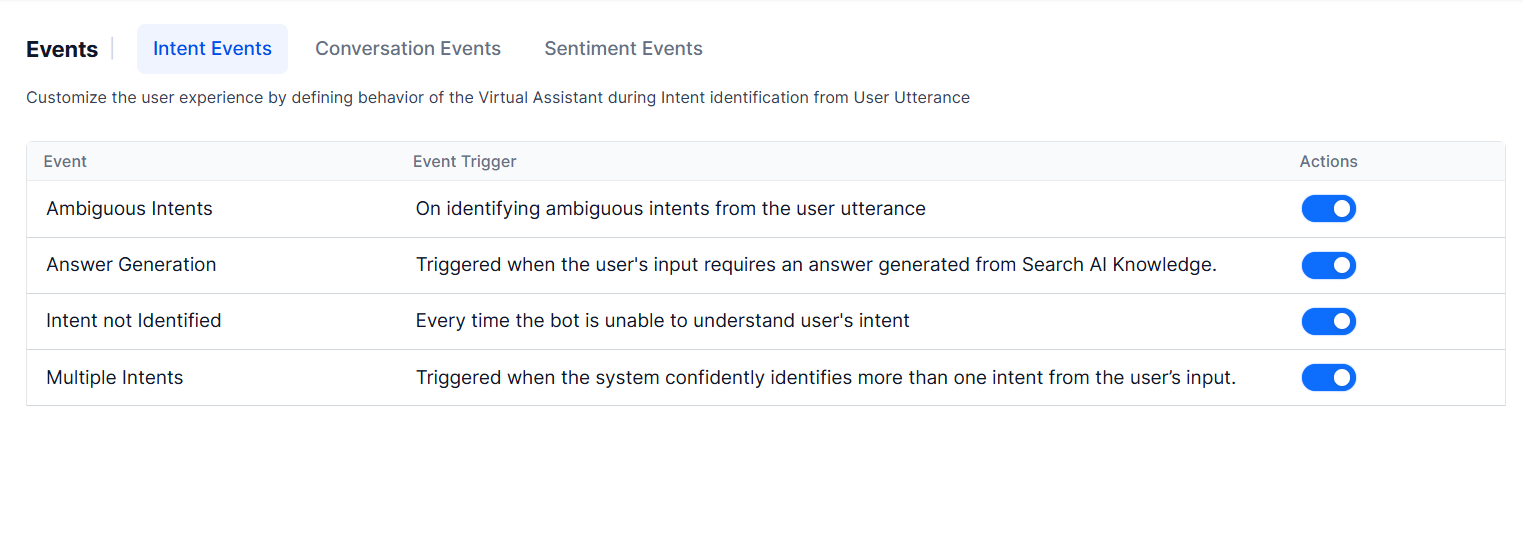
Events fire when specific actions occur during a conversation or when conditions are met on active channels. You configure what the AI Agent does when each event fires.
Go to **Automation > Conversation Management > Events**.
 ***
## Event Actions
When an event fires, the AI Agent executes one of these actions:
| Action | Description |
| ------------------- | -------------------------------------------------------------------------------------------------------------------------------------------------- |
| **Initiate a Task** | Launches a selected Dialog task (Standard or Hidden). If the dialog isn't published, the AI Agent shows an error. Preview errors using Debug mode. |
| **Run a Script** | Runs JavaScript using session, context objects, variables, and functions. Supports Debug mode. |
| **Show a Message** | Displays a simple or advanced message with full formatting and channel override support. |
**Multilingual behavior for Show a Message:**
* Messages can be defined per language per event.
* Deleting a message for one language removes it from all languages.
* Adding a message for one language copies it to all other languages.
* Editing a message in one language affects only that language.
***
## Event Types
Events fall into three categories: Intent, Conversation, and Sentiment.
| Event | Category | Trigger |
| -------------------------------- | ------------ | --------------------------------------------------------------------------------------------------------------------------- |
| **Intent not Identified** | Intent | AI Agent can't identify user intent. |
| **Ambiguous Intents Identified** | Intent | Two or more intents identified with similar confidence scores, or only low-confidence Knowledge Graph intents are found. |
| **End of Task** | Conversation | A dialog task or FAQ completes. |
| **Task Execution Failure** | Conversation | Error occurs during task execution (service call failure, unreachable server, agent transfer error, webhook failure, etc.). |
| **RCS Opt-in** | Conversation | User opts in to the RCS Messaging channel. |
| **RCS Opt-out** | Conversation | User opts out of the RCS Messaging channel. |
| **Repeat Bot Response** | Conversation | User requests the AI Agent to repeat its last response (primarily for voice/IVR). |
| **Sentiment Events** | Sentiment | User emotion matches configured tone criteria. Click **+ New Event** to define custom sentiment events. |
## Intent Events
### Intent not Identified
Fires when the AI Agent can't understand the user's intent. Configure one of:
* **Show a standard message** from the standard responses library. [Learn more](/ai-for-service/automation/intelligence/conversation-management#standard-responses).
* **Automatically run a dialog task** — select the task from the dropdown.
***
## Event Actions
When an event fires, the AI Agent executes one of these actions:
| Action | Description |
| ------------------- | -------------------------------------------------------------------------------------------------------------------------------------------------- |
| **Initiate a Task** | Launches a selected Dialog task (Standard or Hidden). If the dialog isn't published, the AI Agent shows an error. Preview errors using Debug mode. |
| **Run a Script** | Runs JavaScript using session, context objects, variables, and functions. Supports Debug mode. |
| **Show a Message** | Displays a simple or advanced message with full formatting and channel override support. |
**Multilingual behavior for Show a Message:**
* Messages can be defined per language per event.
* Deleting a message for one language removes it from all languages.
* Adding a message for one language copies it to all other languages.
* Editing a message in one language affects only that language.
***
## Event Types
Events fall into three categories: Intent, Conversation, and Sentiment.
| Event | Category | Trigger |
| -------------------------------- | ------------ | --------------------------------------------------------------------------------------------------------------------------- |
| **Intent not Identified** | Intent | AI Agent can't identify user intent. |
| **Ambiguous Intents Identified** | Intent | Two or more intents identified with similar confidence scores, or only low-confidence Knowledge Graph intents are found. |
| **End of Task** | Conversation | A dialog task or FAQ completes. |
| **Task Execution Failure** | Conversation | Error occurs during task execution (service call failure, unreachable server, agent transfer error, webhook failure, etc.). |
| **RCS Opt-in** | Conversation | User opts in to the RCS Messaging channel. |
| **RCS Opt-out** | Conversation | User opts out of the RCS Messaging channel. |
| **Repeat Bot Response** | Conversation | User requests the AI Agent to repeat its last response (primarily for voice/IVR). |
| **Sentiment Events** | Sentiment | User emotion matches configured tone criteria. Click **+ New Event** to define custom sentiment events. |
## Intent Events
### Intent not Identified
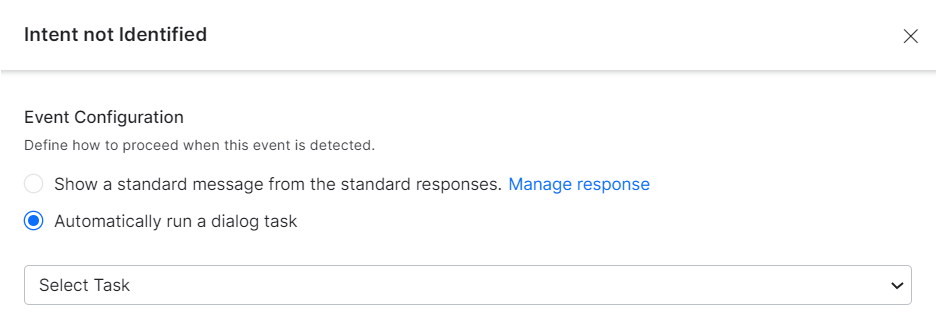
Fires when the AI Agent can't understand the user's intent. Configure one of:
* **Show a standard message** from the standard responses library. [Learn more](/ai-for-service/automation/intelligence/conversation-management#standard-responses).
* **Automatically run a dialog task** — select the task from the dropdown.
 ### Ambiguous Intents Identified
Fires when the NLP engine detects multiple intents with similar confidence. By default, the AI Agent presents the list of ambiguous intents to the user for selection.
**Conditions that trigger this event:**
* Two or more "definite" intents are identified.
* Two or more "possible" intents are identified within the proximity threshold.
* Only low-confidence Knowledge Graph intents are found and no other engine identifies an intent.
You can override default behavior with a custom Dialog Task that calls `koreUtil.getAmbiguousIntents()` to retrieve intents and confidence scores. [Learn more](/ai-for-service/apis/automation/koreutil-libraries#koreutil-getambiguousintents).
**To configure:**
1. Go to **Conversation Intelligence > Events > Intent Events**.
2. Click **Configure** to enable the event.
### Ambiguous Intents Identified
Fires when the NLP engine detects multiple intents with similar confidence. By default, the AI Agent presents the list of ambiguous intents to the user for selection.
**Conditions that trigger this event:**
* Two or more "definite" intents are identified.
* Two or more "possible" intents are identified within the proximity threshold.
* Only low-confidence Knowledge Graph intents are found and no other engine identifies an intent.
You can override default behavior with a custom Dialog Task that calls `koreUtil.getAmbiguousIntents()` to retrieve intents and confidence scores. [Learn more](/ai-for-service/apis/automation/koreutil-libraries#koreutil-getambiguousintents).
**To configure:**
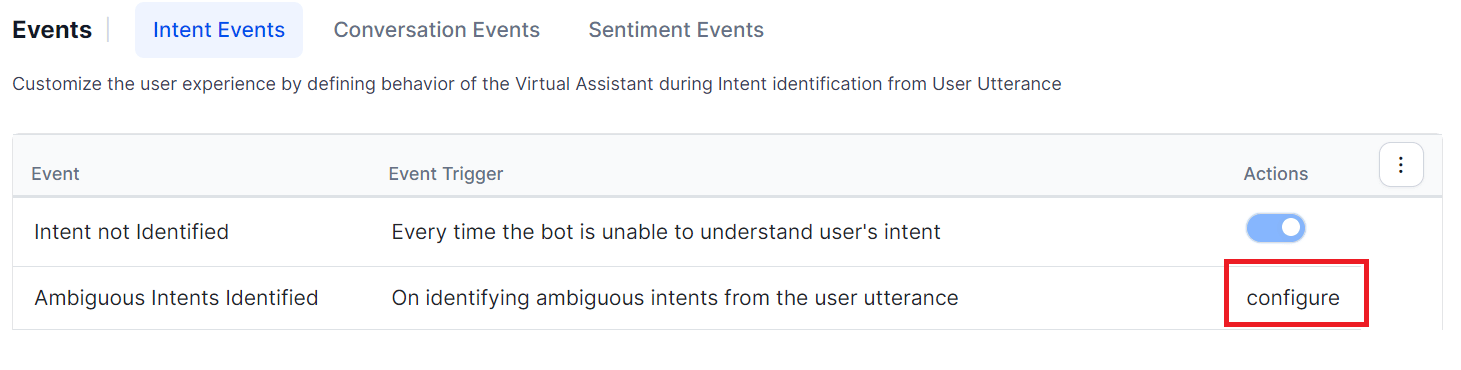
1. Go to **Conversation Intelligence > Events > Intent Events**.
2. Click **Configure** to enable the event.
 If not enabled, the list of ambiguous intents is shown to the user.
3. Select a configuration option:
* **Present all qualified intents to the end-user for disambiguation** — Default behavior. [Learn more](/ai-for-service/automation/intelligence/conversation-management#standard-responses)
* **Automatically run a Dialog Task** — Select a dialog with custom disambiguation logic. [Learn more](/ai-for-service/automation/agent-flows#dialog-tasks)
4. Click **Save & Enable**.
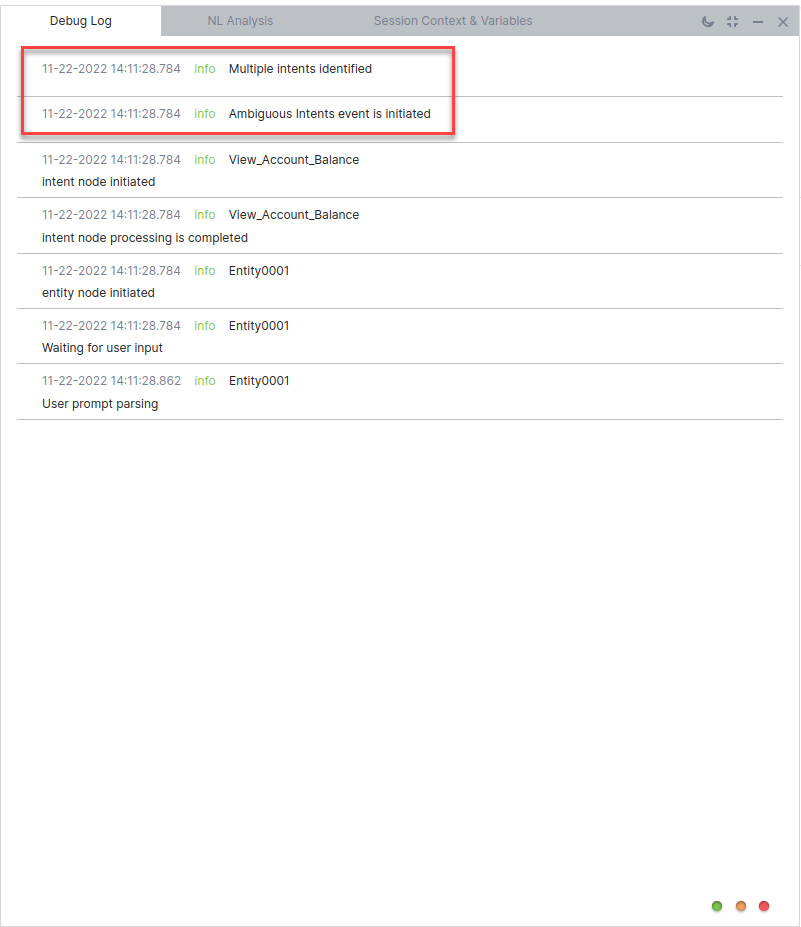
When ambiguous intents are detected during testing, the Debug Log shows: *Multiple intents are identified — Ambiguous Intents Identified event is initiated.*
If not enabled, the list of ambiguous intents is shown to the user.
3. Select a configuration option:
* **Present all qualified intents to the end-user for disambiguation** — Default behavior. [Learn more](/ai-for-service/automation/intelligence/conversation-management#standard-responses)
* **Automatically run a Dialog Task** — Select a dialog with custom disambiguation logic. [Learn more](/ai-for-service/automation/agent-flows#dialog-tasks)
4. Click **Save & Enable**.
When ambiguous intents are detected during testing, the Debug Log shows: *Multiple intents are identified — Ambiguous Intents Identified event is initiated.*
 **Interruption behavior:** When this event is enabled, interruption follows node-, dialog-, or app-level settings — except that if **Continue the current task and add a new task to the follow-up task list** is selected, the interrupting task isn't added to the follow-up list. [Learn more](/ai-for-service/automation/intelligence/conversation-management#manage-interruptions)
***
### Variable Namespaces
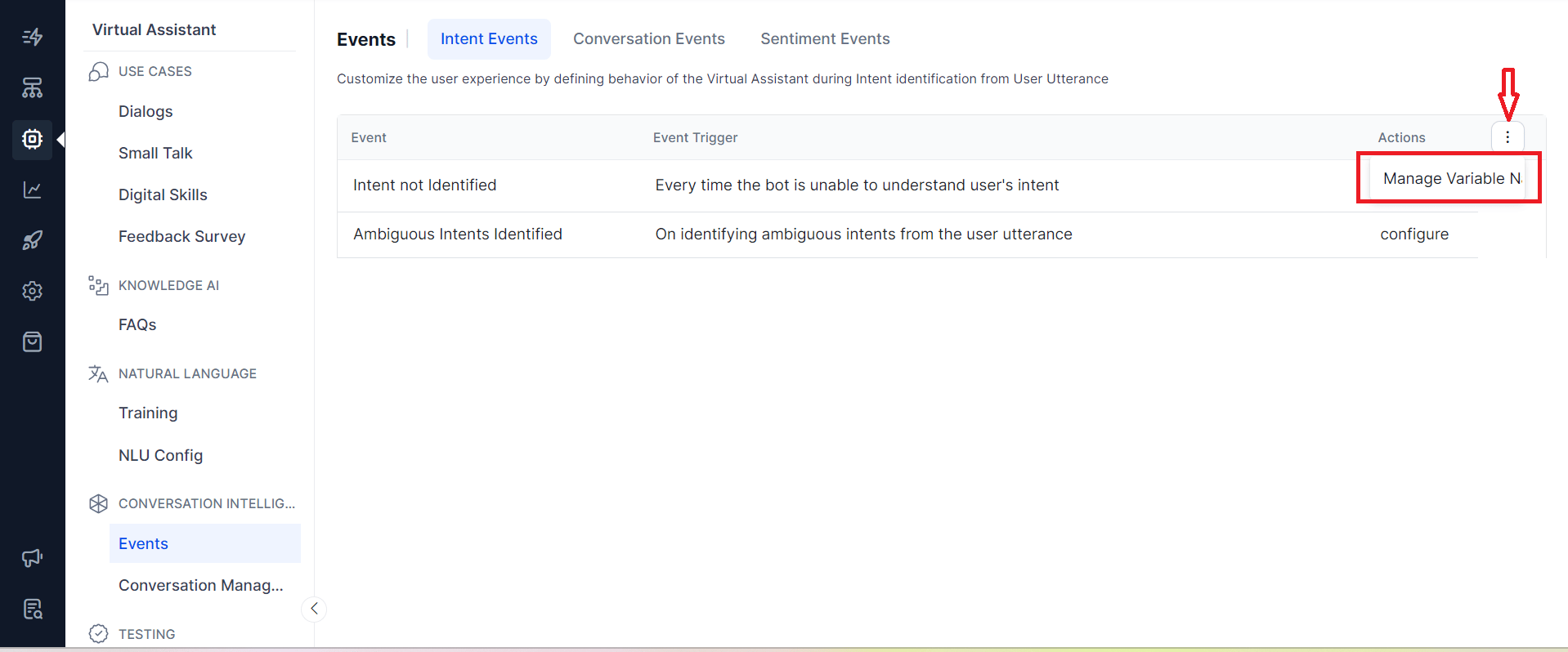
Go to **More Options > Manage Variable Namespaces** at the top of the Events screen to associate variable namespaces with events. This option appears only when Variable Namespace is enabled for the AI Agent. [Learn more](/ai-for-service/app-settings/managing-namespace).
**Interruption behavior:** When this event is enabled, interruption follows node-, dialog-, or app-level settings — except that if **Continue the current task and add a new task to the follow-up task list** is selected, the interrupting task isn't added to the follow-up list. [Learn more](/ai-for-service/automation/intelligence/conversation-management#manage-interruptions)
***
### Variable Namespaces
Go to **More Options > Manage Variable Namespaces** at the top of the Events screen to associate variable namespaces with events. This option appears only when Variable Namespace is enabled for the AI Agent. [Learn more](/ai-for-service/app-settings/managing-namespace).
 ***
## Conversation Events
### End of Task
Fires when the AI Agent is no longer expected to send or receive messages. The context is updated with the end reason and the completed task name (FAQs use `FAQ` as the task name).
Client-side implementations (BotKits, RTM, Webhook channels) can use the end-of-task reason flag to drive follow-up actions.
| Scenario | End of Task Flag |
| ----------------------------------------------------------------------------- | ------------------------ |
| Reached the last node of the dialog | `Fulfilled` |
| Task canceled by the user | `Canceled` |
| Error in task or FAQ execution (no Task Failure Event, no hold tasks) | `Failed` |
| Linked dialog completed without returning to parent | `Fulfilled_LinkedDialog` |
| FAQ answered successfully | `Fulfilled` |
| Event executed via Run Script or Show Message (no tasks on hold) | `Fulfilled_Event` |
| Error in executing an event via Run Script or Show Message (no tasks on hold) | `Failed_Event` |
| User declines to resume an on-hold task (no other task on hold) | `Canceled` |
### Task Execution Failure
Fires when an error occurs during dialog task execution, including:
* AI Agent execution errors
* Service call failures or unreachable servers
* Agent transfer node errors
* Knowledge Graph task failures
* Webhook node failures
* Unavailable sub-dialog
* Errors parsing the AI Agent message
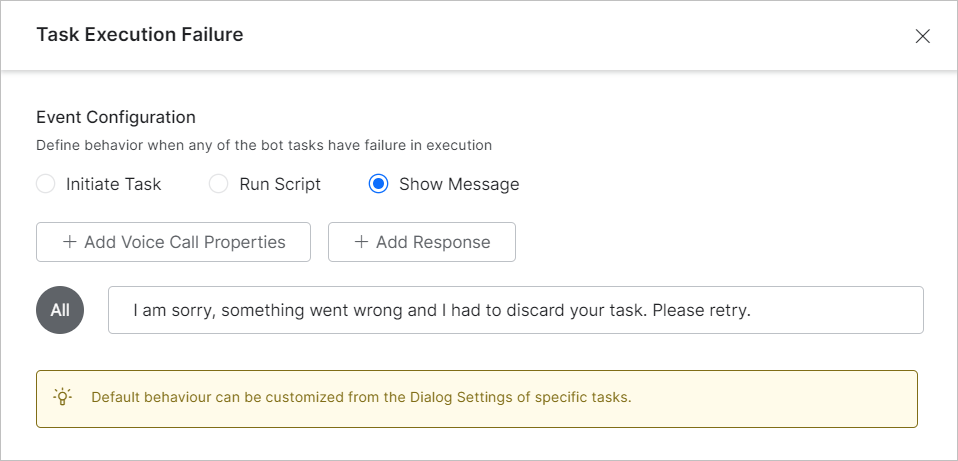
**Defaults:** Always enabled with the **Show Message** action. Can't be disabled.
This app-level behavior can be overridden per task from the dialog task settings. [Learn more](/ai-for-service/automation/dialogs/manage-dialogs#dialog-settings)
***
## Conversation Events
### End of Task
Fires when the AI Agent is no longer expected to send or receive messages. The context is updated with the end reason and the completed task name (FAQs use `FAQ` as the task name).
Client-side implementations (BotKits, RTM, Webhook channels) can use the end-of-task reason flag to drive follow-up actions.
| Scenario | End of Task Flag |
| ----------------------------------------------------------------------------- | ------------------------ |
| Reached the last node of the dialog | `Fulfilled` |
| Task canceled by the user | `Canceled` |
| Error in task or FAQ execution (no Task Failure Event, no hold tasks) | `Failed` |
| Linked dialog completed without returning to parent | `Fulfilled_LinkedDialog` |
| FAQ answered successfully | `Fulfilled` |
| Event executed via Run Script or Show Message (no tasks on hold) | `Fulfilled_Event` |
| Error in executing an event via Run Script or Show Message (no tasks on hold) | `Failed_Event` |
| User declines to resume an on-hold task (no other task on hold) | `Canceled` |
### Task Execution Failure
Fires when an error occurs during dialog task execution, including:
* AI Agent execution errors
* Service call failures or unreachable servers
* Agent transfer node errors
* Knowledge Graph task failures
* Webhook node failures
* Unavailable sub-dialog
* Errors parsing the AI Agent message
**Defaults:** Always enabled with the **Show Message** action. Can't be disabled.
This app-level behavior can be overridden per task from the dialog task settings. [Learn more](/ai-for-service/automation/dialogs/manage-dialogs#dialog-settings)
 ***
### RCS Opt-In / Opt-Out
Fires when a user opts in to or opts out of the **RCS Messaging** channel. Configure a follow-up response to confirm the user's action.
***
### RCS Opt-In / Opt-Out
Fires when a user opts in to or opts out of the **RCS Messaging** channel. Configure a follow-up response to confirm the user's action.
 ***
### Repeat Bot Response
Fires when specific utterances (predefined or custom-trained) request the AI Agent to repeat its last response. Applies to voice channels: IVR, Audiocodes, Twilio Voice, and SmartAssist Gateway.
The Repeat Bot Response event uses the NLU multilingual model for non-English languages.
**Priority behavior:**
| Conflict Scenario | Behavior |
| -------------------------------------- | ------------------------------------- |
| Intent vs. Repeat event | Intent takes priority. |
| Sub-intent vs. Repeat event | Sub-intent takes priority. |
| FAQ vs. Repeat event | FAQ takes priority. |
| Group node sub-intent vs. Repeat event | Group node sub-intent takes priority. |
| Mid-conversation (no conflict) | Repeat event triggers. |
**Example:** In a Flight Booking AI Agent, a user on IVR says: *"Sorry, I can't hear you. Can you please repeat it again?"* after a booking confirmation. If the session is active and the End of Task event has a follow-up message (for example, *"Is there anything else I can help you with?"*), the Repeat Bot Response event repeats both the confirmation and the follow-up together.
**To configure:**
1. Go to **Conversation Intelligence > Events**.
***
### Repeat Bot Response
Fires when specific utterances (predefined or custom-trained) request the AI Agent to repeat its last response. Applies to voice channels: IVR, Audiocodes, Twilio Voice, and SmartAssist Gateway.
The Repeat Bot Response event uses the NLU multilingual model for non-English languages.
**Priority behavior:**
| Conflict Scenario | Behavior |
| -------------------------------------- | ------------------------------------- |
| Intent vs. Repeat event | Intent takes priority. |
| Sub-intent vs. Repeat event | Sub-intent takes priority. |
| FAQ vs. Repeat event | FAQ takes priority. |
| Group node sub-intent vs. Repeat event | Group node sub-intent takes priority. |
| Mid-conversation (no conflict) | Repeat event triggers. |
**Example:** In a Flight Booking AI Agent, a user on IVR says: *"Sorry, I can't hear you. Can you please repeat it again?"* after a booking confirmation. If the session is active and the End of Task event has a follow-up message (for example, *"Is there anything else I can help you with?"*), the Repeat Bot Response event repeats both the confirmation and the follow-up together.
**To configure:**
1. Go to **Conversation Intelligence > Events**.
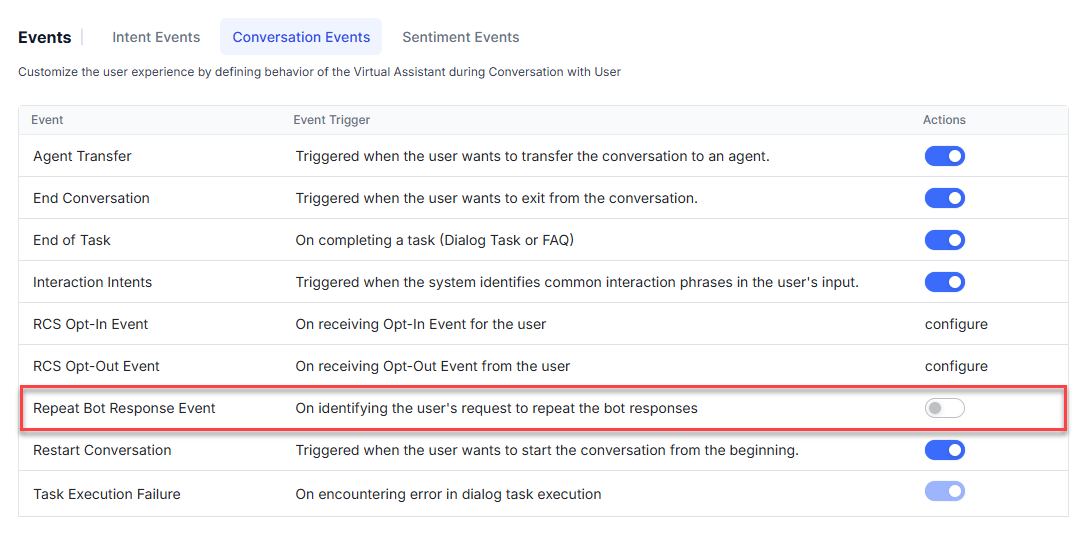 2. Click **Repeat Bot Response Event** to configure it.
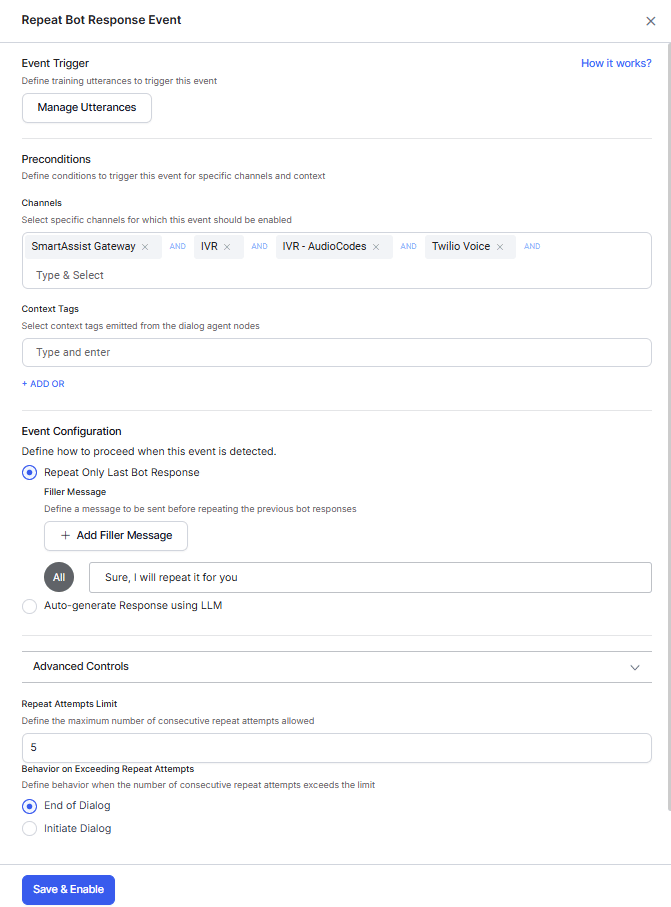 3. Click **Manage Utterance** to review or add pre-trained utterances.
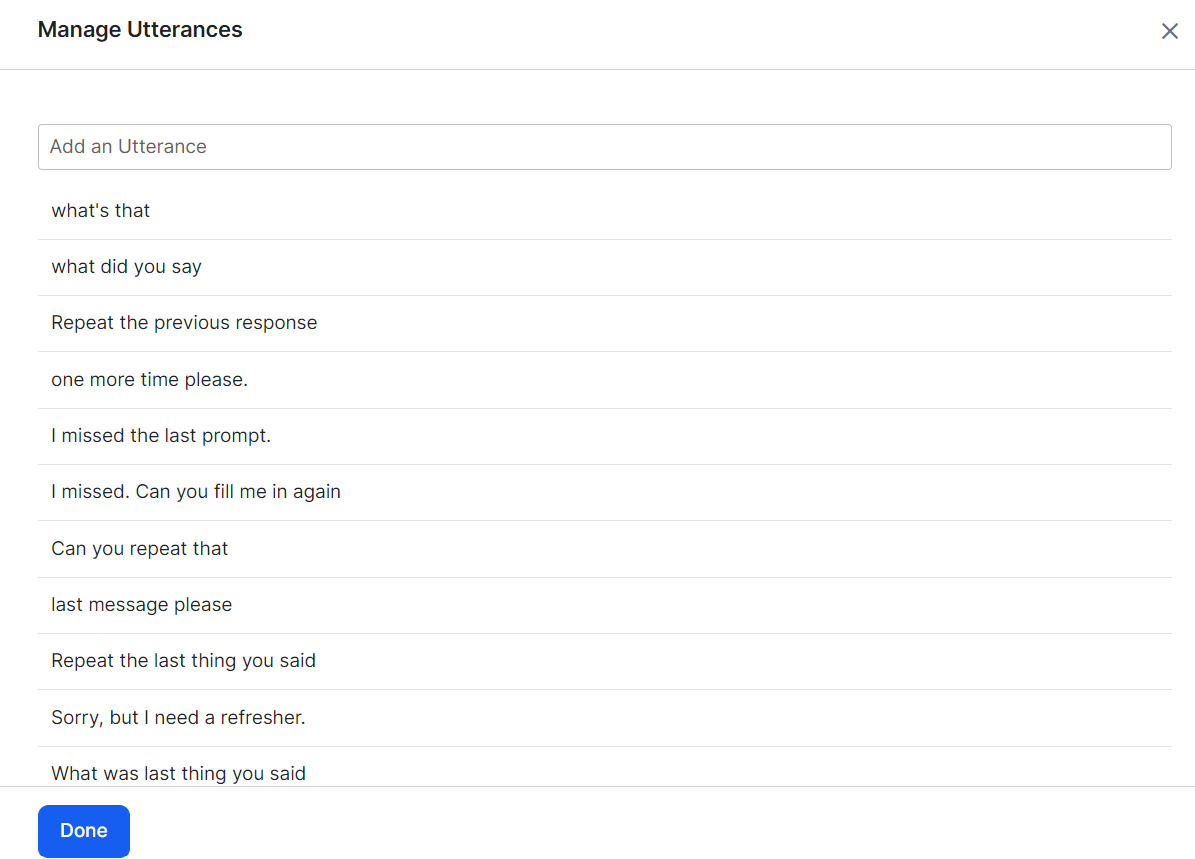 4. Add utterances as needed, then click **Train**.
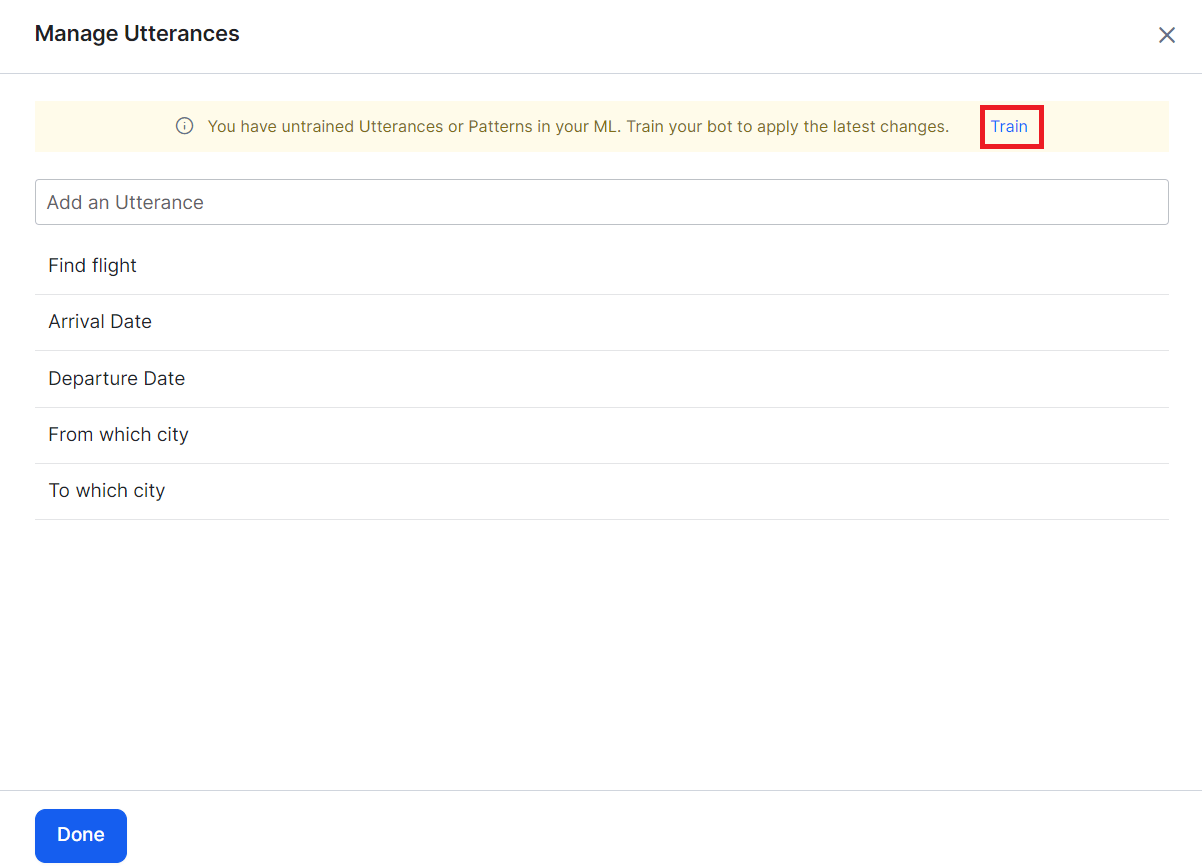 5. After training, configure preconditions:
* **Channels** — Add voice channels (IVR, IVR Audiocodes, Twilio Voice, SmartAssist Gateway).
* **Context Tags** — Add context objects to scope the event to specific dialog tasks. [Learn more](/ai-for-service/automation/agent-flows#context-object).
6. Set the **Event Configuration**:
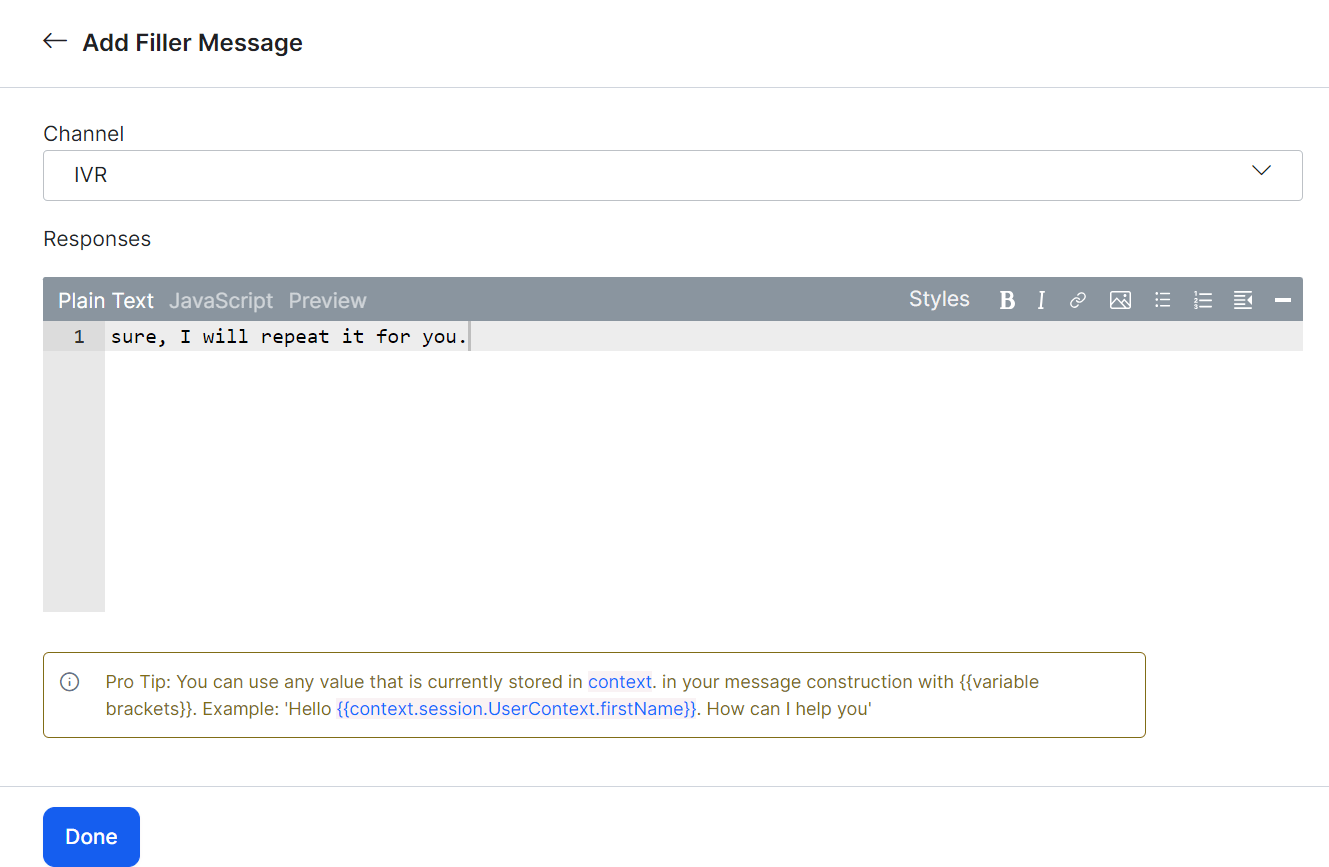
* **Repeat Only Last Bot Response** (default) — Plays a filler message before repeating. Default filler: *"Sure, I will repeat it for you."*
Click **+ Add Filler Message**, select the **IVR** channel, enter the filler text, and click **Done**.
5. After training, configure preconditions:
* **Channels** — Add voice channels (IVR, IVR Audiocodes, Twilio Voice, SmartAssist Gateway).
* **Context Tags** — Add context objects to scope the event to specific dialog tasks. [Learn more](/ai-for-service/automation/agent-flows#context-object).
6. Set the **Event Configuration**:
* **Repeat Only Last Bot Response** (default) — Plays a filler message before repeating. Default filler: *"Sure, I will repeat it for you."*
Click **+ Add Filler Message**, select the **IVR** channel, enter the filler text, and click **Done**.
 * **Auto-generate Response** — Uses LLM and Generative AI to generate the repeated response. Requires the Advanced NLU model. Click **Enable Now** to activate.
 When Auto-generate is enabled, filler messages aren't used.
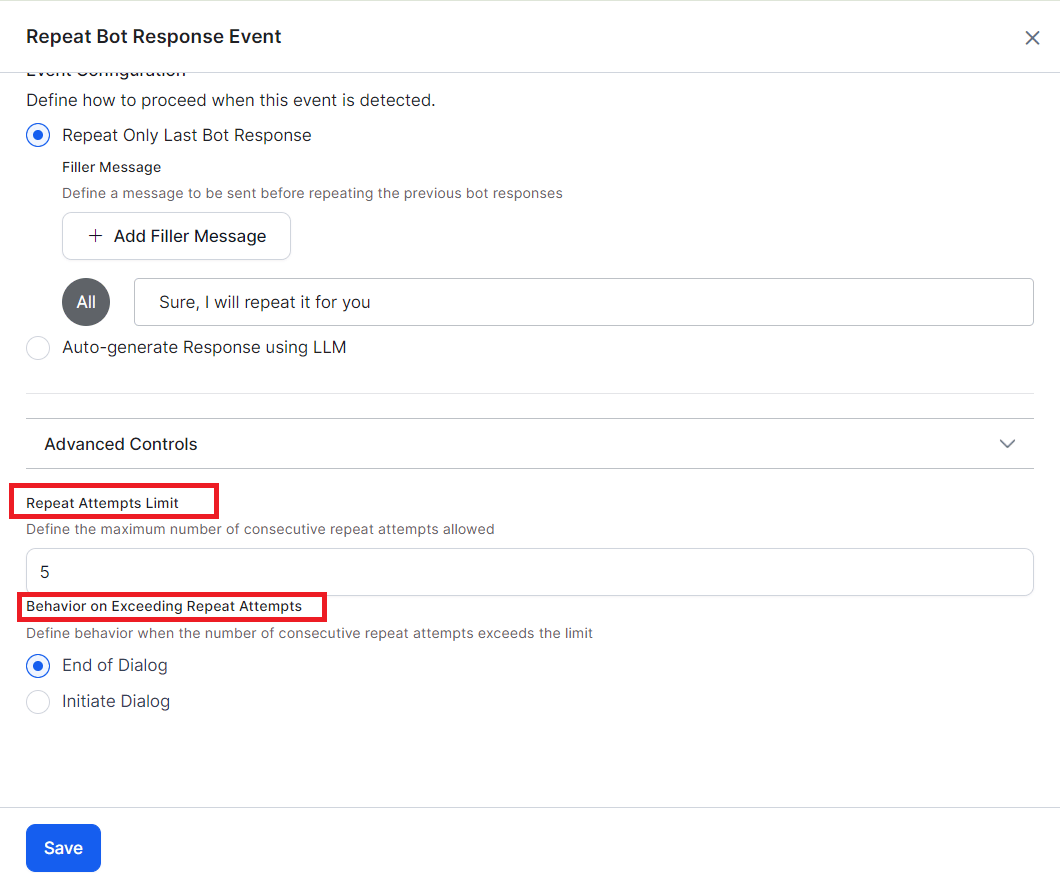
7. Expand **Advanced Settings** and configure:
* **Repeat Attempts Limit** — Number of retry attempts (1-10, default: 5).
* **Behavior on Exceeding Repeat Attempts** — Choose **End of Dialog** or **Initiate Dialog** (select which task to redirect to).
When Auto-generate is enabled, filler messages aren't used.
7. Expand **Advanced Settings** and configure:
* **Repeat Attempts Limit** — Number of retry attempts (1-10, default: 5).
* **Behavior on Exceeding Repeat Attempts** — Choose **End of Dialog** or **Initiate Dialog** (select which task to redirect to).
 8. Click **Save & Enable**.
***
## Sentiment Events
Sentiment Events detect a user's emotional state and trigger specific behaviors — such as transferring to a live agent when a user is frustrated.
The NLP interpreter analyzes user utterances for tone and stores scores in the context object. Use these scores in conditional transition statements to drive dialog flow.
Introduced in v7.0. Not supported in all languages. [Learn more](/ai-for-service/app-settings/language-management/multi-lingual-bot-behavior).
### Configure a Sentiment Event
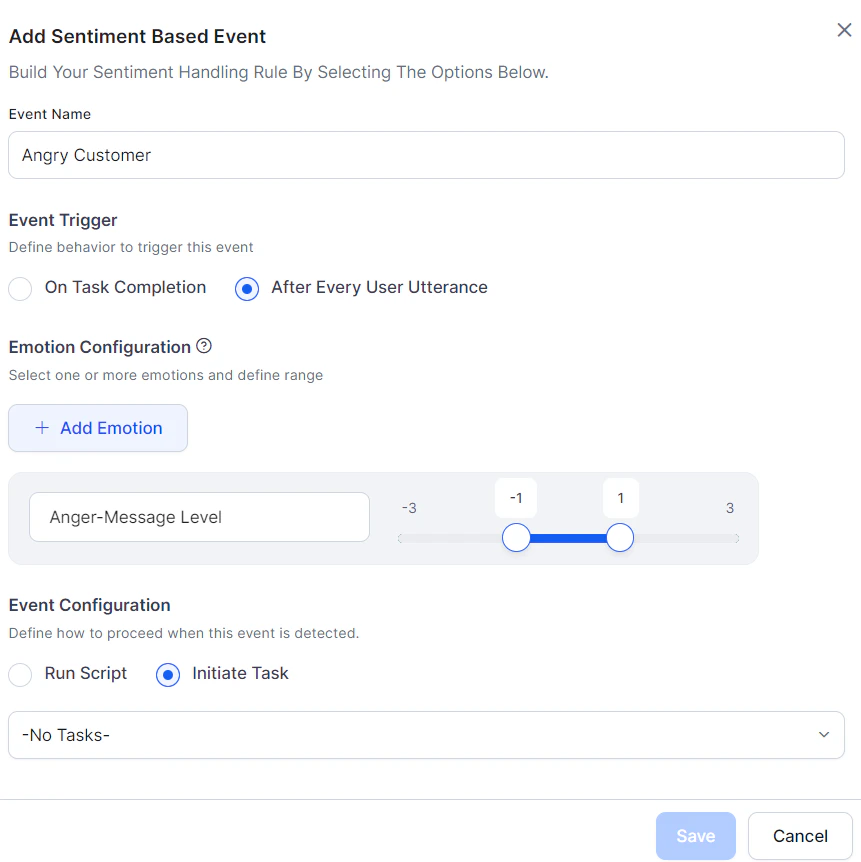
Go to **Conversation Intelligence > Events > Sentiment Events**. Click **+ New Event**.
| Parameter | Description |
| -------------------------- | ----------------------------------------------------------------------------------------------------------------------------------------------------------------------------- |
| **Event Name** | Unique name for the event. |
| **Event Trigger** | When to check sentiment: **On Task Completion** or **After Every User Utterance**. |
| **Emotion Configurations** | Select one or more emotions: *anger*, *disgust*, *fear*, *sadness*, *joy*, *positive*. For each, choose **Session** or **Message** scope and define a score range (-3 to +3). |
* **Session-level tone** — Aggregated across all messages in a session.
* **Message-level tone** — Calculated per individual user message.
* When multiple emotions are selected, all conditions must be met. To trigger on any single emotion, create separate events.
8. Click **Save & Enable**.
***
## Sentiment Events
Sentiment Events detect a user's emotional state and trigger specific behaviors — such as transferring to a live agent when a user is frustrated.
The NLP interpreter analyzes user utterances for tone and stores scores in the context object. Use these scores in conditional transition statements to drive dialog flow.
Introduced in v7.0. Not supported in all languages. [Learn more](/ai-for-service/app-settings/language-management/multi-lingual-bot-behavior).
### Configure a Sentiment Event
Go to **Conversation Intelligence > Events > Sentiment Events**. Click **+ New Event**.
| Parameter | Description |
| -------------------------- | ----------------------------------------------------------------------------------------------------------------------------------------------------------------------------- |
| **Event Name** | Unique name for the event. |
| **Event Trigger** | When to check sentiment: **On Task Completion** or **After Every User Utterance**. |
| **Emotion Configurations** | Select one or more emotions: *anger*, *disgust*, *fear*, *sadness*, *joy*, *positive*. For each, choose **Session** or **Message** scope and define a score range (-3 to +3). |
* **Session-level tone** — Aggregated across all messages in a session.
* **Message-level tone** — Calculated per individual user message.
* When multiple emotions are selected, all conditions must be met. To trigger on any single emotion, create separate events.
 ***
### Sentiment Event Flow
Tone scores update with every user message, and sentiment events are continuously evaluated. When an event's conditions are met:
* **Initiate a Task** — The current task is discarded and the AI Agent switches to the configured dialog.
* Other implicitly paused tasks are also discarded.
* Tasks on hold via Hold and Resume settings are resumed per those settings.
* If the dialog is unavailable, a standard response is shown.
* **Run a Script** — The script runs and task execution continues. Script errors display a standard error response.
**Priority rules:**
* Sentiment events take precedence over direct intent invocation.
* When multiple sentiment events match simultaneously, the highest-precedence event (by defined order) wins.
**Behavior when running a script:**
| Scenario | Behavior |
| ---------------------- | ----------------------------------------------------------- |
| Small Talk detected | Sentiment executes first, then small talk. |
| Dialog detected | Sentiment executes first, then dialog. |
| Fallback flow | Sentiment executes first, then fallback logic. |
| Entity Node | Sentiment executes first, then error prompt is shown. |
| Confirmation Node | Sentiment executes first, then confirmation prompt. |
| On-Intent Message Node | Sentiment executes first, then moves to the else condition. |
**Behavior when initiating a task:**
| Scenario | Behavior |
| ---------------------- | -------------------------------------------------------------------------- |
| Small Talk detected | Sentiment executes first, then small talk. |
| Dialog detected | Sentiment executes first, then the configured dialog runs to completion. |
| Fallback flow | Sentiment executes first, then configured dialog runs. |
| Entity Node | Sentiment executes first, then connected dialog runs, ending both dialogs. |
| Confirmation Node | Sentiment executes first, then connected dialog runs, ending both dialogs. |
| On-Intent Message Node | Sentiment executes first, then connected dialog runs, ending both dialogs. |
### Reset Tone
Sentiment values reset at two points:
1. **Start of every user conversation session** (default).
2. **After a sentiment event fires:**
* If a **script** ran: values reset after successful execution.
* If a **dialog task** was triggered: values transfer to the new dialog's context and reset in the original global context.
***
## Tone Analysis
The NLP interpreter scores user utterances on six emotions. Access scores from the `Context` object or use them to configure sentiment events.
### Tone Types
| Tone | Description |
| ---------- | ------------------------------------ |
| `angry` | Anger detected. |
| `disgust` | Disgust detected. |
| `fear` | Fear detected. |
| `sad` | Sadness detected. |
| `joy` | Joy detected. |
| `positive` | General positivity of the utterance. |
Tones aren't mutually exclusive — an utterance can score high for fear and mild for sadness simultaneously.
***
### Tone Score Scale
Scores range from **-3 to +3**:
| Score | Meaning |
| ------ | ------------------------------------------- |
| **+3** | User definitely expressed the tone. |
| **+2** | User expressed the tone. |
| **+1** | User likely expressed the tone. |
| **0** | Neutral — tone not expressed or suppressed. |
| **-1** | User likely suppressed the tone. |
| **-2** | User suppressed the tone. |
| **-3** | User definitely suppressed the tone. |
Positive values = tone explicitly expressed. Negative values = tone explicitly negated.
**Examples:**
* *"I am happy about this news"* → positive joy score
* *"I am not happy about this news"* → negative joy score
***
### Score Calculation
Scores are calculated from the **base tone value** plus any **modifiers** (adverbs or adjectives that amplify or reduce intensity).
**Examples:**
* *"I am extremely disappointed"* → higher angry score than *"I am disappointed"*
* *"I am not disappointed"* → negative angry score
The tone analyzer compiles base tones per emotion and calculates:
* **Current node score** → stored in `message_tone`
* **Session average score** → stored in `dialog_tone` (reset at end of each session)
***
### Context Object Variables
| Variable | Scope | Description |
| -------------- | ------------ | ----------------------------------------------------------------- |
| `message_tone` | Current node | Array of tone emotions and scores for the current dialog node. |
| `dialog_tone` | Session | Array of average tone emotions and scores for the entire session. |
Both variables return arrays of objects with `tone_name`, `count`, and `level` fields. Key/value pairs are returned only when a tone is detected. A `level` of `0` indicates a neutral tone.
**Always handle positive, negative, zero, and undefined values when reading tone variables.**
***
### Examples
```
message_tone
0: tone_name: positive, level: 2
1: tone_name: disgust, level: -2
2: tone_name: angry, level: -2
dialog_tone
0: tone_name: angry, level: -3
1: tone_name: sad, level: -3
2: tone_name: positive, level: 3
3: tone_name: joy, level: 3
```
**Sentence:** *"I don't think that this is a good idea and I am not happy with how it came out, especially because of your attitude."*
```json theme={null}
"dialog_tone": [
{ "tone_name": "joy", "count": 1, "level": 0.67 },
{ "tone_name": "sad", "count": 1, "level": 0.5 },
{ "tone_name": "angry", "count": 1, "level": 0.5 }
]
```
**Sentence:** *"This is a great idea! I'm super excited already."*
```json theme={null}
"dialog_tone": [
{ "tone_name": "joy", "count": 1, "level": 3 },
{ "tone_name": "sad", "count": 1, "level": 2.8 },
{ "tone_name": "angry", "count": 1, "level": -3 }
]
```
**Sentence:** *"This was a funny and casually well-written book, a good read. But it's a little frustrating because it abandons the narrative without finishing it."*
```json theme={null}
"dialog_tone": [
{ "tone_name": "joy", "count": 1, "level": 1.5 },
{ "tone_name": "sad", "count": 1, "level": -1.5 },
{ "tone_name": "angry", "count": 1, "level": -1 }
]
```
**Using tone scores in transition conditions:**
```
if context.message_tone.angry > 2.0
then goTo liveAgent
```
For more information, see [Context Object](/ai-for-service/automation/agent-flows#context-object).
***
### Extending Tone Detection with Custom Words
Add custom words to tone concepts during concept training to extend the emotion vocabulary.
**Concept name syntax:** `~tone--`
* `` — one of the 6 tone types listed above.
* `` — a number from 1 to 7, where 1 = -3, 4 = 0 (neutral), 7 = +3.
Only add base tone words. Intensity modifiers like *very* or *extremely* are handled automatically.
**Examples:**
| Word | Concept | Meaning |
| ---------- | --------------- | ---------------------- |
| *freaking* | `~tone-angry-7` | Very strong anger (+3) |
| *Yikes!* | `~tone-angry-5` | Mild anger (+1) |
| *please* | `~tone-angry-4` | Neutral tone (0) |
| *Thanks!* | `~tone-angry-1` | Not angry at all (-3) |
***
***
### Sentiment Event Flow
Tone scores update with every user message, and sentiment events are continuously evaluated. When an event's conditions are met:
* **Initiate a Task** — The current task is discarded and the AI Agent switches to the configured dialog.
* Other implicitly paused tasks are also discarded.
* Tasks on hold via Hold and Resume settings are resumed per those settings.
* If the dialog is unavailable, a standard response is shown.
* **Run a Script** — The script runs and task execution continues. Script errors display a standard error response.
**Priority rules:**
* Sentiment events take precedence over direct intent invocation.
* When multiple sentiment events match simultaneously, the highest-precedence event (by defined order) wins.
**Behavior when running a script:**
| Scenario | Behavior |
| ---------------------- | ----------------------------------------------------------- |
| Small Talk detected | Sentiment executes first, then small talk. |
| Dialog detected | Sentiment executes first, then dialog. |
| Fallback flow | Sentiment executes first, then fallback logic. |
| Entity Node | Sentiment executes first, then error prompt is shown. |
| Confirmation Node | Sentiment executes first, then confirmation prompt. |
| On-Intent Message Node | Sentiment executes first, then moves to the else condition. |
**Behavior when initiating a task:**
| Scenario | Behavior |
| ---------------------- | -------------------------------------------------------------------------- |
| Small Talk detected | Sentiment executes first, then small talk. |
| Dialog detected | Sentiment executes first, then the configured dialog runs to completion. |
| Fallback flow | Sentiment executes first, then configured dialog runs. |
| Entity Node | Sentiment executes first, then connected dialog runs, ending both dialogs. |
| Confirmation Node | Sentiment executes first, then connected dialog runs, ending both dialogs. |
| On-Intent Message Node | Sentiment executes first, then connected dialog runs, ending both dialogs. |
### Reset Tone
Sentiment values reset at two points:
1. **Start of every user conversation session** (default).
2. **After a sentiment event fires:**
* If a **script** ran: values reset after successful execution.
* If a **dialog task** was triggered: values transfer to the new dialog's context and reset in the original global context.
***
## Tone Analysis
The NLP interpreter scores user utterances on six emotions. Access scores from the `Context` object or use them to configure sentiment events.
### Tone Types
| Tone | Description |
| ---------- | ------------------------------------ |
| `angry` | Anger detected. |
| `disgust` | Disgust detected. |
| `fear` | Fear detected. |
| `sad` | Sadness detected. |
| `joy` | Joy detected. |
| `positive` | General positivity of the utterance. |
Tones aren't mutually exclusive — an utterance can score high for fear and mild for sadness simultaneously.
***
### Tone Score Scale
Scores range from **-3 to +3**:
| Score | Meaning |
| ------ | ------------------------------------------- |
| **+3** | User definitely expressed the tone. |
| **+2** | User expressed the tone. |
| **+1** | User likely expressed the tone. |
| **0** | Neutral — tone not expressed or suppressed. |
| **-1** | User likely suppressed the tone. |
| **-2** | User suppressed the tone. |
| **-3** | User definitely suppressed the tone. |
Positive values = tone explicitly expressed. Negative values = tone explicitly negated.
**Examples:**
* *"I am happy about this news"* → positive joy score
* *"I am not happy about this news"* → negative joy score
***
### Score Calculation
Scores are calculated from the **base tone value** plus any **modifiers** (adverbs or adjectives that amplify or reduce intensity).
**Examples:**
* *"I am extremely disappointed"* → higher angry score than *"I am disappointed"*
* *"I am not disappointed"* → negative angry score
The tone analyzer compiles base tones per emotion and calculates:
* **Current node score** → stored in `message_tone`
* **Session average score** → stored in `dialog_tone` (reset at end of each session)
***
### Context Object Variables
| Variable | Scope | Description |
| -------------- | ------------ | ----------------------------------------------------------------- |
| `message_tone` | Current node | Array of tone emotions and scores for the current dialog node. |
| `dialog_tone` | Session | Array of average tone emotions and scores for the entire session. |
Both variables return arrays of objects with `tone_name`, `count`, and `level` fields. Key/value pairs are returned only when a tone is detected. A `level` of `0` indicates a neutral tone.
**Always handle positive, negative, zero, and undefined values when reading tone variables.**
***
### Examples
```
message_tone
0: tone_name: positive, level: 2
1: tone_name: disgust, level: -2
2: tone_name: angry, level: -2
dialog_tone
0: tone_name: angry, level: -3
1: tone_name: sad, level: -3
2: tone_name: positive, level: 3
3: tone_name: joy, level: 3
```
**Sentence:** *"I don't think that this is a good idea and I am not happy with how it came out, especially because of your attitude."*
```json theme={null}
"dialog_tone": [
{ "tone_name": "joy", "count": 1, "level": 0.67 },
{ "tone_name": "sad", "count": 1, "level": 0.5 },
{ "tone_name": "angry", "count": 1, "level": 0.5 }
]
```
**Sentence:** *"This is a great idea! I'm super excited already."*
```json theme={null}
"dialog_tone": [
{ "tone_name": "joy", "count": 1, "level": 3 },
{ "tone_name": "sad", "count": 1, "level": 2.8 },
{ "tone_name": "angry", "count": 1, "level": -3 }
]
```
**Sentence:** *"This was a funny and casually well-written book, a good read. But it's a little frustrating because it abandons the narrative without finishing it."*
```json theme={null}
"dialog_tone": [
{ "tone_name": "joy", "count": 1, "level": 1.5 },
{ "tone_name": "sad", "count": 1, "level": -1.5 },
{ "tone_name": "angry", "count": 1, "level": -1 }
]
```
**Using tone scores in transition conditions:**
```
if context.message_tone.angry > 2.0
then goTo liveAgent
```
For more information, see [Context Object](/ai-for-service/automation/agent-flows#context-object).
***
### Extending Tone Detection with Custom Words
Add custom words to tone concepts during concept training to extend the emotion vocabulary.
**Concept name syntax:** `~tone--`
* `` — one of the 6 tone types listed above.
* `` — a number from 1 to 7, where 1 = -3, 4 = 0 (neutral), 7 = +3.
Only add base tone words. Intensity modifiers like *very* or *extremely* are handled automatically.
**Examples:**
| Word | Concept | Meaning |
| ---------- | --------------- | ---------------------- |
| *freaking* | `~tone-angry-7` | Very strong anger (+3) |
| *Yikes!* | `~tone-angry-5` | Mild anger (+1) |
| *please* | `~tone-angry-4` | Neutral tone (0) |
| *Thanks!* | `~tone-angry-1` | Not angry at all (-3) |
***