> ## Documentation Index
> Fetch the complete documentation index at: https://koreai.mintlify.site/llms.txt
> Use this file to discover all available pages before exploring further.
# Sub-Intents and Follow-up Intents
Real conversations jump between topics and combine multiple requests into one. Sub-intents and follow-up intents give you structured ways to handle these natural transitions without manually managing context.
***
## Sub-Intents
A sub-intent is a child intent that's only active when a specific parent intent is matched. The Platform adds an output context to the parent and a matching input context to the child, linking them together.
### Ways to Define Sub-Intents
| Method | Description |
| - | - |
| **Intent Node within a Dialog Task** | The sub-intent exists only within that dialog and isn't available elsewhere. [Learn more](/ai-for-service/automation/dialogs/node-types/user-intent-node) |
| **Existing Dialog Task (Sub-Intent-only)** | Reusable across multiple dialogs. The dialog can't be invoked by user utterance and doesn't appear in the Help task list. [Learn more](/ai-for-service/automation/dialogs/node-types/dialog-node) |
| **Linked Tasks (Manage Sub-Intents and Exceptions)** | Use when the sub-intent can be invoked by the user at any point within the current dialog. |
***
## Linked Task Exceptions
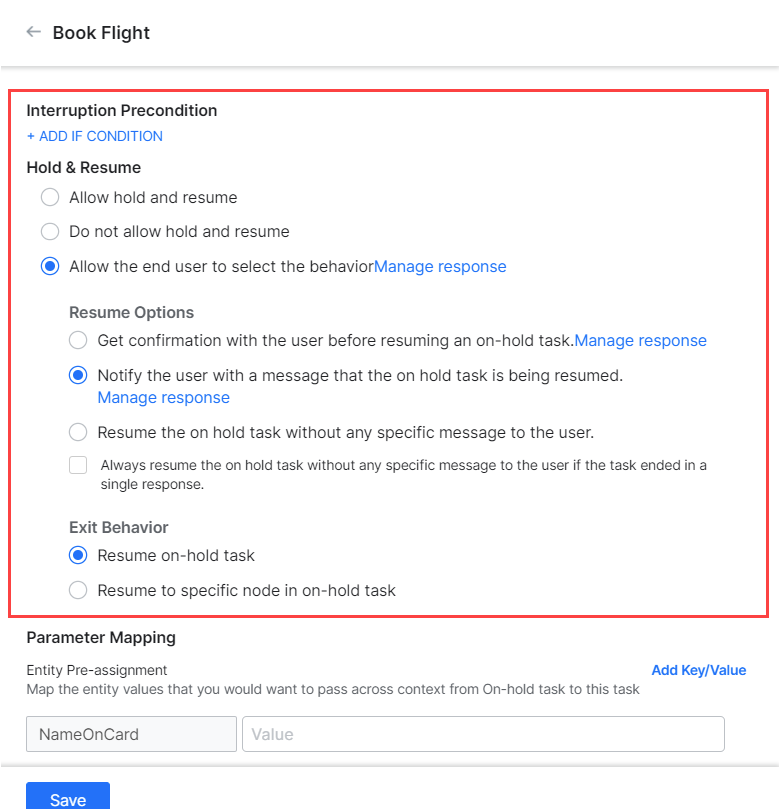
Linked task exceptions let you define customized Hold and Resume behavior when transitioning between specific tasks. You can also add conditions and map parameters between tasks.
### Pre-assignments and Post-assignments
* **Pre-assignments** — Map current context values to entities in the linked (next) task before it starts.
* **Post-assignments** — Map context values from the linked task back to the main task when the main task resumes.
Post-assignment applies only when the main task is resumed.
### Add an Exception
1. Open the dialog task you want to customize.
2. Click the **more options** icon (top-right of Dialog Builder) and select **Manage Interruptions**.
3. Click **Add sub-intents or exceptions**.
4. From the **Tasks** dropdown, select one or more tasks to link.
5. Define the Hold and Resume settings and click **Save**.
The selected tasks appear under **Exceptions** on the Manage Interruption Behavior page.
 ### Add Conditional Expressions
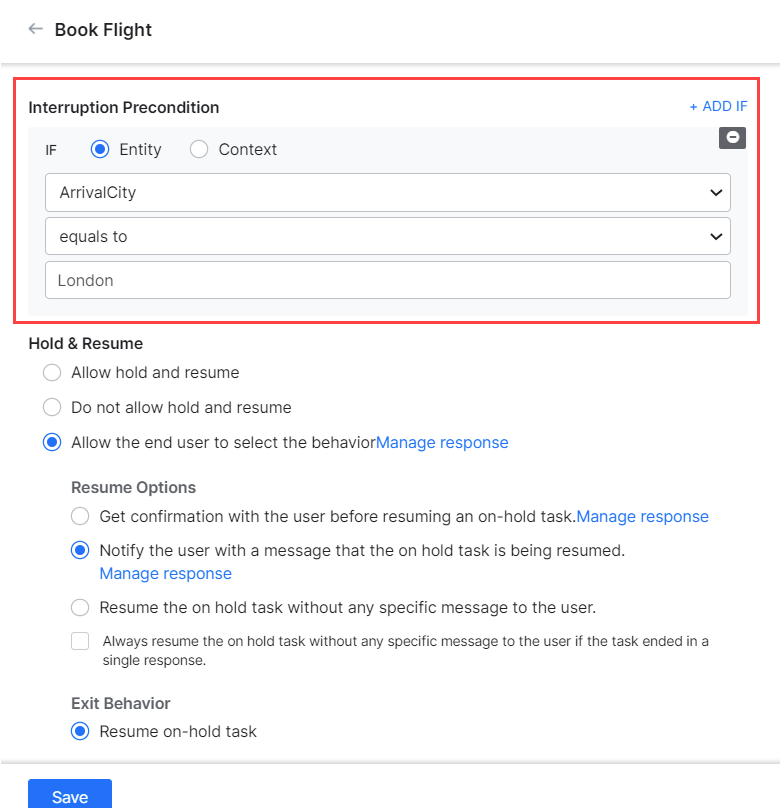
Conditions limit when the exception's Hold and Resume rules take effect.
1. Click the task name under **Exceptions**.
2. Under **Interruption Precondition**, click **Add If Condition**.
3. Select **Entity** or **Context** as the condition basis.
4. Select the entity or enter the context path.
5. Select a connector: *Exists*, *equals to*, *greater than equals to*, *less than equals to*, *not equal to*, *greater than*, or *less than*.
6. Enter a comparison value.
7. Repeat for additional conditions. All conditions must be met for the rule to apply.
> **Important notes:**
>
> * The same target task can be linked multiple times with different preconditions. The Platform evaluates exceptions in order.
> * If no precondition matches, the intent is added to the Follow-up Intents array.
> * Preconditions are evaluated only on user-triggered intents — not on developer-initiated transitions or end-of-dialog user selections.
### Add Conditional Expressions
Conditions limit when the exception's Hold and Resume rules take effect.
1. Click the task name under **Exceptions**.
2. Under **Interruption Precondition**, click **Add If Condition**.
3. Select **Entity** or **Context** as the condition basis.
4. Select the entity or enter the context path.
5. Select a connector: *Exists*, *equals to*, *greater than equals to*, *less than equals to*, *not equal to*, *greater than*, or *less than*.
6. Enter a comparison value.
7. Repeat for additional conditions. All conditions must be met for the rule to apply.
> **Important notes:**
>
> * The same target task can be linked multiple times with different preconditions. The Platform evaluates exceptions in order.
> * If no precondition matches, the intent is added to the Follow-up Intents array.
> * Preconditions are evaluated only on user-triggered intents — not on developer-initiated transitions or end-of-dialog user selections.
 ### Parameter Mapping
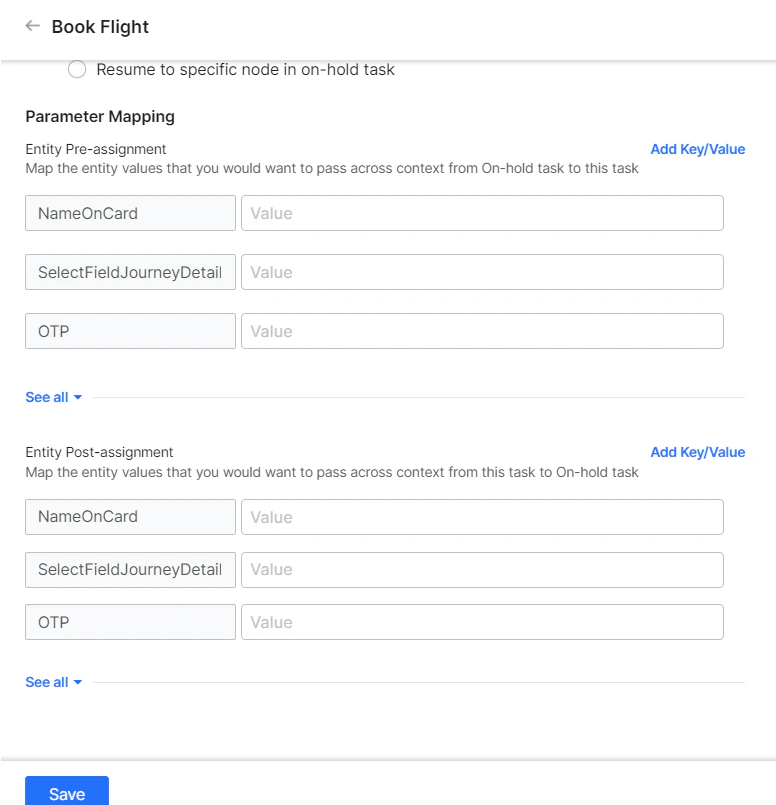
**Pre-assignments:**
1. Under **Parameter Mapping**, the Entity pre-assignment section lists entities needed for the linked task.
2. Enter a direct value or context reference for each entity you want to pre-fill.
3. To use a variable, click **Add Key/Value** and enter a variable name and value.
**Post-assignments:**
1. Under **Entity post-assignment**, the section lists entities in the current (main) task.
2. Enter a direct value or context reference for each entity.
3. To use a variable, click **Add Key/Value** and enter a variable name and value.
To reset a value, use the keyword `null`. Spaces are ignored by the Platform.
### Parameter Mapping
**Pre-assignments:**
1. Under **Parameter Mapping**, the Entity pre-assignment section lists entities needed for the linked task.
2. Enter a direct value or context reference for each entity you want to pre-fill.
3. To use a variable, click **Add Key/Value** and enter a variable name and value.
**Post-assignments:**
1. Under **Entity post-assignment**, the section lists entities in the current (main) task.
2. Enter a direct value or context reference for each entity.
3. To use a variable, click **Add Key/Value** and enter a variable name and value.
To reset a value, use the keyword `null`. Spaces are ignored by the Platform.
 ***
## Follow-up Intents
Follow-up intents are user intents that came up during a dialog but weren't handled at the time. The AI Agent captures them in the `FollowupIntents` array.
The AI Agent doesn't capture follow-up intents if **Don't Hold and Resume** is selected at the node, task, or app level.
### Show Follow-up Tasks at End of Dialog
1. Open the dialog task you want to configure.
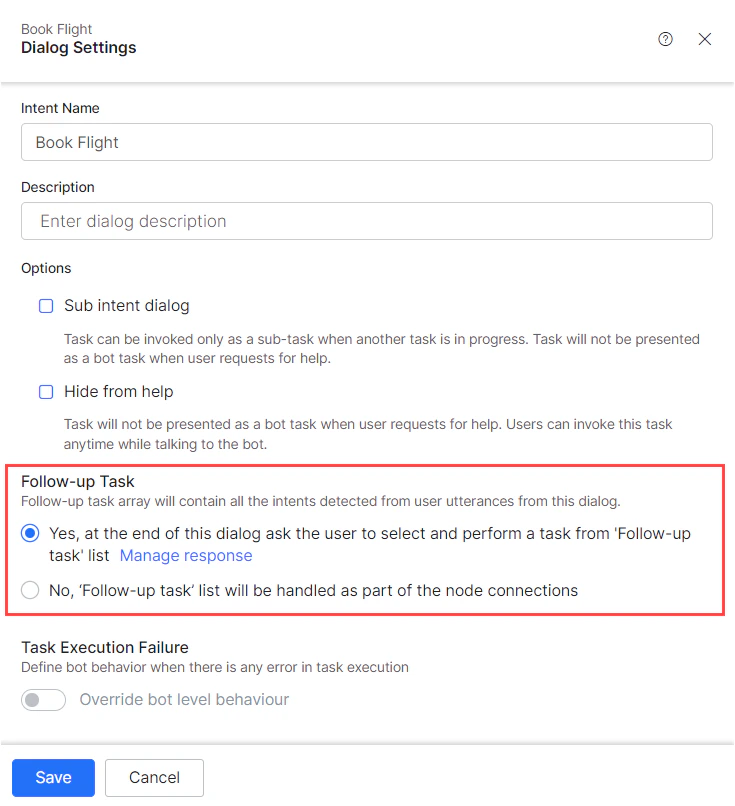
2. Click the **more options** icon and select **Dialog Settings**.
3. In the **Follow-up Task** section, choose:
| Option | Behavior |
| - | - |
| **Yes** — Ask the user to select from the follow-up task list at the end of the dialog. | Presents all unhandled intents to the user. Click **Manage Response** to customize the prompt. |
| **No** — Handle the follow-up task list via node connections (default). | The AI Agent doesn't surface follow-up intents automatically. Developers can still access them via the `FollowupIntents` array. |
***
## Follow-up Intents
Follow-up intents are user intents that came up during a dialog but weren't handled at the time. The AI Agent captures them in the `FollowupIntents` array.
The AI Agent doesn't capture follow-up intents if **Don't Hold and Resume** is selected at the node, task, or app level.
### Show Follow-up Tasks at End of Dialog
1. Open the dialog task you want to configure.
2. Click the **more options** icon and select **Dialog Settings**.
3. In the **Follow-up Task** section, choose:
| Option | Behavior |
| - | - |
| **Yes** — Ask the user to select from the follow-up task list at the end of the dialog. | Presents all unhandled intents to the user. Click **Manage Response** to customize the prompt. |
| **No** — Handle the follow-up task list via node connections (default). | The AI Agent doesn't surface follow-up intents automatically. Developers can still access them via the `FollowupIntents` array. |
 This documentation is built and hosted on [Mintlify](https://mintlify.com), a developer documentation platform.