> ## Documentation Index
> Fetch the complete documentation index at: https://koreai.mintlify.site/llms.txt
> Use this file to discover all available pages before exploring further.
# Playground
After you define your app and configure one or more tasks, test your settings before publishing. App owners and developers can chat with the app in real-time to test recognition, performance, and flow as if it were a live session.
## Access
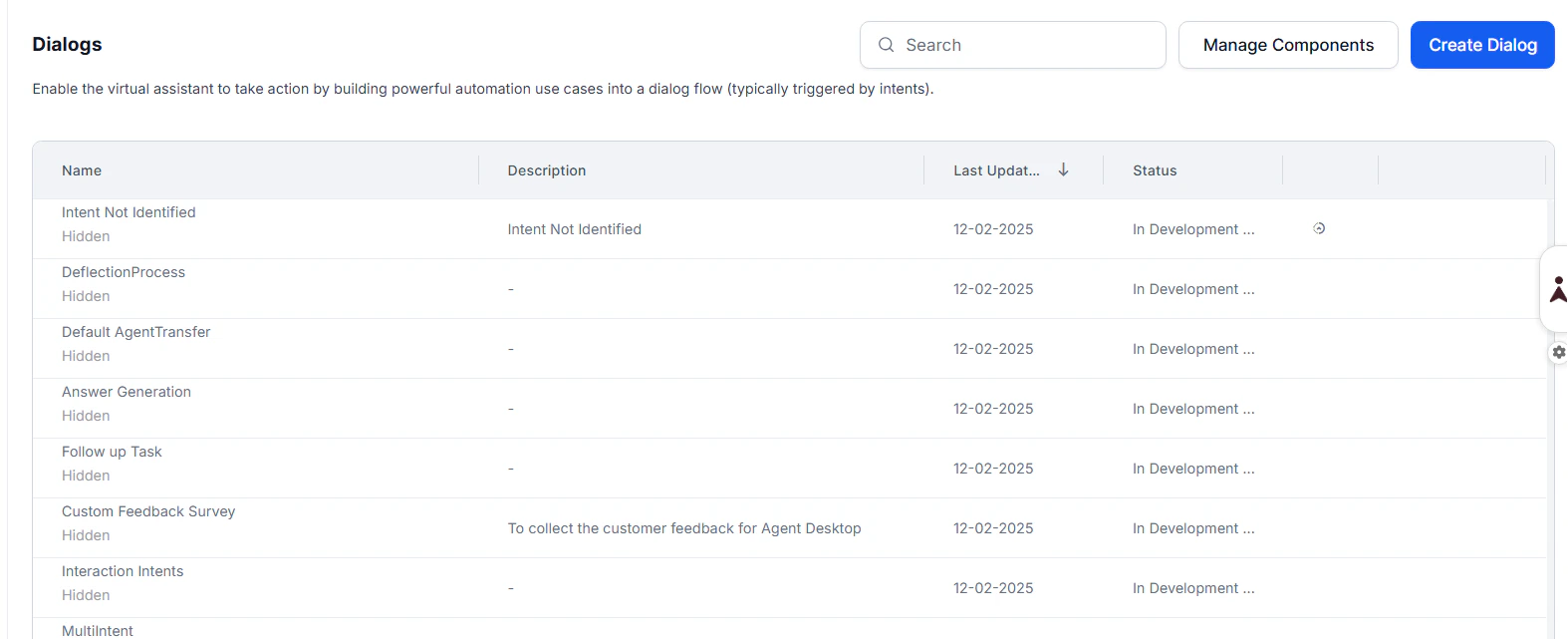
Go to **Automation AI > Evaluation > Playground**.
Alternatively, select the **Test** icon in the top right corner of the Platform.
 ## Testing an App
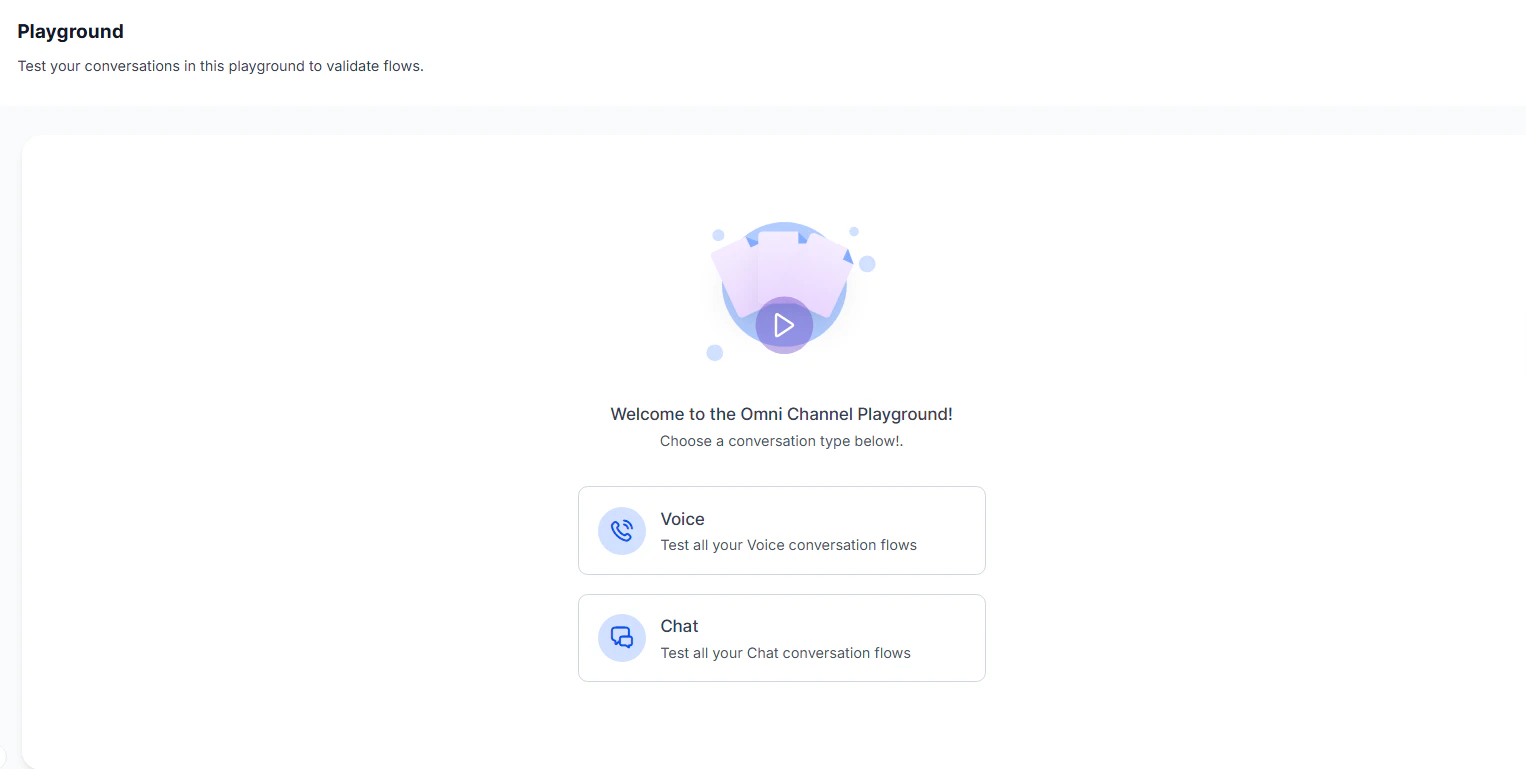
When you first open the Playground, select whether to proceed with **Voice** or **Chat**. This page describes the chat experience.
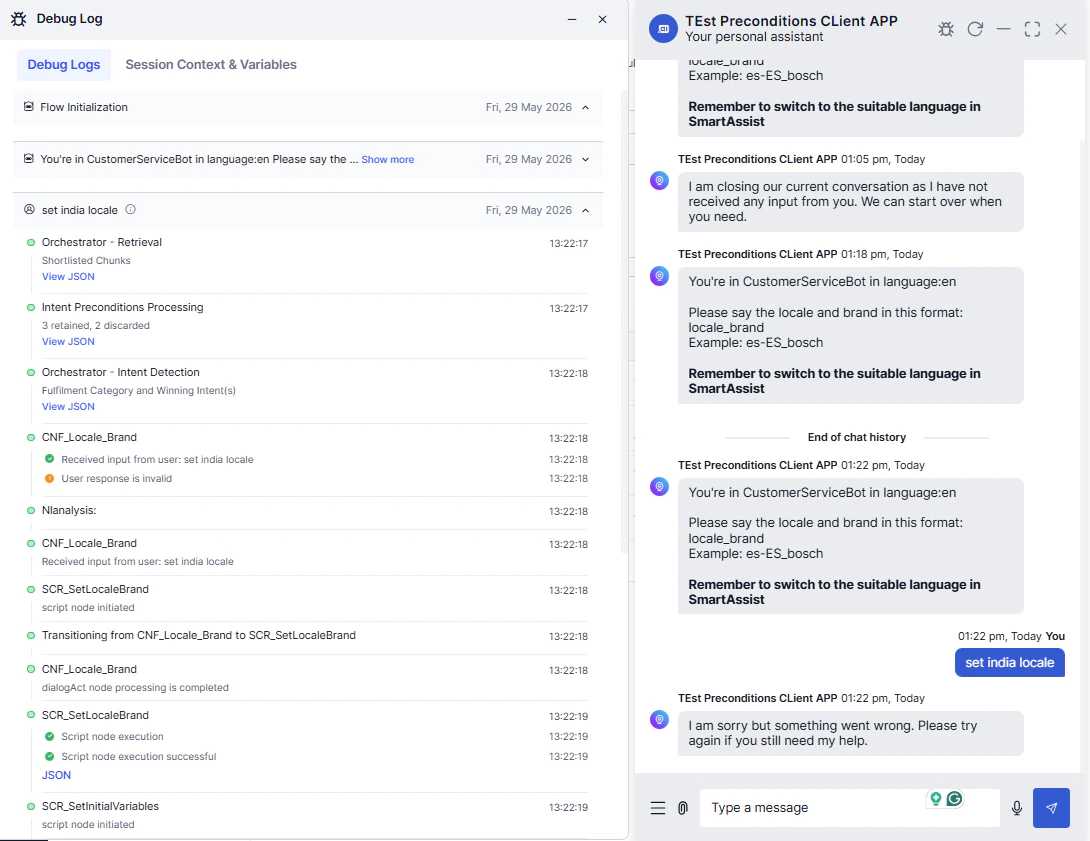
The Debug Logs and Chat windows open side-by-side in the Playground display area.
## Testing an App
When you first open the Playground, select whether to proceed with **Voice** or **Chat**. This page describes the chat experience.
The Debug Logs and Chat windows open side-by-side in the Playground display area.
 In the **Message** section, enter text to begin interacting and testing your app. Dialog GPT processes the task, verifies authentication, prompts for required task fields, and executes the task after all required information is collected. Try different variations of user prompts. If the app returns unexpected results, consider adding or modifying synonyms for your tasks and task field names.
## Conversation Status
When a conversation is active and the developer is working in the Playground, conversation status can only be changed from within the Playground module.
| Scenario | Behavior |
| ------------------------------- | ------------------------------------------------------------------------------------------------------------------------------------------------------------- |
| **Developer is in Playground** | Status options in the top menu (Test / Stop / Resume) remain disabled. |
| **Developer leaves Playground** | Session remains active; treated as minimizing the chat window. Debug Logs and chat windows stay in the background. Conversation status updates to **Resume**. |
The system always matches the Test status with the Playground status, but allows updates only when the developer is outside the Playground.
## Debug Window
In the **Message** section, enter text to begin interacting and testing your app. Dialog GPT processes the task, verifies authentication, prompts for required task fields, and executes the task after all required information is collected. Try different variations of user prompts. If the app returns unexpected results, consider adding or modifying synonyms for your tasks and task field names.
## Conversation Status
When a conversation is active and the developer is working in the Playground, conversation status can only be changed from within the Playground module.
| Scenario | Behavior |
| ------------------------------- | ------------------------------------------------------------------------------------------------------------------------------------------------------------- |
| **Developer is in Playground** | Status options in the top menu (Test / Stop / Resume) remain disabled. |
| **Developer leaves Playground** | Session remains active; treated as minimizing the chat window. Debug Logs and chat windows stay in the background. Conversation status updates to **Resume**. |
The system always matches the Test status with the Playground status, but allows updates only when the developer is outside the Playground.
## Debug Window
 The Debug window has two tabs:
| Tab | Description |
| ------------------------------- | ----------------------------------------------------------------------------------- |
| **Debug Log** | Lists the processing or processed Dialog task components. |
| **Session Context & Variables** | Shows both the context object and session variables used in dialog task processing. |
### Debug Log
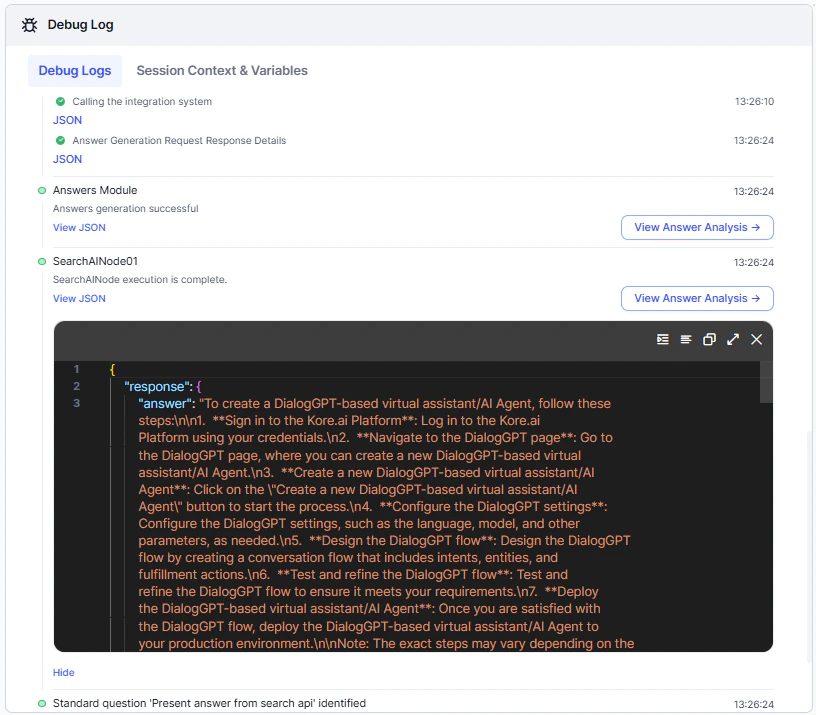
**Debug Log** provides the sequential progression of a dialog task along with captured context and session variables. It's a chat-like interface, grouped by user inputs and app responses for easier conversation flow tracing. It offers improved navigation and contextual information at a glance, enhancing log readability and streamlining the debugging process.
The Debug window has two tabs:
| Tab | Description |
| ------------------------------- | ----------------------------------------------------------------------------------- |
| **Debug Log** | Lists the processing or processed Dialog task components. |
| **Session Context & Variables** | Shows both the context object and session variables used in dialog task processing. |
### Debug Log
**Debug Log** provides the sequential progression of a dialog task along with captured context and session variables. It's a chat-like interface, grouped by user inputs and app responses for easier conversation flow tracing. It offers improved navigation and contextual information at a glance, enhancing log readability and streamlining the debugging process.
 ### Session Context and Variables
The **Session Context & Variables** tab dynamically displays the populated `Context` object and session variables updated at each processed component in Dialog Builder.
For more information about the parameters, see [Using Session and Context Variables in Tasks](/ai-for-service/automation/agent-flows#session-management) and [Context Object](/ai-for-service/automation/agent-flows#context-object).
### Session Context and Variables
The **Session Context & Variables** tab dynamically displays the populated `Context` object and session variables updated at each processed component in Dialog Builder.
For more information about the parameters, see [Using Session and Context Variables in Tasks](/ai-for-service/automation/agent-flows#session-management) and [Context Object](/ai-for-service/automation/agent-flows#context-object).