> ## Documentation Index
> Fetch the complete documentation index at: https://koreai.mintlify.site/llms.txt
> Use this file to discover all available pages before exploring further.
# Adding the Mattermost Channel
[Back to Available Channels](/ai-for-service/channels/adding-channels-to-your-bot#available-channels)
You can connect AI Agent to your Mattermost account using either:
* [Webhook based integration](#webhook-based-integration)
* [WebSocket based integration](#websocket-based-integration).
Before you begin, ensure that you have access to the administrative functions of your Mattermost account.
## WebHook based Integration
### Step 1: Setup Outgoing Webhook
1. Login to your Mattermost account
2. From the **Main Menu** choose **Integrations**.
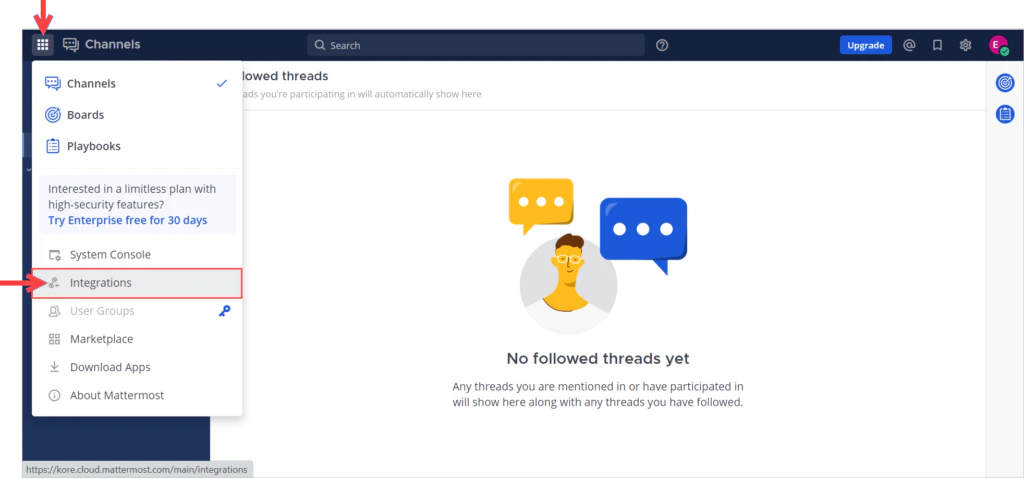 3. Select the **Outgoing Webhooks** menu and click **Add Outgoing Webhook**.
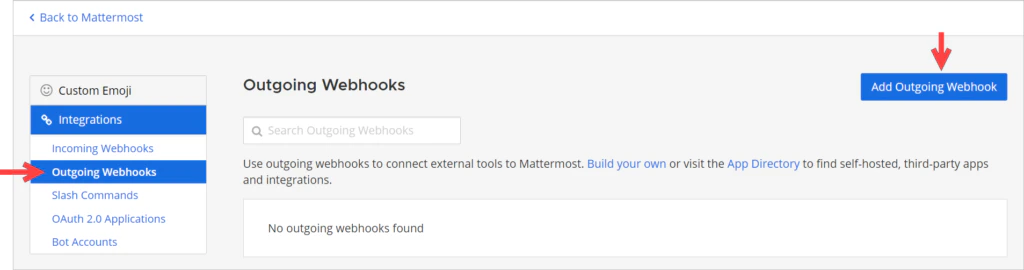 4. Provide required information as per the below image.
* Enter your preferred values for **Title**, **Description** and **Bot Name fields**.
* Choose **application/json** as **Content Type**.
* If you would like your bot to be available only for a specific channel, then choose the required channel from the **Channel** dropdown.
* Provide your AI Agent Name in the **Trigger Words** field.
* Copy the **Callback URL** for the AI Agent (located in the **Channels & Flows** > **Channels** > **Digital** > **All** > **Mattermost**) and provide it in the Callback URLs field.
* Click on **Save** to complete the Outgoing Webhook setup.
4. Provide required information as per the below image.
* Enter your preferred values for **Title**, **Description** and **Bot Name fields**.
* Choose **application/json** as **Content Type**.
* If you would like your bot to be available only for a specific channel, then choose the required channel from the **Channel** dropdown.
* Provide your AI Agent Name in the **Trigger Words** field.
* Copy the **Callback URL** for the AI Agent (located in the **Channels & Flows** > **Channels** > **Digital** > **All** > **Mattermost**) and provide it in the Callback URLs field.
* Click on **Save** to complete the Outgoing Webhook setup.
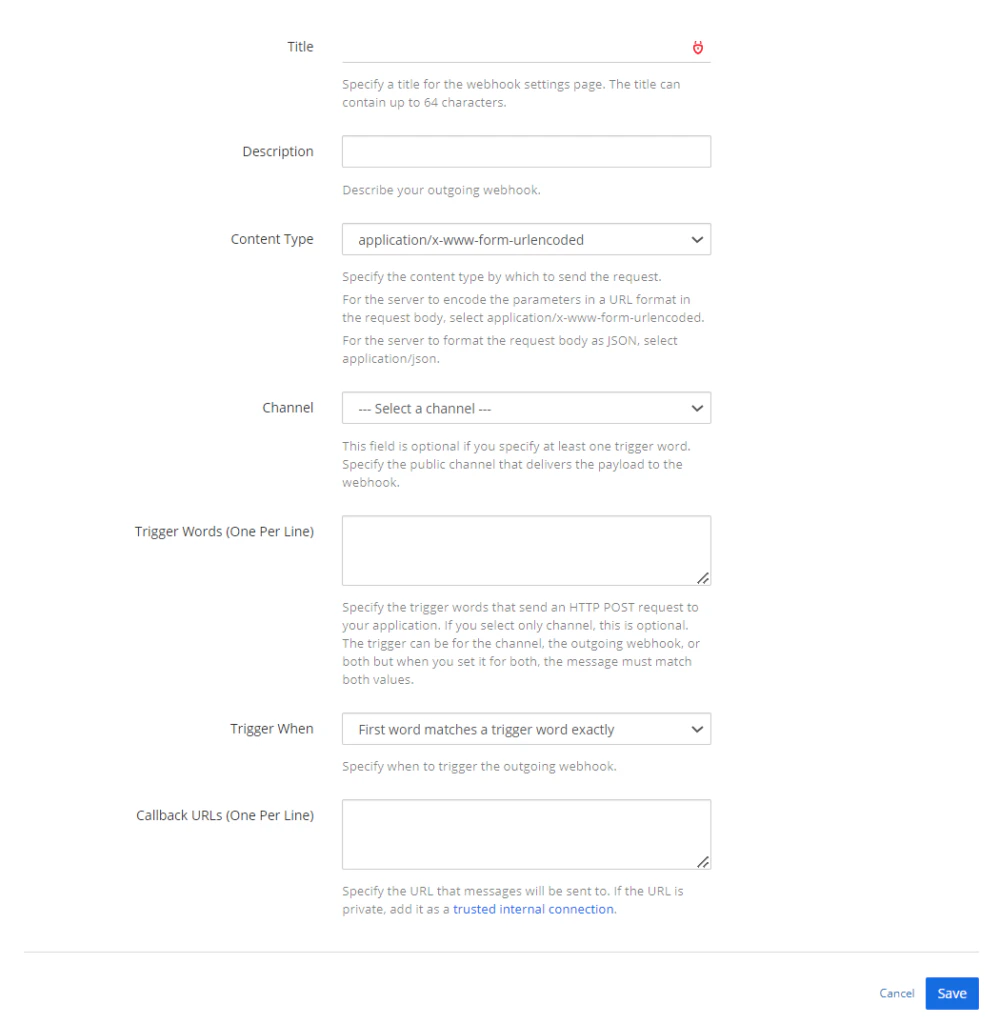 * You will be redirected to the confirmation page with the Token displayed.
* Copy this Token and provide it in the ‘Outgoing Webhook Token’ field present in the Platform Channel Configurations section.
* You will be redirected to the confirmation page with the Token displayed.
* Copy this Token and provide it in the ‘Outgoing Webhook Token’ field present in the Platform Channel Configurations section.
 ### Step 2: Setup Incoming Webhook
1. Select the ‘**Incoming Webhooks**’ menu and click ‘**Add Incoming Webhook**’.
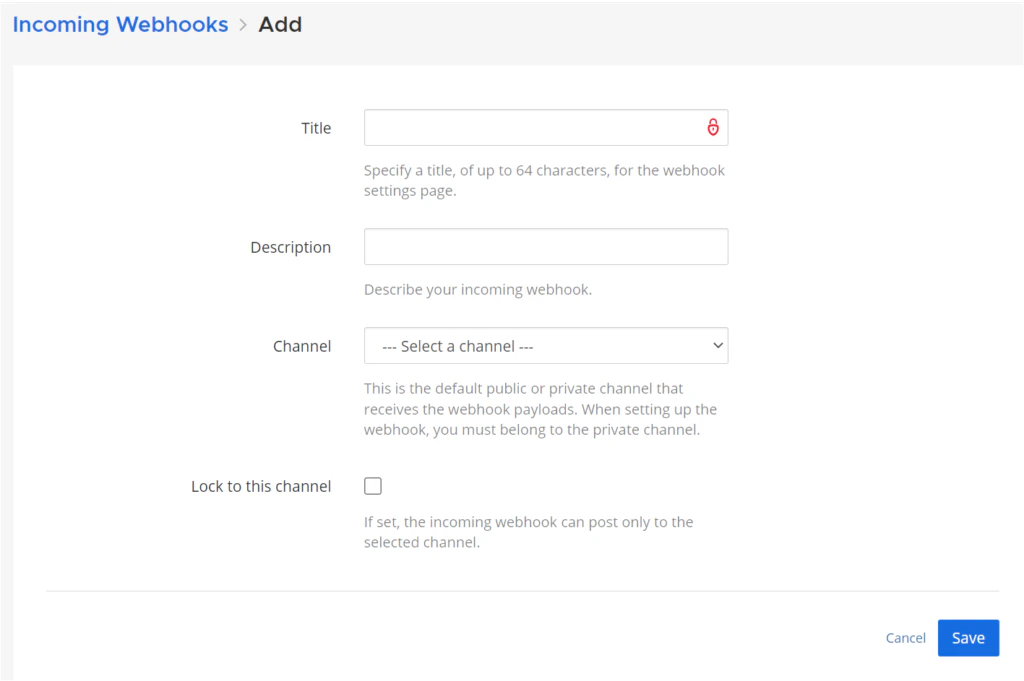
2. Provide required information as per the below image.
* Enter your preferred values for **Title**, **Description** and **Username** fields.
* Choose a default **Channel**. AI Agent always respond back in the channel from which the user input is received.
* Don't select the **Lock to this channel** option.
### Step 2: Setup Incoming Webhook
1. Select the ‘**Incoming Webhooks**’ menu and click ‘**Add Incoming Webhook**’.
2. Provide required information as per the below image.
* Enter your preferred values for **Title**, **Description** and **Username** fields.
* Choose a default **Channel**. AI Agent always respond back in the channel from which the user input is received.
* Don't select the **Lock to this channel** option.
 3. Click on **Save** to complete the Incoming Webhook setup.
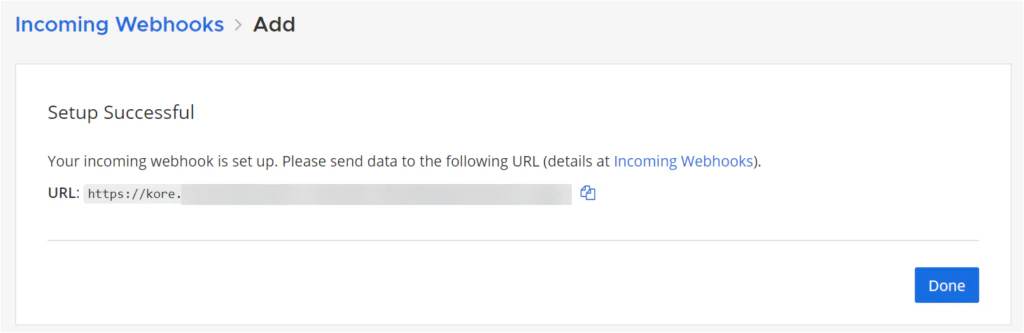
4. You would be redirected to the confirmation page along with the URL associated with this newly created incoming webhook.
5. Copy this URL and provide it in the ‘Incoming Webhook URL’ field in the Kore Bot Channel Configurations section.
3. Click on **Save** to complete the Incoming Webhook setup.
4. You would be redirected to the confirmation page along with the URL associated with this newly created incoming webhook.
5. Copy this URL and provide it in the ‘Incoming Webhook URL’ field in the Kore Bot Channel Configurations section.
 ## WebSocket based Integration
### Step 1: Enable Personal Access Tokens
To enable a WebSocket connection, you would need to create a Mattermost account to be provisioned as a bot.
1. First, enable usage of Personal Access Tokens to allow your Mattermost users to generate personal access tokens.
2. Personal access tokens are used to authenticate and provide full access to an account.
* Login to Mattermost from an account that has access to System Console.
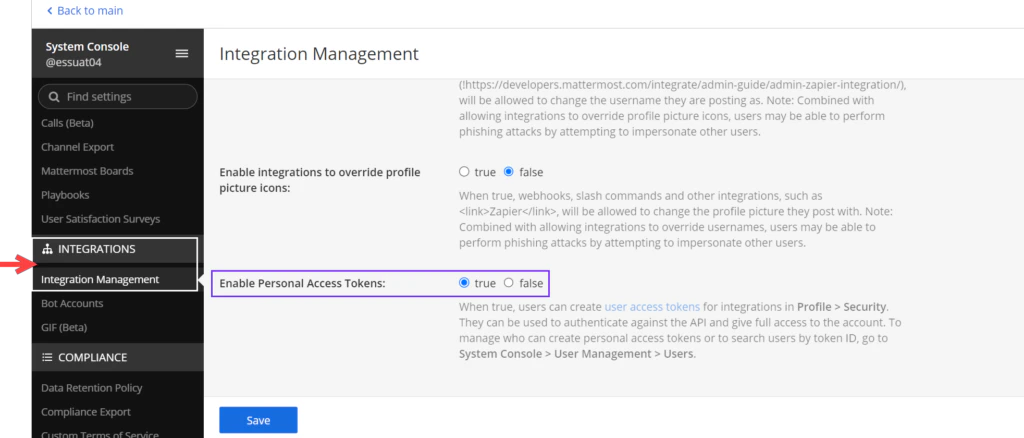
* Go to **System Console > Integrations > Integrations Management**.
* Locate the **Enable Personal Access Tokens** setting, set it to **true**, and **Save**.
## WebSocket based Integration
### Step 1: Enable Personal Access Tokens
To enable a WebSocket connection, you would need to create a Mattermost account to be provisioned as a bot.
1. First, enable usage of Personal Access Tokens to allow your Mattermost users to generate personal access tokens.
2. Personal access tokens are used to authenticate and provide full access to an account.
* Login to Mattermost from an account that has access to System Console.
* Go to **System Console > Integrations > Integrations Management**.
* Locate the **Enable Personal Access Tokens** setting, set it to **true**, and **Save**.
 ### Step 2: Create an Account to be Provisioned as a Bot
1. From your Mattermost account, go to **Integrations > Bot Accounts > Add Bot Account**.
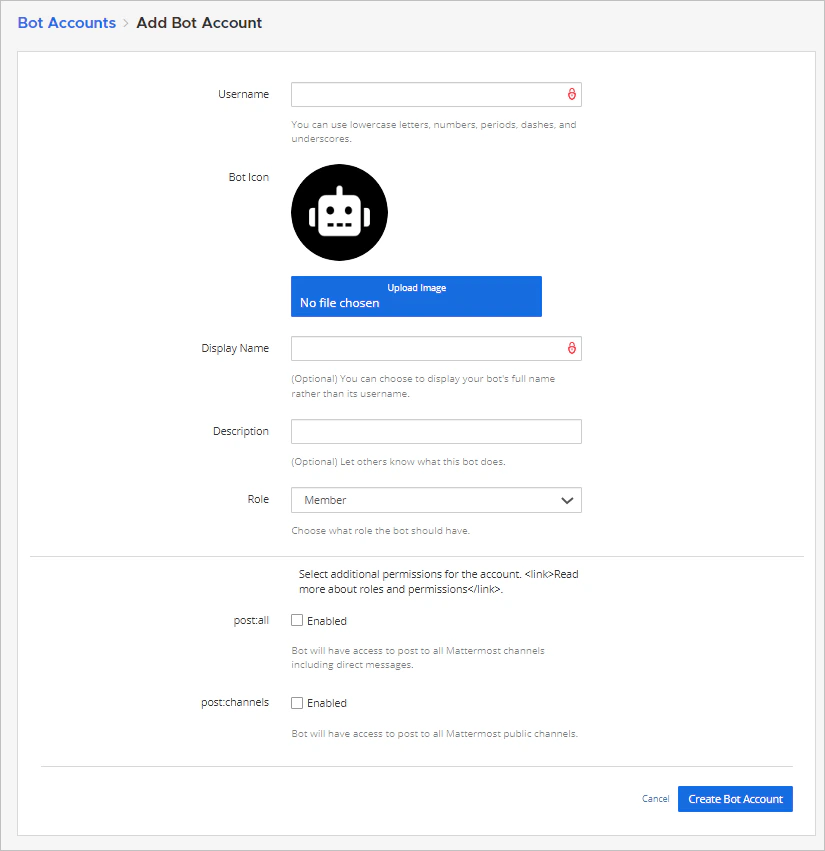
2. Configure the Bot’s details:
* Choose a **Username**.
* Add an **Icon**, a **Display Name**.and a **Description**.
* Choose the **Member** role.
* Select **additional permissions** for the account:
* **post:all** to allow the bot to post to all Mattermost channels including direct messages.
* **post:channels**: to allow the bot to post to all Mattermost public channels, but not in direct messages or private channels.
* Click **Create Bot Account** to complete the setup.
### Step 2: Create an Account to be Provisioned as a Bot
1. From your Mattermost account, go to **Integrations > Bot Accounts > Add Bot Account**.
2. Configure the Bot’s details:
* Choose a **Username**.
* Add an **Icon**, a **Display Name**.and a **Description**.
* Choose the **Member** role.
* Select **additional permissions** for the account:
* **post:all** to allow the bot to post to all Mattermost channels including direct messages.
* **post:channels**: to allow the bot to post to all Mattermost public channels, but not in direct messages or private channels.
* Click **Create Bot Account** to complete the setup.
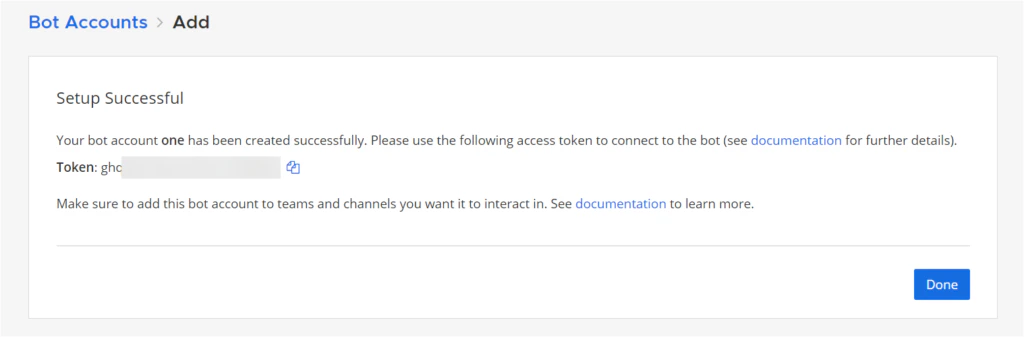
 3. A success page will be shown to you next, where you will also find the access token you can use to connect to this assistant.
 ## Platform Channel Configuration
To configure the Platform channel, after having completed the setup in Mattermost, please follow the steps below:
1. In the Platform, select the Assistant that you are working with.
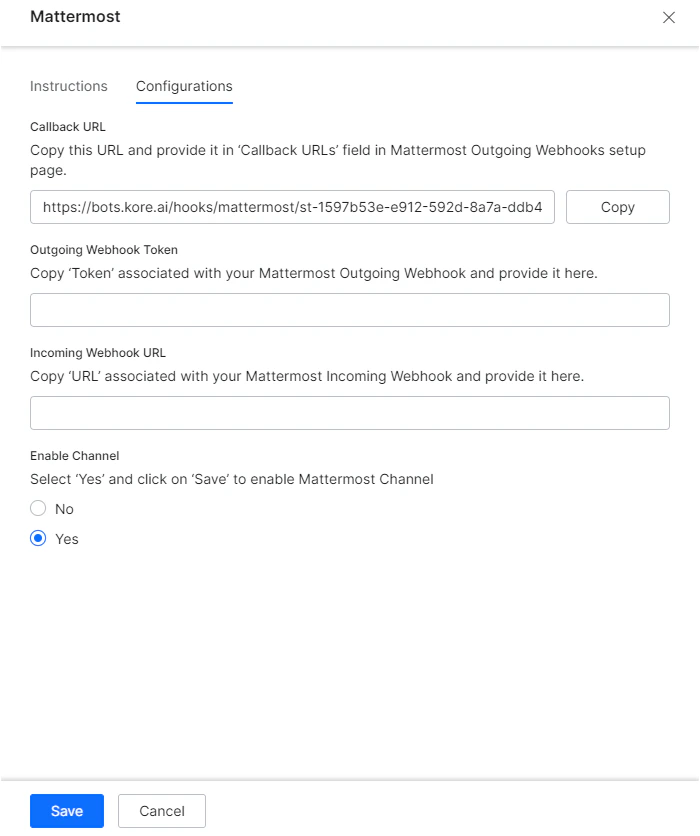
2. Go to **Channels & Flows** > **Channels** > **Digital** > **All** > **Mattermost**.
3. Select the **Configuration** tab and provide the following details, which you have just generated in Mattermost:
* Outgoing Webhook Token.
* Incoming Webhook URL.
4. Select **Yes** to enable the channel.
5. Click **Save** to save your configuration.
## Platform Channel Configuration
To configure the Platform channel, after having completed the setup in Mattermost, please follow the steps below:
1. In the Platform, select the Assistant that you are working with.
2. Go to **Channels & Flows** > **Channels** > **Digital** > **All** > **Mattermost**.
3. Select the **Configuration** tab and provide the following details, which you have just generated in Mattermost:
* Outgoing Webhook Token.
* Incoming Webhook URL.
4. Select **Yes** to enable the channel.
5. Click **Save** to save your configuration.
 After enabling the channel and verifying all the configurations, you can optionally publish the app for the new channel. Learn more about[Publishing your App](/ai-for-service/deployment/publishing-app).