> ## Documentation Index
> Fetch the complete documentation index at: https://koreai.mintlify.site/llms.txt
> Use this file to discover all available pages before exploring further.
# Adding the Microsoft Teams & Copilot Channel
[Back to Available Channels](/ai-for-service/channels/adding-channels-to-your-bot#available-channels)
To set up Microsoft Teams & Copilot as a channel, a Bot Channel Service must be registered in Azure, and a webhook must be enabled to allow the platform to receive messages.
## Step 1: Create an Azure Bot
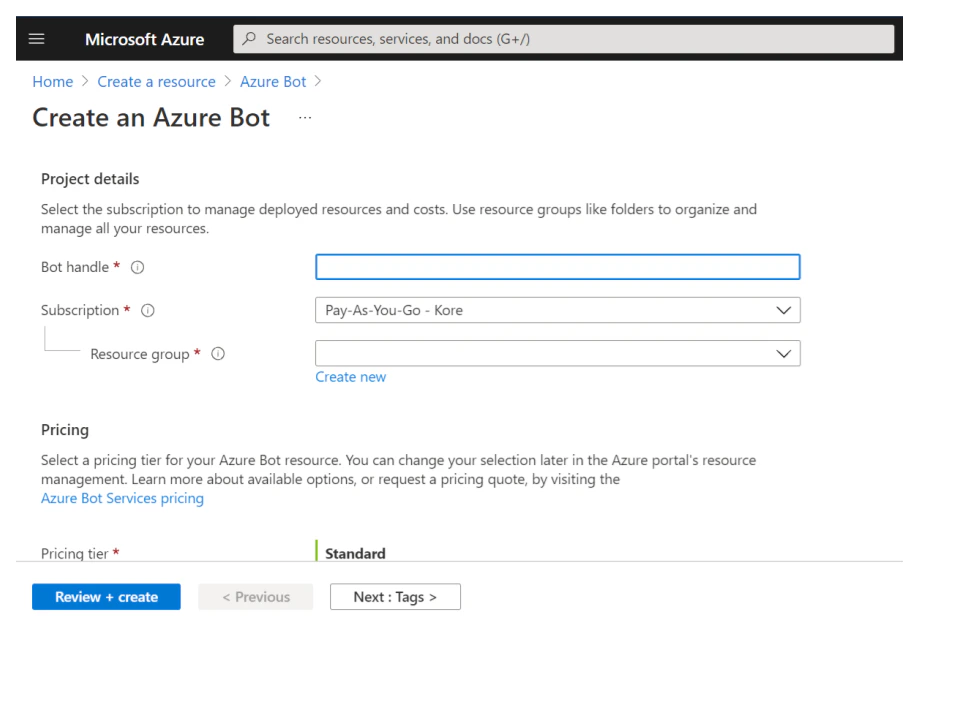
1. Log in to the [Azure portal](https://portal.azure.com/), and click **+ Create a resource** from the portal menu.
2. Search and select **Azure Bot** on the page.
3. Fill in the required details and click **Review + Create**.
4. On the next page, review the details and check for the **Validation** status. Click **Create** to proceed.
5. Associate the Azure Bot with a **Microsoft App ID** and **Password**. You can choose the default option: **Auto create App Id and password**. You can also choose to **Create a new Microsoft App ID** or **Use existing app registration**. For more information, see [Microsoft Bot Framework documentation](https://docs.microsoft.com/en-gb/azure/bot-service/bot-service-resources-bot-framework-faq?view=azure-bot-service-4.0#app-registration).
 ## Step 2: Configure the Resource
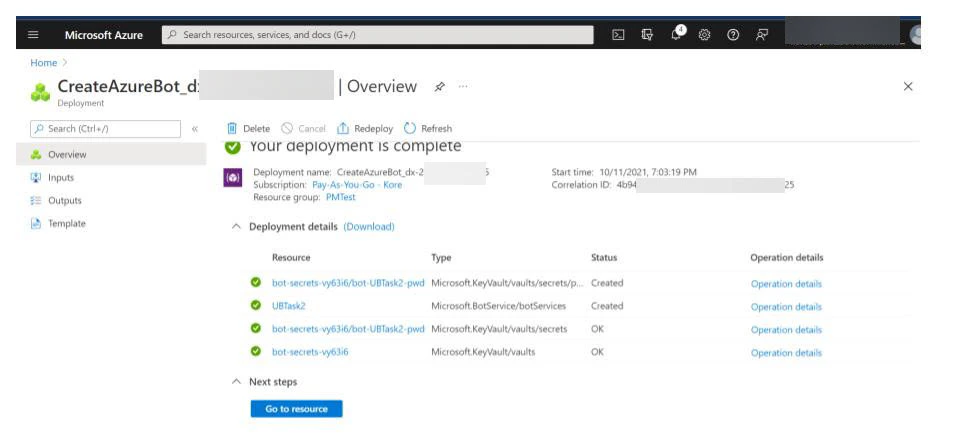
1. After the deployment is completed, in the **Deployment details** section, click the bot name.
## Step 2: Configure the Resource
1. After the deployment is completed, in the **Deployment details** section, click the bot name.
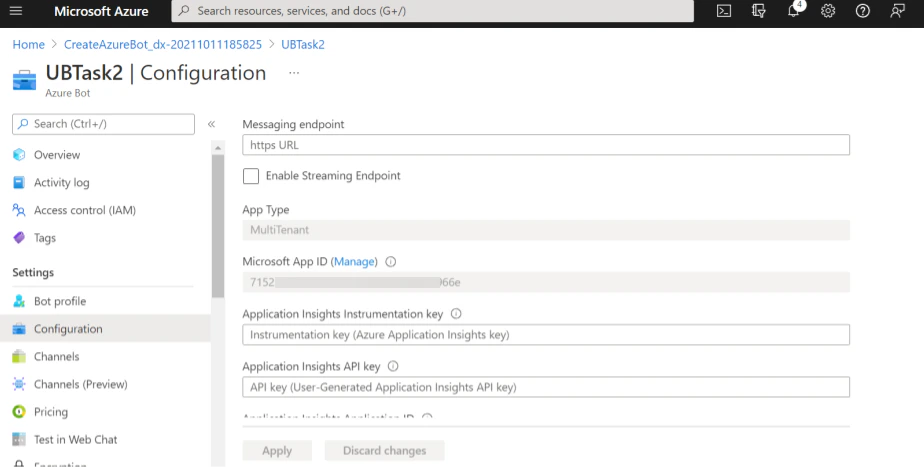
 2. In the Platform, go to the MS Teams + Copilot channel configuration page and copy the **webhook URL**.
3. Paste the URL in the Messaging endpoint field on the Configurations module in Azure portal.
4. Click **Apply** to save the entered value.
2. In the Platform, go to the MS Teams + Copilot channel configuration page and copy the **webhook URL**.
3. Paste the URL in the Messaging endpoint field on the Configurations module in Azure portal.
4. Click **Apply** to save the entered value.
 ## Step 3: Configure App Id and Password
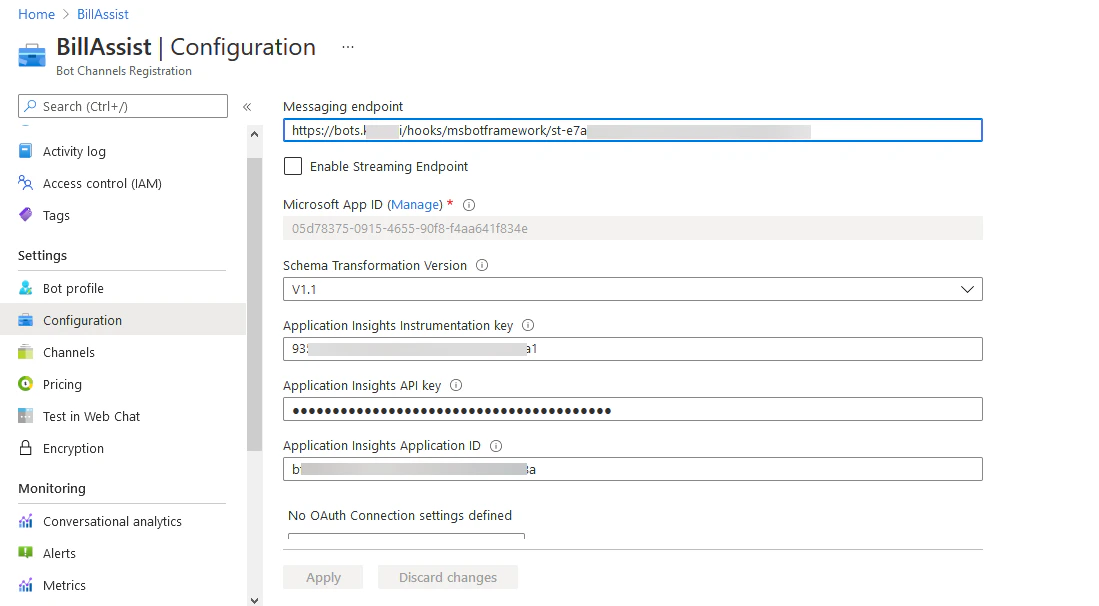
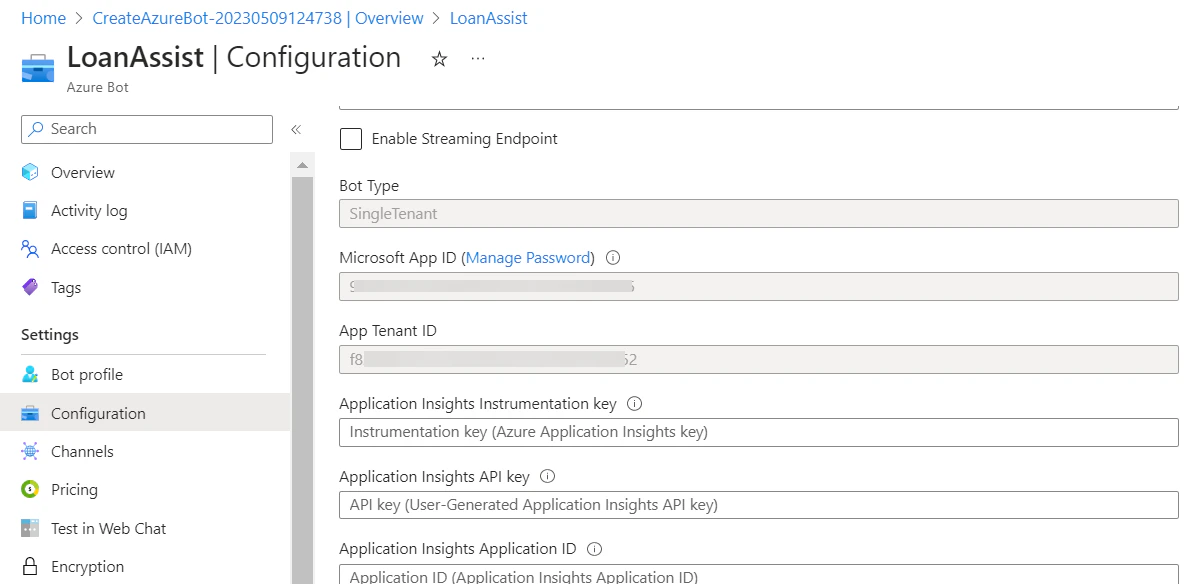
1. On the **Configurations** tab, click the **Manage** option next to the **Microsoft App ID** field.
## Step 3: Configure App Id and Password
1. On the **Configurations** tab, click the **Manage** option next to the **Microsoft App ID** field.
 2. On **Certificates & secrets** page, click the **+ New client secret** option, provide the necessary details, and then click the **Add** option to create a new client secret.
3. Copy the **Value** of the new client secret and provide it in the **App Password** field present on the **Configurations** tab of the Platform.
2. On **Certificates & secrets** page, click the **+ New client secret** option, provide the necessary details, and then click the **Add** option to create a new client secret.
3. Copy the **Value** of the new client secret and provide it in the **App Password** field present on the **Configurations** tab of the Platform.
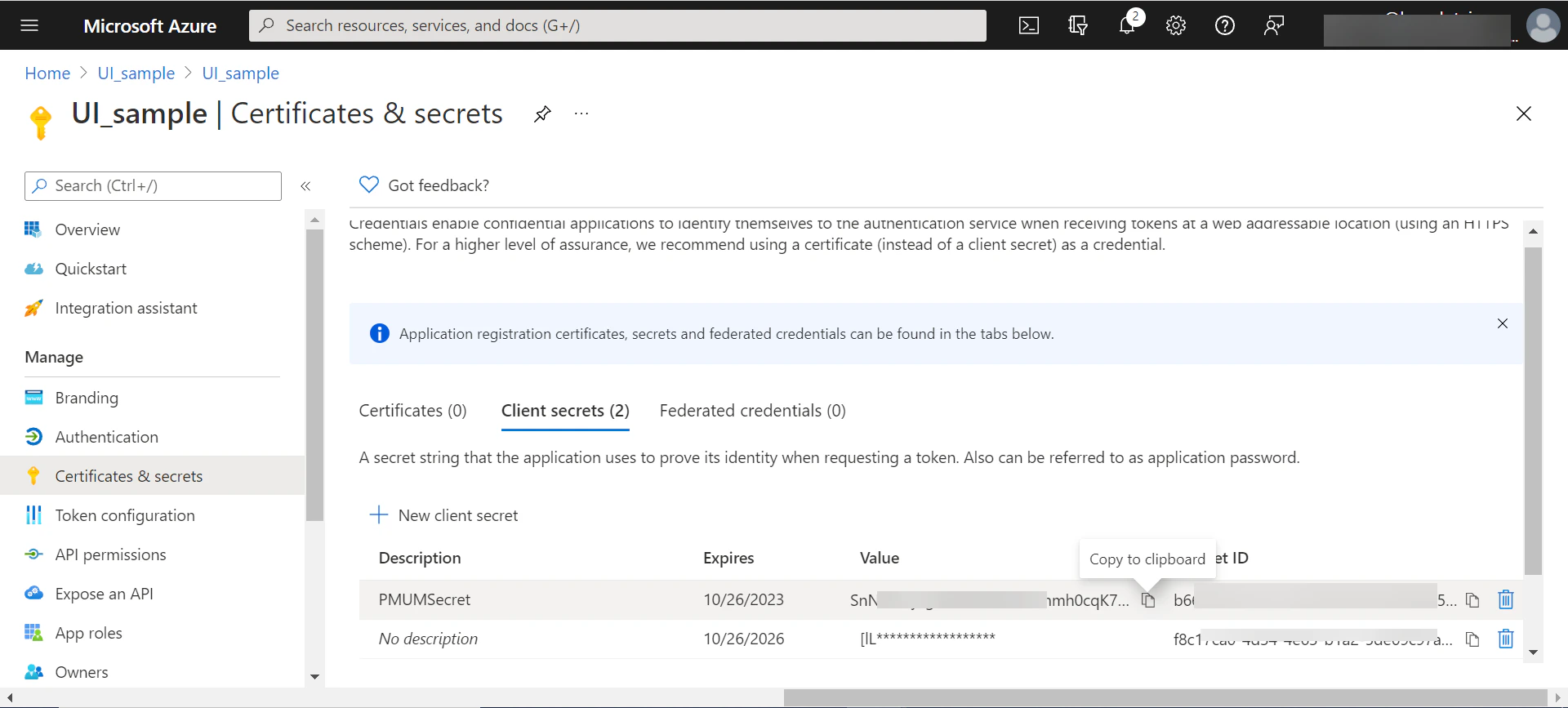 4. Close the **Certificates and secrets** section to return the **Configuration** section of the resource using the breadcrumbs. Make a note of the Microsoft App Id in the Azure Bot configurations page and provide it in the Configuration tab of this window.
 ## Step 4: Enable Microsoft Teams Channel & Microsoft 365 (For Copilot)
1. Go to the **Channels** section from the menu and select the **Microsoft Teams** and **Microsoft 365** channel listed under the Available Channels.
## Step 4: Enable Microsoft Teams Channel & Microsoft 365 (For Copilot)
1. Go to the **Channels** section from the menu and select the **Microsoft Teams** and **Microsoft 365** channel listed under the Available Channels.
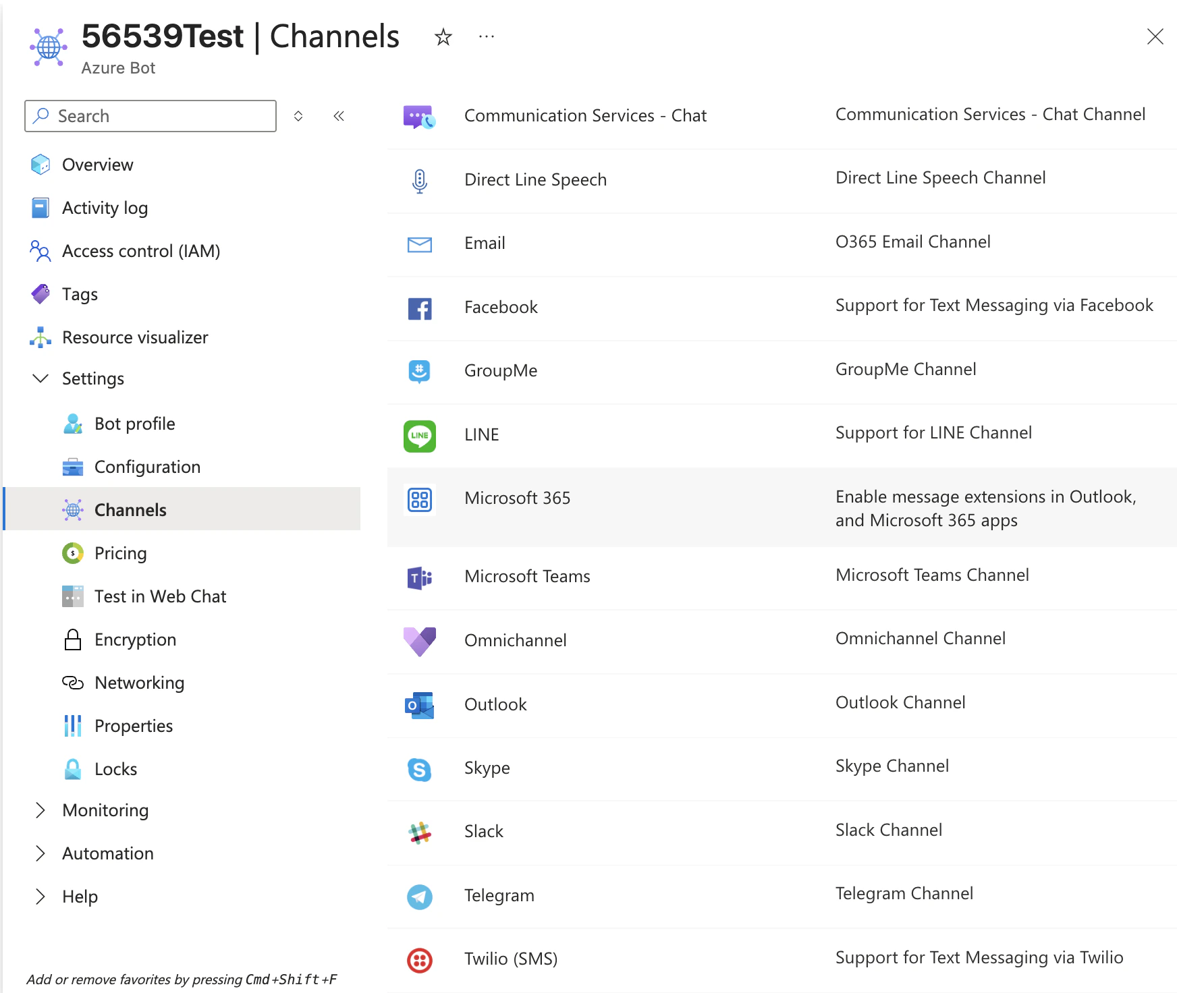 2. Review the channel information and click the **Save** to complete the channel setup.
## Step 5: Publish Your App in Platform
1. On the platform, select the assistant, and then go to the **Channels & Flows** > **Channels** > **Digital** > **All** menu.
2. Review the channel information and click the **Save** to complete the channel setup.
## Step 5: Publish Your App in Platform
1. On the platform, select the assistant, and then go to the **Channels & Flows** > **Channels** > **Digital** > **All** menu.
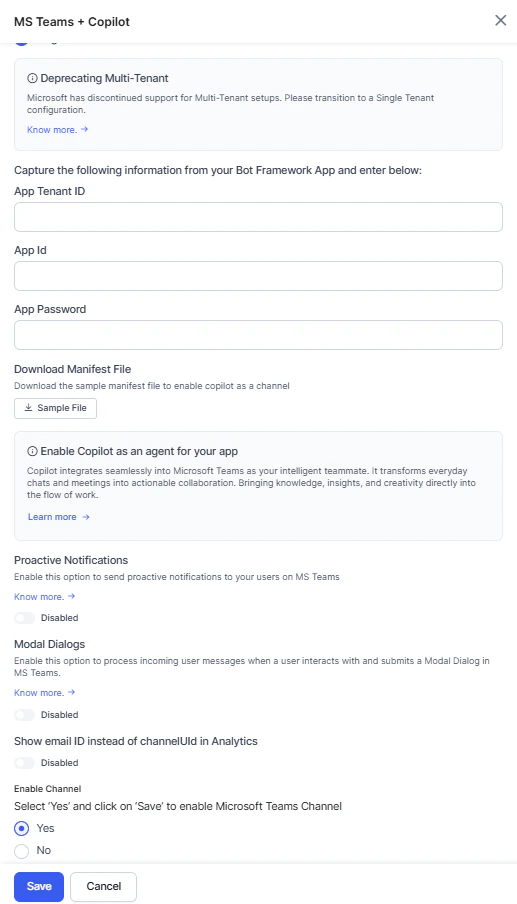 2. On the **Configuration** tab, enter the following details:
* **App Tenant ID**: The app tenant ID.
* **App ID**: The app ID of your Azure Bot resource.
* **App Password**: The App password value that you find in the Certificates & Secrets page of the Azure bot.
3. (Optional) toggle the **Proactive Notifications**.
* **Application (Client) ID**: The app ID of your Azure Bot resource.
* **Client Secret**: The client secret value that you find on the Certificates & Secrets page of the Azure bot.
* **Delivery (tenant) ID**: The subscription ID that you can find on the Overview page of the Azure bot.
4. (Optional) toggle the **Modal Dialogs**. [Learn more](https://learn.microsoft.com/en-us/microsoftteams/platform/messaging-extensions/how-to/action-commands/create-task-module?tabs=dotnet).
* Enter the Custom URL to which the platform forwards Modal Dialog messages for processing.
The platform maintains the conversation context when handling Modal Dialog messages. It forwards these messages with pre-context to the Custom URL for processing, then relays responses back to the user, maintaining a seamless interaction.
5. (Optional) toggle the **Show email ID instead of channel Id in Analytics**.
6. Enable the channel and click **Save**.
## Step 6: Creating the Manifest File
### For Microsoft Teams
1. Open the [Microsoft Teams Developer Portal](https://teams.microsoft.com/v2/).
2. Click **Create New App** to begin setting up your Teams application.
2. On the **Configuration** tab, enter the following details:
* **App Tenant ID**: The app tenant ID.
* **App ID**: The app ID of your Azure Bot resource.
* **App Password**: The App password value that you find in the Certificates & Secrets page of the Azure bot.
3. (Optional) toggle the **Proactive Notifications**.
* **Application (Client) ID**: The app ID of your Azure Bot resource.
* **Client Secret**: The client secret value that you find on the Certificates & Secrets page of the Azure bot.
* **Delivery (tenant) ID**: The subscription ID that you can find on the Overview page of the Azure bot.
4. (Optional) toggle the **Modal Dialogs**. [Learn more](https://learn.microsoft.com/en-us/microsoftteams/platform/messaging-extensions/how-to/action-commands/create-task-module?tabs=dotnet).
* Enter the Custom URL to which the platform forwards Modal Dialog messages for processing.
The platform maintains the conversation context when handling Modal Dialog messages. It forwards these messages with pre-context to the Custom URL for processing, then relays responses back to the user, maintaining a seamless interaction.
5. (Optional) toggle the **Show email ID instead of channel Id in Analytics**.
6. Enable the channel and click **Save**.
## Step 6: Creating the Manifest File
### For Microsoft Teams
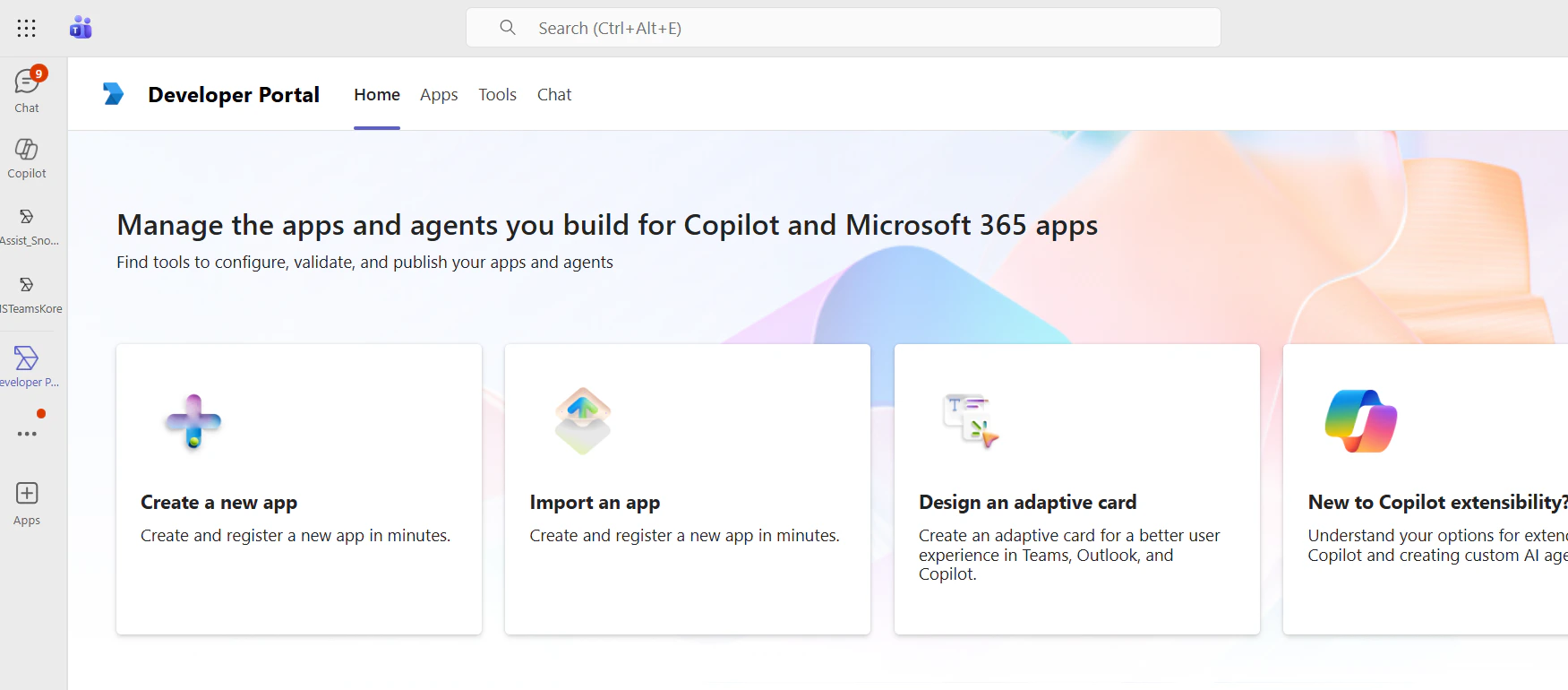
1. Open the [Microsoft Teams Developer Portal](https://teams.microsoft.com/v2/).
2. Click **Create New App** to begin setting up your Teams application.
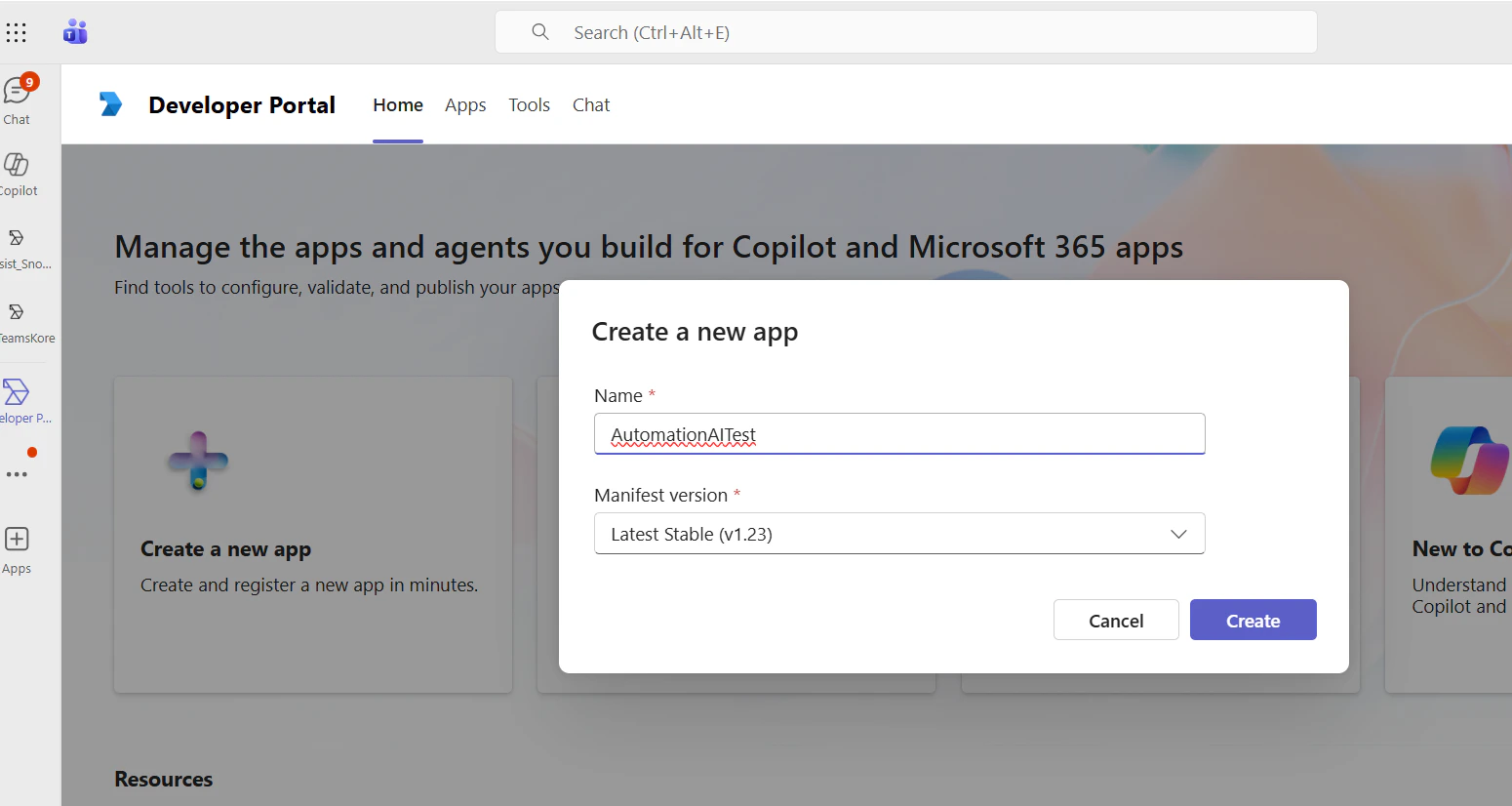
 3. Enter the app name and select the version.
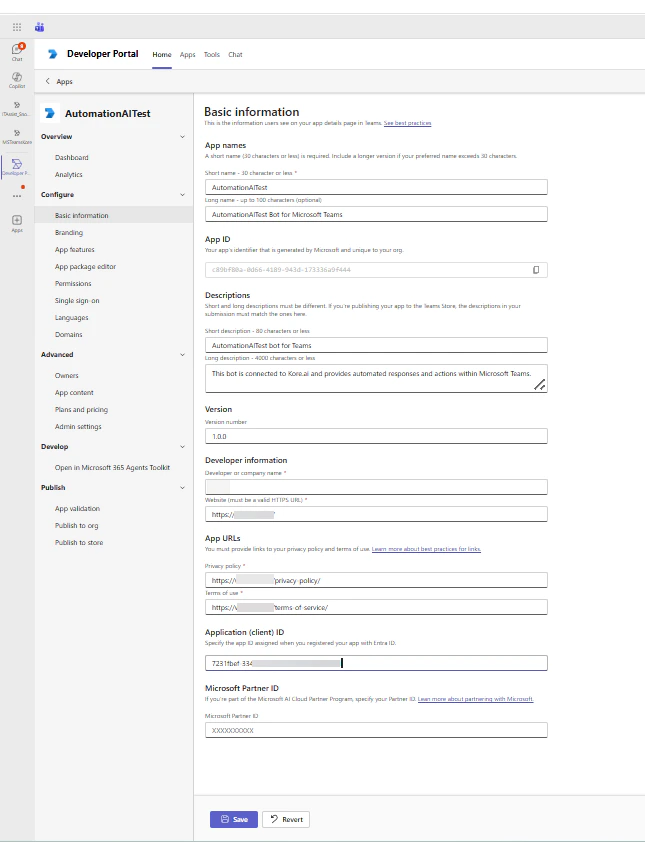
 4. Enter the required App Details. Ensure that the Microsoft App ID entered here is the same as the App ID configured in Azure and the Platform, maintaining consistency across all systems. This prevent errors during zip file creation. For Application (Client) ID, enter the Microsoft App ID associated with your bot’s channel configuration.
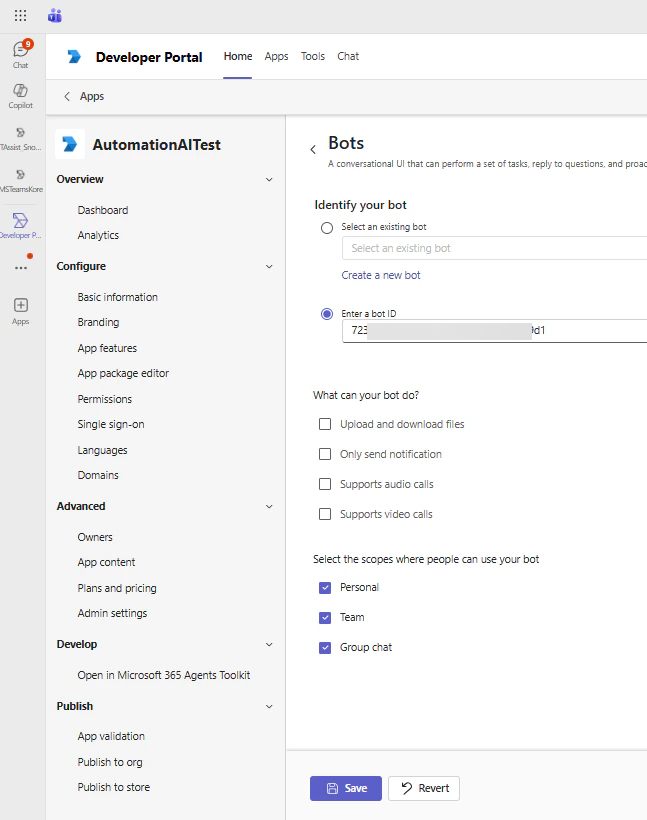
 5. Navigate to App Features > Bot. Select the **Enter a bot ID**, enter the Microsoft App ID and enable all required scopes.
 ### For Microsoft Teams & Copilot
For an existing Teams bot, uninstall the previous bot before uploading the new manifest file.
Download a sample manifest file from the configuration page and use it to configure your bot to work as an agent in Copilot and as an app in Microsoft Teams.
You can also upload a custom image for your agent by naming the file **color.png**. Compress all three files into a single ZIP file before uploading.
## Step 7: Uploading the app
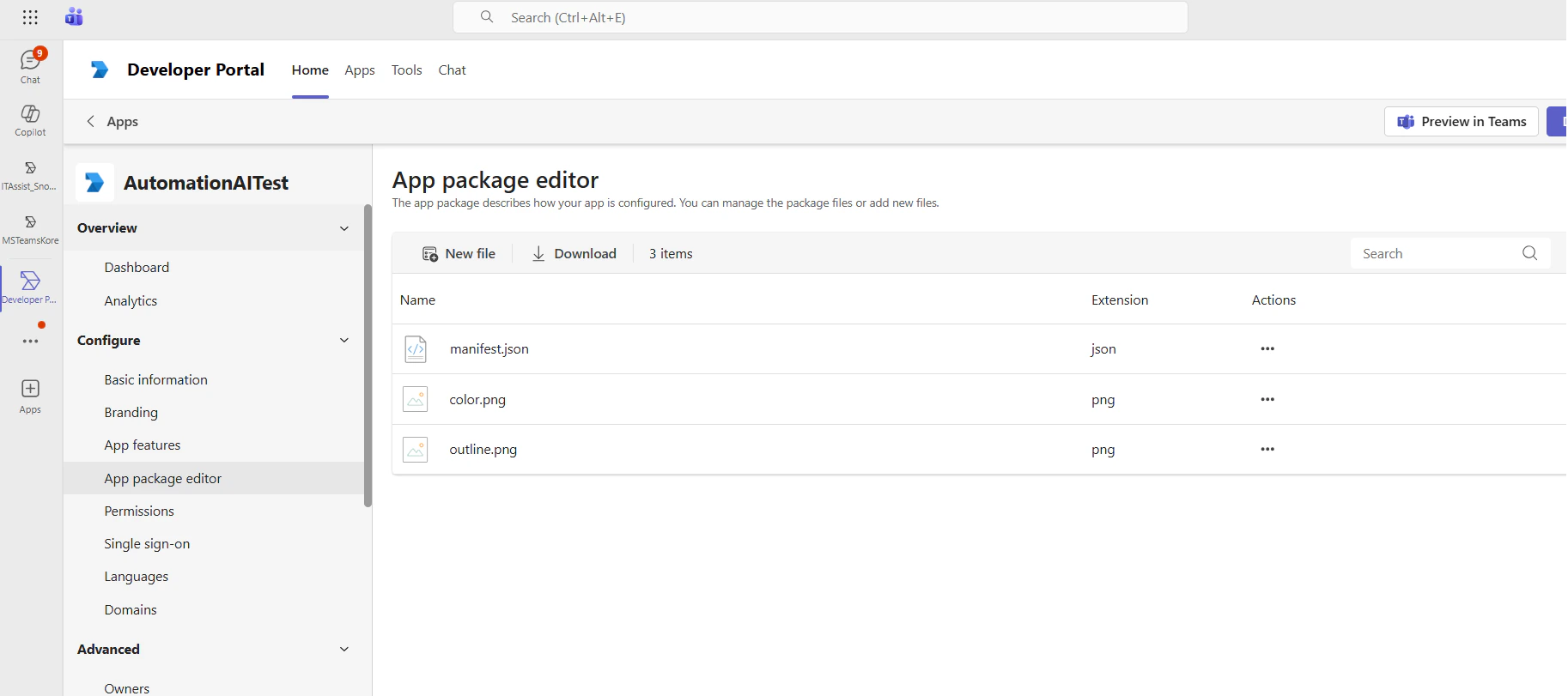
1. Open App Package Editor. It displays manifest.json, color.png, and outline.png. After verifying the details, download the ZIP package.
### For Microsoft Teams & Copilot
For an existing Teams bot, uninstall the previous bot before uploading the new manifest file.
Download a sample manifest file from the configuration page and use it to configure your bot to work as an agent in Copilot and as an app in Microsoft Teams.
You can also upload a custom image for your agent by naming the file **color.png**. Compress all three files into a single ZIP file before uploading.
## Step 7: Uploading the app
1. Open App Package Editor. It displays manifest.json, color.png, and outline.png. After verifying the details, download the ZIP package.
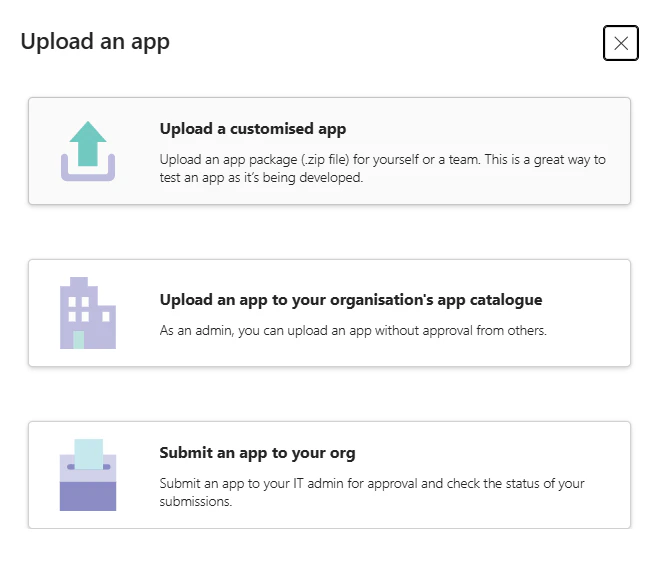
 2. **Upload the App into Teams**: Go to Teams > Apps > Manage your Apps. Click **Upload an app** and select the ZIP package downloaded in the previous step. This will upload your custom Teams app to your tenant.
 3. **Add and Test the App**.
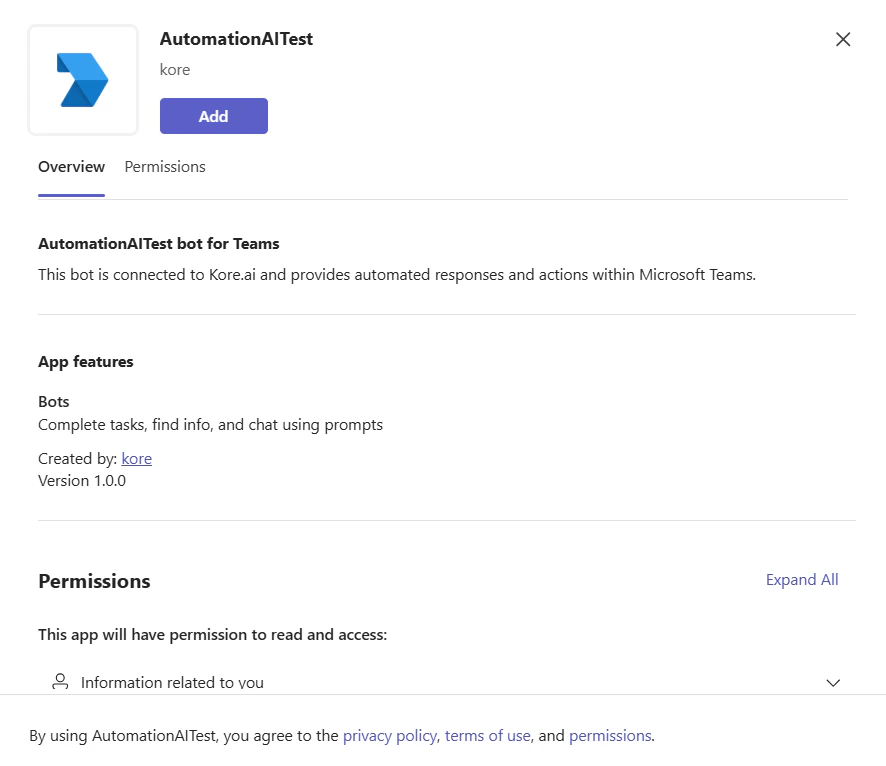
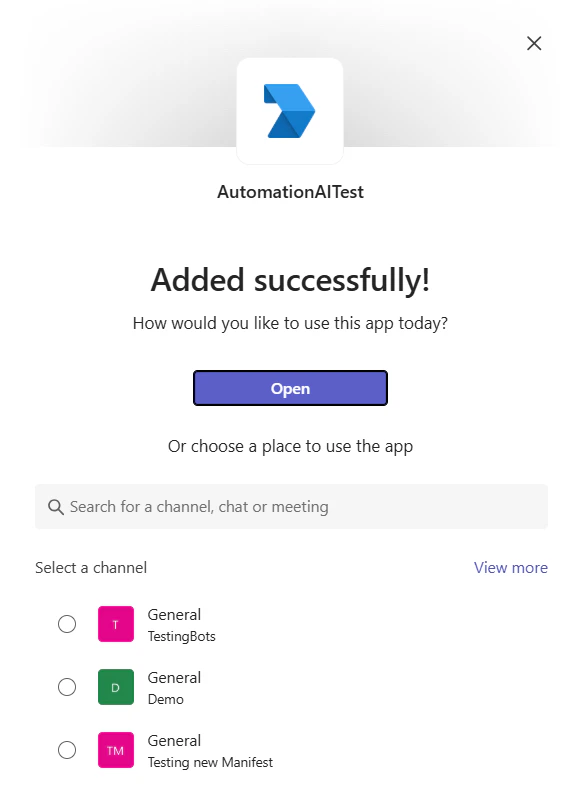
Click Add to install the app/agent. Open the app within Teams (or Copilot) and verify that all bot interactions and features are working as expected.
3. **Add and Test the App**.
Click Add to install the app/agent. Open the app within Teams (or Copilot) and verify that all bot interactions and features are working as expected.
 ## MS Teams Chat Features
### Ability to Update or Delete Delivered Bot Messages
Developers now can update or delete bot messages in Microsoft Teams even after they have been delivered to users. This feature provides greater flexibility and control, allowing developers to disable or remove template messages after a user has taken action on them.
New Channel Metadata Object: `channelActionMetadata`
The platform has introduced a new metadata object called `channelActionMetadata`, which captures the necessary metadata for bot messages on the MS Teams channel. This metadata is essential for performing update or deletion actions on the messages.
Captured Meta Fields in `channelActionMetadata`:
* MsTeams ActivityID
* MsTeams ConversationID
* KoreMessageID
The above fields are captured exclusively for bot messages. These values are refreshed with each new bot message, and it's the developer’s responsibility to capture and manage the metadata for any bot messages that need to be updated or deleted.
Why Only the Latest Bot Message Metadata is Tracked
To prevent an increase in the size of the context object, only the metadata for the most recent bot message is retained. This approach ensures efficiency, even in sessions with a large number of exchanged messages.
#### Channel Utility Function
Platform has introduced two new channel utility functions: one for retrieving metadata from the channelActionMetadata object and another for updating or deleting delivered bot messages. Currently, these functions are supported for the MS Teams channel and will be extended to other third-party channels as needed.
**channelUtil.getActionMetadata()**
This function allows you to retrieve the metadata stored in the channelActionMetadata object.
Example Script: Fetching and Saving Metadata for Future Actions
```
let channelActionMetadata = channelUtil.getActionMetadata();
if(channelActionMetadata){
let actionMetadata = {
activityId : channelActionMetadata.activityId,
conversationId : channelActionMetadata.conversationId,
koreMessageId : channelActionMetadata.koreMessageId
}
}
```
**channelUtil.executeAction()**
This function enables you to execute actions on bot messages that have been delivered in the MS Teams channel. With this function, developers can update or delete messages that have already been sent to the MS Teams channel.
Example Script: Updating the bot message
```
let channelActionMetadata = channelUtil.getActionMetadata();
if(channelActionMetadata){
let actionMetadata = {
activityId : channelActionMetadata.activityId,
conversationId : channelActionMetadata.conversationId,
koreMessageId : channelActionMetadata.koreMessageId,
message : "Showing update message"
}
channelUtil.executeAction("update_message", actionMetadata);
}
```
Example Script: Deleting the bot message
```
let channelActionMetadata = channelUtil.getActionMetadata();
if(channelActionMetadata){
let actionMetadata = {
activityId : channelActionMetadata.activityId,
conversationId : channelActionMetadata.conversationId,
koreMessageId : channelActionMetadata.koreMessageId
}
channelUtil.executeAction("delete_message", actionMetadata);
}
```
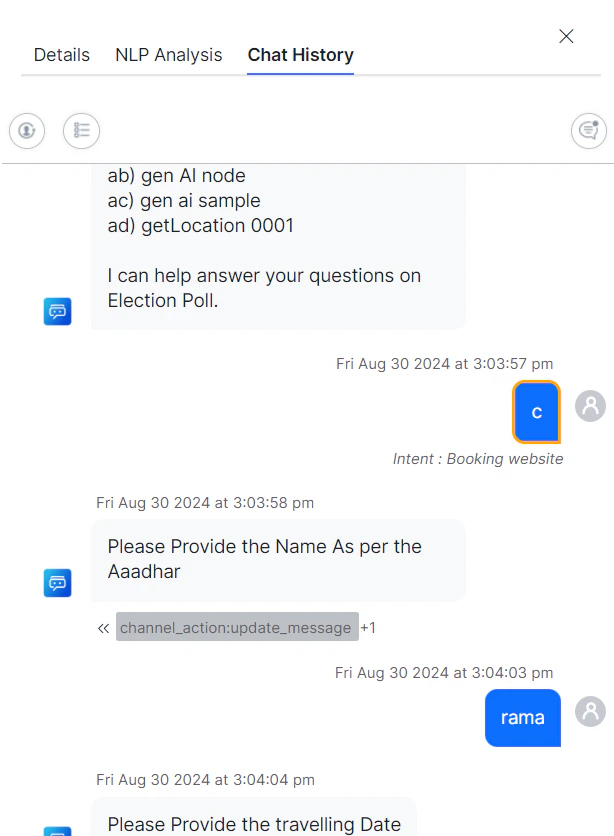
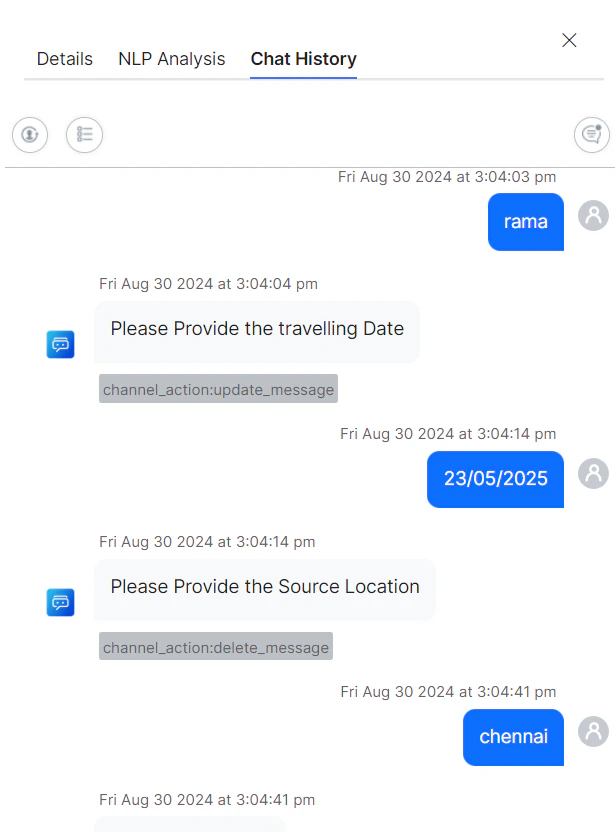
\* When an existing bot message is updated using this function, the platform will automatically update the message in the chat history. \* By default, the platform will emit message tags for any messages that are updated or deleted using this function.
**Tag Values**
* For updated messages: ``:``
channel\_action: update\_message
* For deleted messages: ``:``
channel\_action: delete\_message
## MS Teams Chat Features
### Ability to Update or Delete Delivered Bot Messages
Developers now can update or delete bot messages in Microsoft Teams even after they have been delivered to users. This feature provides greater flexibility and control, allowing developers to disable or remove template messages after a user has taken action on them.
New Channel Metadata Object: `channelActionMetadata`
The platform has introduced a new metadata object called `channelActionMetadata`, which captures the necessary metadata for bot messages on the MS Teams channel. This metadata is essential for performing update or deletion actions on the messages.
Captured Meta Fields in `channelActionMetadata`:
* MsTeams ActivityID
* MsTeams ConversationID
* KoreMessageID
The above fields are captured exclusively for bot messages. These values are refreshed with each new bot message, and it's the developer’s responsibility to capture and manage the metadata for any bot messages that need to be updated or deleted.
Why Only the Latest Bot Message Metadata is Tracked
To prevent an increase in the size of the context object, only the metadata for the most recent bot message is retained. This approach ensures efficiency, even in sessions with a large number of exchanged messages.
#### Channel Utility Function
Platform has introduced two new channel utility functions: one for retrieving metadata from the channelActionMetadata object and another for updating or deleting delivered bot messages. Currently, these functions are supported for the MS Teams channel and will be extended to other third-party channels as needed.
**channelUtil.getActionMetadata()**
This function allows you to retrieve the metadata stored in the channelActionMetadata object.
Example Script: Fetching and Saving Metadata for Future Actions
```
let channelActionMetadata = channelUtil.getActionMetadata();
if(channelActionMetadata){
let actionMetadata = {
activityId : channelActionMetadata.activityId,
conversationId : channelActionMetadata.conversationId,
koreMessageId : channelActionMetadata.koreMessageId
}
}
```
**channelUtil.executeAction()**
This function enables you to execute actions on bot messages that have been delivered in the MS Teams channel. With this function, developers can update or delete messages that have already been sent to the MS Teams channel.
Example Script: Updating the bot message
```
let channelActionMetadata = channelUtil.getActionMetadata();
if(channelActionMetadata){
let actionMetadata = {
activityId : channelActionMetadata.activityId,
conversationId : channelActionMetadata.conversationId,
koreMessageId : channelActionMetadata.koreMessageId,
message : "Showing update message"
}
channelUtil.executeAction("update_message", actionMetadata);
}
```
Example Script: Deleting the bot message
```
let channelActionMetadata = channelUtil.getActionMetadata();
if(channelActionMetadata){
let actionMetadata = {
activityId : channelActionMetadata.activityId,
conversationId : channelActionMetadata.conversationId,
koreMessageId : channelActionMetadata.koreMessageId
}
channelUtil.executeAction("delete_message", actionMetadata);
}
```
\* When an existing bot message is updated using this function, the platform will automatically update the message in the chat history. \* By default, the platform will emit message tags for any messages that are updated or deleted using this function.
**Tag Values**
* For updated messages: ``:``
channel\_action: update\_message
* For deleted messages: ``:``
channel\_action: delete\_message
 ### Typing Indicator
The platform supports typing indicators in Microsoft Teams, providing end users with real-time visual feedback when an AI agent or human agent is composing a response. This enhancement keeps users informed during interactions and creates a more natural and responsive conversation experience.
### Proactive Welcome Message for MS Teams Validation
The Microsoft Teams Channel Adapter now automatically sends a welcome message when the app is installed in the personal scope. This ensures compliance with Microsoft Teams Marketplace validation and certification requirements. As a result, the app distribution process is smoother.
### Related Links
After enabling the channel and verifying all the configurations, you can optionally publish the app for the new channel. Learn more about [Publishing your App](/ai-for-service/deployment/publishing-app).
### Response Streaming
Microsoft Teams streams LLM responses in real time, delivering replies word by word rather than waiting for a complete response, reducing perceived latency and creating a faster, more natural conversational experience. Learn more about [Streaming Capabilities](/ai-for-service/generative-ai-tools/streaming-responses).
### Typing Indicator
The platform supports typing indicators in Microsoft Teams, providing end users with real-time visual feedback when an AI agent or human agent is composing a response. This enhancement keeps users informed during interactions and creates a more natural and responsive conversation experience.
### Proactive Welcome Message for MS Teams Validation
The Microsoft Teams Channel Adapter now automatically sends a welcome message when the app is installed in the personal scope. This ensures compliance with Microsoft Teams Marketplace validation and certification requirements. As a result, the app distribution process is smoother.
### Related Links
After enabling the channel and verifying all the configurations, you can optionally publish the app for the new channel. Learn more about [Publishing your App](/ai-for-service/deployment/publishing-app).
### Response Streaming
Microsoft Teams streams LLM responses in real time, delivering replies word by word rather than waiting for a complete response, reducing perceived latency and creating a faster, more natural conversational experience. Learn more about [Streaming Capabilities](/ai-for-service/generative-ai-tools/streaming-responses).