> ## Documentation Index
> Fetch the complete documentation index at: https://koreai.mintlify.site/llms.txt
> Use this file to discover all available pages before exploring further.
# Adding the Naver Works Channel
[Back to Available Channels](/ai-for-service/channels/adding-channels-to-your-bot#available-channels)
**Naver Works** is the business messaging channel for Naver Corporation, a prominent internet services company in South Korea. The channel can be used by anyone with a screen similar to Naver/LINE service. It allows communication with users on the **LINE** service and the Naver Works users from other companies.
The steps to configure Naver Works are summarized below:
* [Create an AI Agent on the Naver Works Developer Portal](#step-1-create-an-ai-agent-on-naver-works).
* [Add a Client Application on the portal](#step-2-add-a-client-app).
* [Authorize the AI Agent](#step-3-authorize-the-ai-agent).
* [Add the AI Agent](#step-4-add-the-ai-agent-on-the-line-works-admin-console) on the [Line Works Admin Console](https://account.line.biz/login?redirectUri=https%3A%2F%2Fdevelopers.line.biz%2Fconsole%2F).
* [Enable the channel on the Platform](#step-5-enable-the-channel).
### Step 1: Create an AI Agent on Naver Works
To set up Naver Works as a channel, you must create an AI Agent on Line works and enable a callback for the Platform to exchange messages. To create an AI Agent, follow the steps below:
1. Log in to [Line Works Developer Console](https://developers.worksmobile.com/) and click the **Bot** left menu item.
2. Click the **Register** button.  3. Enter all the mandatory fields.
4. Select **API 2.0** for **API Interface**.
3. Enter all the mandatory fields.
4. Select **API 2.0** for **API Interface**.  5. Click **Save**.
Please add the registered AI Agent in the **Admin** section to conduct thorough testing. After adding the AI Agent, switch to Public to show all members.
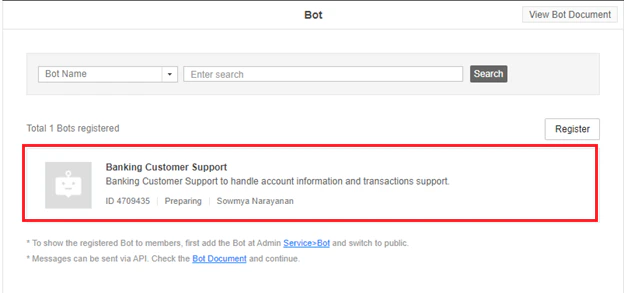
The new AI Agent is listed on the **Bot** page.
5. Click **Save**.
Please add the registered AI Agent in the **Admin** section to conduct thorough testing. After adding the AI Agent, switch to Public to show all members.
The new AI Agent is listed on the **Bot** page.
 ### Step 2: Add a Client App
The next step is to add a client application to integrate with the Platform using the app’s credentials. To add a client app, follow the steps below:
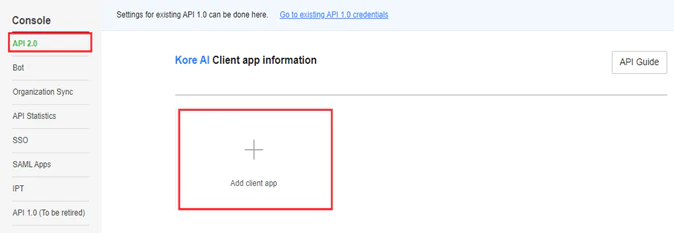
1. Navigate to **API 2.0** on the left menu of the **Line Works Developer Console**.
2. Click the **Add Client App** tab.
### Step 2: Add a Client App
The next step is to add a client application to integrate with the Platform using the app’s credentials. To add a client app, follow the steps below:
1. Navigate to **API 2.0** on the left menu of the **Line Works Developer Console**.
2. Click the **Add Client App** tab.
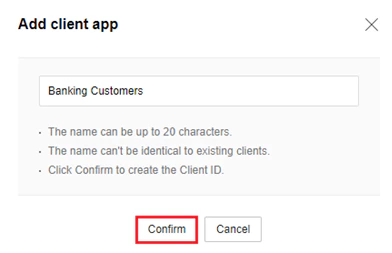
 3. Add the App name and click **Confirm**.
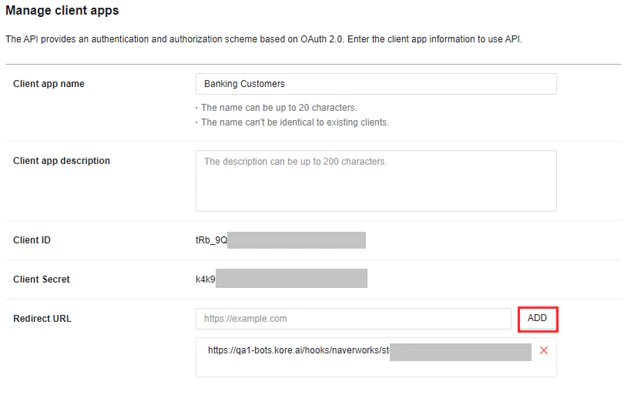
 4. On the **Manage client apps** page, copy the **Client ID** and **Client Secret** values displayed for the client app.
  5. On the Platform, navigate to **Channels & Flows** > **Channels** > **Digital** > **All** > **Naver Works**.
6. Click the **Configurations** tab.
7. Paste these values for the **Client ID** and **Client Secret** fields.
5. On the Platform, navigate to **Channels & Flows** > **Channels** > **Digital** > **All** > **Naver Works**.
6. Click the **Configurations** tab.
7. Paste these values for the **Client ID** and **Client Secret** fields.
 Please ensure to copy and paste the **Bot ID** from the **Line Works Developer Console** > **Bot** page to the Platform **Configurations** section of the **Naver Works** Channel.
  8. Click the **Copy** button for the **Redirect URL** field.
  9. Paste the value on the **Manage Client Apps** page of the Line Works Developer Console, and click **Add**.
 10. Click **Manage** for the **OAuth Scopes** field.
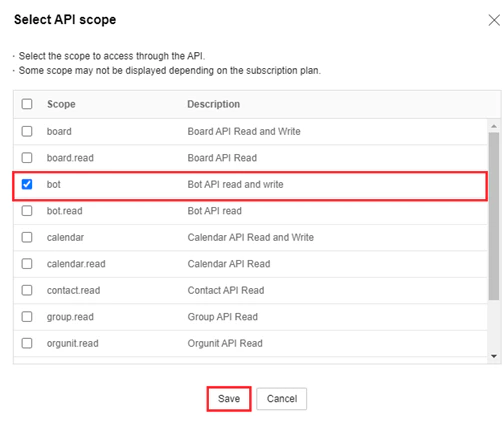
11. Select the Bot API **read to and write** scope to access the app through the API on the **Select API Scope** window, and click **Save**.
10. Click **Manage** for the **OAuth Scopes** field.
11. Select the Bot API **read to and write** scope to access the app through the API on the **Select API Scope** window, and click **Save**.
 12. Click **Save** on the **Manage Client Apps** page.
### Step 3: Authorize the AI Agent
After adding the client app, the next step is to authorize the AI Agent to allow the integration with your Naver Works bot. To authorize, follow the steps below:
1. In the **Configurations** section for Naver Works on the Platform, click the **Authorize** button.
12. Click **Save** on the **Manage Client Apps** page.
### Step 3: Authorize the AI Agent
After adding the client app, the next step is to authorize the AI Agent to allow the integration with your Naver Works bot. To authorize, follow the steps below:
1. In the **Configurations** section for Naver Works on the Platform, click the **Authorize** button.  2. The system redirects to the **Line Works Developer Console** to complete the AI Agent authorization.
### Step 4: Add the AI Agent on the Line Works Admin Console
To add the AI Agent to the Line Works Admin Console, follow the steps below:
1. Navigate to the [Line Works Admin Console](https://admin.worksmobile.com/).
2. Click **Service** on the left menu, and click the **Bot** option.
2. The system redirects to the **Line Works Developer Console** to complete the AI Agent authorization.
### Step 4: Add the AI Agent on the Line Works Admin Console
To add the AI Agent to the Line Works Admin Console, follow the steps below:
1. Navigate to the [Line Works Admin Console](https://admin.worksmobile.com/).
2. Click **Service** on the left menu, and click the **Bot** option.
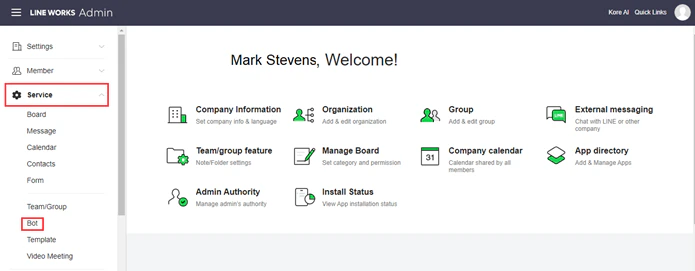 3. In the **Add Bot** window, click the **Add Bot** button, select the required Bot from the list, and click **Add**.
  4. Set **Public** as the Bot visibility to make it searchable for all the users in the Naver Works Messenger with the steps below:
5. Click the required AI Agent on the **Bot** page.
6. In the **Bot Info** window, click **Edit**.
4. Set **Public** as the Bot visibility to make it searchable for all the users in the Naver Works Messenger with the steps below:
5. Click the required AI Agent on the **Bot** page.
6. In the **Bot Info** window, click **Edit**.
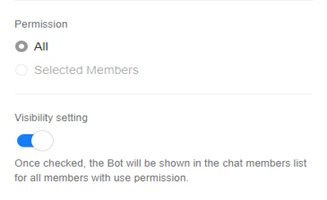
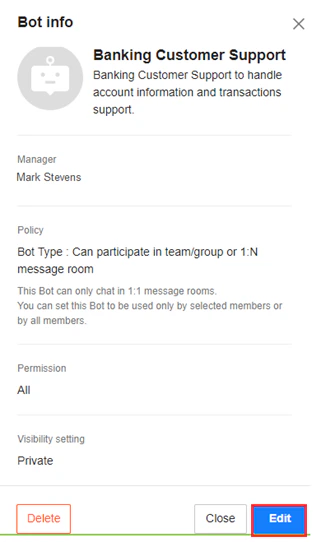 7. Select **All** for **Permission** and enable the **Visibility Setting** option.
 8. Click **Save**.
### Step 5: Enable the Channel
To complete the integration, you must enable the channel on the Platform. To enable Naver Works, follow the steps below:
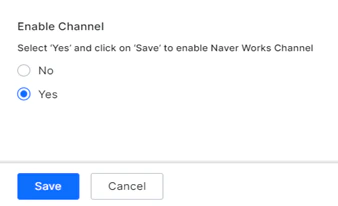
1. In the **Configurations** section of the **Naver Works** channel, select **YES** for **Enable Channel**.
2. Click **Save**.
8. Click **Save**.
### Step 5: Enable the Channel
To complete the integration, you must enable the channel on the Platform. To enable Naver Works, follow the steps below:
1. In the **Configurations** section of the **Naver Works** channel, select **YES** for **Enable Channel**.
2. Click **Save**.