> ## Documentation Index
> Fetch the complete documentation index at: https://koreai.mintlify.site/llms.txt
> Use this file to discover all available pages before exploring further.
# Adding the Telegram Channel
[Back to Available Channels](/ai-for-service/channels/adding-channels-to-your-bot#available-channels)
To add Telegram as a channel to your AI Agent, you must create a bot on the Telegram platform. Adding the Telegram channel to your AI Agent allows end-users to interact with it using their Telegram account. You need a Telegram account to complete this procedure.
To add the Telegram channel, follow the below steps:
## Step 1: Configure a Telegram Bot
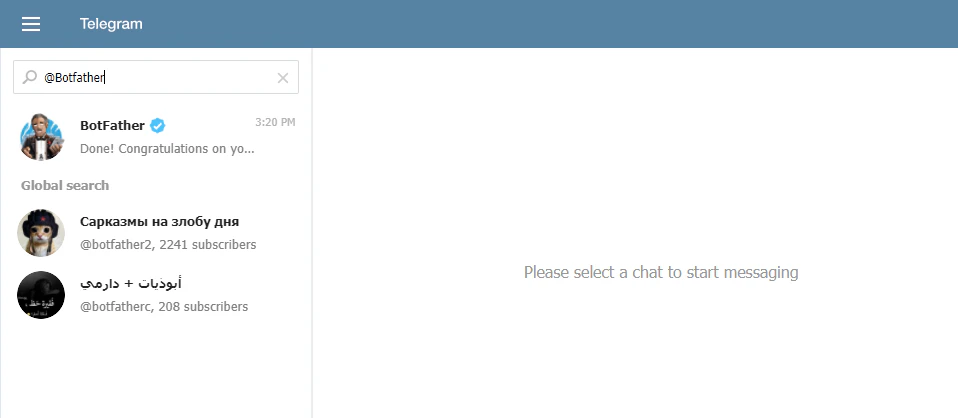
1. Log into **Telegram** and search for **@BotFather** from the Search bar as shown below.
 2. Select **@BotFather** and select **START**.
3. In the chat section, type **/newbot** in the **Message** box and click **Send**.
2. Select **@BotFather** and select **START**.
3. In the chat section, type **/newbot** in the **Message** box and click **Send**.
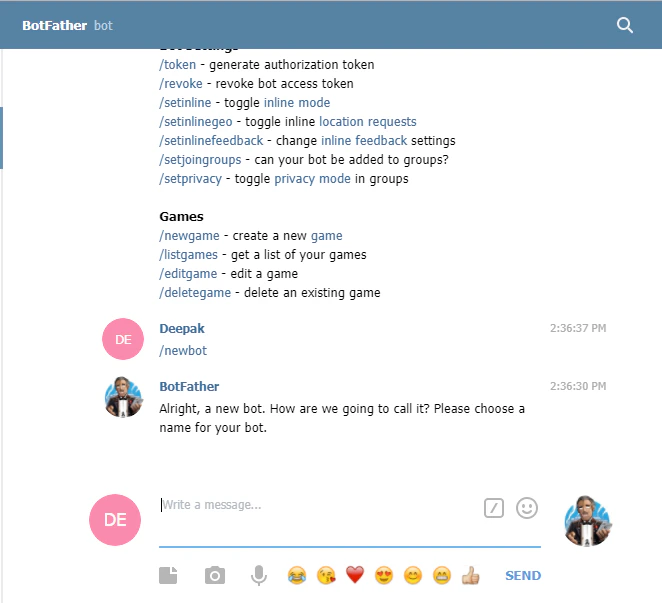 4. On sending the /newbot message, BotFather prompts you to enter a **Name** for the new bot to be created. Preferably, give the same name as that of the AI Agent for which the channel is enabled.
5. After providing the name, BotFather prompts for the **Username** for the new bot to be created. Provide any name that ends with bot. For example, sample bot or SampleBot.
4. On sending the /newbot message, BotFather prompts you to enter a **Name** for the new bot to be created. Preferably, give the same name as that of the AI Agent for which the channel is enabled.
5. After providing the name, BotFather prompts for the **Username** for the new bot to be created. Provide any name that ends with bot. For example, sample bot or SampleBot.
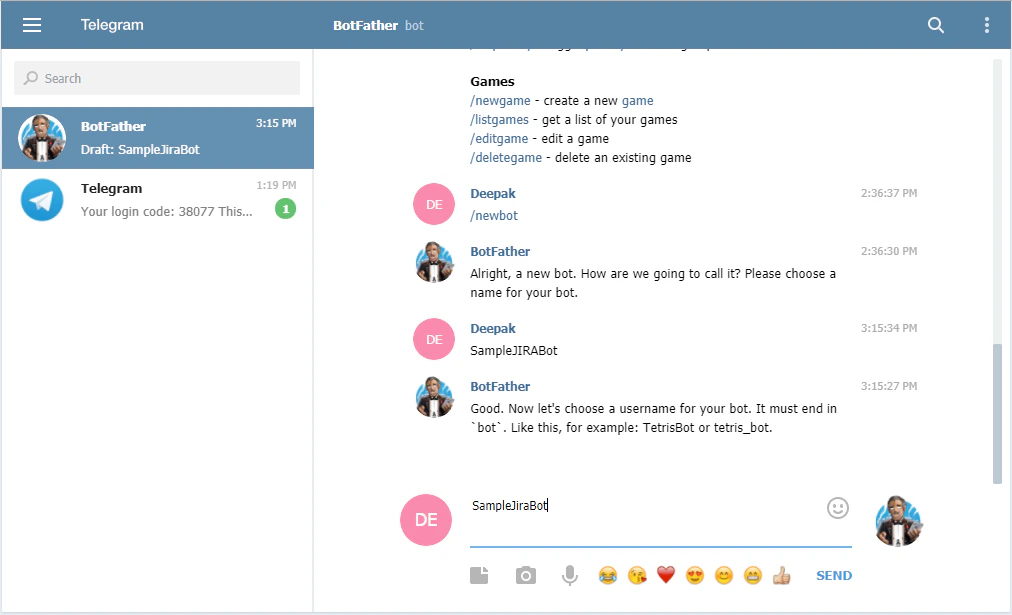 6. After providing the username, BotFather displays a confirmation message and access token. Note the access token to enter in the **Configurations** tab of the Telegram Channel page.
 ## Step 2: Configure the Channel
1. In the Platform, select the assistant that you want to enable the channel for.
2. Go to **Channels & Flows** > **Channels** > **Digital** > **All** > **Telegram**.
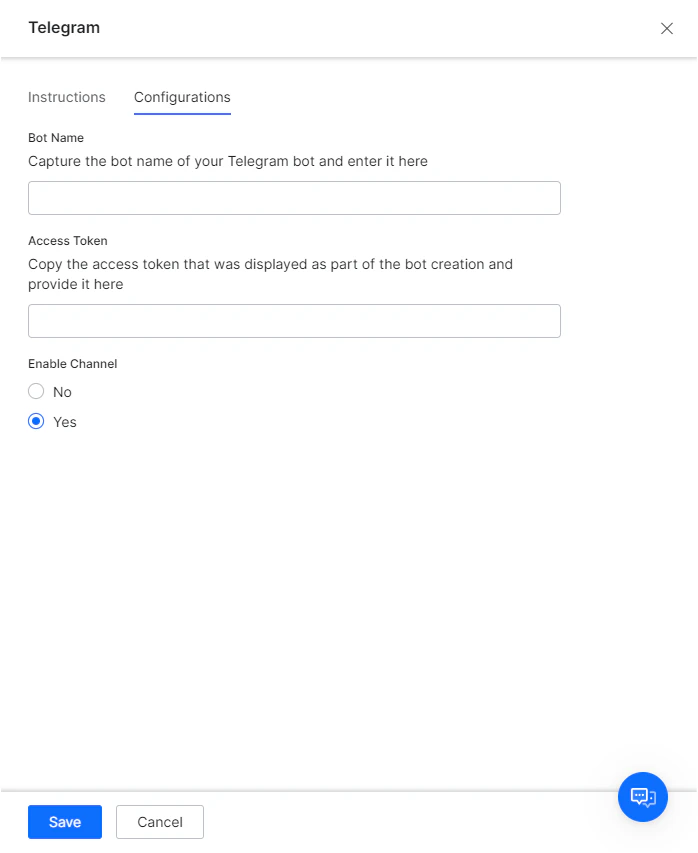
3. Go to the **Configurations** tab of the Telegram Channel page, enter the **Bot Name** of your Telegram bot in the **Bot Name** field.
4. Enter the **Access Token** that was displayed as a part of bot creation.
5. Select **Yes** and then click **Save** to enable the Telegram Channel for your bot.
## Step 2: Configure the Channel
1. In the Platform, select the assistant that you want to enable the channel for.
2. Go to **Channels & Flows** > **Channels** > **Digital** > **All** > **Telegram**.
3. Go to the **Configurations** tab of the Telegram Channel page, enter the **Bot Name** of your Telegram bot in the **Bot Name** field.
4. Enter the **Access Token** that was displayed as a part of bot creation.
5. Select **Yes** and then click **Save** to enable the Telegram Channel for your bot.
 After enabling the channel and verifying all the configurations, you can optionally publish the app for the new channel. Learn more about [Publishing your App](/ai-for-service/deployment/publishing-app).