> ## Documentation Index
> Fetch the complete documentation index at: https://koreai.mintlify.site/llms.txt
> Use this file to discover all available pages before exploring further.
# Third Party Voice Channels
By default, your AI Agent isn't available to users unless you define one or more channels through which it can communicate. You can add voice delivery channels that end-users can use to access and interact with it when deployed.
You can also enable your AI Agent in third-party voice channels such as Amazon Alexa, Twilio Voice, IVR-AudioCodes, and IVR.
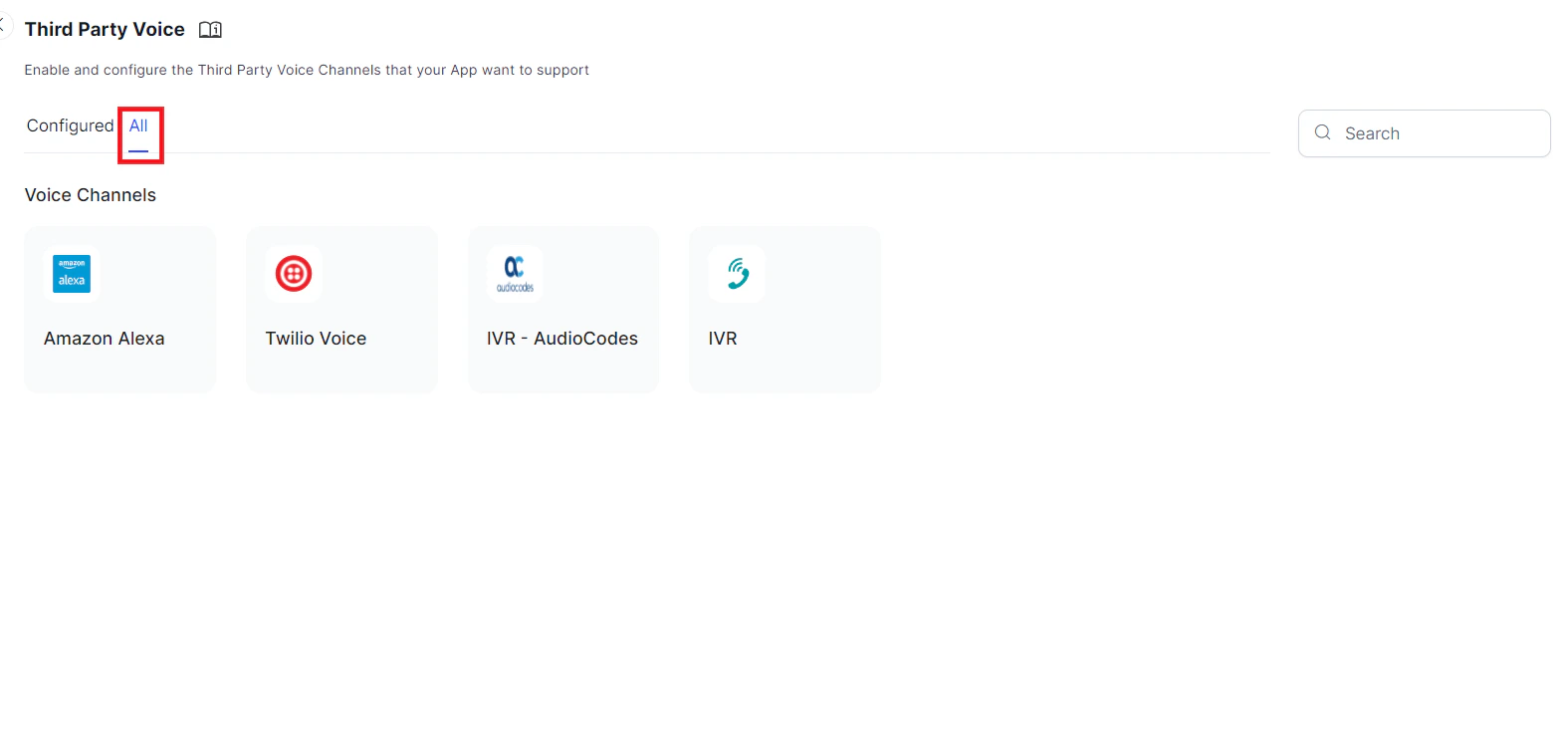
You can add third-party voice channels to your AI Agent from the **Channels & Flows** > **Channels** > **Third Party Voice** > **All** section.
 ## Enable a Channel
To enable one or more channels for your AI Agent, follow the below steps:
1. Open the AI Agent for which you want to add the channels.
2. Go to **Channels & Flows** > **Channels** > **Third Party Voice** > **All**.
3. Click the channel you want to add. This opens the instructions page to install the channel.
4. Click **Next** or the **Configuration** tab to open the configuration page for the channel. The following image shows the configuration page of the Amazon Alexa channel.
## Enable a Channel
To enable one or more channels for your AI Agent, follow the below steps:
1. Open the AI Agent for which you want to add the channels.
2. Go to **Channels & Flows** > **Channels** > **Third Party Voice** > **All**.
3. Click the channel you want to add. This opens the instructions page to install the channel.
4. Click **Next** or the **Configuration** tab to open the configuration page for the channel. The following image shows the configuration page of the Amazon Alexa channel.
 After adding the channel, the AI Agent needs to be published for approval and the App Admin needs to approve the AI Agent (with new channels). The new channel isn't available to users until the Admin explicitly approves that channel for your AI Agent.
5. The configured channel is displayed on the Configured tab of the Third Party Voice page and same channel is removed from the All tab.
## Testing, Disabling or Deleting Channels
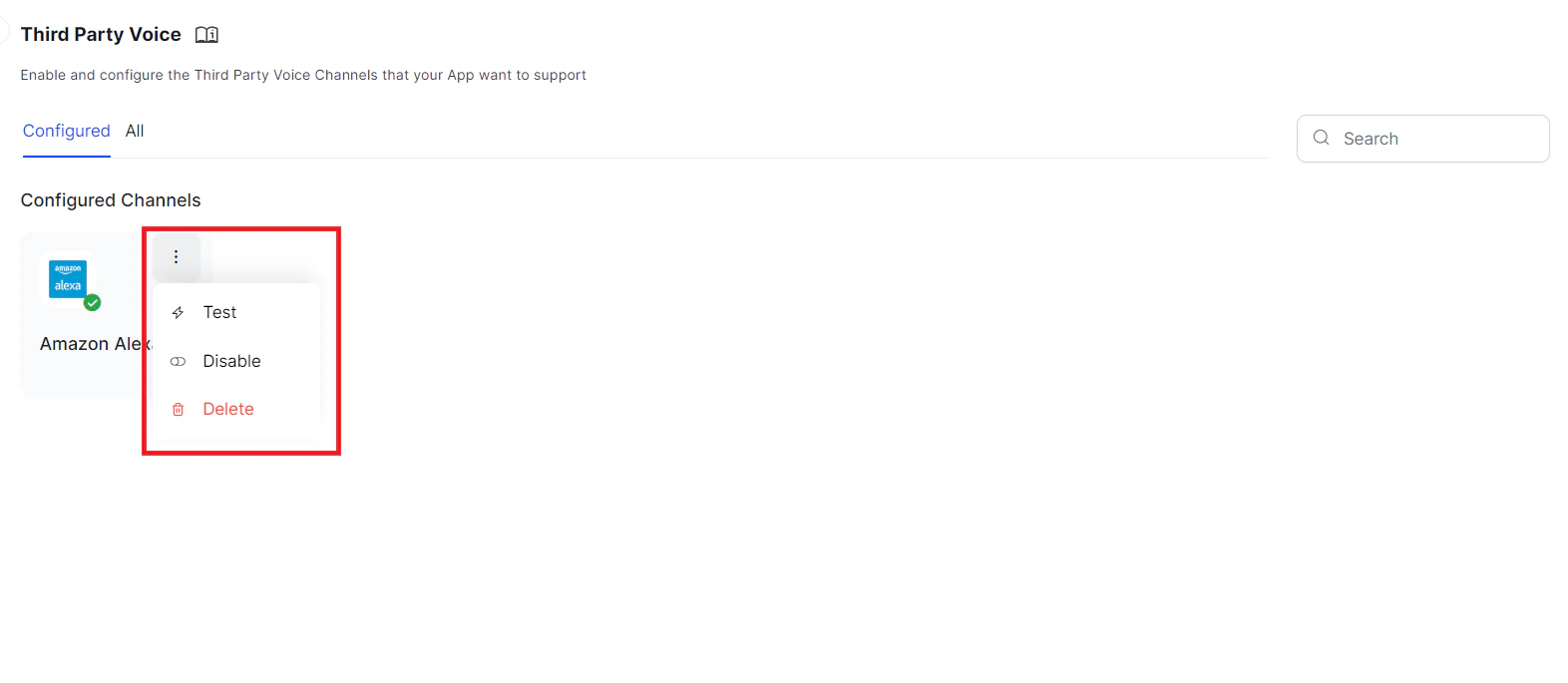
To **test**, **disable or delete the channel**, go to **Channels & Flows** > **Channels** > **Third Party Voice** > **Configured** list, hover over the channel and click more option in the top right corner. Click Test, Disable, or Delete as required and follow the instructions.
Deletion is permanent and can't be undone. You will be asked to confirm your choice, so make sure this is exactly what you want to do.
Please also note that channel edits will only take effect within your live AI Agent after publishing the In Development version of the AI Agent with the channel enabled. For more information, please see Publishing your AI Agent.
After adding the channel, the AI Agent needs to be published for approval and the App Admin needs to approve the AI Agent (with new channels). The new channel isn't available to users until the Admin explicitly approves that channel for your AI Agent.
5. The configured channel is displayed on the Configured tab of the Third Party Voice page and same channel is removed from the All tab.
## Testing, Disabling or Deleting Channels
To **test**, **disable or delete the channel**, go to **Channels & Flows** > **Channels** > **Third Party Voice** > **Configured** list, hover over the channel and click more option in the top right corner. Click Test, Disable, or Delete as required and follow the instructions.
Deletion is permanent and can't be undone. You will be asked to confirm your choice, so make sure this is exactly what you want to do.
Please also note that channel edits will only take effect within your live AI Agent after publishing the In Development version of the AI Agent with the channel enabled. For more information, please see Publishing your AI Agent.
 ## Available Channels
Below is a list of all channels you can connect to via the Platform:
Select the icon of the channel you want to add, and then configure the channel to work with your AI Agent. The page with Instructions and Configuration settings will slide out.
\| [Amazon Alexa](/ai-for-service/channels/amazon-alexa)
[
## Available Channels
Below is a list of all channels you can connect to via the Platform:
Select the icon of the channel you want to add, and then configure the channel to work with your AI Agent. The page with Instructions and Configuration settings will slide out.
\| [Amazon Alexa](/ai-for-service/channels/amazon-alexa)
[ ](/ai-for-service/channels/amazon-alexa) | [IVR-AudioCodes](/ai-for-service/channels/ivr-audio-codes)
[
](/ai-for-service/channels/amazon-alexa) | [IVR-AudioCodes](/ai-for-service/channels/ivr-audio-codes)
[ ](/ai-for-service/channels/ivr-audio-codes) | [IVR](/ai-for-service/channels/ivr-integration)
[
](/ai-for-service/channels/ivr-audio-codes) | [IVR](/ai-for-service/channels/ivr-integration)
[ ](/ai-for-service/channels/ivr-integration) | [Twilio Voice](/ai-for-service/channels/add-twilio-voice-channel)
[
](/ai-for-service/channels/ivr-integration) | [Twilio Voice](/ai-for-service/channels/add-twilio-voice-channel)
[ ](/ai-for-service/channels/add-twilio-voice-channel) |
\|:---:|:---:|:---:|:---:|
](/ai-for-service/channels/add-twilio-voice-channel) |
\|:---:|:---:|:---:|:---:|