> ## Documentation Index
> Fetch the complete documentation index at: https://koreai.mintlify.site/llms.txt
> Use this file to discover all available pages before exploring further.
# Troubleshooting
[Back to Voice Gateway](/ai-for-service/channels/#voice-gateway)
Let's troubleshoot a few common Voice Gateway related issues reported by users.
## App Publish is Failing
When updating settings such as adding, updating, deleting phone numbers, or modifying the Language & Speech section, if the app publishing fails:
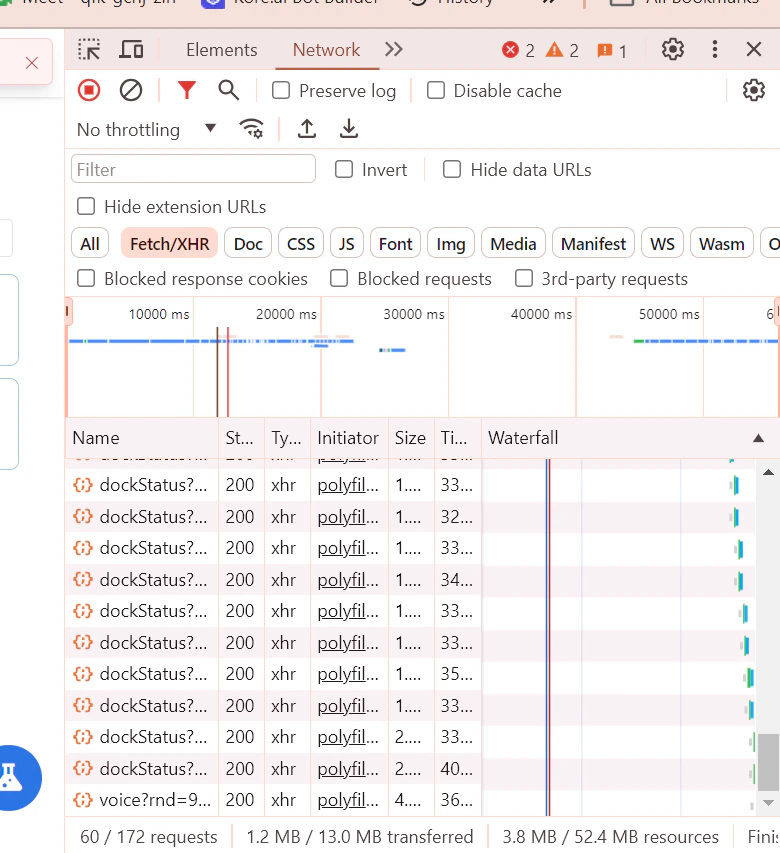
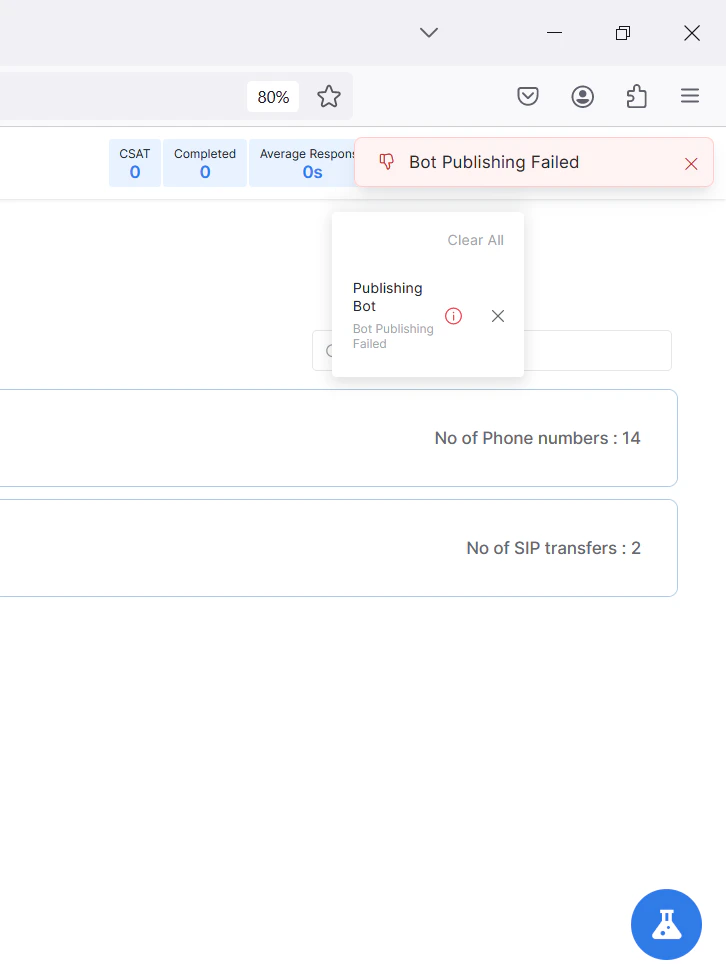 Before the app publishing fails, open the Inspect tab in your browser. In the Network tab, search for the dockstatus API. You can see multiple APIs with the name dockstatus. When the app publishing failure message appears, open the most recent dockstatus API.
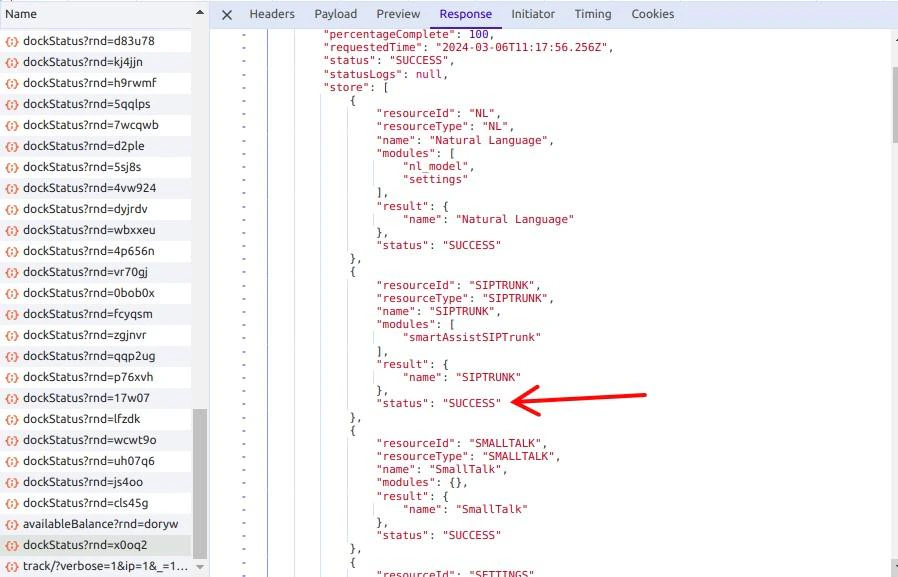
 In the response, search for SIPTRUNK as shown in the figure. If the SIPTRUNK status displays as `"status": "FAILURE"`, you can report the issue to the Support team.
 ## Agent Transfer isn't Working
If a request isn't assigned to an available agent and the app is responding with "No agents are available right now," even though agents are online, follow these steps:
1. **Verify Voice Enablement**: First, ensure the current Administrator or Agent has "**Voice Enabled**" in the User Settings.
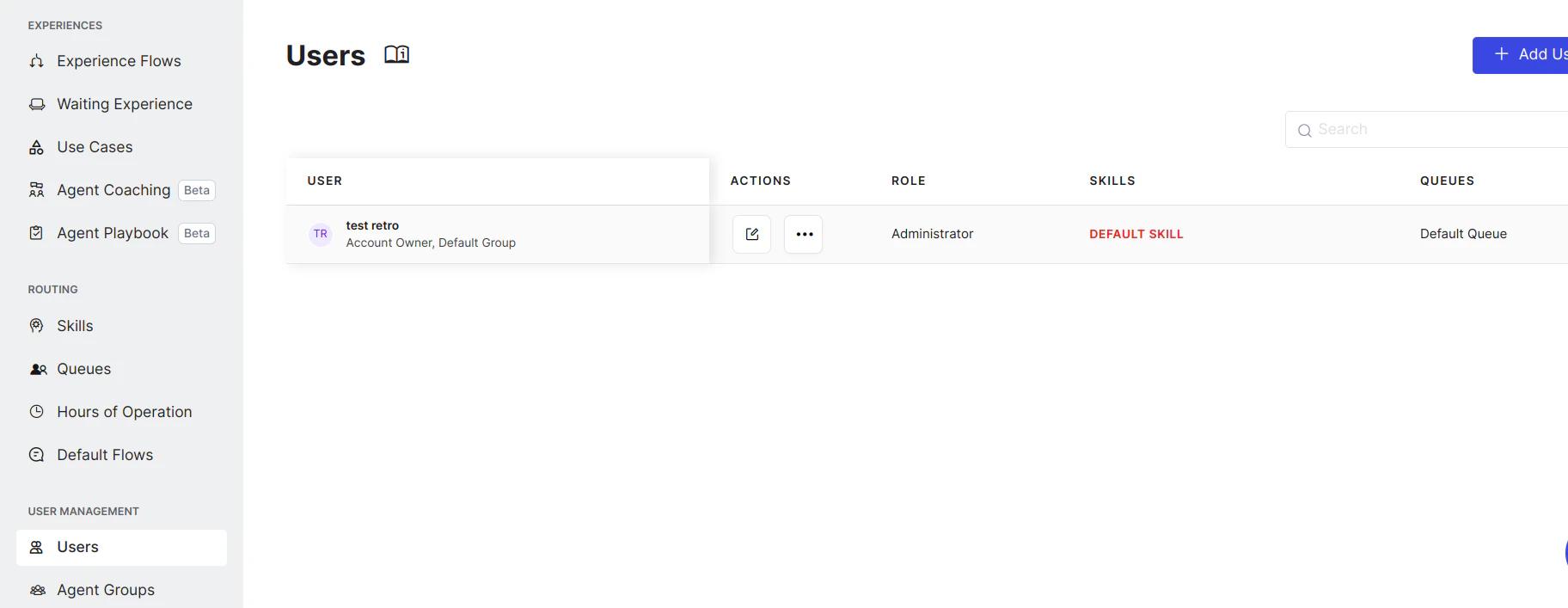
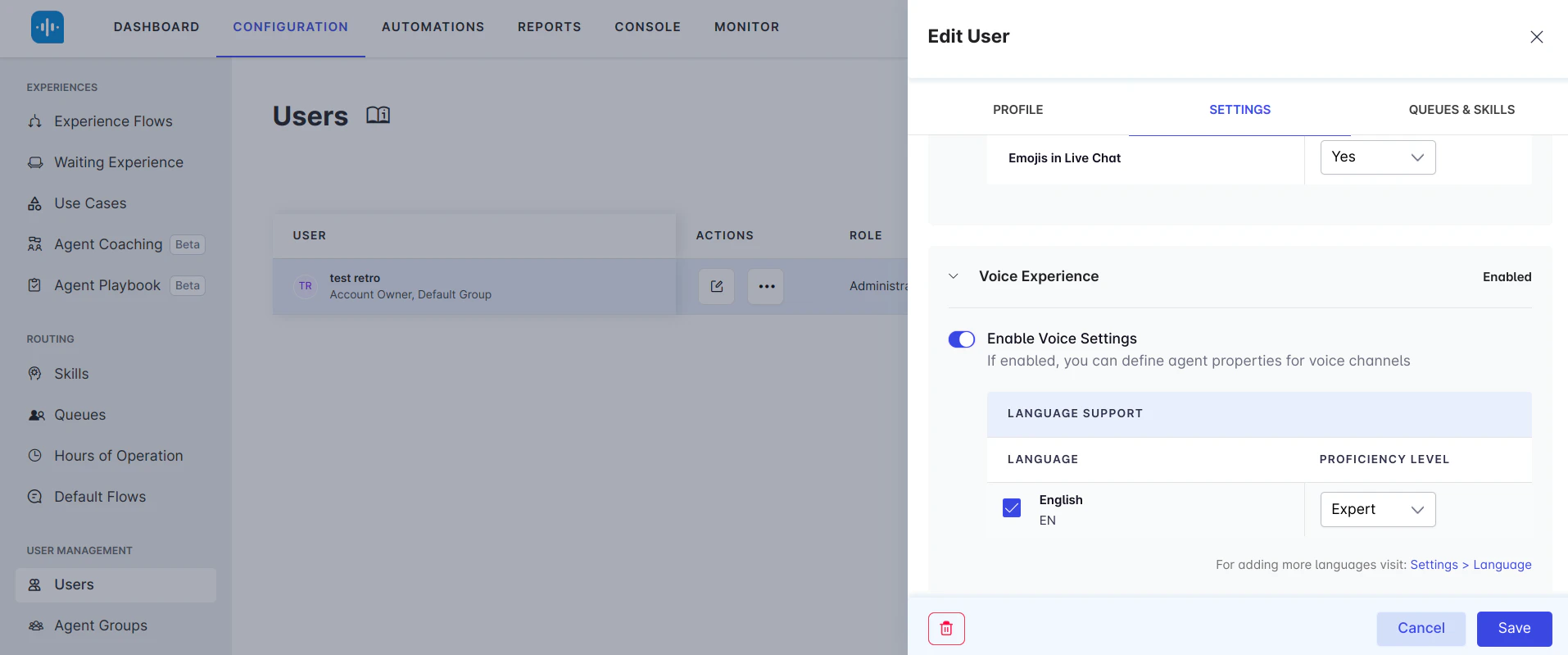
2. **Access User Settings**: Open the **Users** section as shown in the image, then navigate to the settings of the logged-in user.
## Agent Transfer isn't Working
If a request isn't assigned to an available agent and the app is responding with "No agents are available right now," even though agents are online, follow these steps:
1. **Verify Voice Enablement**: First, ensure the current Administrator or Agent has "**Voice Enabled**" in the User Settings.
2. **Access User Settings**: Open the **Users** section as shown in the image, then navigate to the settings of the logged-in user.
 Check if **Voice Experience** is enabled for the corresponding app language. If it's not enabled, turn on the "Enable Voice Settings" toggle and check the language settings to ensure the user is available for voice support in the selected language.
 In **Outgoing Voice Agent Transfer** settings, ensure the transfer type is set to **SmartAssist** (3rd block). This ensures the request is assigned to the SmartAssist agent desktop.
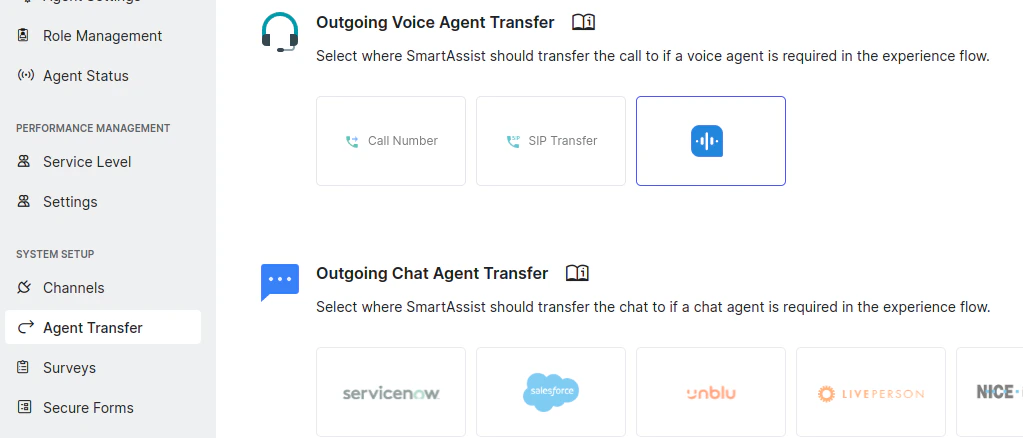 If the transfer type is set to **Call Number** or **SIP Transfer**, the call routes to a third party instead of the SmartAssist agent console.
In case of issues, check the **WebSocket Connection** and **Registration** in the console (Agent Desktop) to ensure everything is properly connected and functioning.
If the transfer type is set to **Call Number** or **SIP Transfer**, the call routes to a third party instead of the SmartAssist agent console.
In case of issues, check the **WebSocket Connection** and **Registration** in the console (Agent Desktop) to ensure everything is properly connected and functioning.
 In the WebSocket (WS), check if the URL `sbc1-korevg-np.kore.ai` (or the environment-specific URL) is used. Verify that both agent and Voice Gateway are connected.
Check if the **REGISTER** request is responding with a **200 OK** status. If the 200 OK response isn't received, it indicates an issue with Voice Gateway. You can report this to the Support team.
## TTS Error During Voice Call
If a `TTS ERROR` appears when making a Voice Call and executing the Start Flow tied to an automation, it indicates that the voice name wasn't properly selected in the configuration.
Even if you select a voice and save the configuration, the system may not register the selection. To resolve this issue, reselect the desired voice and then make a minor edit in the flow description (for example, add or remove a character). This action prompts the system to recognize the change, ensuring that the TTS (Text-to-Speech) functions correctly and the audio plays as expected.
***
In the WebSocket (WS), check if the URL `sbc1-korevg-np.kore.ai` (or the environment-specific URL) is used. Verify that both agent and Voice Gateway are connected.
Check if the **REGISTER** request is responding with a **200 OK** status. If the 200 OK response isn't received, it indicates an issue with Voice Gateway. You can report this to the Support team.
## TTS Error During Voice Call
If a `TTS ERROR` appears when making a Voice Call and executing the Start Flow tied to an automation, it indicates that the voice name wasn't properly selected in the configuration.
Even if you select a voice and save the configuration, the system may not register the selection. To resolve this issue, reselect the desired voice and then make a minor edit in the flow description (for example, add or remove a character). This action prompts the system to recognize the change, ensuring that the TTS (Text-to-Speech) functions correctly and the audio plays as expected.
***