> ## Documentation Index
> Fetch the complete documentation index at: https://koreai.mintlify.site/llms.txt
> Use this file to discover all available pages before exploring further.
# Voice Automation with NICE CXOne - SIP Integration
[Back to Integrations List](/ai-for-service/contact-center/integrations/overview)
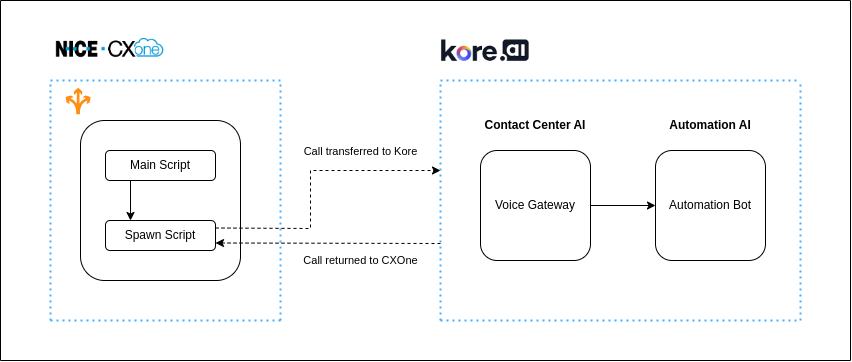
Integrate Kore with NICE CXOne using studio scripting to dispatch SIP headers, transfer calls from the bot, and transition to NICE CXOne after the app flow concludes. This approach doesn't require a VAH (Virtual Agent Hub) license or proxy.
## Architecture
 ***
## Reference Documentation
| Document | Link |
| - | - |
| SIP Headers | [SIP headers](https://help.incontact.com/Content/Studio/Actions/SIPPutHeader/SIPPutHeader.htm) |
| Voicebot Conversation | [Voicebot Conversation](https://help.incontact.com/Content/Studio/Actions/VoiceBot%20Conversation/VoiceBot%20Conversation.htm) |
| Signal API | [Admin API](https://developer.niceincontact.com/API/AdminAPI#/Contacts/Signal%20a%20Contact) |
***
## Shared Responsibilities
| Activity | CXOne Customer | Kore |
| - | - | - |
| NICE SIP Trunk Configuration | NA | NA |
| DID Number Procurement | DID numbers from NICE | — |
| ACD Configuration | Skills creation and mapping, Hours of Operation, Points of Contact, Campaign, Script customization (2) | Minimal functionality voice call scripts (2): Main Script (accept call on DID), Spawn Script (SIP trunk the call to Kore) |
| CXOne Studio Script | Customize Main and Spawn Scripts: add SIP headers, add DID | Share sample scripts: [SIP Main Script](https://raw.githubusercontent.com/Koredotcom/docs-v2/refs/heads/main/ai-for-service/assets/sip-main.xml), [SIP Spawn Script](https://raw.githubusercontent.com/Koredotcom/docs-v2/refs/heads/main/ai-for-service/assets/sip-spawn.xml) |
| Setup Authentication | Configure CXOne Authentication for Signal API access | — |
| Setup Kore IVR | Create an AI for Service account | — |
| SIP Trunk Configuration | Network IPs, DID number, Transport Type: TLS, Inbound forward-to-phone-number | SIP URI (pre-filled) |
| SIP Trunk Attach Flow | Create a flow, attach SIP config to Experience Flow | — |
| AI for Service App Flow | Create an AI Agent flow; read SIP headers from CXOne Studio script | — |
| Signal API to return call | Get CXOne auth in Kore Bot; trigger Signal API (domain must match NICE account domain) | — |
***
## CXOne Channel Specifications
ACD configuration requires:
* 1 skill (created and mapped)
* 1 Hours of Operation
* 1 Point of Contact (Phone)
* 1 Campaign
* 2 minimal functionality voice call scripts
***
## Kore Bot Platform Requirements
### Telephony Gateway
* DID or TFN phone number to receive calls.
* All SIP header information.
* [Signal API](https://developer.niceincontact.com/API/AdminAPI#/Contacts/Signal%20a%20Contact) configuration to return control to NICE CXOne.
### SIP Trunk Configuration
1. [SIP Trunk Setup](/ai-for-service/channels/voice-gateway/configure-voice-gateway#sip-trunk-setup)
2. [Attach Flow](/ai-for-service/channels/voice-gateway/configure-voice-gateway#attach-flow)
***
## CXOne Studio Configuration
1. Download the [SIP Main Script](https://raw.githubusercontent.com/Koredotcom/docs-v2/refs/heads/main/ai-for-service/assets/sip-main.xml) and [SIP Spawn Script](https://raw.githubusercontent.com/Koredotcom/docs-v2/refs/heads/main/ai-for-service/assets/sip-spawn.xml) and save locally.
2. Import the Studio Script:
1. Log in to NICE CXOne Studio.
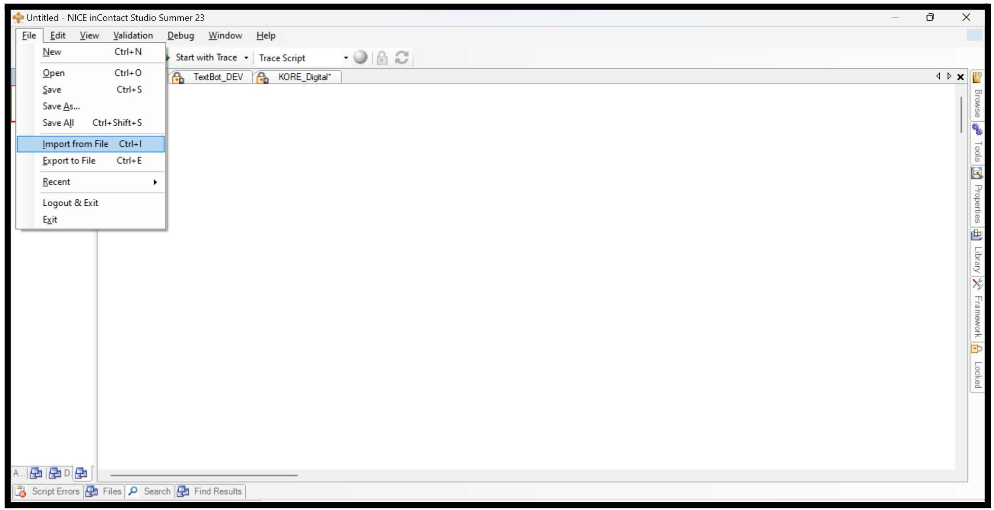
2. Go to **File > Import from File**.
***
## Reference Documentation
| Document | Link |
| - | - |
| SIP Headers | [SIP headers](https://help.incontact.com/Content/Studio/Actions/SIPPutHeader/SIPPutHeader.htm) |
| Voicebot Conversation | [Voicebot Conversation](https://help.incontact.com/Content/Studio/Actions/VoiceBot%20Conversation/VoiceBot%20Conversation.htm) |
| Signal API | [Admin API](https://developer.niceincontact.com/API/AdminAPI#/Contacts/Signal%20a%20Contact) |
***
## Shared Responsibilities
| Activity | CXOne Customer | Kore |
| - | - | - |
| NICE SIP Trunk Configuration | NA | NA |
| DID Number Procurement | DID numbers from NICE | — |
| ACD Configuration | Skills creation and mapping, Hours of Operation, Points of Contact, Campaign, Script customization (2) | Minimal functionality voice call scripts (2): Main Script (accept call on DID), Spawn Script (SIP trunk the call to Kore) |
| CXOne Studio Script | Customize Main and Spawn Scripts: add SIP headers, add DID | Share sample scripts: [SIP Main Script](https://raw.githubusercontent.com/Koredotcom/docs-v2/refs/heads/main/ai-for-service/assets/sip-main.xml), [SIP Spawn Script](https://raw.githubusercontent.com/Koredotcom/docs-v2/refs/heads/main/ai-for-service/assets/sip-spawn.xml) |
| Setup Authentication | Configure CXOne Authentication for Signal API access | — |
| Setup Kore IVR | Create an AI for Service account | — |
| SIP Trunk Configuration | Network IPs, DID number, Transport Type: TLS, Inbound forward-to-phone-number | SIP URI (pre-filled) |
| SIP Trunk Attach Flow | Create a flow, attach SIP config to Experience Flow | — |
| AI for Service App Flow | Create an AI Agent flow; read SIP headers from CXOne Studio script | — |
| Signal API to return call | Get CXOne auth in Kore Bot; trigger Signal API (domain must match NICE account domain) | — |
***
## CXOne Channel Specifications
ACD configuration requires:
* 1 skill (created and mapped)
* 1 Hours of Operation
* 1 Point of Contact (Phone)
* 1 Campaign
* 2 minimal functionality voice call scripts
***
## Kore Bot Platform Requirements
### Telephony Gateway
* DID or TFN phone number to receive calls.
* All SIP header information.
* [Signal API](https://developer.niceincontact.com/API/AdminAPI#/Contacts/Signal%20a%20Contact) configuration to return control to NICE CXOne.
### SIP Trunk Configuration
1. [SIP Trunk Setup](/ai-for-service/channels/voice-gateway/configure-voice-gateway#sip-trunk-setup)
2. [Attach Flow](/ai-for-service/channels/voice-gateway/configure-voice-gateway#attach-flow)
***
## CXOne Studio Configuration
1. Download the [SIP Main Script](https://raw.githubusercontent.com/Koredotcom/docs-v2/refs/heads/main/ai-for-service/assets/sip-main.xml) and [SIP Spawn Script](https://raw.githubusercontent.com/Koredotcom/docs-v2/refs/heads/main/ai-for-service/assets/sip-spawn.xml) and save locally.
2. Import the Studio Script:
1. Log in to NICE CXOne Studio.
2. Go to **File > Import from File**.
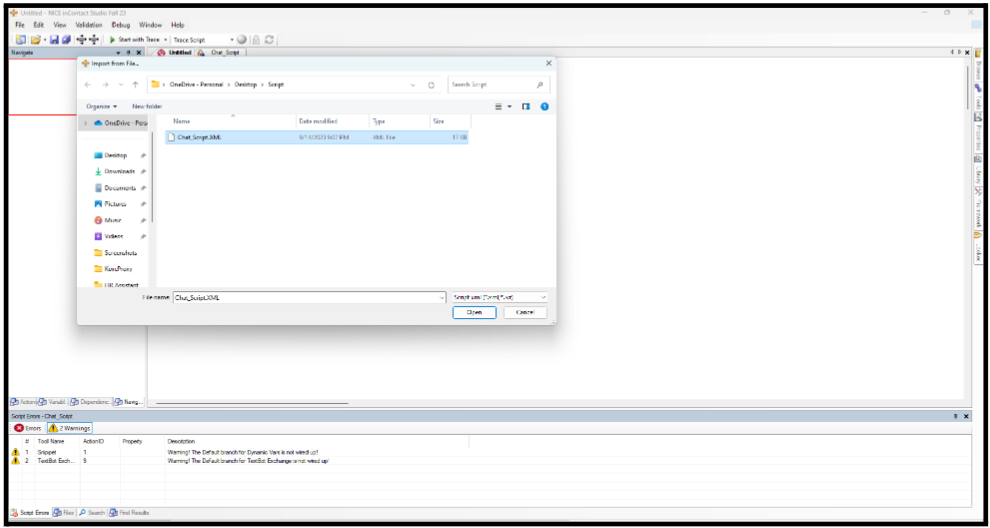
 3. Open the saved studio script.
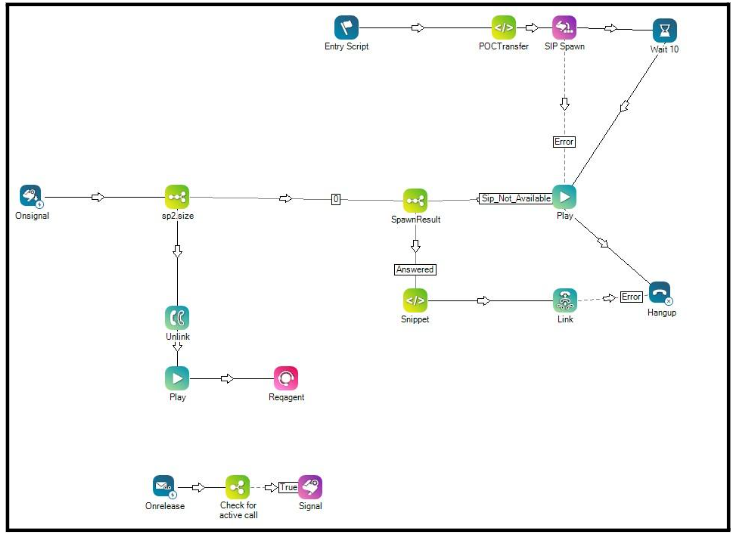
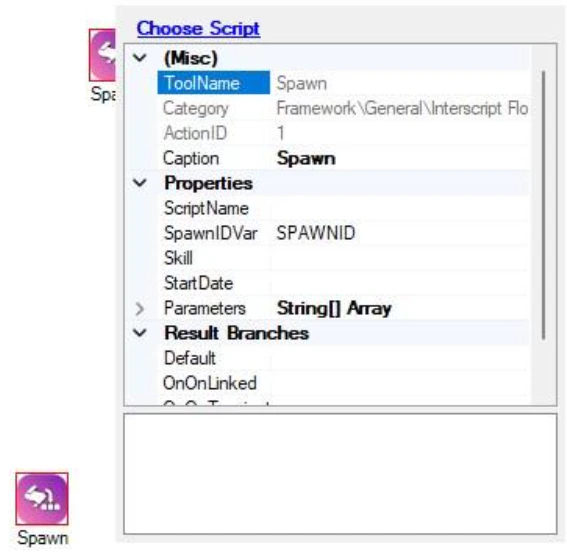
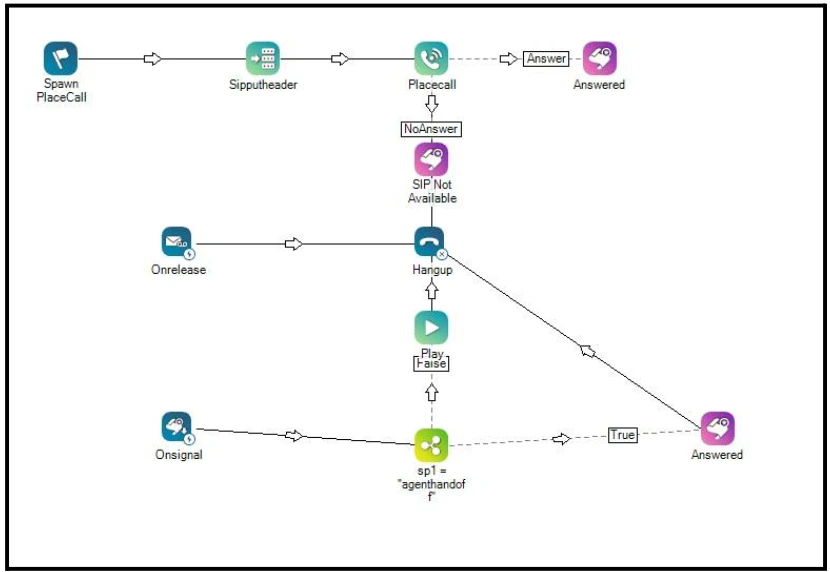 4. In the SIP Main Script, select the **SIP Spawn Script** in the **Spawn** action.
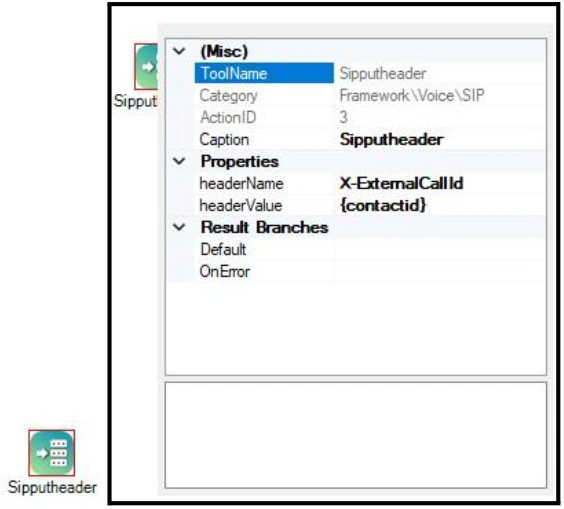
 5. Add SIP headers in the **Sipputheader** actions:
* **headerName**: Key starting with `X-*`
* **headerValue**: The header value
5. Add SIP headers in the **Sipputheader** actions:
* **headerName**: Key starting with `X-*`
* **headerValue**: The header value
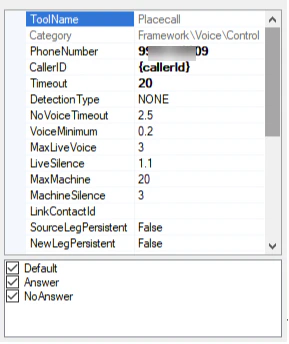
 6. Add the SIP phone number in the **Placecall** action. Enter the SIP DID number configured in the AI for Service SIP Trunk.
 ***
## AI for Service Configuration
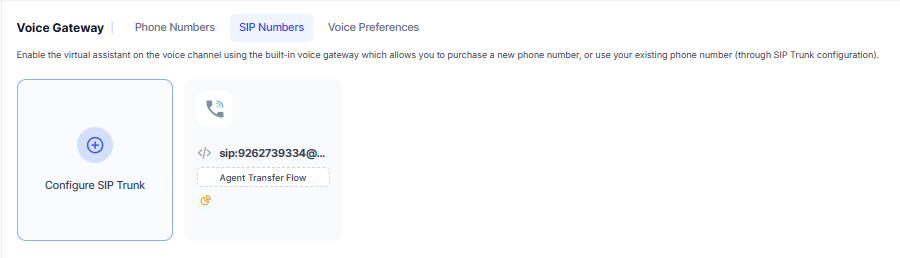
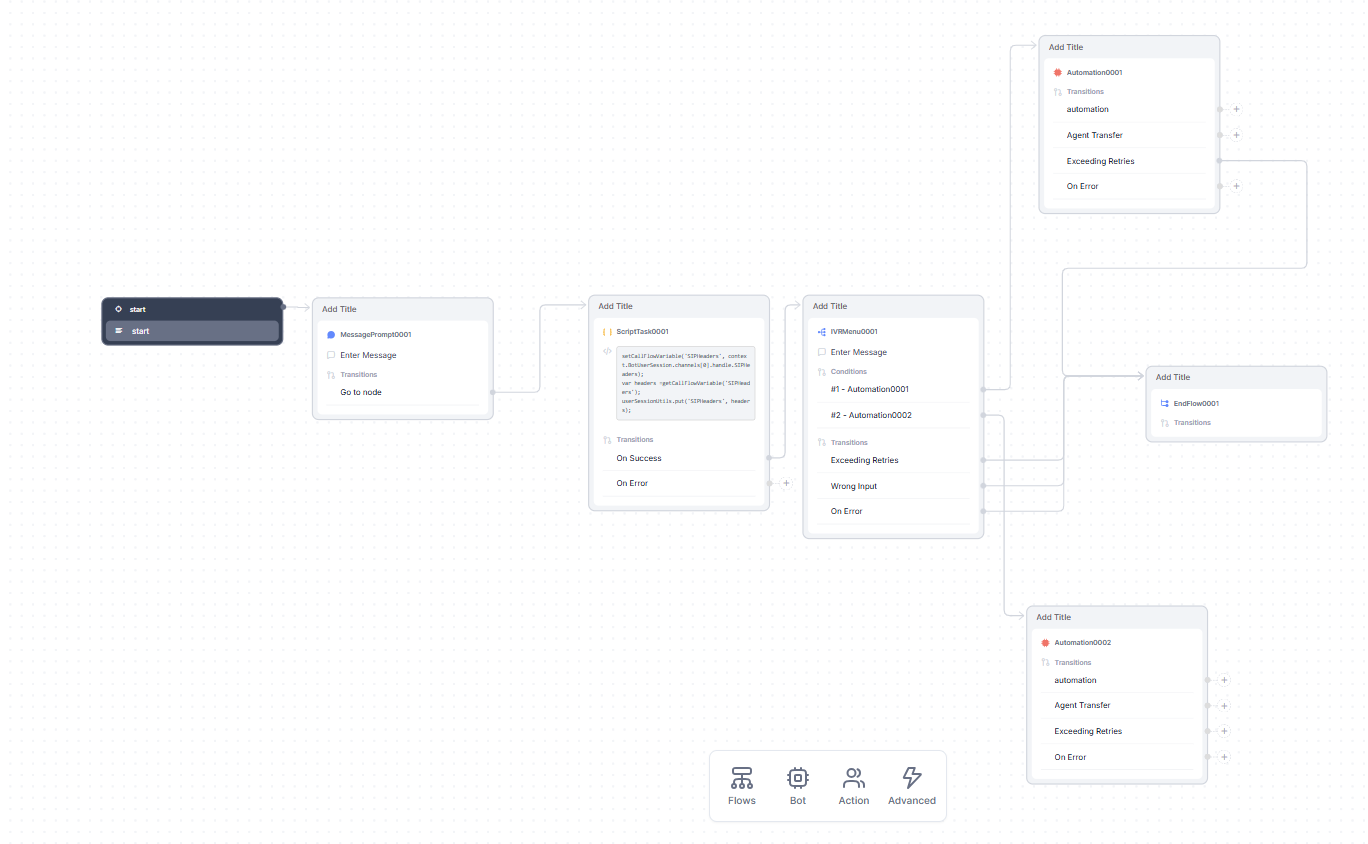
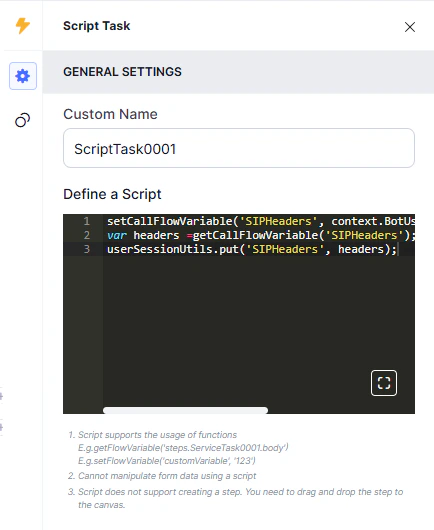
Configure a flow with an app on AI for Service. In the **Script Task** window, add the following code before the **Run Automation** action to pass SIP headers to the AI Agent:
```js theme={null}
setCallFlowVariable('sipHeaders', context.BotUserSession.channels[0].handle.sipHeaders);
var headers = getCallFlowVariable('sipHeaders');
userSessionUtils.put('sipHeaders', headers);
```
***
## AI for Service Configuration
Configure a flow with an app on AI for Service. In the **Script Task** window, add the following code before the **Run Automation** action to pass SIP headers to the AI Agent:
```js theme={null}
setCallFlowVariable('sipHeaders', context.BotUserSession.channels[0].handle.sipHeaders);
var headers = getCallFlowVariable('sipHeaders');
userSessionUtils.put('sipHeaders', headers);
```
 ***
## NICE CXOne Authentication
**Required parameters:**
* Authentication API URL from NICE CXOne
* Access Key ID
* Access Key Secret
**Steps:**
1. Log in to the NICE Cluster.
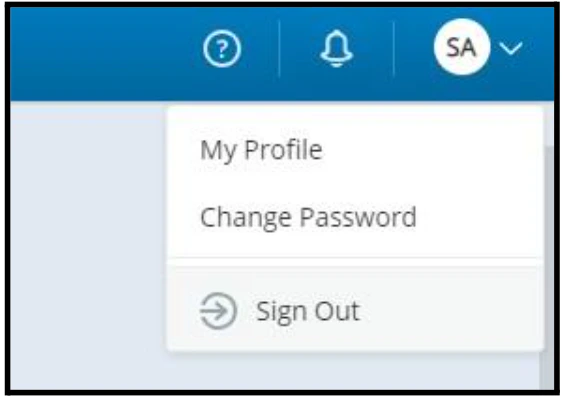
2. Click your profile (top right) and select **My Profile**.
***
## NICE CXOne Authentication
**Required parameters:**
* Authentication API URL from NICE CXOne
* Access Key ID
* Access Key Secret
**Steps:**
1. Log in to the NICE Cluster.
2. Click your profile (top right) and select **My Profile**.
 3. Go to the **ACCESS KEYS** tab and click **Add access key**.
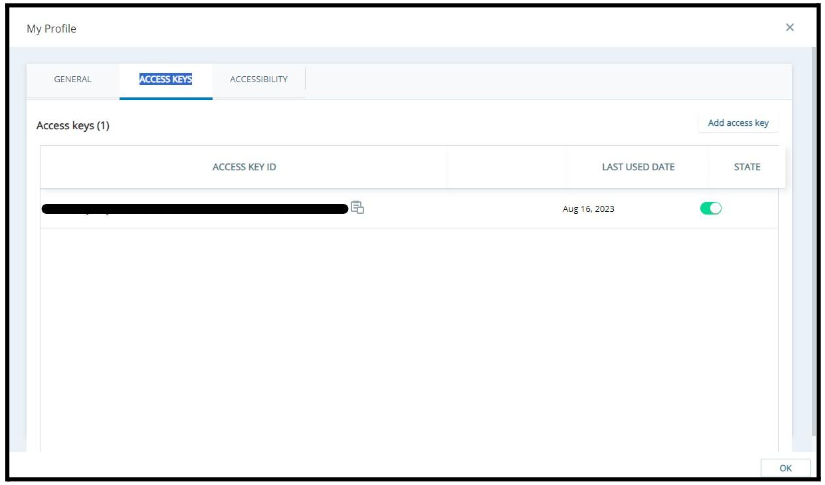 4. Copy the **Access Key ID** and **Access Key Secret**.
5. Send a POST request to the authentication URL (adjust the base URL for your region, for example `na1.nice-incontact.com`):
```
POST https://{region}.nice-incontact.com/authentication/v1/token/access-key
```
Request body:
```json theme={null}
{
"accessKeyId": "",
"accessKeySecret": ""
}
```
6. The response returns an `access_token` used to authenticate the Signal API.
***
## Bot Configuration
Configure a dialog task to transition to NICE CXOne when the customer requests an agent transfer.
### Fetch the NICE Authentication Access Token
1. Add a bot action with a **Service Node** to get the `access_token`.
4. Copy the **Access Key ID** and **Access Key Secret**.
5. Send a POST request to the authentication URL (adjust the base URL for your region, for example `na1.nice-incontact.com`):
```
POST https://{region}.nice-incontact.com/authentication/v1/token/access-key
```
Request body:
```json theme={null}
{
"accessKeyId": "",
"accessKeySecret": ""
}
```
6. The response returns an `access_token` used to authenticate the Signal API.
***
## Bot Configuration
Configure a dialog task to transition to NICE CXOne when the customer requests an agent transfer.
### Fetch the NICE Authentication Access Token
1. Add a bot action with a **Service Node** to get the `access_token`.
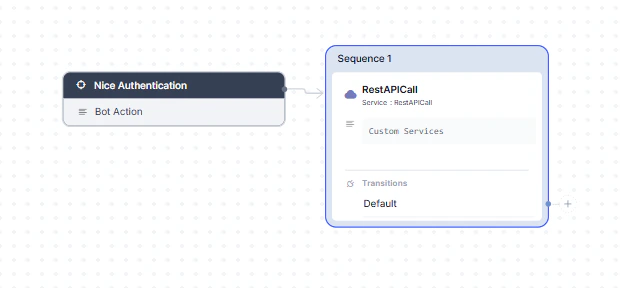 2. Set **Service Type** to **Custom Service** and **Sub Type** to **REST**.
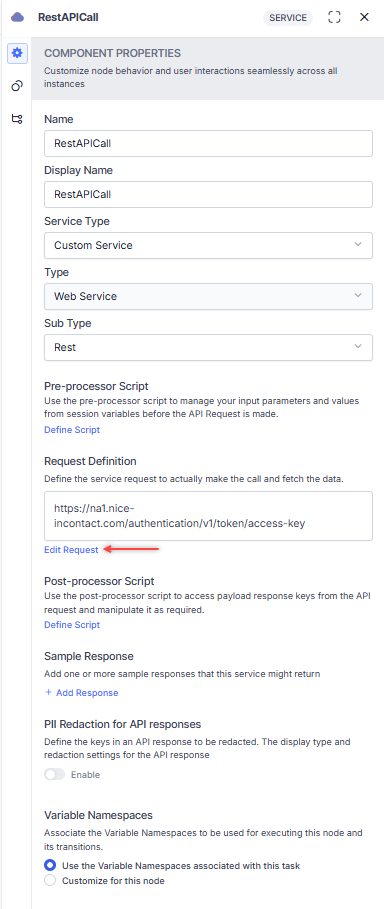 3. Click **Edit Request**, select **POST**, and enter the authentication URL.
 4. On the **Headers** tab, add `Content-Type: application/json`.
 5. On the **Body** tab, add the request body.
 6. Click **Test**, then **Save as Sample Response**.
 ### Fetch SIP Headers in the AI Agent
Use a **Script Node** in a bot action to extract headers:
### Fetch SIP Headers in the AI Agent
Use a **Script Node** in a bot action to extract headers:
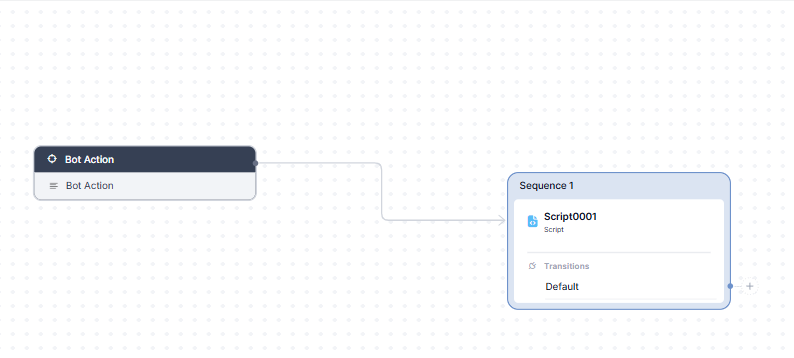
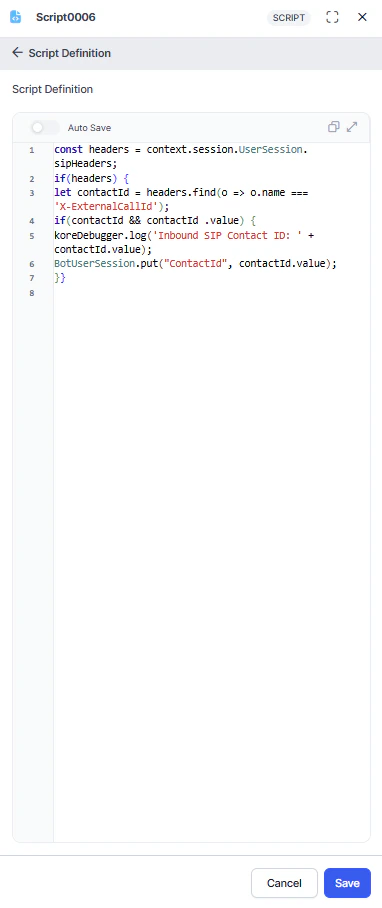 ```js theme={null}
const headers = context.session.UserSession.sipHeaders;
if (headers) {
let contactId = headers.find(o => o.name === 'X-ExternalCallId');
if (contactId && contactId.value) {
koreDebugger.log('Inbound SIP Contact ID: ' + contactId.value);
BotUserSession.put("ContactId", contactId.value);
}
}
```
Save the SIP header value as `ContactId` in `BotUserSession` to use when triggering the Signal API.
If the AI Agent triggers the Signal API to transfer to a live agent or end the conversation, the call must end from Kore, or the user must be disconnected from the Kore AI Agent and CCAI flow.
### Trigger the Signal API
1. Add a bot action with a **Service Node** to trigger the Signal API.
```js theme={null}
const headers = context.session.UserSession.sipHeaders;
if (headers) {
let contactId = headers.find(o => o.name === 'X-ExternalCallId');
if (contactId && contactId.value) {
koreDebugger.log('Inbound SIP Contact ID: ' + contactId.value);
BotUserSession.put("ContactId", contactId.value);
}
}
```
Save the SIP header value as `ContactId` in `BotUserSession` to use when triggering the Signal API.
If the AI Agent triggers the Signal API to transfer to a live agent or end the conversation, the call must end from Kore, or the user must be disconnected from the Kore AI Agent and CCAI flow.
### Trigger the Signal API
1. Add a bot action with a **Service Node** to trigger the Signal API.
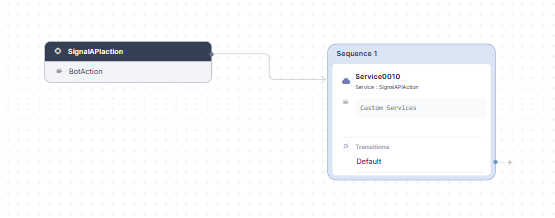 2. Set **Service Type** to **Custom Service** and **Sub Type** to **REST**.
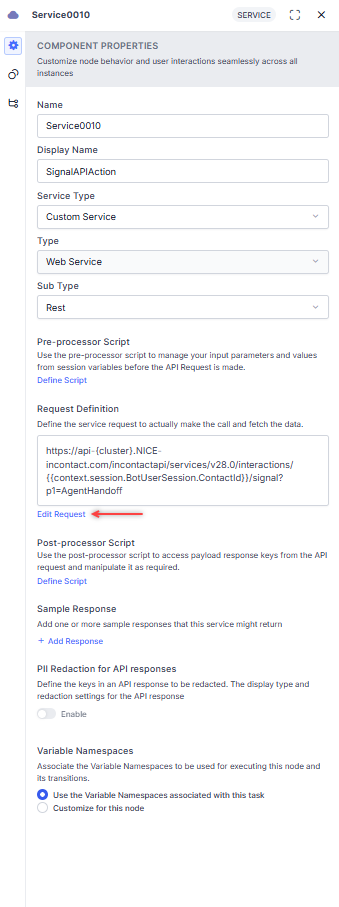 3. Click **Edit Request**, select **POST**, and enter the Signal API URL (replace `{cluster}` with your NICE cluster, for example `api-b32`):
```
POST https://api-{cluster}.nice-incontact.com/incontactapi/services/v28.0/interactions/{{context.session.BotUserSession.ContactId}}/signal?p1=AgentHandoff&p3={{context.session.BotUserSession.conversationSessionId}}
```
`ContactId` is extracted from SIP headers and stored in `BotUserSession`. The `p1=AgentHandoff` parameter triggers the agent transfer.
3. Click **Edit Request**, select **POST**, and enter the Signal API URL (replace `{cluster}` with your NICE cluster, for example `api-b32`):
```
POST https://api-{cluster}.nice-incontact.com/incontactapi/services/v28.0/interactions/{{context.session.BotUserSession.ContactId}}/signal?p1=AgentHandoff&p3={{context.session.BotUserSession.conversationSessionId}}
```
`ContactId` is extracted from SIP headers and stored in `BotUserSession`. The `p1=AgentHandoff` parameter triggers the agent transfer.
 4. On the **Headers** tab, add:
* **Key**: `Authorization`
* **Value**: `Bearer {{context.RestAPICall.response.body.access_token}}`
4. On the **Headers** tab, add:
* **Key**: `Authorization`
* **Value**: `Bearer {{context.RestAPICall.response.body.access_token}}`
 5. Click **Save**.
***
This documentation is built and hosted on [Mintlify](https://mintlify.com), a developer documentation platform.
5. Click **Save**.
***
This documentation is built and hosted on [Mintlify](https://mintlify.com), a developer documentation platform.