> ## Documentation Index
> Fetch the complete documentation index at: https://koreai.mintlify.site/llms.txt
> Use this file to discover all available pages before exploring further.
# Supervisor Tools
Real-time monitoring, agent management, and queue controls for contact center supervisors.
| Feature | Description |
| :------------------------------------------------------------ | :---------------------------------------------------------------------- |
| [Real-Time Monitor](#real-time-monitor) | View live queues, agents, and interactions from the Monitor tab. |
| [Live Conversation Monitoring](#live-conversation-monitoring) | Listen, whisper, and join agent-customer calls. |
| [Queue Actions](#queue-actions) | Assign, move, bulk transfer, or force-close conversations. |
| [Agent Actions](#agent-actions) | Chat with agents, mark offline, force logout, and update settings. |
| [Agent Management](#agent-management) | Configure agent groups, statuses, and global agent settings. |
| [Dispositions](#dispositions) | Create and manage disposition sets and codes for conversation outcomes. |
| [Alerts](#alerts) | Configure and respond to threshold-based notifications. |
| [Reports](#reports) | Access real-time and scheduled historical performance reports. |
***
## Real-Time Monitor
To access the **Monitor** tab, you must be an App Owner, App Developer, App Tester, or Supervisor, or have the **Monitor Console** permission set to Yes. See [Role Management](/ai-for-service/user-management/users-and-role#permissions) for details.
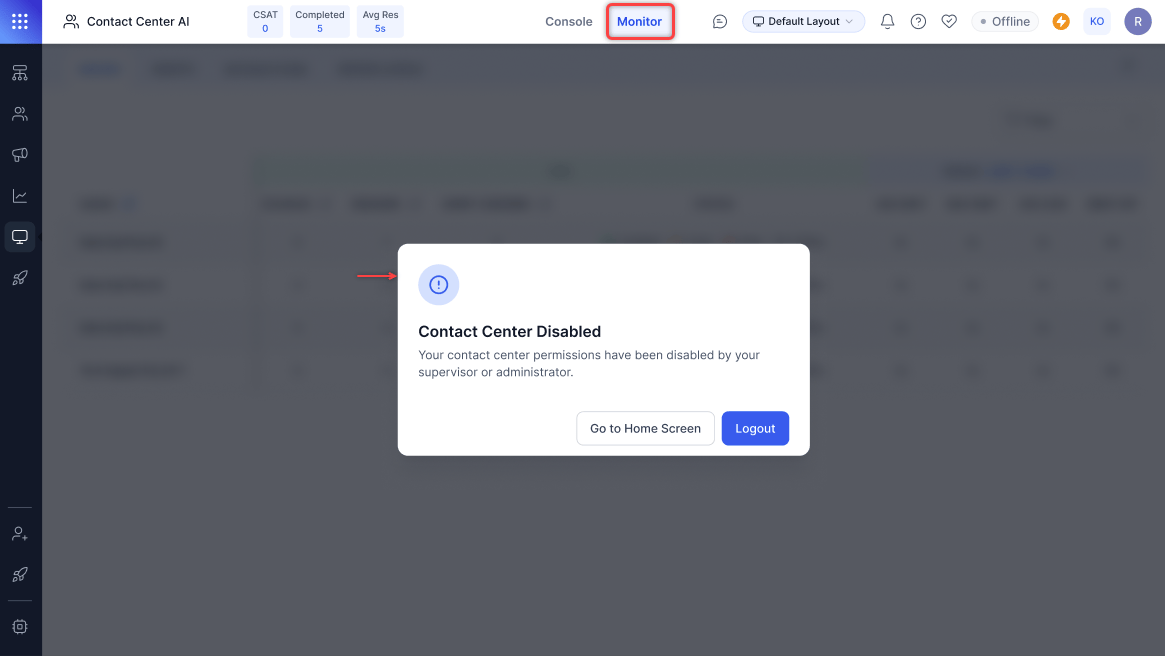 The Monitor tab has four views: **Queues**, **Agents**, **Interactions**, and **Service Levels**. Your access is restricted to queues you are assigned to.
***
### Queues
The Queues view shows all assigned queues with:
* Conversations waiting and engaged
* Agent availability summary
* Average wait time, max wait time, and drop-off rate
**To view a queue:**
1. Select the **Queues** tab.
The Monitor tab has four views: **Queues**, **Agents**, **Interactions**, and **Service Levels**. Your access is restricted to queues you are assigned to.
***
### Queues
The Queues view shows all assigned queues with:
* Conversations waiting and engaged
* Agent availability summary
* Average wait time, max wait time, and drop-off rate
**To view a queue:**
1. Select the **Queues** tab.
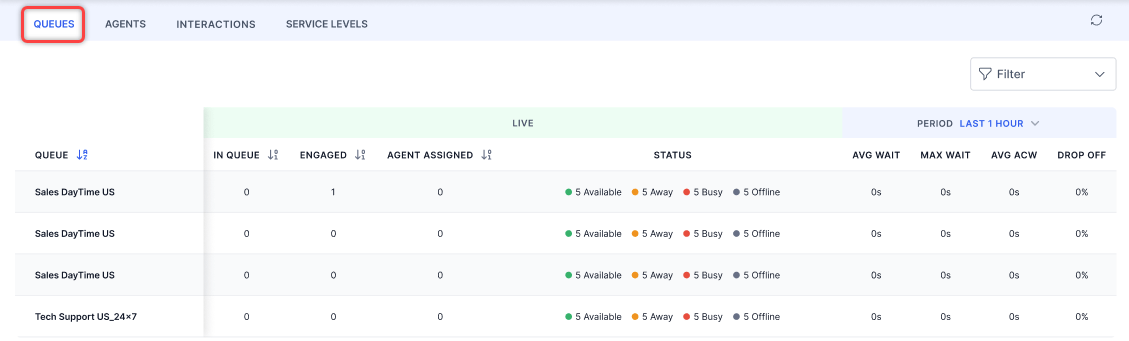 2. Select a queue from the left menu.
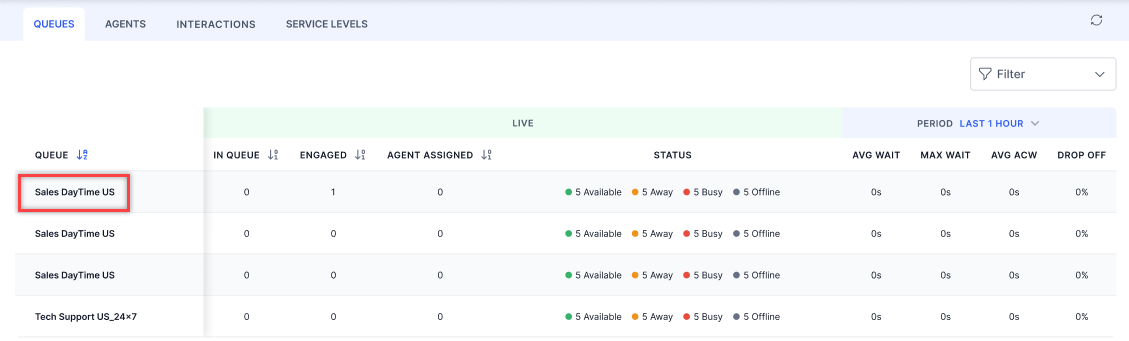 3. Select an agent name to view their conversation details (Chat, Email, and Call).
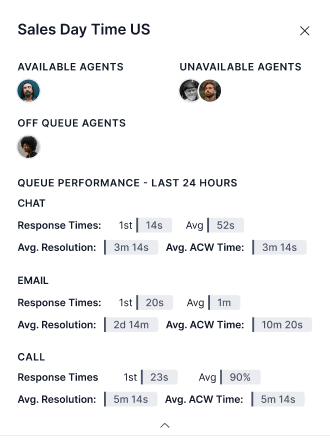 For Chat, Messaging, and Voice: the assigned agent's name appears immediately upon assignment, even before they respond. For Work Bin conversations, the Queues view displays the name of the last agent who handled the interaction before it was moved to Work Bin.
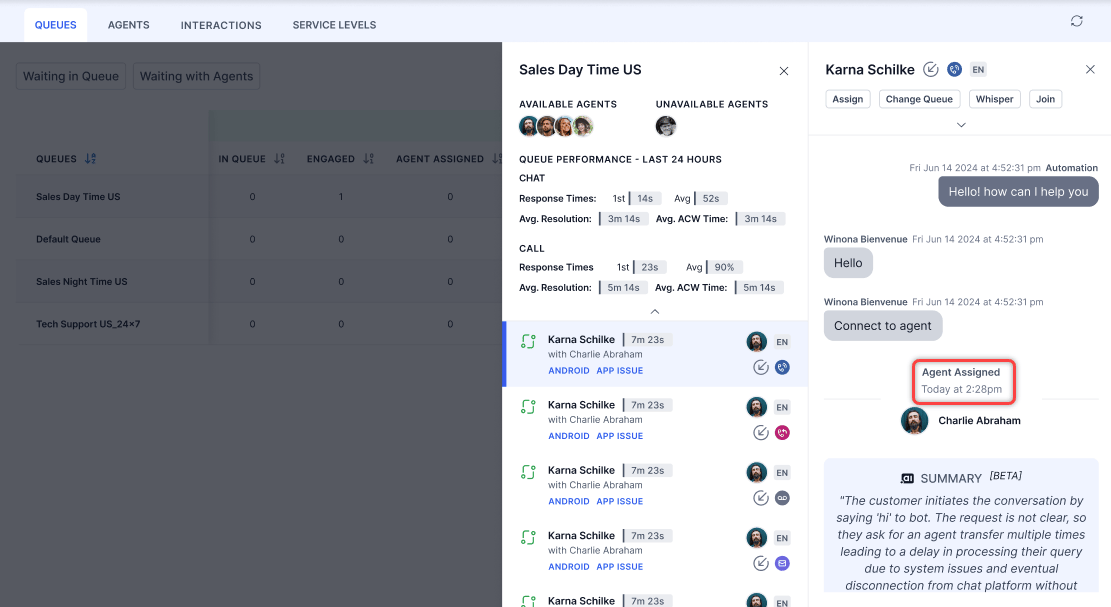 Sort columns using the sort icon. Default sorting is by Queue Name.
Supervisors can switch between conversations when the transcript slider is open. Selecting a different conversation automatically refreshes the slider content, without requiring the slider to be closed and reopened.
#### Filters
**Create a filter:**
1. Select **Filter** and then select **New Filter**.
2. Select **Queues**, **Channels**, **Type**, **State**, and **Languages**. You can also filter by agent groups or search for specific agents.
Sort columns using the sort icon. Default sorting is by Queue Name.
Supervisors can switch between conversations when the transcript slider is open. Selecting a different conversation automatically refreshes the slider content, without requiring the slider to be closed and reopened.
#### Filters
**Create a filter:**
1. Select **Filter** and then select **New Filter**.
2. Select **Queues**, **Channels**, **Type**, **State**, and **Languages**. You can also filter by agent groups or search for specific agents.
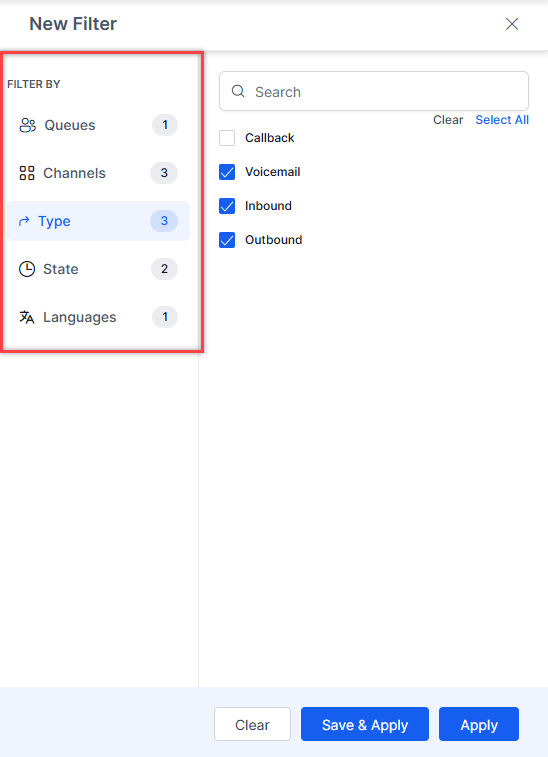 3. Select **Save & Apply**, enter a name (up to 20 characters), and confirm.
**Saved filters:**
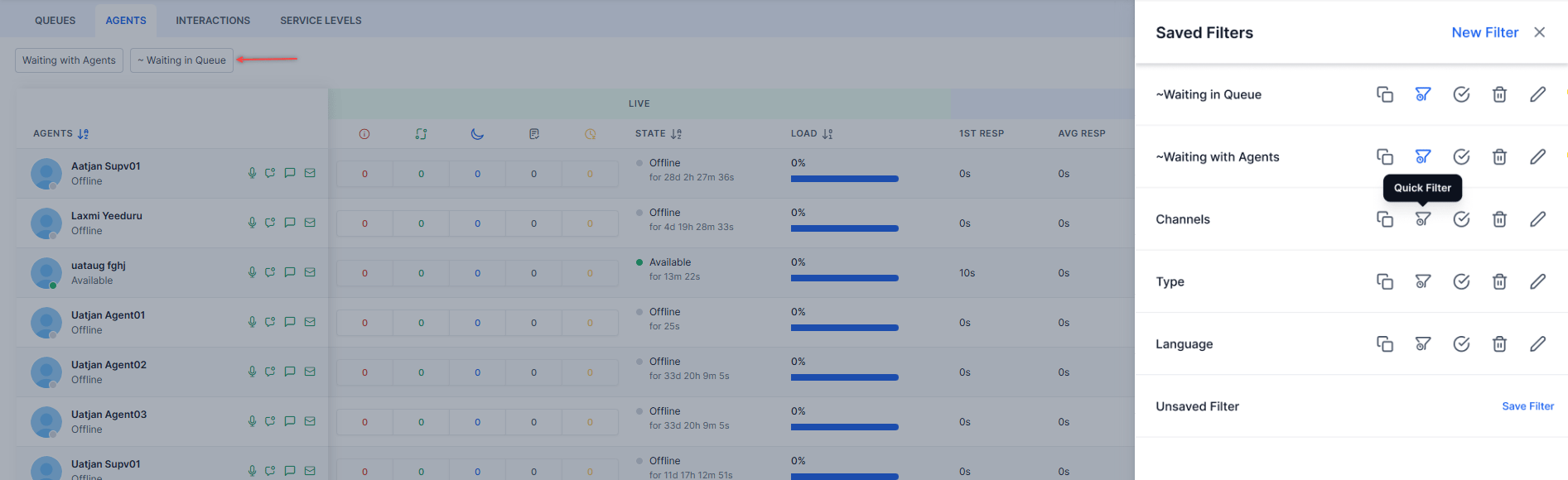
* **Waiting with Agents** and **Waiting in Queue** are pre-selected quick filters by default.
3. Select **Save & Apply**, enter a name (up to 20 characters), and confirm.
**Saved filters:**
* **Waiting with Agents** and **Waiting in Queue** are pre-selected quick filters by default.
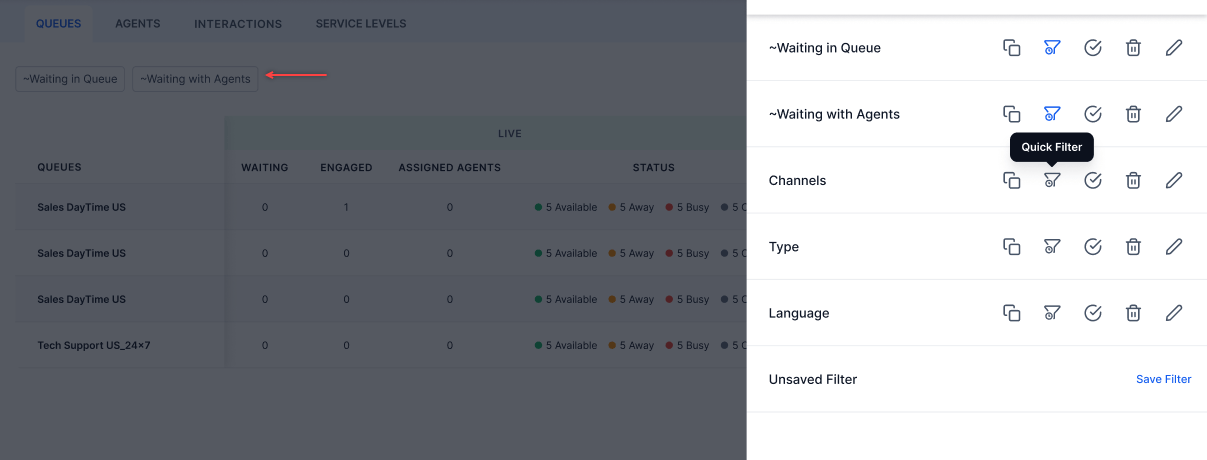 * You can select up to four quick filters.
* A default filter is treated as a quick filter if not explicitly selected as one.
* You can't disable a quick filter while it's set as the default. Remove the default first.
**Edit a filter:**
1. Select the **Filters** tab.
2. Select **Edit**.
3. Make changes and select **Save & Apply**.
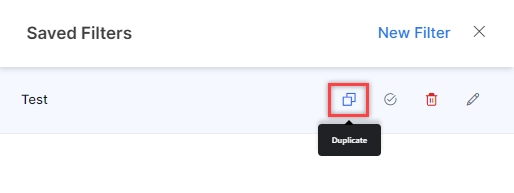
**Duplicate a filter:** Select **Duplicate**, enter a name, and select **Save**.
**Mark as default:** Select **Mark as Default**.
**Delete a filter:** Select **Delete**, then confirm.
***
### Agents
The Agents view shows all agents assigned to your queues with their current status and conversation metrics.
* You can select up to four quick filters.
* A default filter is treated as a quick filter if not explicitly selected as one.
* You can't disable a quick filter while it's set as the default. Remove the default first.
**Edit a filter:**
1. Select the **Filters** tab.
2. Select **Edit**.
3. Make changes and select **Save & Apply**.
**Duplicate a filter:** Select **Duplicate**, enter a name, and select **Save**.
**Mark as default:** Select **Mark as Default**.
**Delete a filter:** Select **Delete**, then confirm.
***
### Agents
The Agents view shows all agents assigned to your queues with their current status and conversation metrics.
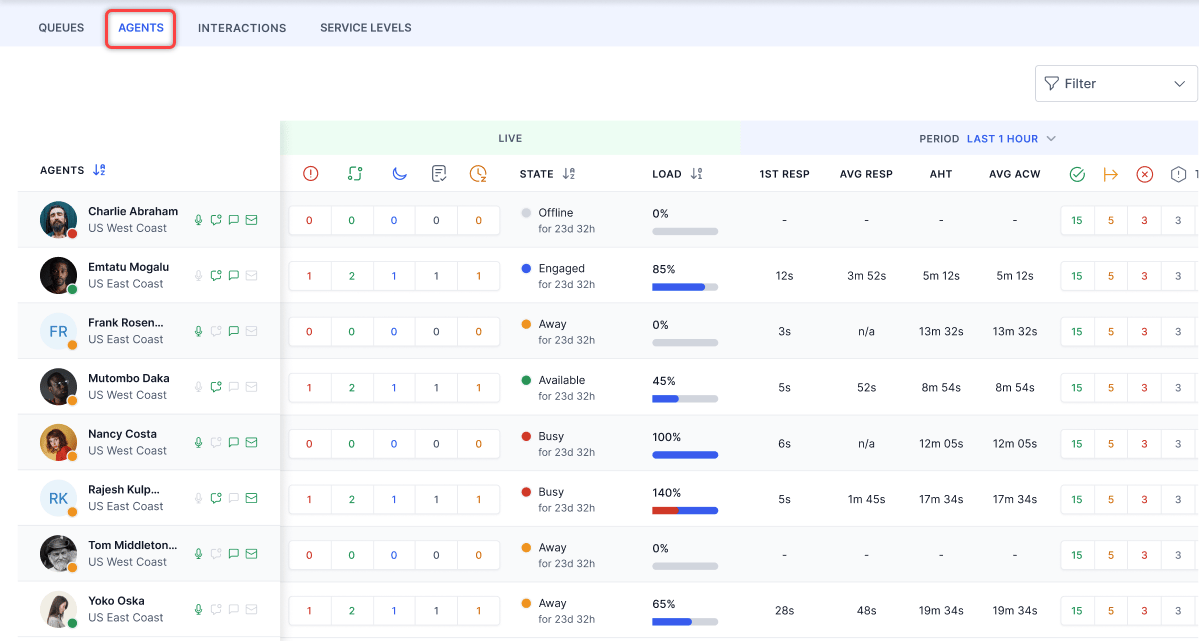 | Metric | Description |
| :---------- | :------------------------------------------------------- |
| Completed | Interactions closed by the agent |
| Transferred | Interactions transferred to a queue or agent |
| Rejected | Interactions explicitly rejected |
| Unanswered | Interactions not picked up within the acceptance timeout |
Active channels appear in green; disabled channels appear in gray. Previously selected channels persist when the agent starts a new session.
**Agent details:**
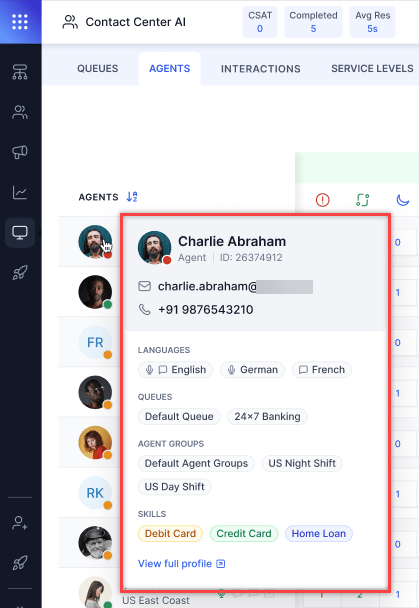
* Hover over an agent name to see their status, profile info, skills, queues, and agent groups.
| Metric | Description |
| :---------- | :------------------------------------------------------- |
| Completed | Interactions closed by the agent |
| Transferred | Interactions transferred to a queue or agent |
| Rejected | Interactions explicitly rejected |
| Unanswered | Interactions not picked up within the acceptance timeout |
Active channels appear in green; disabled channels appear in gray. Previously selected channels persist when the agent starts a new session.
**Agent details:**
* Hover over an agent name to see their status, profile info, skills, queues, and agent groups.
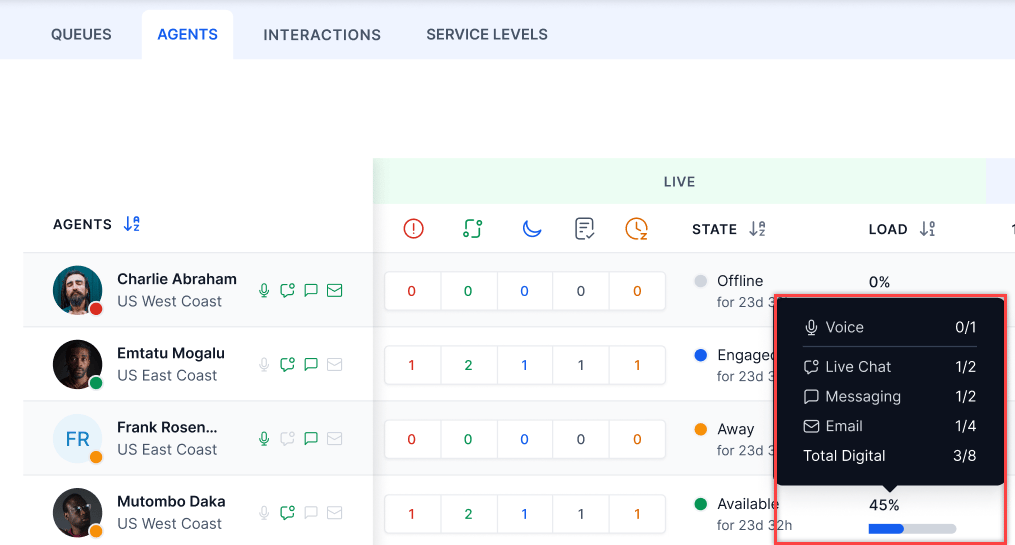
 * The load capacity indicator shows overall and channel-wise load (for example, Live Chat 2/3 slots engaged).
 * Select an agent to view their ongoing conversation and engagement metrics.
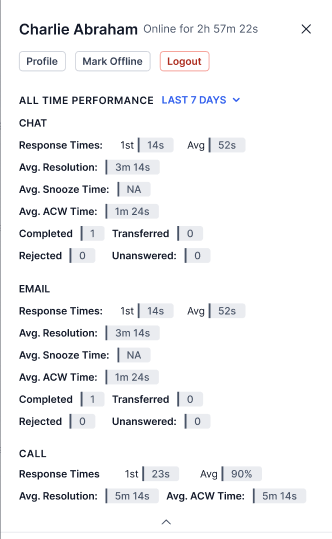 **Chat, Messaging, and Voice:**
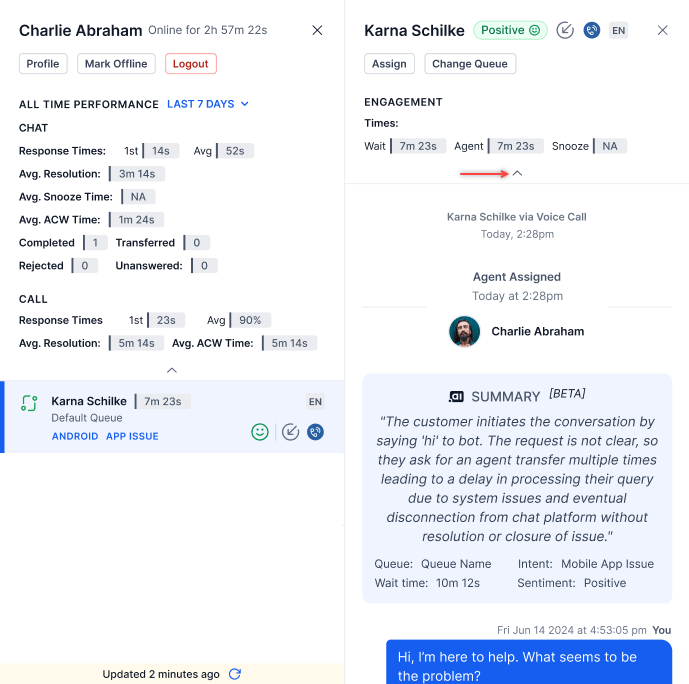 **Email:**
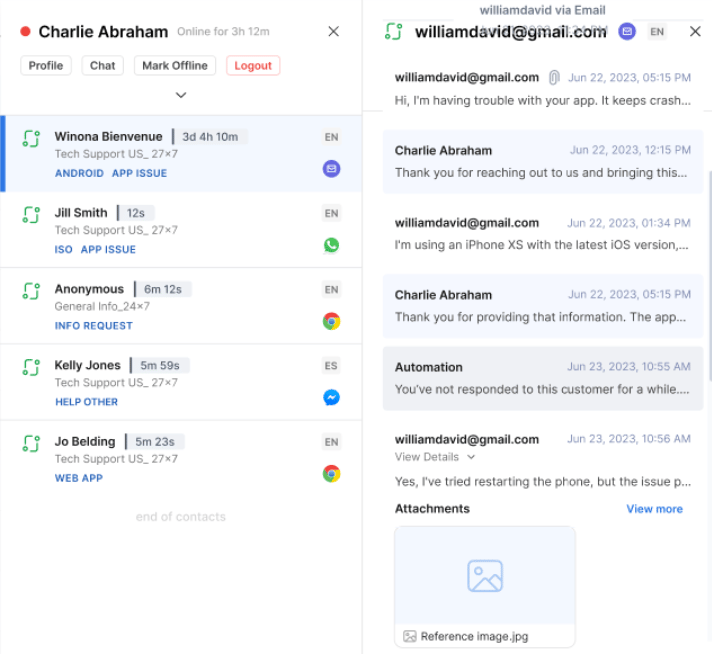 * From the agent view, you can check the profile, chat with the agent, change the queue, and assign conversations.
 - Sorting is unavailable for automation interactions. Removing offline agents improves performance when sorting by load.
- Supervisors can switch between conversations when the transcript slider is open. Selecting a different conversation automatically refreshes the slider content, without requiring the slider to be closed and reopened.
#### Filters
Filter the Agents view by **Status**, **Agents**, **Skills**, and **Roles**.
- Sorting is unavailable for automation interactions. Removing offline agents improves performance when sorting by load.
- Supervisors can switch between conversations when the transcript slider is open. Selecting a different conversation automatically refreshes the slider content, without requiring the slider to be closed and reopened.
#### Filters
Filter the Agents view by **Status**, **Agents**, **Skills**, and **Roles**.
 Default quick filters:
 Duplicate filter:
 In the Queues and Agents tabs, historical metrics filtered by a specific duration don't auto-refresh. Data updates only when the page is hard reloaded or the duration filter is changed.
***
### Interactions
The Interactions view shows all live interactions assigned to agents. It includes only interactions that involve agent transfers.
In the Queues and Agents tabs, historical metrics filtered by a specific duration don't auto-refresh. Data updates only when the page is hard reloaded or the duration filter is changed.
***
### Interactions
The Interactions view shows all live interactions assigned to agents. It includes only interactions that involve agent transfers.
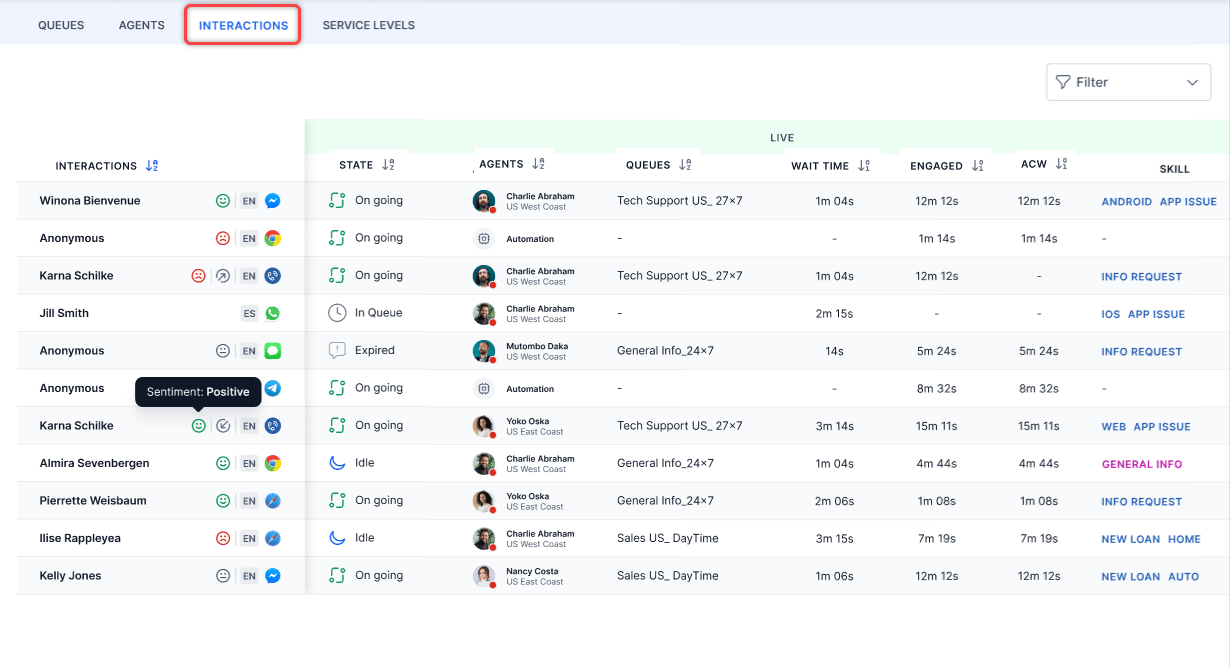 * Agents aren't listed in Agent Transfers when Chat and Email channel slots are set to zero.
* For Work Bin conversations, the Interactions view displays the name of the last agent who handled the interaction before it was moved to Work Bin.
* The last handling agent name appears only for conversations in the Work Bin.
Select the sort icon to sort columns in ascending or descending order.
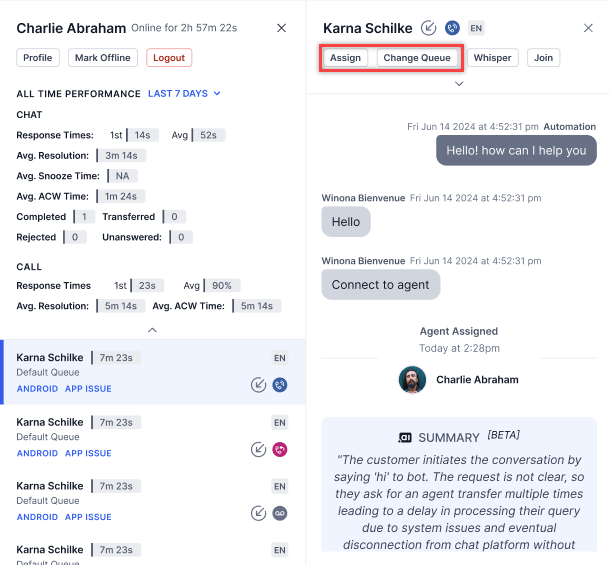
**Assign a conversation or change queue:**
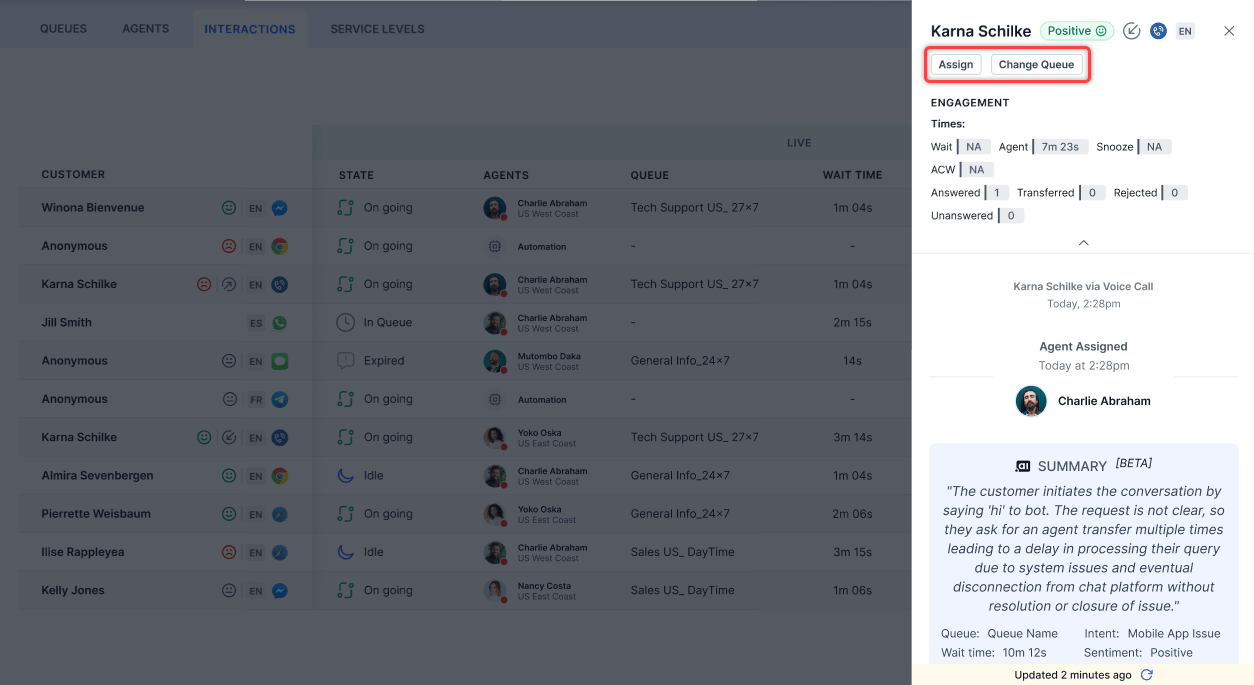
Select an ongoing conversation to view the **Assign** and **Change Queue** options.
* Agents aren't listed in Agent Transfers when Chat and Email channel slots are set to zero.
* For Work Bin conversations, the Interactions view displays the name of the last agent who handled the interaction before it was moved to Work Bin.
* The last handling agent name appears only for conversations in the Work Bin.
Select the sort icon to sort columns in ascending or descending order.
**Assign a conversation or change queue:**
Select an ongoing conversation to view the **Assign** and **Change Queue** options.
 **Assign a bot-led conversation:**
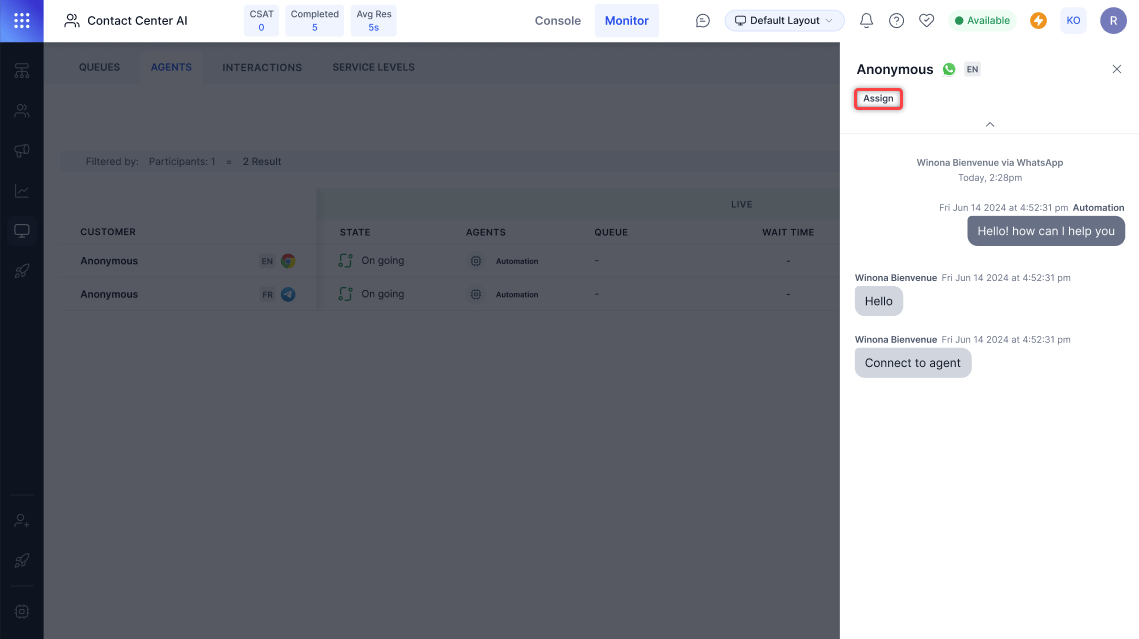
1. Select an ongoing conversation, then select **Assign**.
**Assign a bot-led conversation:**
1. Select an ongoing conversation, then select **Assign**.
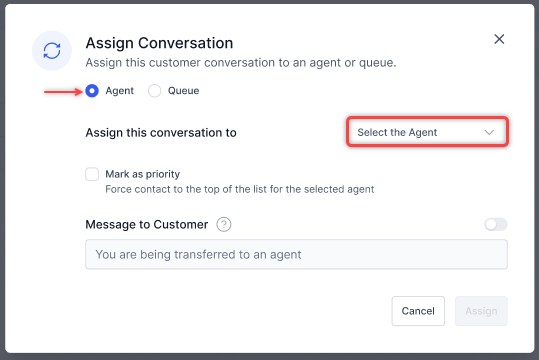
 2. In the Assign Conversation pop-up, select **Agent** or **Queue**, choose from the dropdown, optionally mark as priority or send a message to the customer, then select **Assign**.
 Supervisors can switch between conversations when the transcript slider is open. Selecting a different conversation automatically refreshes the slider content, without requiring the slider to be closed and reopened.
#### Filters
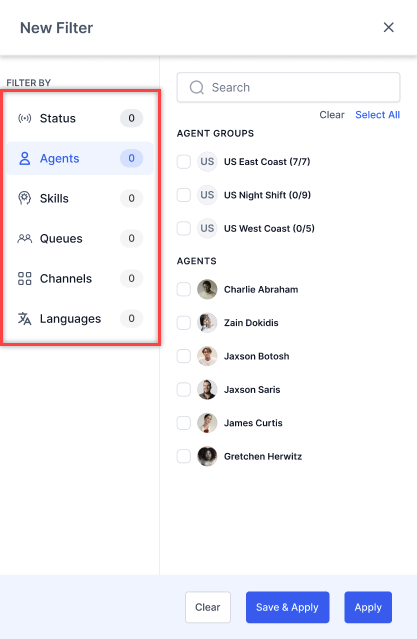
Filter by **Status**, **Agents** or **Participants** (when bot-led interactions are enabled), **Skills**, **Queues**, **Channels**, **Type**, and **Language**.
Without bot-led interactions:
Supervisors can switch between conversations when the transcript slider is open. Selecting a different conversation automatically refreshes the slider content, without requiring the slider to be closed and reopened.
#### Filters
Filter by **Status**, **Agents** or **Participants** (when bot-led interactions are enabled), **Skills**, **Queues**, **Channels**, **Type**, and **Language**.
Without bot-led interactions:
 With bot-led interactions enabled:
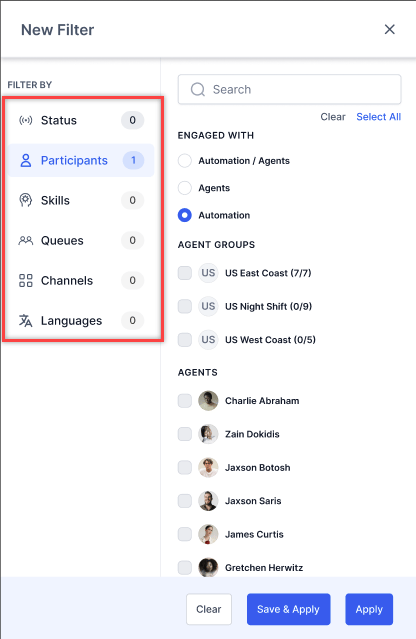 Bot-led interactions don't appear by default. To view them, select **Automation** or **Automation/Agents** from the Participant filter. The default is **Agent** to prevent information overload.
Default quick filters:
Bot-led interactions don't appear by default. To view them, select **Automation** or **Automation/Agents** from the Participant filter. The default is **Agent** to prevent information overload.
Default quick filters:
 ***
### Service Levels
The Service Levels view lets you monitor service-level targets by queue.
Go to **Console** > **Monitor** > **Service Levels**.
***
### Service Levels
The Service Levels view lets you monitor service-level targets by queue.
Go to **Console** > **Monitor** > **Service Levels**.
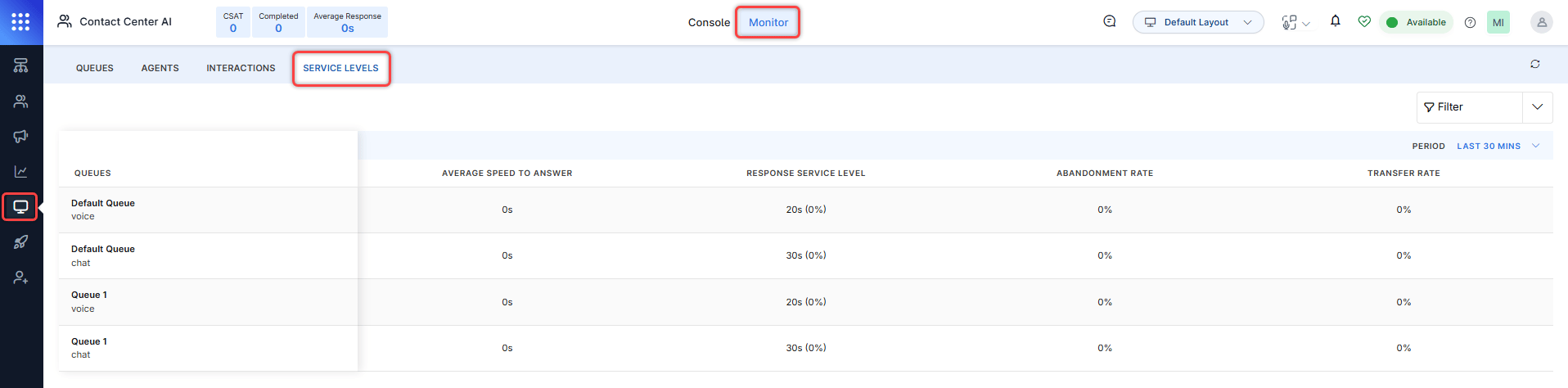 | Metric | Description |
| :---------------------------- | :------------------------------------------------------------------------ |
| Queues | Queue name |
| Average Speed to Answer (ASA) | Average time to answer inbound contacts after they enter the queue |
| Response Service Level (SL) | Percentage of contacts answered within the target threshold time |
| Abandonment Rate | Percentage of contacts disconnected before reaching an agent |
| Transfer Rate | Percentage of contacts transferred to another agent, department, or queue |
You can create, edit, copy, mark as default, and delete filters for service level metrics.
For configuring service levels, see [SLAs & Alerts](/ai-for-service/contact-center/performance-management/slas-and-alerts).
***
## Monitor Channel Selection
Select a channel at the top of the Monitor tab to view channel-specific data.
For Voice and Chat, the channel filter shows only Voice and Chat options; for Email, it shows only Email and limits the type filter to Inbound and Outbound.
| Metric | Description |
| :---------------------------- | :------------------------------------------------------------------------ |
| Queues | Queue name |
| Average Speed to Answer (ASA) | Average time to answer inbound contacts after they enter the queue |
| Response Service Level (SL) | Percentage of contacts answered within the target threshold time |
| Abandonment Rate | Percentage of contacts disconnected before reaching an agent |
| Transfer Rate | Percentage of contacts transferred to another agent, department, or queue |
You can create, edit, copy, mark as default, and delete filters for service level metrics.
For configuring service levels, see [SLAs & Alerts](/ai-for-service/contact-center/performance-management/slas-and-alerts).
***
## Monitor Channel Selection
Select a channel at the top of the Monitor tab to view channel-specific data.
For Voice and Chat, the channel filter shows only Voice and Chat options; for Email, it shows only Email and limits the type filter to Inbound and Outbound.
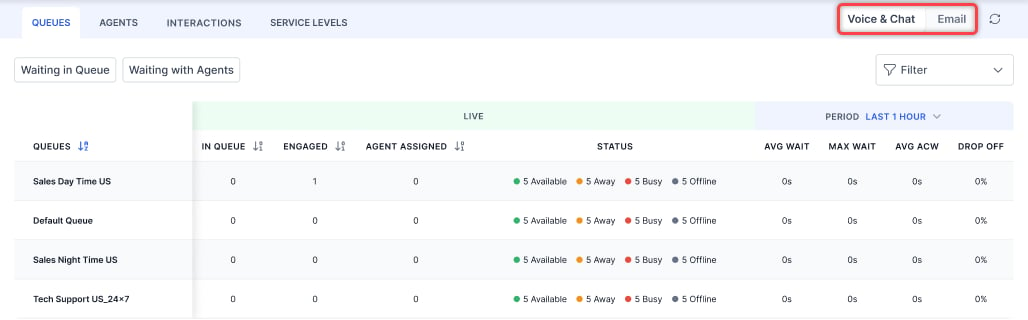 The selected channel applies across Queues, Agents, Interactions, and Service Levels and persists during navigation.
**Email Metrics (Email Selected)**
**Queues Tab**
* Emails Offered-Total email conversations received.
* Emails Avg Resp Time-Average time to respond.
* Emails Queue Wait-Average queue wait time (excluding agent tray).
* Emails AHT-Average handling time.
* Email Transfer Rate-Rate of transferred conversations.
**Agents Tab**
* Emails AHT-Average handling time per agent.
* Email Transfer Rate-Transfers by agent divided by emails handled.
All columns support sorting (ascending/descending) with pagination and filtering.
***
## Sort (Queues, Agents, and Interactions) and Transcript Slider
Sorting Conversations by Engaged Time
Selecting the Engaged column header sorts conversations by how long each conversation was engaged with an agent, in ascending or descending order.
When sorted in descending order, the sort order remains stable as new conversations arrive. Incoming conversations are placed in the correct position based on their engaged time and don't move to the top of the list. This prevents list reordering or visual jitter during active queue monitoring.
Sort behavior:
| Sort Applied | New Conversation Arrives | Behavior |
| :------------------- | :----------------------- | :-------------------------------------------------- |
| Engaged (descending) | Yes | Placed based on engaged time. |
| Engaged (ascending) | Yes | Placed based on engaged time. |
| No sort applied | Yes | Displays at the top of the list (default behavior). |
The sort order is re-evaluated consistently for all list updates, including state changes to existing conversations.
**Switching Conversations When the Transcript Slider Is Open**
When the transcript slider is open for a conversation, supervisors can select a different conversation without first closing the slider. The slider refreshes automatically and displays the transcript of the newly selected conversation.
This lets you move between conversations during live monitoring without interruption.
Transcript slider switching behavior:
| Action | Result |
| :-------------------------------------------- | :------------------------------------------------------------ |
| Select a conversation (slider closed) | The slider opens and displays the conversation's transcript. |
| Select a different conversation (slider open) | The slider refreshes with the new conversation's transcript. |
| Close the slider, then select a conversation | The slider opens with the selected conversation's transcript. |
The transcript slider refresh is seamless. No reload or manual close is required when switching between conversations.
***
## Skill and Queue Subscription Visibility
The Monitor tab displays agent-level skill and queue de-selections. Supervisors can identify agents who have modified their skills or queues and take corrective action without leaving the Monitor view.
Agents View
The Agents view displays each agent's current routing eligibility, including any skill or queue de-selections.
| Indicator | Description |
| :-------------------------- | :----------------------------------------------------------------------------------------------------- |
| Active skills | Skills the agent subscribed to and eligible for routing. |
| Deselected skills | Skills the agent has opted out of at runtime. Displayed with a distinct visual indicator. |
| Active queues | Queues the agent subscribed to and eligible for routing. |
| Deselected queues/Off-Queue | Queues the agent has opted out of at runtime. Displayed as Off-Queue with a distinct visual indicator. |
**Supervisor Actions from the Agents View**
From the agent detail panel in the Agents view, supervisors can:
* View the full list of assigned skills and queues.
* See which skills and queues the agent has deselected.
The selected channel applies across Queues, Agents, Interactions, and Service Levels and persists during navigation.
**Email Metrics (Email Selected)**
**Queues Tab**
* Emails Offered-Total email conversations received.
* Emails Avg Resp Time-Average time to respond.
* Emails Queue Wait-Average queue wait time (excluding agent tray).
* Emails AHT-Average handling time.
* Email Transfer Rate-Rate of transferred conversations.
**Agents Tab**
* Emails AHT-Average handling time per agent.
* Email Transfer Rate-Transfers by agent divided by emails handled.
All columns support sorting (ascending/descending) with pagination and filtering.
***
## Sort (Queues, Agents, and Interactions) and Transcript Slider
Sorting Conversations by Engaged Time
Selecting the Engaged column header sorts conversations by how long each conversation was engaged with an agent, in ascending or descending order.
When sorted in descending order, the sort order remains stable as new conversations arrive. Incoming conversations are placed in the correct position based on their engaged time and don't move to the top of the list. This prevents list reordering or visual jitter during active queue monitoring.
Sort behavior:
| Sort Applied | New Conversation Arrives | Behavior |
| :------------------- | :----------------------- | :-------------------------------------------------- |
| Engaged (descending) | Yes | Placed based on engaged time. |
| Engaged (ascending) | Yes | Placed based on engaged time. |
| No sort applied | Yes | Displays at the top of the list (default behavior). |
The sort order is re-evaluated consistently for all list updates, including state changes to existing conversations.
**Switching Conversations When the Transcript Slider Is Open**
When the transcript slider is open for a conversation, supervisors can select a different conversation without first closing the slider. The slider refreshes automatically and displays the transcript of the newly selected conversation.
This lets you move between conversations during live monitoring without interruption.
Transcript slider switching behavior:
| Action | Result |
| :-------------------------------------------- | :------------------------------------------------------------ |
| Select a conversation (slider closed) | The slider opens and displays the conversation's transcript. |
| Select a different conversation (slider open) | The slider refreshes with the new conversation's transcript. |
| Close the slider, then select a conversation | The slider opens with the selected conversation's transcript. |
The transcript slider refresh is seamless. No reload or manual close is required when switching between conversations.
***
## Skill and Queue Subscription Visibility
The Monitor tab displays agent-level skill and queue de-selections. Supervisors can identify agents who have modified their skills or queues and take corrective action without leaving the Monitor view.
Agents View
The Agents view displays each agent's current routing eligibility, including any skill or queue de-selections.
| Indicator | Description |
| :-------------------------- | :----------------------------------------------------------------------------------------------------- |
| Active skills | Skills the agent subscribed to and eligible for routing. |
| Deselected skills | Skills the agent has opted out of at runtime. Displayed with a distinct visual indicator. |
| Active queues | Queues the agent subscribed to and eligible for routing. |
| Deselected queues/Off-Queue | Queues the agent has opted out of at runtime. Displayed as Off-Queue with a distinct visual indicator. |
**Supervisor Actions from the Agents View**
From the agent detail panel in the Agents view, supervisors can:
* View the full list of assigned skills and queues.
* See which skills and queues the agent has deselected.
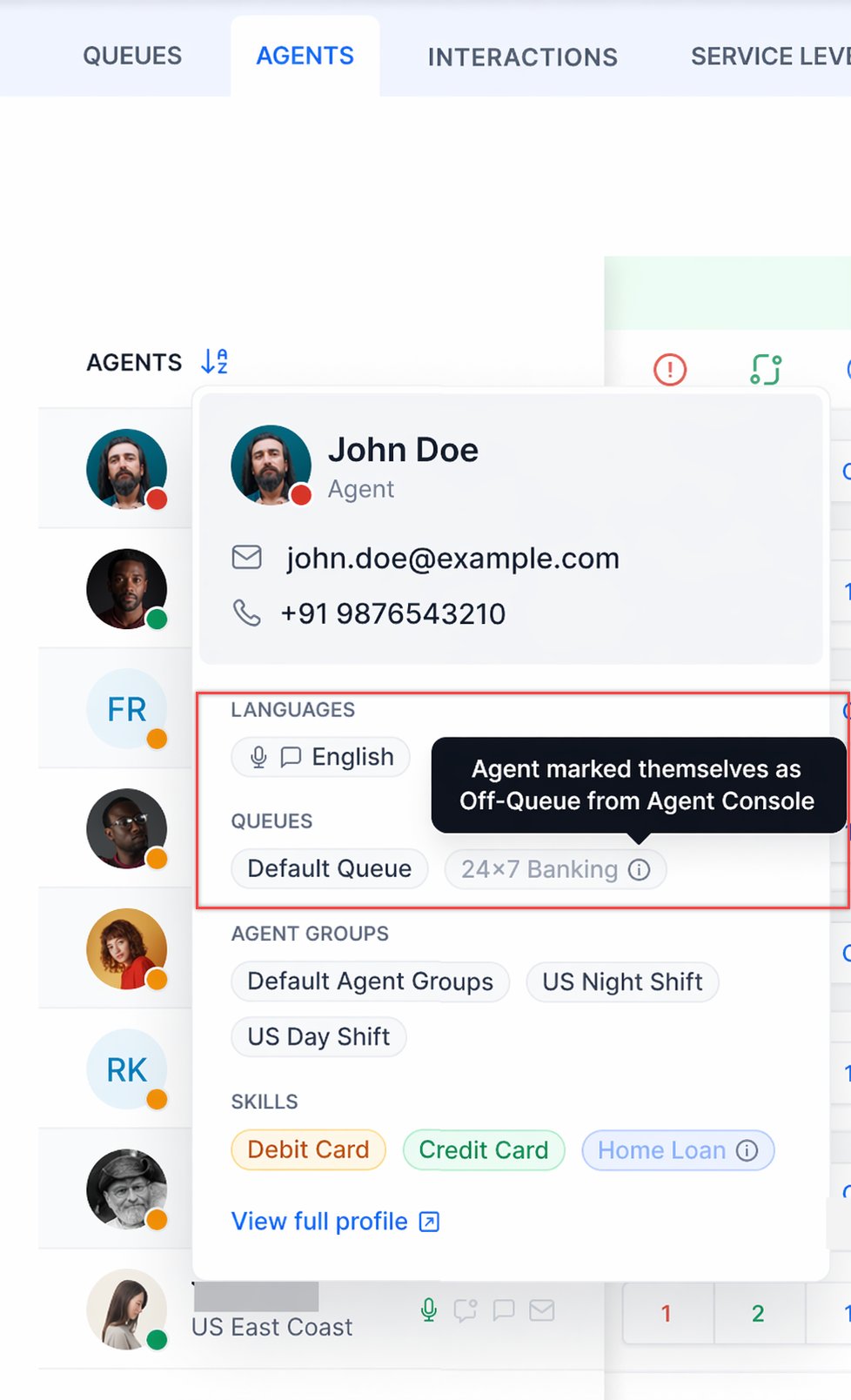 * Select Restore to override the agent's deselection and reinstate their routing eligibility for a specific skill or queue.
Queues View
The Queues view distinguishes between agents who are assigned to a queue and agents who are actively eligible for routing from that queue.
| Agent Status in Queue View | Meaning |
| :------------------------- | :------------------------------------------------------------------------------------------------------------- |
| Available | The agent is assigned and subscribed to the queue. Eligible for routing. |
| Off-Queue | The agent is assigned to the queue but has deselected it at runtime. Not eligible for routing from this queue. |
Agents in Off-Queue status are counted in the queue's total agent assignments but are excluded from routing calculations.
**Supervisor Actions from the Queues View**
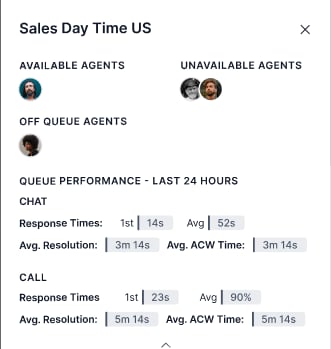
From within a queue in the Monitor view, supervisors can:
* Identify all agents in Off-Queue status.
* Select Restore to override the agent's deselection and reinstate their routing eligibility for a specific skill or queue.
Queues View
The Queues view distinguishes between agents who are assigned to a queue and agents who are actively eligible for routing from that queue.
| Agent Status in Queue View | Meaning |
| :------------------------- | :------------------------------------------------------------------------------------------------------------- |
| Available | The agent is assigned and subscribed to the queue. Eligible for routing. |
| Off-Queue | The agent is assigned to the queue but has deselected it at runtime. Not eligible for routing from this queue. |
Agents in Off-Queue status are counted in the queue's total agent assignments but are excluded from routing calculations.
**Supervisor Actions from the Queues View**
From within a queue in the Monitor view, supervisors can:
* Identify all agents in Off-Queue status.
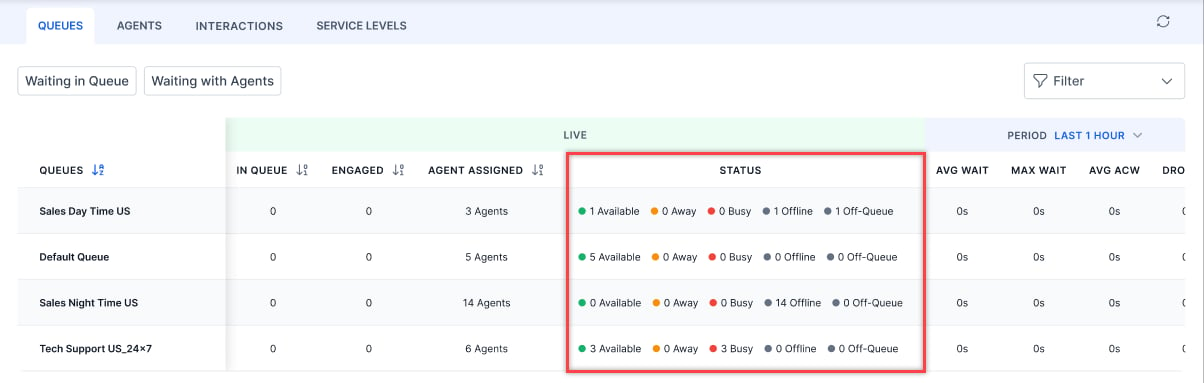 * Select Restore for any Off-Queue agent to reinstate their routing eligibility for that queue.
 ***
## Blending Indicators
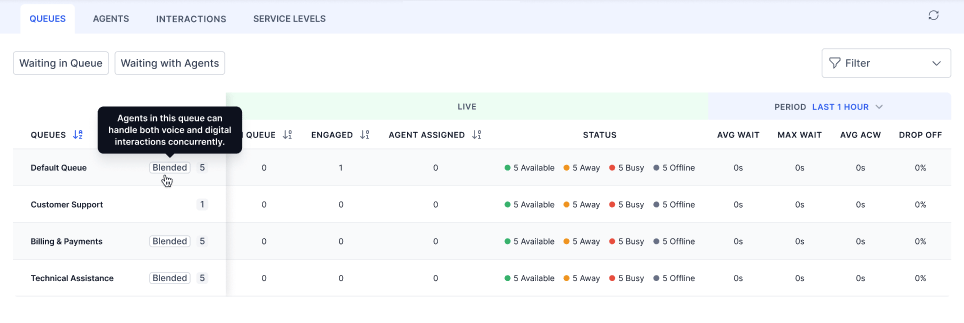
Blending status is visible in both the Agents and Queues views.
**Monitor** > **Agents**
* Indicates whether an agent is blending-enabled at the agent level.
* Indicates whether queue-level blending is influencing the agent's current state.
**Monitor** > **Queues**
***
## Blending Indicators
Blending status is visible in both the Agents and Queues views.
**Monitor** > **Agents**
* Indicates whether an agent is blending-enabled at the agent level.
* Indicates whether queue-level blending is influencing the agent's current state.
**Monitor** > **Queues**
 ***
## Live Conversation Monitoring
### Listen & Whisper (Voice)
Listen and Whisper let you monitor and coach agents during live voice calls without the customer hearing.
* **Listen**-Monitor a call silently.
* **Whisper**-Speak to the agent only; the customer can't hear.
**Steps:**
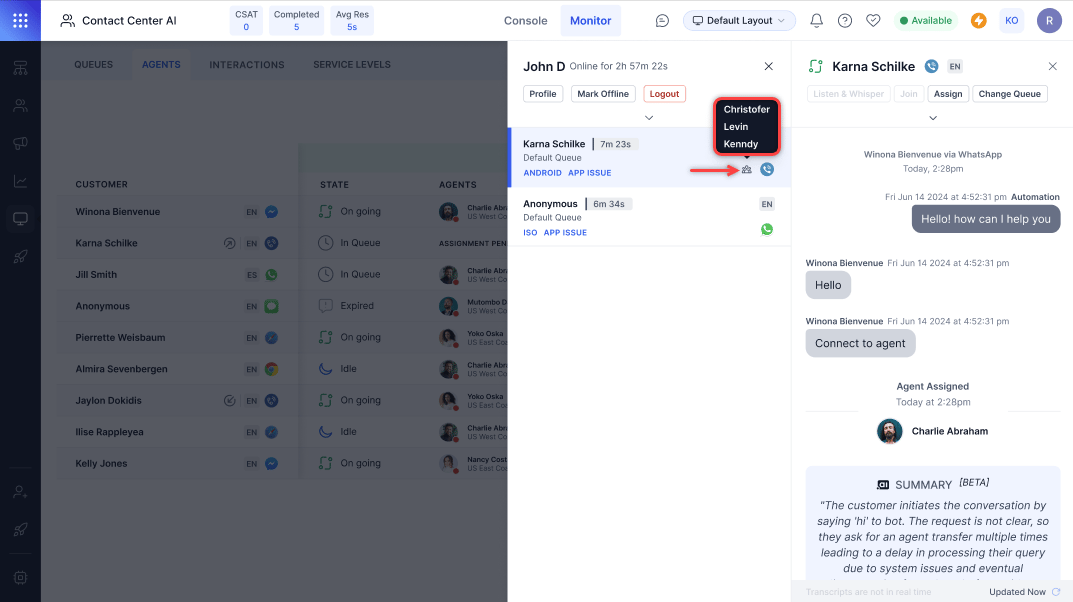
1. Go to **Monitor** > **Agents** and select the conversation.
A conference icon indicates multiple participants on the call. Listen & Whisper and Join are disabled for conference calls.
***
## Live Conversation Monitoring
### Listen & Whisper (Voice)
Listen and Whisper let you monitor and coach agents during live voice calls without the customer hearing.
* **Listen**-Monitor a call silently.
* **Whisper**-Speak to the agent only; the customer can't hear.
**Steps:**
1. Go to **Monitor** > **Agents** and select the conversation.
A conference icon indicates multiple participants on the call. Listen & Whisper and Join are disabled for conference calls.
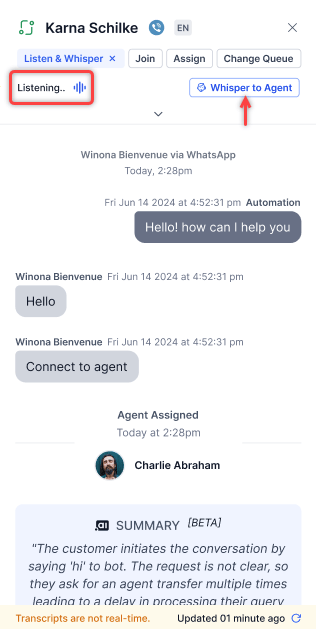
 2. Select **Listen & Whisper**.
3. To coach the agent, select **Whisper to Agent**.
2. Select **Listen & Whisper**.
3. To coach the agent, select **Whisper to Agent**.
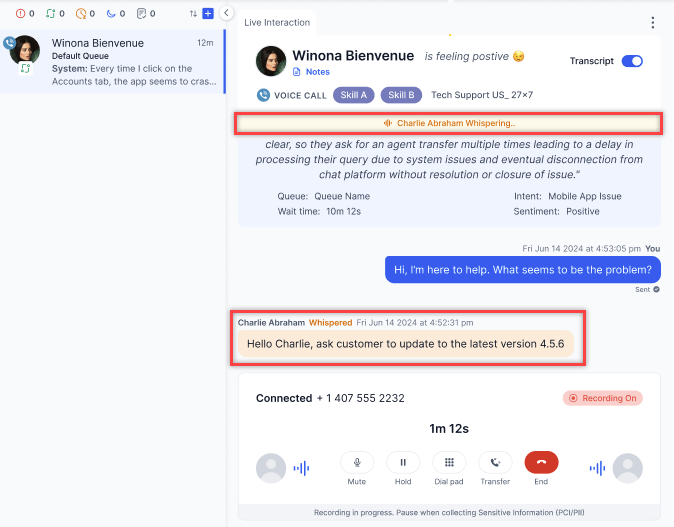
 A whisper indicator appears at the top of the live interaction; the agent's transcript text displays in yellow.
 4. Select **Stop Whispering** to end the session.
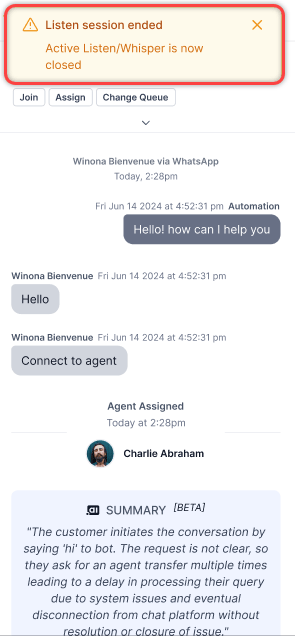
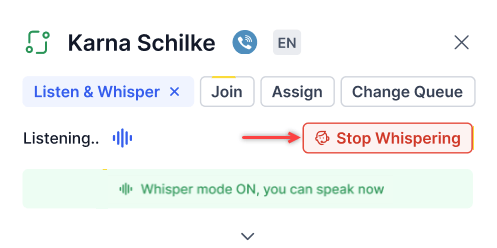 The message **Listen session ended** displays.
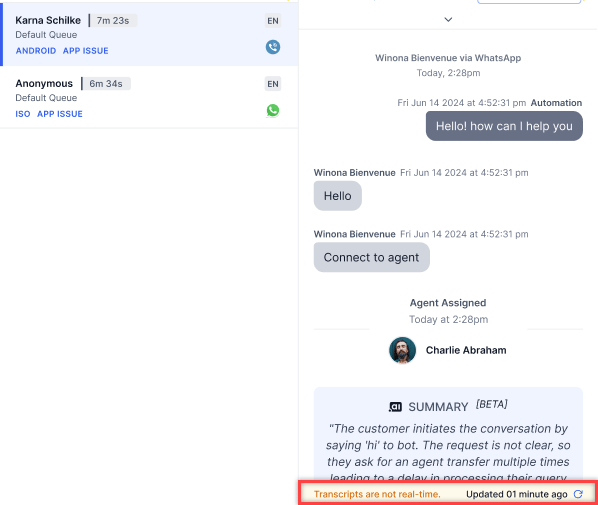
 Transcripts aren't real-time. Select the **Refresh** icon to update them.
 ***
### Join a Conversation
Supervisors can join a live conversation (conference) to participate alongside the agent and customer. You can also view agent engagement metrics from this view.
**Steps:**
1. On the right pane, select **Join Conversation**.
***
### Join a Conversation
Supervisors can join a live conversation (conference) to participate alongside the agent and customer. You can also view agent engagement metrics from this view.
**Steps:**
1. On the right pane, select **Join Conversation**.
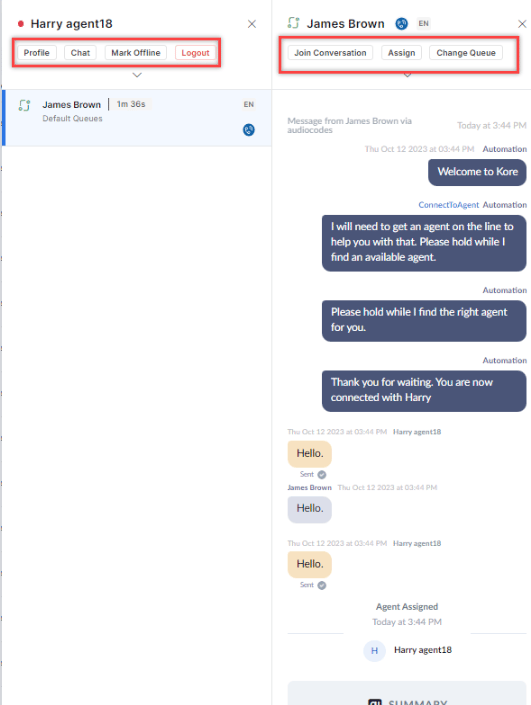 2. In the confirmation pop-up, select **Confirm**.
***
## Queue Actions
### Manually Assign a Conversation
1. Select the conversation in the Queue panel and select **Assign**.
2. Select an agent from the pop-up.
2. In the confirmation pop-up, select **Confirm**.
***
## Queue Actions
### Manually Assign a Conversation
1. Select the conversation in the Queue panel and select **Assign**.
2. Select an agent from the pop-up.
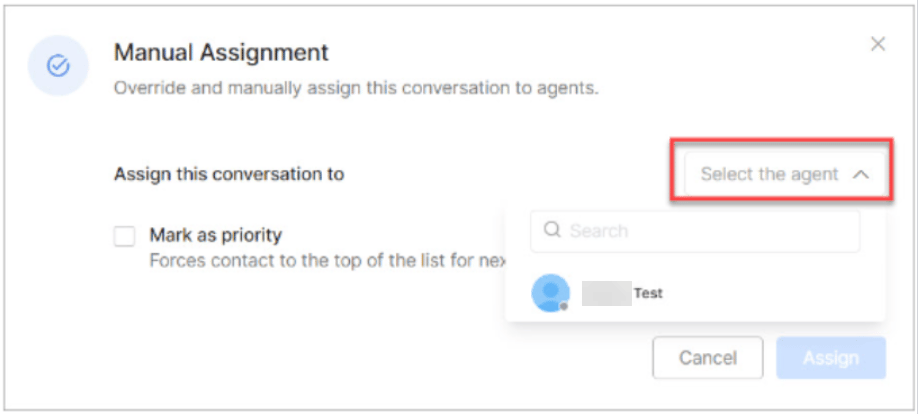 3. Optionally select **Mark as priority**, then select **Assign**.
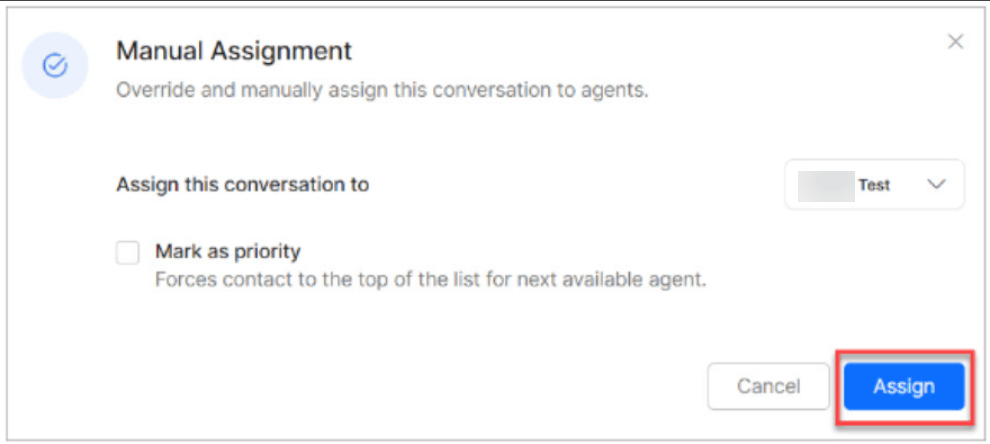 Manual assignments ignore skill-based routing and slot limits.
***
### Change Queue
Move a conversation to a different queue and optionally prioritize it.
1. Go to **Monitor** > **Queues**.
2. Select the queue and then select the conversation.
Manual assignments ignore skill-based routing and slot limits.
***
### Change Queue
Move a conversation to a different queue and optionally prioritize it.
1. Go to **Monitor** > **Queues**.
2. Select the queue and then select the conversation.
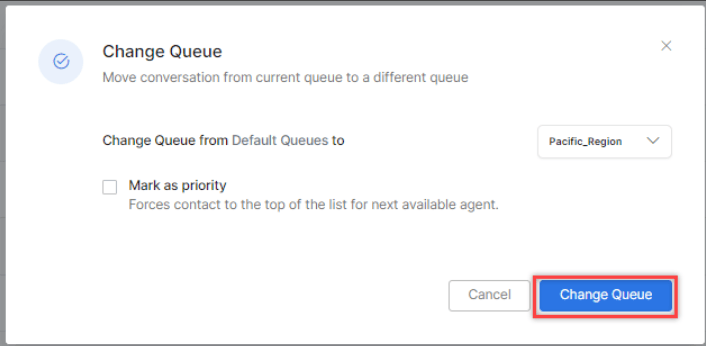
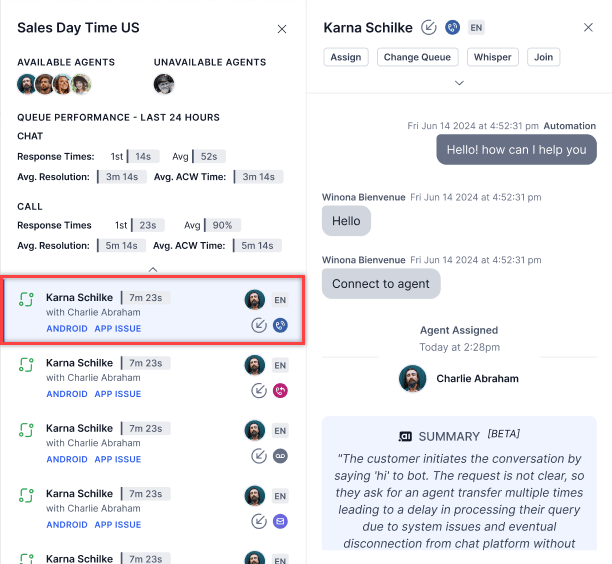 3. Select **Change Queue**.
4. In the pop-up, select a destination queue. Optionally select **Mark as priority** to place the conversation at the top of the destination queue.
3. Select **Change Queue**.
4. In the pop-up, select a destination queue. Optionally select **Mark as priority** to place the conversation at the top of the destination queue.
 * Waiting conversation counts update in both queues after the transfer.
* The conversation's position in the destination queue is based on its original arrival time.
* Queue transfers are recorded for reporting.
**Voicemails:** When a call converts to a voicemail, it appears in the Monitor tab with **Assign** and **Change Queue** options.
***
### Queue Transfer Restriction Override
By default, queue-level transfer restrictions apply when you reassign a conversation from the Monitor tab. The destination queue list shows only the queues permitted by the source queue's transfer rules.
Users with the [Override Queue Transfer Restrictions in Monitor](/ai-for-service/user-management/users-and-role#agent-and-supervisor-experience-monitor-console) permission can select any eligible destination queue when reassigning from the Monitor tab, regardless of the source queue's transfer rules.
Permission behavior:
| Context | Queue Transfer Restrictions Apply |
| :------------------------------------- | :---------------------------------- |
| Agent Console - all users. | Yes |
| Monitor tab - user without permission. | Yes |
| Monitor tab - user with permission. | No — all eligible queues available. |
This permission doesn't affect Agent Console transfers. Queue transfer restrictions are enforced in the Agent Console for all users.
***
### Bulk Transfer and Force Close
Transfer or force-close multiple conversations at once across chat, email, and voice. By default, this option is disabled for Agents and Custom roles. Supervisors, Admins, Owners, and App Developers can access it when permissions are granted.
#### From the Queues Tab
1. Open the **Monitor** tab and select a queue.
2. Select ⋮ in the top corner and choose **Transfer Conversations** or **Force Close**.
**Transfer to a queue:**
1. Select **Queue** and choose one or more conversations. Use **Select All** or **Clear** as needed.
* Waiting conversation counts update in both queues after the transfer.
* The conversation's position in the destination queue is based on its original arrival time.
* Queue transfers are recorded for reporting.
**Voicemails:** When a call converts to a voicemail, it appears in the Monitor tab with **Assign** and **Change Queue** options.
***
### Queue Transfer Restriction Override
By default, queue-level transfer restrictions apply when you reassign a conversation from the Monitor tab. The destination queue list shows only the queues permitted by the source queue's transfer rules.
Users with the [Override Queue Transfer Restrictions in Monitor](/ai-for-service/user-management/users-and-role#agent-and-supervisor-experience-monitor-console) permission can select any eligible destination queue when reassigning from the Monitor tab, regardless of the source queue's transfer rules.
Permission behavior:
| Context | Queue Transfer Restrictions Apply |
| :------------------------------------- | :---------------------------------- |
| Agent Console - all users. | Yes |
| Monitor tab - user without permission. | Yes |
| Monitor tab - user with permission. | No — all eligible queues available. |
This permission doesn't affect Agent Console transfers. Queue transfer restrictions are enforced in the Agent Console for all users.
***
### Bulk Transfer and Force Close
Transfer or force-close multiple conversations at once across chat, email, and voice. By default, this option is disabled for Agents and Custom roles. Supervisors, Admins, Owners, and App Developers can access it when permissions are granted.
#### From the Queues Tab
1. Open the **Monitor** tab and select a queue.
2. Select ⋮ in the top corner and choose **Transfer Conversations** or **Force Close**.
**Transfer to a queue:**
1. Select **Queue** and choose one or more conversations. Use **Select All** or **Clear** as needed.
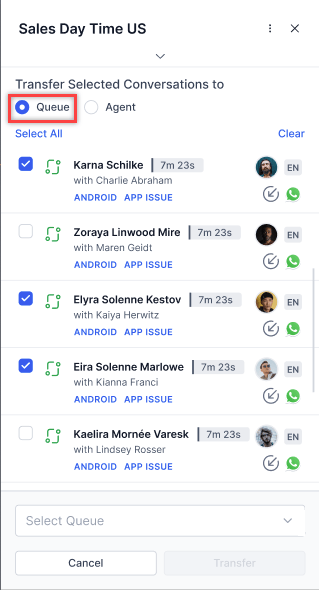 2. From the queue dropdown, choose a destination queue.
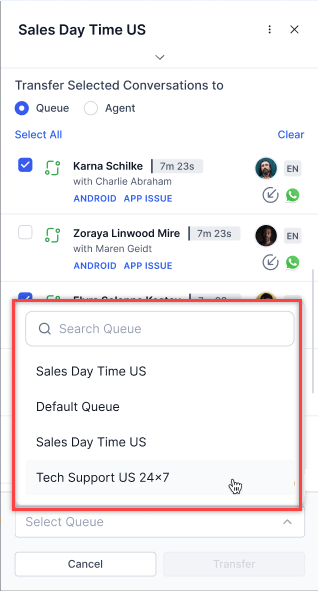 3. Select **Transfer**.
Conversations that honor the agent wait time aren't available for bulk transfer.
**Force Close from Queues:**
1. Select one or more conversations, then select **Force Close** from the action bar.
3. Select **Transfer**.
Conversations that honor the agent wait time aren't available for bulk transfer.
**Force Close from Queues:**
1. Select one or more conversations, then select **Force Close** from the action bar.
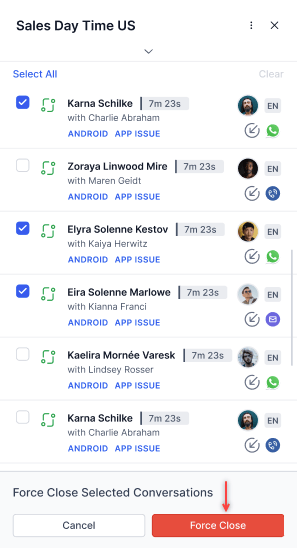 2. In the confirmation pop-up, select **Confirm**.
* At least one conversation must be selected.
* Force-closing a conversation (individually or in bulk) automatically attaches a system-generated disposition. If an agent had already selected a disposition, it's overwritten by the system-generated one.
#### From the Agents Tab
1. Open the **Monitor** tab and select the **Agents** tab.
2. Select ⋮ in the top corner and choose **Transfer Conversations** or **Force Close**.
**Transfer to an agent:**
1. Select **Agent** and choose one or more conversations.
2. In the confirmation pop-up, select **Confirm**.
* At least one conversation must be selected.
* Force-closing a conversation (individually or in bulk) automatically attaches a system-generated disposition. If an agent had already selected a disposition, it's overwritten by the system-generated one.
#### From the Agents Tab
1. Open the **Monitor** tab and select the **Agents** tab.
2. Select ⋮ in the top corner and choose **Transfer Conversations** or **Force Close**.
**Transfer to an agent:**
1. Select **Agent** and choose one or more conversations.
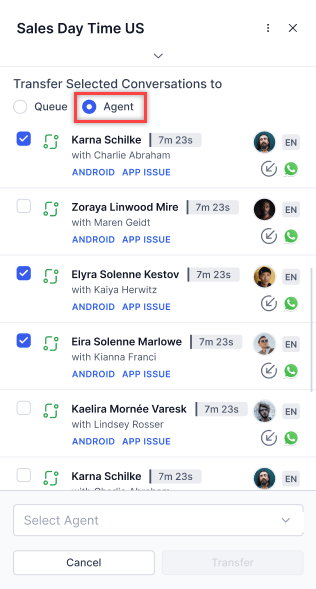 2. From the agent dropdown, choose an agent.
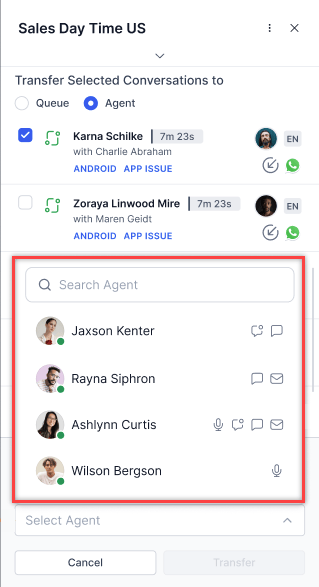 3. Select **Transfer**.
* Conversations can't be transferred when the agent is on a live call.
* Conversations can't be transferred to offline agents.
* Blended agents must be configured to transfer digital and voice conversations together.
* A pop-up appears when transferring to an agent at full capacity. Select **Transfer** to proceed.
* Conversations in TERMINATED, TRANSIENT\_DROPOFF, and TRANSIENT\_CLOSED states can't be transferred. they're excluded when you use **Select All**.
After any transfer or force-close, the interface exits selection mode and updates the conversation list.
***
## Agent Actions
### Chat with an Agent
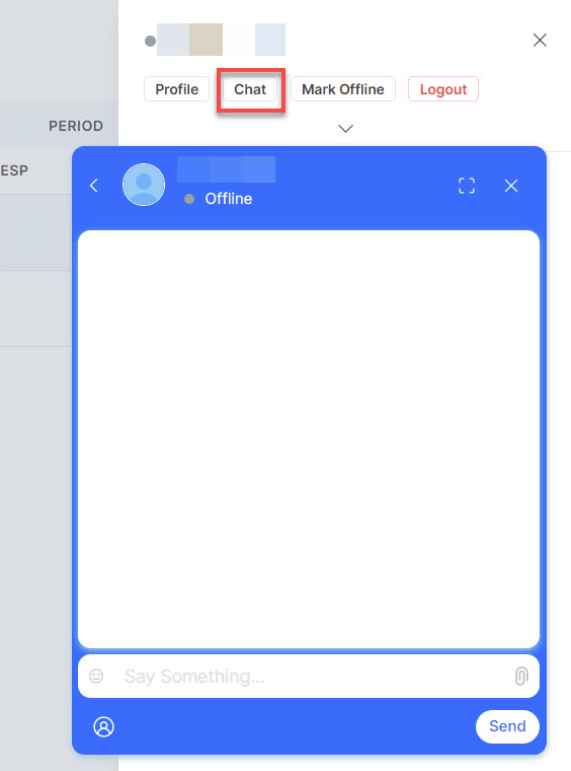
Select the **Chat** option from the agent view. A pop-up chat window opens for sending messages to the agent.
3. Select **Transfer**.
* Conversations can't be transferred when the agent is on a live call.
* Conversations can't be transferred to offline agents.
* Blended agents must be configured to transfer digital and voice conversations together.
* A pop-up appears when transferring to an agent at full capacity. Select **Transfer** to proceed.
* Conversations in TERMINATED, TRANSIENT\_DROPOFF, and TRANSIENT\_CLOSED states can't be transferred. they're excluded when you use **Select All**.
After any transfer or force-close, the interface exits selection mode and updates the conversation list.
***
## Agent Actions
### Chat with an Agent
Select the **Chat** option from the agent view. A pop-up chat window opens for sending messages to the agent.
 ***
### Mark Agent Offline
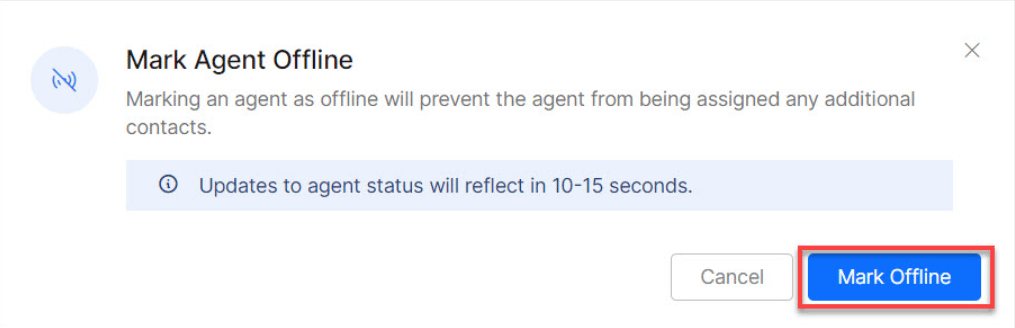
Mark an agent as offline to stop new conversations from being assigned to them.
***
### Mark Agent Offline
Mark an agent as offline to stop new conversations from being assigned to them.
 ***
### Force Logout
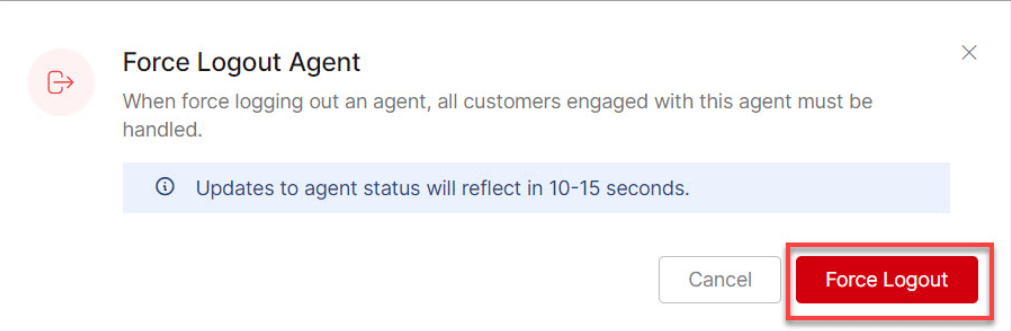
Force Logout frees up an agent so their ongoing customer conversations can be reassigned to other agents.
***
### Force Logout
Force Logout frees up an agent so their ongoing customer conversations can be reassigned to other agents.
 ***
### Agent Profile and Settings
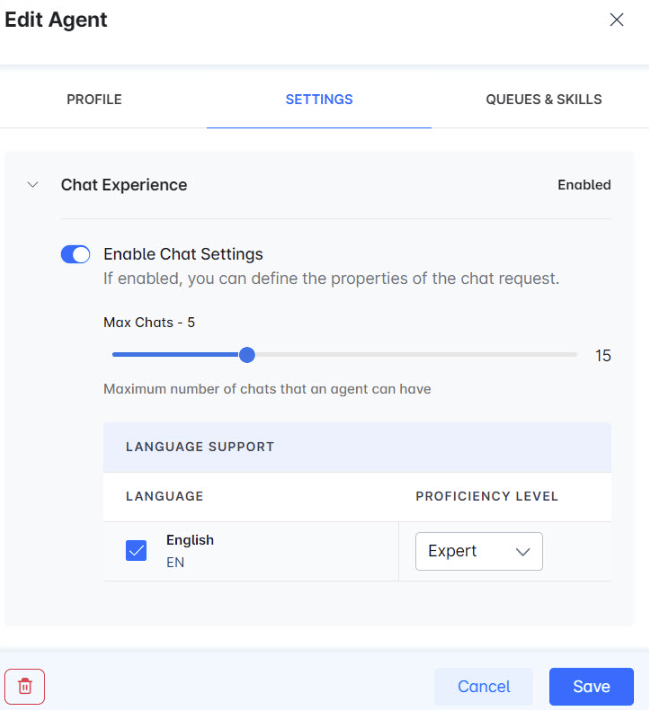
Access an agent's profile by selecting or hovering over the agent. Three tabs are available: **Profile**, **Settings**, and **Queues & Skills**.
#### Profile Tab
View and edit the agent's profile, then select **Save**.
#### Settings Tab
Configure the agent's chat and voice experience.
***
### Agent Profile and Settings
Access an agent's profile by selecting or hovering over the agent. Three tabs are available: **Profile**, **Settings**, and **Queues & Skills**.
#### Profile Tab
View and edit the agent's profile, then select **Save**.
#### Settings Tab
Configure the agent's chat and voice experience.
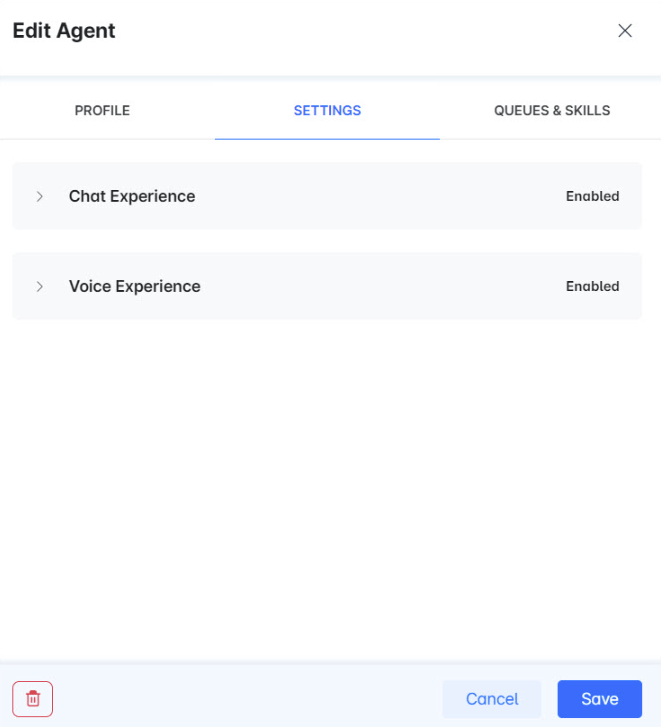 * **Chat experience:** Enable chat settings and define properties such as max chats, language, and proficiency level.
 * **Voice experience:** Enable voice settings and define properties such as language and proficiency level.
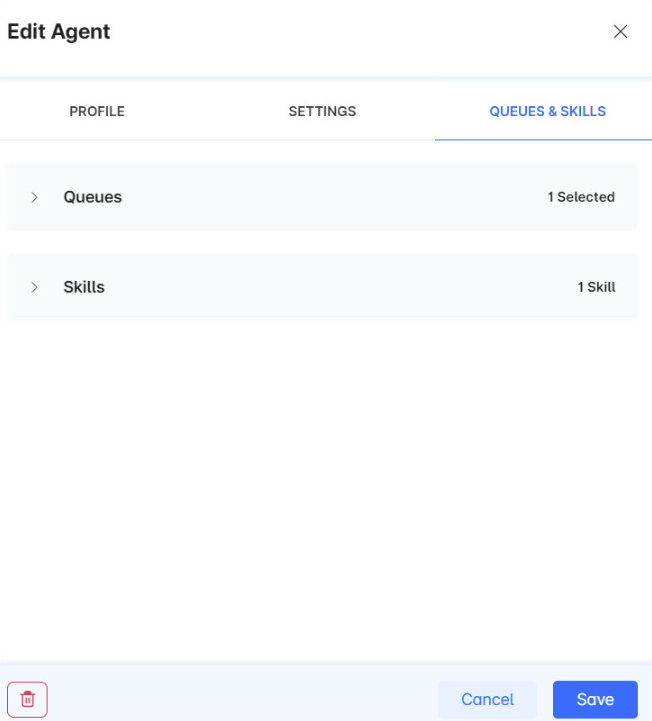
#### Queues & Skills Tab
Configure queue and skill assignments for the agent.
* **Voice experience:** Enable voice settings and define properties such as language and proficiency level.
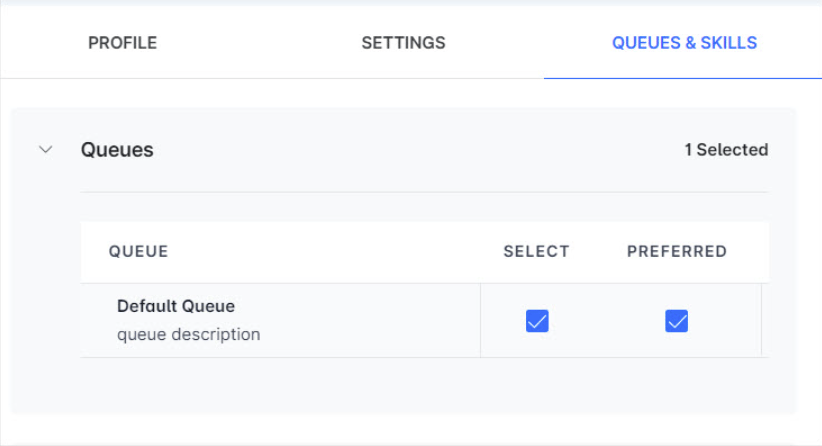
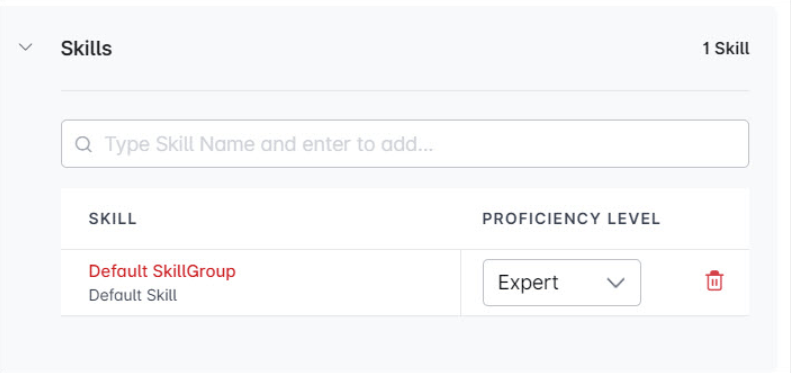
#### Queues & Skills Tab
Configure queue and skill assignments for the agent.
 * **Queues:** Select the default and preferred queue.
 * **Skills:** Set the proficiency level for each skill.
 ***
## Agent Management
Go to **Contact Center AI** > **Agent & Supervisors** > **Agent Management**.
### Agent Groups
An Agent Group is a collection of agents organized by skills, roles, or other criteria. Groups are used to streamline routing and assign statuses and dispositions.
The Agent Groups section shows each group's name, description, and agent count. Select a group name to see its agents, along with their role and assigned skills and queues.
#### Pre-configured Groups
| Group | Description |
| :------------ | :------------------------------------------------------- |
| Unassigned | Default group for new users; not considered for routing. |
| Default Group | Standard default group. |
#### Create an Agent Group
1. Select **Add Group**.
2. In the New Group window, enter the Group Name, Description, and Agent Status (optional). Statuses selected here appear to agents in this group alongside system-defined ones.
3. Select **Save**.
#### Add Agents to a Group
1. Go to **Agents** and create or edit an agent.
2. On the agent profile, select the desired group.
3. Save the agent record.
See [Edit a User](/ai-for-service/user-management/users-and-role#edit-a-user) for details.
#### Edit an Agent Group
1. Hover over the group and select the **Edit** icon.
***
## Agent Management
Go to **Contact Center AI** > **Agent & Supervisors** > **Agent Management**.
### Agent Groups
An Agent Group is a collection of agents organized by skills, roles, or other criteria. Groups are used to streamline routing and assign statuses and dispositions.
The Agent Groups section shows each group's name, description, and agent count. Select a group name to see its agents, along with their role and assigned skills and queues.
#### Pre-configured Groups
| Group | Description |
| :------------ | :------------------------------------------------------- |
| Unassigned | Default group for new users; not considered for routing. |
| Default Group | Standard default group. |
#### Create an Agent Group
1. Select **Add Group**.
2. In the New Group window, enter the Group Name, Description, and Agent Status (optional). Statuses selected here appear to agents in this group alongside system-defined ones.
3. Select **Save**.
#### Add Agents to a Group
1. Go to **Agents** and create or edit an agent.
2. On the agent profile, select the desired group.
3. Save the agent record.
See [Edit a User](/ai-for-service/user-management/users-and-role#edit-a-user) for details.
#### Edit an Agent Group
1. Hover over the group and select the **Edit** icon.
 2. Make changes and select **Save**.
You can't rename the pre-configured groups: Unassigned and Default Group.
#### Delete an Agent Group
1. Select the **Edit** icon next to the group.
2. In the Edit Group window, select the **Delete Agent Group** icon.
***
### Agent Status
Agent statuses show what agents are doing-Available, Offline, Busy, Away, and any custom statuses you create.
Go to **Contact Center** > **Agent Management** > **Agent & Supervisors** to manage statuses.
Each status entry shows its **Name**, **Type** (Available, Away, Busy, or Offline), and **Description**.
#### System Busy Status
**Without Blended Mode:**
* Digital interactions: triggers when concurrency reaches 100% of available slots.
* Voice interactions: triggers when the single voice slot is occupied.
* Agents on voice are marked System Busy for digital, and vice versa.
**With Blended Mode:**
When blending is active, System Busy behavior varies based on the agent's queue assignments:
**Case A**: Blending Disabled Across All Queues
If an agent is assigned to multiple queues and none of them have blending enabled, the agent behaves as non-blended. System Busy triggers when:
* The voice slot is occupied, OR
* Digital slots reach full capacity.
**Case B**: At Least One Queue Has Blending Enabled
If an agent is assigned to multiple queues and at least one queue has blending enabled, the agent is treated as blending-enabled across all assignments. System Busy triggers only if all voice and digital slots are utilized.
System Busy evaluation is based on the effective blending state after precedence resolution, not on individual queue isolation.
| Blending Setting | System Busy Trigger |
| :--------------------------------------------- | :--------------------------------------------- |
| Blended ON (at least one queue or agent level) | All voice and digital slots are full. |
| Blended OFF (all queues and agent level) | 100% digital occupancy or voice slot occupied. |
Load Capacity = (Occupied Voice or Max Voice) + (Occupied Digital or Max Digital)
**Best practices:**
* Configure slot allocations based on expected interaction volumes per queue.
* Train agents on blended handling and effective multitasking.
* Monitor load capacity indicators in the Agents view to optimize staffing.
* Use reporting to track the impact of blended mode on key performance indicators.
#### Create an Agent Status
1. Select **+ New Status**.
2. Enter the Status Name, Status Type, Description, and Assign to Agent Groups (Required for custom statuses; makes the status available to agents in those groups).
3. Select **Add & Exit** or **Add & Stay**.
#### Edit an Agent Status
1. Select the **Edit** icon next to the status.
2. Edit the Status Name, Type, or Description, then select **Update**.
Administrators can rename default statuses (Available, Away, Busy) to match business terminology. The underlying behavior is preserved and applied consistently across existing and historical data. Reserved labels that can't be used for custom statuses: Available, Away, Busy, Offline, System Busy, System Away, and Login Prep.
#### Delete an Agent Status
* Default statuses (Available, Away, Busy, Offline) can't be deleted.
* Deleted statuses can't be restored.
1. Select the **Delete** icon next to the status.
2. Select **Yes** to confirm.
#### Configure Login Prep Status
Login Prep prevents agents from receiving interactions immediately after logging in, giving them time to prepare.
1. Select **Edit** next to Login Prep.
2. Turn on the **Enabled** toggle.
3. Customize the Status Name, Description, and Message to Agent.
4. Select **Update**.
When enabled, Login Prep becomes the default status on every new login. [Learn more](/ai-for-service/contact-center/agent-console#status-behavior).
***
### Agent Settings
Go to **Contact Center AI** > **Agent & Supervisors** > **Agent Management** > **Agent Settings**.
Settings appear in collapsed groups. Select any group to expand it.
| Setting | Description |
| :------------------------------------ | :-------------------------------------------------------------------------------------------------------------------------------------- |
| Answer Mode | How conversations are answered on each channel. |
| Conversation Status Control | Conversation status behavior and status-triggered messages. |
| Transfers | External transfer settings, skill match enforcement, transfer destinations. |
| Skill Modification | Whether agents can modify skills on a conversation. |
| Auto Logout & Auto Close Conversation | Inactivity timeout for auto logout and ACW transition. |
| Snooze | Lets agents temporarily pause conversations awaiting a reply. |
| Blended Agents | Enables agents to handle voice and digital interactions simultaneously. |
| Additional Routing Configuration | Fairer distribution and queue hold options. |
| Enable Dial Tone Until Agent Connects | Plays a dial tone until agent connection is established. |
| Total Digital Conversation Limit | Limits total active digital conversations across all channels. |
| Conversation Timer Metric | Controls which timing metric the conversation timer displays for all agents in the Agent Console. Defaults to Total Chat Handling Time. |
| Capture Disposition During Transfer | Captures the disposition of conversations during agent transfer. |
#### Answer Mode
| Channel | Manual | Auto |
| :------ | :------------------------------------------------- | :---------------------------------------------------- |
| Voice | Agent selects Accept | Calls auto answered |
| Chats | Agent selects Accept; configure acceptance timeout | Chats auto answered; configure first response timeout |
| Emails | Agent selects Accept; configure acceptance timeout | Emails auto accepted |
**Explicit Reject:** Adds an explicit reject option for incoming conversations (manual mode only). Off by default.
**Honor Agent Wait Before Queue Timeout:**
* Enabled: When a conversation enters the agent wait state, the queue wait timeout doesn't trigger until after the agent wait timeout expires.
* Disabled (default): The queue wait timeout runs in parallel and may close the conversation while it's in the agent wait state.
***
#### Conversation Status Control
Conversation statuses trigger messages to agents or customers at key moments. Watch the demo for an overview:
2. Make changes and select **Save**.
You can't rename the pre-configured groups: Unassigned and Default Group.
#### Delete an Agent Group
1. Select the **Edit** icon next to the group.
2. In the Edit Group window, select the **Delete Agent Group** icon.
***
### Agent Status
Agent statuses show what agents are doing-Available, Offline, Busy, Away, and any custom statuses you create.
Go to **Contact Center** > **Agent Management** > **Agent & Supervisors** to manage statuses.
Each status entry shows its **Name**, **Type** (Available, Away, Busy, or Offline), and **Description**.
#### System Busy Status
**Without Blended Mode:**
* Digital interactions: triggers when concurrency reaches 100% of available slots.
* Voice interactions: triggers when the single voice slot is occupied.
* Agents on voice are marked System Busy for digital, and vice versa.
**With Blended Mode:**
When blending is active, System Busy behavior varies based on the agent's queue assignments:
**Case A**: Blending Disabled Across All Queues
If an agent is assigned to multiple queues and none of them have blending enabled, the agent behaves as non-blended. System Busy triggers when:
* The voice slot is occupied, OR
* Digital slots reach full capacity.
**Case B**: At Least One Queue Has Blending Enabled
If an agent is assigned to multiple queues and at least one queue has blending enabled, the agent is treated as blending-enabled across all assignments. System Busy triggers only if all voice and digital slots are utilized.
System Busy evaluation is based on the effective blending state after precedence resolution, not on individual queue isolation.
| Blending Setting | System Busy Trigger |
| :--------------------------------------------- | :--------------------------------------------- |
| Blended ON (at least one queue or agent level) | All voice and digital slots are full. |
| Blended OFF (all queues and agent level) | 100% digital occupancy or voice slot occupied. |
Load Capacity = (Occupied Voice or Max Voice) + (Occupied Digital or Max Digital)
**Best practices:**
* Configure slot allocations based on expected interaction volumes per queue.
* Train agents on blended handling and effective multitasking.
* Monitor load capacity indicators in the Agents view to optimize staffing.
* Use reporting to track the impact of blended mode on key performance indicators.
#### Create an Agent Status
1. Select **+ New Status**.
2. Enter the Status Name, Status Type, Description, and Assign to Agent Groups (Required for custom statuses; makes the status available to agents in those groups).
3. Select **Add & Exit** or **Add & Stay**.
#### Edit an Agent Status
1. Select the **Edit** icon next to the status.
2. Edit the Status Name, Type, or Description, then select **Update**.
Administrators can rename default statuses (Available, Away, Busy) to match business terminology. The underlying behavior is preserved and applied consistently across existing and historical data. Reserved labels that can't be used for custom statuses: Available, Away, Busy, Offline, System Busy, System Away, and Login Prep.
#### Delete an Agent Status
* Default statuses (Available, Away, Busy, Offline) can't be deleted.
* Deleted statuses can't be restored.
1. Select the **Delete** icon next to the status.
2. Select **Yes** to confirm.
#### Configure Login Prep Status
Login Prep prevents agents from receiving interactions immediately after logging in, giving them time to prepare.
1. Select **Edit** next to Login Prep.
2. Turn on the **Enabled** toggle.
3. Customize the Status Name, Description, and Message to Agent.
4. Select **Update**.
When enabled, Login Prep becomes the default status on every new login. [Learn more](/ai-for-service/contact-center/agent-console#status-behavior).
***
### Agent Settings
Go to **Contact Center AI** > **Agent & Supervisors** > **Agent Management** > **Agent Settings**.
Settings appear in collapsed groups. Select any group to expand it.
| Setting | Description |
| :------------------------------------ | :-------------------------------------------------------------------------------------------------------------------------------------- |
| Answer Mode | How conversations are answered on each channel. |
| Conversation Status Control | Conversation status behavior and status-triggered messages. |
| Transfers | External transfer settings, skill match enforcement, transfer destinations. |
| Skill Modification | Whether agents can modify skills on a conversation. |
| Auto Logout & Auto Close Conversation | Inactivity timeout for auto logout and ACW transition. |
| Snooze | Lets agents temporarily pause conversations awaiting a reply. |
| Blended Agents | Enables agents to handle voice and digital interactions simultaneously. |
| Additional Routing Configuration | Fairer distribution and queue hold options. |
| Enable Dial Tone Until Agent Connects | Plays a dial tone until agent connection is established. |
| Total Digital Conversation Limit | Limits total active digital conversations across all channels. |
| Conversation Timer Metric | Controls which timing metric the conversation timer displays for all agents in the Agent Console. Defaults to Total Chat Handling Time. |
| Capture Disposition During Transfer | Captures the disposition of conversations during agent transfer. |
#### Answer Mode
| Channel | Manual | Auto |
| :------ | :------------------------------------------------- | :---------------------------------------------------- |
| Voice | Agent selects Accept | Calls auto answered |
| Chats | Agent selects Accept; configure acceptance timeout | Chats auto answered; configure first response timeout |
| Emails | Agent selects Accept; configure acceptance timeout | Emails auto accepted |
**Explicit Reject:** Adds an explicit reject option for incoming conversations (manual mode only). Off by default.
**Honor Agent Wait Before Queue Timeout:**
* Enabled: When a conversation enters the agent wait state, the queue wait timeout doesn't trigger until after the agent wait timeout expires.
* Disabled (default): The queue wait timeout runs in parallel and may close the conversation while it's in the agent wait state.
***
#### Conversation Status Control
Conversation statuses trigger messages to agents or customers at key moments. Watch the demo for an overview:
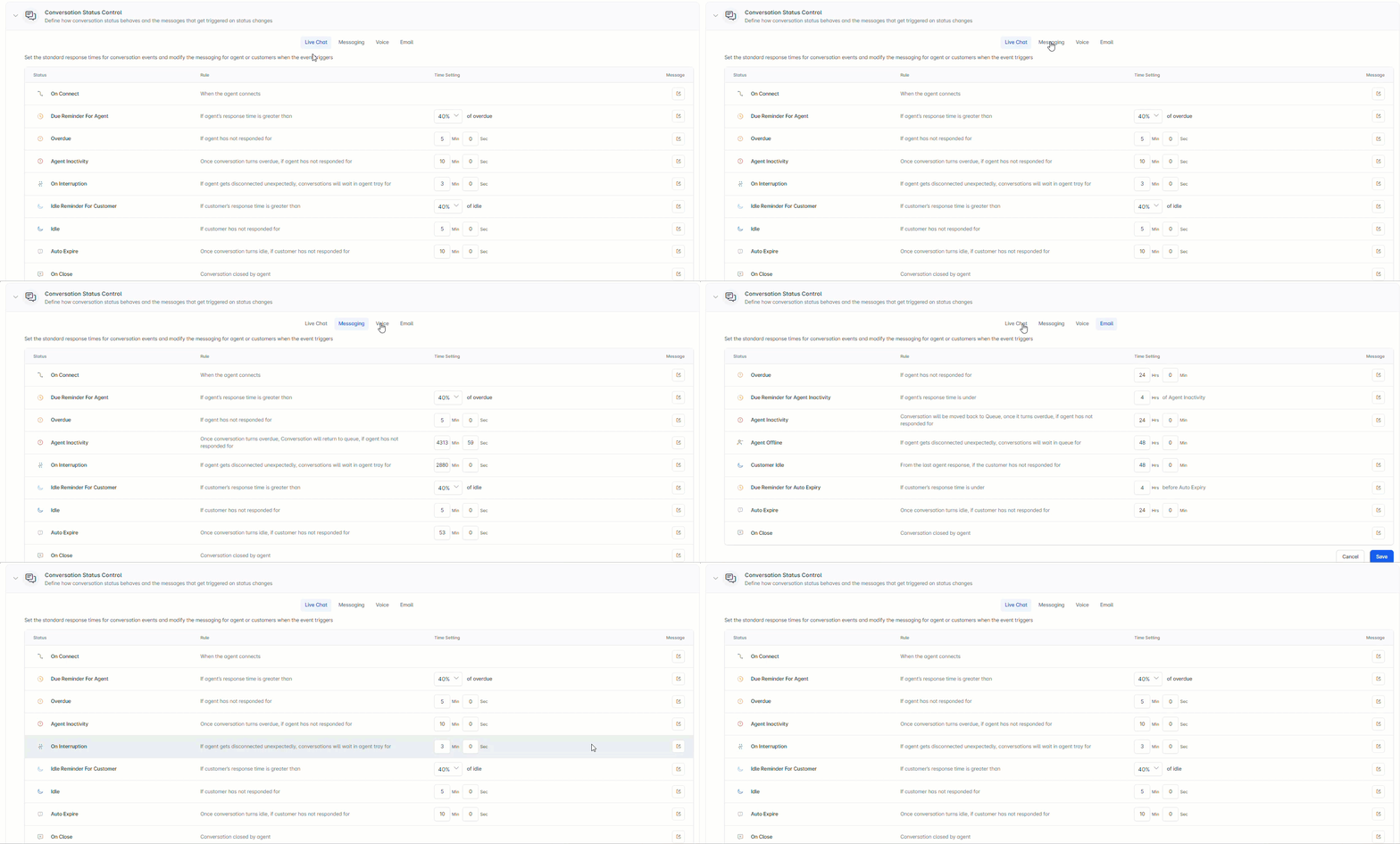 **Live Chat, Messaging, and Voice statuses:**
| Status | When It Applies | Channel | Message To | Variables Available |
| :---------------------------------------------- | :------------------------------------------------------------ | :-------------------------- | :---------- | :--------------------------------------- |
| `On Waiting` | User-side chat termination | Messaging | User | `{{endChat}}`, Agent names, Elapsed Time |
| `On Connect (Default)` | Agent connects | Live Chat, Messaging, Voice | User | Agent names, Elapsed Time, Expired Time |
| `On Agent Network Interruption` | When an Agent network interruption event is received | Voice | User | Agent names |
| `On Connect (Queue & Skill Specific)` | Queue, Skill, or both match; highest-priority mapping applies | Live Chat, Messaging, Voice | User | Agent names, Queue Name, Nick Name |
| `Due Reminder For Agent` | Agent response time exceeds the set percentile | Live Chat, Messaging | Agent | Agent names, Elapsed/Expired Time |
| `Overdue` | Agent hasn't responded within the set time | Live Chat, Messaging | Agent | Agent names, Elapsed/Expired Time |
| `Agent Inactivity` | Agent hasn't responded to an overdue conversation | Live Chat | Agent | Agent names, Elapsed/Expired Time |
| `Snooze` | Agent marks customer on Snooze | Live Chat, Messaging | User, Agent | Agent names |
| `On Agent Interruption` | Agent disconnects | Live Chat, Messaging | User | Agent names, Elapsed/Expired Time |
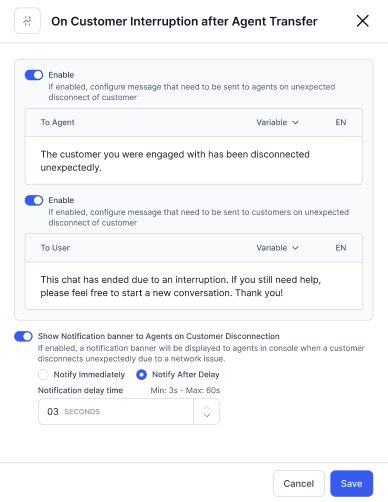
| `On Customer Interruption after Agent Transfer` | Customer disconnects; conversation waits with agent | Live Chat | Agent, User | Agent names |
| `On Customer Interruption in Queue` | Customer disconnects; conversation waits in queue | - | User | Agent names |
| `Idle Reminder For Customer` | Customer response time exceeds the set percentile | Live Chat, Messaging | User | Agent names, Elapsed/Expired Time |
| `Idle` | Customer hasn't responded within the set time | Live Chat, Messaging | User | Agent names, Elapsed/Expired Time |
| `Auto Expire` | Customer response time exceeds the set limit | Live Chat | User, Agent | Agent names, Elapsed/Expired Time |
| `On Close` | Agent closes the conversation | Live Chat, Messaging | User | Agent names, Elapsed/Expired Time |
The Network Disconnection Notification Delay setting, under On Customer Interruption after Agent Transfer, defines how long the system waits before notifying agents of a customer disconnect. If the customer reconnects within this delay, the notification is suppressed. The supported range is 3 seconds to 1 minute (default: 3 seconds).
**Live Chat, Messaging, and Voice statuses:**
| Status | When It Applies | Channel | Message To | Variables Available |
| :---------------------------------------------- | :------------------------------------------------------------ | :-------------------------- | :---------- | :--------------------------------------- |
| `On Waiting` | User-side chat termination | Messaging | User | `{{endChat}}`, Agent names, Elapsed Time |
| `On Connect (Default)` | Agent connects | Live Chat, Messaging, Voice | User | Agent names, Elapsed Time, Expired Time |
| `On Agent Network Interruption` | When an Agent network interruption event is received | Voice | User | Agent names |
| `On Connect (Queue & Skill Specific)` | Queue, Skill, or both match; highest-priority mapping applies | Live Chat, Messaging, Voice | User | Agent names, Queue Name, Nick Name |
| `Due Reminder For Agent` | Agent response time exceeds the set percentile | Live Chat, Messaging | Agent | Agent names, Elapsed/Expired Time |
| `Overdue` | Agent hasn't responded within the set time | Live Chat, Messaging | Agent | Agent names, Elapsed/Expired Time |
| `Agent Inactivity` | Agent hasn't responded to an overdue conversation | Live Chat | Agent | Agent names, Elapsed/Expired Time |
| `Snooze` | Agent marks customer on Snooze | Live Chat, Messaging | User, Agent | Agent names |
| `On Agent Interruption` | Agent disconnects | Live Chat, Messaging | User | Agent names, Elapsed/Expired Time |
| `On Customer Interruption after Agent Transfer` | Customer disconnects; conversation waits with agent | Live Chat | Agent, User | Agent names |
| `On Customer Interruption in Queue` | Customer disconnects; conversation waits in queue | - | User | Agent names |
| `Idle Reminder For Customer` | Customer response time exceeds the set percentile | Live Chat, Messaging | User | Agent names, Elapsed/Expired Time |
| `Idle` | Customer hasn't responded within the set time | Live Chat, Messaging | User | Agent names, Elapsed/Expired Time |
| `Auto Expire` | Customer response time exceeds the set limit | Live Chat | User, Agent | Agent names, Elapsed/Expired Time |
| `On Close` | Agent closes the conversation | Live Chat, Messaging | User | Agent names, Elapsed/Expired Time |
The Network Disconnection Notification Delay setting, under On Customer Interruption after Agent Transfer, defines how long the system waits before notifying agents of a customer disconnect. If the customer reconnects within this delay, the notification is suppressed. The supported range is 3 seconds to 1 minute (default: 3 seconds).
 **Email statuses:**
By default, all Conversation Status Control messages for the Email channel are enabled. Administrators can individually enable or disable specific messages (due reminder for agent inactivity, customer idle, due reminder for auto expiry, and on close).
| Status | When It Applies | Message To | Variables Available |
| :------------------------------------ | :-------------------------------------------------------------- | :---------- | :------------------------------------------------------------ |
| `On Connect (Default)` | Agent connects | User | Time Left to Inactivity, Time Left to Expiry |
| `On Connect (Queue & Skill Specific)` | Queue/Skill match; optional first-agent-only toggle | User | Agent names, Queue/Skill Name, Time Left to Inactivity/Expiry |
| `Overdue` | Agent hasn't responded within the set time | Agent | Elapsed/Expired Time, Time Left to Inactivity/Expiry |
| `Due Reminder for Agent Inactivity` | Agent response time is under the set threshold | Agent | Elapsed/Expired Time, Time Left to Inactivity/Expiry |
| `Agent Offline` | Agent disconnects; conversation waits in queue | Agent | - |
| `Customer Idle` | Customer hasn't responded within the set time | User | Elapsed/Expired Time, Time Left to Inactivity/Expiry |
| `Due Reminder for Auto Expiry` | Customer response time is under the set threshold before expiry | User | Elapsed/Expired Time, Time Left to Inactivity/Expiry |
| `Auto Expire` | Conversation turns idle and customer hasn't responded | User, Agent | Elapsed/Expired Time, Time Left to Inactivity/Expiry |
| `On Close` | Agent closes the conversation | User | Elapsed/Expired Time, Time Left to Inactivity/Expiry |
**Configure a status:**
1. Set the response time threshold (as a percentage value or in minutes and seconds; email uses hours and minutes).
**Email statuses:**
By default, all Conversation Status Control messages for the Email channel are enabled. Administrators can individually enable or disable specific messages (due reminder for agent inactivity, customer idle, due reminder for auto expiry, and on close).
| Status | When It Applies | Message To | Variables Available |
| :------------------------------------ | :-------------------------------------------------------------- | :---------- | :------------------------------------------------------------ |
| `On Connect (Default)` | Agent connects | User | Time Left to Inactivity, Time Left to Expiry |
| `On Connect (Queue & Skill Specific)` | Queue/Skill match; optional first-agent-only toggle | User | Agent names, Queue/Skill Name, Time Left to Inactivity/Expiry |
| `Overdue` | Agent hasn't responded within the set time | Agent | Elapsed/Expired Time, Time Left to Inactivity/Expiry |
| `Due Reminder for Agent Inactivity` | Agent response time is under the set threshold | Agent | Elapsed/Expired Time, Time Left to Inactivity/Expiry |
| `Agent Offline` | Agent disconnects; conversation waits in queue | Agent | - |
| `Customer Idle` | Customer hasn't responded within the set time | User | Elapsed/Expired Time, Time Left to Inactivity/Expiry |
| `Due Reminder for Auto Expiry` | Customer response time is under the set threshold before expiry | User | Elapsed/Expired Time, Time Left to Inactivity/Expiry |
| `Auto Expire` | Conversation turns idle and customer hasn't responded | User, Agent | Elapsed/Expired Time, Time Left to Inactivity/Expiry |
| `On Close` | Agent closes the conversation | User | Elapsed/Expired Time, Time Left to Inactivity/Expiry |
**Configure a status:**
1. Set the response time threshold (as a percentage value or in minutes and seconds; email uses hours and minutes).
 * The system automatically closes a conversation when the customer remains inactive beyond the configured timeout. This behavior is expected when no response is received from the user. To prevent automatic closure, increase the customer interruption timer so the system waits longer for user input.
* Percentage-based thresholds apply to: Due Reminder For Agent, Idle Reminder For Customer.
* No time configuration needed for: On Connect, On Close.
* For email: Overdue, Agent Inactivity, and Auto Expire have a configurable limit of 30 days.
2. Edit the message text, add variables, and select the language.
* The system automatically closes a conversation when the customer remains inactive beyond the configured timeout. This behavior is expected when no response is received from the user. To prevent automatic closure, increase the customer interruption timer so the system waits longer for user input.
* Percentage-based thresholds apply to: Due Reminder For Agent, Idle Reminder For Customer.
* No time configuration needed for: On Connect, On Close.
* For email: Overdue, Agent Inactivity, and Auto Expire have a configurable limit of 30 days.
2. Edit the message text, add variables, and select the language.
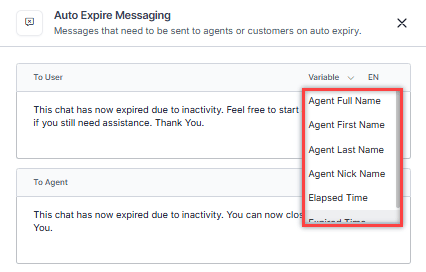
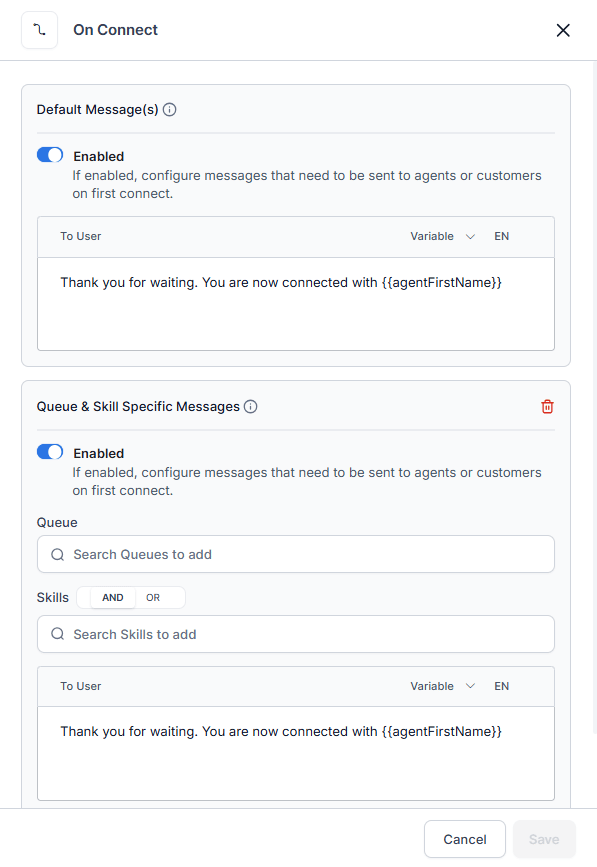 To add a variable, place the cursor in the message text, select the Variable field, and choose a variable. The placeholder (for example, `{{agentFirstName}}`) is replaced with actual data when the message sends.
 3. Select **Save**.
***
#### Transfers
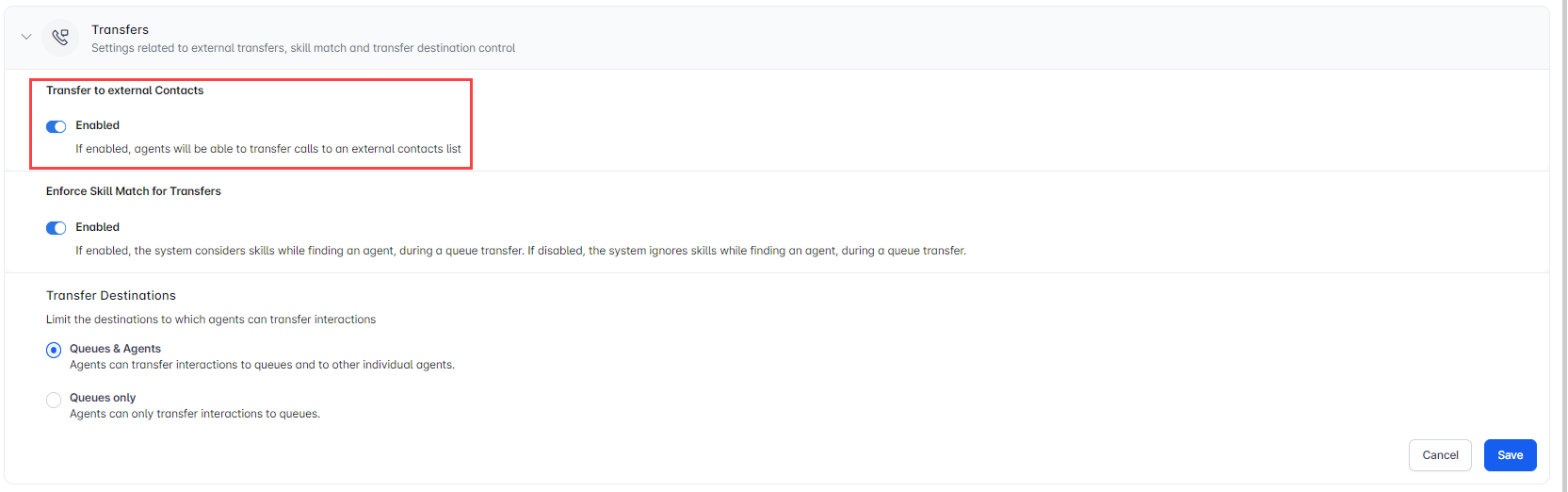
**Transfer to External Contacts:** When enabled, agents can transfer calls to the external contacts list via the Agent Console.
3. Select **Save**.
***
#### Transfers
**Transfer to External Contacts:** When enabled, agents can transfer calls to the external contacts list via the Agent Console.
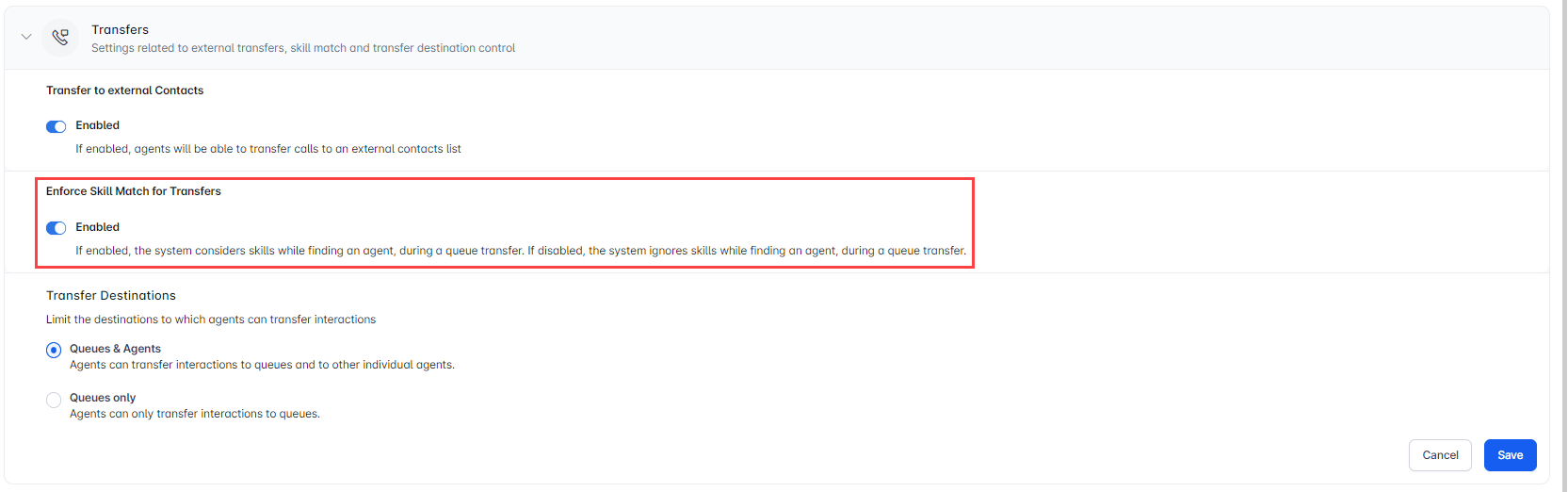
 **Enforce Skill Match for Transfers:** When enabled, the system applies skill matching during queue transfers. When disabled, skills are ignored.
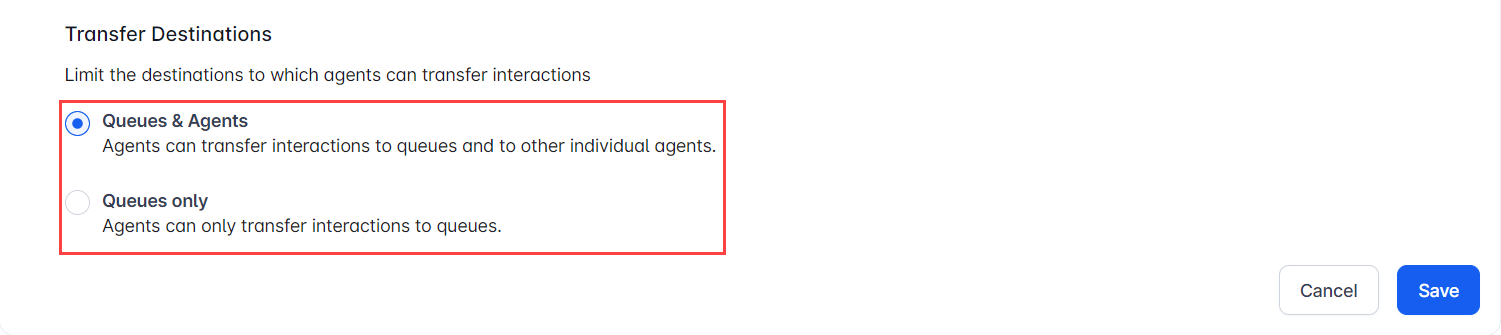
 **Transfer Destinations:** Controls where agents can send interactions.
| Option | Description |
| :-------------- | :-------------------------------------------------- |
| Queues & Agents | Agents can transfer to queues and individual agents |
| Queues only | Agents can transfer to queues only |
**Transfer Destinations:** Controls where agents can send interactions.
| Option | Description |
| :-------------- | :-------------------------------------------------- |
| Queues & Agents | Agents can transfer to queues and individual agents |
| Queues only | Agents can transfer to queues only |
 ***
#### Skill Modification
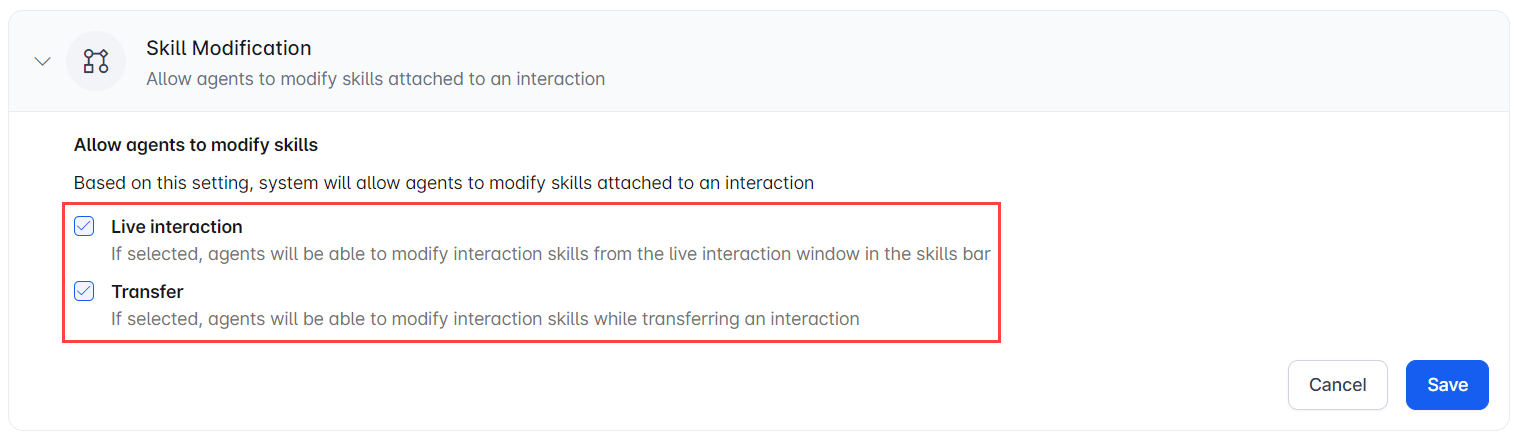
When enabled, agents can modify skills attached to an interaction.
| Option | Description |
| :--------------- | :-------------------------------------------------------------------------- |
| Live Interaction | Agents can modify skills from the skills bar on the live interaction window |
| Transfer | Agents can modify skills when transferring |
***
#### Skill Modification
When enabled, agents can modify skills attached to an interaction.
| Option | Description |
| :--------------- | :-------------------------------------------------------------------------- |
| Live Interaction | Agents can modify skills from the skills bar on the live interaction window |
| Transfer | Agents can modify skills when transferring |
 ***
#### Auto Logout & Auto Close Conversation
Disabled by default. When enabled:
***
#### Auto Logout & Auto Close Conversation
Disabled by default. When enabled:
 * **Auto Logout**-Period of inactivity before the system logs out the agent automatically. Default: 8 hours.
* **Due Reminder for Auto Logout**-Alert time shown to the agent before auto logout triggers.
* **Auto Logout**-Period of inactivity before the system logs out the agent automatically. Default: 8 hours.
* **Due Reminder for Auto Logout**-Alert time shown to the agent before auto logout triggers.
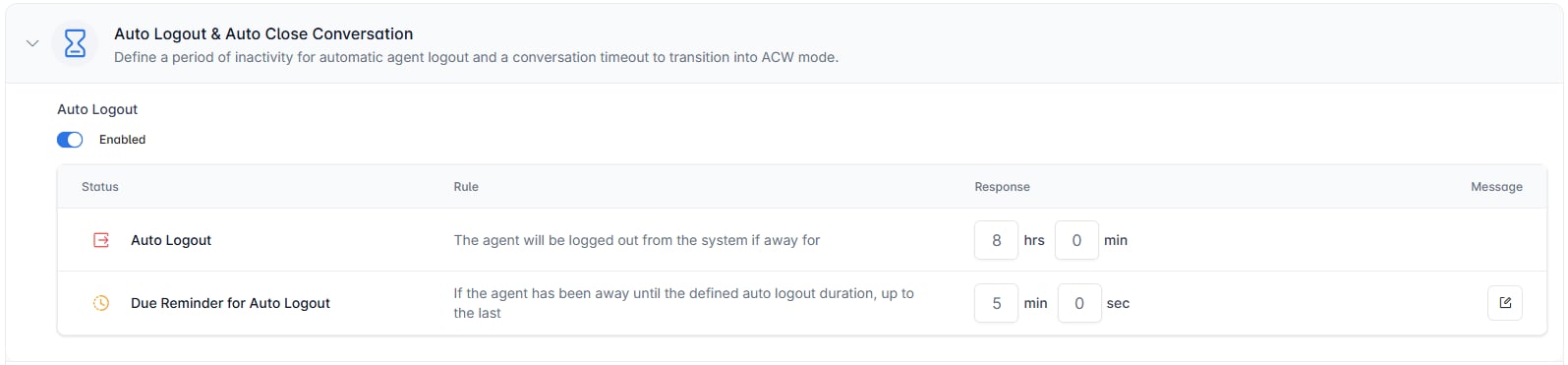 * **Conversation Callback Timeout**-When enabled, the conversation automatically moves to ACW mode after timeout if the agent is inactive on the callback screen. Default: 30 seconds; configurable between 10 seconds and 5 minutes.
 ***
#### Snooze
Lets agents temporarily pause conversations that are waiting for a customer reply or a pending action. Disabled by default.
When enabled, the following options are available:
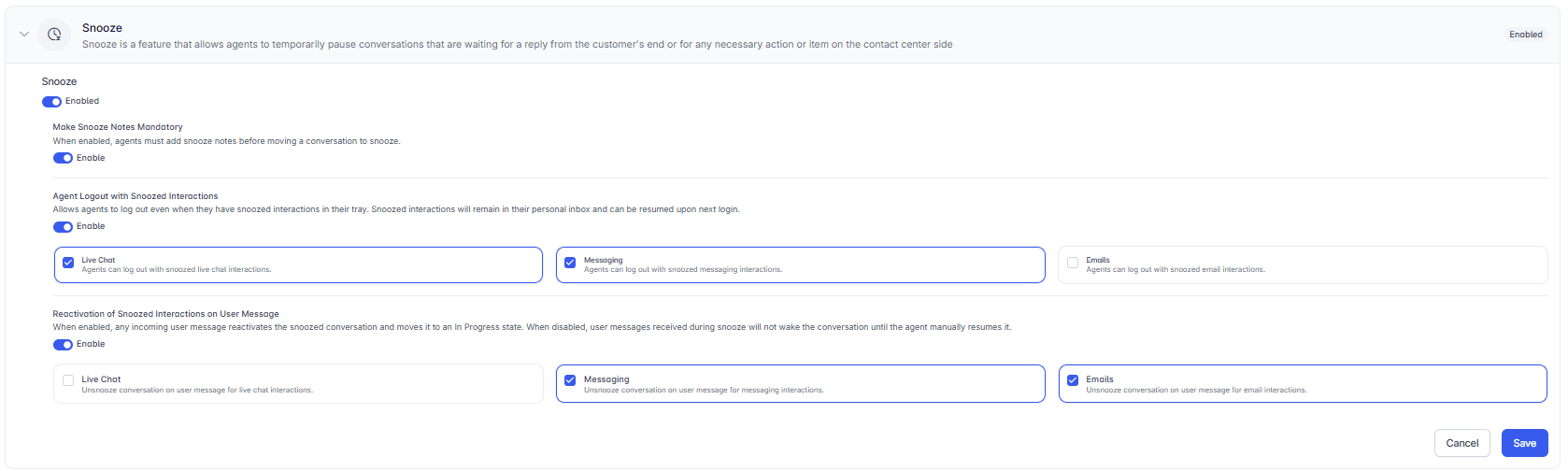
* **Make Snooze Notes Mandatory**-Agents must add notes before snoozing a conversation.
* **Agent Logout with Snoozed Interactions**-Agents can log out while conversations are snoozed. Snoozed conversations remain in the agent's inbox and resume at next login. Applies to selected channels (Live Chat, Messaging, Email).
* **Reactivation of Snoozed Interactions on User Message**-When enabled, any incoming user message reactivates the snoozed conversation. When disabled, the conversation stays snoozed until the agent manually resumes it.
***
#### Snooze
Lets agents temporarily pause conversations that are waiting for a customer reply or a pending action. Disabled by default.
When enabled, the following options are available:
* **Make Snooze Notes Mandatory**-Agents must add notes before snoozing a conversation.
* **Agent Logout with Snoozed Interactions**-Agents can log out while conversations are snoozed. Snoozed conversations remain in the agent's inbox and resume at next login. Applies to selected channels (Live Chat, Messaging, Email).
* **Reactivation of Snoozed Interactions on User Message**-When enabled, any incoming user message reactivates the snoozed conversation. When disabled, the conversation stays snoozed until the agent manually resumes it.
 ***
#### Blended Agents
When enabled, agents can handle voice and digital interactions simultaneously, optimizing capacity and efficiency. Disabled by default.
Blended Agent configuration controls whether agents can receive voice and digital (chat, messaging, or email) interactions simultaneously. Configuration can be applied at three levels: the app, the queue, and the agent.
**Configuration Levels**
A three-tier hierarchy determines Blended Agent behavior. When no override exists at a lower level, the system falls back to the level above.
**App-Level(Default)**
The app-level setting acts as the base configuration. It applies when no queue-level or agent-level overrides are defined. To enable or disable blending at the app level, go to **Contact Center AI** > **Agent & Supervisors** > **Agent Management** > **Agent Settings** > **Blended Agents**.
**Queue-Level**
When enabled at the queue level, all interactions routed through that queue treat agents as blending-enabled, regardless of the app-level setting. You can search for and select specific queues to apply blending.
***
#### Blended Agents
When enabled, agents can handle voice and digital interactions simultaneously, optimizing capacity and efficiency. Disabled by default.
Blended Agent configuration controls whether agents can receive voice and digital (chat, messaging, or email) interactions simultaneously. Configuration can be applied at three levels: the app, the queue, and the agent.
**Configuration Levels**
A three-tier hierarchy determines Blended Agent behavior. When no override exists at a lower level, the system falls back to the level above.
**App-Level(Default)**
The app-level setting acts as the base configuration. It applies when no queue-level or agent-level overrides are defined. To enable or disable blending at the app level, go to **Contact Center AI** > **Agent & Supervisors** > **Agent Management** > **Agent Settings** > **Blended Agents**.
**Queue-Level**
When enabled at the queue level, all interactions routed through that queue treat agents as blending-enabled, regardless of the app-level setting. You can search for and select specific queues to apply blending.
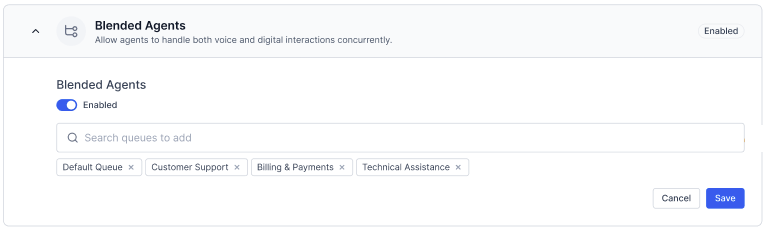 For existing accounts with app-level blending enabled, all queues default to blending enabled. Any new queue in such accounts is automatically included under the blended queue configuration.
**Agent-Level**
When blending is enabled at the agent level, the agent is always treated as blended, regardless of the queue or app configuration.
**Precondition**: The agent must have both voice and digital capabilities enabled.
**Precedence**
The system evaluates blending eligibility in the following order:
**Agent Level** > **Queue Level** > **App Level**
The following table shows how the system resolves the effective blending state based on each combination of settings:
| Agent Blending | Queue Blending | App Blending | Result |
| :------------- | :------------- | :----------- | :--------------------- |
| ON | Any | Any | Blended |
| OFF | ON | Any | Blended for that queue |
| OFF | OFF | ON | Non-blended |
| OFF | ON | ON | Non-blended |
| OFF | OFF | OFF | Non-blended |
**Interaction Routing Behavior**
The system determines the effective blending state before routing any interaction:
1. Determine effective blending state by applying the precedence model (**Agent** > **Queue** > **App**).
2. If blended: Apply slot-based and interruption logic per existing routing specifications.
3. If non-blended: Apply channel selection logic, if enabled.
For details on how Blended Mode affects System Busy behavior, see [System Busy Status](#system-busy-status).
***
#### Additional Routing Configuration
| Option | Description |
| :------------------------------------------------ | :---------------------------------------------------------------------------------------------------------------------------------------------------------------------------------------------------------------------------------------------------------------------------- |
| Fairer Workload Distribution | Distributes tasks evenly across agents to reduce overload and improve focus |
| Hold interaction in queue until wait time expires | Keeps interactions in queue until the maximum timeout, regardless of agent availability |
| Omit Language in Routing | Ignores language during routing; skill, proficiency, availability, and other parameters still apply |
| Last Agent Routing | Routes interactions to the last handling agent for the selected channel (Voice, Chat, Email); optionally waits for the agent to become available for a configured duration, after which the system applies standard routing if the agent remains unavailable or doesn't exist |
The configurable limit for queue max timeout for the Email channel is 30 days.
For existing accounts with app-level blending enabled, all queues default to blending enabled. Any new queue in such accounts is automatically included under the blended queue configuration.
**Agent-Level**
When blending is enabled at the agent level, the agent is always treated as blended, regardless of the queue or app configuration.
**Precondition**: The agent must have both voice and digital capabilities enabled.
**Precedence**
The system evaluates blending eligibility in the following order:
**Agent Level** > **Queue Level** > **App Level**
The following table shows how the system resolves the effective blending state based on each combination of settings:
| Agent Blending | Queue Blending | App Blending | Result |
| :------------- | :------------- | :----------- | :--------------------- |
| ON | Any | Any | Blended |
| OFF | ON | Any | Blended for that queue |
| OFF | OFF | ON | Non-blended |
| OFF | ON | ON | Non-blended |
| OFF | OFF | OFF | Non-blended |
**Interaction Routing Behavior**
The system determines the effective blending state before routing any interaction:
1. Determine effective blending state by applying the precedence model (**Agent** > **Queue** > **App**).
2. If blended: Apply slot-based and interruption logic per existing routing specifications.
3. If non-blended: Apply channel selection logic, if enabled.
For details on how Blended Mode affects System Busy behavior, see [System Busy Status](#system-busy-status).
***
#### Additional Routing Configuration
| Option | Description |
| :------------------------------------------------ | :---------------------------------------------------------------------------------------------------------------------------------------------------------------------------------------------------------------------------------------------------------------------------- |
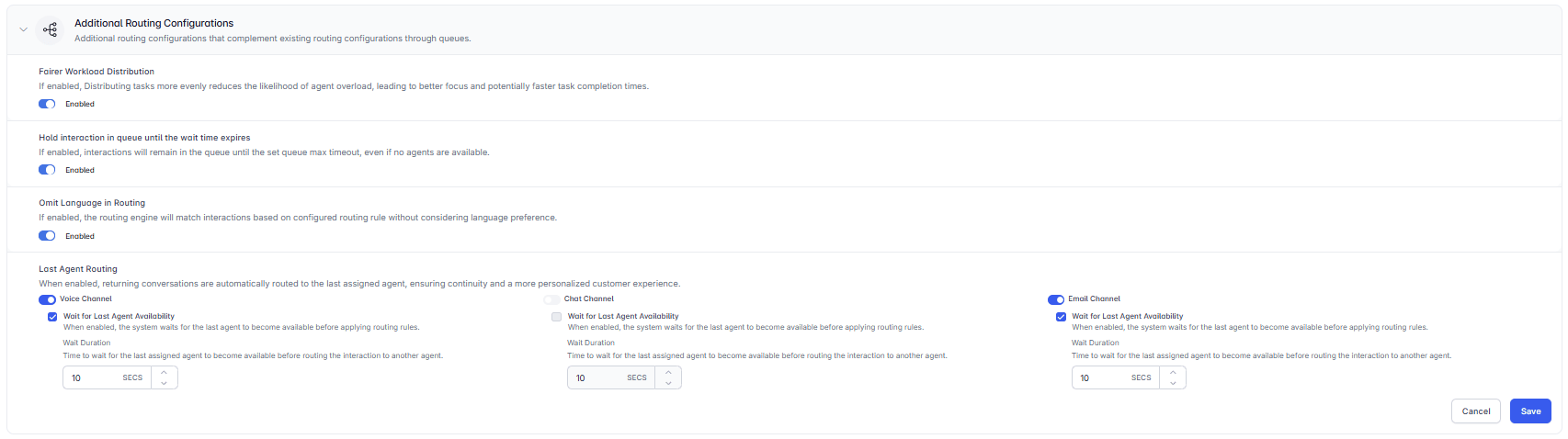
| Fairer Workload Distribution | Distributes tasks evenly across agents to reduce overload and improve focus |
| Hold interaction in queue until wait time expires | Keeps interactions in queue until the maximum timeout, regardless of agent availability |
| Omit Language in Routing | Ignores language during routing; skill, proficiency, availability, and other parameters still apply |
| Last Agent Routing | Routes interactions to the last handling agent for the selected channel (Voice, Chat, Email); optionally waits for the agent to become available for a configured duration, after which the system applies standard routing if the agent remains unavailable or doesn't exist |
The configurable limit for queue max timeout for the Email channel is 30 days.
 ***
#### Enable Dial Tone Until Agent Connects
When enabled, a dial tone plays to the customer until the connection with the agent is established after the user hears a connected tone. Disabled by default.
***
#### Enable Dial Tone Until Agent Connects
When enabled, a dial tone plays to the customer until the connection with the agent is established after the user hears a connected tone. Disabled by default.
 ***
#### Total Digital Conversation Limit
Limits the total number of active digital conversations across all channels for an agent. When the limit is reached, the agent moves to System Busy status. Disabled by default.
Set the total conversation limit per user from the User section only. This setting isn't available in the user profile under the Monitor tab.
***
#### Total Digital Conversation Limit
Limits the total number of active digital conversations across all channels for an agent. When the limit is reached, the agent moves to System Busy status. Disabled by default.
Set the total conversation limit per user from the User section only. This setting isn't available in the user profile under the Monitor tab.
 See [User Management](/ai-for-service/administration/user-management#managing-users) for details.
***
### Conversation Timer Metric
The conversation timer displays in the Agent Console for each active interaction. Administrators can configure which timing metric the timer shows. The selected metric applies to all agents.
Only one metric can be active at a time.
To configure the timer metric:
1. Go to **Contact Center AI** > **Agent & Supervisors** > **Agent Management** > **Agent Settings** > **Conversation Timer Metric**.
2. Select a metric from the available options.
3. Select **Save**.
See [User Management](/ai-for-service/administration/user-management#managing-users) for details.
***
### Conversation Timer Metric
The conversation timer displays in the Agent Console for each active interaction. Administrators can configure which timing metric the timer shows. The selected metric applies to all agents.
Only one metric can be active at a time.
To configure the timer metric:
1. Go to **Contact Center AI** > **Agent & Supervisors** > **Agent Management** > **Agent Settings** > **Conversation Timer Metric**.
2. Select a metric from the available options.
3. Select **Save**.
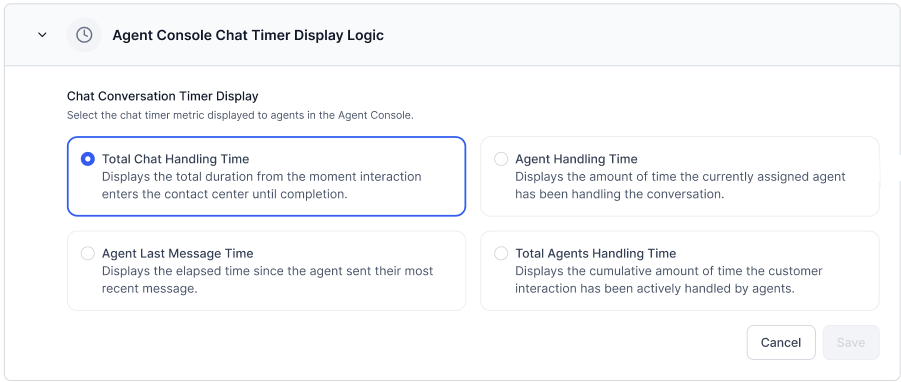 | Metric | What It Measures | Starts When | Resets When |
| :--------------------------------- | :----------------------------------------------------------------------------------------------------------------------------- | :------------------------------------- | :------------------------------------------------------------- |
| Total Chat Handling Time (default) | Total duration from when the interaction entered the contact center, including queue wait time, agent handling, and transfers. | Interaction enters the contact center. | Interaction closes. |
| Agent Handling Time | Time the assigned agent has spent handling the conversation. | The agent accepts the conversation. | Conversation transfers to another agent. |
| Agent Last Message Time | Elapsed time since the agent last sent a message. | The agent sends a message. | The agent sends another message. |
| Interaction Handling Time | Cumulative time agents have actively handled the interaction across all transfers. | Each agent accepts. | Pauses when the interaction is unassigned or waiting in queue. |
***
#### Capture Disposition During Transfer
If enabled, agents can add dispositions while transferring conversations across voice and digital channels. [Learn more](/ai-for-service/contact-center/supervisor#capture-disposition-during-transfer).
***
## Dispositions
Dispositions are labels agents assign to the outcome of a conversation. You organize them into **Disposition Sets** containing **Disposition Codes**.
Go to **Contact Center AI** > **Agent & Supervisors** > **Dispositions**.
| Metric | What It Measures | Starts When | Resets When |
| :--------------------------------- | :----------------------------------------------------------------------------------------------------------------------------- | :------------------------------------- | :------------------------------------------------------------- |
| Total Chat Handling Time (default) | Total duration from when the interaction entered the contact center, including queue wait time, agent handling, and transfers. | Interaction enters the contact center. | Interaction closes. |
| Agent Handling Time | Time the assigned agent has spent handling the conversation. | The agent accepts the conversation. | Conversation transfers to another agent. |
| Agent Last Message Time | Elapsed time since the agent last sent a message. | The agent sends a message. | The agent sends another message. |
| Interaction Handling Time | Cumulative time agents have actively handled the interaction across all transfers. | Each agent accepts. | Pauses when the interaction is unassigned or waiting in queue. |
***
#### Capture Disposition During Transfer
If enabled, agents can add dispositions while transferring conversations across voice and digital channels. [Learn more](/ai-for-service/contact-center/supervisor#capture-disposition-during-transfer).
***
## Dispositions
Dispositions are labels agents assign to the outcome of a conversation. You organize them into **Disposition Sets** containing **Disposition Codes**.
Go to **Contact Center AI** > **Agent & Supervisors** > **Dispositions**.
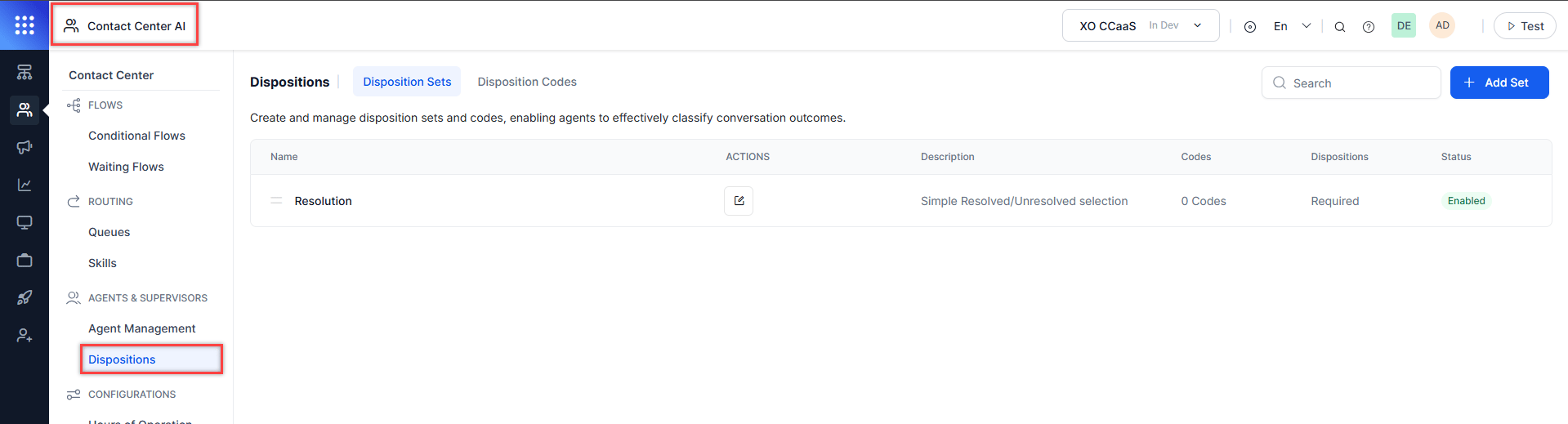 ***
### Disposition Sets
A Disposition Set groups related disposition codes and can be assigned to queues or agent groups. Agents see and complete disposition sets when ending conversations.
***
### Disposition Sets
A Disposition Set groups related disposition codes and can be assigned to queues or agent groups. Agents see and complete disposition sets when ending conversations.
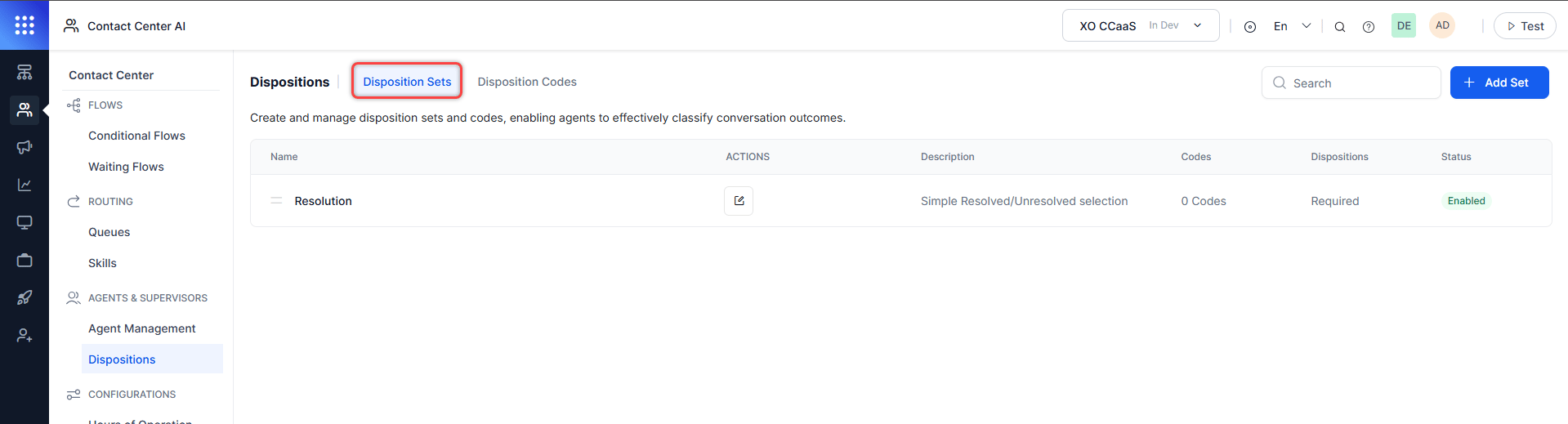 The **Resolution** set comes pre-built with codes: Resolved, Requires Supervisor Attention, and Unresolved. It can be edited but not deleted. If disabled or removed from a queue's assignment, selecting a disposition from it becomes optional.
The Disposition Sets section lets you:
| Action | Description |
| :------ | :----------------------------------------------- |
| Search | Find sets by name |
| Add | Create a new set |
| Edit | Modify an existing set |
| Delete | Remove custom sets (Resolution can't be deleted) |
| Reorder | Drag and drop to change display order |
Each set shows: **Name**, **Description**, **Codes** (count), **Dispositions** (Required/Optional), **Status** (Enabled/Disabled).
#### Add a Disposition Set
1. Select **Add Set**.
2. On the **General** tab, configure:
| Field | Description |
| :------------------ | :------------------------------------------------------------------------------- |
| Name | Disposition set name. |
| Description | Brief description. |
| Campaign-Linked Set | Toggle on to capture campaign call outcomes. |
| Display | Dropdown or Button (both single-selection). |
| Is Required | Yes: agents must select a code when closing assigned interactions. No: optional. |
| Assignment | Assign to Queues or Agent Groups. |
* **Assign to Queues:** Select **Add Queue** and search for queues.
The **Resolution** set comes pre-built with codes: Resolved, Requires Supervisor Attention, and Unresolved. It can be edited but not deleted. If disabled or removed from a queue's assignment, selecting a disposition from it becomes optional.
The Disposition Sets section lets you:
| Action | Description |
| :------ | :----------------------------------------------- |
| Search | Find sets by name |
| Add | Create a new set |
| Edit | Modify an existing set |
| Delete | Remove custom sets (Resolution can't be deleted) |
| Reorder | Drag and drop to change display order |
Each set shows: **Name**, **Description**, **Codes** (count), **Dispositions** (Required/Optional), **Status** (Enabled/Disabled).
#### Add a Disposition Set
1. Select **Add Set**.
2. On the **General** tab, configure:
| Field | Description |
| :------------------ | :------------------------------------------------------------------------------- |
| Name | Disposition set name. |
| Description | Brief description. |
| Campaign-Linked Set | Toggle on to capture campaign call outcomes. |
| Display | Dropdown or Button (both single-selection). |
| Is Required | Yes: agents must select a code when closing assigned interactions. No: optional. |
| Assignment | Assign to Queues or Agent Groups. |
* **Assign to Queues:** Select **Add Queue** and search for queues.
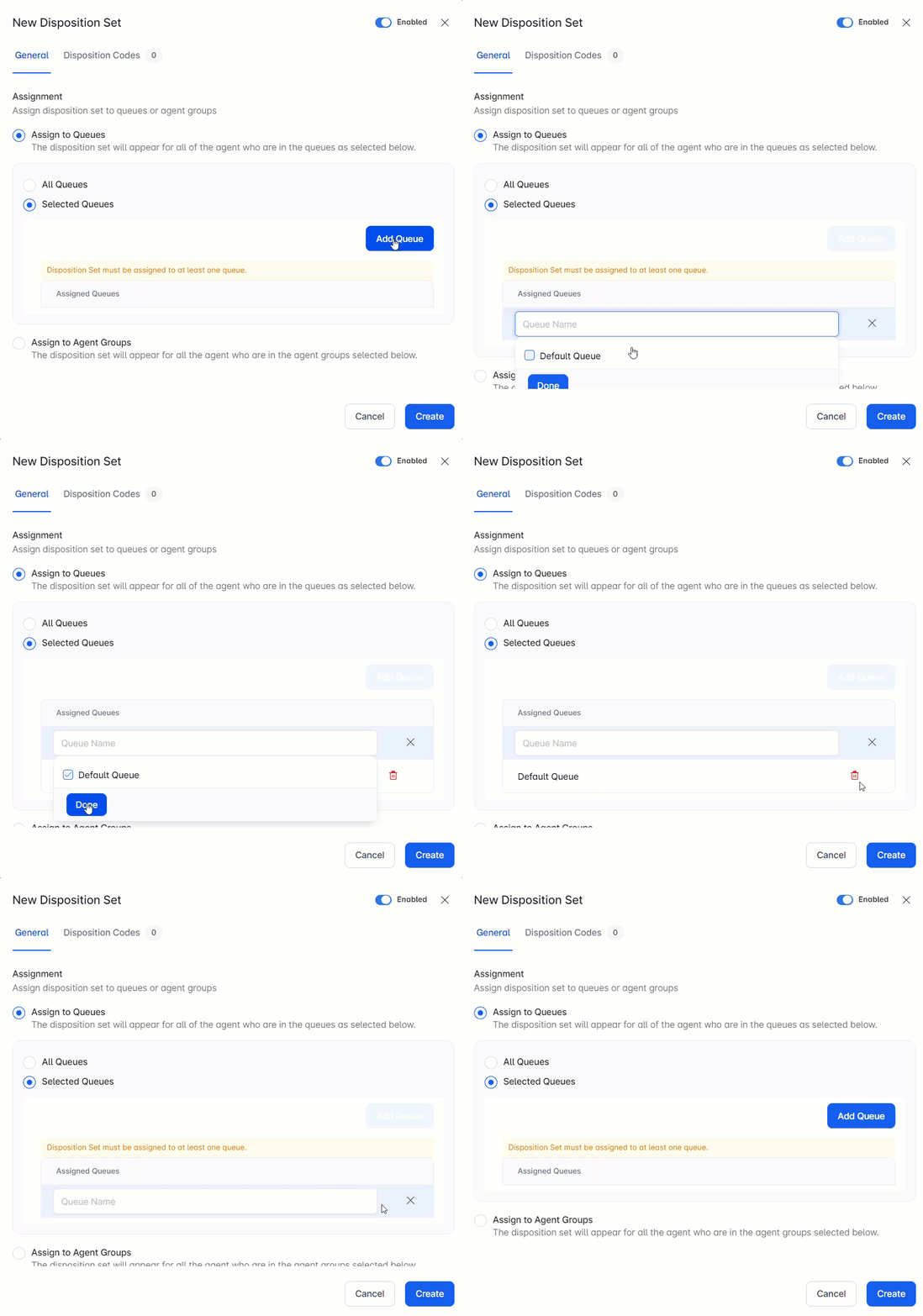 * **Assign to Agent Groups:** Same process as queue assignment.
3. On the **Disposition Codes** tab:
* Select **Add Code** and search for a code. Codes must be created and enabled first.
* Select the bin icon to remove a code.
4. On the **Notify** tab (visible only when email/toast alerts are enabled):
* Select **Add Supervisor** and choose a supervisor from the list.
* **Alert behavior:**
* One code with alerts: a notification triggers when that code is tagged.
* Multiple codes with alerts: one notification is sent for one of the selected codes.
* A secondary email notification can also be enabled.
5. Toggle the set enabled or disabled (enabled by default).
6. Select **Create**.
#### Edit a Disposition Set
1. Select the **Edit** icon for the set.
2. Make changes and select **Save**.
#### Delete a Disposition Set
1. Select the **Edit** icon for the set.
2. Select the **Delete** icon at the lower left and confirm.
* Deleted sets are removed from the Agent Console immediately.
* Deleted sets can't be restored.
**Example Disposition Sets:**
* **Requires Follow Up**-Codes: Pending, Disconnected, Information Required
* **Supervisor Required**-Codes: Requires Approval, Customer Asked for Supervisor, Complex Case
***
### Disposition Codes
A Disposition Code is a short label for a conversation outcome. Codes must belong to a Disposition Set before agents can use them.
**Default codes:**
| Code | Use |
| :---------------------------- | :------------------------------------- |
| Resolved | Resolved with no further action needed |
| Requires Supervisor Attention | Needs escalation to a supervisor |
| Unresolved | Closed but not resolved |
Go to **Contact Center** > **Agent & Supervisors** > **Dispositions** > **Disposition Codes** to manage codes.
#### Add a Disposition Code
1. Select **+ Add Code**.
2. Select **Enable** to activate the code.
3. Enter the **Code Name** and **Description**.
4. Assign a **color** and preview it.
5. Optionally turn on **Show campaign-specific types** to display campaign-associated dispositions.
6. Select **Create**.
#### Edit a Disposition Code
1. Find the code in the list and select **Edit** under Actions.
2. Make changes and select **Save**.
#### Delete a Disposition Code
1. Find the code in the list and select **Delete** under Actions.
2. Confirm the deletion.
Deleted disposition codes can't be restored and no longer appear to agents in the Agent Console.
***
### Agent Experience with Dispositions
Dispositions appear when agents end a conversation in the Agent Console. No code is pre-selected; agents must choose one. If more than one Disposition Set is assigned to a queue or agent group, agents see all sets and must complete all required ones.
* **Assign to Agent Groups:** Same process as queue assignment.
3. On the **Disposition Codes** tab:
* Select **Add Code** and search for a code. Codes must be created and enabled first.
* Select the bin icon to remove a code.
4. On the **Notify** tab (visible only when email/toast alerts are enabled):
* Select **Add Supervisor** and choose a supervisor from the list.
* **Alert behavior:**
* One code with alerts: a notification triggers when that code is tagged.
* Multiple codes with alerts: one notification is sent for one of the selected codes.
* A secondary email notification can also be enabled.
5. Toggle the set enabled or disabled (enabled by default).
6. Select **Create**.
#### Edit a Disposition Set
1. Select the **Edit** icon for the set.
2. Make changes and select **Save**.
#### Delete a Disposition Set
1. Select the **Edit** icon for the set.
2. Select the **Delete** icon at the lower left and confirm.
* Deleted sets are removed from the Agent Console immediately.
* Deleted sets can't be restored.
**Example Disposition Sets:**
* **Requires Follow Up**-Codes: Pending, Disconnected, Information Required
* **Supervisor Required**-Codes: Requires Approval, Customer Asked for Supervisor, Complex Case
***
### Disposition Codes
A Disposition Code is a short label for a conversation outcome. Codes must belong to a Disposition Set before agents can use them.
**Default codes:**
| Code | Use |
| :---------------------------- | :------------------------------------- |
| Resolved | Resolved with no further action needed |
| Requires Supervisor Attention | Needs escalation to a supervisor |
| Unresolved | Closed but not resolved |
Go to **Contact Center** > **Agent & Supervisors** > **Dispositions** > **Disposition Codes** to manage codes.
#### Add a Disposition Code
1. Select **+ Add Code**.
2. Select **Enable** to activate the code.
3. Enter the **Code Name** and **Description**.
4. Assign a **color** and preview it.
5. Optionally turn on **Show campaign-specific types** to display campaign-associated dispositions.
6. Select **Create**.
#### Edit a Disposition Code
1. Find the code in the list and select **Edit** under Actions.
2. Make changes and select **Save**.
#### Delete a Disposition Code
1. Find the code in the list and select **Delete** under Actions.
2. Confirm the deletion.
Deleted disposition codes can't be restored and no longer appear to agents in the Agent Console.
***
### Agent Experience with Dispositions
Dispositions appear when agents end a conversation in the Agent Console. No code is pre-selected; agents must choose one. If more than one Disposition Set is assigned to a queue or agent group, agents see all sets and must complete all required ones.
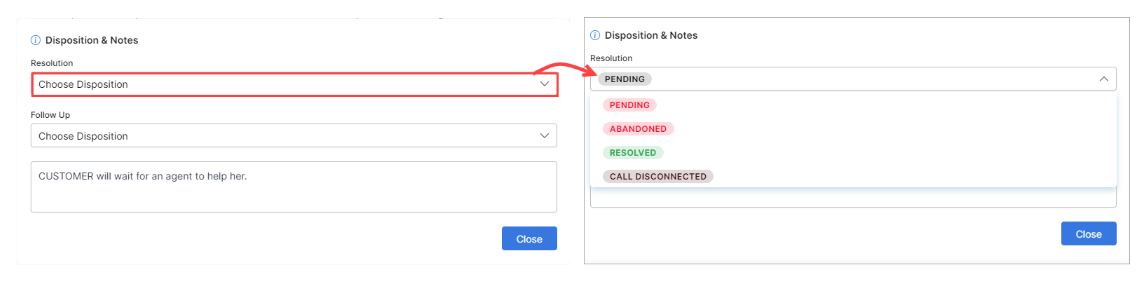 ***
## Alerts
Configure threshold-based alerts to be notified when contact center metrics exceed targets.
**Alert actions:**
| Action | Description |
| :---------- | :---------------------------- |
| Acknowledge | Mark alert as seen |
| Assign | Assign to a team member |
| Take Action | Open related tools |
| Snooze | Temporarily silence the alert |
***
## Reports
See [Reports](/ai-for-service/analytics/contact-center/reports/reports-list).
***
***
## Alerts
Configure threshold-based alerts to be notified when contact center metrics exceed targets.
**Alert actions:**
| Action | Description |
| :---------- | :---------------------------- |
| Acknowledge | Mark alert as seen |
| Assign | Assign to a team member |
| Take Action | Open related tools |
| Snooze | Temporarily silence the alert |
***
## Reports
See [Reports](/ai-for-service/analytics/contact-center/reports/reports-list).
***