> ## Documentation Index
> Fetch the complete documentation index at: https://koreai.mintlify.site/llms.txt
> Use this file to discover all available pages before exploring further.
# Agent Transfer Node in Flows
Use this node to transfer an automated contact flow to a live agent. It bridges automated and human-assisted interactions, providing configuration options for the transfer process, customer waiting experience, and error handling.
## Configure the Node
### General Settings
In **General Settings**, configure the following:
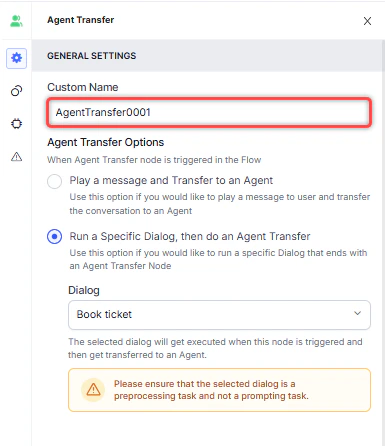 1. **Custom Name**: Enter a name to identify the node.
2. **Agent Transfer Options**: Select one of the following:
* **Play a message and Transfer to an Agent**: Plays a message to the customer before transferring to an agent.
* Click **+ Create New** to write a message, or **+ Add Another** to define multiple messages (one is randomly selected at runtime).
1. **Custom Name**: Enter a name to identify the node.
2. **Agent Transfer Options**: Select one of the following:
* **Play a message and Transfer to an Agent**: Plays a message to the customer before transferring to an agent.
* Click **+ Create New** to write a message, or **+ Add Another** to define multiple messages (one is randomly selected at runtime).
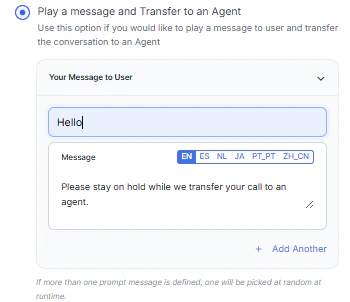 * **Run a Specific Dialog, then do an Agent Transfer**: Runs a selected dialog before performing the transfer.
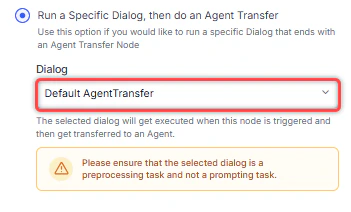 The selected dialog must be a preprocessing task, not a prompting task. Prompting tasks can prevent the agent transfer from executing properly.
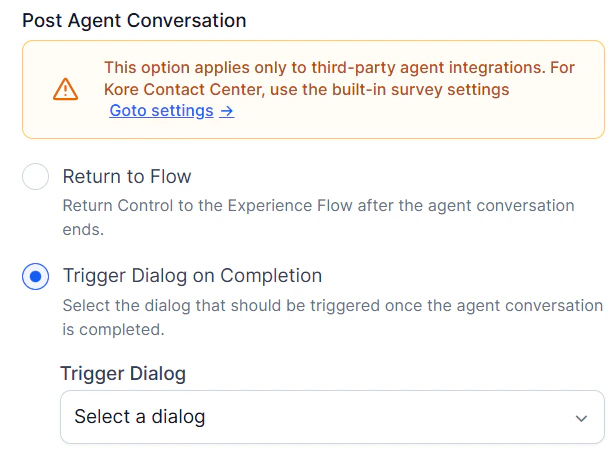
**Post-Agent Conversation Settings**
Configure how the platform behaves after a conversation with a human agent ends. This setting applies only to third-party agent integrations such as Genesys Cloud, Salesforce MIAW, and ServiceNow.
* **Return to Flow**: Resume the experience flow after the agent conversation ends.
* **Trigger Dialog on Completion**: Trigger a selected dialog after the conversation ends to provide feedback or next steps.
The selected dialog must be a preprocessing task, not a prompting task. Prompting tasks can prevent the agent transfer from executing properly.
**Post-Agent Conversation Settings**
Configure how the platform behaves after a conversation with a human agent ends. This setting applies only to third-party agent integrations such as Genesys Cloud, Salesforce MIAW, and ServiceNow.
* **Return to Flow**: Resume the experience flow after the agent conversation ends.
* **Trigger Dialog on Completion**: Trigger a selected dialog after the conversation ends to provide feedback or next steps.
 **Chat Transcript Link**
Control whether a user and AI agent’s chat transcript link is included in the agent transfer payload. The setting is enabled by default and applies to all agent transfers from the app, including those initiated from Dialog Tasks. Refer to [User-Bot Chat Transcript Link](/ai-for-service/integrations/agents/agent-transfer-integrations#user-bot-chat-transcript-link).
### Transfer to Agents
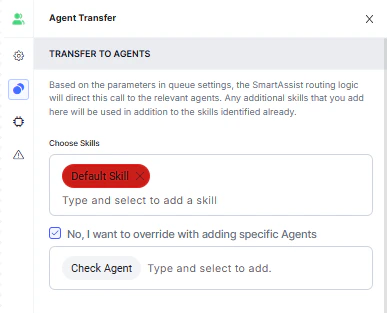
In the **Transfer to Agents** section, configure the following:
1. **Skills**: Select skills to route the customer to an agent with matching skills.
2. To route to a specific agent instead, select **No, I want to override with adding specific Agents** and choose an agent from the dropdown.
**Chat Transcript Link**
Control whether a user and AI agent’s chat transcript link is included in the agent transfer payload. The setting is enabled by default and applies to all agent transfers from the app, including those initiated from Dialog Tasks. Refer to [User-Bot Chat Transcript Link](/ai-for-service/integrations/agents/agent-transfer-integrations#user-bot-chat-transcript-link).
### Transfer to Agents
In the **Transfer to Agents** section, configure the following:
1. **Skills**: Select skills to route the customer to an agent with matching skills.
2. To route to a specific agent instead, select **No, I want to override with adding specific Agents** and choose an agent from the dropdown.
 ### Waiting Experience
Click the **Waiting Experience** icon to configure what the customer experiences while waiting for an agent.
### Waiting Experience
Click the **Waiting Experience** icon to configure what the customer experiences while waiting for an agent.
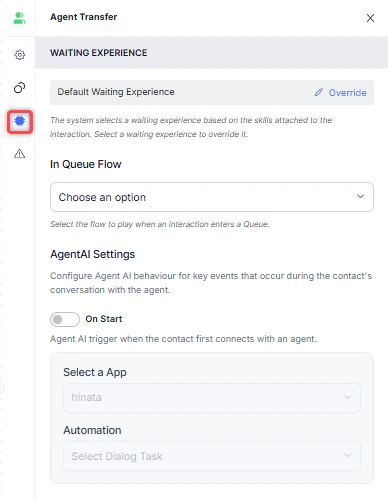 Choose **Default Waiting Experience** or click **Override** to select a custom option from the dropdown.
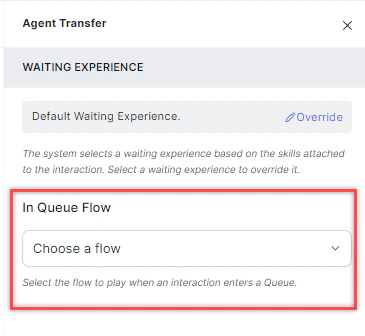
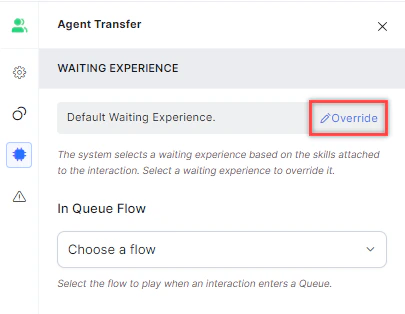 **In Queue Flow**: Attach a flow to run simultaneously with the waiting experience when the interaction enters a queue.
* Runs every time the interaction enters a queue, including transfers into a queue.
* Doesn't trigger during agent-to-agent transfers.
* Always results in an agent transfer.
**In Queue Flow**: Attach a flow to run simultaneously with the waiting experience when the interaction enters a queue.
* Runs every time the interaction enters a queue, including transfers into a queue.
* Doesn't trigger during agent-to-agent transfers.
* Always results in an agent transfer.
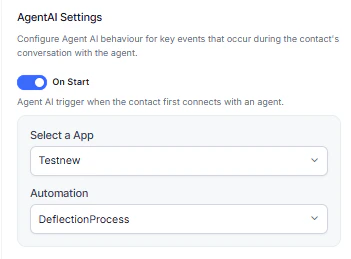
 **Agent AI Settings**: Enable this to configure Agent AI behavior when the contact connects with an agent. Turn on the toggle to trigger Agent AI at connection, then select the App and Automation to use.
 ### Error Handling
Use this section to handle system errors during customer interactions.
### Error Handling
Use this section to handle system errors during customer interactions.
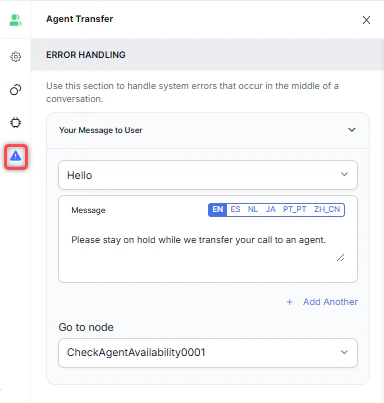 * **Your Message to User**: Select a message type (Text to Speech, Link, or Audio). Type the message, upload an .mp3 or .wav file, or provide a URL. If no message is configured, the default system message plays. See [General Settings](#general-settings) for details.
* **Go to node**: Select the node to direct the error handling flow. You can create a new node or select an existing one.
* **Your Message to User**: Select a message type (Text to Speech, Link, or Audio). Type the message, upload an .mp3 or .wav file, or provide a URL. If no message is configured, the default system message plays. See [General Settings](#general-settings) for details.
* **Go to node**: Select the node to direct the error handling flow. You can create a new node or select an existing one.