> ## Documentation Index
> Fetch the complete documentation index at: https://koreai.mintlify.site/llms.txt
> Use this file to discover all available pages before exploring further.
# Check Business Hours Node
Use this node to route incoming queries based on whether they arrive within or outside configured business hours.
## Configure the Node
### General Settings
In **General Settings**, configure the following:
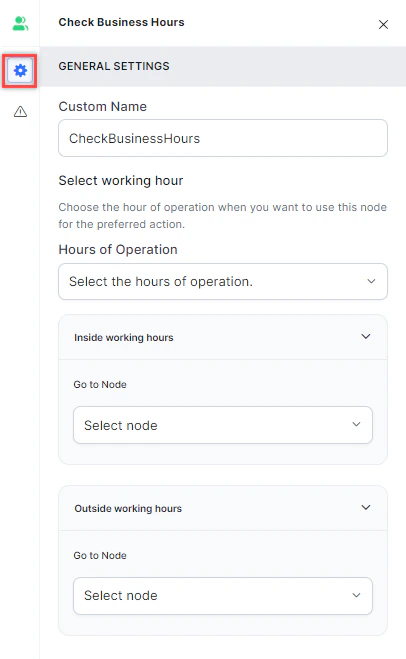 * **Custom Name**: Enter a name to identify the node.
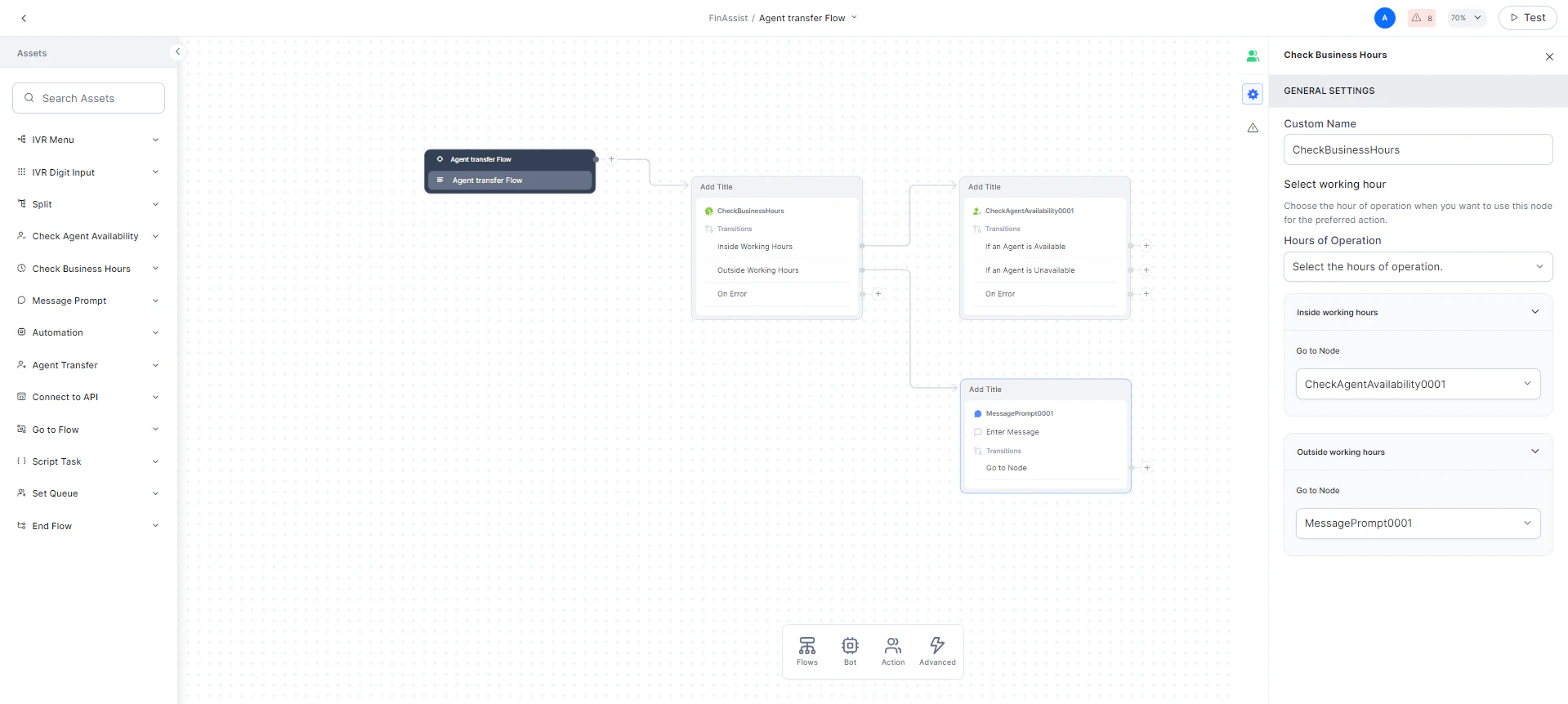
* **Hours of Operation**: Select the hours of operation from the dropdown. A **Default Hours of Operation** entry is created automatically. You can [add more](/ai-for-service/contact-center/configurations/configurations#add-hours-of-operation) if needed.
* **Inside working hours**: Select a **Go to node** to direct the flow when a query arrives during business hours.
* **Outside working hours**: Select a **Go to node** to direct the flow when a query arrives outside business hours.
After configuring, your flow will look similar to this:
* **Custom Name**: Enter a name to identify the node.
* **Hours of Operation**: Select the hours of operation from the dropdown. A **Default Hours of Operation** entry is created automatically. You can [add more](/ai-for-service/contact-center/configurations/configurations#add-hours-of-operation) if needed.
* **Inside working hours**: Select a **Go to node** to direct the flow when a query arrives during business hours.
* **Outside working hours**: Select a **Go to node** to direct the flow when a query arrives outside business hours.
After configuring, your flow will look similar to this:
 ### Error Handling
Use this section to handle system errors during customer interactions.
### Error Handling
Use this section to handle system errors during customer interactions.
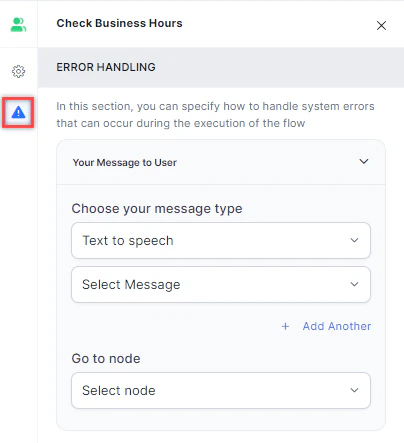 * **Your Message to User**: Select a message type under **Choose your message type**:
* **Text to Speech**: Type or select a message to convert to speech. Click **+ Create New** to add a new prompt, or **+ Add Another** to define multiple messages (one is randomly selected at runtime).
* **Your Message to User**: Select a message type under **Choose your message type**:
* **Text to Speech**: Type or select a message to convert to speech. Click **+ Create New** to add a new prompt, or **+ Add Another** to define multiple messages (one is randomly selected at runtime).
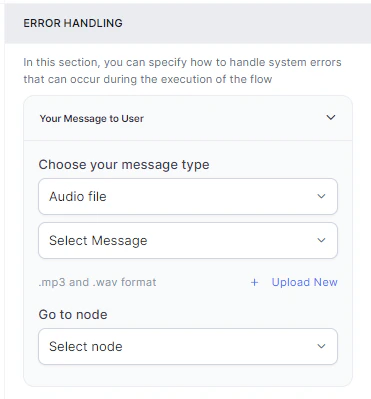
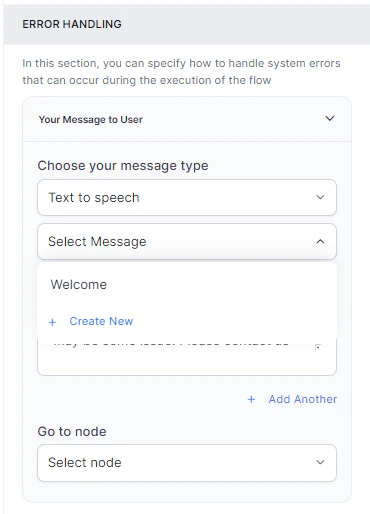 * **Audio File**: Type a message or click **+ Upload New** to upload an .mp3 or .wav file.
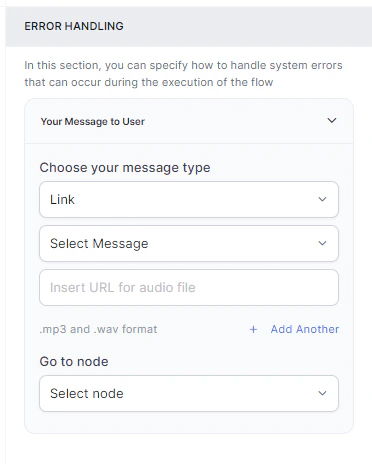
 * **Link**: Click **+ Create New** to add message text and an audio file URL (.mp3 or .wav). Click **+ Add Another** for additional URLs.
 * **Go to node**: Select the node to direct the error handling flow. You can create a new node or select an existing one.