> ## Documentation Index
> Fetch the complete documentation index at: https://koreai.mintlify.site/llms.txt
> Use this file to discover all available pages before exploring further.
# Connect to API Node
Use this node to query an external system using synchronous or asynchronous SOAP or REST API calls. You can configure the request type, parameters, and connection rules for success and failure outcomes.
## Configure the Node
### General Settings
In **General Settings**, configure the following:
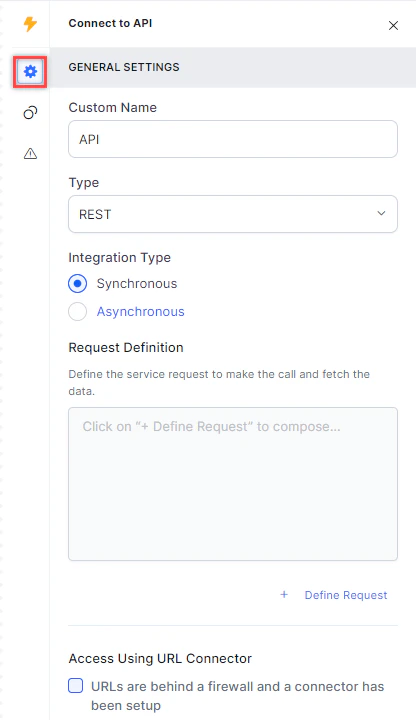 1. **Custom Name**: Enter a name to identify the node.
2. **Type**: Select the API type:
* **REST**: Interacts with RESTful web services following REST architecture standards.
* **SOAP**: Uses the Simple Object Access Protocol for exchanging data in distributed environments.
3. **Integration Type**: Select the execution model:
* **Synchronous**: The API returns data immediately.
* **Asynchronous**: The API returns data after a defined delay (default: 20s; range: 8s-20s).
Enable **Handle API Failure Responses (4xx/5xx)** to treat all 4xx and 5xx responses as failures and trigger the configured `onFailure` path.
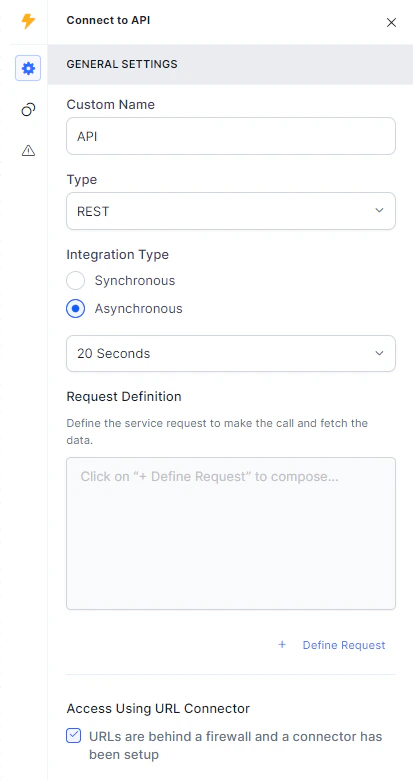
4. **Request Definition**: Define the API request (`GET`, `PUT`, `POST`, or `DELETE`), the API URL, and the parameters to pass. Click **+ Define Request** to create a new request.
1. **Custom Name**: Enter a name to identify the node.
2. **Type**: Select the API type:
* **REST**: Interacts with RESTful web services following REST architecture standards.
* **SOAP**: Uses the Simple Object Access Protocol for exchanging data in distributed environments.
3. **Integration Type**: Select the execution model:
* **Synchronous**: The API returns data immediately.
* **Asynchronous**: The API returns data after a defined delay (default: 20s; range: 8s-20s).
Enable **Handle API Failure Responses (4xx/5xx)** to treat all 4xx and 5xx responses as failures and trigger the configured `onFailure` path.
4. **Request Definition**: Define the API request (`GET`, `PUT`, `POST`, or `DELETE`), the API URL, and the parameters to pass. Click **+ Define Request** to create a new request.
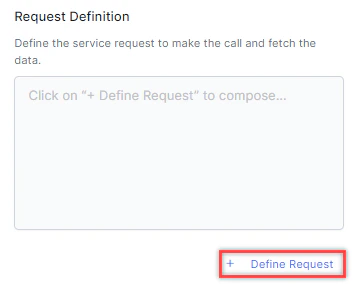 5. **Access Using URL Connector**: If the API is behind a firewall with a configured URL connector, select `URLs are behind a firewall and a connector has been set up`.
 #### Define and Test an API Request
1. In **Request Definition**, click **+ Define Request**. The **Define Request** window opens.
#### Define and Test an API Request
1. In **Request Definition**, click **+ Define Request**. The **Define Request** window opens.
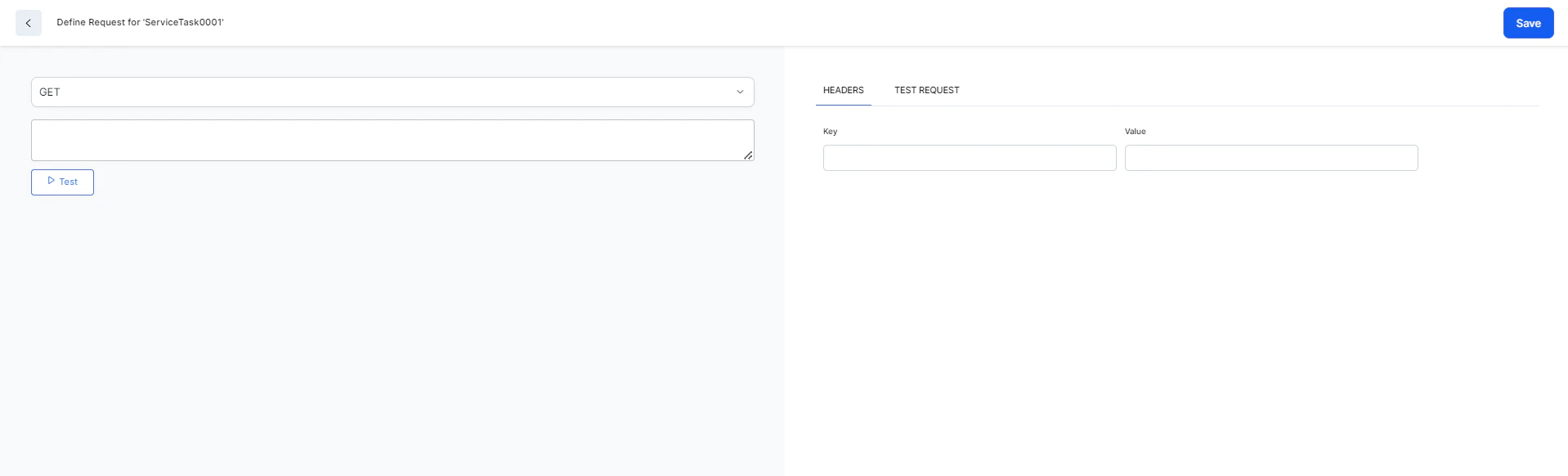 2. Select the HTTP method: `GET`, `PUT`, `POST`, `PATCH`, or `DELETE`.
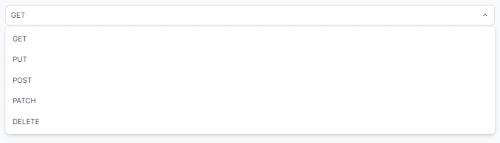 3. Paste the API URL in the text field and click **Test**.
 4. Provide **Header Key** and **Value** pairs. Click the **Delete** icon to remove a pair.
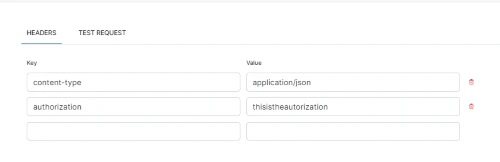 5. Click **Test Request** and paste the request body. The editor supports these options:
* Format JSON with indentation
* Compact JSON by removing whitespace
* Sort contents
* Filter, sort, or transform contents
* Repair JSON
* Undo / Redo
5. Click **Test Request** and paste the request body. The editor supports these options:
* Format JSON with indentation
* Compact JSON by removing whitespace
* Sort contents
* Filter, sort, or transform contents
* Repair JSON
* Undo / Redo
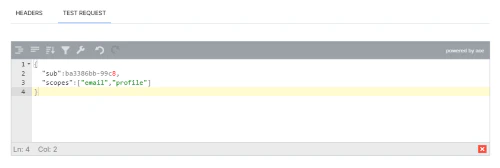 6. Click **Save** after a successful test.
### Connection Rules
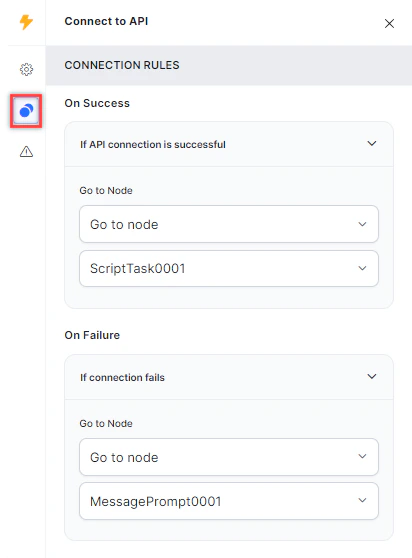
Click the **Connection Rules** icon and select the target node for each API outcome:
* **On Success**: Routes the flow when the API call succeeds.
* **On Failure**: Routes the flow when the API call fails.
6. Click **Save** after a successful test.
### Connection Rules
Click the **Connection Rules** icon and select the target node for each API outcome:
* **On Success**: Routes the flow when the API call succeeds.
* **On Failure**: Routes the flow when the API call fails.
 ### Error Handling
Use this section to handle system errors during customer interactions.
### Error Handling
Use this section to handle system errors during customer interactions.
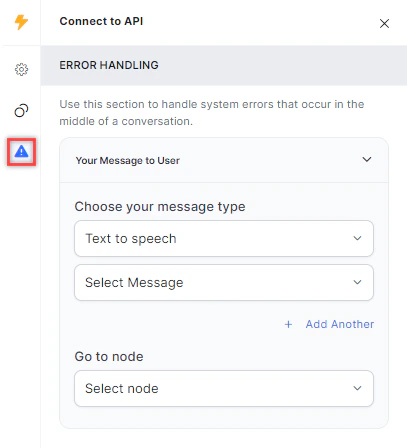 * **Your Message to User**: Select a message type under **Choose your message type**:
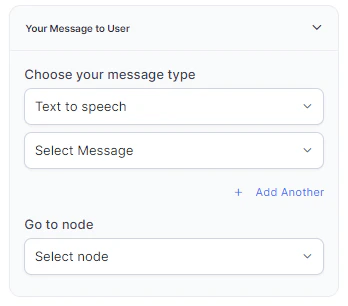
* **Text to Speech**: Type or select a message to convert to speech. Click **+ Create New** to add a new prompt, or **+ Add Another** to define multiple messages (one is randomly selected at runtime).
* **Your Message to User**: Select a message type under **Choose your message type**:
* **Text to Speech**: Type or select a message to convert to speech. Click **+ Create New** to add a new prompt, or **+ Add Another** to define multiple messages (one is randomly selected at runtime).
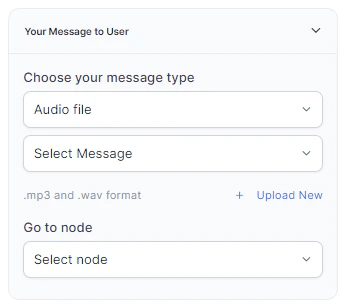
 * **Audio File**: Type a message or click **+ Upload New** to upload an .mp3 or .wav file.
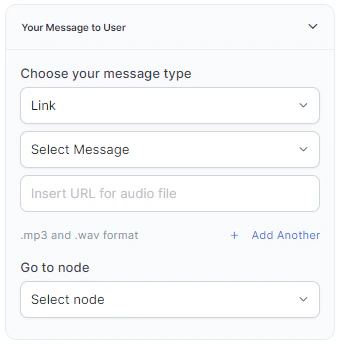
 * **Link**: Click **+ Create New** to add message text and an audio file URL (.mp3 or .wav). Click **+ Add Another** for additional URLs.
 * **Go to node**: Select the node to direct the error handling flow. You can create a new node or select an existing one.