> ## Documentation Index
> Fetch the complete documentation index at: https://koreai.mintlify.site/llms.txt
> Use this file to discover all available pages before exploring further.
# IVR Menu Node
Use this node to present a key-press menu to callers during inbound calls. The caller's input routes them to the appropriate flow.
**Example**: For a travel agency, pressing **1** routes to booking updates, pressing **2** routes to cancellations, and so on.
## Configure the Node
### General Settings
In **General Settings**, configure the following:
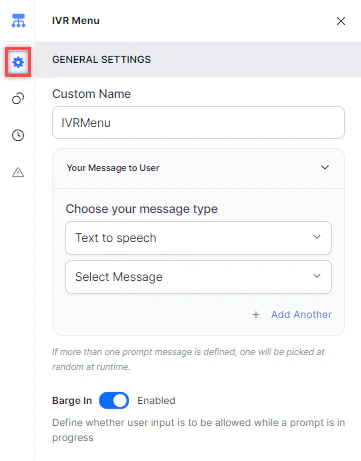 * **Custom Name**: Enter a name to identify the node.
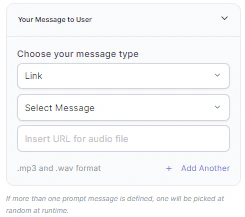
* **Your Message to User**: Select a message type under **Choose your message type**:
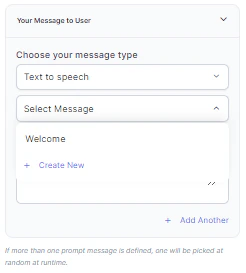
* **Text to Speech**: Type or select a message to convert to speech. Click **+ Create New** to add a new prompt, or **+ Add Another** to define multiple messages (one is randomly selected at runtime).
* **Custom Name**: Enter a name to identify the node.
* **Your Message to User**: Select a message type under **Choose your message type**:
* **Text to Speech**: Type or select a message to convert to speech. Click **+ Create New** to add a new prompt, or **+ Add Another** to define multiple messages (one is randomly selected at runtime).
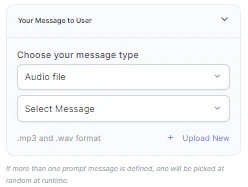
 * **Audio File**: Type a message or click **+ Upload New** to upload an .mp3 or .wav file.
 * **Link**: Click **+ Create New** to add message text and an audio file URL (.mp3 or .wav). Click **+ Add Another** for additional URLs.
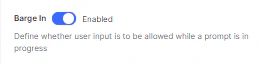
 * **Barge In**: Enable to let callers key in input before the prompt finishes playing. Disable to require callers to wait for the prompt to complete.
 ### Custom Exits
Click the **Custom Exits** icon to map digit inputs to specific nodes.
For each exit, select the digit/key and the node to link it to:
* Selecting a node type creates a new node of that type linked to this IVR Menu node.
* Selecting an existing node connects it to this node directly.
### Custom Exits
Click the **Custom Exits** icon to map digit inputs to specific nodes.
For each exit, select the digit/key and the node to link it to:
* Selecting a node type creates a new node of that type linked to this IVR Menu node.
* Selecting an existing node connects it to this node directly.
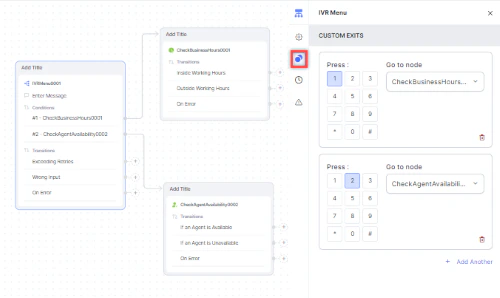 * Click **+ Add Another** to add more exits.
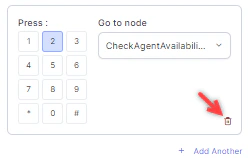
* Click the **Delete** (bin) icon to remove an exit.
* Click **+ Add Another** to add more exits.
* Click the **Delete** (bin) icon to remove an exit.
 ### Timeout
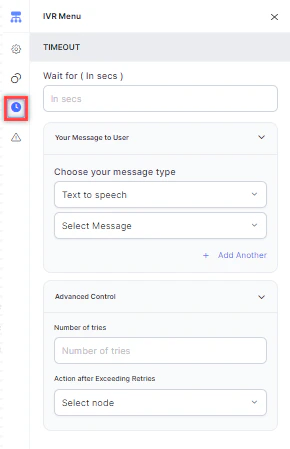
Click the **Timeout** icon and configure the following:
* **Timeout**: Enter the wait time in seconds before a timeout event occurs.
* **Your Message to User**: Select a message type (Text to Speech, Link, or Audio) to play when a timeout occurs. See [General Settings](#general-settings) for details.
* **Advanced Control** > **Number of Tries**: Enter the maximum number of retries allowed.
* **Advanced Control** > **Action after Exceeding Retries**: Select the node to route to after retries are exhausted.
### Timeout
Click the **Timeout** icon and configure the following:
* **Timeout**: Enter the wait time in seconds before a timeout event occurs.
* **Your Message to User**: Select a message type (Text to Speech, Link, or Audio) to play when a timeout occurs. See [General Settings](#general-settings) for details.
* **Advanced Control** > **Number of Tries**: Enter the maximum number of retries allowed.
* **Advanced Control** > **Action after Exceeding Retries**: Select the node to route to after retries are exhausted.
 ### Wrong Input
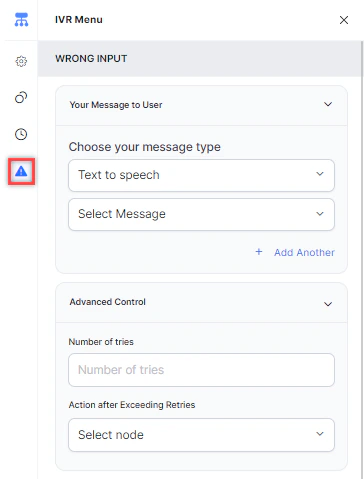
Use this tab to configure the flow when a caller provides invalid input.
1. **Advanced Control** > **Number of Tries**: Enter the maximum number of retries for correct input.
2. **Advanced Control** > **Action after Exceeding Retries**: Select the node to route to after retries are exhausted. You can create a new node or select an existing one.
### Wrong Input
Use this tab to configure the flow when a caller provides invalid input.
1. **Advanced Control** > **Number of Tries**: Enter the maximum number of retries for correct input.
2. **Advanced Control** > **Action after Exceeding Retries**: Select the node to route to after retries are exhausted. You can create a new node or select an existing one.
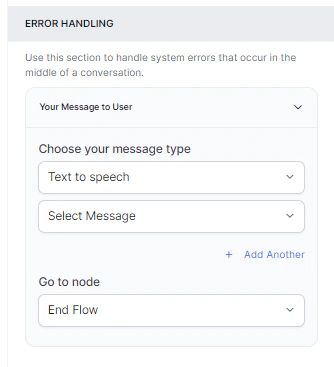
 ### Error Handling
Error handling is available under the **Wrong Input** tab. Use it to define how system errors are handled during a call.
* **Your Message to User**: Select a message type (Text to Speech, Link, or Audio) to play when a system error occurs. See [General Settings](#general-settings) for details.
* **Go to node**: Select the node for error handling. You can create a new node or select an existing one.
### Error Handling
Error handling is available under the **Wrong Input** tab. Use it to define how system errors are handled during a call.
* **Your Message to User**: Select a message type (Text to Speech, Link, or Audio) to play when a system error occurs. See [General Settings](#general-settings) for details.
* **Go to node**: Select the node for error handling. You can create a new node or select an existing one.