> ## Documentation Index
> Fetch the complete documentation index at: https://koreai.mintlify.site/llms.txt
> Use this file to discover all available pages before exploring further.
# Set Queue Node
Queues hold digital and voice interactions waiting to be assigned to agents. Use this node to define or modify queue settings and default messages within a flow.
## Configure the Node
### General Settings
In **General Settings**, configure the following:
 1. **Custom Name**: Enter a name to identify the node.
2. **Integration Type**: Select **Static List** or **Script**:
* **Static List**:
* **Queue**: Select the queue to apply to this node.
* **Priority**: Set the conversation priority (1-10, where 1 is highest and 10 is lowest). Default is **5 - Standard**.
!!! Note
When priority is set, conversations shift position in the queue dynamically. This affects queue position and wait time estimates shown to customers. Consider this when configuring waiting experience messages.
* **Script**: Define the queue or priority programmatically.
1. **Custom Name**: Enter a name to identify the node.
2. **Integration Type**: Select **Static List** or **Script**:
* **Static List**:
* **Queue**: Select the queue to apply to this node.
* **Priority**: Set the conversation priority (1-10, where 1 is highest and 10 is lowest). Default is **5 - Standard**.
!!! Note
When priority is set, conversations shift position in the queue dynamically. This affects queue position and wait time estimates shown to customers. Consider this when configuring waiting experience messages.
* **Script**: Define the queue or priority programmatically.
 Set the queue:
```
agentUtils.setQueue("queueID")
```
Set the conversation priority (valid values: 0-10, inclusive):
```
agentUtils.setPriority(priority)
```
**Examples**:
```
agentUtils.setPriority(0); // Highest priority
agentUtils.setPriority(10); // Lowest priority
agentUtils.setPriority(7); // Priority 7
```
If an invalid priority is provided, it's ignored and the default priority (5) is applied.
3. **Inside working hours**: Select the **Go to node** to trigger after the queue is set during working hours. For example, route to **Check Agent Availability** to check for available agents.
4. **Outside working hours**: Select the **Go to node** to trigger after the queue is set outside working hours. For example, route to **Check Business Hours** to notify customers they called outside business hours. [Learn more](/ai-for-service/contact-center/configurations/configurations#hours-of-operation).
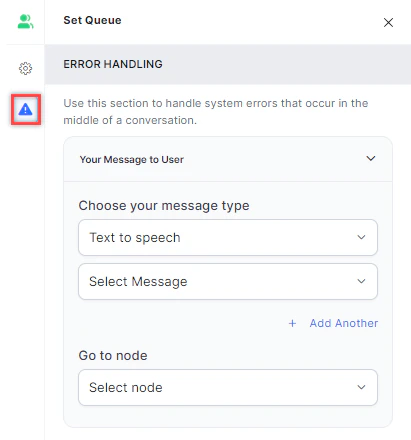
### Error Handling
Use this section to handle system errors during customer interactions.
* **Your Message to User**: Select a message type under **Choose your message type**:
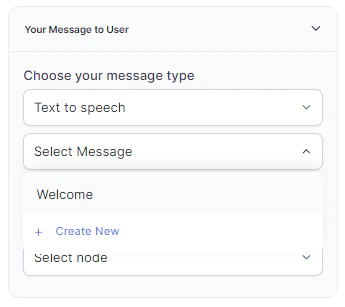
* **Text to Speech**: Type or select a message to convert to speech. Click **+ Create New** to add a new prompt, or **+ Add Another** to define multiple messages (one is randomly selected at runtime).
Set the queue:
```
agentUtils.setQueue("queueID")
```
Set the conversation priority (valid values: 0-10, inclusive):
```
agentUtils.setPriority(priority)
```
**Examples**:
```
agentUtils.setPriority(0); // Highest priority
agentUtils.setPriority(10); // Lowest priority
agentUtils.setPriority(7); // Priority 7
```
If an invalid priority is provided, it's ignored and the default priority (5) is applied.
3. **Inside working hours**: Select the **Go to node** to trigger after the queue is set during working hours. For example, route to **Check Agent Availability** to check for available agents.
4. **Outside working hours**: Select the **Go to node** to trigger after the queue is set outside working hours. For example, route to **Check Business Hours** to notify customers they called outside business hours. [Learn more](/ai-for-service/contact-center/configurations/configurations#hours-of-operation).
### Error Handling
Use this section to handle system errors during customer interactions.
* **Your Message to User**: Select a message type under **Choose your message type**:
* **Text to Speech**: Type or select a message to convert to speech. Click **+ Create New** to add a new prompt, or **+ Add Another** to define multiple messages (one is randomly selected at runtime).
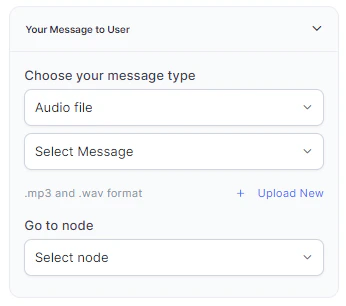
 * **Audio File**: Type a message or click **+ Upload New** to upload an .mp3 or .wav file.
 * **Link**: Click **+ Create New** to add message text and an audio file URL (.mp3 or .wav). Click **+ Add Another** for additional URLs.
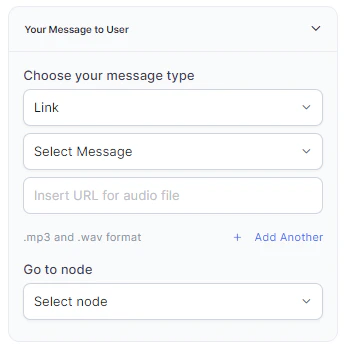 * **Go to node**: Select the node to direct the error handling flow. You can create a new node or select an existing one.