> ## Documentation Index
> Fetch the complete documentation index at: https://koreai.mintlify.site/llms.txt
> Use this file to discover all available pages before exploring further.
# Split Node
Use this node to route inbound queries to different flow branches based on defined conditions. Conditions use context variables that define scope within a dialog task.
The syntax for a context variable is:
```
context.contextvariable.<< context variable name >>
```
For example, the `intent` context variable is:
```
context.intent.<< intent name >>
```
Context variables are managed by AI for Service. [Learn more](/ai-for-service/automation/agent-flows#context-object).
!!! Note
The Split node supports a maximum of 10 branches.
## Configure the Node
### General Settings
In **General Settings**, configure the following:
1. **Custom Name**: Enter a name to identify the node.
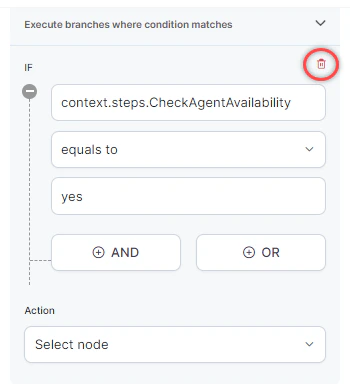
2. Under **Execute branches where condition matches**, define conditions using IF / ELSE-IF / ELSE logic with context variables and AND / OR operators:
* **IF**: Routes the flow when the specified condition is met.
* **ELSE-IF**: Defines an additional condition when the IF condition isn't met.
* **ELSE**: Routes the flow when none of the preceding conditions are met.
3. Under the first **Action** dropdown, select the branch name to route to when the IF condition is met.
4. Click **Add ELSE-IF** to add more conditions.
5. Under the second **Action** dropdown, select the branch name for the ELSE condition.
!!! Note
Condition setup follows the same process as Automation AI. [Learn more](/ai-for-service/automation/dialogs/node-types/node-connections).
To delete a condition, click the **Delete** icon next to it.
 ### Error Handling
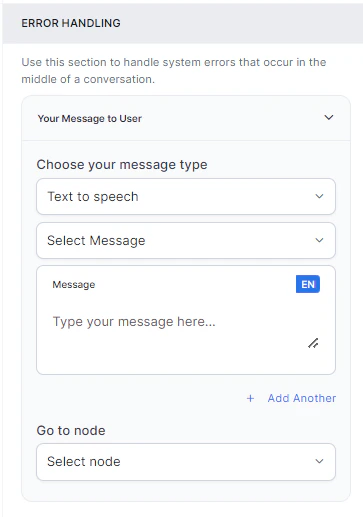
Use this section to handle system errors during customer interactions.
* **Your Message to User**: Select a message type under **Choose your message type**:
* **Text to Speech**: Type or select a message to convert to speech. Click **+ Create New** to add a new prompt, or **+ Add Another** to define multiple messages (one is randomly selected at runtime).
### Error Handling
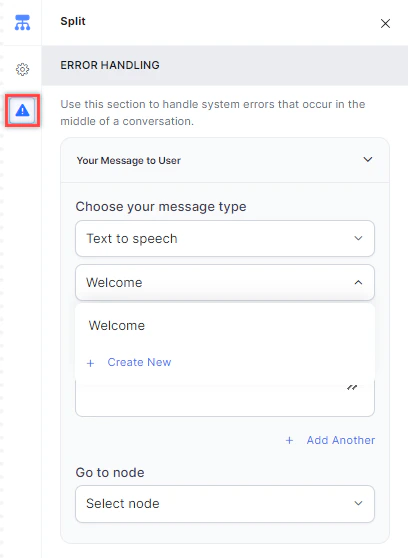
Use this section to handle system errors during customer interactions.
* **Your Message to User**: Select a message type under **Choose your message type**:
* **Text to Speech**: Type or select a message to convert to speech. Click **+ Create New** to add a new prompt, or **+ Add Another** to define multiple messages (one is randomly selected at runtime).
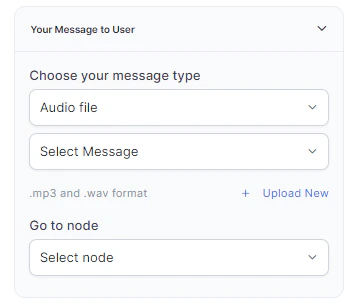
 * **Audio File**: Type a message or click **+ Upload New** to upload an .mp3 or .wav file.
 * **Link**: Click **+ Create New** to add message text and an audio file URL (.mp3 or .wav). Click **+ Add Another** for additional URLs.
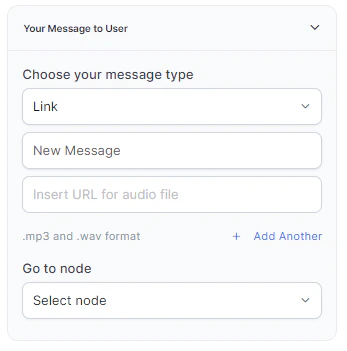 * **Go to node**: Select the node to direct the error handling flow. You can create a new node or select an existing one.