> ## Documentation Index
> Fetch the complete documentation index at: https://koreai.mintlify.site/llms.txt
> Use this file to discover all available pages before exploring further.
# Configuring the Here Action
[Back to Actions Integrations](/ai-for-service/integrations/overview#actions)
Connect the Platform to Here to find locations by text. See [Here documentation](https://developer.here.com/documentation/identity-access-management/dev_guide/topics/plat-using-apikeys.html) for details.
***
## Supported Authorization Types
The platform supports API key authentication for Here integration. See [App Authorization Overview](/ai-for-service/app-settings#authorization-profiles) for details.
| Authorization Type | Supported |
| ---------------------------------------- | --------- |
| Pre-Authorize the Integration | Yes |
| Allow Users to Authorize the Integration | Yes |
***
## Prerequisites
Before enabling the Here action:
* Create a [Here Developer](https://developer.here.com/documentation/identity-access-management/dev_guide/topics/plat-using-apikeys.html) account.
* Create a custom app on the Here admin page.
* Copy your Here personal access token.
***
## Enable the Here Action
Go to **App Settings > Integrations > Actions** and select **Here** from the Available actions list.
### Pre-authorize the Integration (Basic Auth)
1. In the **Configurations** dialog, select the **Authorization** tab.
2. Set **Authorization Type** to **Pre-authorize the Integration** > **Basic Auth**.
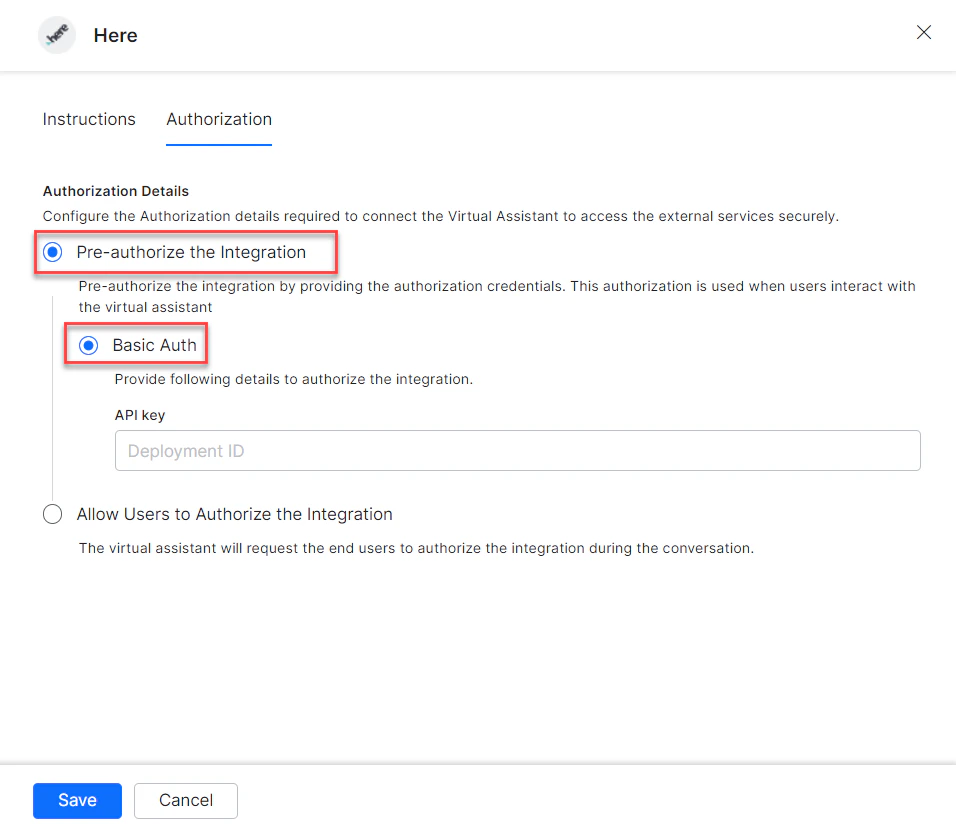 3. Enter your **API Key**.
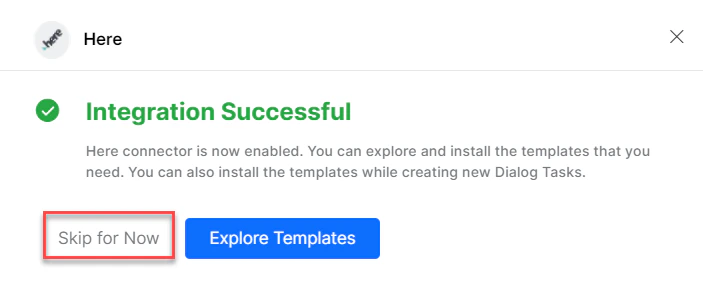
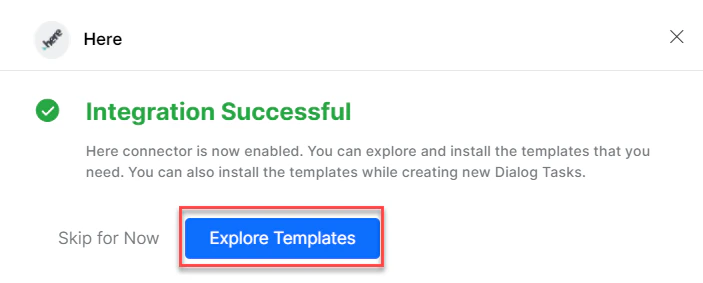
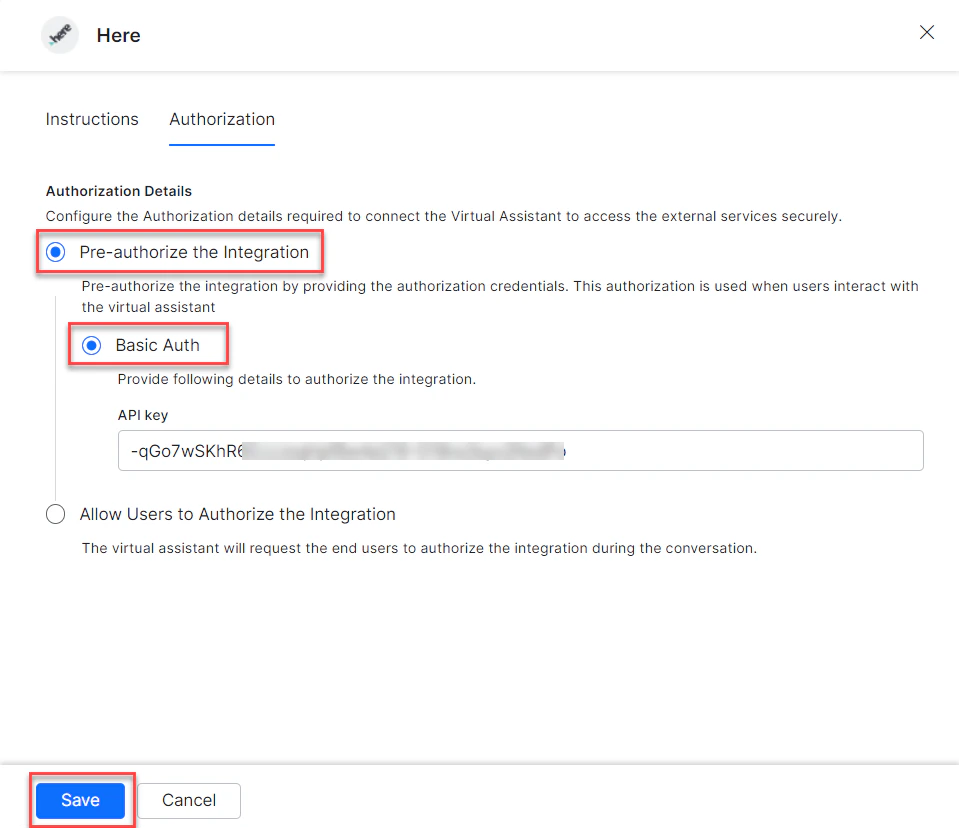 4. Click **Save**. On first configuration, the Integration Successful pop-up appears.
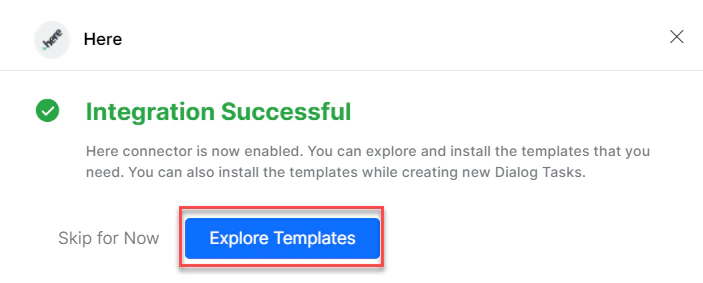 The Here action moves from Available to Configured.
5. Click **Skip for Now** to install templates later.
The Here action moves from Available to Configured.
5. Click **Skip for Now** to install templates later.
 ### Allow End Users to Authorize (Basic Auth)
1. In the **Configurations** dialog, select the **Authorization** tab.
2. Set **Authorization Type** to **Allow Users to Authorize the Integration** > **Basic Auth**.
3. Click **Select Authorization** > **Create New**.
### Allow End Users to Authorize (Basic Auth)
1. In the **Configurations** dialog, select the **Authorization** tab.
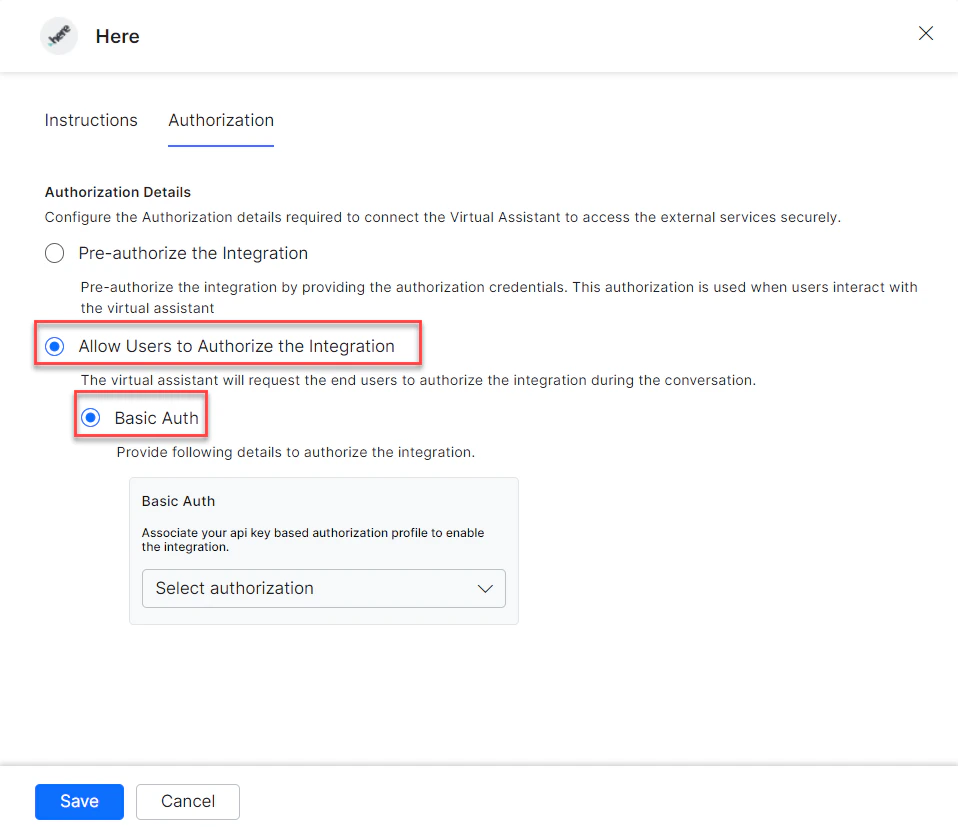
2. Set **Authorization Type** to **Allow Users to Authorize the Integration** > **Basic Auth**.
3. Click **Select Authorization** > **Create New**.
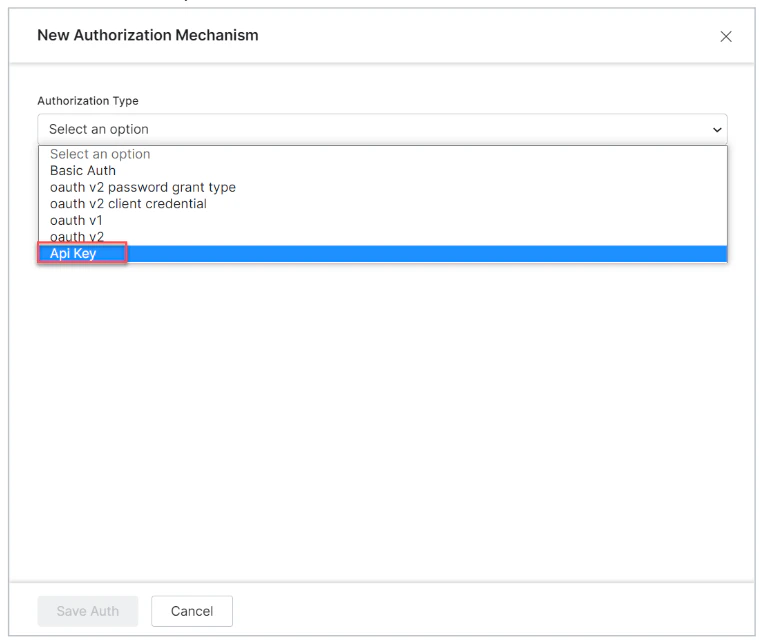
 4. Select the authorization mechanism (for example, **API Key**).
 See [App Authorization Overview](/ai-for-service/app-settings#authorization-profiles) for creating Basic Auth profiles.
5. Enter the following credentials:
| Field | Description |
| ----------------------- | ---------------------------------------- |
| Name | Name for the Basic Auth profile |
| Tenancy URLs | Select Yes if tasks require tenancy URLs |
| Base URL | Base tenant URL for the Here instance |
| Authorization Check URL | Auth check URL |
| Description | Description of the auth profile |
See [App Authorization Overview](/ai-for-service/app-settings#authorization-profiles) for creating Basic Auth profiles.
5. Enter the following credentials:
| Field | Description |
| ----------------------- | ---------------------------------------- |
| Name | Name for the Basic Auth profile |
| Tenancy URLs | Select Yes if tasks require tenancy URLs |
| Base URL | Base tenant URL for the Here instance |
| Authorization Check URL | Auth check URL |
| Description | Description of the auth profile |
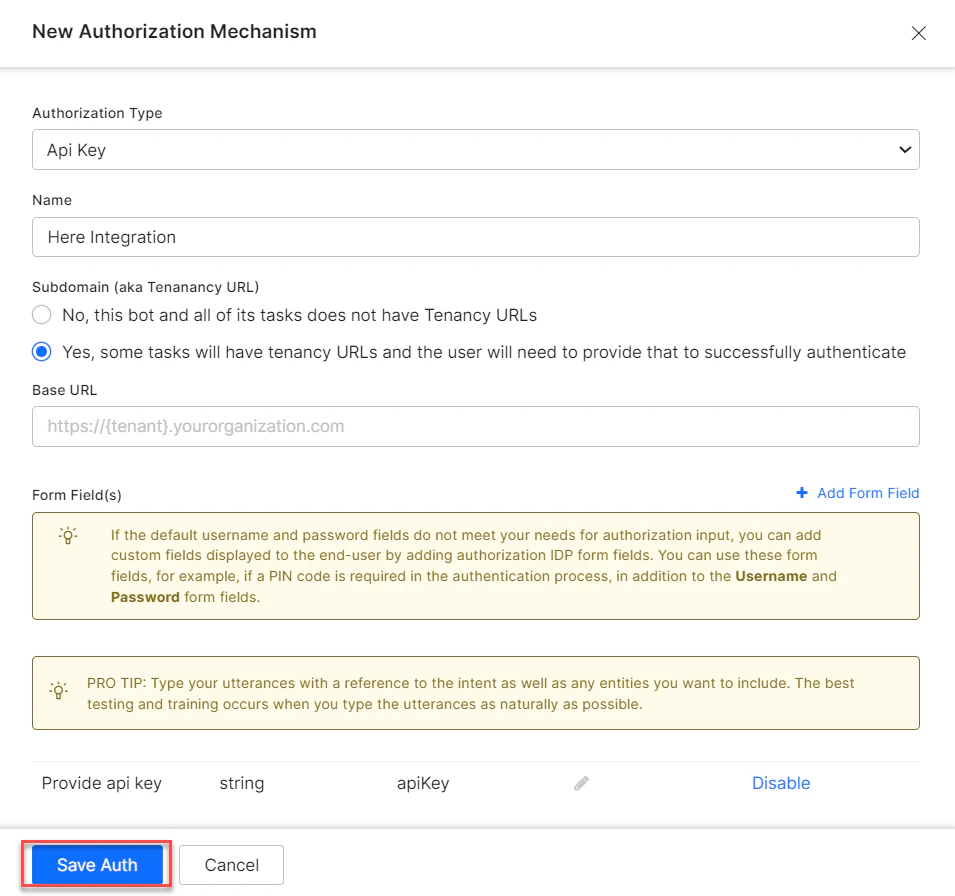 6. Click **Save Auth**, then select the new profile.
7. Click **Save**. The Integration Successful pop-up appears.
***
## Install Here Action Templates
1. On the Integration Successful dialog, click **Explore Templates**.
6. Click **Save Auth**, then select the new profile.
7. Click **Save**. The Integration Successful pop-up appears.
***
## Install Here Action Templates
1. On the Integration Successful dialog, click **Explore Templates**.
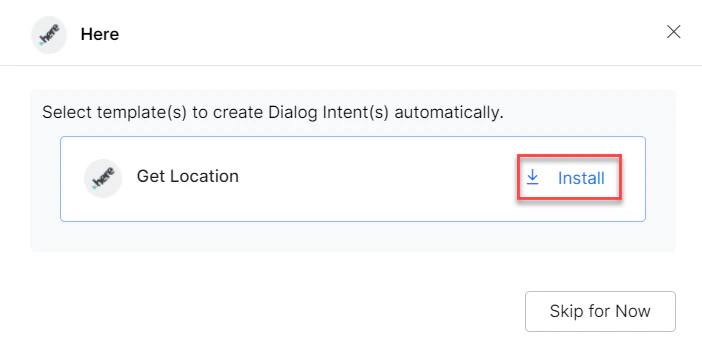
 2. Click **Install** for the desired template.
 3. Click **Go to Dialog** to view the dialog task.
4. A dialog task is auto-created for each installed template.
5. Alternatively, create a new dialog task, select the Here integration, choose a template (for example, **Get Location**), and click **Proceed**.
3. Click **Go to Dialog** to view the dialog task.
4. A dialog task is auto-created for each installed template.
5. Alternatively, create a new dialog task, select the Here integration, choose a template (for example, **Get Location**), and click **Proceed**.
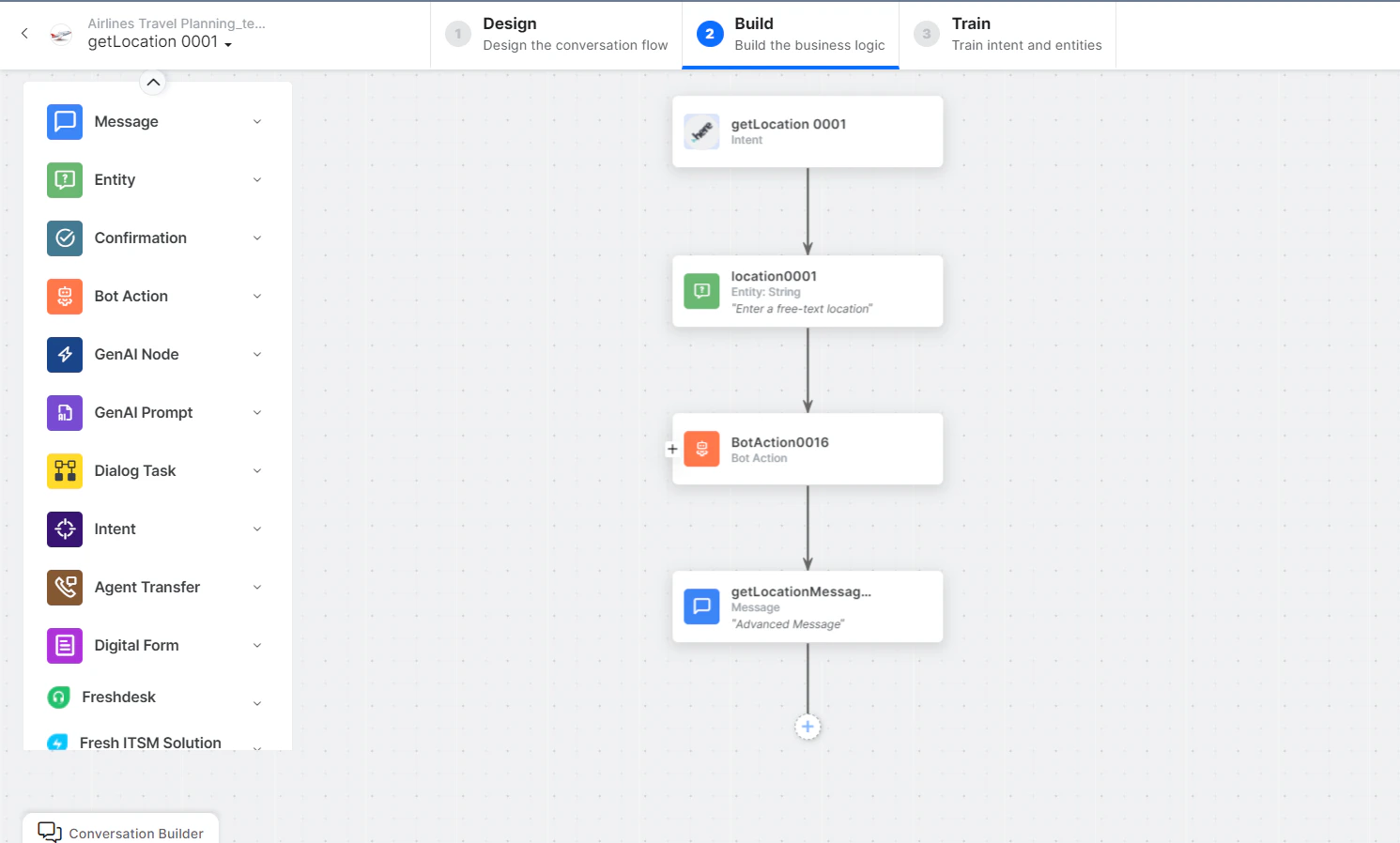
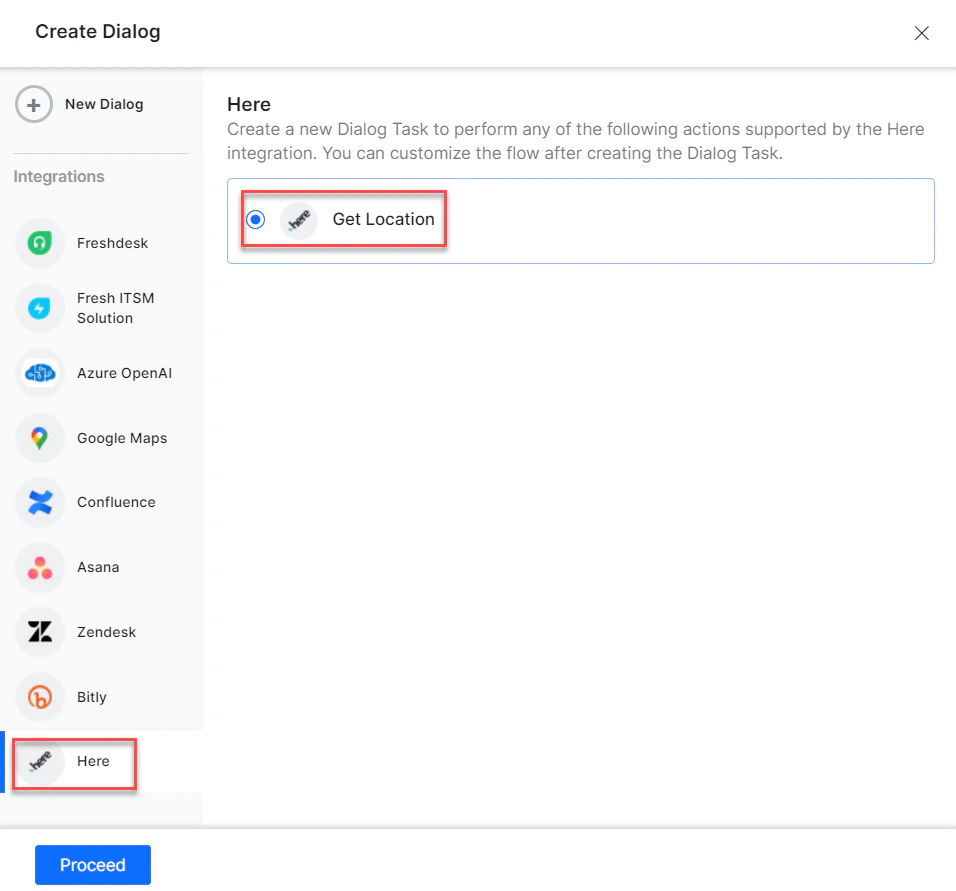 6. The canvas opens with all required entity nodes, service nodes, and message scripts.