> ## Documentation Index
> Fetch the complete documentation index at: https://koreai.mintlify.site/llms.txt
> Use this file to discover all available pages before exploring further.
# Using the BambooHR Templates
[Back to Actions Integrations](/ai-for-service/integrations/overview#actions)
Use prebuilt BambooHR action templates to auto-create dialog tasks.
**Prerequisites:** Configure [BambooHR](/ai-for-service/integrations/actions/configuring-the-bamboohr-action) and [install templates](/ai-for-service/integrations/actions/configuring-the-bamboohr-action#step-2-install-bamboohr-action-templates) before proceeding.
Navigate to **Automation AI > Use Cases > Dialogs**, then click the auto-created dialog to open the canvas.
***
## Supported Actions
| Action | Description | Method |
| ------------------------- | --------------------------------- | ------ |
| Create an Employee | Creates an employee in BambooHR | POST |
| Get Employee by ID | Finds an employee by ID | GET |
| List All Employees | Retrieves all employees | GET |
| Update an Employee | Updates employee details | POST |
| Get All Time Off Requests | Retrieves all time off requests | GET |
| Get a List of Who is Out | Lists employees who are out | GET |
| Update a Request Status | Updates a time off request status | POST |
***
## Create an Employee
1. Install the template from [BambooHR Templates](/ai-for-service/integrations/actions/configuring-the-bamboohr-action#step-2-install-bamboohr-action-templates).
2. The **Create an Employee** dialog task is added with:
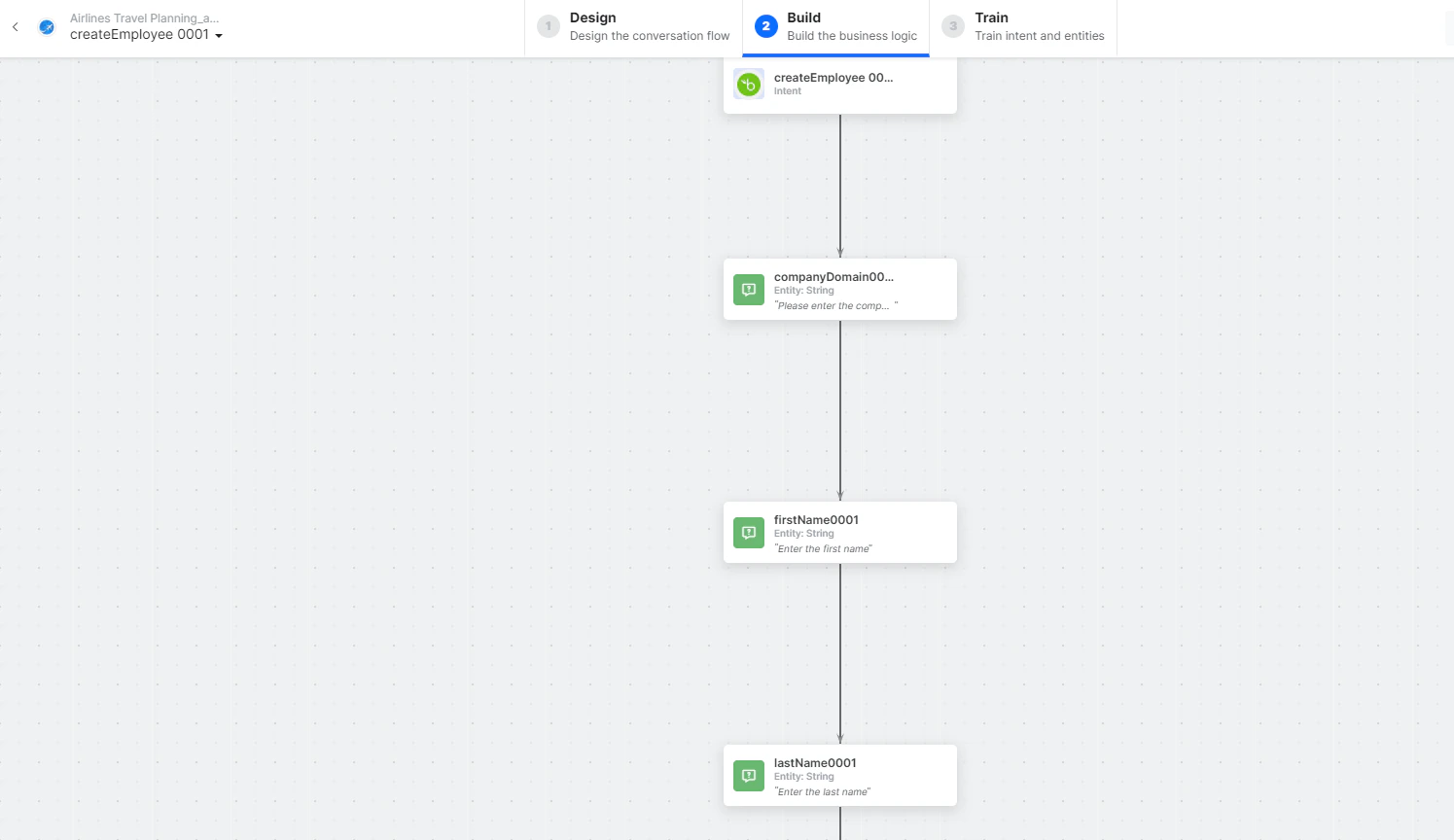 * **createEmployee** - User intent to create an employee.
* **companyDomain**, **firstName**, **lastName** - Entity nodes for employee details.
* **createEmployeeService** - Bot action service to create the employee. Click **Edit Request**:
* **createEmployee** - User intent to create an employee.
* **companyDomain**, **firstName**, **lastName** - Entity nodes for employee details.
* **createEmployeeService** - Bot action service to create the employee. Click **Edit Request**:
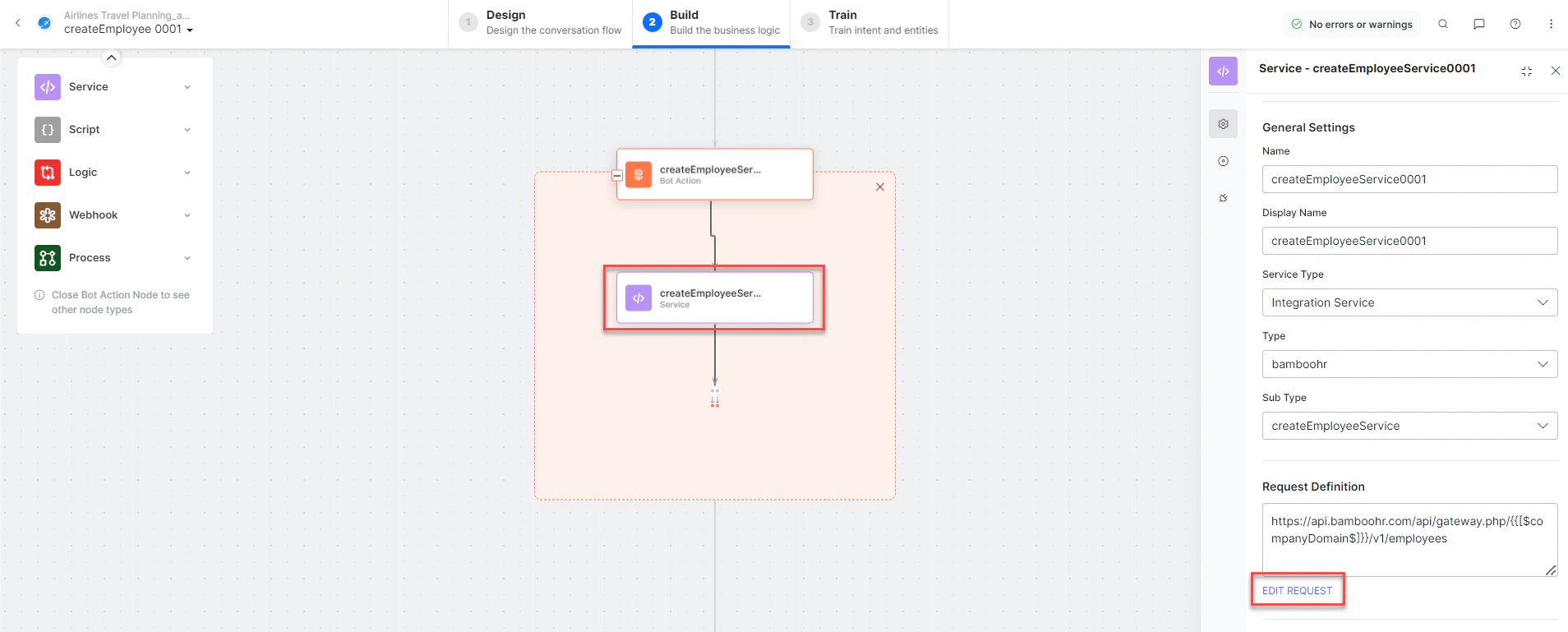 **Sample Request:**
```json theme={null}
{
"firstName": "Alen",
"lastName": "walker"
}
```
* **createEmployeeMessage** - Message node to display the result.
3. Click **Train**, then **Talk to Bot** to test.
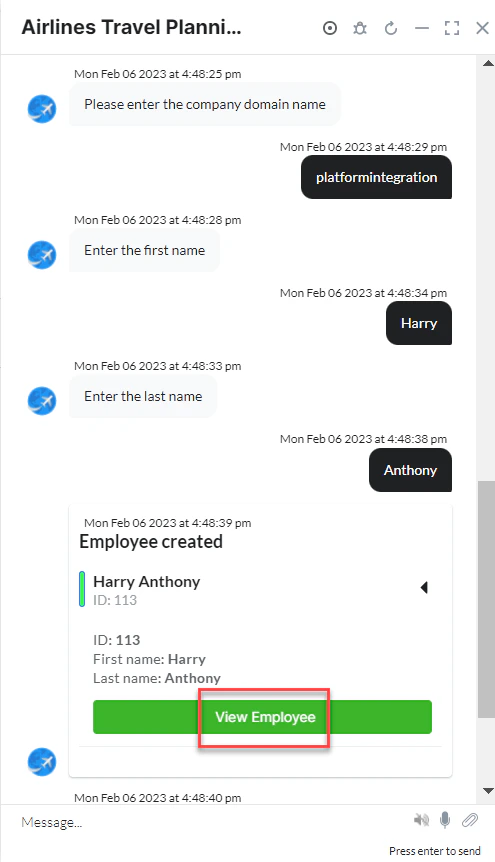
4. Follow the prompts to create an employee.
**Sample Request:**
```json theme={null}
{
"firstName": "Alen",
"lastName": "walker"
}
```
* **createEmployeeMessage** - Message node to display the result.
3. Click **Train**, then **Talk to Bot** to test.
4. Follow the prompts to create an employee.
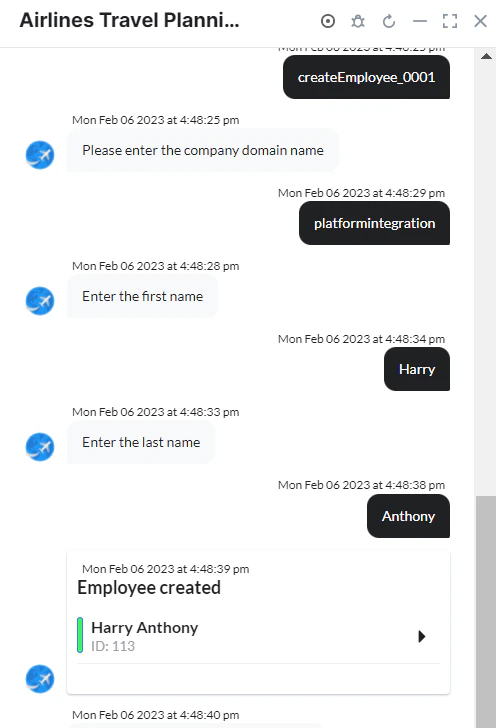 5. Click **View Employee** to view employee details in BambooHR.
 ***
## Get Employee by ID
1. Install the template from [BambooHR Templates](/ai-for-service/integrations/actions/configuring-the-bamboohr-action#step-2-install-bamboohr-action-templates).
2. The **Get Employee by ID** dialog task is added with:
***
## Get Employee by ID
1. Install the template from [BambooHR Templates](/ai-for-service/integrations/actions/configuring-the-bamboohr-action#step-2-install-bamboohr-action-templates).
2. The **Get Employee by ID** dialog task is added with:
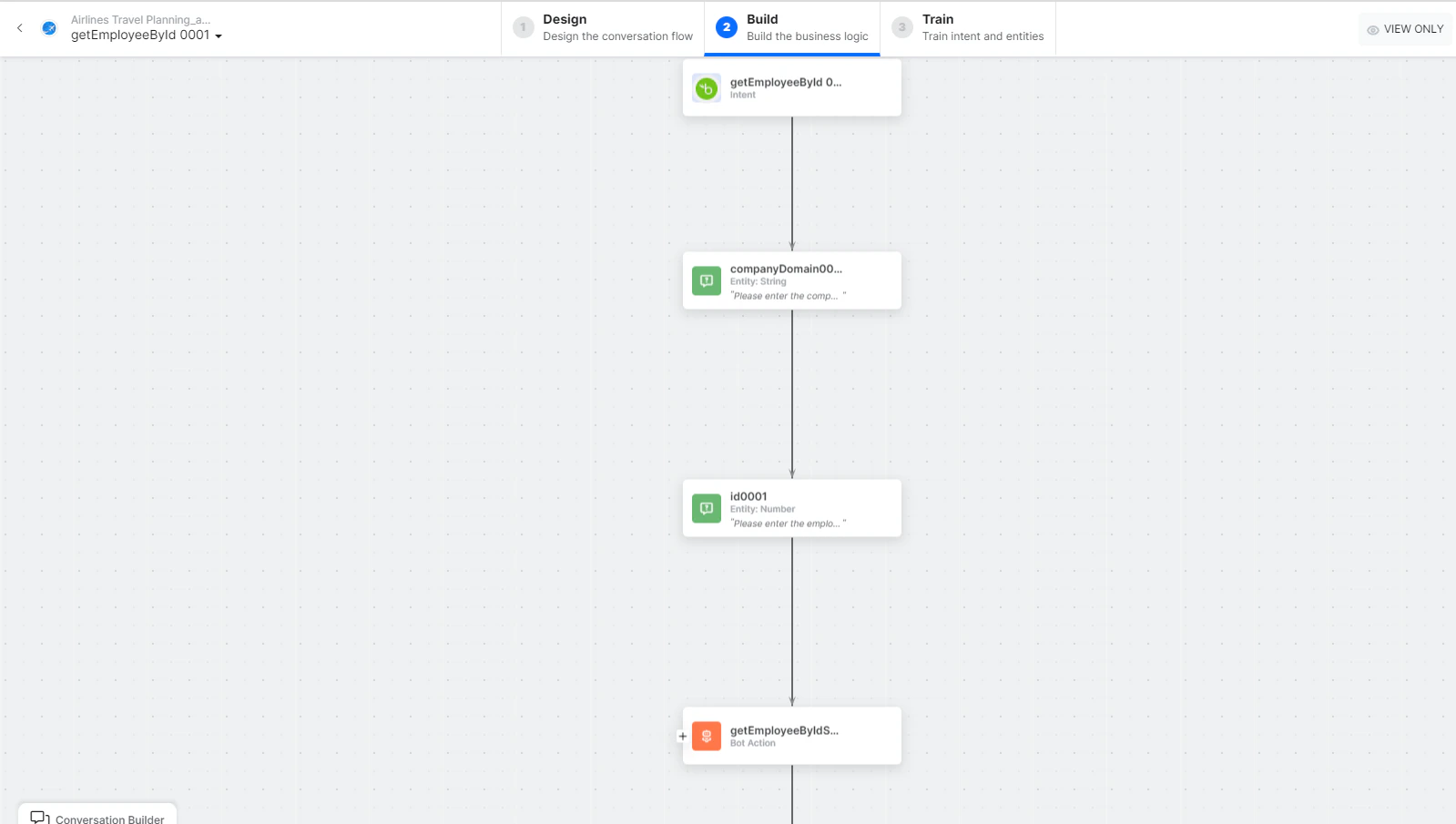 * **getEmployeeByID** - User intent to find an employee by ID.
* **companyDomain** and **id** - Entity nodes for employee details.
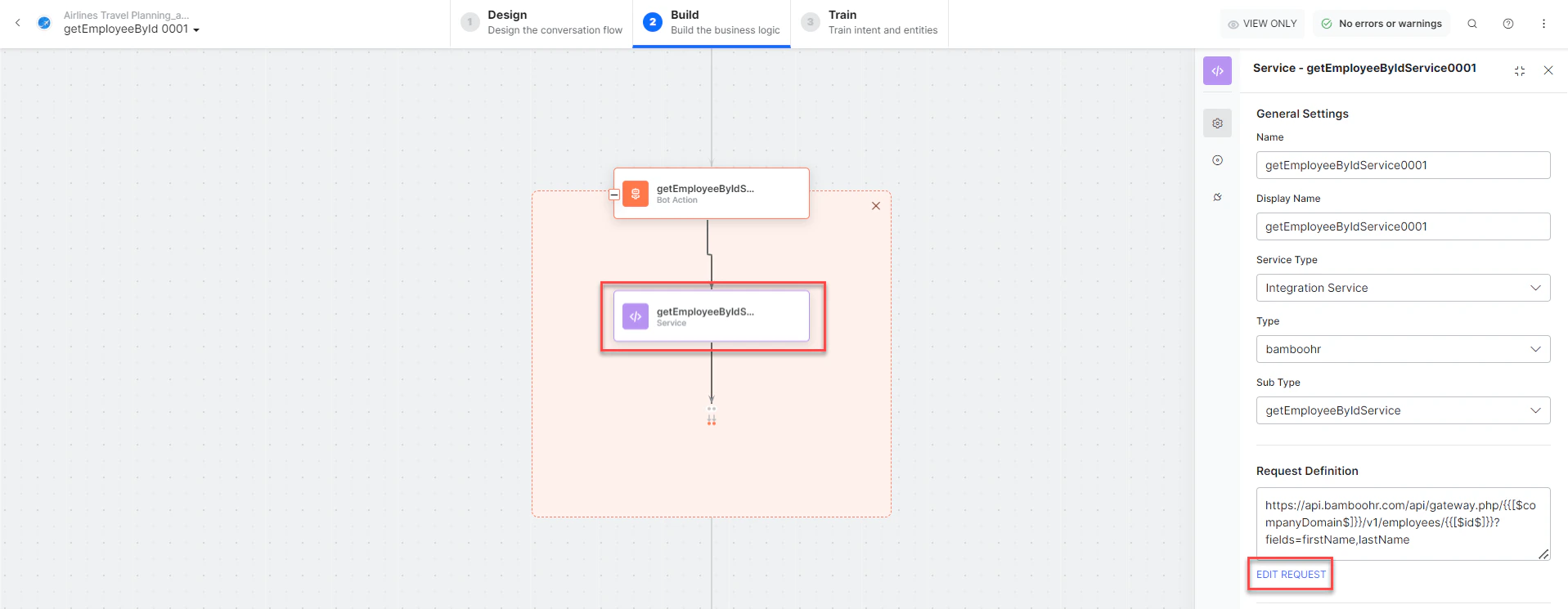
* **getEmployeeByIdService** - Bot action service to fetch the employee. Click **Edit Request**:
* **getEmployeeByID** - User intent to find an employee by ID.
* **companyDomain** and **id** - Entity nodes for employee details.
* **getEmployeeByIdService** - Bot action service to fetch the employee. Click **Edit Request**:
 **Sample Request:**
```json theme={null}
{
"id": "114",
"firstName": "Alen",
"lastName": "walker"
}
```
* **getEmployeeMessage** - Message node to display the result.
3. Click **Train**, then **Talk to Bot** to test.
4. Follow the prompts to find the employee.
**Sample Request:**
```json theme={null}
{
"id": "114",
"firstName": "Alen",
"lastName": "walker"
}
```
* **getEmployeeMessage** - Message node to display the result.
3. Click **Train**, then **Talk to Bot** to test.
4. Follow the prompts to find the employee.
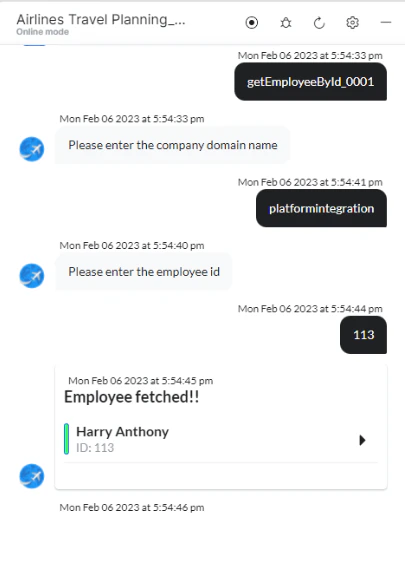 5. Click **View Employee** to view details in BambooHR.
***
## List All Employees
1. Install the template from [BambooHR Templates](/ai-for-service/integrations/actions/configuring-the-bamboohr-action#step-2-install-bamboohr-action-templates).
2. The **List All Employees** dialog task is added with:
5. Click **View Employee** to view details in BambooHR.
***
## List All Employees
1. Install the template from [BambooHR Templates](/ai-for-service/integrations/actions/configuring-the-bamboohr-action#step-2-install-bamboohr-action-templates).
2. The **List All Employees** dialog task is added with:
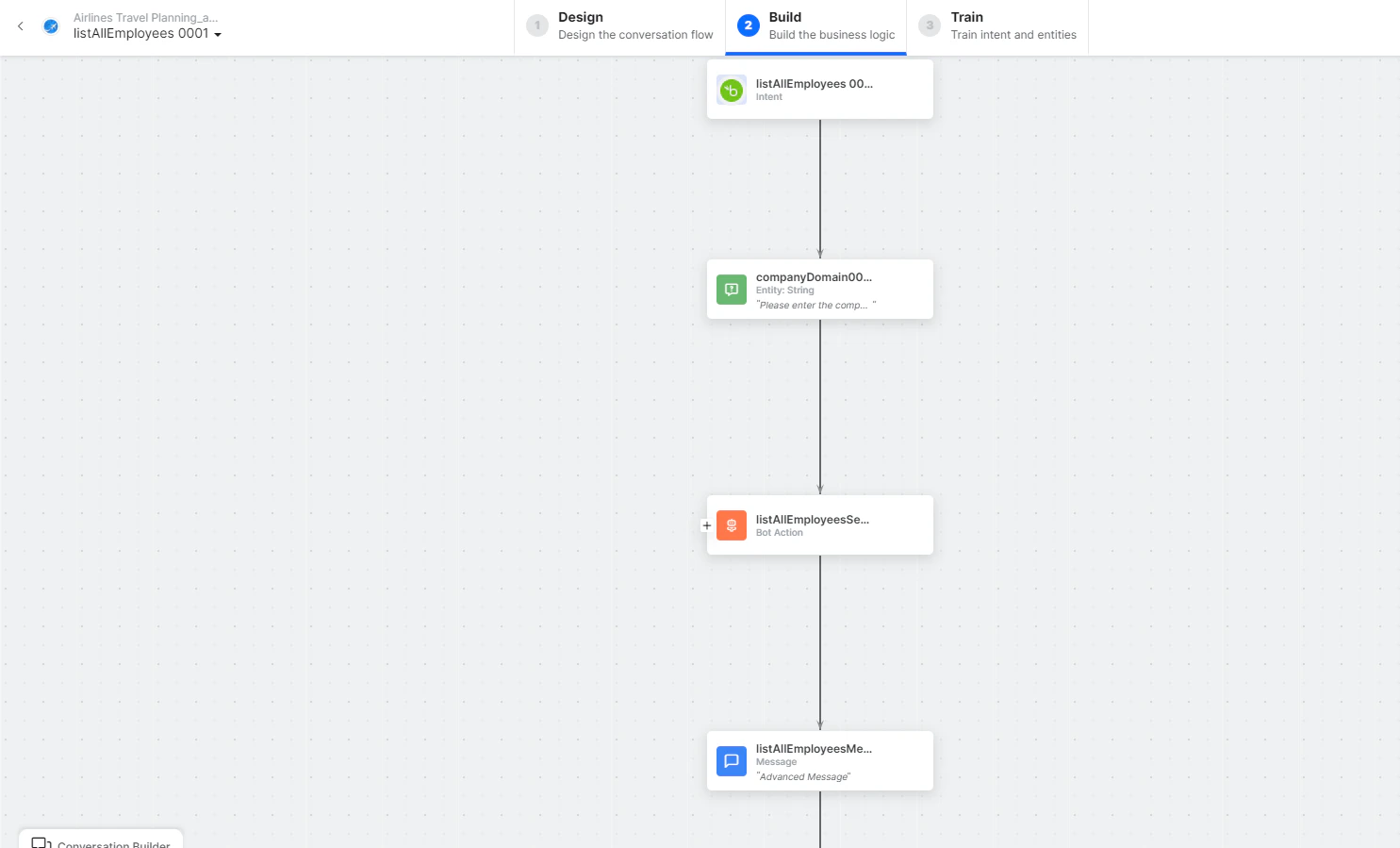 * **listAllEmployees** - User intent to list employees.
* **companyDomain** - Entity node for the company domain.
* **listAllEmployeesService** - Bot action service to fetch all employees. Click **Edit Request**:
* **listAllEmployees** - User intent to list employees.
* **companyDomain** - Entity node for the company domain.
* **listAllEmployeesService** - Bot action service to fetch all employees. Click **Edit Request**:
 **Sample Request:**
```json theme={null}
{
"fields": ["firstName", "lastName"]
}
```
**Sample Response:**
```json theme={null}
{
"title": "Report",
"fields": [
{ "id": "firstName", "type": "text", "name": "First Name" },
{ "id": "lastName", "type": "text", "name": "Last Name" }
],
"employees": [
{ "id": "112", "firstName": "John", "lastName": "Doe" },
{ "id": "113", "firstName": "Harry", "lastName": "Anthony" },
{ "id": "114", "firstName": "Alen", "lastName": "walker" }
]
}
```
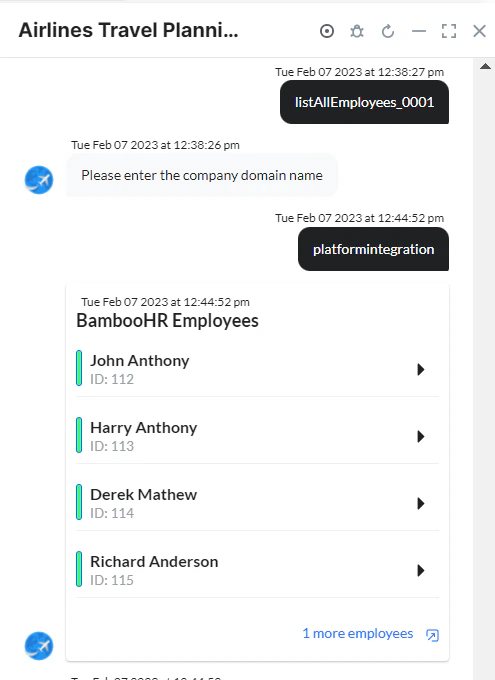
* **listAllEmployeesMessage** - Message node to display results.
3. Click **Talk to Bot** to test.
4. Follow the prompts to view employees.
**Sample Request:**
```json theme={null}
{
"fields": ["firstName", "lastName"]
}
```
**Sample Response:**
```json theme={null}
{
"title": "Report",
"fields": [
{ "id": "firstName", "type": "text", "name": "First Name" },
{ "id": "lastName", "type": "text", "name": "Last Name" }
],
"employees": [
{ "id": "112", "firstName": "John", "lastName": "Doe" },
{ "id": "113", "firstName": "Harry", "lastName": "Anthony" },
{ "id": "114", "firstName": "Alen", "lastName": "walker" }
]
}
```
* **listAllEmployeesMessage** - Message node to display results.
3. Click **Talk to Bot** to test.
4. Follow the prompts to view employees.
 ***
## Update an Employee
1. Install the template from [BambooHR Templates](/ai-for-service/integrations/actions/configuring-the-bamboohr-action#step-2-install-bamboohr-action-templates).
2. The **Update an Employee** dialog task is added with:
***
## Update an Employee
1. Install the template from [BambooHR Templates](/ai-for-service/integrations/actions/configuring-the-bamboohr-action#step-2-install-bamboohr-action-templates).
2. The **Update an Employee** dialog task is added with:
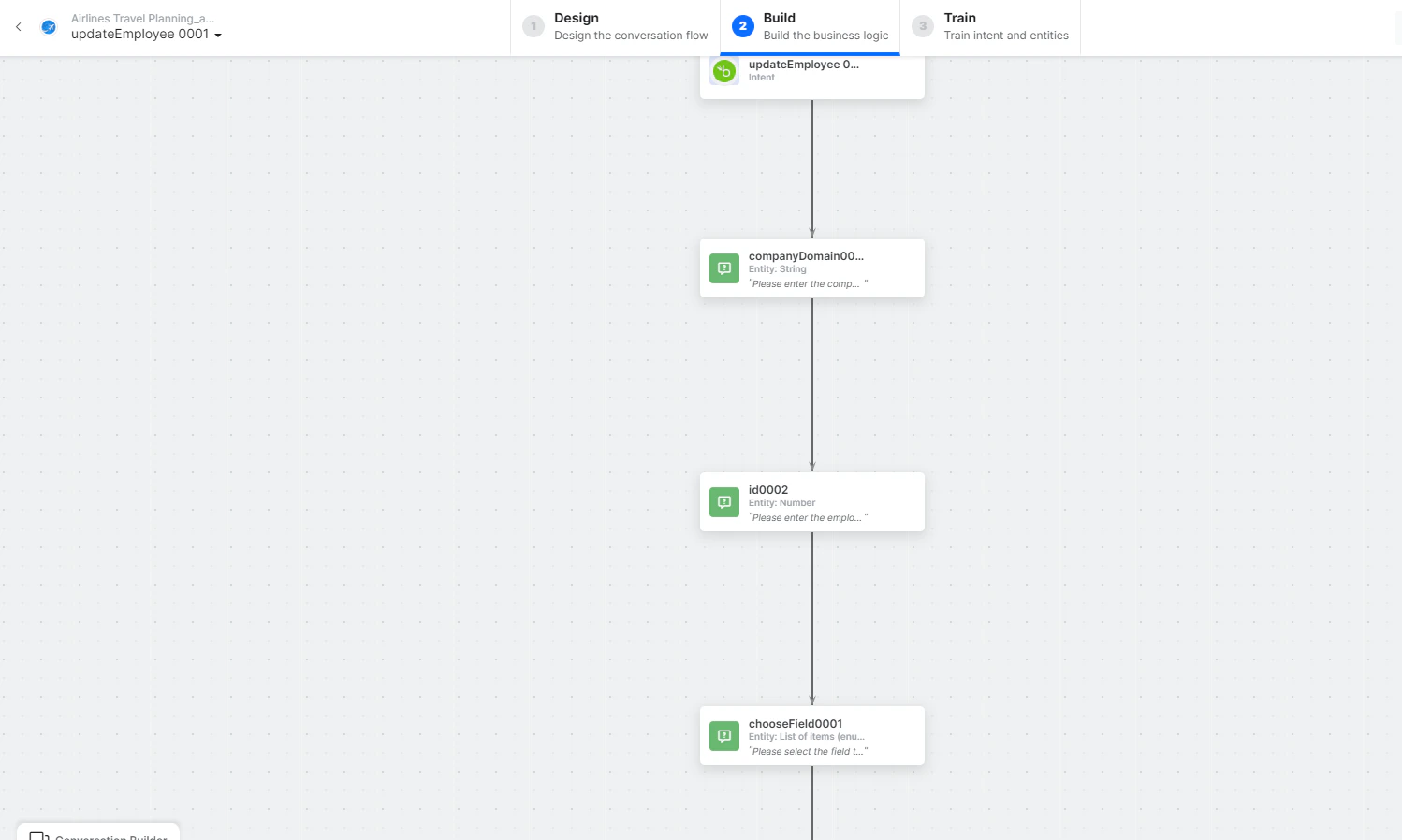 * **updateEmployee** - User intent to update an employee.
* **companyDomain**, **id**, **chooseField**, **firstName**, **lastName** - Entity nodes.
* **updateEmployeeScript** - Bot action script to prepare the update.
* **updateEmployee** - User intent to update an employee.
* **companyDomain**, **id**, **chooseField**, **firstName**, **lastName** - Entity nodes.
* **updateEmployeeScript** - Bot action script to prepare the update.
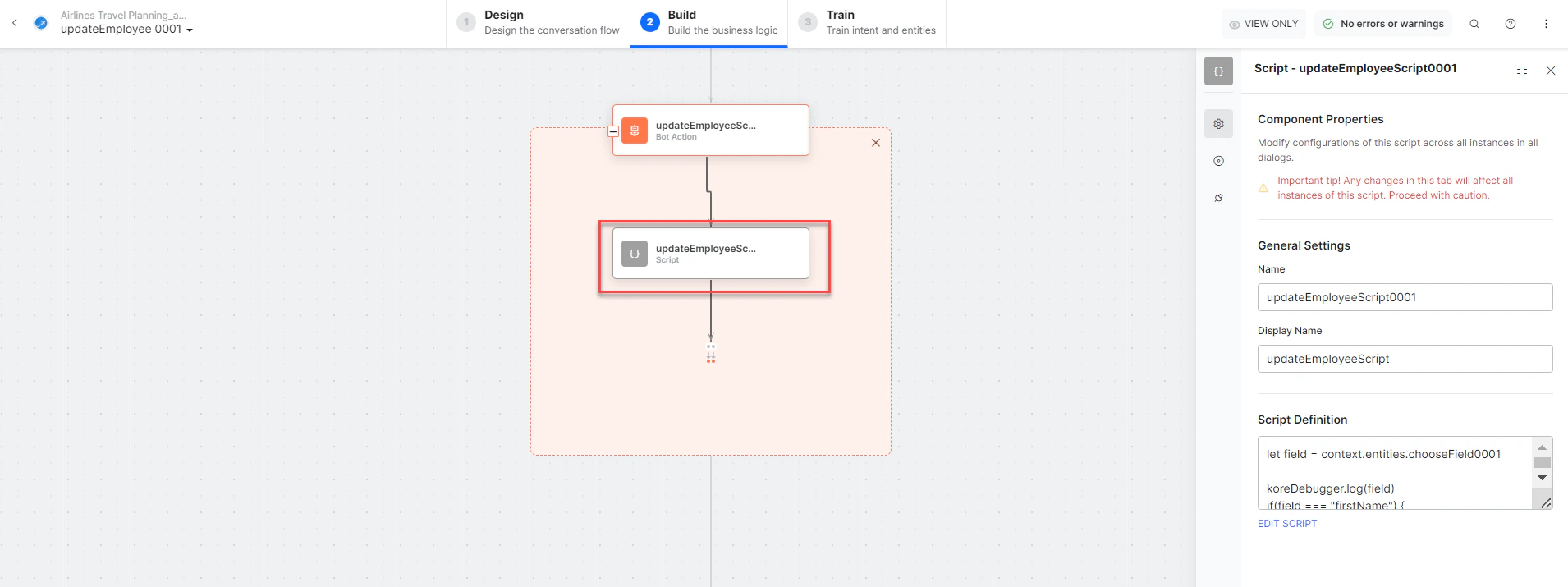 * **updateEmployeeService** - Bot action service to update the employee. Click **Edit Request**:
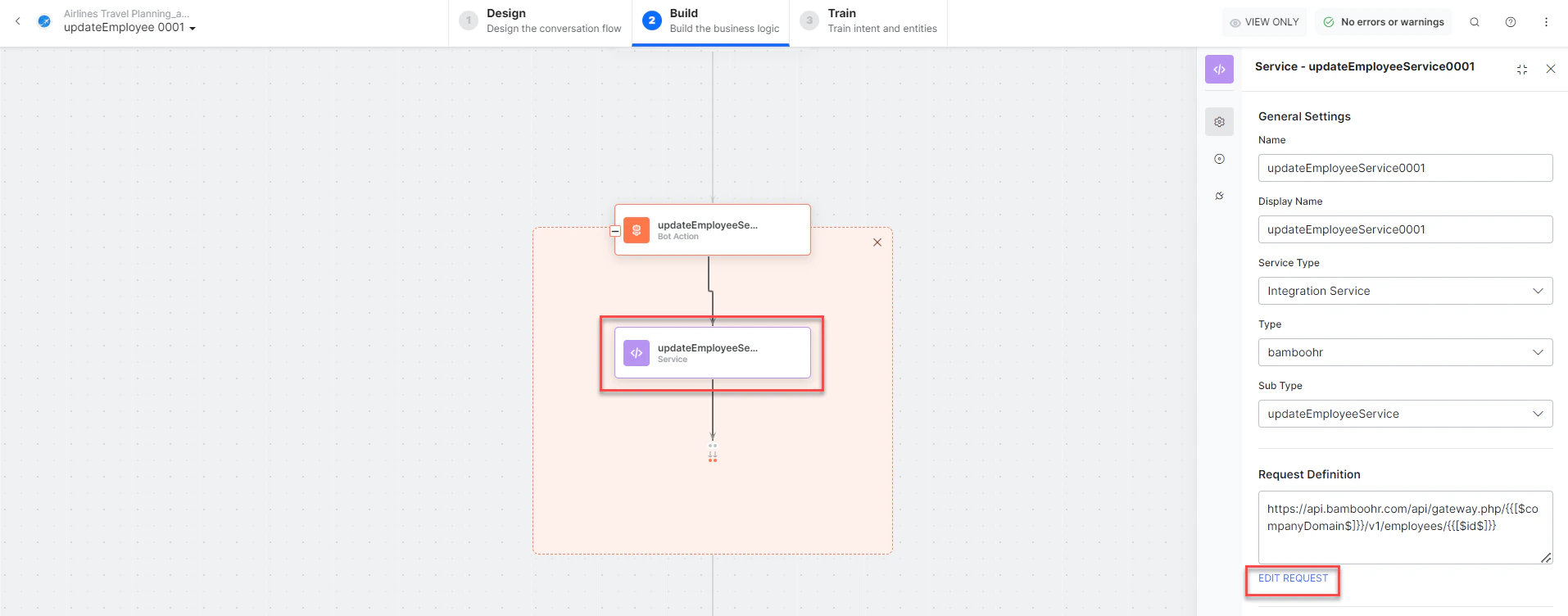 **Sample Request:**
```json theme={null}
{
"firstName": "Alen",
"lastName": "walker"
}
```
* **getEmployeeByIdService** - Bot action service to fetch the updated employee by ID.
* **updateEmployeeMessage** - Message node to display the result.
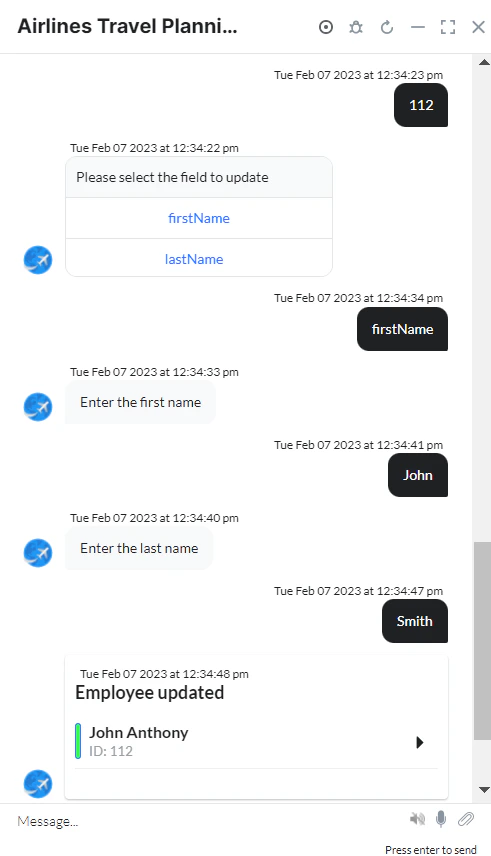
3. Click **Talk to Bot** to test.
4. Follow the prompts to update the employee.
**Sample Request:**
```json theme={null}
{
"firstName": "Alen",
"lastName": "walker"
}
```
* **getEmployeeByIdService** - Bot action service to fetch the updated employee by ID.
* **updateEmployeeMessage** - Message node to display the result.
3. Click **Talk to Bot** to test.
4. Follow the prompts to update the employee.
 5. Click **View Employee** to view details in BambooHR.
***
## Get All Time Off Requests
1. Install the template from [BambooHR Templates](/ai-for-service/integrations/actions/configuring-the-bamboohr-action#step-2-install-bamboohr-action-templates).
2. The **Get All Time Off Requests** dialog task is added with:
5. Click **View Employee** to view details in BambooHR.
***
## Get All Time Off Requests
1. Install the template from [BambooHR Templates](/ai-for-service/integrations/actions/configuring-the-bamboohr-action#step-2-install-bamboohr-action-templates).
2. The **Get All Time Off Requests** dialog task is added with:
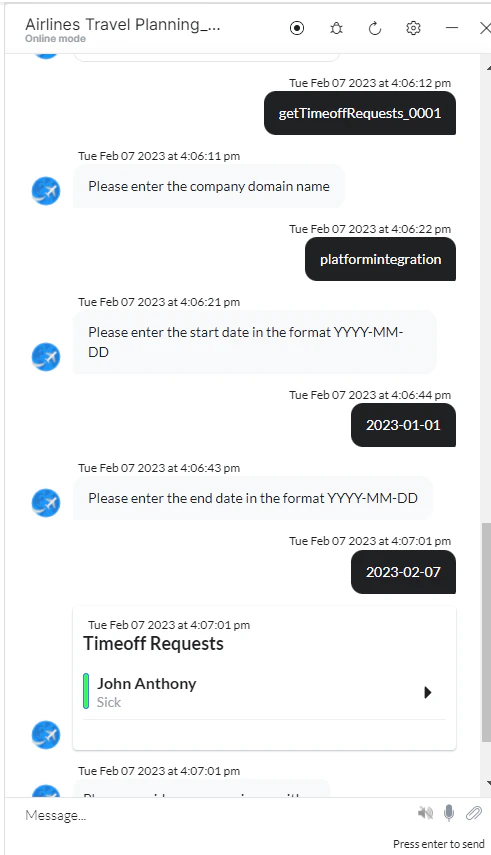
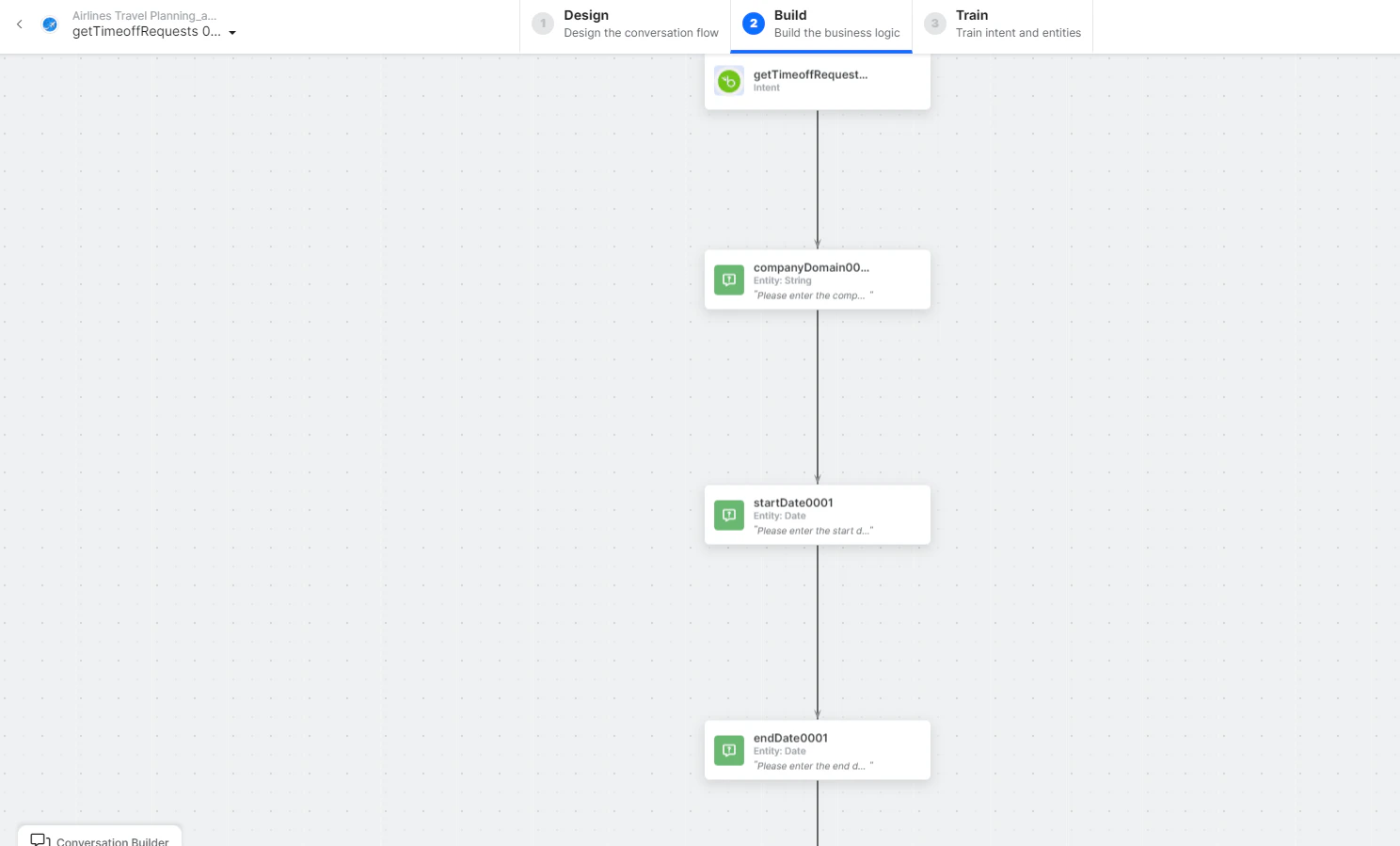 * **getTimeoffRequests** - User intent to get time off requests.
* **companyDomain**, **startDate**, **endDate** - Entity nodes for the request range.
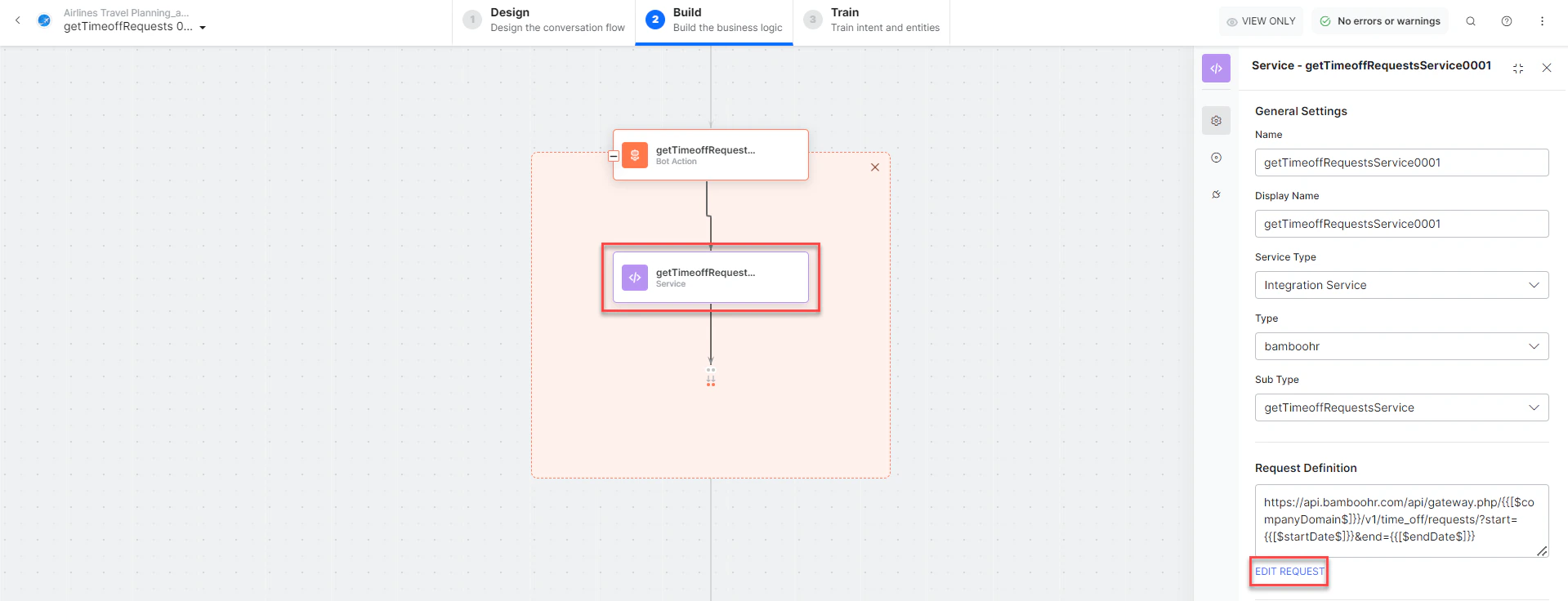
* **getTimeoffRequestsService** - Bot action service to fetch time off requests. Click **Edit Request**:
* **getTimeoffRequests** - User intent to get time off requests.
* **companyDomain**, **startDate**, **endDate** - Entity nodes for the request range.
* **getTimeoffRequestsService** - Bot action service to fetch time off requests. Click **Edit Request**:
 **Sample Response:**
```json theme={null}
[
{
"id": "1649",
"employeeId": "112",
"status": { "lastChanged": "2022-12-22", "status": "approved" },
"name": "Mark Anderson",
"start": "2022-12-14",
"end": "2022-12-15",
"type": { "id": "83", "name": "Vacation" },
"amount": { "unit": "hours", "amount": "16" }
}
]
```
* **getTimeoffRequestsMessage** - Message node to display results.
3. Click **Talk to Bot** to test.
4. Follow the prompts.
**Sample Response:**
```json theme={null}
[
{
"id": "1649",
"employeeId": "112",
"status": { "lastChanged": "2022-12-22", "status": "approved" },
"name": "Mark Anderson",
"start": "2022-12-14",
"end": "2022-12-15",
"type": { "id": "83", "name": "Vacation" },
"amount": { "unit": "hours", "amount": "16" }
}
]
```
* **getTimeoffRequestsMessage** - Message node to display results.
3. Click **Talk to Bot** to test.
4. Follow the prompts.
 ***
## Get a List of Who is Out
1. Install the template from [BambooHR Templates](/ai-for-service/integrations/actions/configuring-the-bamboohr-action#step-2-install-bamboohr-action-templates).
2. The **Get a List of Who Is Out** dialog task is added with:
***
## Get a List of Who is Out
1. Install the template from [BambooHR Templates](/ai-for-service/integrations/actions/configuring-the-bamboohr-action#step-2-install-bamboohr-action-templates).
2. The **Get a List of Who Is Out** dialog task is added with:
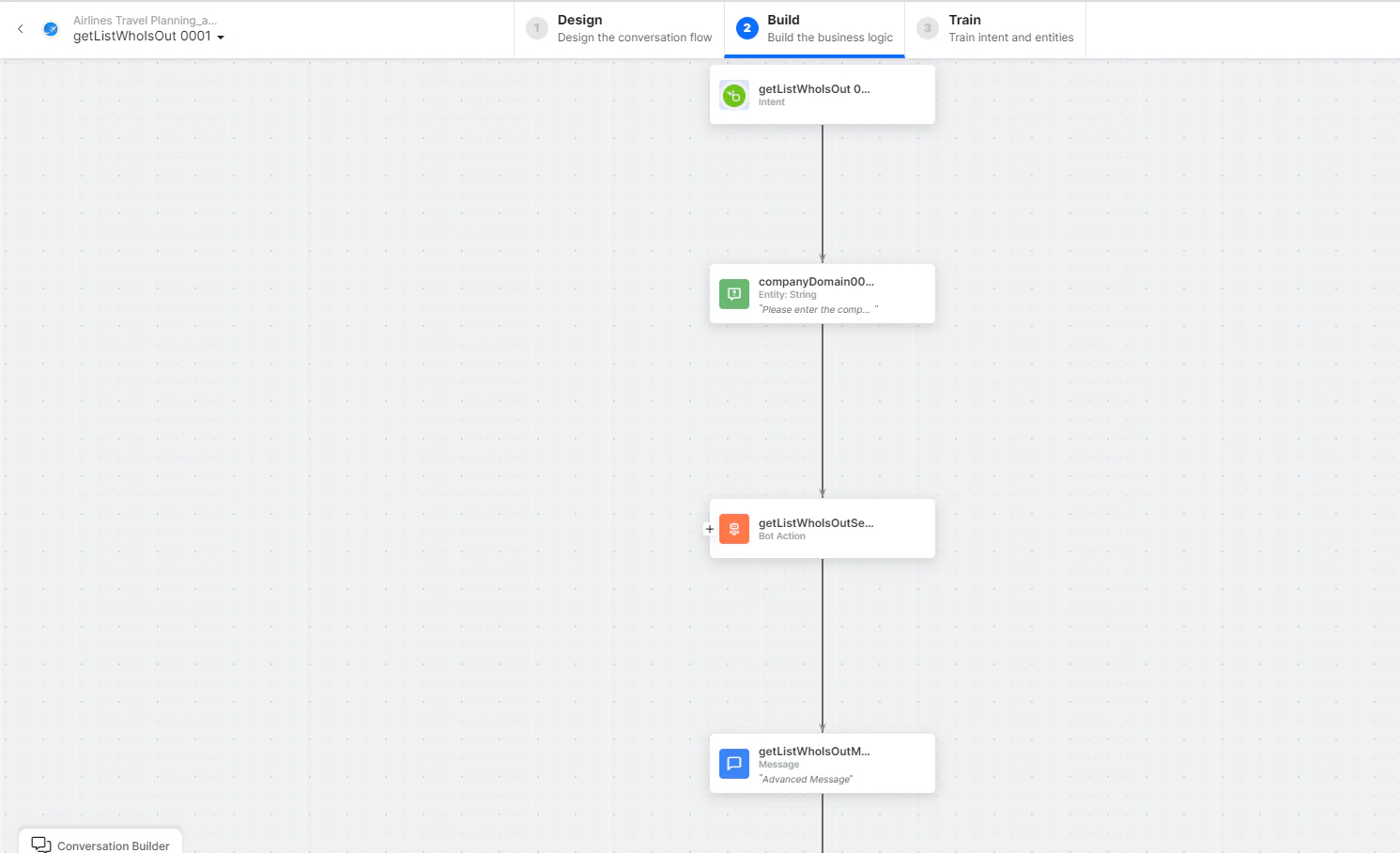 * **getListWhoisOut** - User intent to list who is out.
* **companyDomain** - Entity node for the company domain.
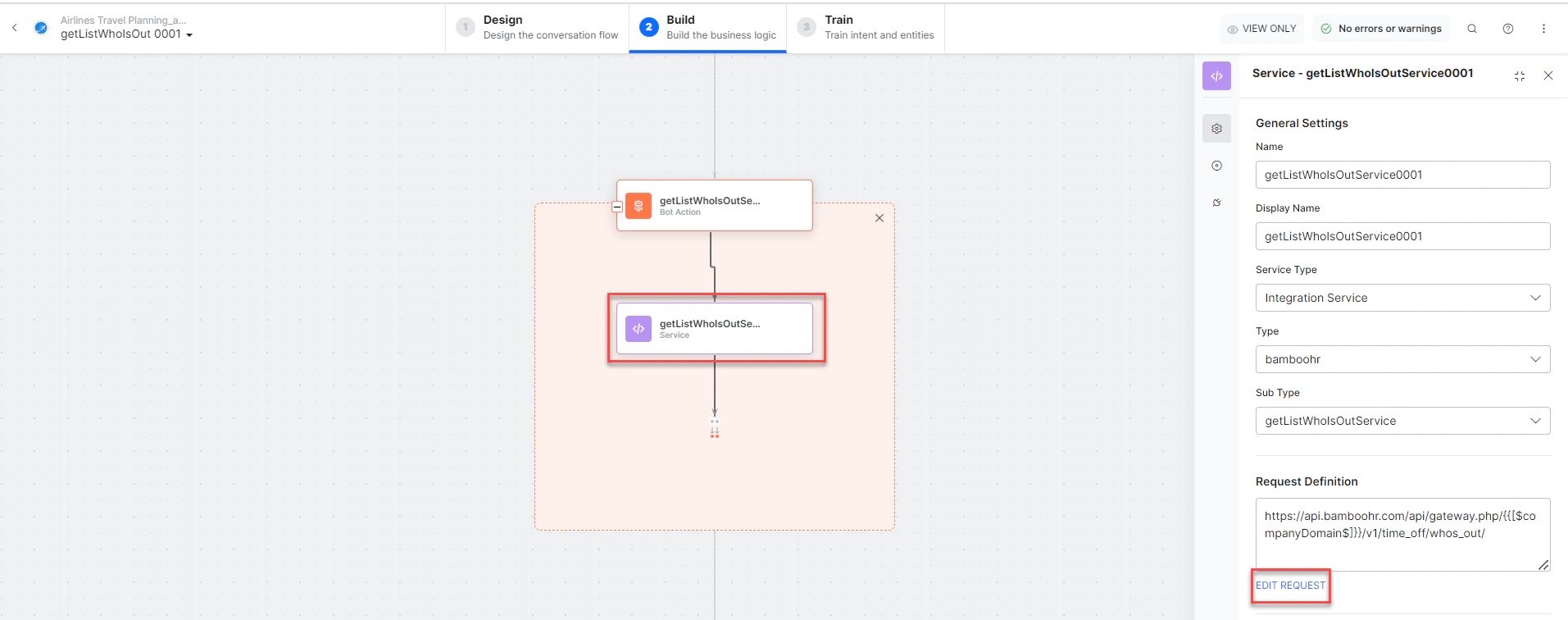
* **getListWhoOutService** - Bot action service to get the list. Click **Edit Request**:
* **getListWhoisOut** - User intent to list who is out.
* **companyDomain** - Entity node for the company domain.
* **getListWhoOutService** - Bot action service to get the list. Click **Edit Request**:
 * **getListWhoIsOutMessage** - Message node to display results.
3. Click **Talk to Bot** to test.
4. Follow the prompts.
***
## Update a Request Status
1. Install the template from [BambooHR Templates](/ai-for-service/integrations/actions/configuring-the-bamboohr-action#step-2-install-bamboohr-action-templates).
2. The **Update a Request Status** dialog task is added with:
* **getListWhoIsOutMessage** - Message node to display results.
3. Click **Talk to Bot** to test.
4. Follow the prompts.
***
## Update a Request Status
1. Install the template from [BambooHR Templates](/ai-for-service/integrations/actions/configuring-the-bamboohr-action#step-2-install-bamboohr-action-templates).
2. The **Update a Request Status** dialog task is added with:
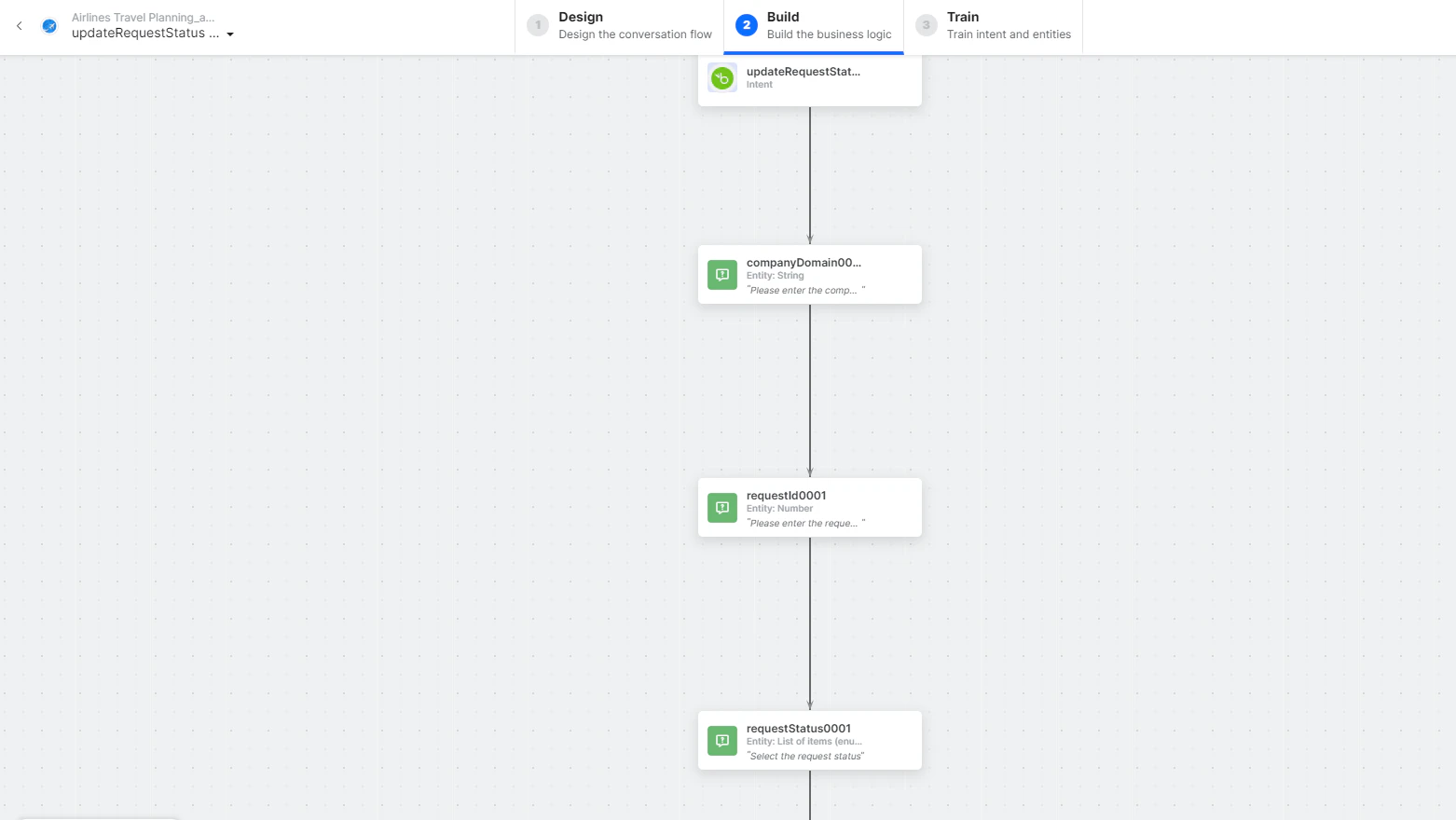 * **updateRequestStatus** - User intent to update a request.
* **companyDomain**, **requestID**, **requestStatus** - Entity nodes.
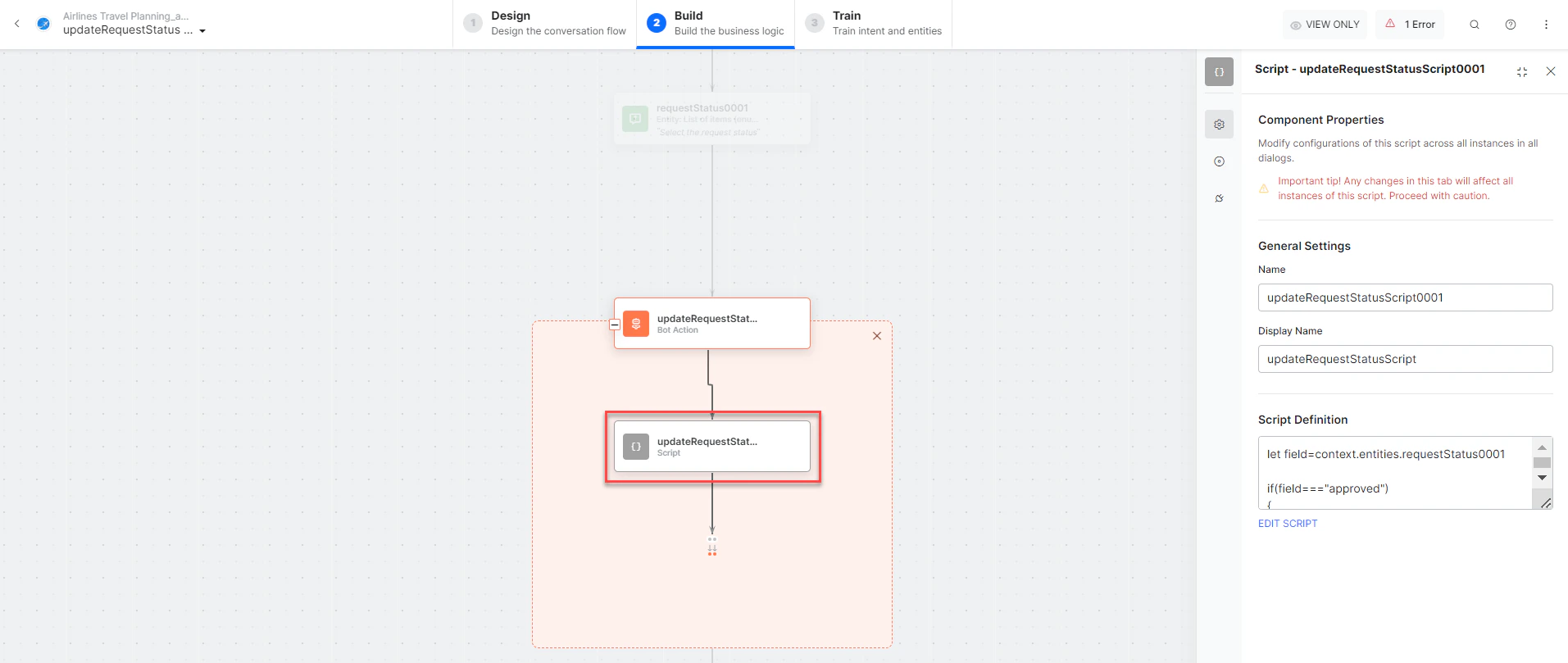
* **updateRequestStatusScript** - Bot action script to prepare the update.
* **updateRequestStatus** - User intent to update a request.
* **companyDomain**, **requestID**, **requestStatus** - Entity nodes.
* **updateRequestStatusScript** - Bot action script to prepare the update.
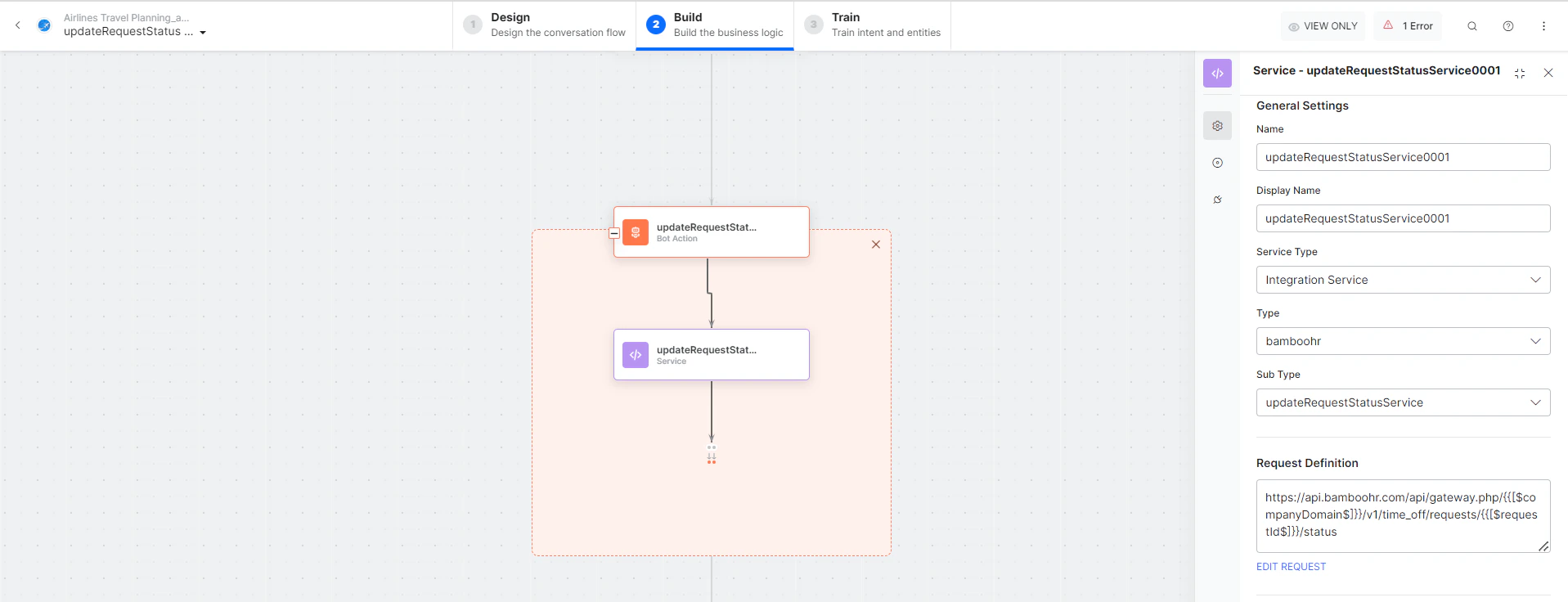
 * **updateRequestStatusService** - Bot action service to update the request. Click **Edit Request**:
 **Sample Request:**
```json theme={null}
{
"status": "approved",
"note": "Have fun!"
}
```
* **updateRequestStatusMessage** - Message node to display the result.
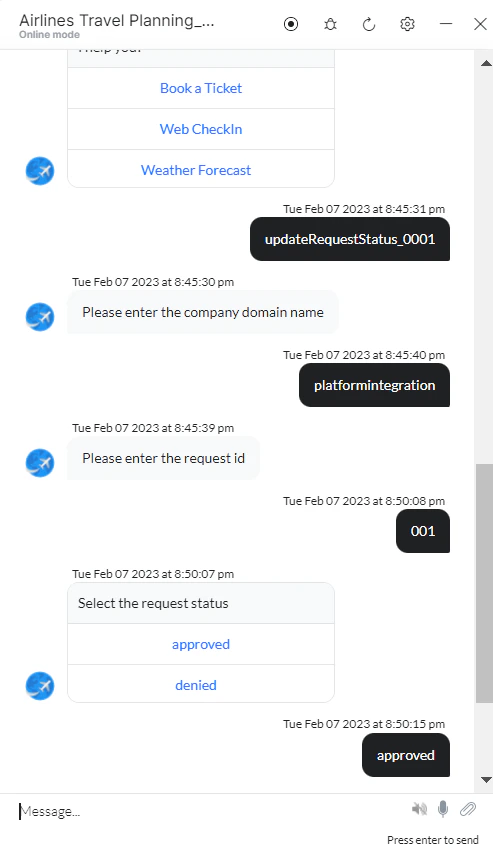
3. Click **Talk to Bot** to test.
4. Follow the prompts.
**Sample Request:**
```json theme={null}
{
"status": "approved",
"note": "Have fun!"
}
```
* **updateRequestStatusMessage** - Message node to display the result.
3. Click **Talk to Bot** to test.
4. Follow the prompts.