> ## Documentation Index
> Fetch the complete documentation index at: https://koreai.mintlify.site/llms.txt
> Use this file to discover all available pages before exploring further.
# Using the Freshservice ITSM Action Templates
[Back to Actions Integrations](/ai-for-service/integrations/overview#actions)
Use prebuilt Freshservice action templates to auto-create dialog tasks.
**Prerequisites:** Configure [Freshservice](/ai-for-service/integrations/actions/configuring-the-freshservice-action) and install templates before proceeding.
To access templates:
1. Go to **Automation AI > Use Cases > Dialogs** and click **Create a Dialog Task**.
2. Under **Integration**, select **Freshservice** to view action templates.
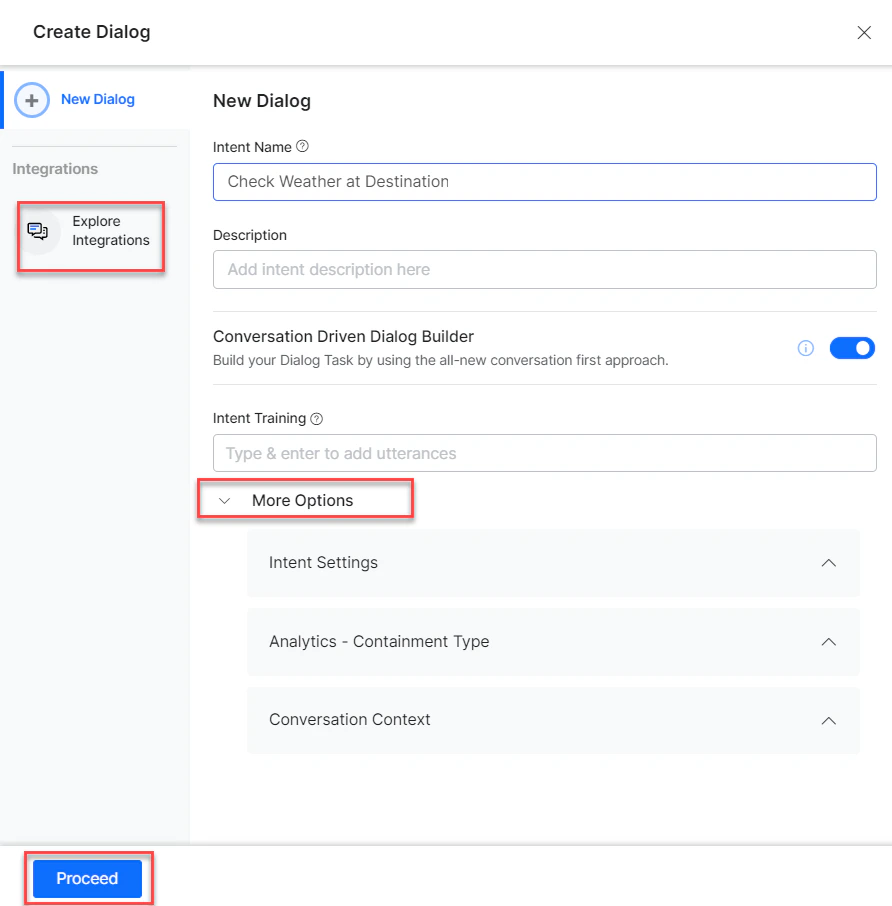
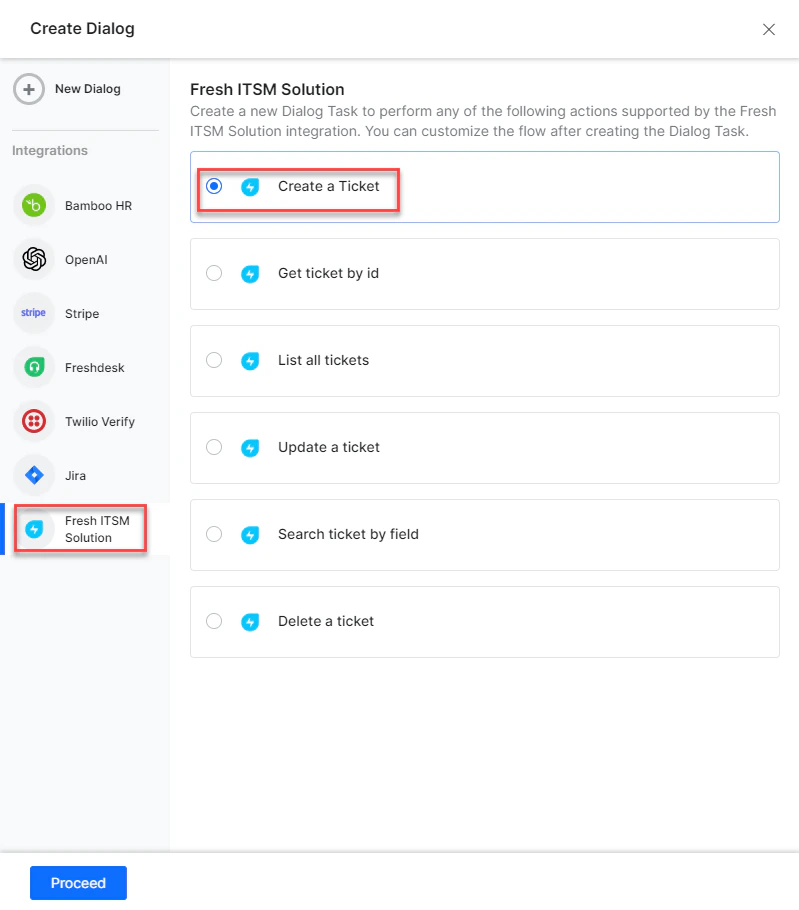 If no integration is configured, click **Explore Integrations** to go to the Actions page.
 ***
## Supported Actions
| Action | Description | Method |
| ---------------------- | -------------------------------- | ------ |
| Create a Ticket | Creates a ticket in Freshservice | POST |
| Get Ticket by ID | Fetches ticket details by ID | GET |
| List All Tickets | Retrieves all tickets | GET |
| Update a Ticket | Updates a ticket | PUT |
| Search Ticket by Field | Searches tickets by field | GET |
| Delete a Ticket | Deletes a ticket | DELETE |
***
## Create a Ticket
1. Install the template from [Freshservice Templates](/ai-for-service/integrations/actions/configuring-the-freshservice-action#step-2-install-freshservice-action-templates).
2. The **Create Ticket** dialog task is added with:
***
## Supported Actions
| Action | Description | Method |
| ---------------------- | -------------------------------- | ------ |
| Create a Ticket | Creates a ticket in Freshservice | POST |
| Get Ticket by ID | Fetches ticket details by ID | GET |
| List All Tickets | Retrieves all tickets | GET |
| Update a Ticket | Updates a ticket | PUT |
| Search Ticket by Field | Searches tickets by field | GET |
| Delete a Ticket | Deletes a ticket | DELETE |
***
## Create a Ticket
1. Install the template from [Freshservice Templates](/ai-for-service/integrations/actions/configuring-the-freshservice-action#step-2-install-freshservice-action-templates).
2. The **Create Ticket** dialog task is added with:
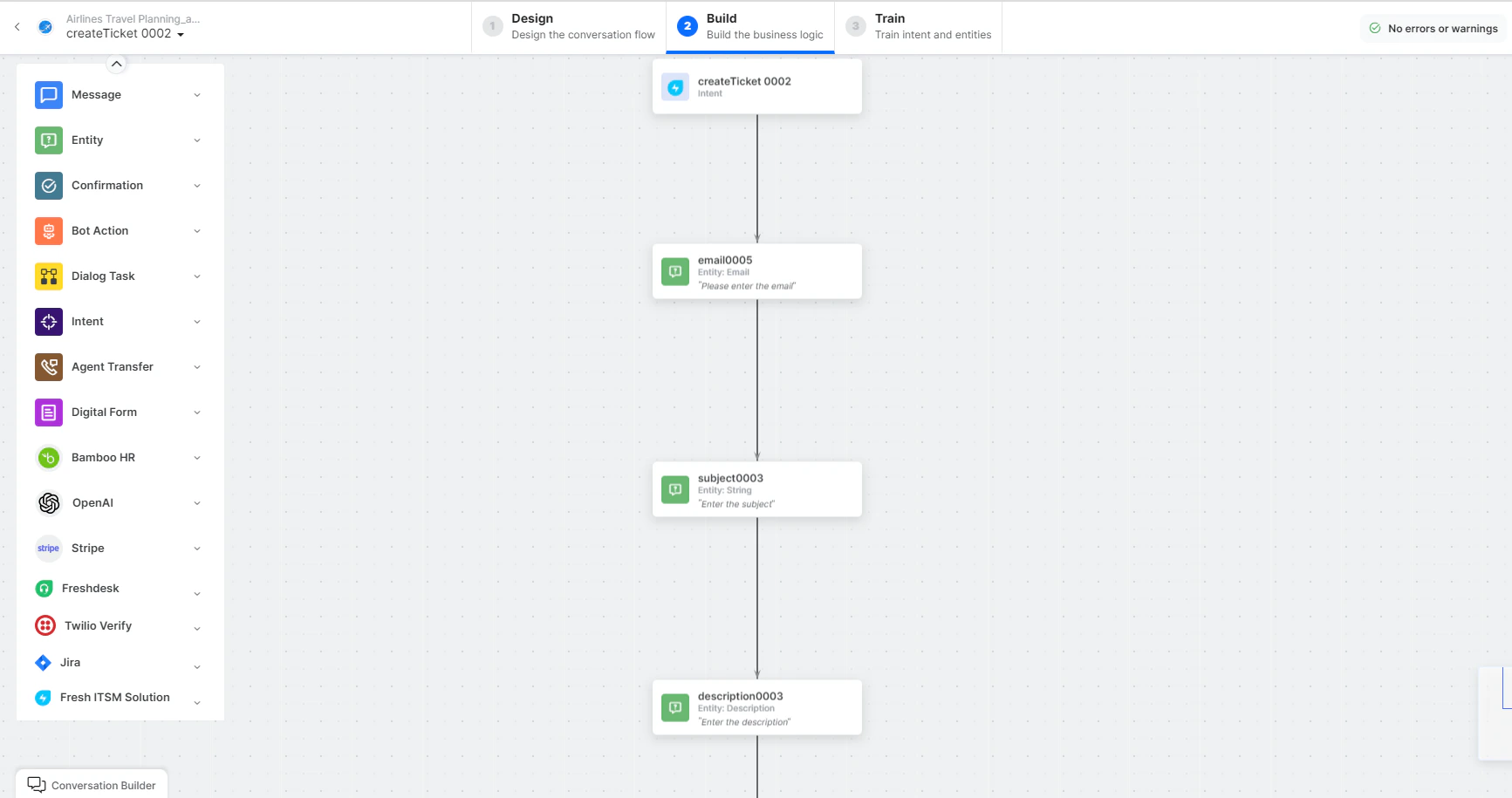 * **createTicket** - User intent to create a ticket.
* **subject**, **description**, **email**, **priority**, **status**, **phone** - Entity nodes for ticket details.
* **createTicketScript** - Bot action script to prepare the request.
* **createTicketService** - Bot action service to create the ticket. Click **Edit Request**:
* **createTicket** - User intent to create a ticket.
* **subject**, **description**, **email**, **priority**, **status**, **phone** - Entity nodes for ticket details.
* **createTicketScript** - Bot action script to prepare the request.
* **createTicketService** - Bot action service to create the ticket. Click **Edit Request**:
 **Sample Request:**
```json theme={null}
{
"email": "john.doe@example.com",
"subject": "Support payment",
"description": "Payment is pending issue",
"status": 2,
"priority": 3
}
```
**Sample Response:**
```json theme={null}
{
"ticket": {
"id": 57,
"subject": "Support payment...",
"description": "Payment is pending issue",
"status": 2,
"priority": 1,
"type": "Incident",
"created_at": "2022-09-28T07:00:14Z"
}
}
```
* **createTicketMessage** - Message node to display the result.
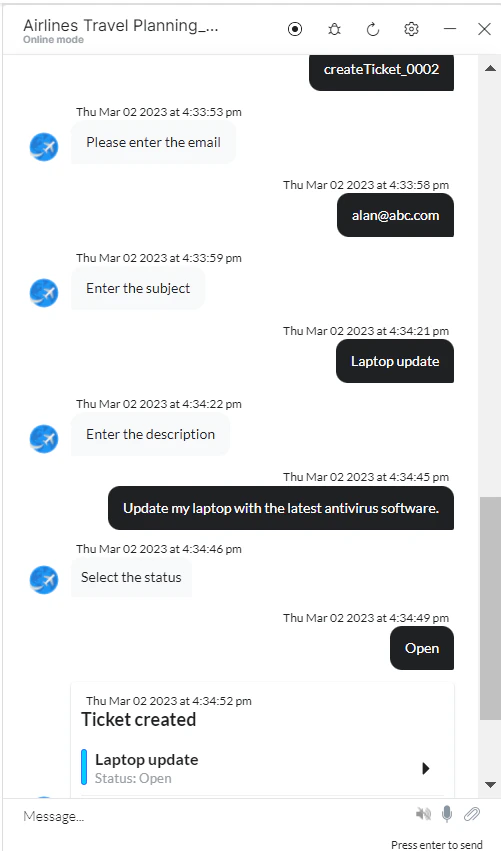
3. Click **Train**, then **Talk to Bot** to test.
4. Follow prompts to create a ticket.
**Sample Request:**
```json theme={null}
{
"email": "john.doe@example.com",
"subject": "Support payment",
"description": "Payment is pending issue",
"status": 2,
"priority": 3
}
```
**Sample Response:**
```json theme={null}
{
"ticket": {
"id": 57,
"subject": "Support payment...",
"description": "Payment is pending issue",
"status": 2,
"priority": 1,
"type": "Incident",
"created_at": "2022-09-28T07:00:14Z"
}
}
```
* **createTicketMessage** - Message node to display the result.
3. Click **Train**, then **Talk to Bot** to test.
4. Follow prompts to create a ticket.
 ***
## Get Ticket by ID
1. Install the template from [Freshservice Templates](/ai-for-service/integrations/actions/configuring-the-freshservice-action#step-2-install-freshservice-action-templates).
2. The **Get Ticket by ID** dialog task is added with:
***
## Get Ticket by ID
1. Install the template from [Freshservice Templates](/ai-for-service/integrations/actions/configuring-the-freshservice-action#step-2-install-freshservice-action-templates).
2. The **Get Ticket by ID** dialog task is added with:
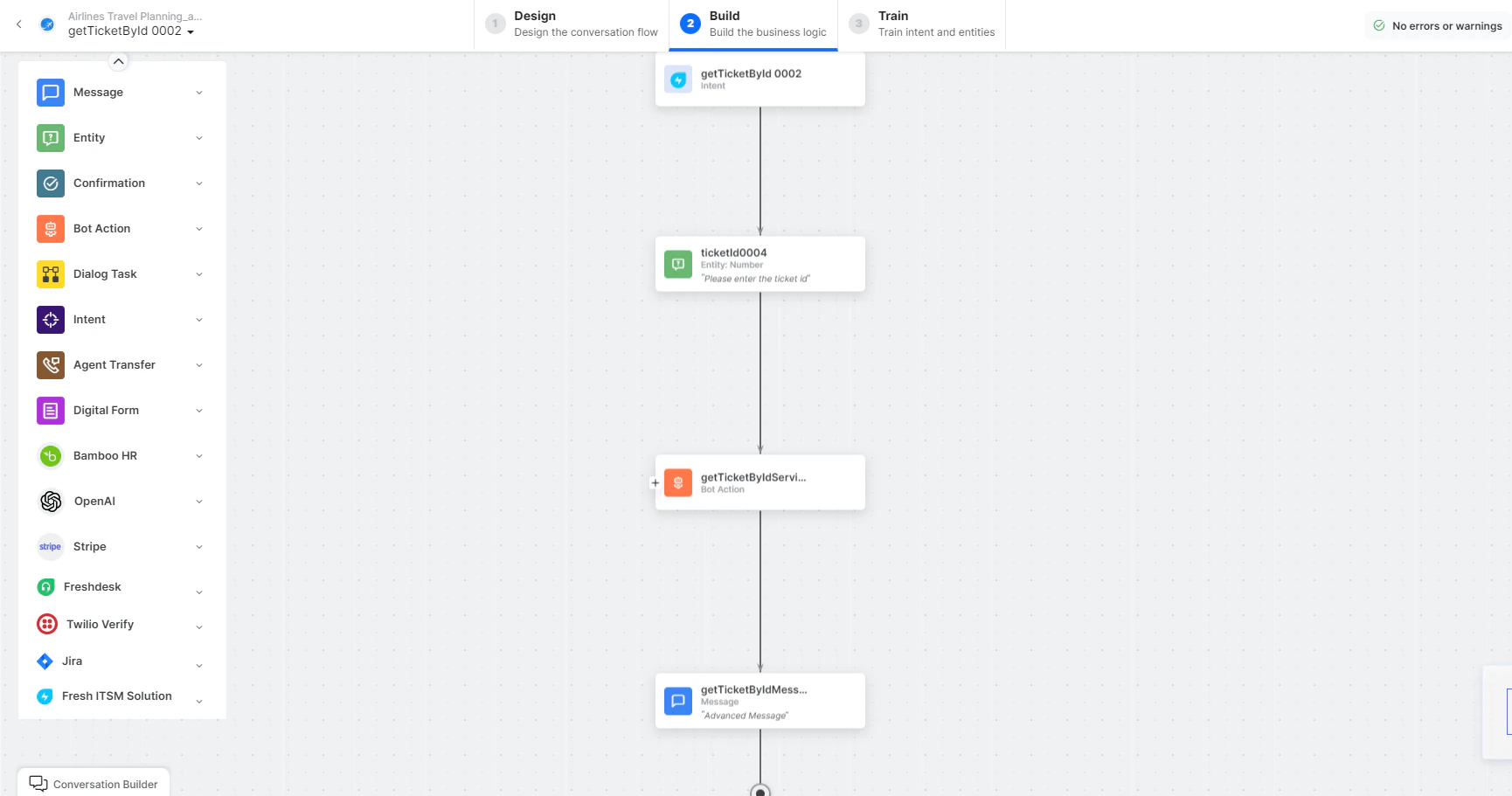 * **getTicketbyId** - User intent to find a ticket by ID.
* **ticketID** - Entity node for the ticket ID.
* **getTicketbyIdService** - Bot action service to find the ticket. Click **+Add Response**:
* **getTicketbyId** - User intent to find a ticket by ID.
* **ticketID** - Entity node for the ticket ID.
* **getTicketbyIdService** - Bot action service to find the ticket. Click **+Add Response**:
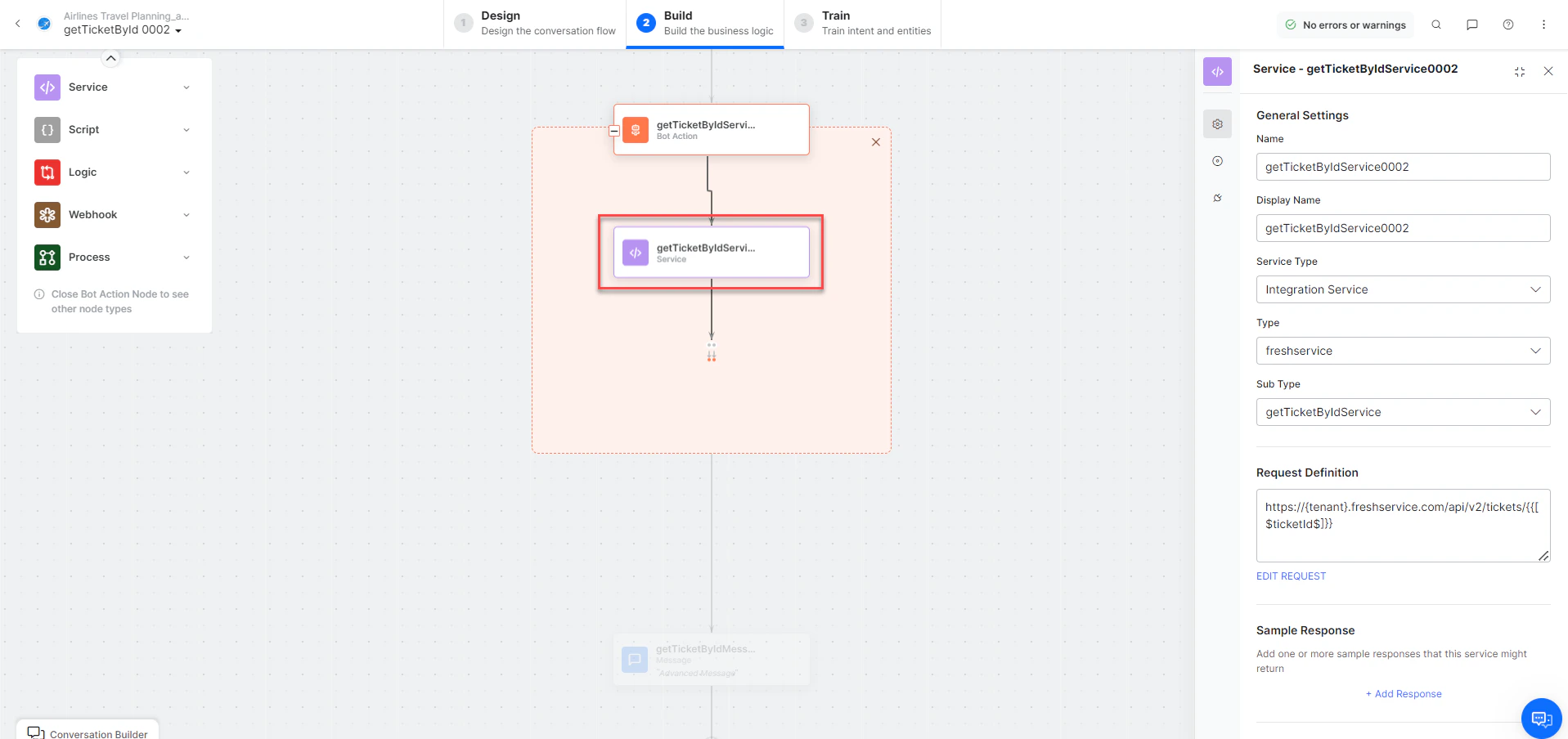 **Sample Response:**
```json theme={null}
{
"ticket": {
"id": 57,
"subject": "Support payment...",
"description": "Payment is pending issue",
"status": 2,
"priority": 1,
"type": "Incident"
}
}
```
* **getTicketbyIdMessage** - Message node to display the result.
3. Click **Train**, then **Talk to Bot** to test.
4. Follow prompts to find a ticket by ID.
**Sample Response:**
```json theme={null}
{
"ticket": {
"id": 57,
"subject": "Support payment...",
"description": "Payment is pending issue",
"status": 2,
"priority": 1,
"type": "Incident"
}
}
```
* **getTicketbyIdMessage** - Message node to display the result.
3. Click **Train**, then **Talk to Bot** to test.
4. Follow prompts to find a ticket by ID.
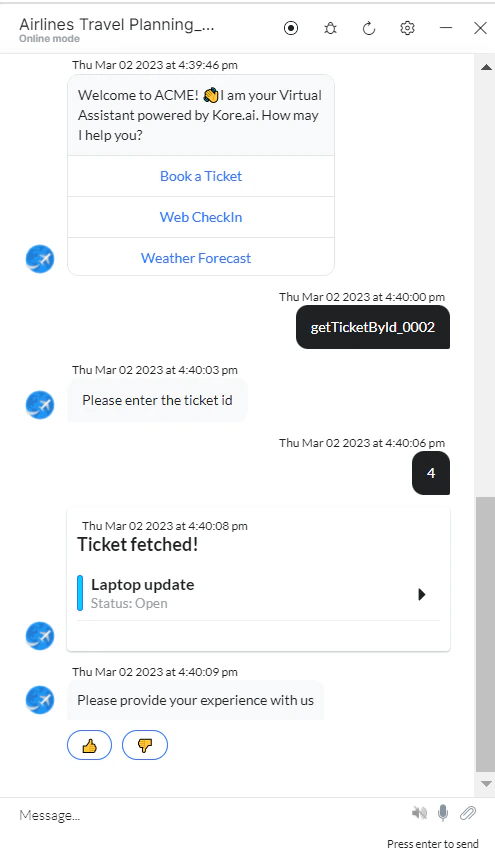 5. You can now view the ticket in Freshservice.
***
## List All Tickets
1. Install the template from [Freshservice Templates](/ai-for-service/integrations/actions/configuring-the-freshservice-action#step-2-install-freshservice-action-templates).
2. The **List All Tickets** dialog task is added with:
5. You can now view the ticket in Freshservice.
***
## List All Tickets
1. Install the template from [Freshservice Templates](/ai-for-service/integrations/actions/configuring-the-freshservice-action#step-2-install-freshservice-action-templates).
2. The **List All Tickets** dialog task is added with:
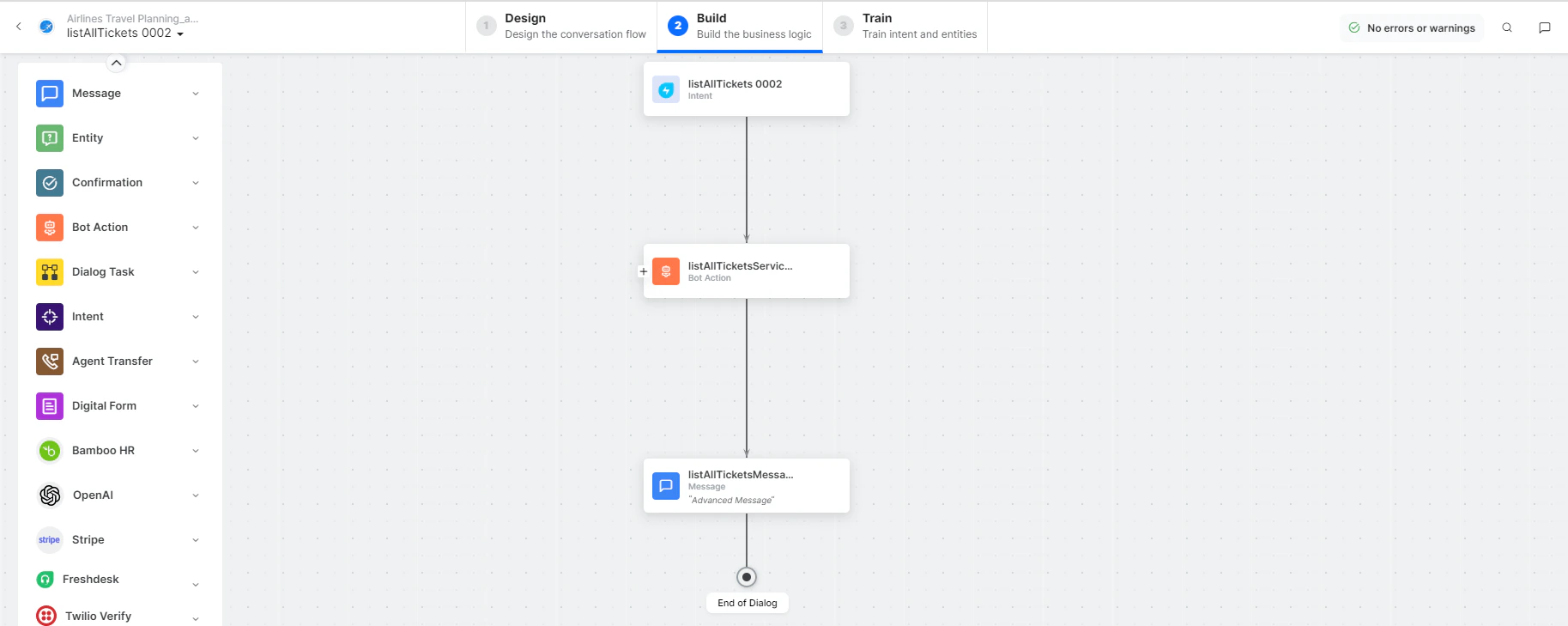 * **listAllTickets** - User intent to view all tickets.
* **listAllTicketsService** - Bot action service to fetch all tickets. Click **+Add Response**:
* **listAllTickets** - User intent to view all tickets.
* **listAllTicketsService** - Bot action service to fetch all tickets. Click **+Add Response**:
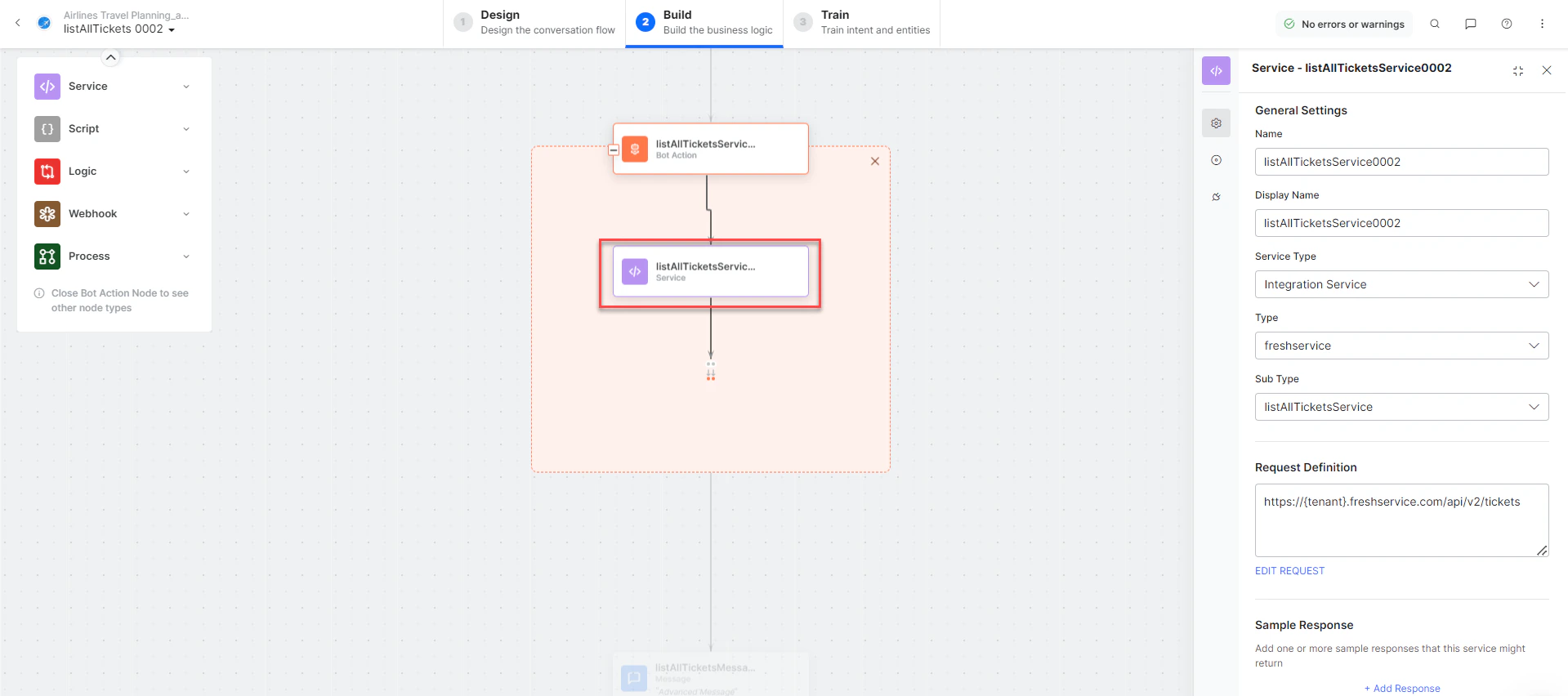 * **listAllTicketsMessage** - Message node to display results.
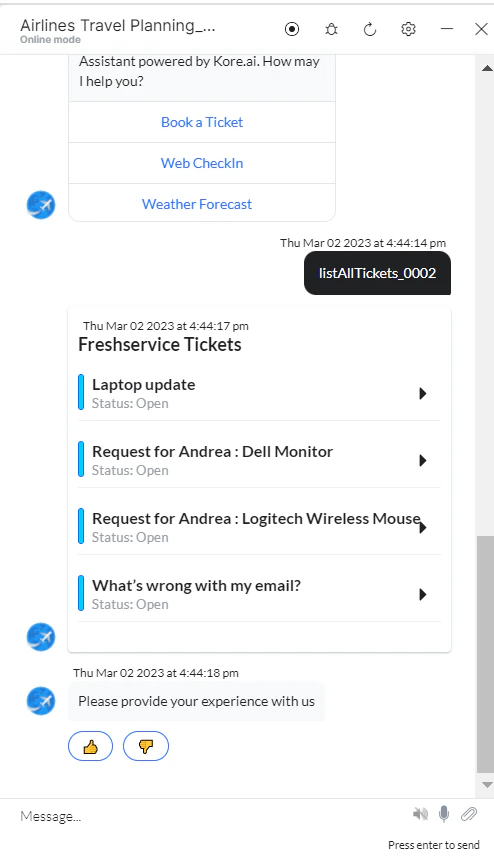
3. Click **Train**, then **Talk to Bot** to test.
4. Follow prompts to view all tickets.
* **listAllTicketsMessage** - Message node to display results.
3. Click **Train**, then **Talk to Bot** to test.
4. Follow prompts to view all tickets.
 ***
## Update a Ticket
1. Install the template from [Freshservice Templates](/ai-for-service/integrations/actions/configuring-the-freshservice-action#step-2-install-freshservice-action-templates).
2. The **Update a Ticket** dialog task is added with:
***
## Update a Ticket
1. Install the template from [Freshservice Templates](/ai-for-service/integrations/actions/configuring-the-freshservice-action#step-2-install-freshservice-action-templates).
2. The **Update a Ticket** dialog task is added with:
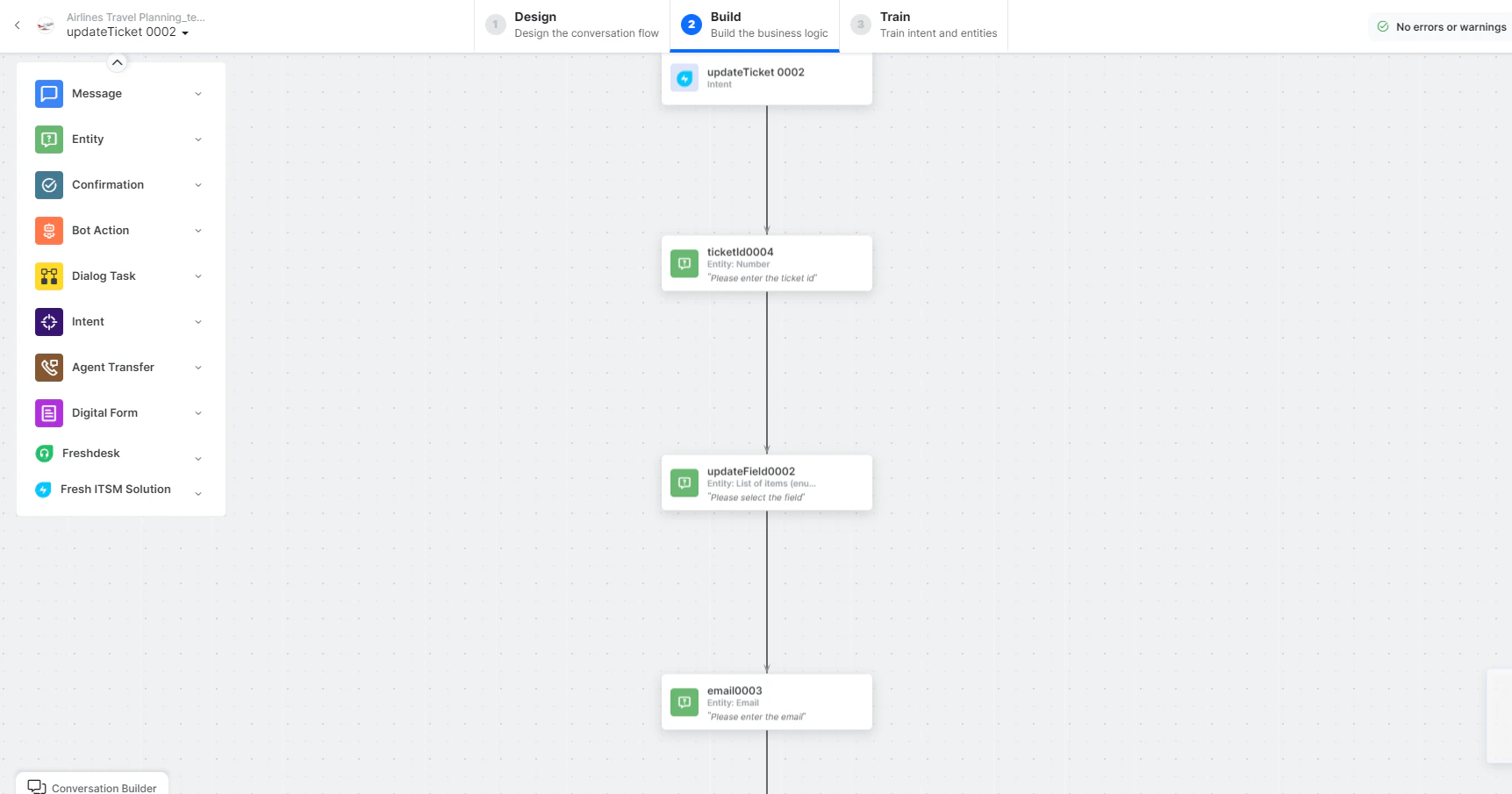 * **updateTicket** - User intent to update a ticket.
* **ticketID**, **updateField**, **email**, **subject**, **description**, **status**, **priority** - Entity nodes.
* **updateTicketScript** - Bot action script for the update.
* **updateTicket** - User intent to update a ticket.
* **ticketID**, **updateField**, **email**, **subject**, **description**, **status**, **priority** - Entity nodes.
* **updateTicketScript** - Bot action script for the update.
 * Click **Edit Request**:
 **Sample Request:**
```json theme={null}
{
"email": "john.doe@example.com",
"subject": "LOGIN ISSUE...",
"description": "Unable to login...",
"status": 4,
"priority": 2
}
```
**Sample Response:**
```json theme={null}
{
"ticket": {
"id": 54,
"subject": "LOGIN ISSUE...",
"description": "Unable to login...",
"status": 4,
"priority": 2
}
}
```
* **updateTicketMessage** - Message node to display the result.
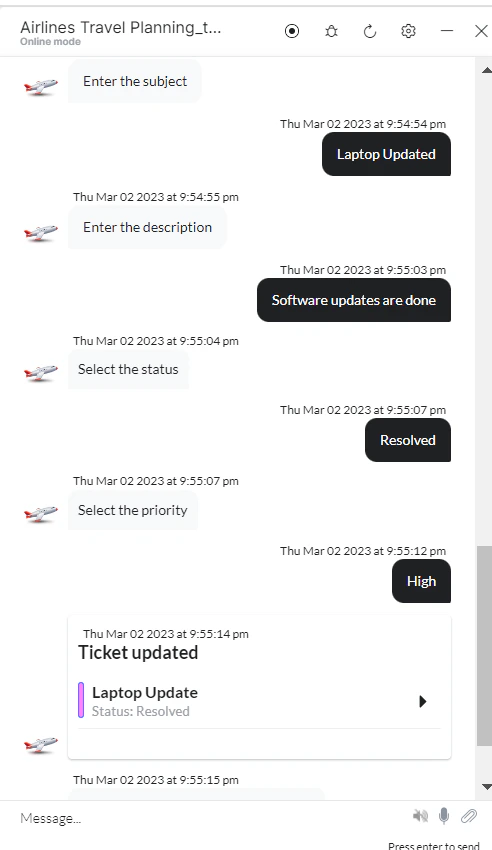
3. Click **Train**, then **Talk to Bot** to test.
4. Follow prompts to update a ticket.
**Sample Request:**
```json theme={null}
{
"email": "john.doe@example.com",
"subject": "LOGIN ISSUE...",
"description": "Unable to login...",
"status": 4,
"priority": 2
}
```
**Sample Response:**
```json theme={null}
{
"ticket": {
"id": 54,
"subject": "LOGIN ISSUE...",
"description": "Unable to login...",
"status": 4,
"priority": 2
}
}
```
* **updateTicketMessage** - Message node to display the result.
3. Click **Train**, then **Talk to Bot** to test.
4. Follow prompts to update a ticket.
 ***
## Search Ticket by Field
1. Install the template from [Freshservice Templates](/ai-for-service/integrations/actions/configuring-the-freshservice-action#step-2-install-freshservice-action-templates).
2. The **Search Ticket by Field** dialog task is added with:
***
## Search Ticket by Field
1. Install the template from [Freshservice Templates](/ai-for-service/integrations/actions/configuring-the-freshservice-action#step-2-install-freshservice-action-templates).
2. The **Search Ticket by Field** dialog task is added with:
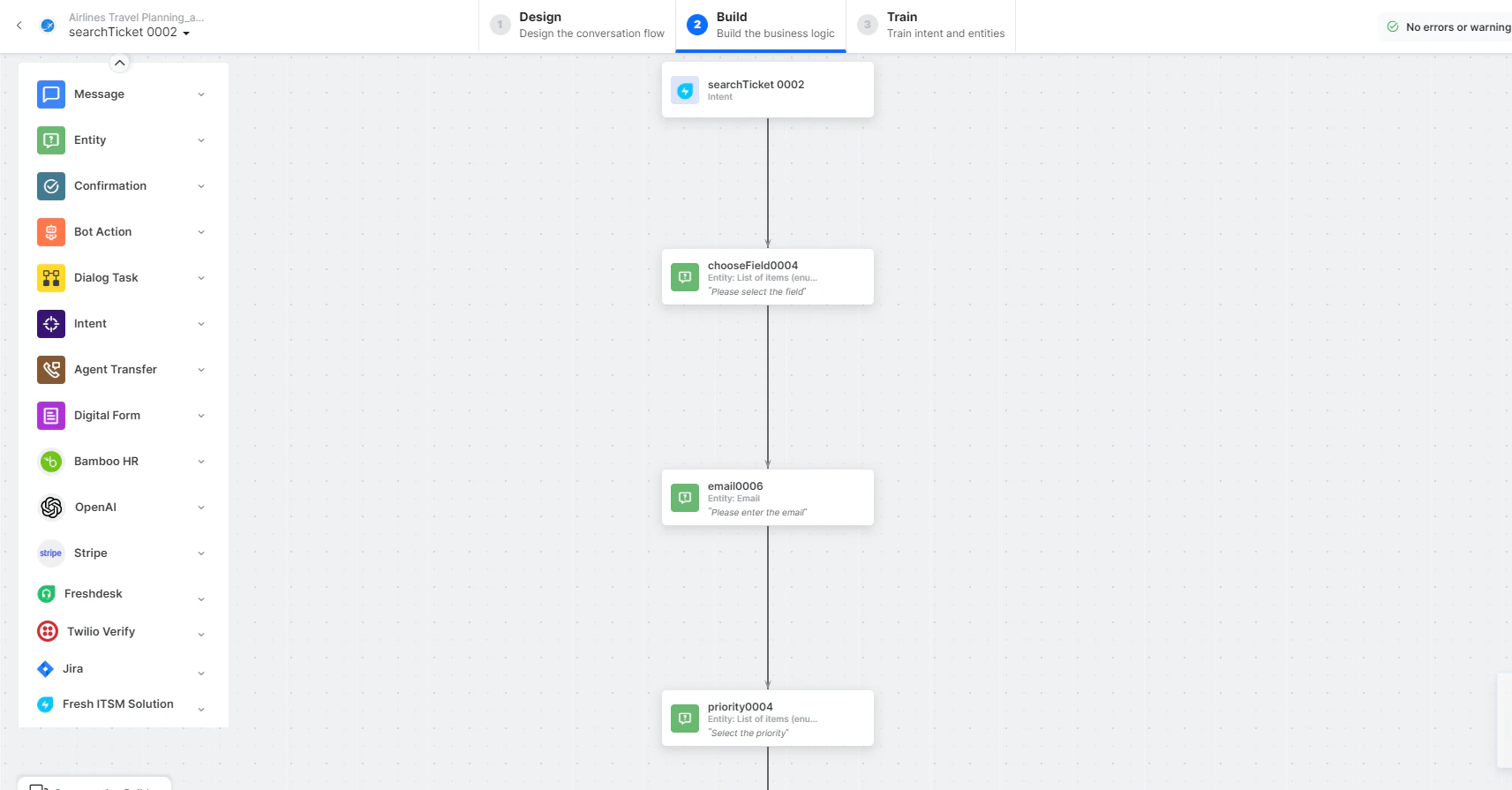 * **searchTicket** - User intent to search tickets.
* **chooseField**, **priority**, **email**, **status** - Entity nodes for search criteria.
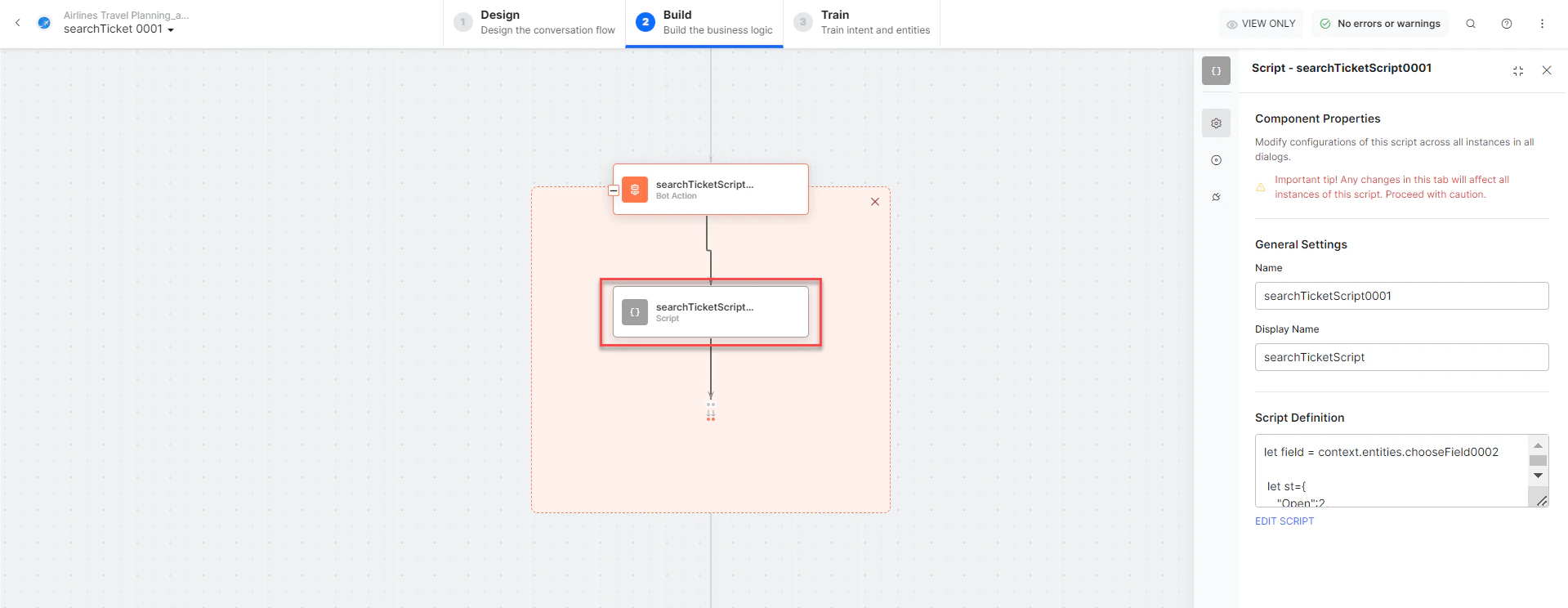
* **searchTicketScript** - Bot action script to prepare the search.
* **searchTicketService** - Bot action service to search tickets. Click **+Add Response**:
* **searchTicket** - User intent to search tickets.
* **chooseField**, **priority**, **email**, **status** - Entity nodes for search criteria.
* **searchTicketScript** - Bot action script to prepare the search.
* **searchTicketService** - Bot action service to search tickets. Click **+Add Response**:
 **Sample Response:**
```json theme={null}
{
"tickets": [
{ "subject": "refer", "id": 55, "priority": 3, "status": 5 },
{ "subject": "Support payment...", "id": 7, "priority": 3, "status": 2 }
],
"total": 2
}
```
* **searchTicketMessage** - Message node to display results.
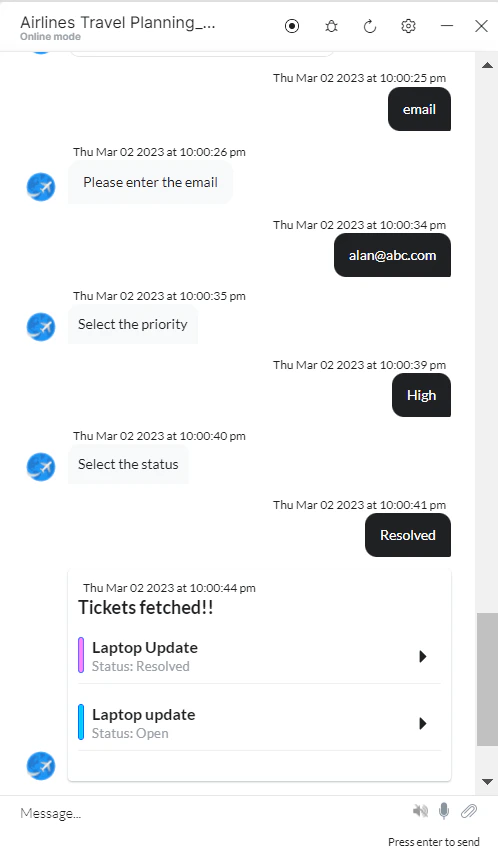
3. Click **Train**, then **Talk to Bot** to test.
4. Follow prompts to search tickets.
**Sample Response:**
```json theme={null}
{
"tickets": [
{ "subject": "refer", "id": 55, "priority": 3, "status": 5 },
{ "subject": "Support payment...", "id": 7, "priority": 3, "status": 2 }
],
"total": 2
}
```
* **searchTicketMessage** - Message node to display results.
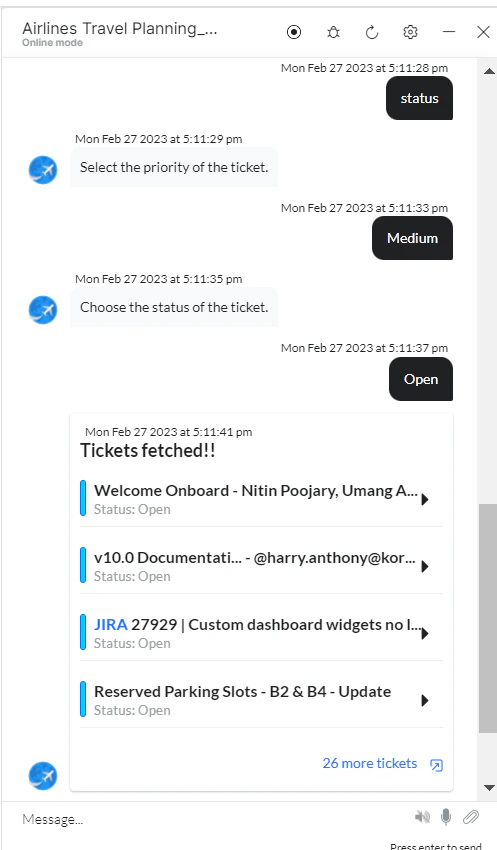
3. Click **Train**, then **Talk to Bot** to test.
4. Follow prompts to search tickets.
 ***
## Delete a Ticket
1. Install the template from [Freshservice Templates](/ai-for-service/integrations/actions/configuring-the-freshservice-action#step-2-install-freshservice-action-templates).
2. The **Delete a Ticket** dialog task is added with:
***
## Delete a Ticket
1. Install the template from [Freshservice Templates](/ai-for-service/integrations/actions/configuring-the-freshservice-action#step-2-install-freshservice-action-templates).
2. The **Delete a Ticket** dialog task is added with:
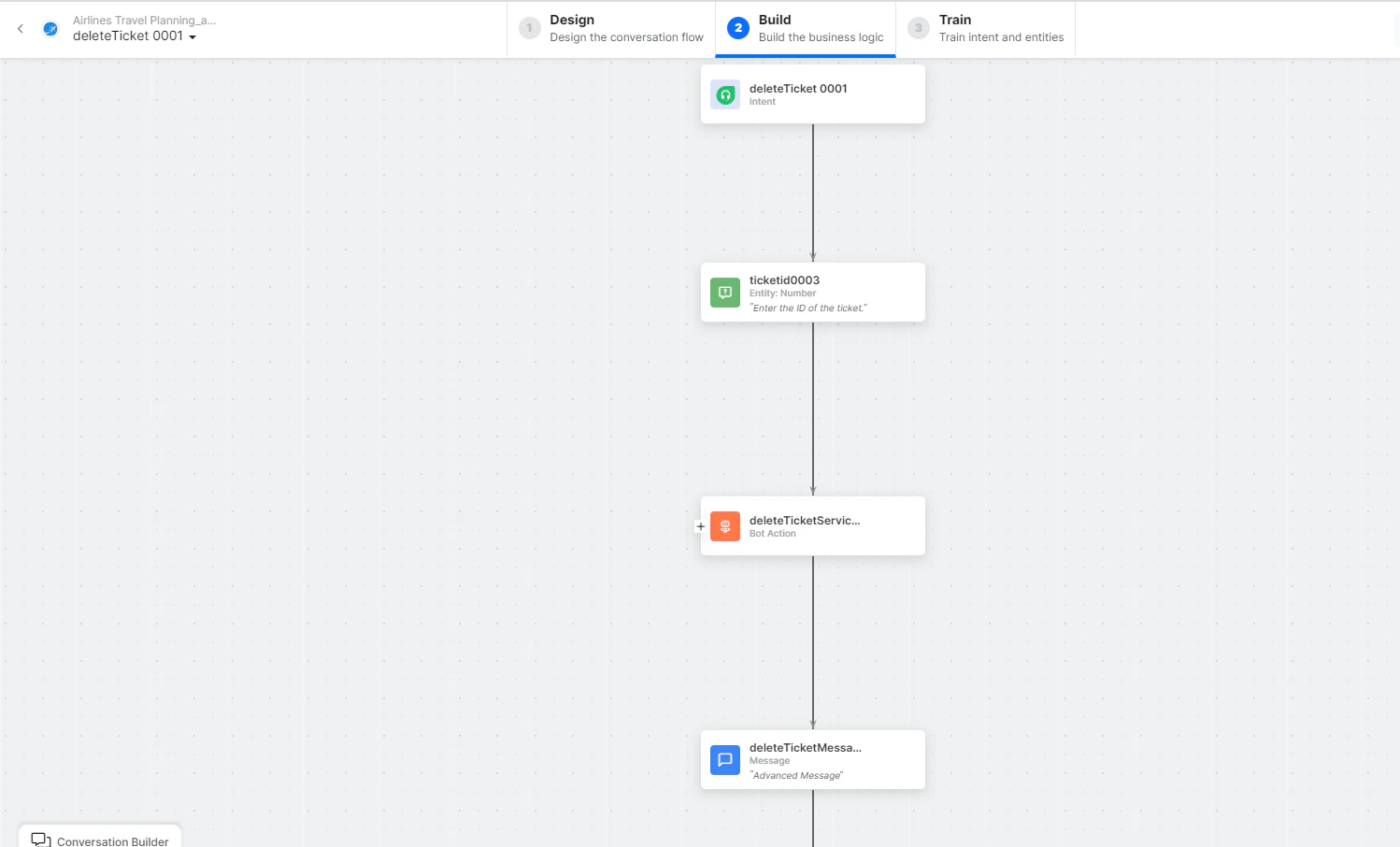 * **deleteTicket** - User intent to delete a ticket.
* **ticketID** - Entity node for the ticket ID.
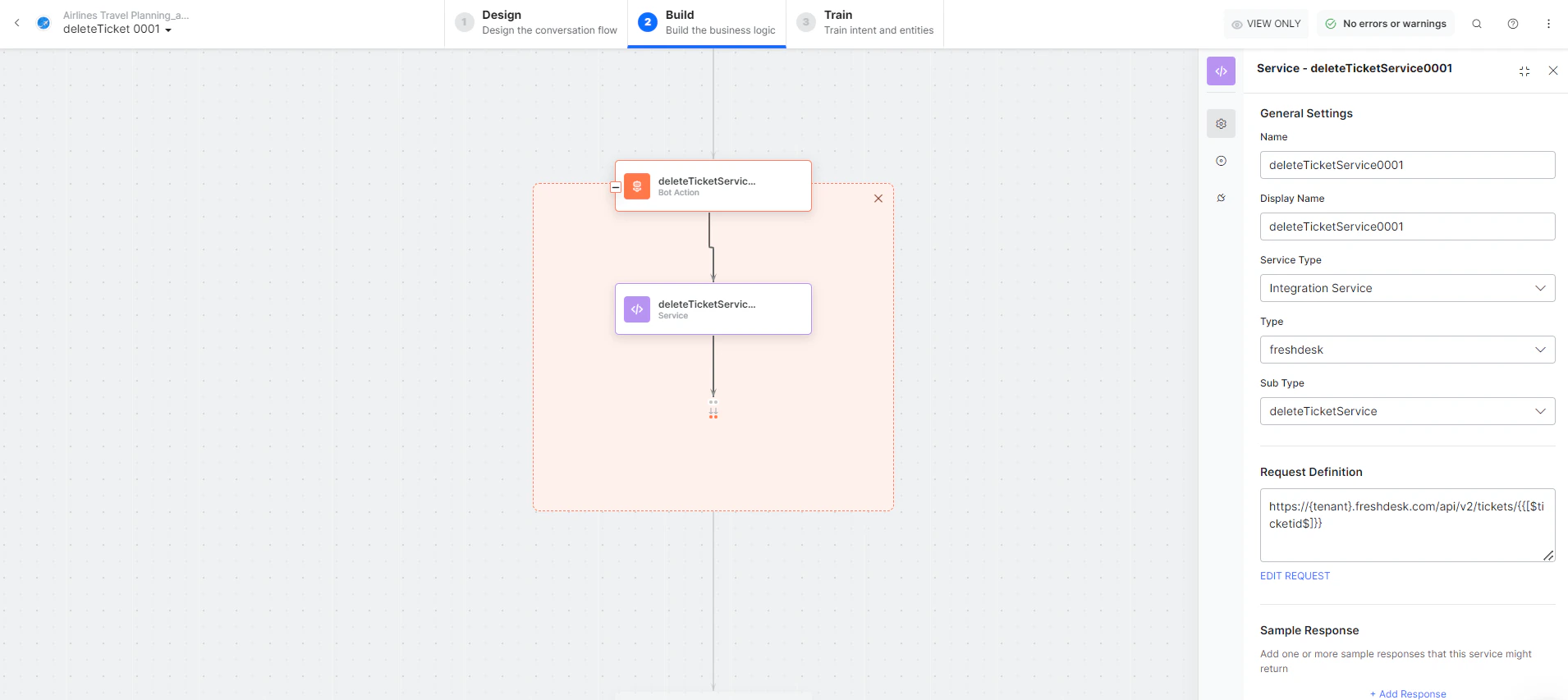
* **deleteTicketService** - Bot action service to delete the ticket. Click **Edit Request**:
* **deleteTicket** - User intent to delete a ticket.
* **ticketID** - Entity node for the ticket ID.
* **deleteTicketService** - Bot action service to delete the ticket. Click **Edit Request**:
 * **deleteTicketMessage** - Message node to display the result.
3. Click **Train**, then **Talk to Bot** to test.
4. Follow prompts to delete a ticket.
* **deleteTicketMessage** - Message node to display the result.
3. Click **Train**, then **Talk to Bot** to test.
4. Follow prompts to delete a ticket.