> ## Documentation Index
> Fetch the complete documentation index at: https://koreai.mintlify.site/llms.txt
> Use this file to discover all available pages before exploring further.
# Using the Google Maps Action Templates
[Back to Actions Integrations](/ai-for-service/integrations/overview#actions)
Use prebuilt Google Maps action templates to auto-create dialog tasks.
**Prerequisites:** Configure [Google Maps](/ai-for-service/integrations/actions/configuring-the-google-maps-action) and install templates before proceeding.
To access templates:
1. Go to **Automation AI > Use Cases > Dialogs** and click **Create a Dialog Task**.
2. Under **Integration**, select **Google Maps** and choose a template (for example, **Get locations by coordinates**).
3. Click **Proceed**.
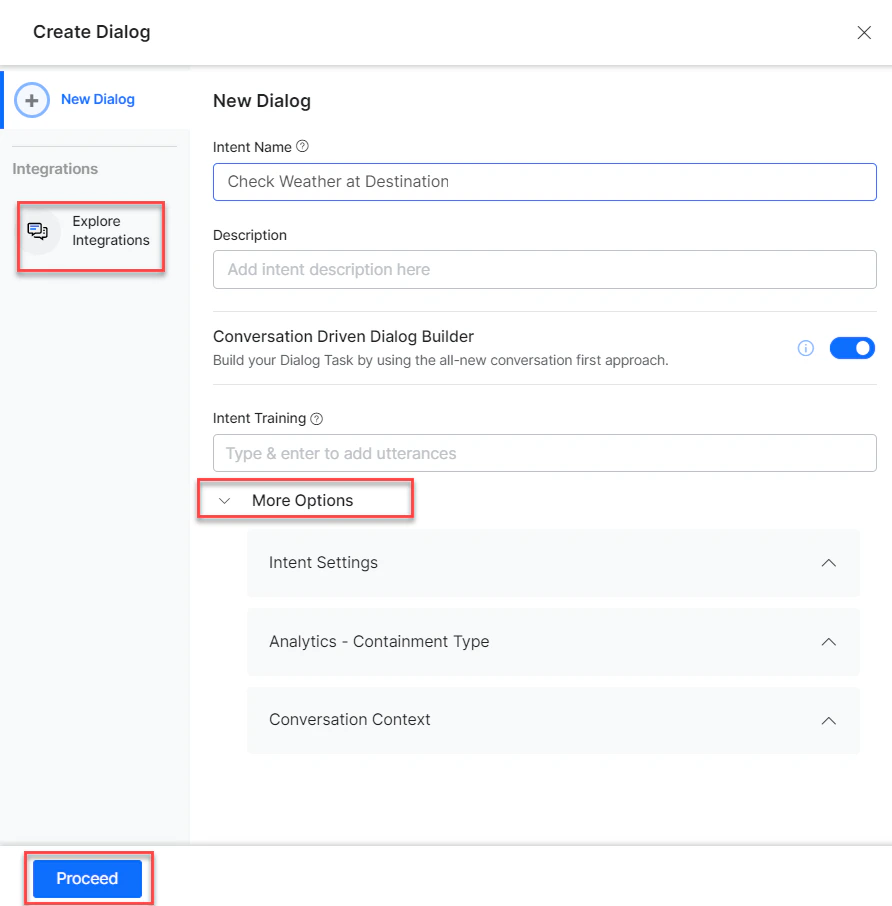
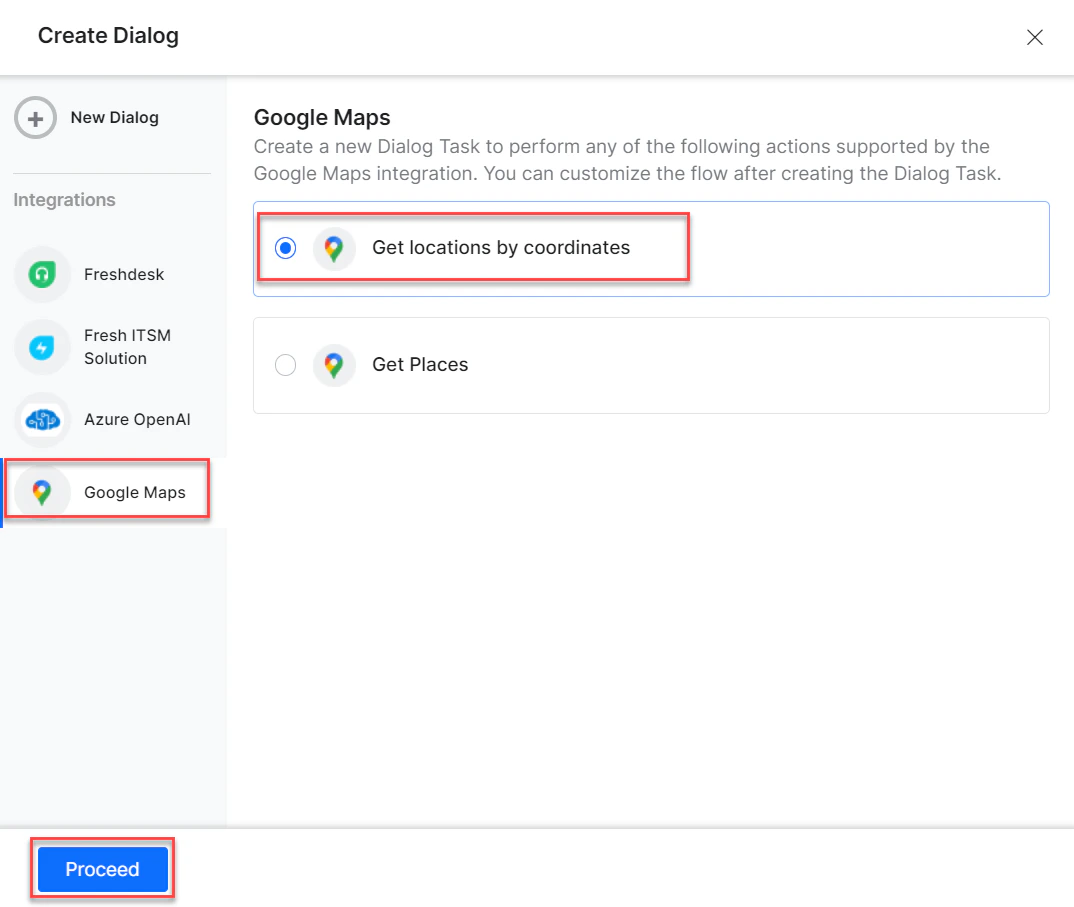 If no integration is configured, click **Explore Integrations** to go to the Actions page.
 ***
## Supported Actions
| Action | Description | Method |
| ---------------------------- | ------------------------------------------------ | ------ |
| Get Places by Name | Returns coordinates and address for a place name | GET |
| Get Locations by Coordinates | Returns location information from coordinates | GET |
***
## Get Places by Name
1. Install the template from [Google Maps Templates](/ai-for-service/integrations/actions/configuring-the-google-maps-action#install-google-maps-action-templates).
2. The **Get Places** dialog task is added with:
***
## Supported Actions
| Action | Description | Method |
| ---------------------------- | ------------------------------------------------ | ------ |
| Get Places by Name | Returns coordinates and address for a place name | GET |
| Get Locations by Coordinates | Returns location information from coordinates | GET |
***
## Get Places by Name
1. Install the template from [Google Maps Templates](/ai-for-service/integrations/actions/configuring-the-google-maps-action#install-google-maps-action-templates).
2. The **Get Places** dialog task is added with:
 * **getPlaces** - User intent to get places by name.
* **place** - Entity node to enter the place name.
* **getLocationService** - Bot action service to find places. Optionally click **Edit Request**:
* **getPlaces** - User intent to get places by name.
* **place** - Entity node to enter the place name.
* **getLocationService** - Bot action service to find places. Optionally click **Edit Request**:
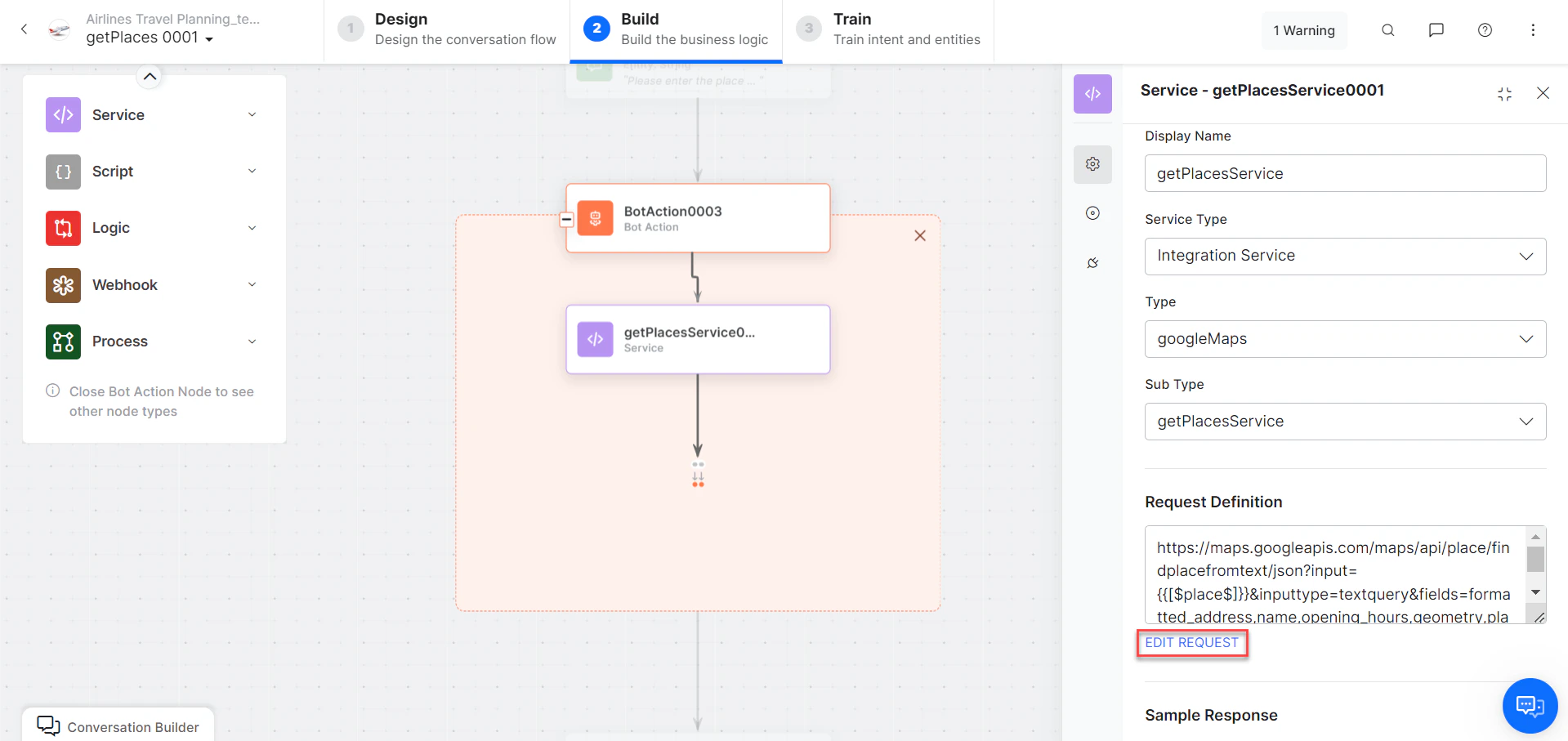 Click **+Add Response**:
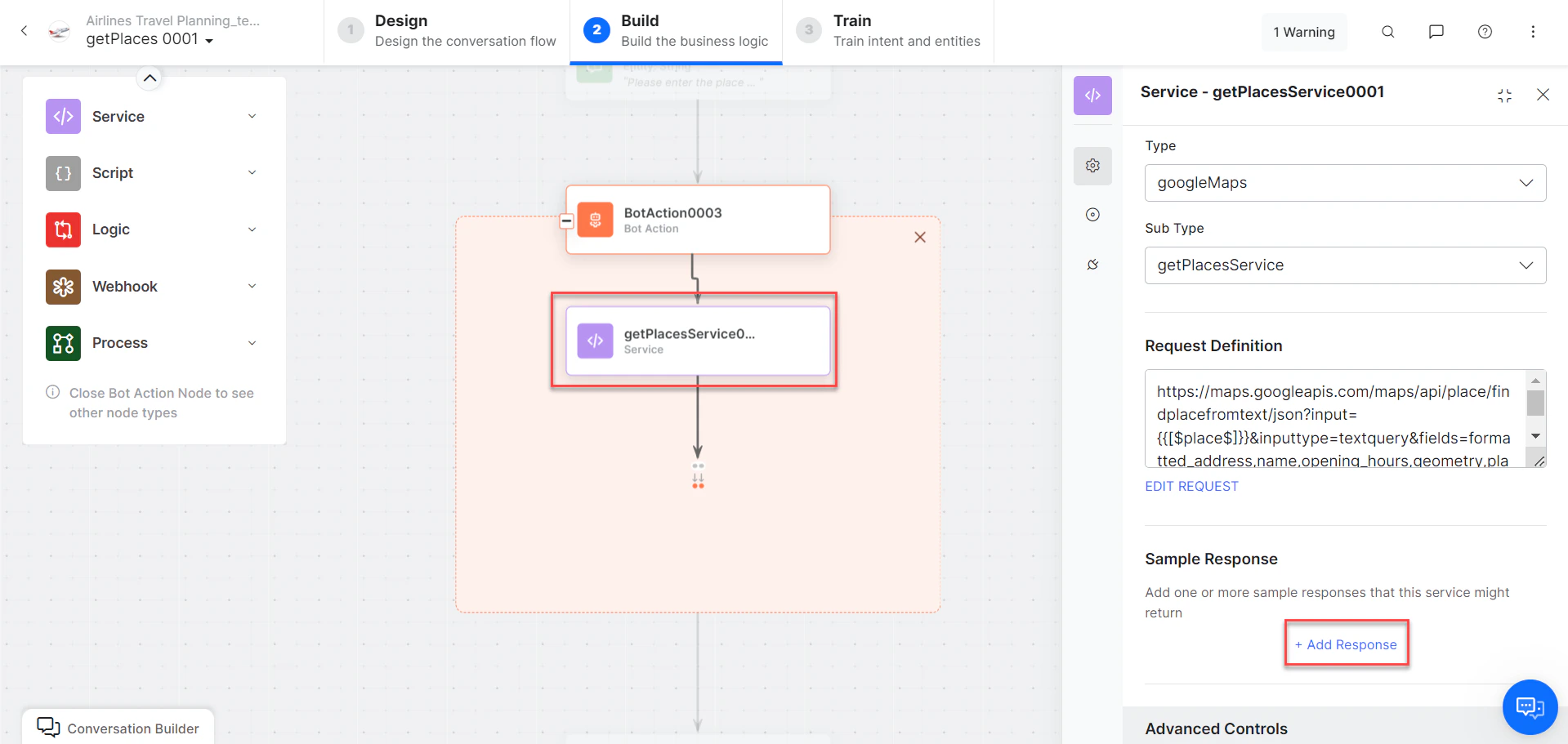 **Sample Response:**
```json theme={null}
{
"places": [
{
"formatted_address": "3rd Floor, Aurobindo Galaxy Towers, Hitech City Rd, Hyderabad, Telangana 500081, India",
"geometry": {
"location": { "lat": 17.4368202, "lng": 78.3754289 }
},
"name": "Kore.ai Software India Pvt Ltd",
"opening_hours": { "open_now": false },
"place_id": "ChIJG6F9J8-TyzsRmATpJeu0qxE"
}
],
"status": "OK"
}
```
* **getPlacesMessage** - Message node to display results.
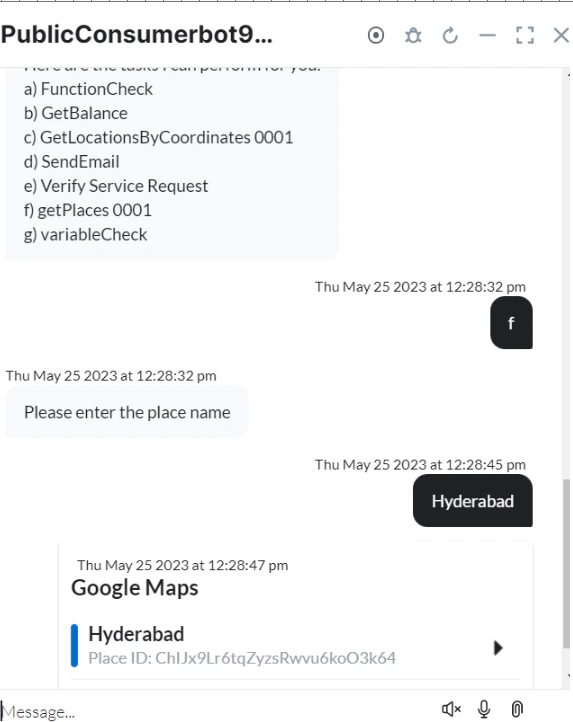
3. Click **Train**, then **Talk to Bot** to test.
4. Follow prompts to find places by name.
**Sample Response:**
```json theme={null}
{
"places": [
{
"formatted_address": "3rd Floor, Aurobindo Galaxy Towers, Hitech City Rd, Hyderabad, Telangana 500081, India",
"geometry": {
"location": { "lat": 17.4368202, "lng": 78.3754289 }
},
"name": "Kore.ai Software India Pvt Ltd",
"opening_hours": { "open_now": false },
"place_id": "ChIJG6F9J8-TyzsRmATpJeu0qxE"
}
],
"status": "OK"
}
```
* **getPlacesMessage** - Message node to display results.
3. Click **Train**, then **Talk to Bot** to test.
4. Follow prompts to find places by name.
 ***
## Get Locations by Coordinates
1. Install the template from [Google Maps Templates](/ai-for-service/integrations/actions/configuring-the-google-maps-action#install-google-maps-action-templates).
2. The **Get Locations by Coordinates** dialog task is added with:
***
## Get Locations by Coordinates
1. Install the template from [Google Maps Templates](/ai-for-service/integrations/actions/configuring-the-google-maps-action#install-google-maps-action-templates).
2. The **Get Locations by Coordinates** dialog task is added with:
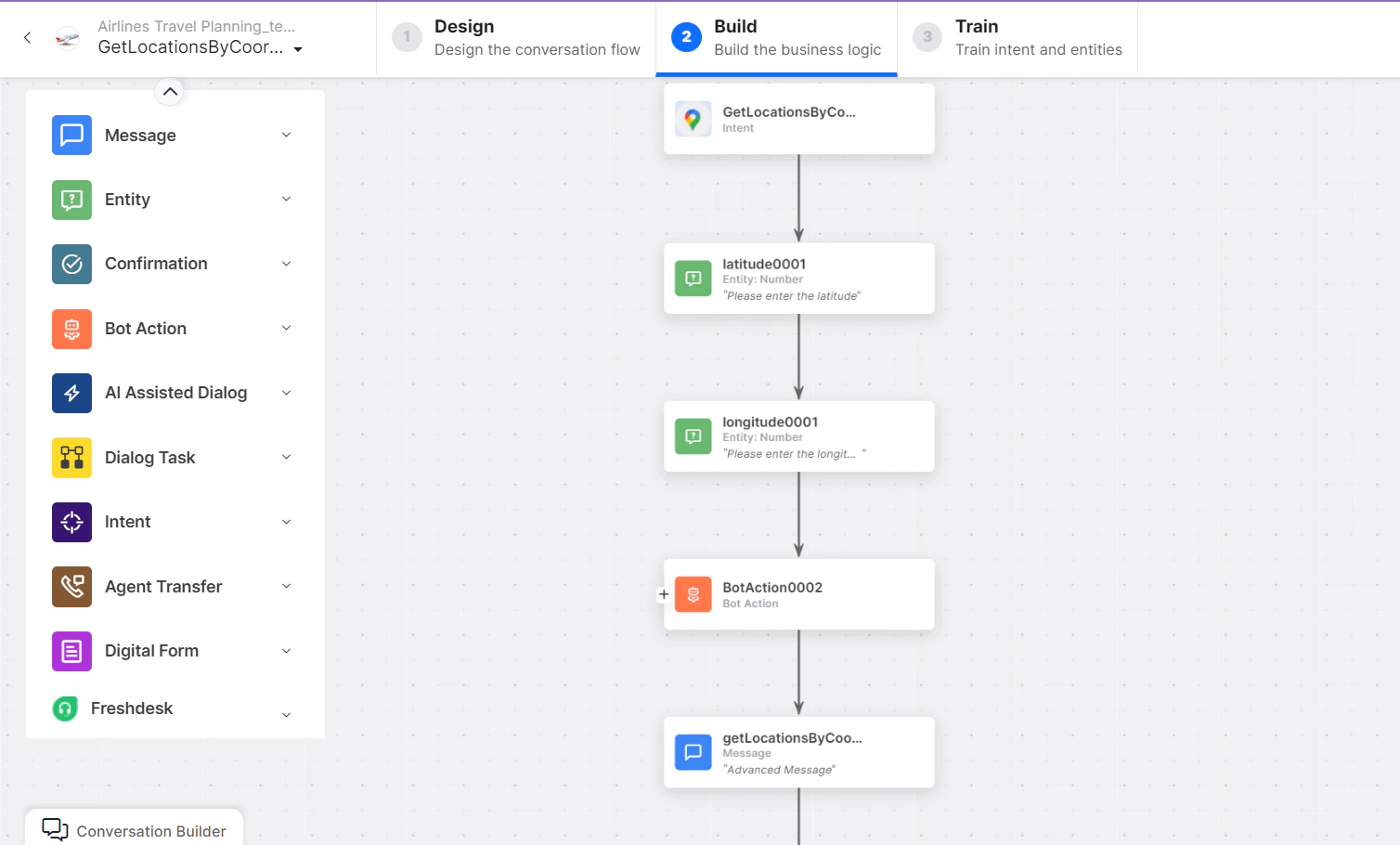
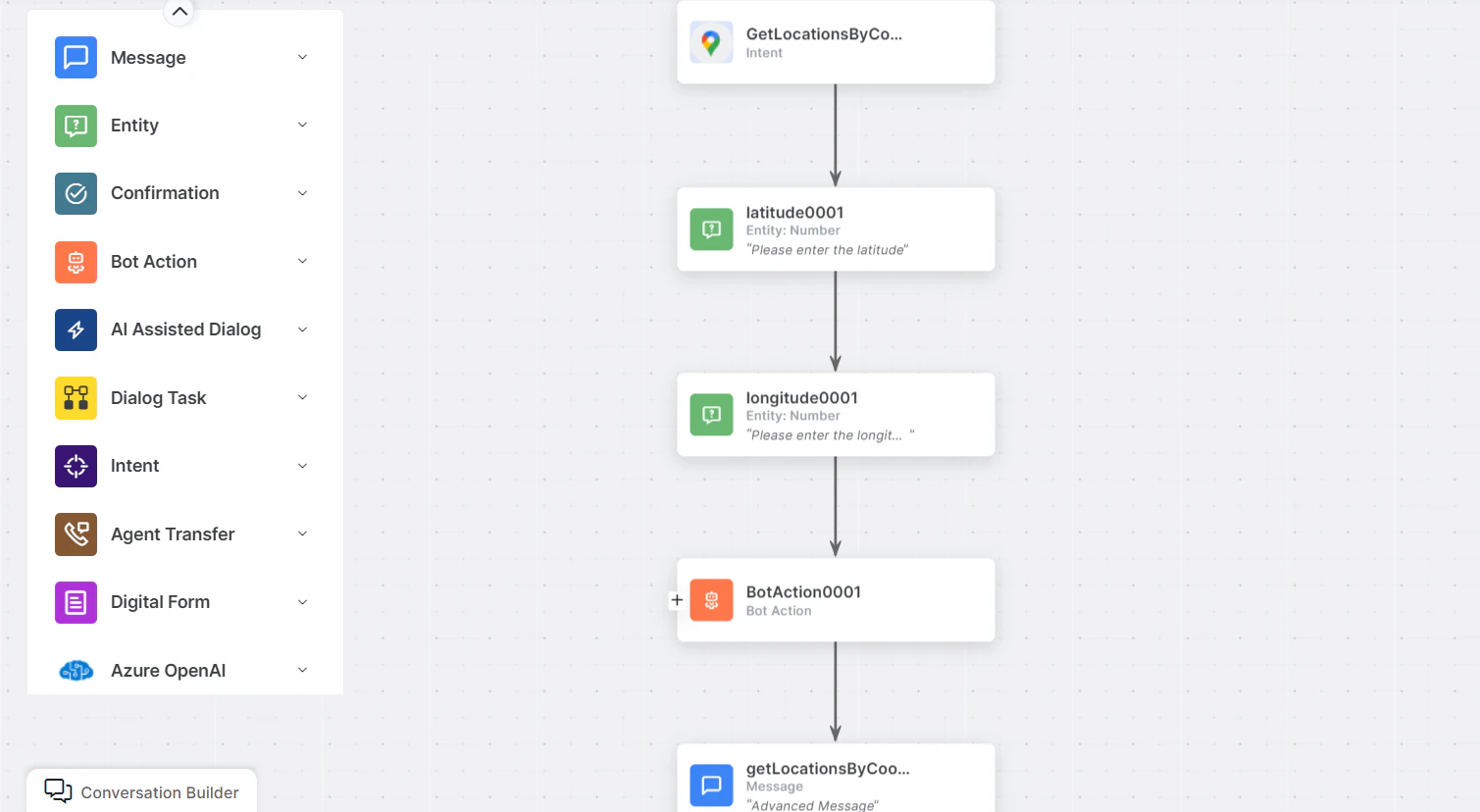 * **getLocationsbyCoordinates** - User intent to find locations using coordinates.
* **latitude** and **longitude** - Entity nodes for coordinate inputs.
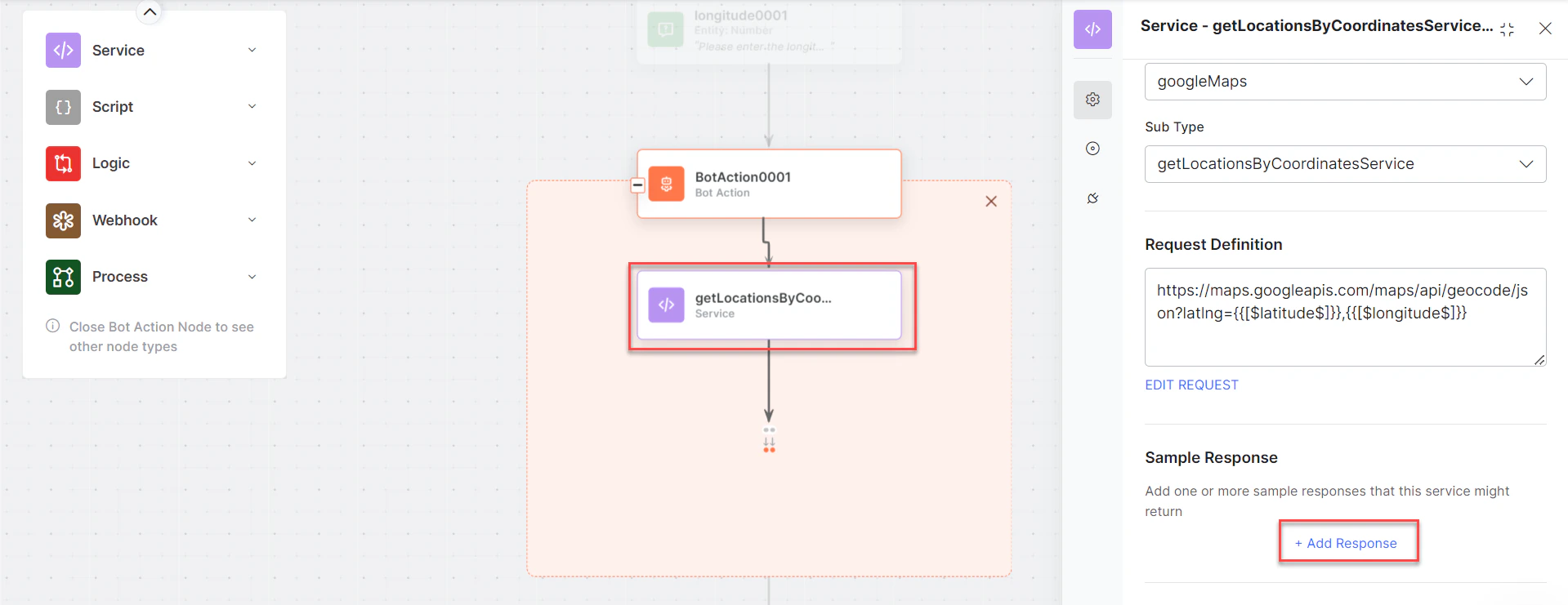
* **getLocationsbyCoordinatesService** - Bot action service to get locations. Optionally click **Edit Request**:
* **getLocationsbyCoordinates** - User intent to find locations using coordinates.
* **latitude** and **longitude** - Entity nodes for coordinate inputs.
* **getLocationsbyCoordinatesService** - Bot action service to get locations. Optionally click **Edit Request**:
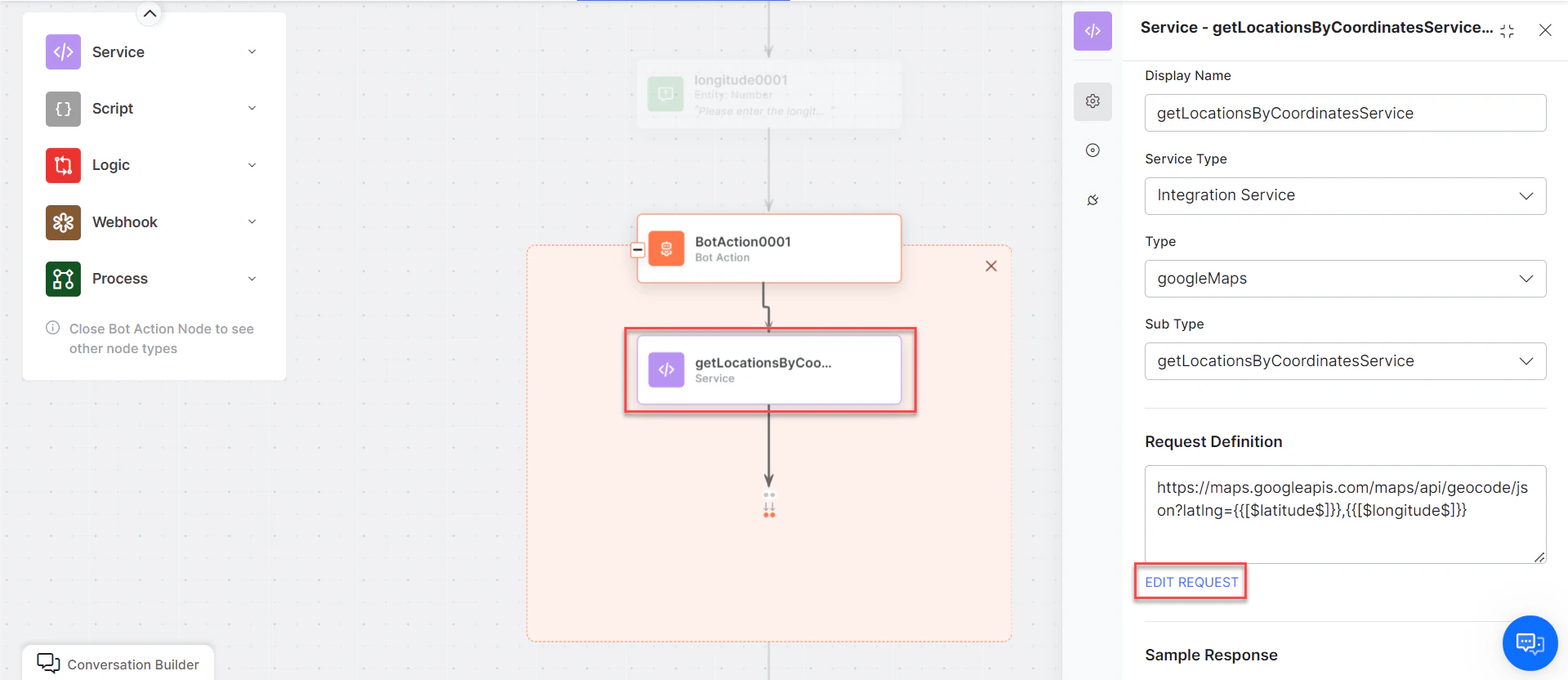 Click **+Add Response**:
 **Sample Response:**
```json theme={null}
{
"plus_code": {
"compound_code": "P27Q+MCM New York, NY, USA",
"global_code": "87G8P27Q+MCM"
},
"results": [
{
"formatted_address": "277 Bedford Ave, Brooklyn, NY 11211, USA",
"geometry": {
"location": { "lat": 40.7142205, "lng": -73.9612903 },
"location_type": "ROOFTOP"
},
"place_id": "ChIJd8BlQ2BZwokRAFUEcm_qrcA",
"types": ["street_address"]
}
],
"status": "OK"
}
```
* **getLocationsbyCoordinatesMessage** - Message node to display results.
3. Click **Train**, then **Talk to Bot** to test.
4. Follow prompts to get location details.
5. Click and expand the desired result to view location details.
**Sample Response:**
```json theme={null}
{
"plus_code": {
"compound_code": "P27Q+MCM New York, NY, USA",
"global_code": "87G8P27Q+MCM"
},
"results": [
{
"formatted_address": "277 Bedford Ave, Brooklyn, NY 11211, USA",
"geometry": {
"location": { "lat": 40.7142205, "lng": -73.9612903 },
"location_type": "ROOFTOP"
},
"place_id": "ChIJd8BlQ2BZwokRAFUEcm_qrcA",
"types": ["street_address"]
}
],
"status": "OK"
}
```
* **getLocationsbyCoordinatesMessage** - Message node to display results.
3. Click **Train**, then **Talk to Bot** to test.
4. Follow prompts to get location details.
5. Click and expand the desired result to view location details.