> ## Documentation Index
> Fetch the complete documentation index at: https://koreai.mintlify.site/llms.txt
> Use this file to discover all available pages before exploring further.
# Using the JIRA Action Templates
[Back to Actions Integrations](/ai-for-service/integrations/overview#actions)
Use prebuilt JIRA action templates to auto-create dialog tasks for managing issues.
**To access templates:**
1. Go to **Automation AI** > **Use Cases** > **Dialogs** and click **Create a Dialog Task**.
2. Under **Integration**, select **JIRA**.
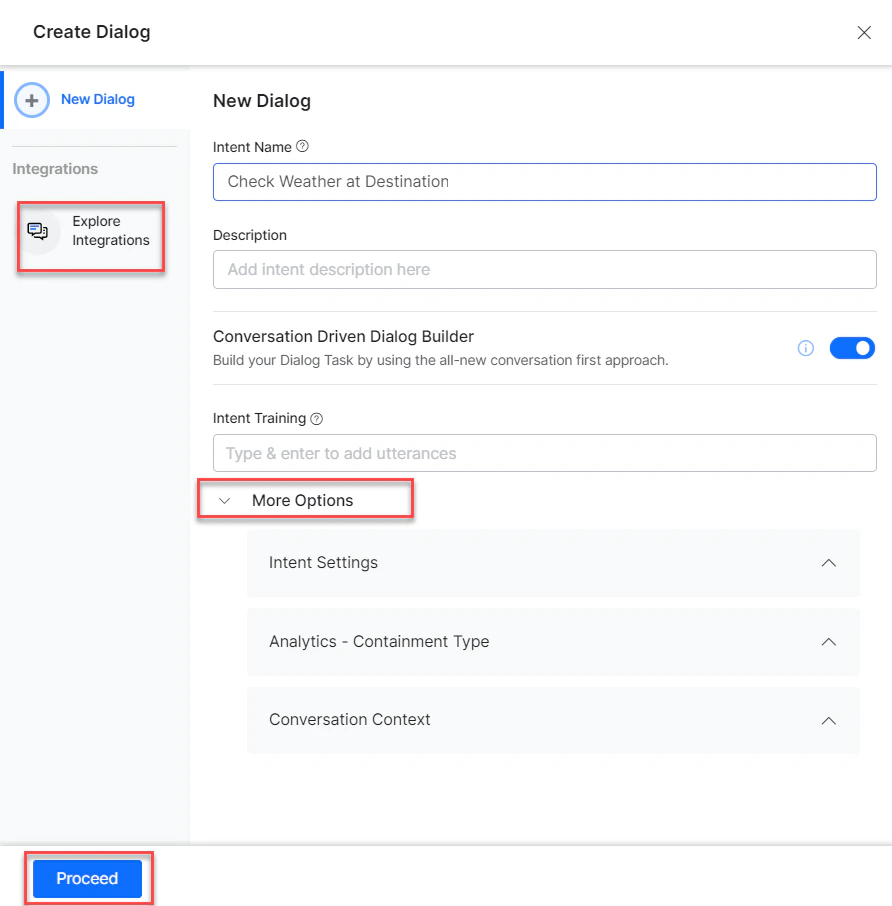
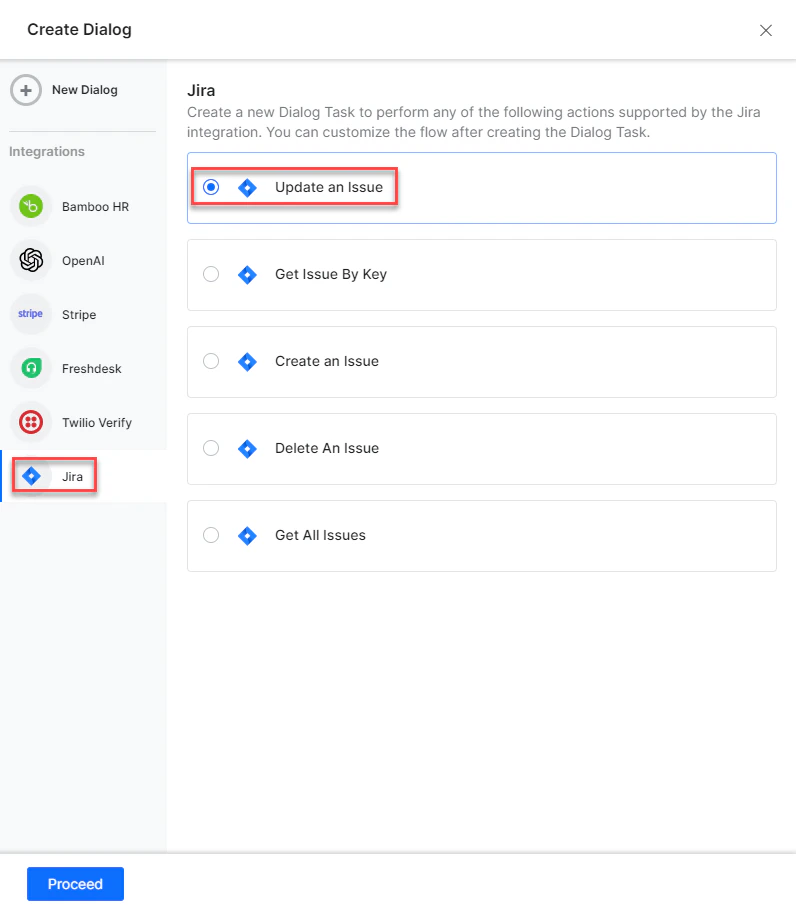 3. If no integration is configured, click **Explore Integrations** to set one up. See [Actions Overview](/ai-for-service/integrations/overview#actions).
 ***
## Supported Actions
| Task | Description | Method |
| ------------------ | ---------------------------- | ------ |
| Create an Issue | Creates an issue in JIRA. | POST |
| Get an Issue by ID | Fetches issue details by ID. | GET |
| Get all issues | Retrieves all issues. | GET |
| Update an Issue | Updates an issue. | PUT |
| Delete an issue | Deletes an issue. | GET |
***
### Create an Issue
1. Install the template from [JIRA Action Templates](/ai-for-service/integrations/actions/configuring-the-jira-action#step-2-install-the-jira-action-templates).
2. The **Create an issue** dialog task is added with the following components:
***
## Supported Actions
| Task | Description | Method |
| ------------------ | ---------------------------- | ------ |
| Create an Issue | Creates an issue in JIRA. | POST |
| Get an Issue by ID | Fetches issue details by ID. | GET |
| Get all issues | Retrieves all issues. | GET |
| Update an Issue | Updates an issue. | PUT |
| Delete an issue | Deletes an issue. | GET |
***
### Create an Issue
1. Install the template from [JIRA Action Templates](/ai-for-service/integrations/actions/configuring-the-jira-action#step-2-install-the-jira-action-templates).
2. The **Create an issue** dialog task is added with the following components:
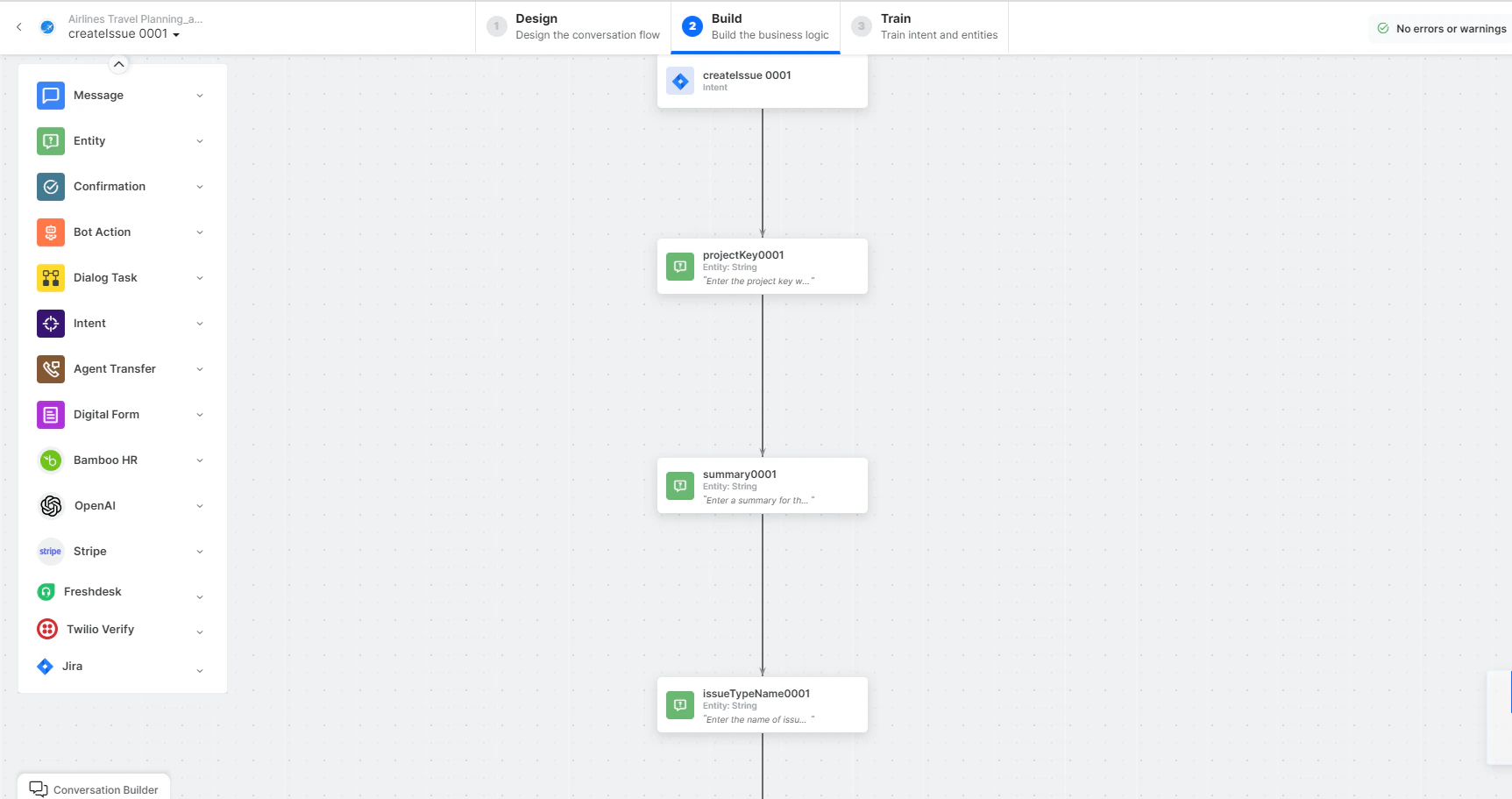 * **createIssue** - User intent to create an issue.
* **projectKey**, **summary**, **issueTypeName** - Entity nodes for issue details.
* **getResourceIdService** - Bot action service to get JIRA site resource ID.
* **createIssueService** - Bot action service to create an issue. Click **Edit Request**:
* **createIssue** - User intent to create an issue.
* **projectKey**, **summary**, **issueTypeName** - Entity nodes for issue details.
* **getResourceIdService** - Bot action service to get JIRA site resource ID.
* **createIssueService** - Bot action service to create an issue. Click **Edit Request**:
 **Sample Request:**
```json theme={null}
{
"fields": {
"summary": "messaging module isn't working",
"issuetype": {"name": "Bug"},
"project": {"key": "DFJIIP"}
}
}
```
**Sample Response:**
```json theme={null}
{
"id": "10000",
"key": "ED-24",
"self": "https://your-domain.atlassian.net/rest/api/3/issue/10000"
}
```
* **createdIssueInfoService** - Bot action service for additional issue details.
* **createIssueMessage** - Message node to display responses.
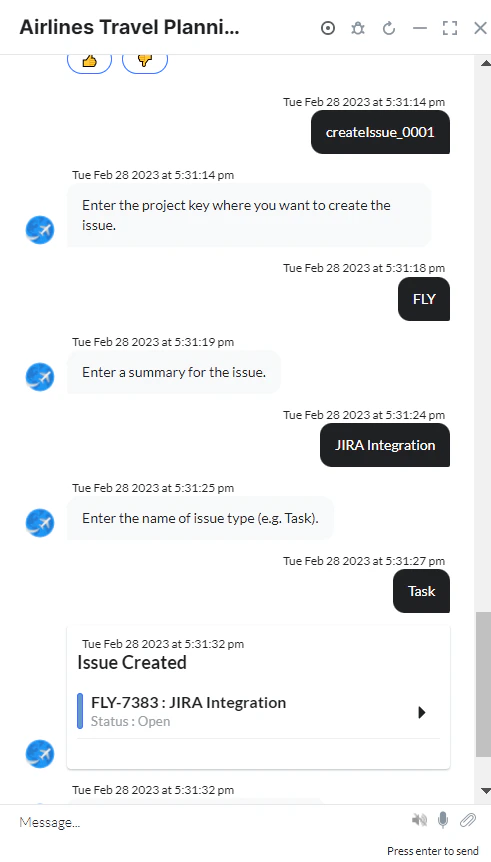
3. Click **Train**, then **Talk to Bot** to test:
**Sample Request:**
```json theme={null}
{
"fields": {
"summary": "messaging module isn't working",
"issuetype": {"name": "Bug"},
"project": {"key": "DFJIIP"}
}
}
```
**Sample Response:**
```json theme={null}
{
"id": "10000",
"key": "ED-24",
"self": "https://your-domain.atlassian.net/rest/api/3/issue/10000"
}
```
* **createdIssueInfoService** - Bot action service for additional issue details.
* **createIssueMessage** - Message node to display responses.
3. Click **Train**, then **Talk to Bot** to test:
 ***
### Get an Issue by Key
1. Install the template from [JIRA Action Templates](/ai-for-service/integrations/actions/configuring-the-jira-action#step-2-install-the-jira-action-templates).
2. The **Get Issues by Key** dialog task is added with the following components:
***
### Get an Issue by Key
1. Install the template from [JIRA Action Templates](/ai-for-service/integrations/actions/configuring-the-jira-action#step-2-install-the-jira-action-templates).
2. The **Get Issues by Key** dialog task is added with the following components:
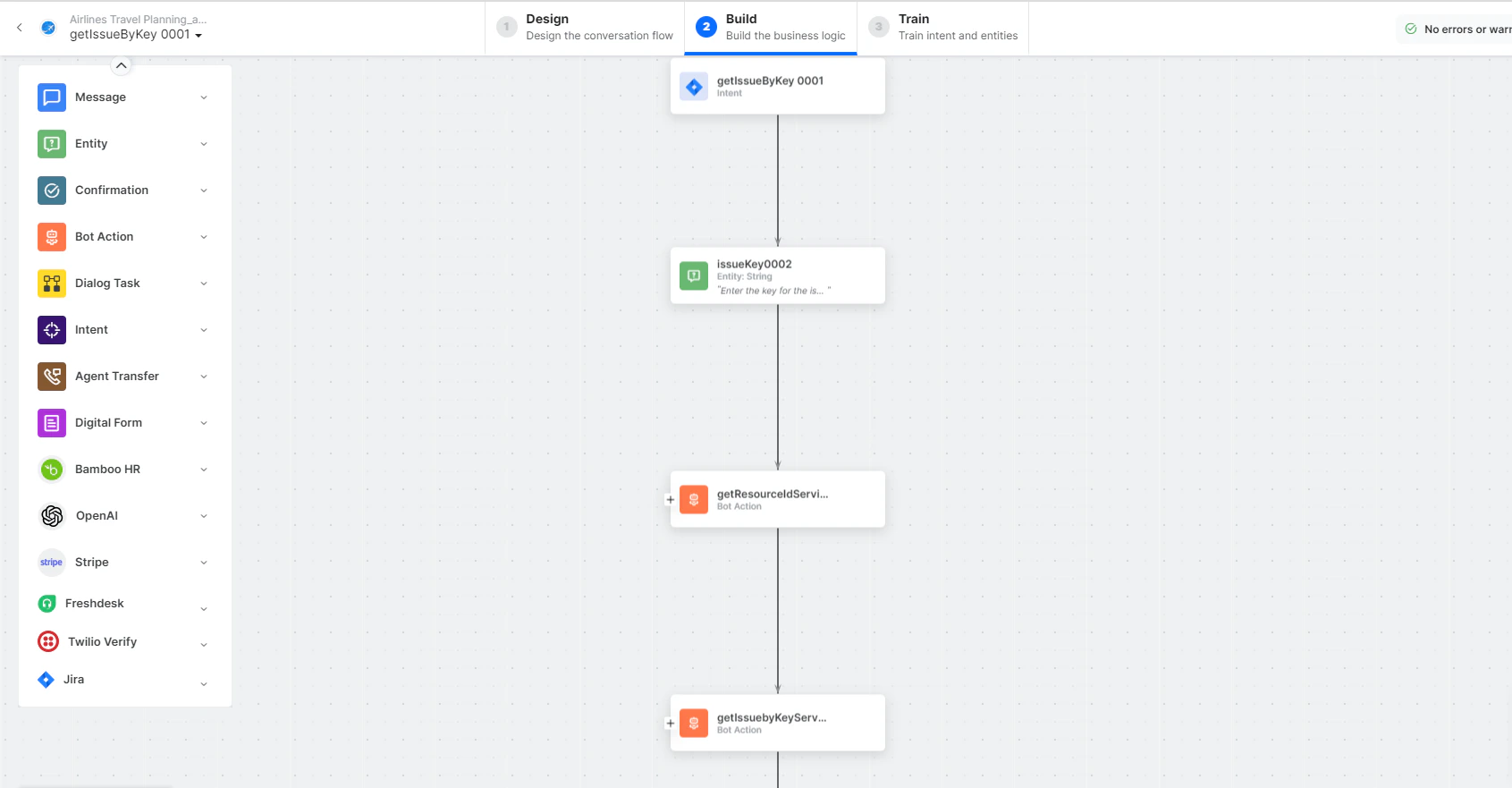 * **getIssuebyKey** - User intent to find an issue by key.
* **issueKey** - Entity node for the issue key.
* **getResourceIdService** - Bot action service to get JIRA site resource ID.
* **getIssuebyKeyService** - Bot action service to find an issue. Click **+Add Response**:
* **getIssuebyKey** - User intent to find an issue by key.
* **issueKey** - Entity node for the issue key.
* **getResourceIdService** - Bot action service to get JIRA site resource ID.
* **getIssuebyKeyService** - Bot action service to find an issue. Click **+Add Response**:
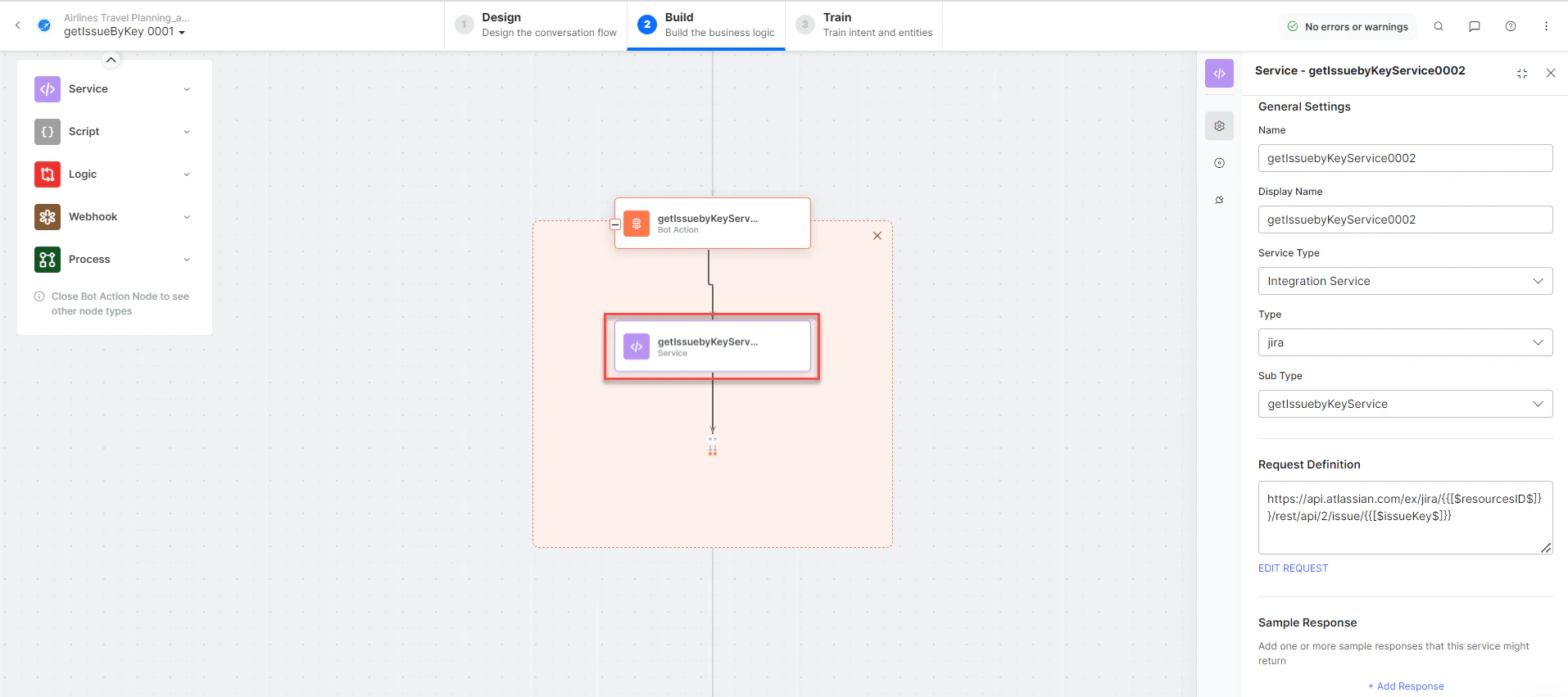 **Sample Response:** (truncated)
```json theme={null}
{
"id": "10002",
"timetracking": {
"originalEstimate": "10m",
"remainingEstimate": "3m",
"timeSpent": "6m"
}
}
```
* **getIssuebyKeyMessage** - Message node to display responses.
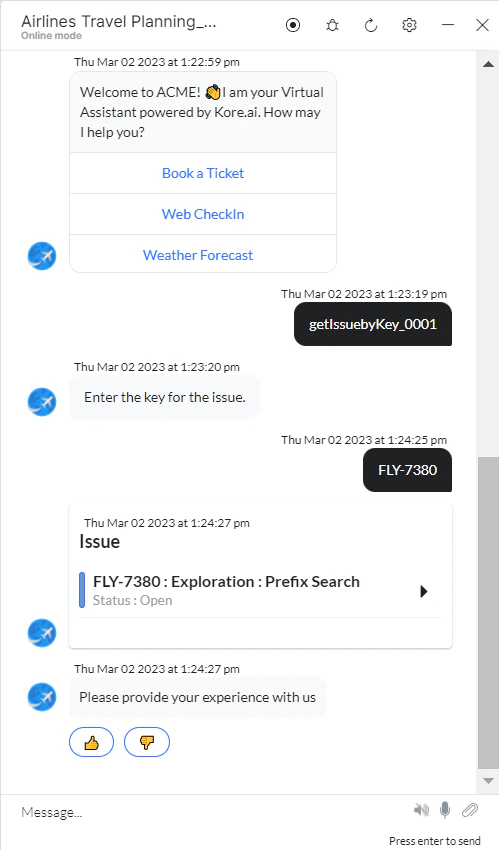
3. Click **Train**, then **Talk to Bot** to test:
**Sample Response:** (truncated)
```json theme={null}
{
"id": "10002",
"timetracking": {
"originalEstimate": "10m",
"remainingEstimate": "3m",
"timeSpent": "6m"
}
}
```
* **getIssuebyKeyMessage** - Message node to display responses.
3. Click **Train**, then **Talk to Bot** to test:
 ***
### Get All Issues
1. Install the template from [JIRA Action Templates](/ai-for-service/integrations/actions/configuring-the-jira-action#step-2-install-the-jira-action-templates).
2. The **Get All Issues** dialog task is added with the following components:
***
### Get All Issues
1. Install the template from [JIRA Action Templates](/ai-for-service/integrations/actions/configuring-the-jira-action#step-2-install-the-jira-action-templates).
2. The **Get All Issues** dialog task is added with the following components:
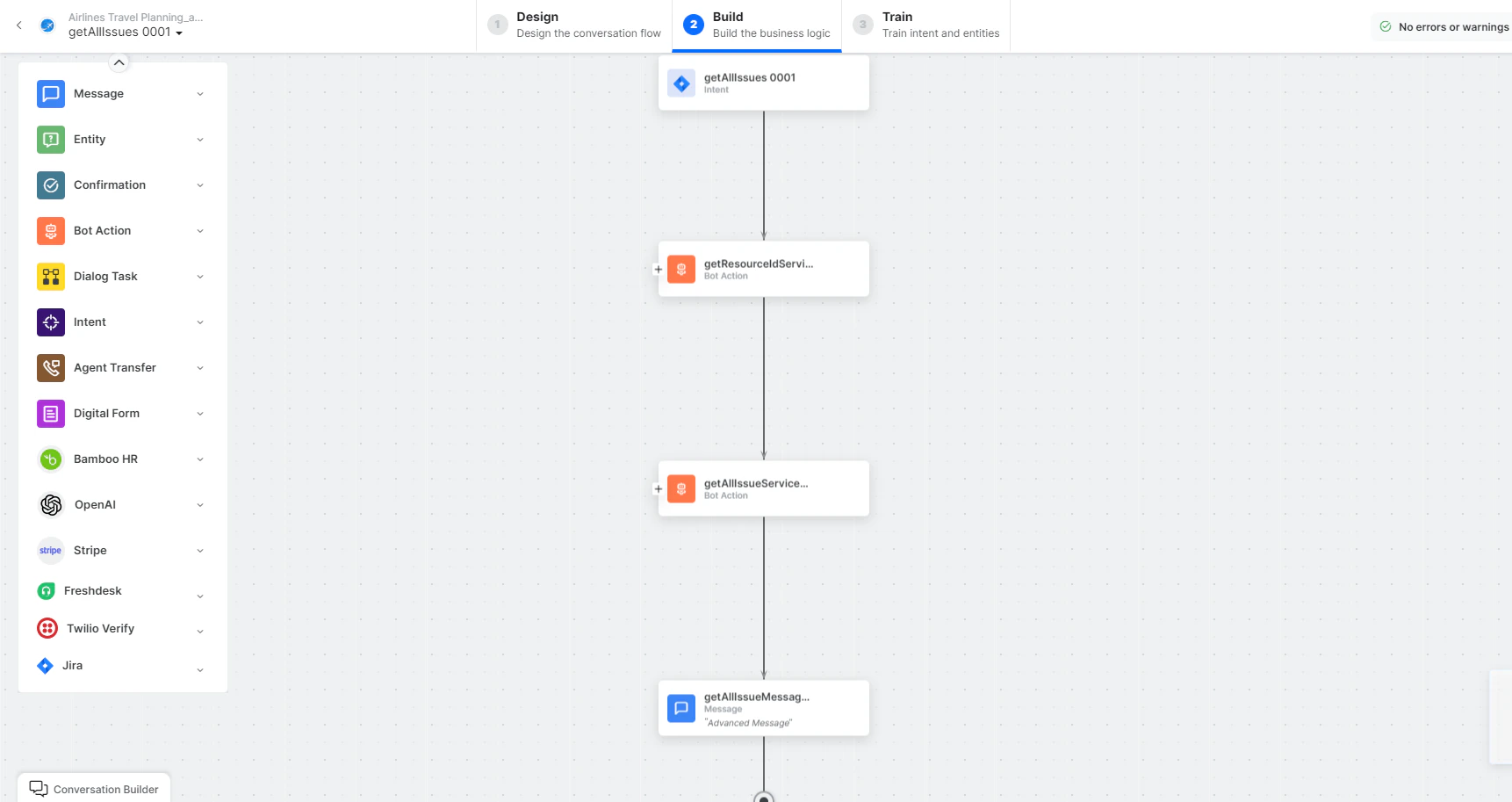 * **getAllIssues** - User intent to view all issues.
* **getResourceIdService** - Bot action service to get JIRA site resource ID.
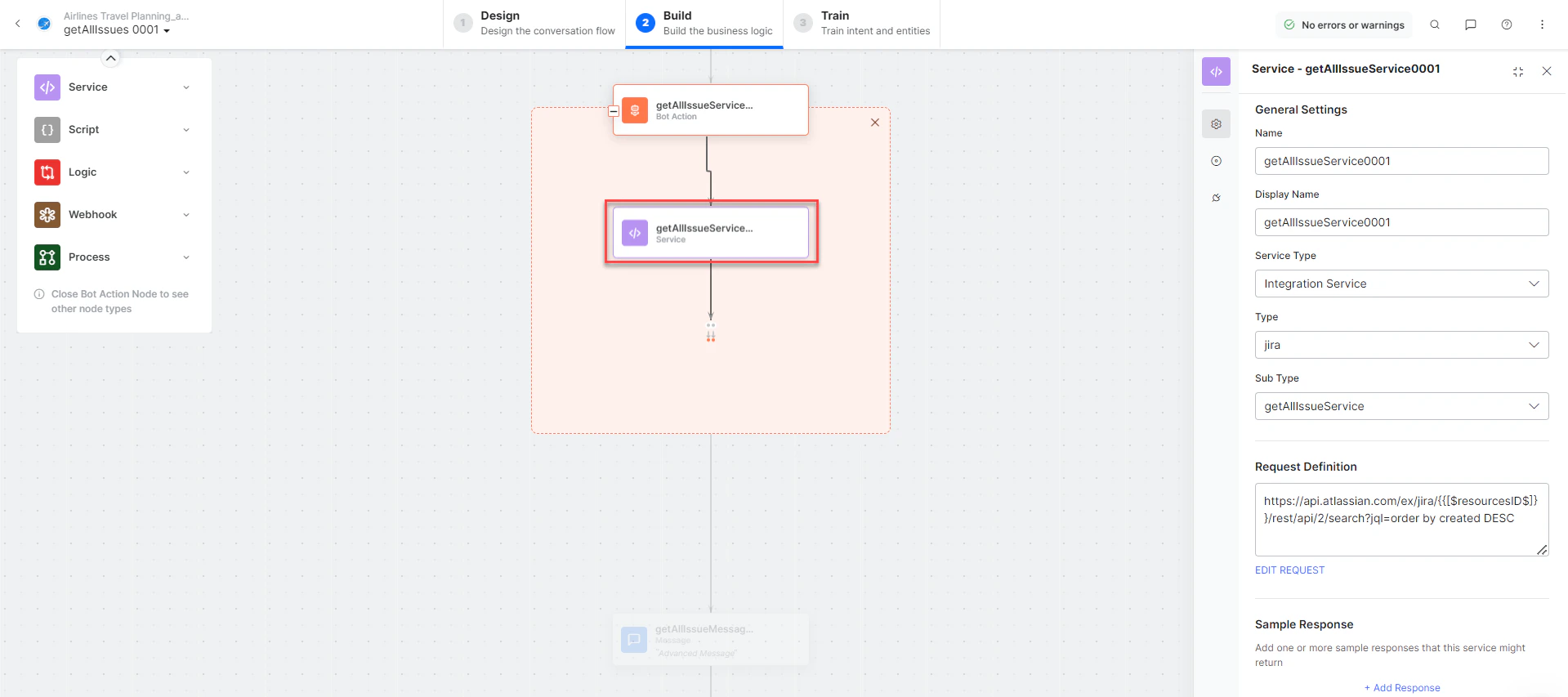
* **getAllIssuesService** - Bot action service to fetch all issues. Click **+Add Response**:
* **getAllIssues** - User intent to view all issues.
* **getResourceIdService** - Bot action service to get JIRA site resource ID.
* **getAllIssuesService** - Bot action service to fetch all issues. Click **+Add Response**:
 **Sample Response:** (truncated)
```json theme={null}
{
"expand": "names,schema",
"startAt": 0,
"maxResults": 50,
"total": 1,
"issues": [
{
"id": "10002",
"key": "ED-1"
}
]
}
```
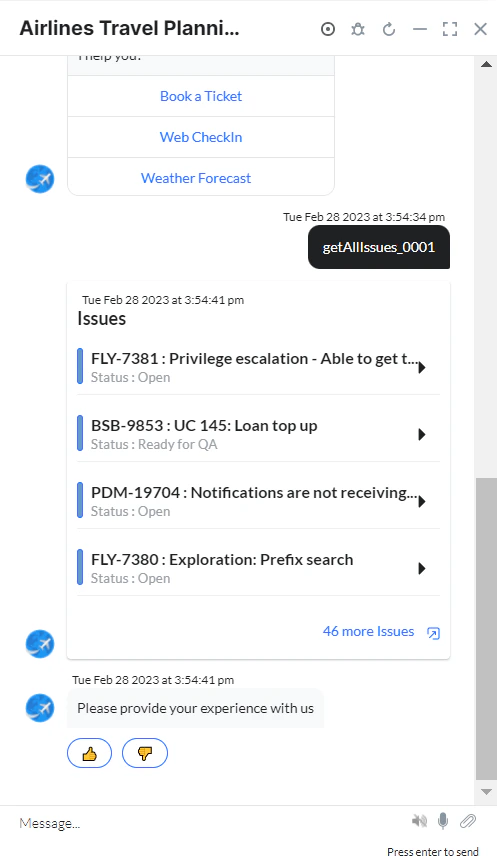
* **getAllIssuesMessage** - Message node to display responses.
3. Click **Train**, then **Talk to Bot** to test:
**Sample Response:** (truncated)
```json theme={null}
{
"expand": "names,schema",
"startAt": 0,
"maxResults": 50,
"total": 1,
"issues": [
{
"id": "10002",
"key": "ED-1"
}
]
}
```
* **getAllIssuesMessage** - Message node to display responses.
3. Click **Train**, then **Talk to Bot** to test:
 ***
### Update an Issue
1. Install the template from [JIRA Action Templates](/ai-for-service/integrations/actions/configuring-the-jira-action#step-2-install-the-jira-action-templates).
2. The **Update an Issue** dialog task is added with the following components:
***
### Update an Issue
1. Install the template from [JIRA Action Templates](/ai-for-service/integrations/actions/configuring-the-jira-action#step-2-install-the-jira-action-templates).
2. The **Update an Issue** dialog task is added with the following components:
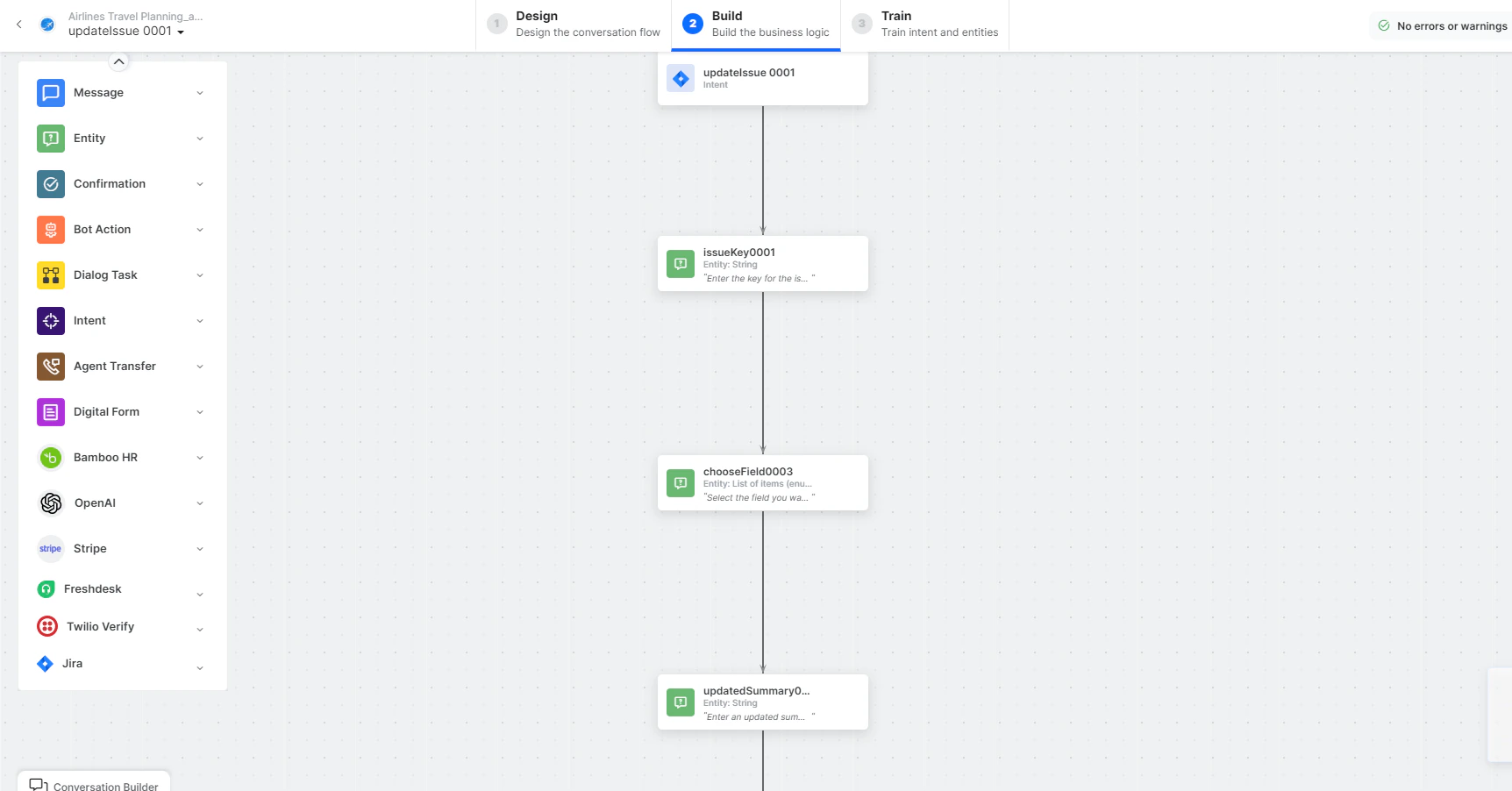 * **updateIssue** - User intent to update an issue.
* **issueKey**, **chooseField**, **updatedSummary**, **newLabel** - Entity nodes for update details.
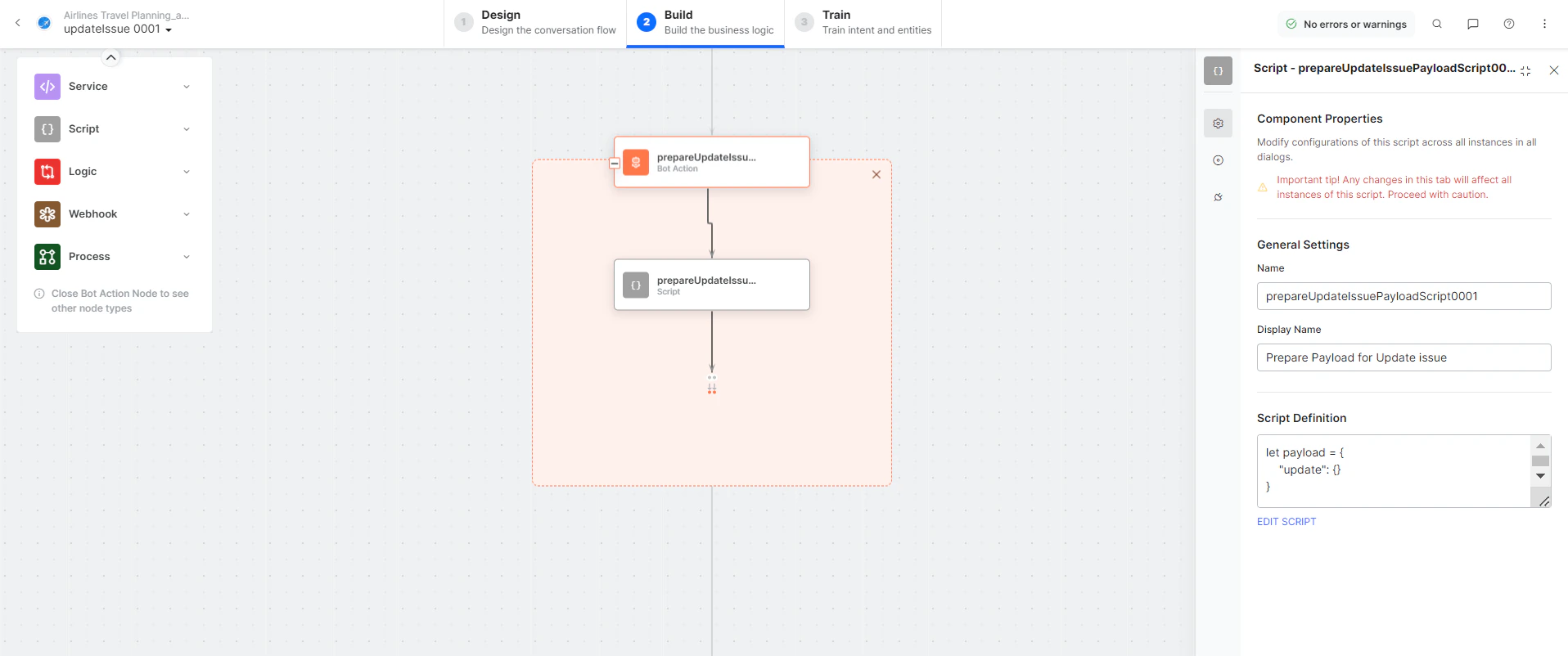
* **prepareUpdateIssuePayloadScript** - Bot action script to prepare update payload:
* **updateIssue** - User intent to update an issue.
* **issueKey**, **chooseField**, **updatedSummary**, **newLabel** - Entity nodes for update details.
* **prepareUpdateIssuePayloadScript** - Bot action script to prepare update payload:
 * **getResourceIdService** - Bot action service to get JIRA site resource ID.
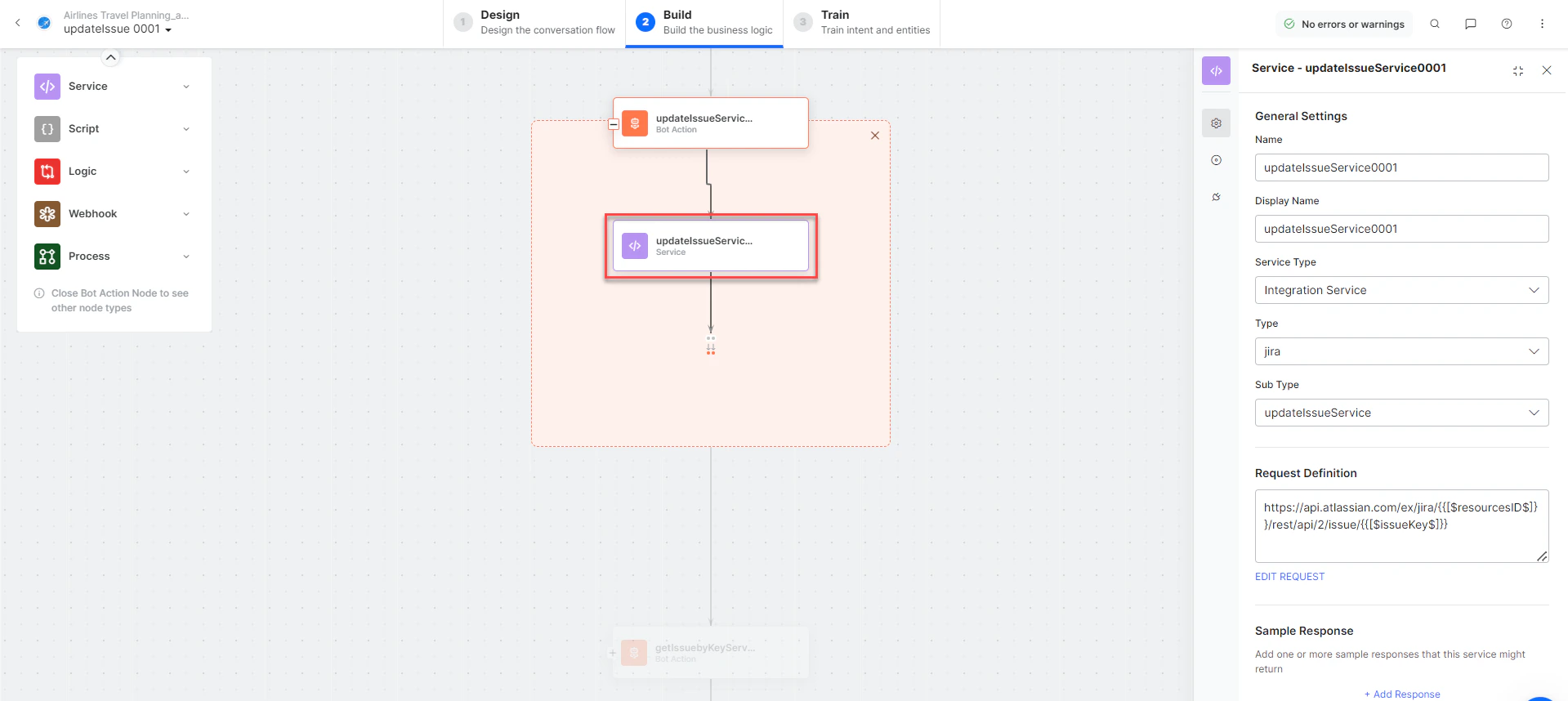
* **updateIssueService** - Bot action service to update an issue. Click **Edit Request**:
* **getResourceIdService** - Bot action service to get JIRA site resource ID.
* **updateIssueService** - Bot action service to update an issue. Click **Edit Request**:
 **Sample Request:**
```json theme={null}
{
"update": {
"summary": [{"set": "The updated summary"}],
"labels": {"add": "Label_to_add_without_space"}
}
}
```
* **getIssuebyKeyService** - Bot action service for issue details.
* **updateIssueMessage** - Message node to display responses.
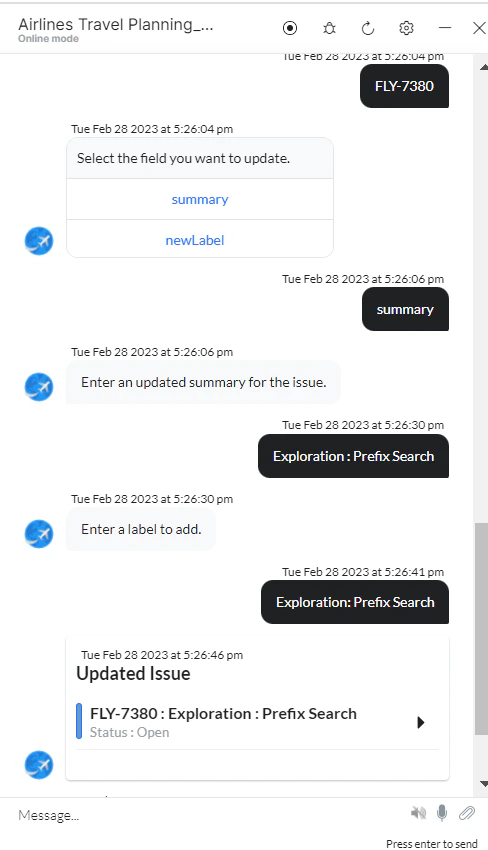
3. Click **Train**, then **Talk to Bot** to test:
**Sample Request:**
```json theme={null}
{
"update": {
"summary": [{"set": "The updated summary"}],
"labels": {"add": "Label_to_add_without_space"}
}
}
```
* **getIssuebyKeyService** - Bot action service for issue details.
* **updateIssueMessage** - Message node to display responses.
3. Click **Train**, then **Talk to Bot** to test:
 ***
### Delete an Issue
You can delete an issue only if the JIRA admin or project owner grants you delete permission.
1. Install the template from [JIRA Action Templates](/ai-for-service/integrations/actions/configuring-the-jira-action#step-2-install-the-jira-action-templates).
2. The **Delete an Issue** dialog task is added with the following components:
***
### Delete an Issue
You can delete an issue only if the JIRA admin or project owner grants you delete permission.
1. Install the template from [JIRA Action Templates](/ai-for-service/integrations/actions/configuring-the-jira-action#step-2-install-the-jira-action-templates).
2. The **Delete an Issue** dialog task is added with the following components:
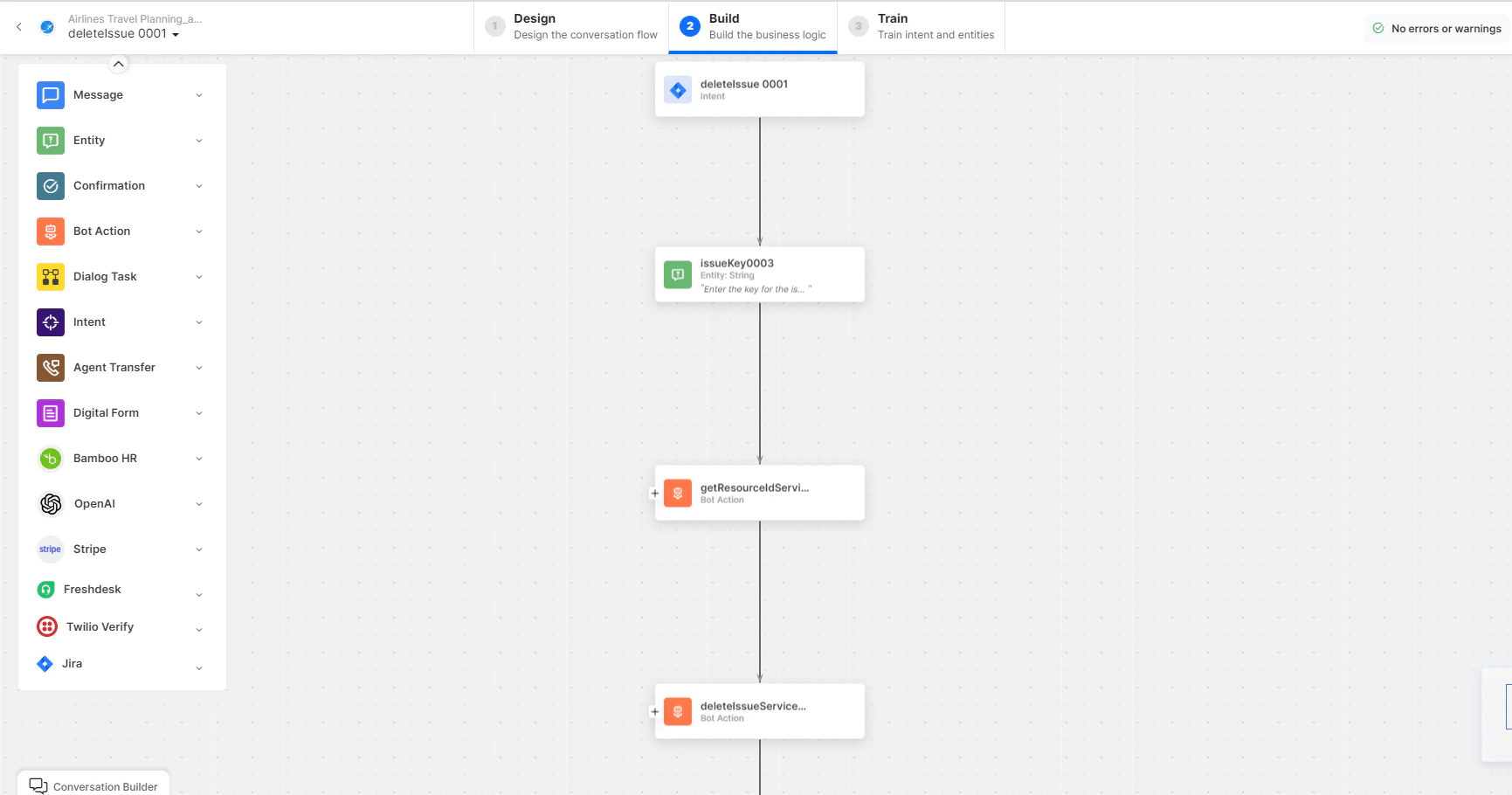 * **deleteIssue** - User intent to delete an issue.
* **issueKey** - Entity node for the issue key.
* **getResourceIdService** - Bot action service to get JIRA site resource ID.
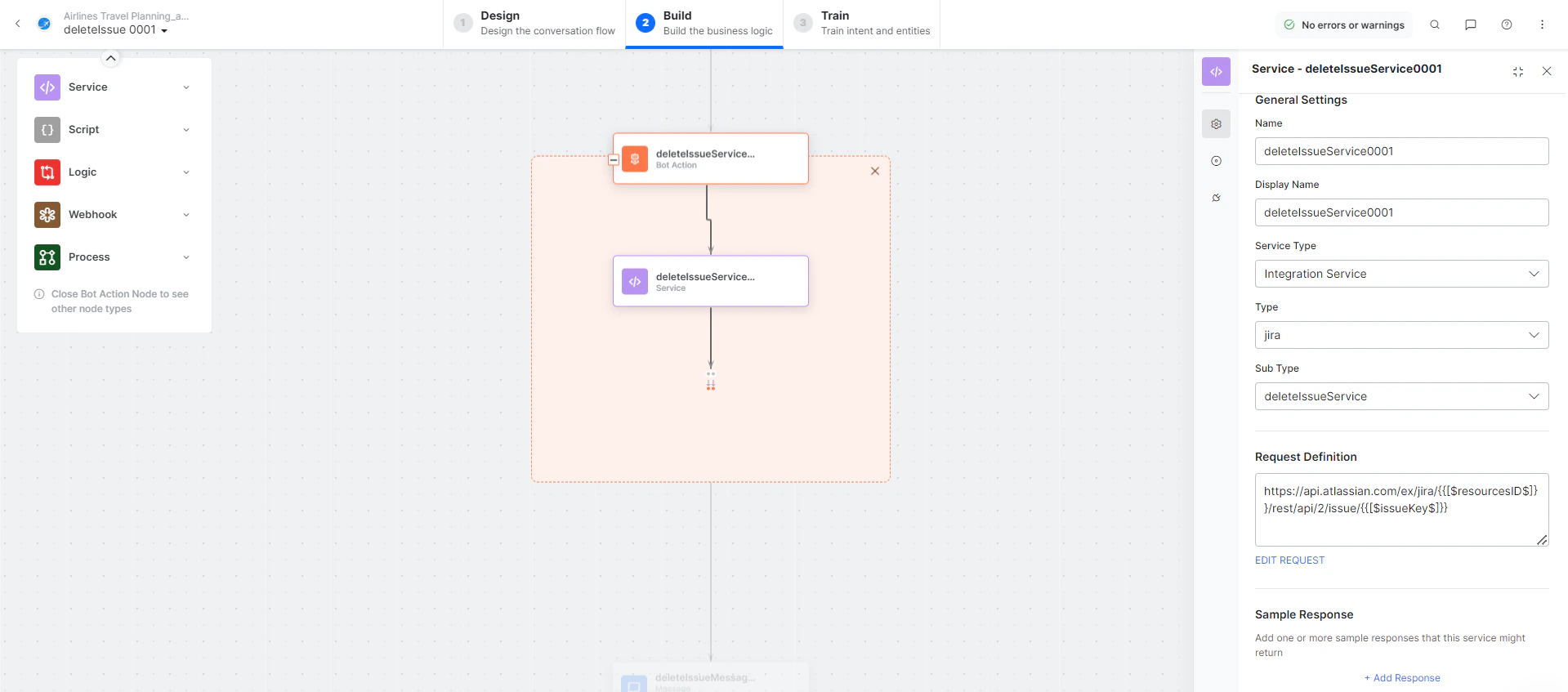
* **deleteIssueService** - Bot action service to delete an issue. Click **Edit Request**:
* **deleteIssue** - User intent to delete an issue.
* **issueKey** - Entity node for the issue key.
* **getResourceIdService** - Bot action service to get JIRA site resource ID.
* **deleteIssueService** - Bot action service to delete an issue. Click **Edit Request**:
 * **deleteIssueMessage** - Message node to display responses.
3. Click **Train**, then **Talk to Bot** and follow prompts to delete an issue.
* **deleteIssueMessage** - Message node to display responses.
3. Click **Train**, then **Talk to Bot** and follow prompts to delete an issue.