> ## Documentation Index
> Fetch the complete documentation index at: https://koreai.mintlify.site/llms.txt
> Use this file to discover all available pages before exploring further.
# Using the Stripe Action Templates
[Back to Actions Integrations](/ai-for-service/integrations/overview#actions)
Use prebuilt Stripe action templates to auto-create dialog tasks for managing customers, invoices, and payments.
**To access templates:**
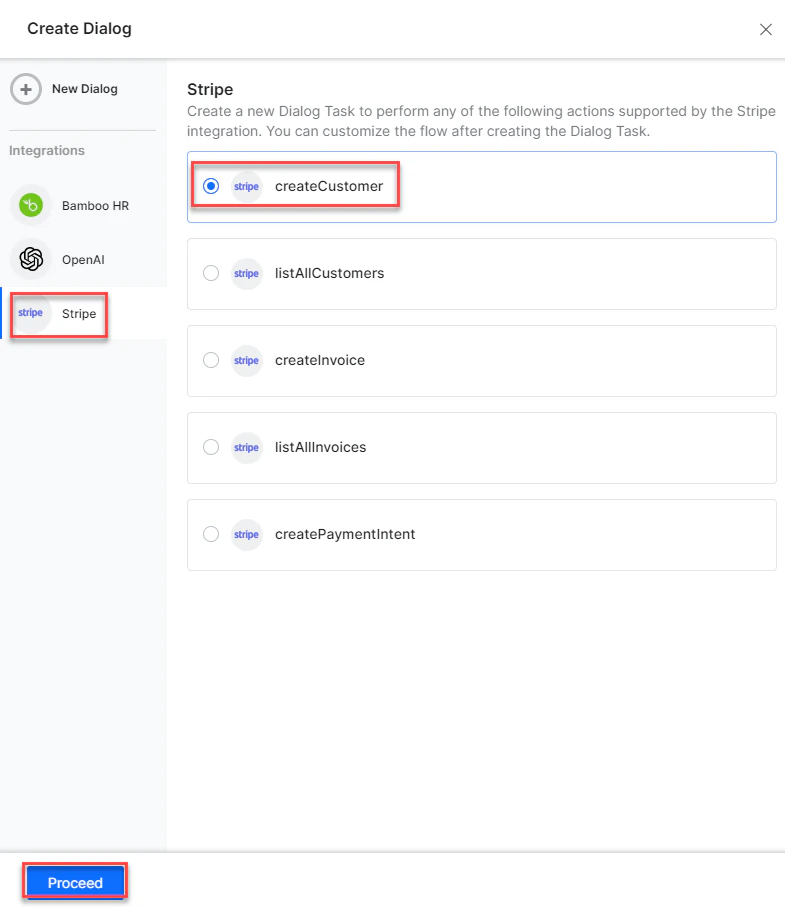
1. Go to **Automation AI** > **Use Cases** > **Dialogs** and click **Create a Dialog Task**.
2. Under **Integration**, select **Stripe**.
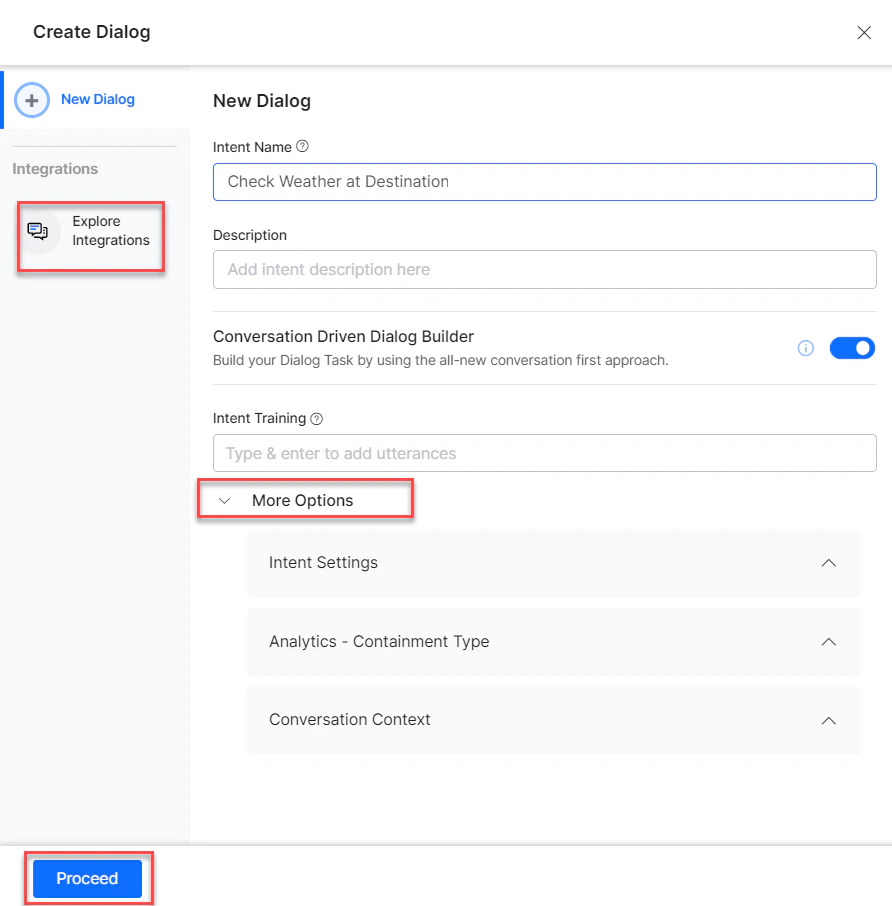
 3. If no integration is configured, click **Explore Integrations** to set one up. See [Actions Overview](/ai-for-service/integrations/overview#actions).
 ***
## Supported Actions
| Task | Description | Method |
| ----------------------- | ----------------------------------------------- | ------ |
| Create a Customer | Creates a customer in the Stripe system. | POST |
| List All Customers | Retrieves all customers from the Stripe system. | GET |
| Create Invoice | Creates a new invoice in the system. | POST |
| List All Invoices | Retrieves all invoices in the Stripe system. | GET |
| Create a Payment Intent | Creates a payment intent in the Stripe system. | POST |
***
### Create a Customer
1. Install the template from [Stripe Action Templates](/ai-for-service/integrations/actions/configuring-the-stripe-action#step-2-install-the-stripe-action-templates).
2. The **Create a Customer** dialog task is added with the following components:
***
## Supported Actions
| Task | Description | Method |
| ----------------------- | ----------------------------------------------- | ------ |
| Create a Customer | Creates a customer in the Stripe system. | POST |
| List All Customers | Retrieves all customers from the Stripe system. | GET |
| Create Invoice | Creates a new invoice in the system. | POST |
| List All Invoices | Retrieves all invoices in the Stripe system. | GET |
| Create a Payment Intent | Creates a payment intent in the Stripe system. | POST |
***
### Create a Customer
1. Install the template from [Stripe Action Templates](/ai-for-service/integrations/actions/configuring-the-stripe-action#step-2-install-the-stripe-action-templates).
2. The **Create a Customer** dialog task is added with the following components:
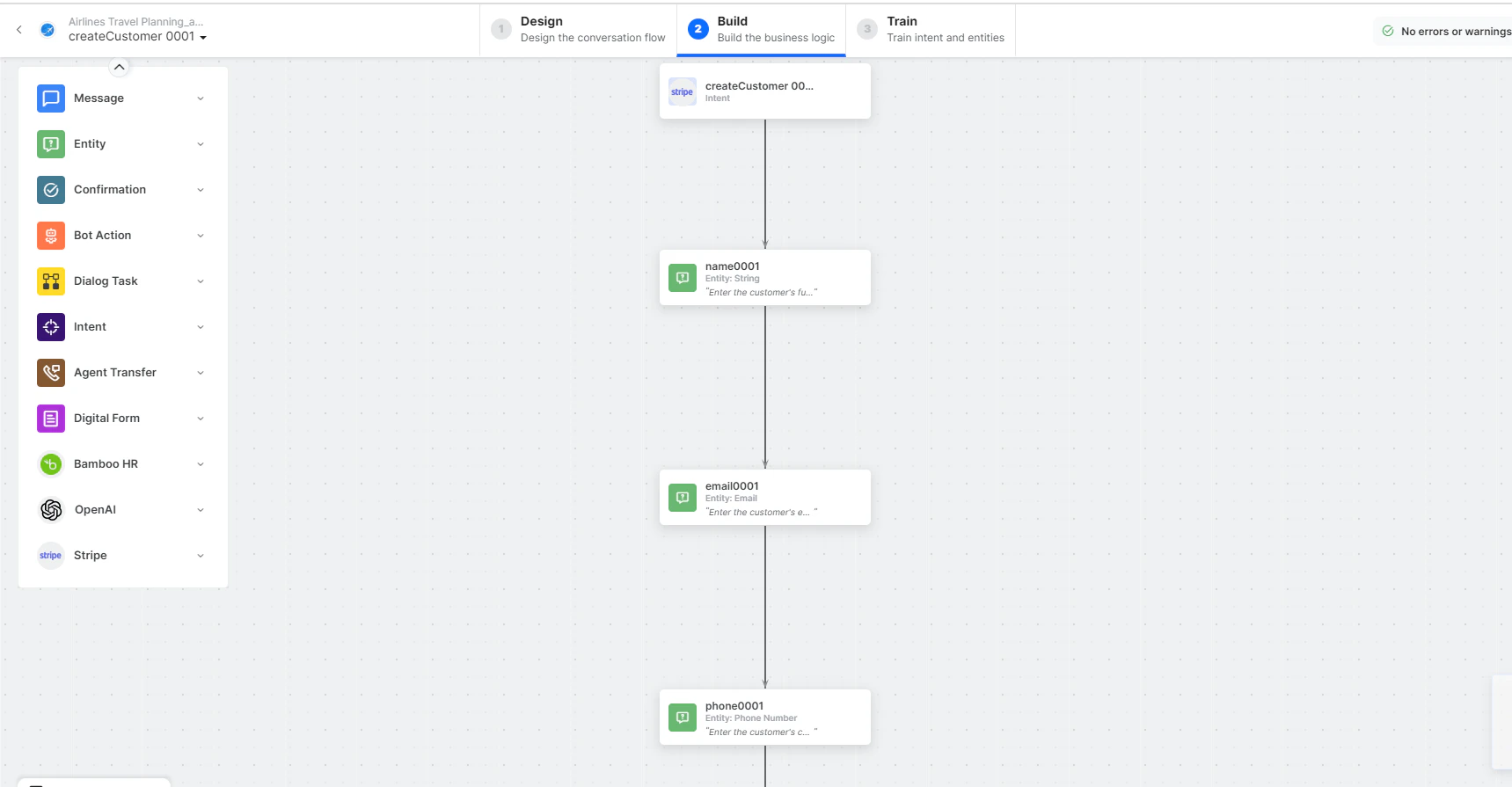 * **createCustomer** - User intent to create a customer.
* **name**, **email**, **phone** - Entity nodes for customer details.
* **createCustomerService** - Bot action service to create a customer. Click **Edit Request**:
* **createCustomer** - User intent to create a customer.
* **name**, **email**, **phone** - Entity nodes for customer details.
* **createCustomerService** - Bot action service to create a customer. Click **Edit Request**:
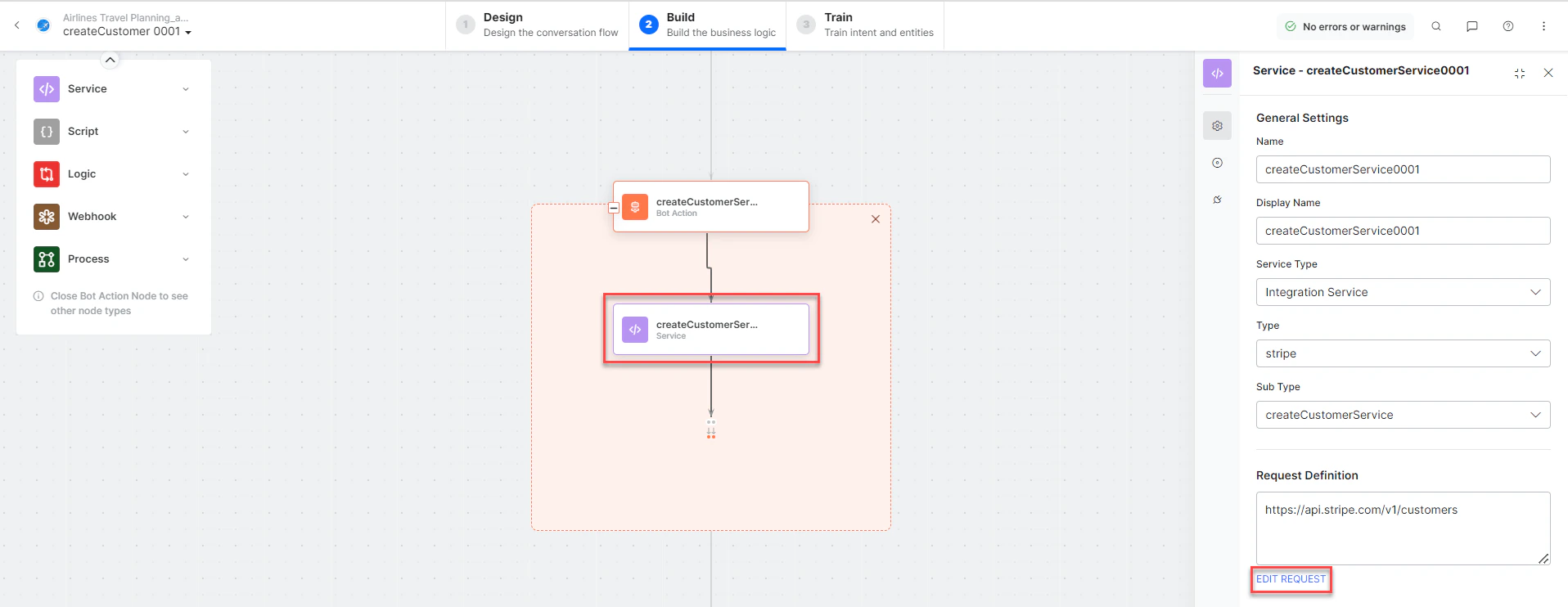 **Sample Response:**
```json theme={null}
{
"id": "cus_N42Fu5I7t3dDyu",
"object": "customer",
"email": "abc@xyz.com",
"name": "Alan Walker",
"phone": "7000028162",
"livemode": false
}
```
* **createCustomerMessage** - Message node to display responses.
3. Click **Train**, then **Talk to Bot** to test:
**Sample Response:**
```json theme={null}
{
"id": "cus_N42Fu5I7t3dDyu",
"object": "customer",
"email": "abc@xyz.com",
"name": "Alan Walker",
"phone": "7000028162",
"livemode": false
}
```
* **createCustomerMessage** - Message node to display responses.
3. Click **Train**, then **Talk to Bot** to test:
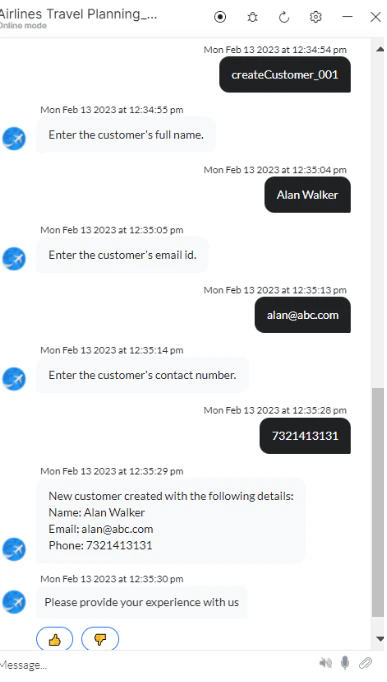 ***
### List All Customers
1. Install the template from [Stripe Action Templates](/ai-for-service/integrations/actions/configuring-the-stripe-action#step-2-install-the-stripe-action-templates).
2. The **List All Customers** dialog task is added with the following components:
***
### List All Customers
1. Install the template from [Stripe Action Templates](/ai-for-service/integrations/actions/configuring-the-stripe-action#step-2-install-the-stripe-action-templates).
2. The **List All Customers** dialog task is added with the following components:
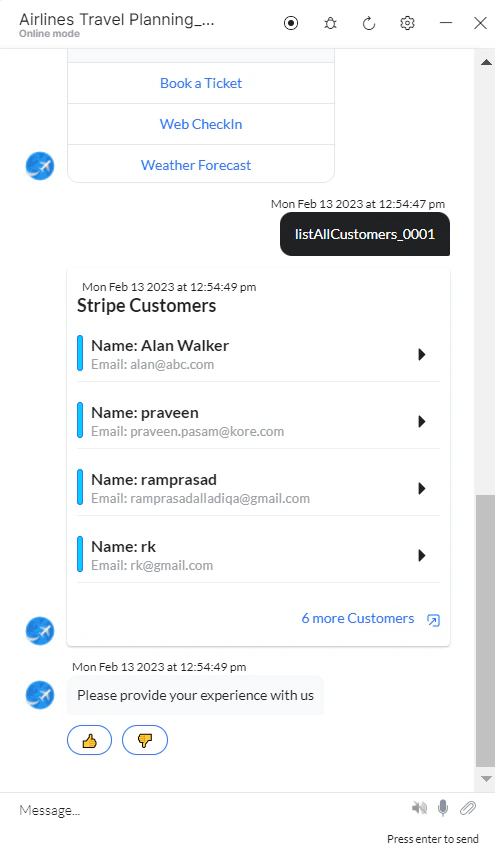
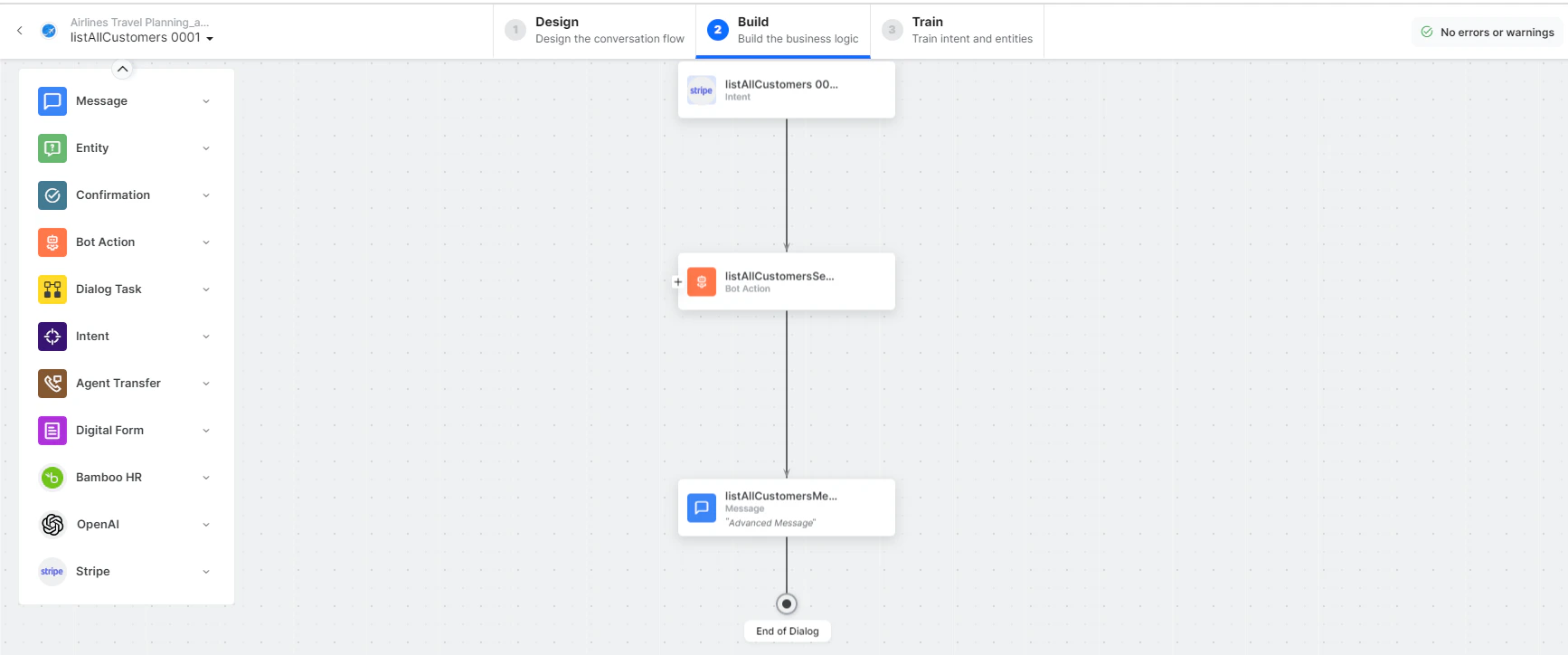 * **listAllCustomers** - User intent to view all customers.
* **listAllCustomersService** - Bot action service to fetch all customers. Click **Edit Request**:
* **listAllCustomers** - User intent to view all customers.
* **listAllCustomersService** - Bot action service to fetch all customers. Click **Edit Request**:
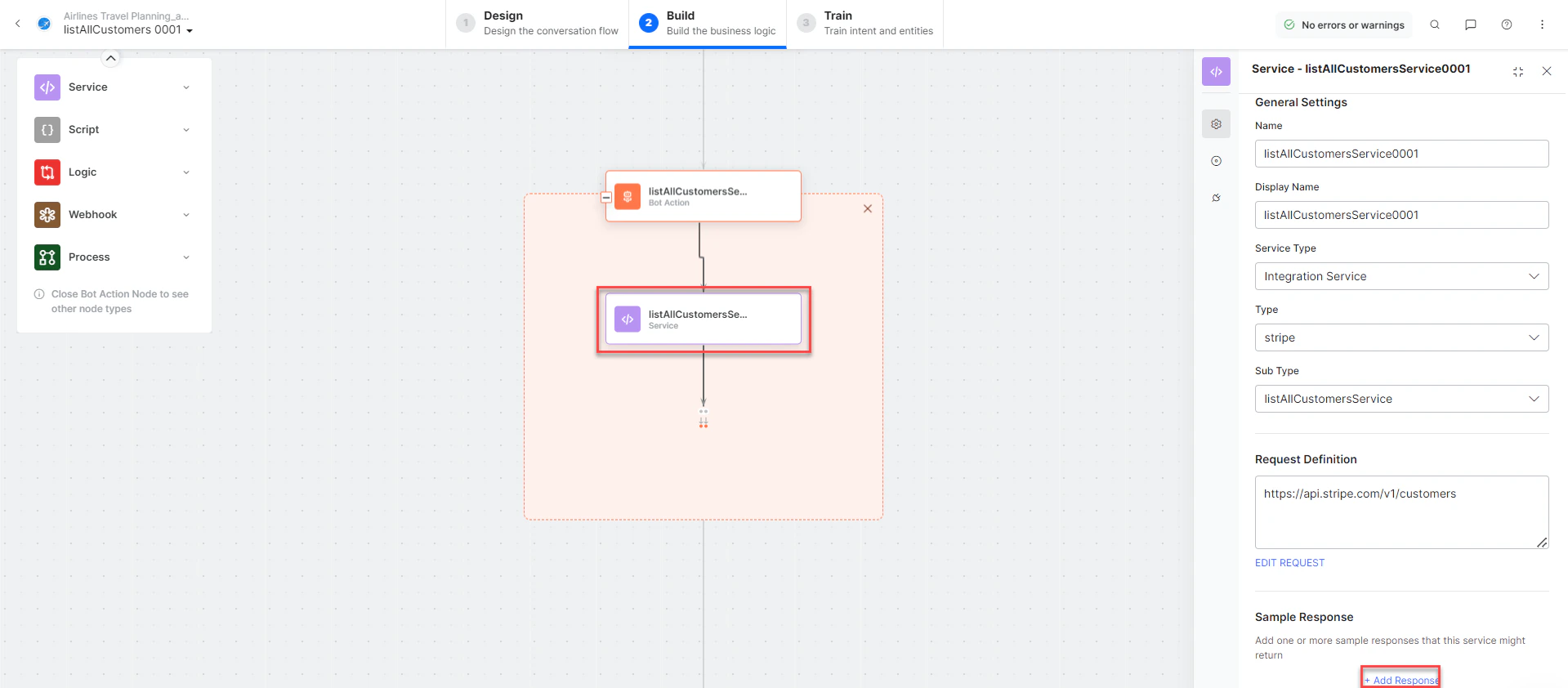 Click **+Add Response** for sample responses.
* **listAllCustomersMessage** - Message node to display responses.
3. Click **Train**, then **Talk to Bot** to test:
Click **+Add Response** for sample responses.
* **listAllCustomersMessage** - Message node to display responses.
3. Click **Train**, then **Talk to Bot** to test:
 ***
### Create an Invoice
1. Install the template from [Stripe Action Templates](/ai-for-service/integrations/actions/configuring-the-stripe-action#step-2-install-the-stripe-action-templates).
2. The **Create an Invoice** dialog task is added with the following components:
***
### Create an Invoice
1. Install the template from [Stripe Action Templates](/ai-for-service/integrations/actions/configuring-the-stripe-action#step-2-install-the-stripe-action-templates).
2. The **Create an Invoice** dialog task is added with the following components:
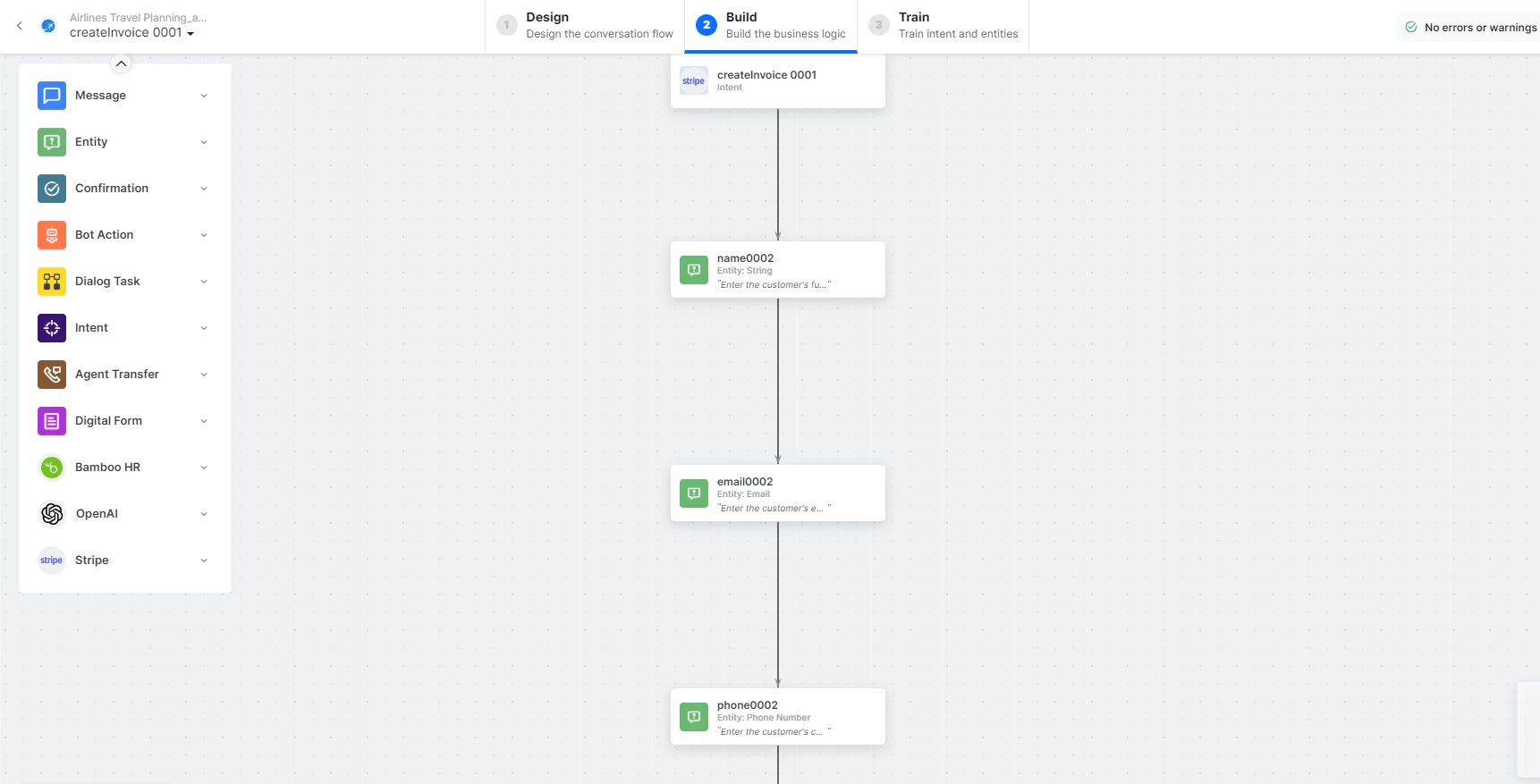 * **createInvoice** - User intent to create an invoice.
* **name**, **email**, **phone**, **dueDate**, **productName**, **productQuantity**, **unitAmount** - Entity nodes for invoice details.
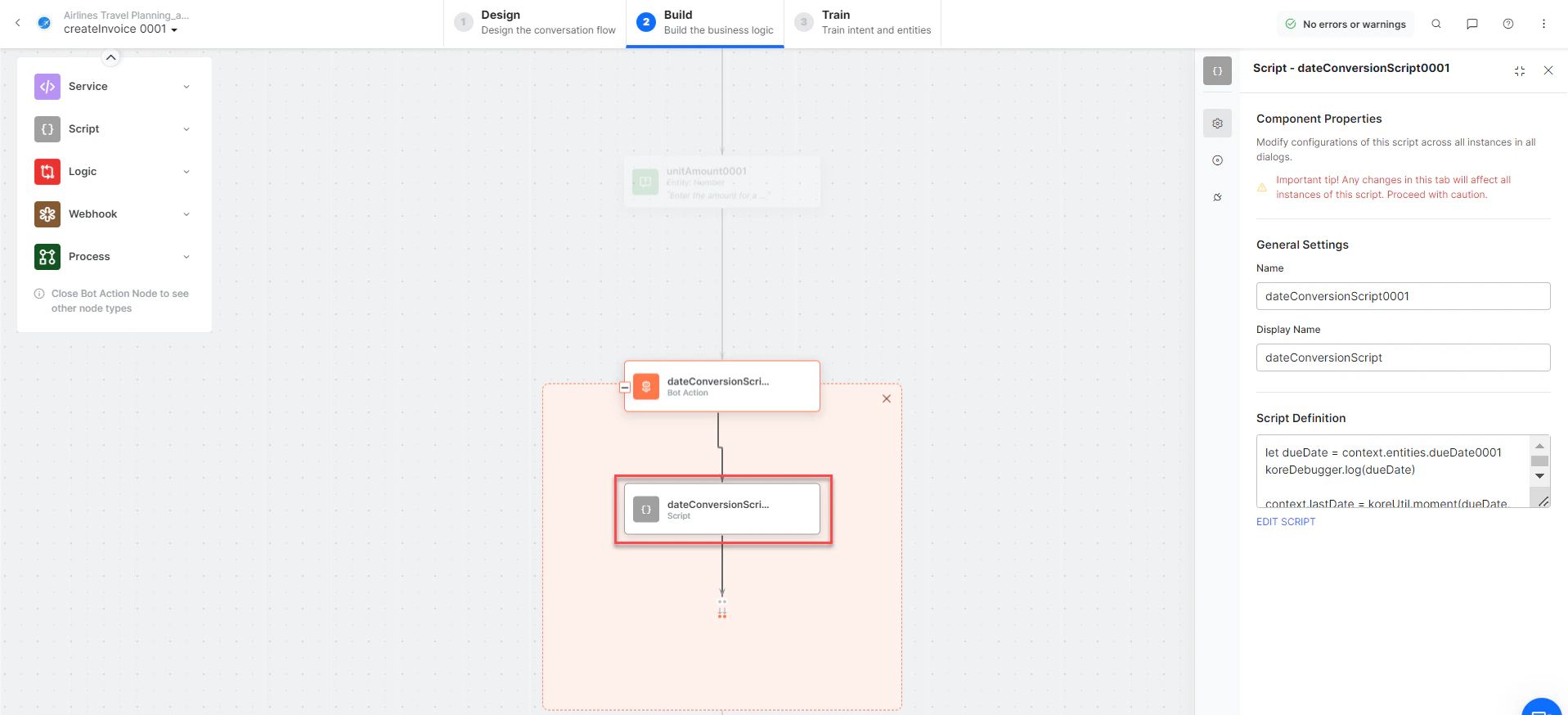
* **createInvoiceScript** - Bot action service to prepare invoice data.
* **createInvoice** - User intent to create an invoice.
* **name**, **email**, **phone**, **dueDate**, **productName**, **productQuantity**, **unitAmount** - Entity nodes for invoice details.
* **createInvoiceScript** - Bot action service to prepare invoice data.
 * **createInvoiceService** - Bot action service to create an invoice. Click **Edit Request**:
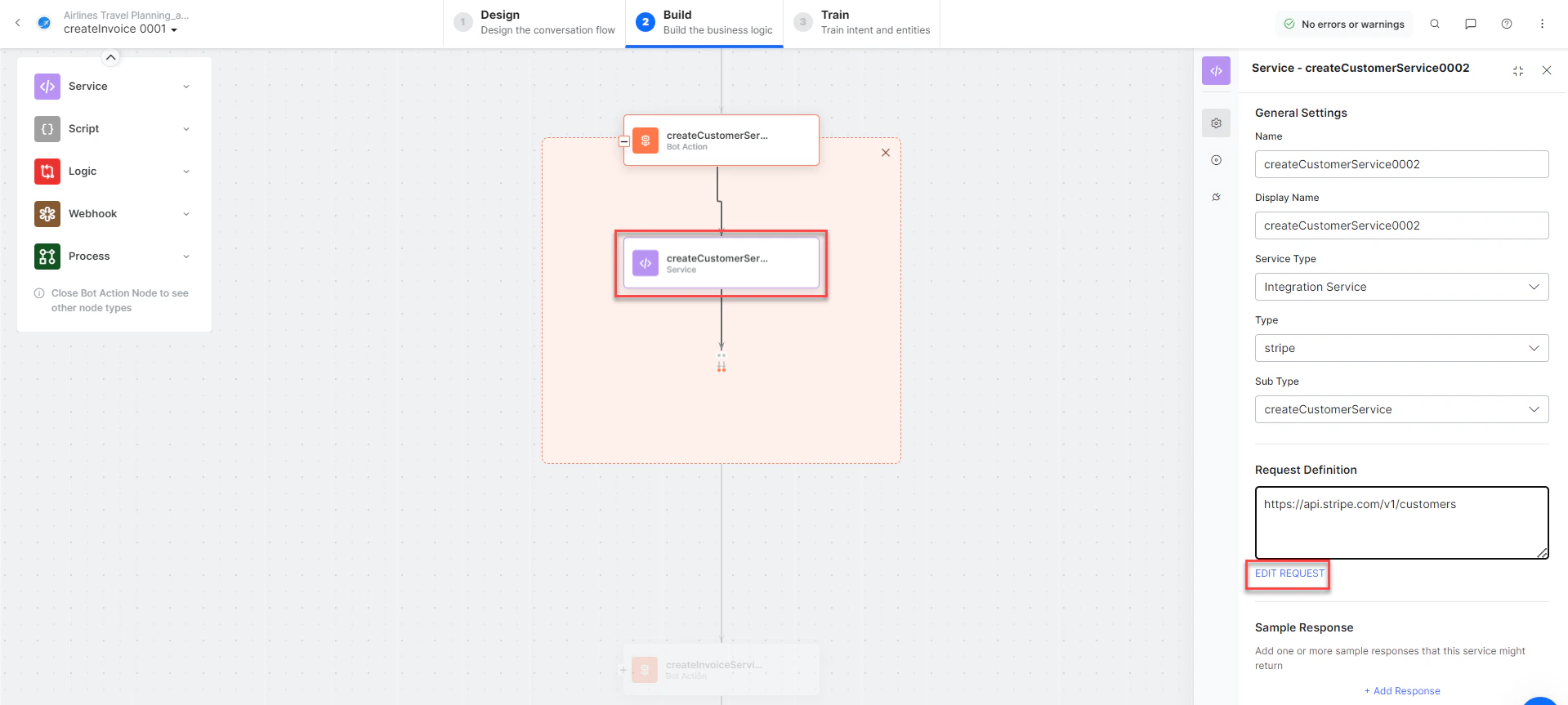 **Sample Request:**
```
customer: cus_N42Fu5I7t3dDyu
collection_method: send_invoice
due_date: 1704067199
```
* **createInvoiceItemService** - Bot action service to create an invoice item.
* **createInvoiceMessage** - Message node to display responses.
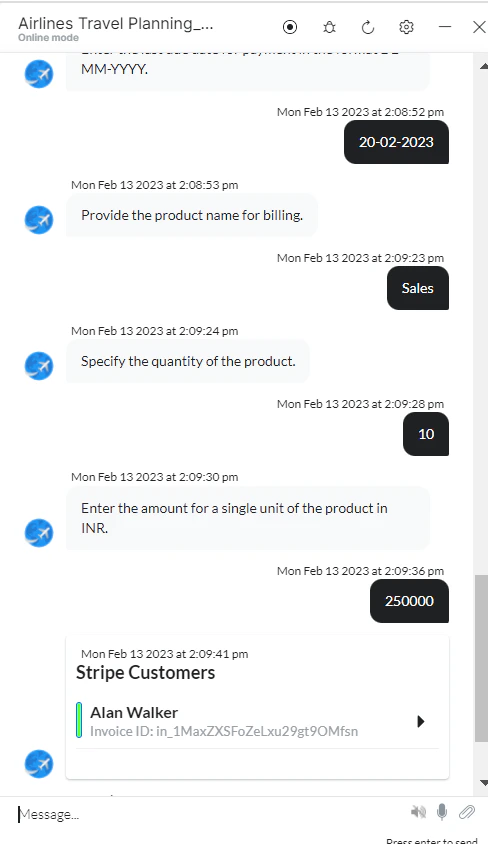
3. Click **Train**, then **Talk to Bot** to test:
**Sample Request:**
```
customer: cus_N42Fu5I7t3dDyu
collection_method: send_invoice
due_date: 1704067199
```
* **createInvoiceItemService** - Bot action service to create an invoice item.
* **createInvoiceMessage** - Message node to display responses.
3. Click **Train**, then **Talk to Bot** to test:
 ***
### List All Invoices
1. Install the template from [Stripe Action Templates](/ai-for-service/integrations/actions/configuring-the-stripe-action#step-2-install-the-stripe-action-templates).
2. The **List All Invoices** dialog task is added with the following components:
***
### List All Invoices
1. Install the template from [Stripe Action Templates](/ai-for-service/integrations/actions/configuring-the-stripe-action#step-2-install-the-stripe-action-templates).
2. The **List All Invoices** dialog task is added with the following components:
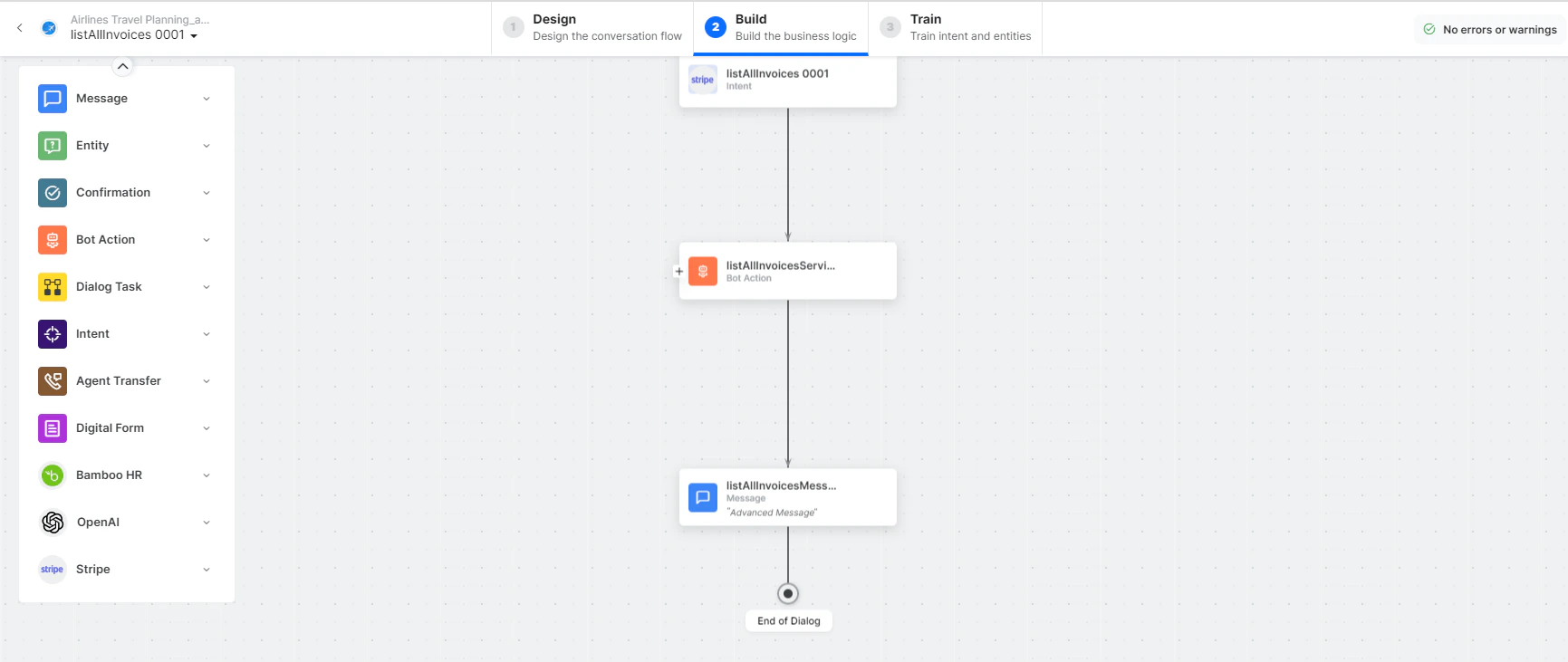 * **listAllInvoices** - User intent to list all invoices.
* **listAllInvoicesService** - Bot action service to fetch all invoices. Click **+Add Response**:
* **listAllInvoices** - User intent to list all invoices.
* **listAllInvoicesService** - Bot action service to fetch all invoices. Click **+Add Response**:
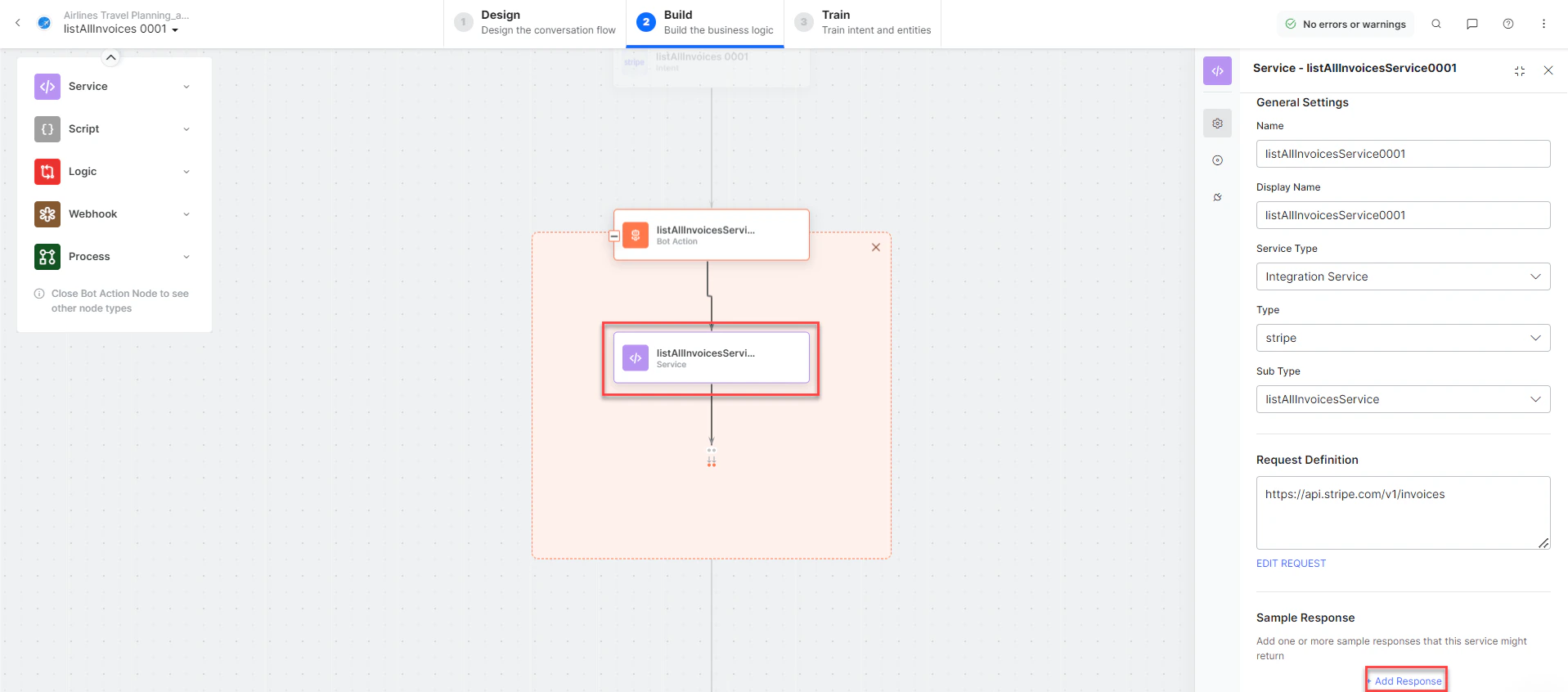 * **listAllInvoicesMessage** - Message node to display responses.
3. Click **Train**, then **Talk to Bot** to test and follow prompts to view all invoices.
***
### Create a Payment Intent
1. Install the template from [Stripe Action Templates](/ai-for-service/integrations/actions/configuring-the-stripe-action#step-2-install-the-stripe-action-templates).
2. The **Create a Payment Intent** dialog task is added with the following components:
* **listAllInvoicesMessage** - Message node to display responses.
3. Click **Train**, then **Talk to Bot** to test and follow prompts to view all invoices.
***
### Create a Payment Intent
1. Install the template from [Stripe Action Templates](/ai-for-service/integrations/actions/configuring-the-stripe-action#step-2-install-the-stripe-action-templates).
2. The **Create a Payment Intent** dialog task is added with the following components:
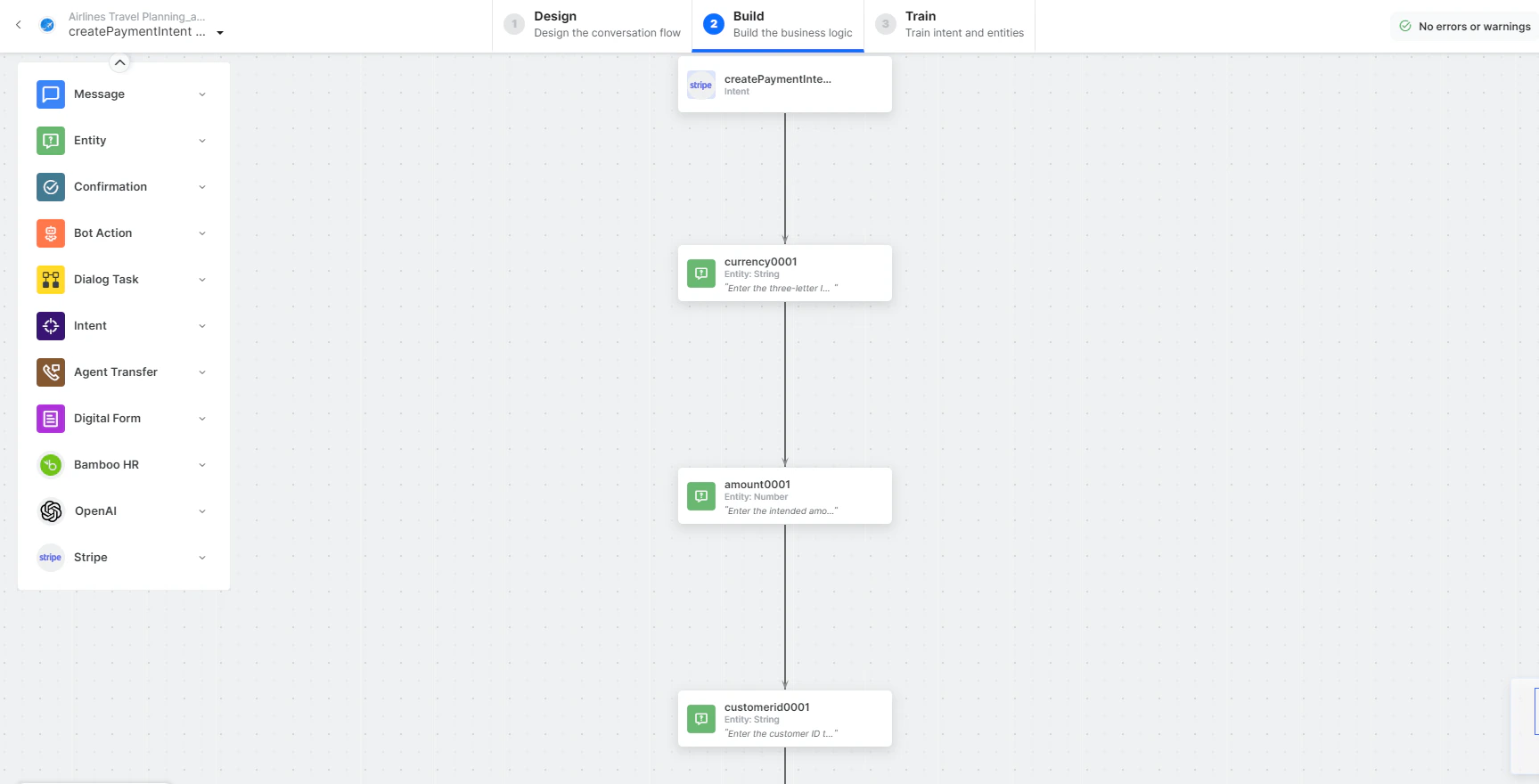 * **createPaymentIntent** - User intent to make payments.
* **currency**, **amount**, **customer** - Entity nodes for payment details.
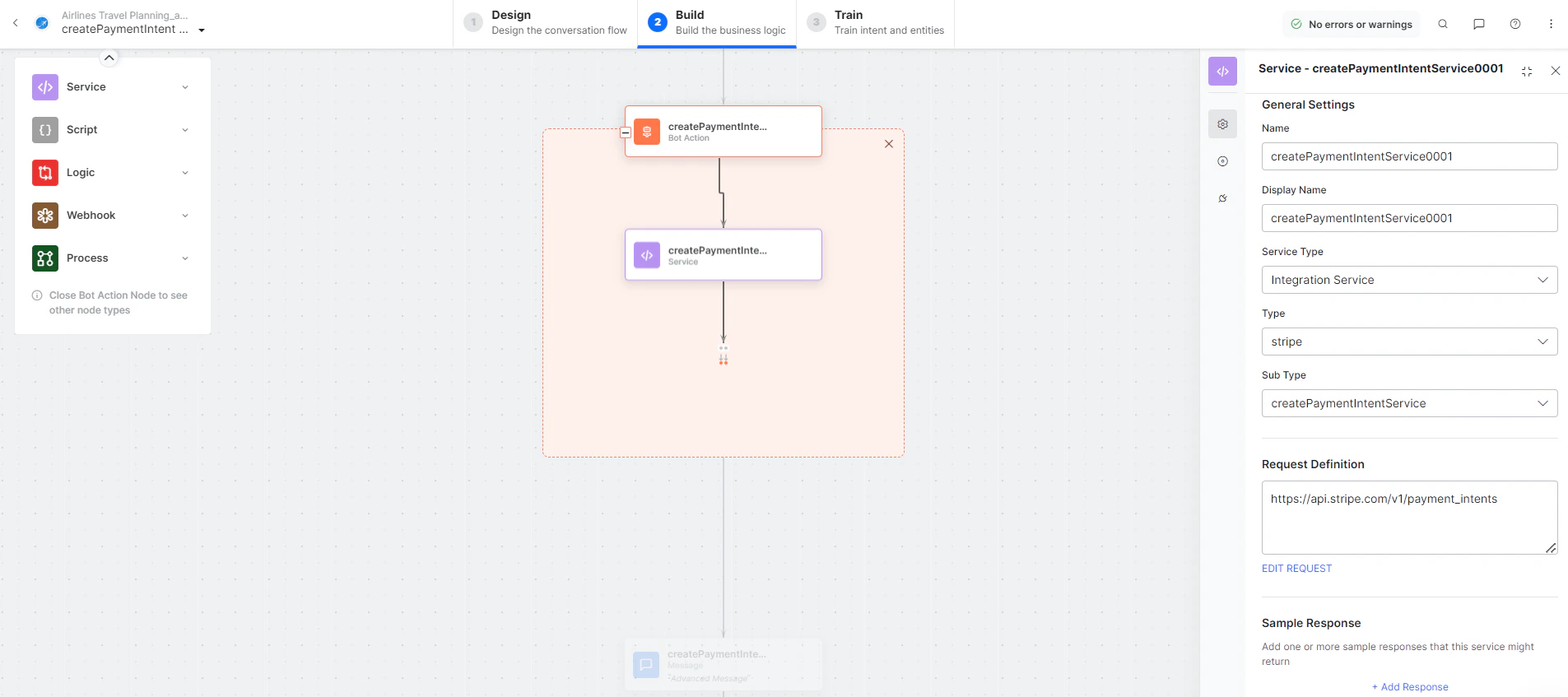
* **createPaymentIntentService** - Bot action service to create a payment intent. Click **Edit Request**:
* **createPaymentIntent** - User intent to make payments.
* **currency**, **amount**, **customer** - Entity nodes for payment details.
* **createPaymentIntentService** - Bot action service to create a payment intent. Click **Edit Request**:
 * **createPaymentIntentMessage** - Message node to display responses.
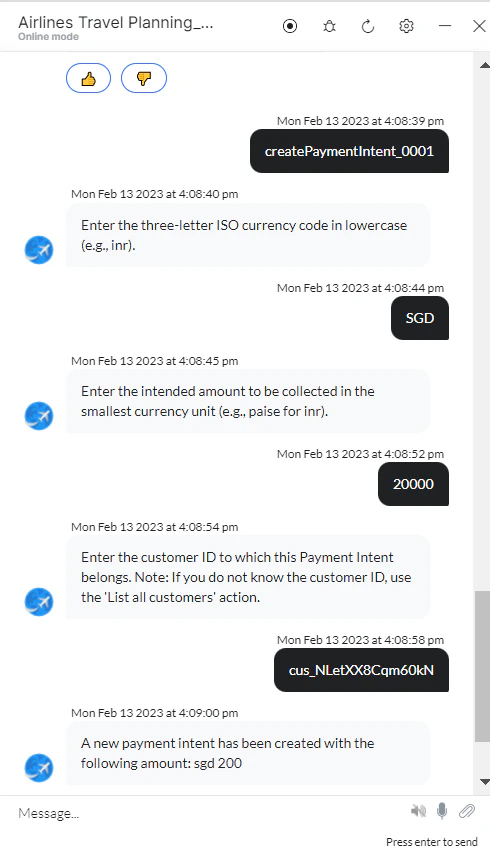
3. Click **Train**, then **Talk to Bot** to test:
* **createPaymentIntentMessage** - Message node to display responses.
3. Click **Train**, then **Talk to Bot** to test: