> ## Documentation Index
> Fetch the complete documentation index at: https://koreai.mintlify.site/llms.txt
> Use this file to discover all available pages before exploring further.
# Using the Twilio Action Templates
[Back to Actions Integrations](/ai-for-service/integrations/overview#actions)
Use prebuilt Twilio Verify action templates to auto-create dialog tasks for sending SMS and managing verification.
**To access templates:**
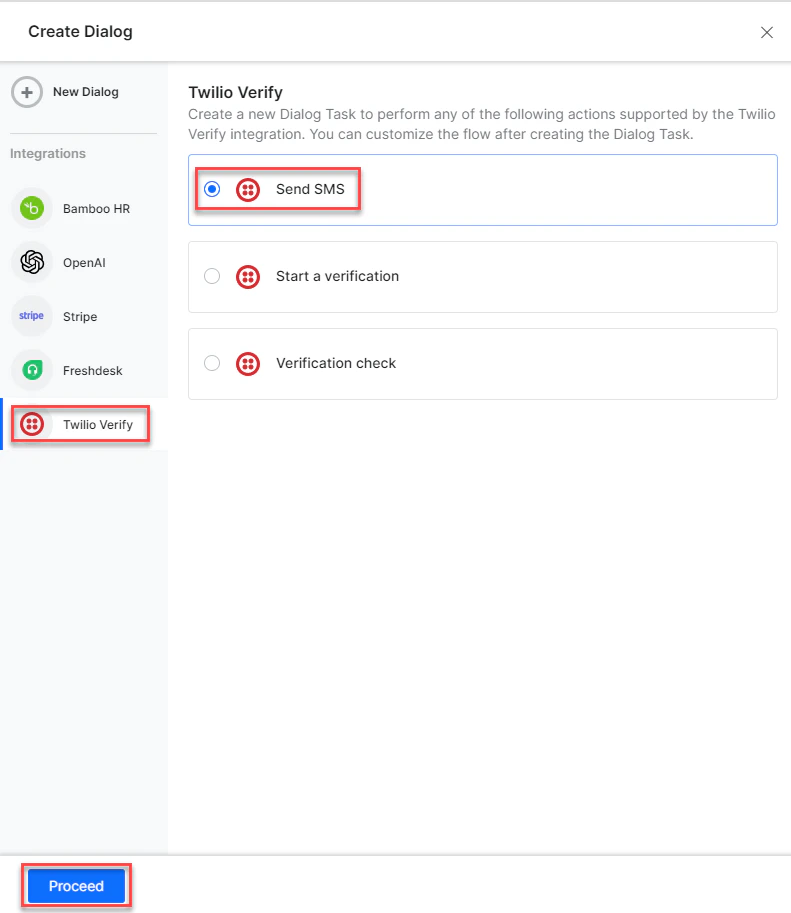
1. Go to **Automation AI** > **Use Cases** > **Dialogs** and click **Create a Dialog Task**.
2. Under **Integration**, select **Twilio Verify**.
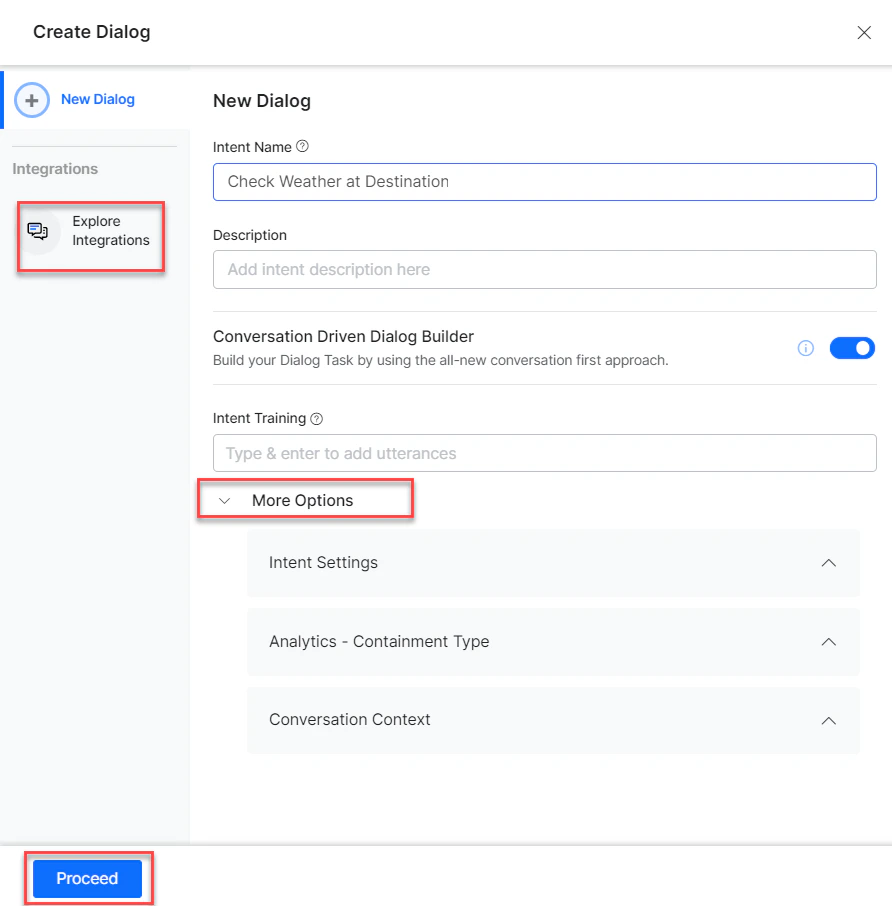
 3. If no integration is configured, click **Explore Integrations** to set one up. See [Actions Overview](/ai-for-service/integrations/overview#actions).
 ***
## Supported Actions
| Task | Description | Method |
| ------------------ | ----------------------------------------------------------------- | ------ |
| Send SMS | Sends an SMS to the registered phone number. | POST |
| Start Verification | Starts the verification of the phone number registered in Twilio. | POST |
| Verification Check | Checks whether the verification is successful or unsuccessful. | POST |
***
### Send SMS
1. Install the template from [Twilio Verify Action Templates](/ai-for-service/integrations/actions/configuring-the-twilio-action#step-2-install-the-twilio-verify-action-templates).
2. The **Send SMS** dialog task is added with the following components:
***
## Supported Actions
| Task | Description | Method |
| ------------------ | ----------------------------------------------------------------- | ------ |
| Send SMS | Sends an SMS to the registered phone number. | POST |
| Start Verification | Starts the verification of the phone number registered in Twilio. | POST |
| Verification Check | Checks whether the verification is successful or unsuccessful. | POST |
***
### Send SMS
1. Install the template from [Twilio Verify Action Templates](/ai-for-service/integrations/actions/configuring-the-twilio-action#step-2-install-the-twilio-verify-action-templates).
2. The **Send SMS** dialog task is added with the following components:
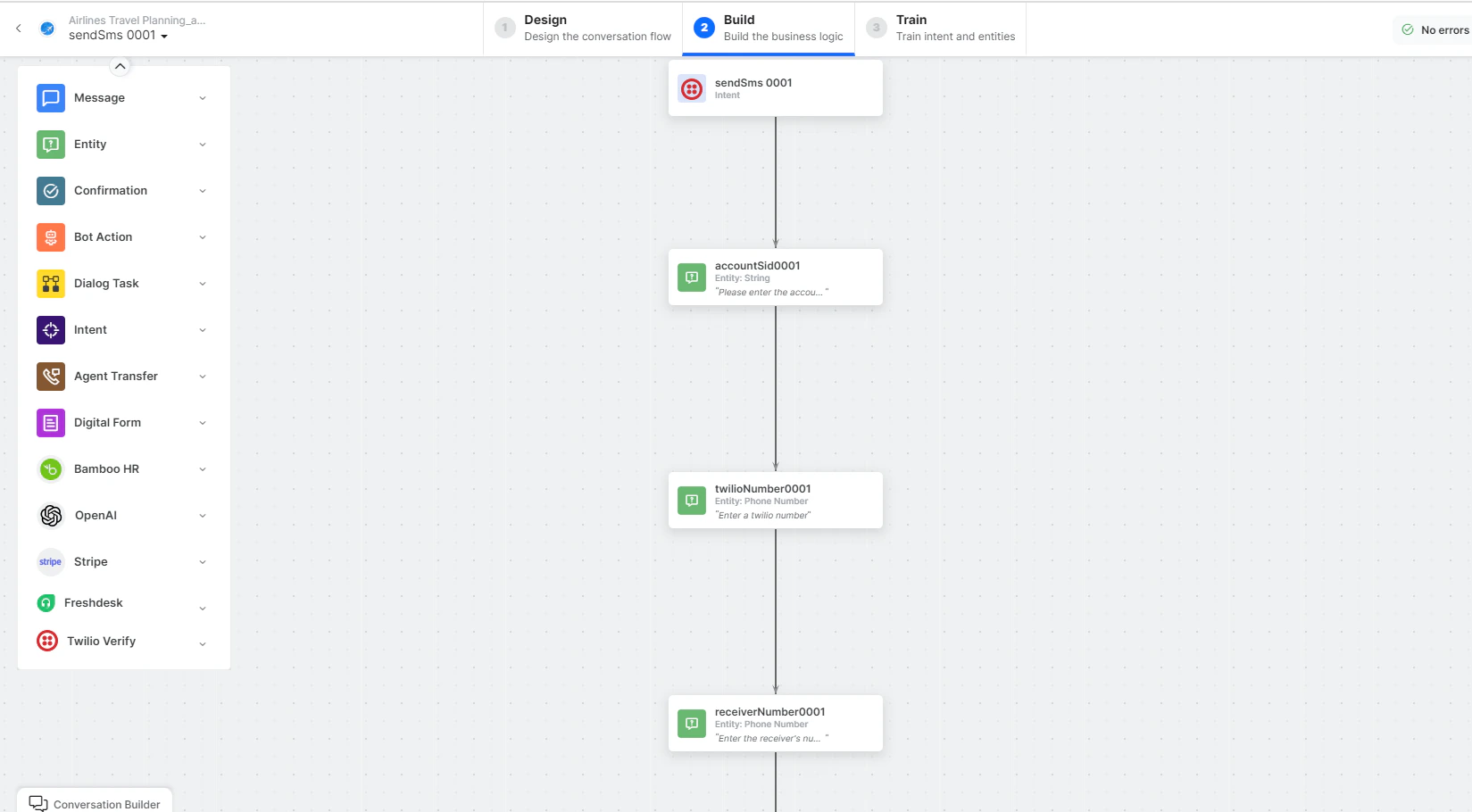 * **sendSms** - User intent to send SMS.
* **accountSid**, **twilioNumber**, **receiverNumber**, **message** - Entity nodes for SMS details.
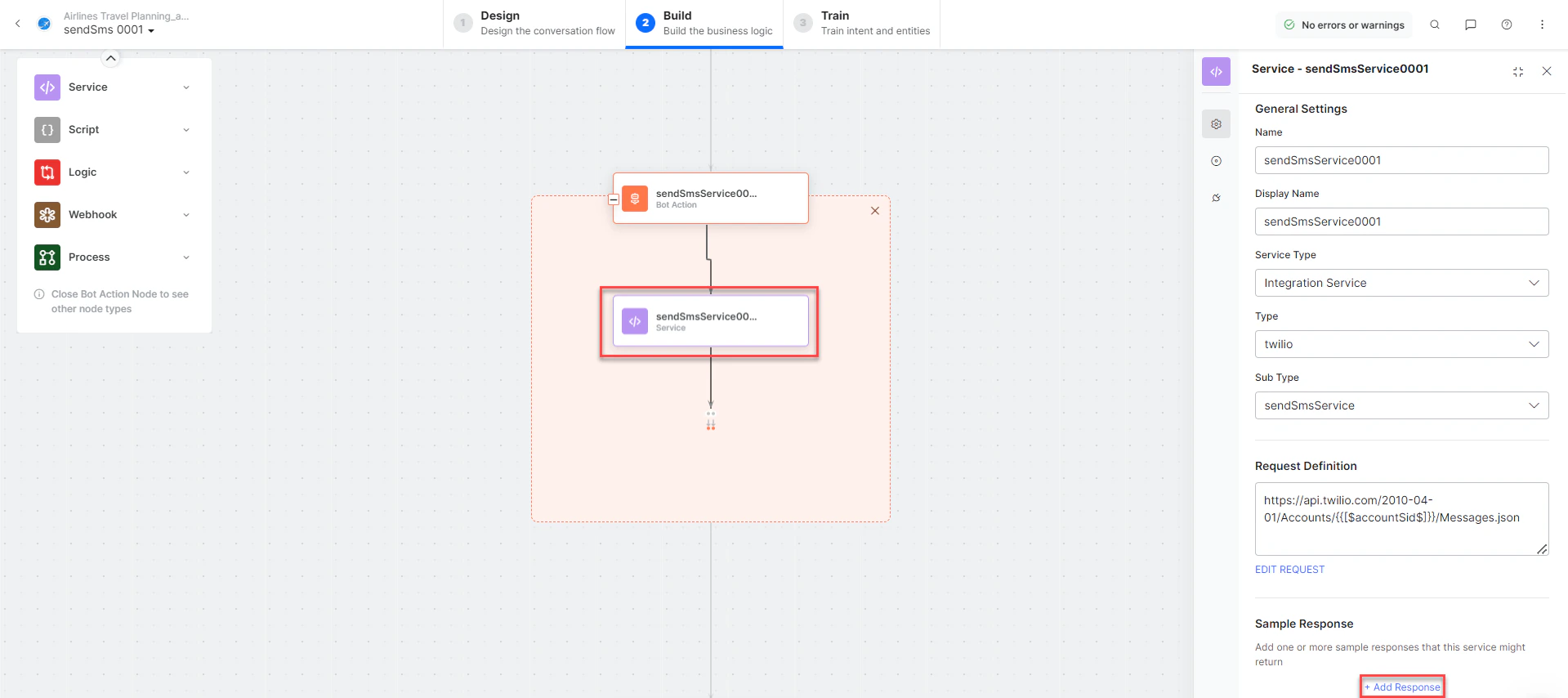
* **sendSmsService** - Bot action service to send SMS. Click **Edit Request**:
* **sendSms** - User intent to send SMS.
* **accountSid**, **twilioNumber**, **receiverNumber**, **message** - Entity nodes for SMS details.
* **sendSmsService** - Bot action service to send SMS. Click **Edit Request**:
 **Sample Request:**
```
Body = {{message}}
From = {{twilioNumber}}
To = {{receiverNumber}}
```
Click **+Add Response**:
**Sample Request:**
```
Body = {{message}}
From = {{twilioNumber}}
To = {{receiverNumber}}
```
Click **+Add Response**:
 **Sample Response:**
```json theme={null}
{
"body": "Sent from your Twilio trial account - Hi Kore",
"num_segments": "1",
"direction": "outbound-api",
"from": "{{twilioNumber}}",
"status": "queued",
"account_sid": "AC6bae65f877f2488c902f57ce1fxxxxx"
}
```
* **sendSmsMessage** - Message node to display responses.
3. Click **Train**, then **Talk to Bot** to test:
**Sample Response:**
```json theme={null}
{
"body": "Sent from your Twilio trial account - Hi Kore",
"num_segments": "1",
"direction": "outbound-api",
"from": "{{twilioNumber}}",
"status": "queued",
"account_sid": "AC6bae65f877f2488c902f57ce1fxxxxx"
}
```
* **sendSmsMessage** - Message node to display responses.
3. Click **Train**, then **Talk to Bot** to test:
 You must add the country code before the receiver's phone number. For example, to send an SMS to a US number, add +1.
***
### Start Verification
1. Install the template from [Twilio Verify Action Templates](/ai-for-service/integrations/actions/configuring-the-twilio-action#step-2-install-the-twilio-verify-action-templates).
2. The **Start Verification** dialog task is added with the following components:
You must add the country code before the receiver's phone number. For example, to send an SMS to a US number, add +1.
***
### Start Verification
1. Install the template from [Twilio Verify Action Templates](/ai-for-service/integrations/actions/configuring-the-twilio-action#step-2-install-the-twilio-verify-action-templates).
2. The **Start Verification** dialog task is added with the following components:
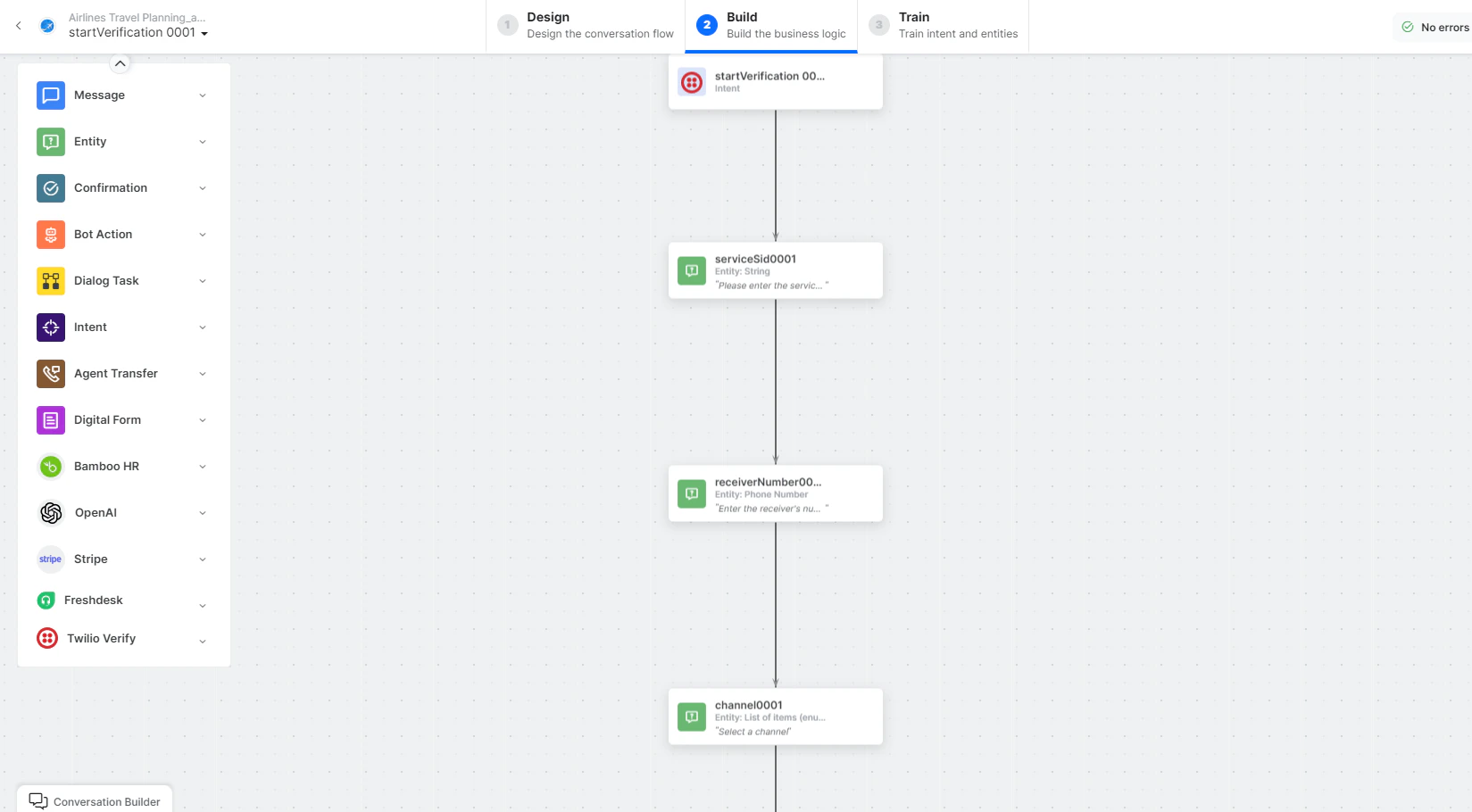 * **startVerification** - User intent to start verification.
* **serviceSid**, **receiverNumber**, **channel** - Entity nodes for verification details.
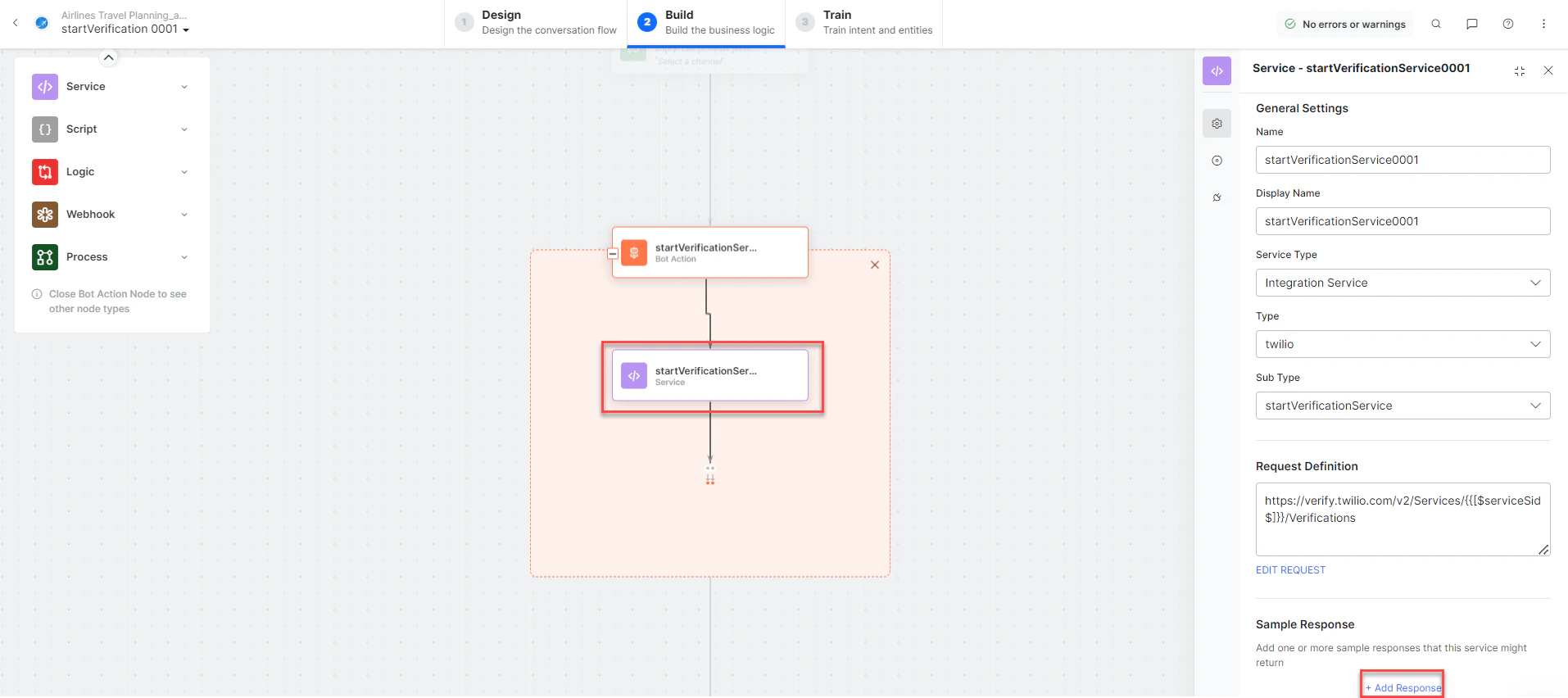
* **startVerificationService** - Bot action service to start verification. Click **Edit Request**:
* **startVerification** - User intent to start verification.
* **serviceSid**, **receiverNumber**, **channel** - Entity nodes for verification details.
* **startVerificationService** - Bot action service to start verification. Click **Edit Request**:
 **Sample Request:**
```
To = {{receiverNumber}}
Channel = {{channel}}
```
Click **+Add Response**:
**Sample Request:**
```
To = {{receiverNumber}}
Channel = {{channel}}
```
Click **+Add Response**:
 **Sample Response:**
```json theme={null}
{
"status": "pending",
"account_sid": "AC6bae65f877f2488c902f57cexxxxx",
"to": "+{{receiverNumber}}",
"valid": false,
"channel": "sms"
}
```
* **startVerificationMessage** - Message node to display responses.
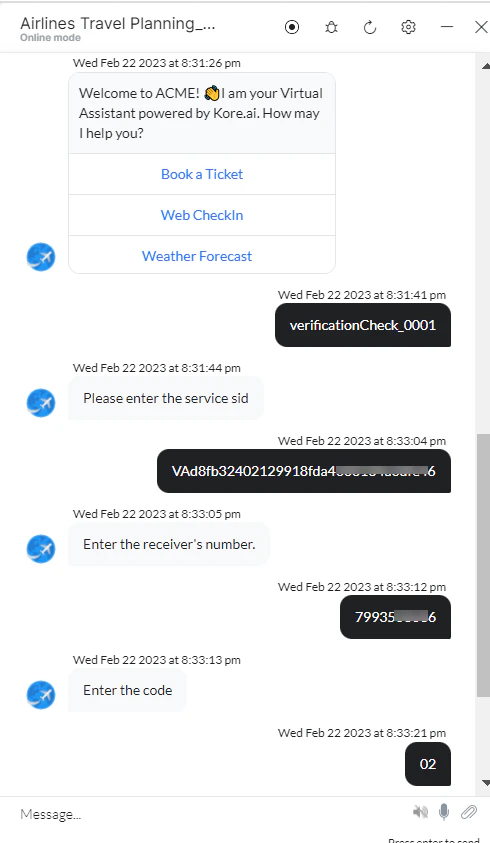
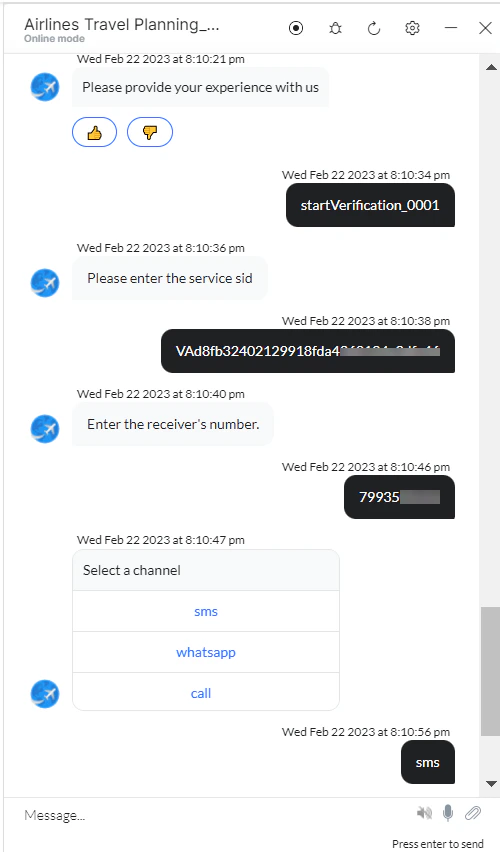
3. Click **Train**, then **Talk to Bot** to test:
**Sample Response:**
```json theme={null}
{
"status": "pending",
"account_sid": "AC6bae65f877f2488c902f57cexxxxx",
"to": "+{{receiverNumber}}",
"valid": false,
"channel": "sms"
}
```
* **startVerificationMessage** - Message node to display responses.
3. Click **Train**, then **Talk to Bot** to test:
 ***
### Verification Check
1. Install the template from [Twilio Verify Action Templates](/ai-for-service/integrations/actions/configuring-the-twilio-action#step-2-install-the-twilio-verify-action-templates).
2. The **Verification Check** dialog task is added with the following components:
***
### Verification Check
1. Install the template from [Twilio Verify Action Templates](/ai-for-service/integrations/actions/configuring-the-twilio-action#step-2-install-the-twilio-verify-action-templates).
2. The **Verification Check** dialog task is added with the following components:
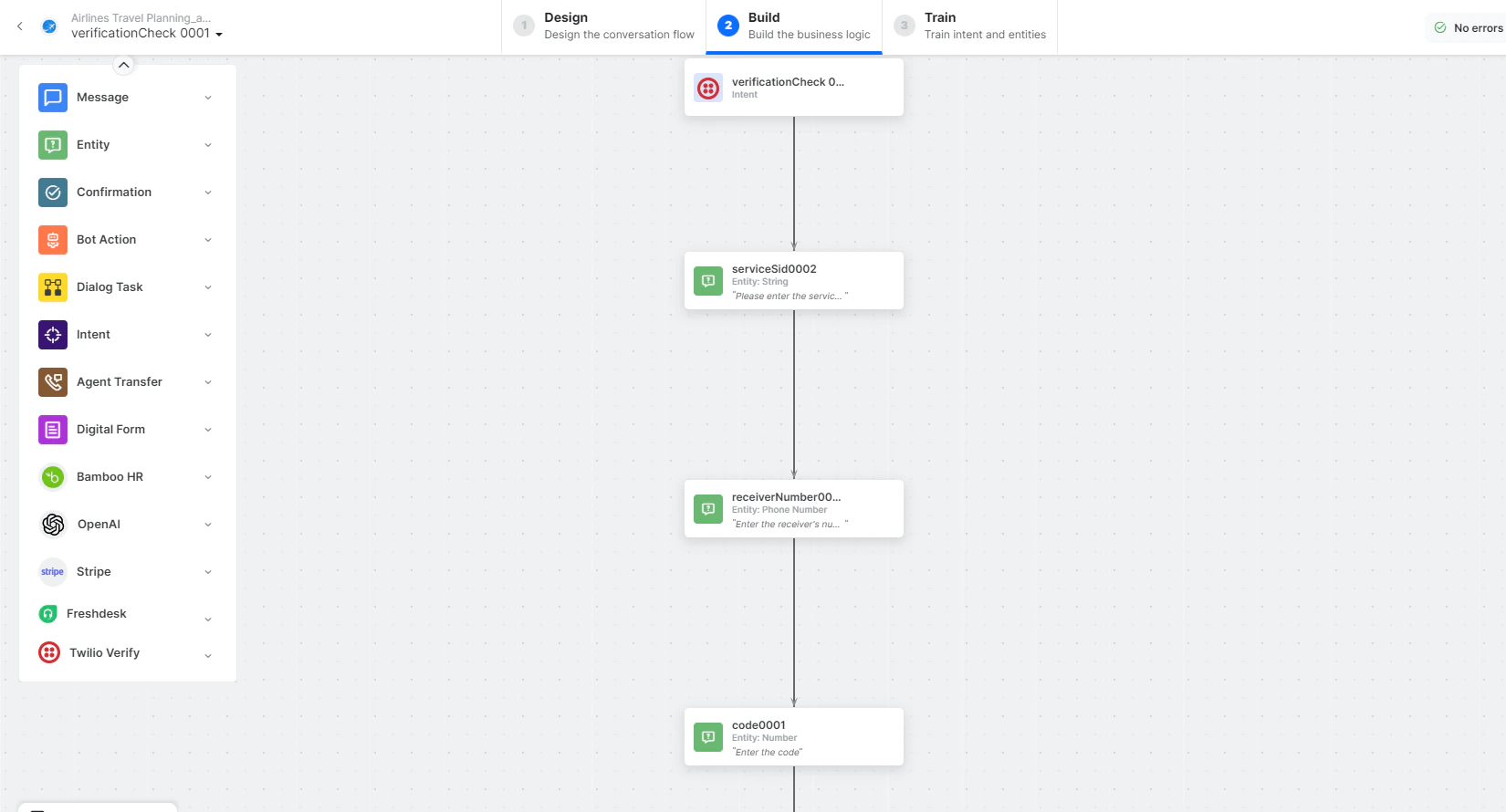 * **verificationCheck** - User intent to check verification.
* **serviceSid**, **receiverNumber**, **code** - Entity nodes for verification check details.
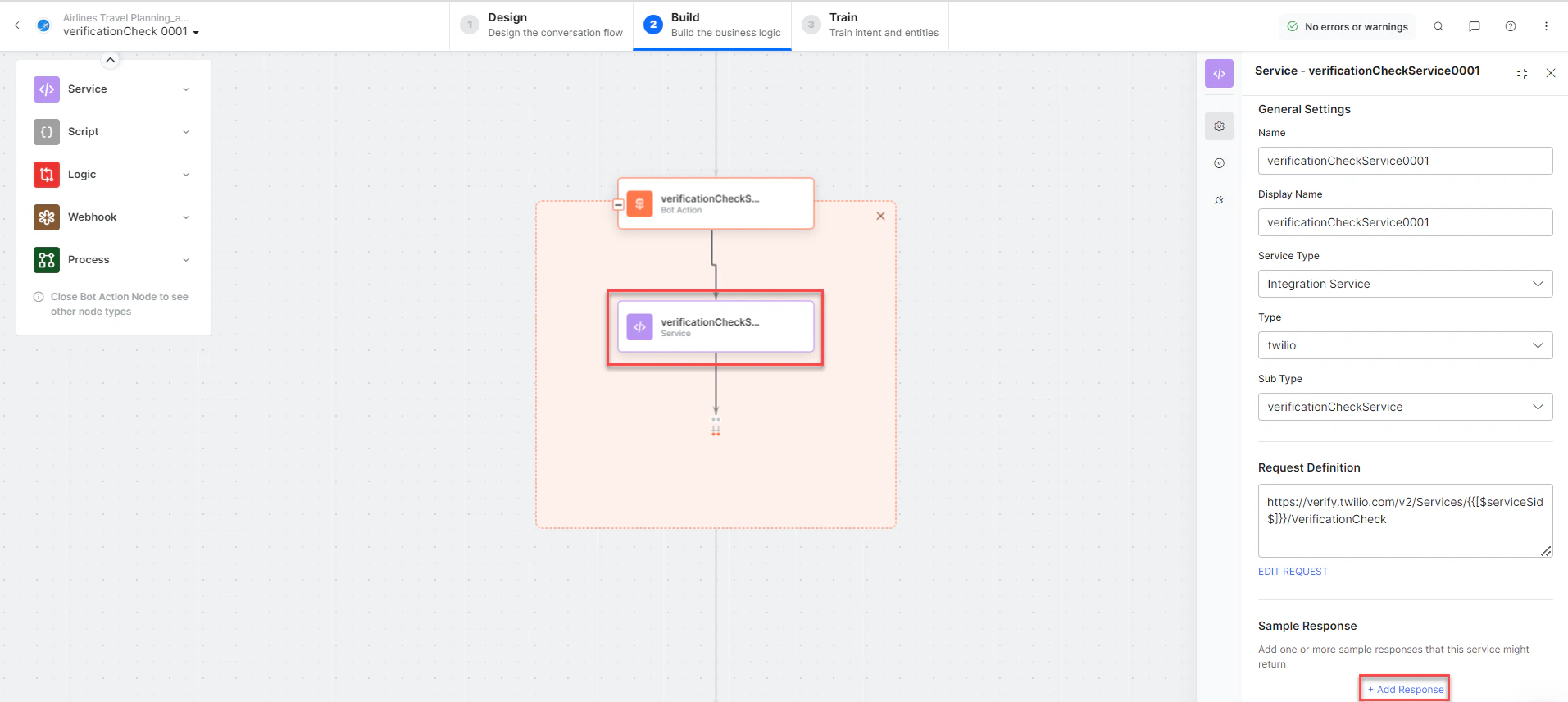
* **verificationCheckService** - Bot action service to check verification. Click **Edit Request**:
* **verificationCheck** - User intent to check verification.
* **serviceSid**, **receiverNumber**, **code** - Entity nodes for verification check details.
* **verificationCheckService** - Bot action service to check verification. Click **Edit Request**:
 **Sample Request:**
```
To = {{receiverNumber}}
Code = {{code}}
```
Click **+Add Response**:
**Sample Request:**
```
To = {{receiverNumber}}
Code = {{code}}
```
Click **+Add Response**:
 **Sample Response:**
```json theme={null}
{
"status": "approved",
"account_sid": "AC6bae65f877f2488c902f57xxxxx",
"to": "{{receiverNumber}}",
"valid": true,
"channel": "sms"
}
```
* **verificationCheckMessage** - Message node to display responses.
3. Click **Train**, then **Talk to Bot** to test:
**Sample Response:**
```json theme={null}
{
"status": "approved",
"account_sid": "AC6bae65f877f2488c902f57xxxxx",
"to": "{{receiverNumber}}",
"valid": true,
"channel": "sms"
}
```
* **verificationCheckMessage** - Message node to display responses.
3. Click **Train**, then **Talk to Bot** to test: