> ## Documentation Index
> Fetch the complete documentation index at: https://koreai.mintlify.app/llms.txt
> Use this file to discover all available pages before exploring further.
# Using the Zendesk Action Templates
[Back to Actions Integrations](/ai-for-service/integrations/overview#actions)
Use prebuilt Zendesk action templates to auto-create dialog tasks for managing tickets.
**To access templates:**
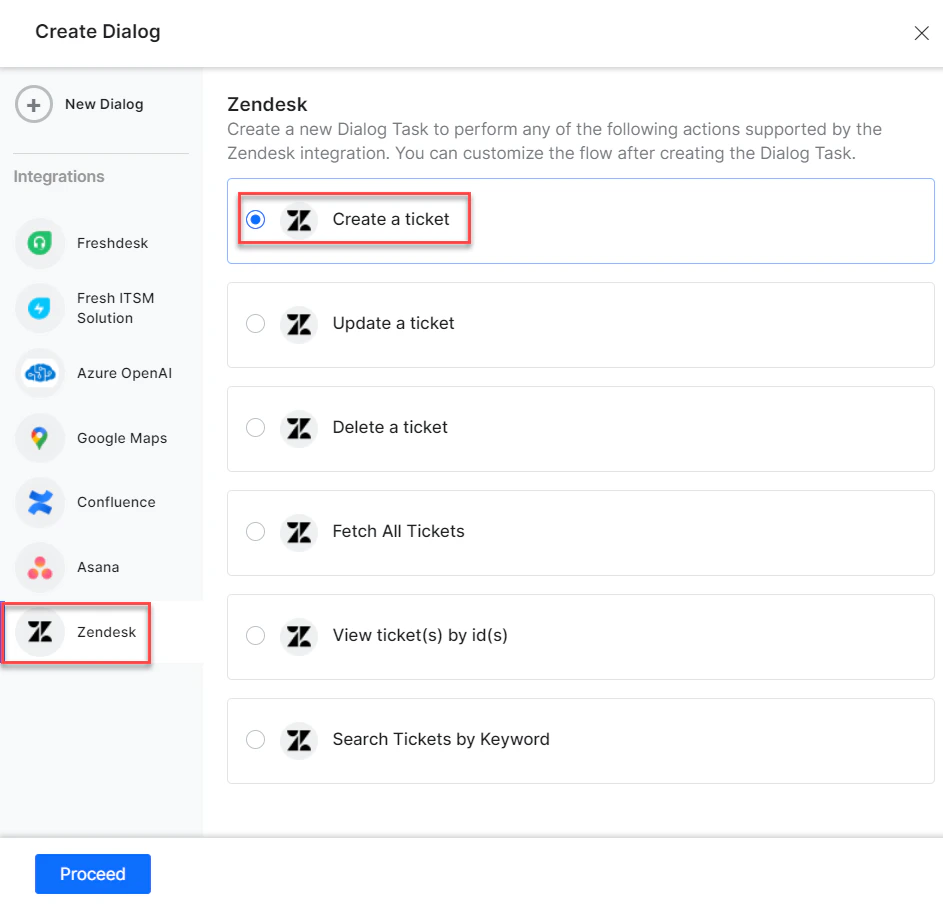
1. Go to **Automation AI** > **Use Cases** > **Dialogs** and click **Create a Dialog Task**.
2. Under **Integration**, select **Zendesk**.
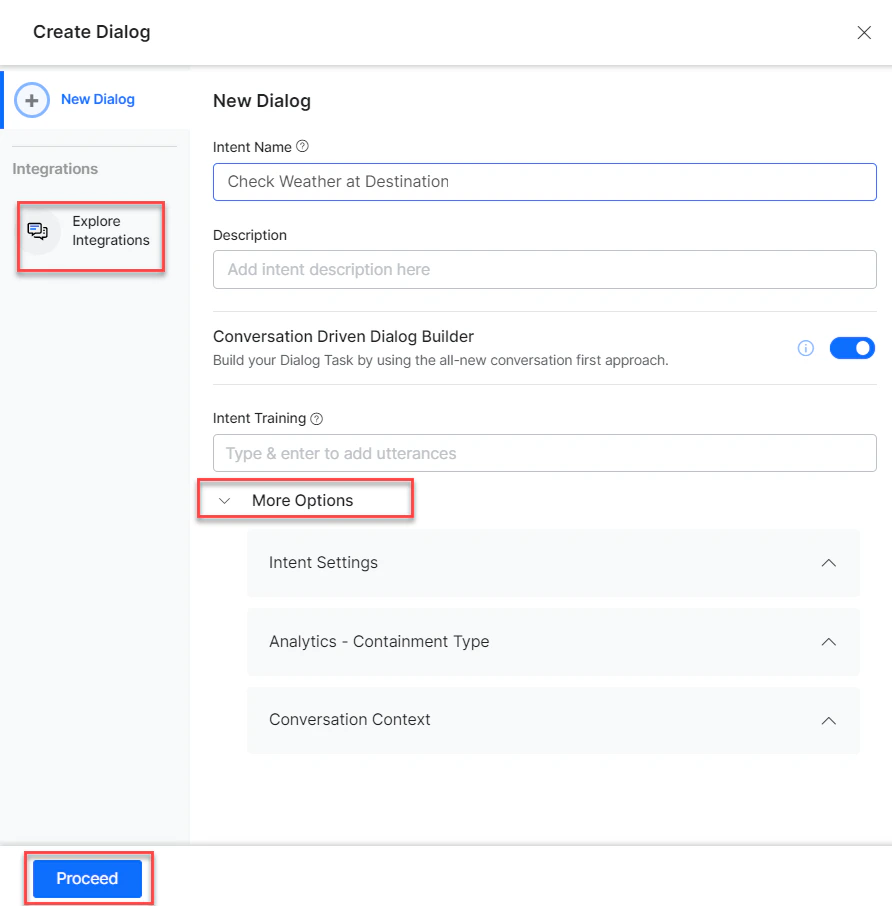
 3. If no integration is configured, click **Explore Integrations** to set one up. See [Actions Overview](/ai-for-service/integrations/overview#actions).
 ***
## Supported Actions
| Task | Description | Method |
| ------------------------- | -------------------------------------------------------------- | ------ |
| Create a Ticket | Creates a ticket in the Zendesk system. | POST |
| Update a Ticket | Updates a ticket in the Zendesk system. (Not yet supported.) | PUT |
| Delete a Ticket | Deletes a ticket from the Zendesk system. (Not yet supported.) | DELETE |
| View All Tickets | Retrieves all tickets from the Zendesk system. | GET |
| View Ticket(s) by ID(s) | Retrieves tickets using multiple IDs. | GET |
| Search Ticket by Keywords | Searches tickets using keywords. | GET |
***
### Create a Ticket
1. Install the template from [Zendesk Action Templates](/ai-for-service/integrations/actions/configuring-the-zendesk-action#step-2-install-the-zendesk-action-templates).
2. The *Create a Ticket* dialog task is added with the following components:
***
## Supported Actions
| Task | Description | Method |
| ------------------------- | -------------------------------------------------------------- | ------ |
| Create a Ticket | Creates a ticket in the Zendesk system. | POST |
| Update a Ticket | Updates a ticket in the Zendesk system. (Not yet supported.) | PUT |
| Delete a Ticket | Deletes a ticket from the Zendesk system. (Not yet supported.) | DELETE |
| View All Tickets | Retrieves all tickets from the Zendesk system. | GET |
| View Ticket(s) by ID(s) | Retrieves tickets using multiple IDs. | GET |
| Search Ticket by Keywords | Searches tickets using keywords. | GET |
***
### Create a Ticket
1. Install the template from [Zendesk Action Templates](/ai-for-service/integrations/actions/configuring-the-zendesk-action#step-2-install-the-zendesk-action-templates).
2. The *Create a Ticket* dialog task is added with the following components:
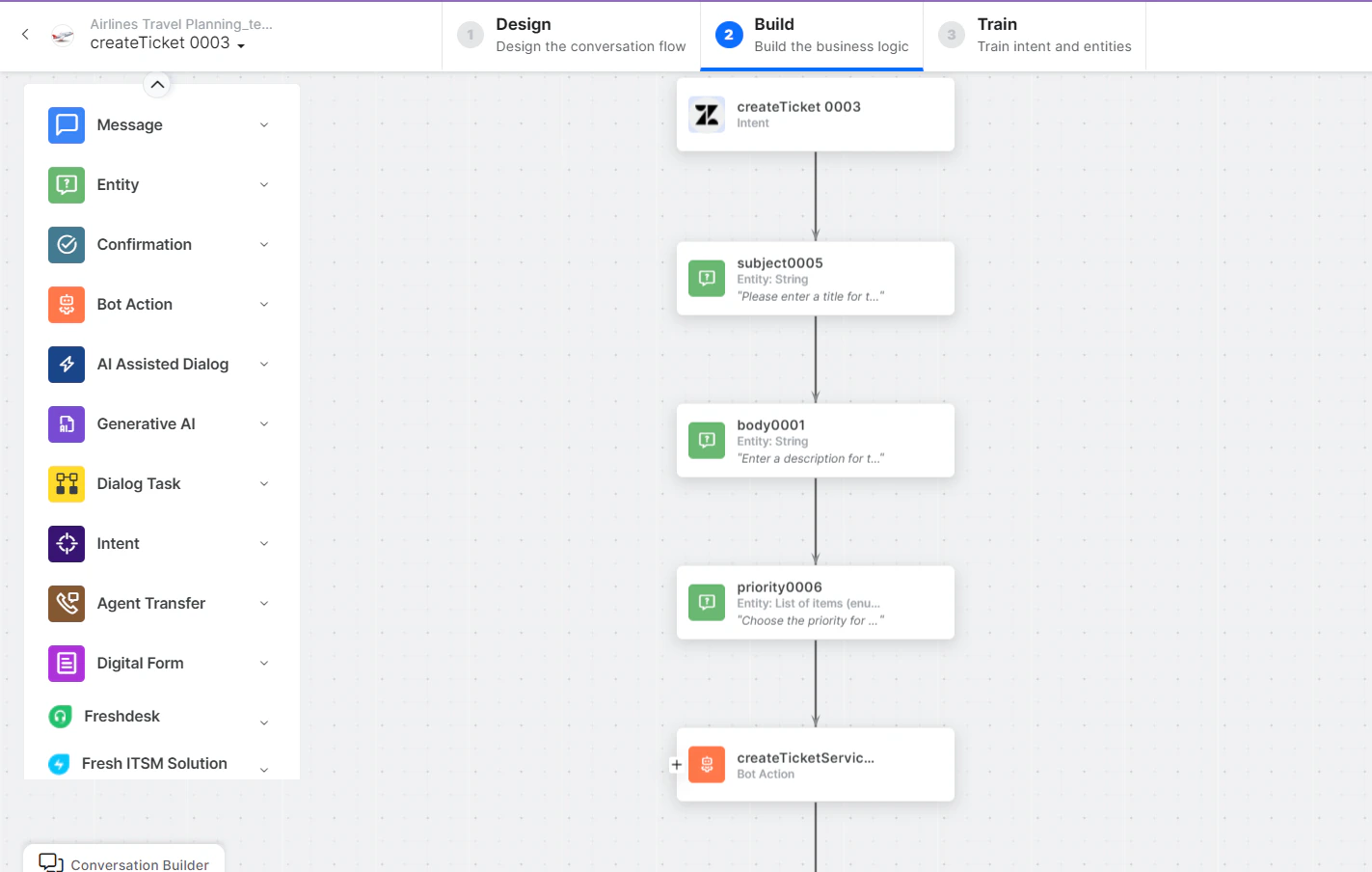 * **createTicket** - User intent to create a ticket.
* **subject**, **body**, **priority** - Entity nodes for ticket details.
* **createTicketService** - Bot action service to create a ticket. Click **Edit Request**:
* **createTicket** - User intent to create a ticket.
* **subject**, **body**, **priority** - Entity nodes for ticket details.
* **createTicketService** - Bot action service to create a ticket. Click **Edit Request**:
 **Sample Request:**
```json theme={null}
{
"ticket": {
"subject": "POST request from postman",
"comment": {
"body": "Ticket Created!!"
}
}
}
```
Click **+Add Response**:
**Sample Response:** (truncated)
```json theme={null}
{
"ticket": {
"url": "https://abc2152.zendesk.com/api/v2/tickets/29.json",
"id": 29,
"subject": "POST request from postman",
"description": "Ticket Created!!",
"priority": null,
"status": "open",
"created_at": "2022-08-29T11:39:53Z"
}
}
```
* **createTicketScript** - Bot action script to create a ticket.
* **createTicketMessage** - Message node to display responses.
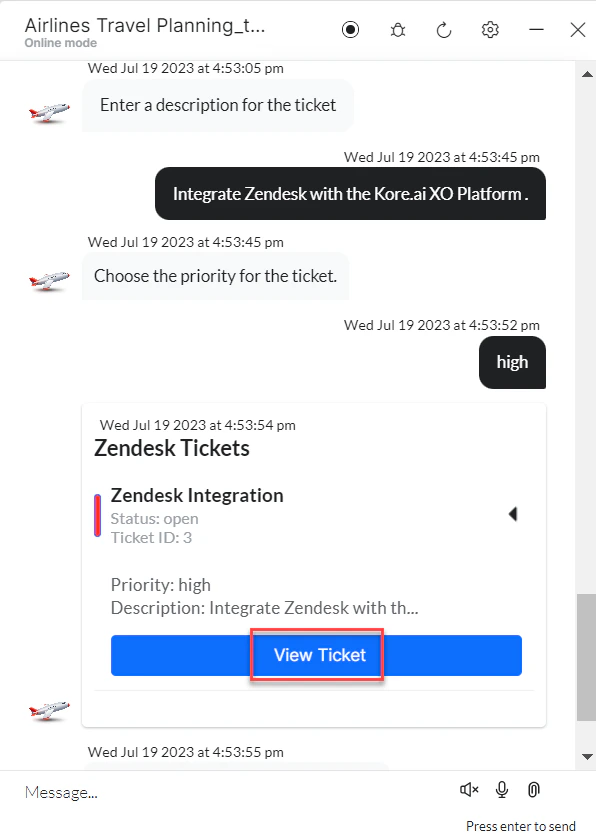
3. Click **Train**, then **Talk to Bot** to test:
**Sample Request:**
```json theme={null}
{
"ticket": {
"subject": "POST request from postman",
"comment": {
"body": "Ticket Created!!"
}
}
}
```
Click **+Add Response**:
**Sample Response:** (truncated)
```json theme={null}
{
"ticket": {
"url": "https://abc2152.zendesk.com/api/v2/tickets/29.json",
"id": 29,
"subject": "POST request from postman",
"description": "Ticket Created!!",
"priority": null,
"status": "open",
"created_at": "2022-08-29T11:39:53Z"
}
}
```
* **createTicketScript** - Bot action script to create a ticket.
* **createTicketMessage** - Message node to display responses.
3. Click **Train**, then **Talk to Bot** to test:
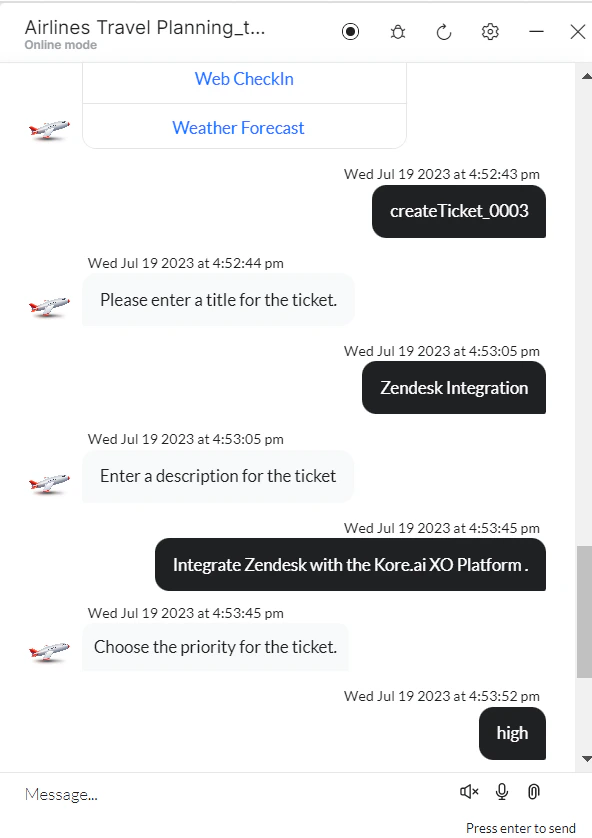 4. Click **View Ticket** to see ticket details in Zendesk:
 ***
### Update a Ticket
This action template is not yet supported by the Zendesk Integration.
***
### View All Tickets
1. Install the template from [Zendesk Action Templates](/ai-for-service/integrations/actions/configuring-the-zendesk-action#step-2-install-the-zendesk-action-templates).
2. The *View All Tickets* dialog task is added with the following components:
***
### Update a Ticket
This action template is not yet supported by the Zendesk Integration.
***
### View All Tickets
1. Install the template from [Zendesk Action Templates](/ai-for-service/integrations/actions/configuring-the-zendesk-action#step-2-install-the-zendesk-action-templates).
2. The *View All Tickets* dialog task is added with the following components:
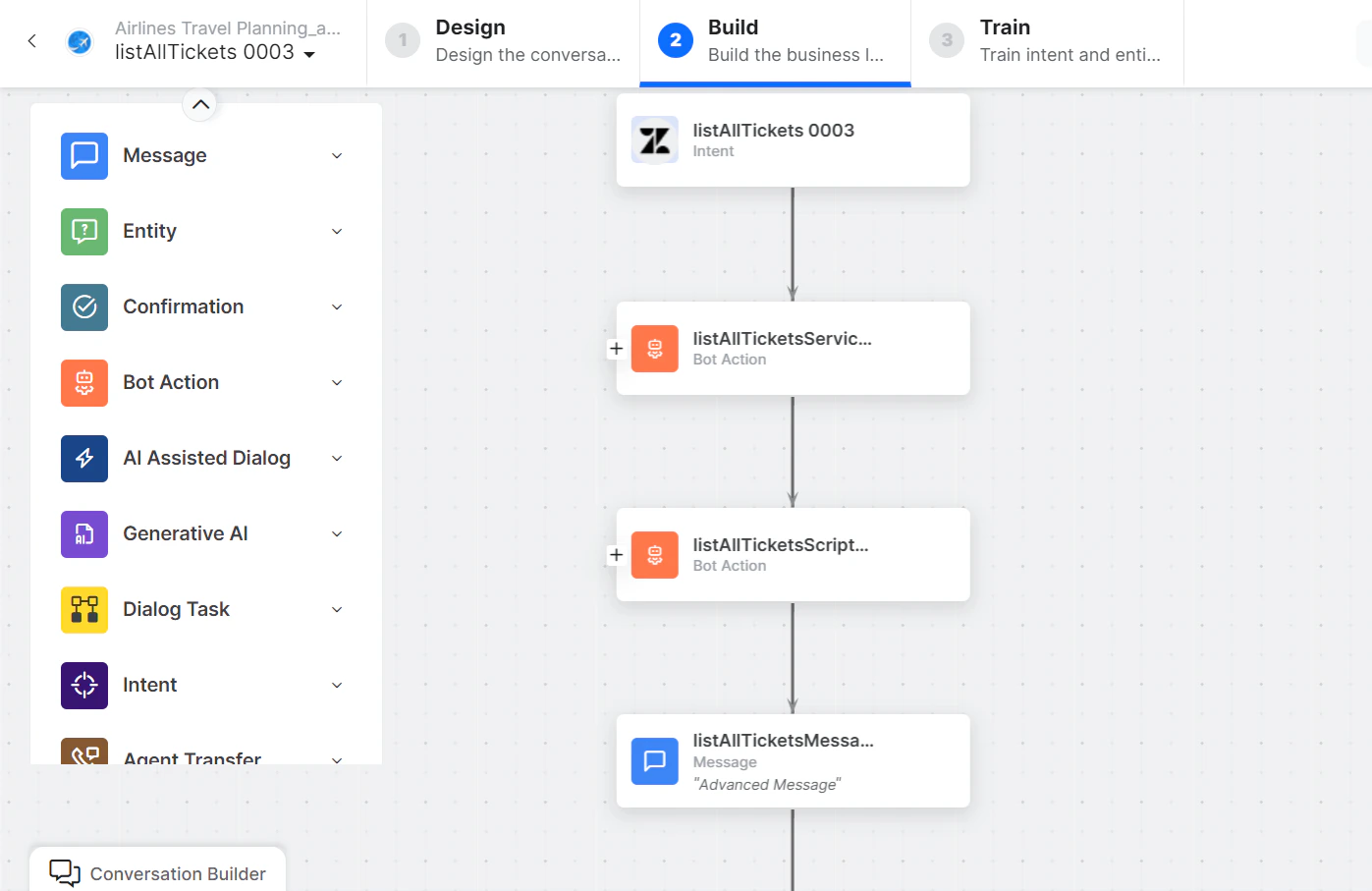 * **listAllTickets** - User intent to view all tickets.
* **listAllTicketsService** - Bot action service to fetch all tickets. Click **+Add Response**:
* **listAllTickets** - User intent to view all tickets.
* **listAllTicketsService** - Bot action service to fetch all tickets. Click **+Add Response**:
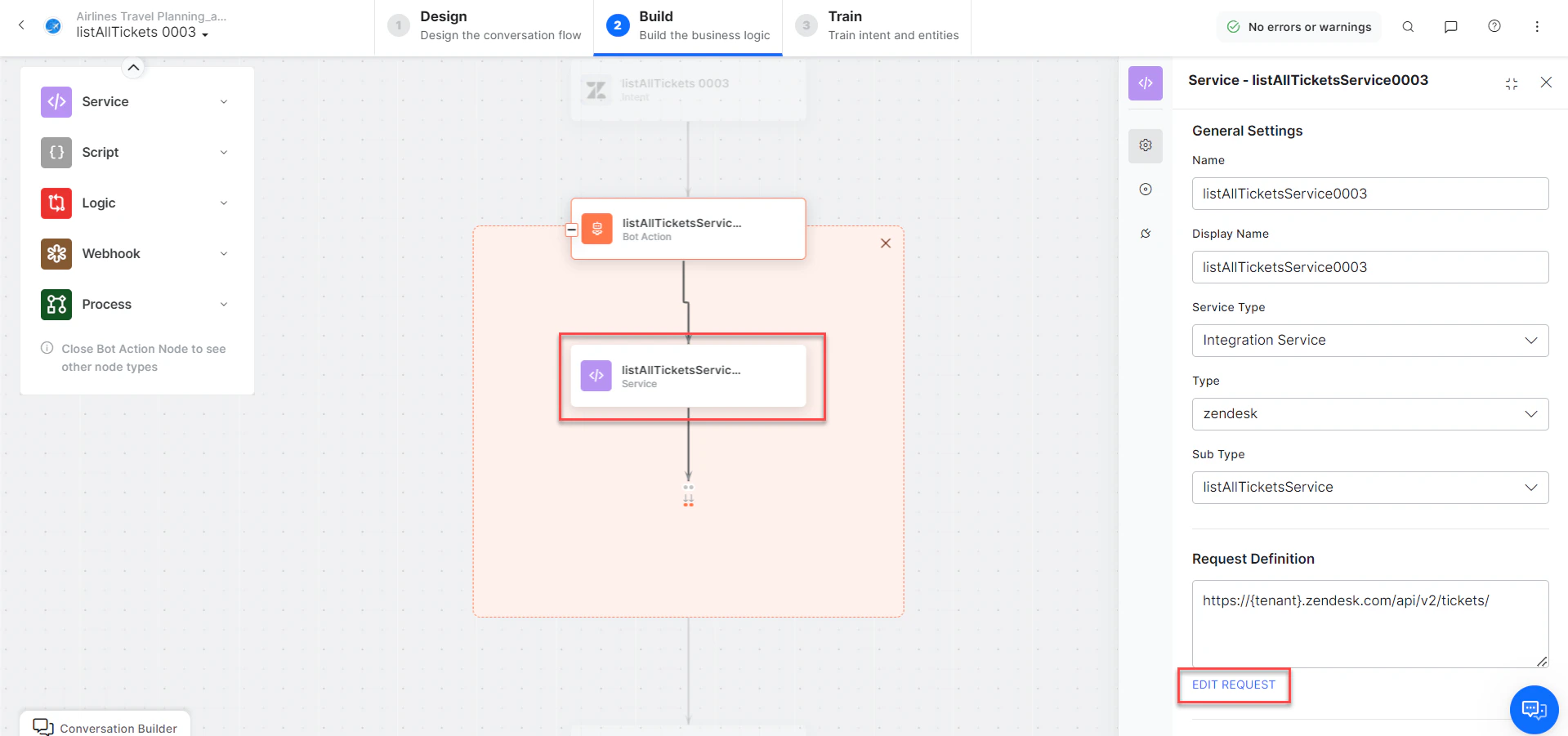 **Sample Response:** (truncated)
```json theme={null}
{
"tickets": [
{
"url": "https://abc2152.zendesk.com/api/v2/tickets/7.json",
"id": 7,
"subject": "POST request from postman",
"priority": "high",
"status": "closed",
"created_at": "2022-08-25T07:31:22Z"
}
],
"count": 49
}
```
* **listAllTicketsMessage** - Message node to display responses.
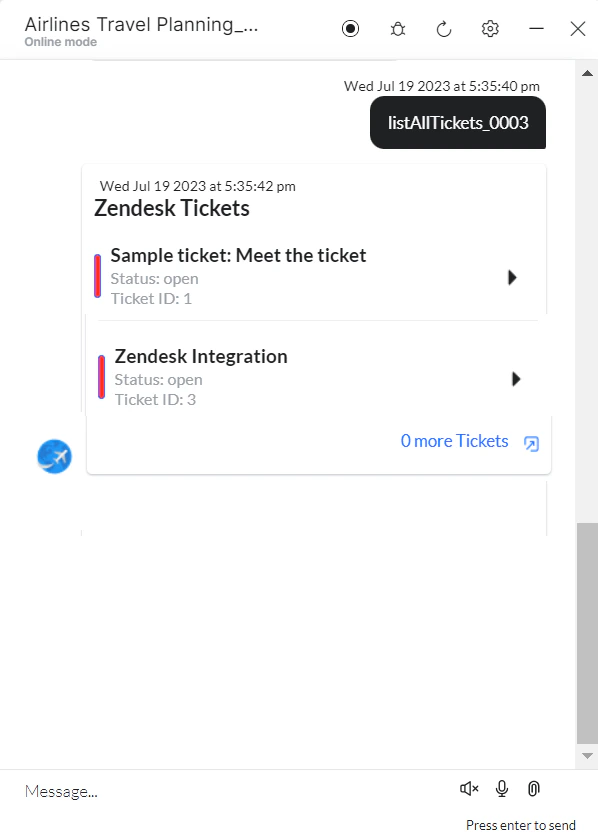
3. Click **Train**, then **Talk to Bot** to test:
**Sample Response:** (truncated)
```json theme={null}
{
"tickets": [
{
"url": "https://abc2152.zendesk.com/api/v2/tickets/7.json",
"id": 7,
"subject": "POST request from postman",
"priority": "high",
"status": "closed",
"created_at": "2022-08-25T07:31:22Z"
}
],
"count": 49
}
```
* **listAllTicketsMessage** - Message node to display responses.
3. Click **Train**, then **Talk to Bot** to test:
 ***
### View Ticket(s) by ID(s)
1. Install the template from [Zendesk Action Templates](/ai-for-service/integrations/actions/configuring-the-zendesk-action#step-2-install-the-zendesk-action-templates).
2. The *View Ticket(s) by ID(s)* dialog task is added with the following components:
***
### View Ticket(s) by ID(s)
1. Install the template from [Zendesk Action Templates](/ai-for-service/integrations/actions/configuring-the-zendesk-action#step-2-install-the-zendesk-action-templates).
2. The *View Ticket(s) by ID(s)* dialog task is added with the following components:
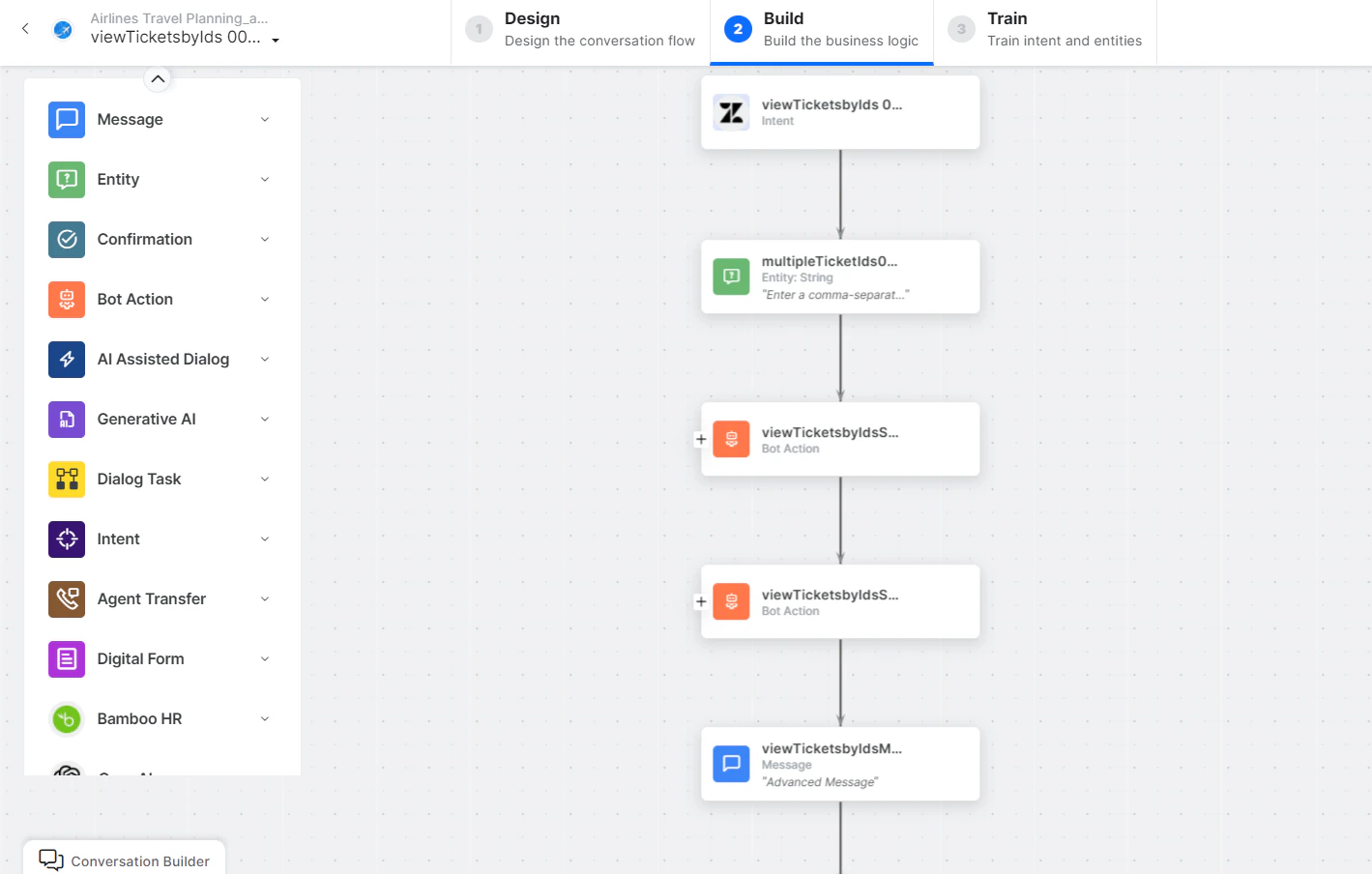 * **viewTicketbyId** - User intent to find a ticket by ID.
* **multipleticketIds** - Entity node for entering multiple ticket IDs.
* **viewTicketbyIdsService** - Bot action service to find tickets by ID. Click **+Add Response**:
* **viewTicketbyId** - User intent to find a ticket by ID.
* **multipleticketIds** - Entity node for entering multiple ticket IDs.
* **viewTicketbyIdsService** - Bot action service to find tickets by ID. Click **+Add Response**:
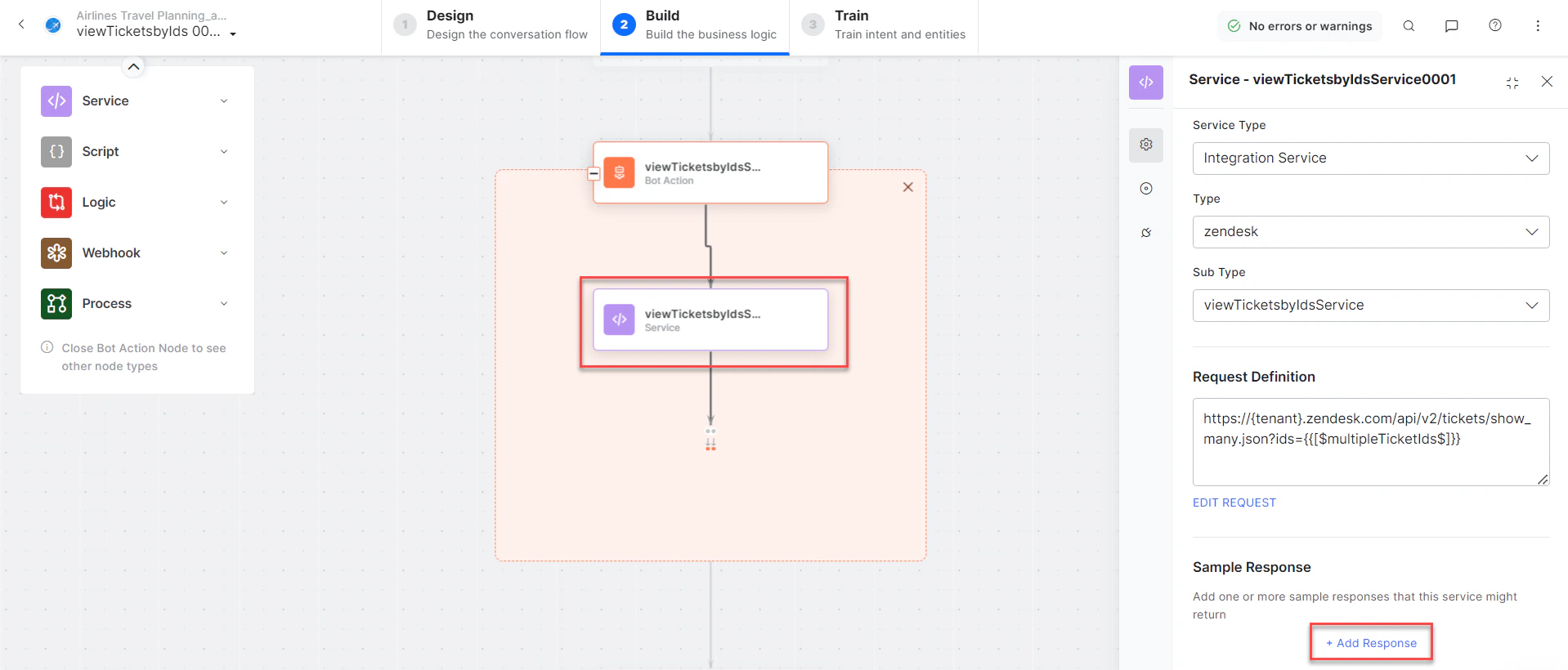 **Sample Response:** (truncated)
```json theme={null}
{
"tickets": [
{
"id": 33,
"subject": "POST request from postman",
"priority": "urgent",
"status": "open"
},
{
"id": 34,
"subject": "POST request from postman",
"priority": "urgent",
"status": "open"
}
],
"count": 2
}
```
* **viewTicketsbyIdsScript** - Bot action script to view tickets with IDs.
* **updateTicketMessage** - Message node to display responses.
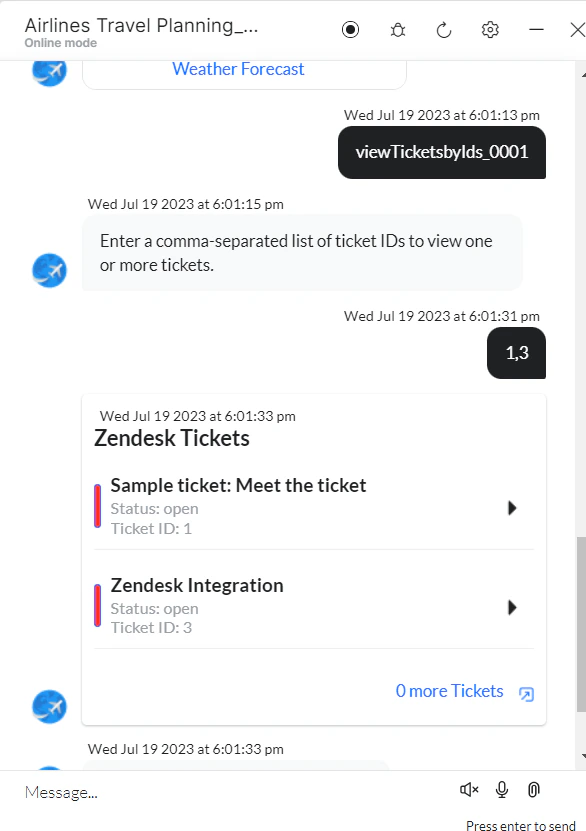
3. Click **Train**, then **Talk to Bot** to test:
**Sample Response:** (truncated)
```json theme={null}
{
"tickets": [
{
"id": 33,
"subject": "POST request from postman",
"priority": "urgent",
"status": "open"
},
{
"id": 34,
"subject": "POST request from postman",
"priority": "urgent",
"status": "open"
}
],
"count": 2
}
```
* **viewTicketsbyIdsScript** - Bot action script to view tickets with IDs.
* **updateTicketMessage** - Message node to display responses.
3. Click **Train**, then **Talk to Bot** to test:
 ***
### Search Ticket with Keywords
1. Install the template from [Zendesk Action Templates](/ai-for-service/integrations/actions/configuring-the-zendesk-action#step-2-install-the-zendesk-action-templates).
2. The *Search Ticket with Keywords* dialog task is added with the following components:
***
### Search Ticket with Keywords
1. Install the template from [Zendesk Action Templates](/ai-for-service/integrations/actions/configuring-the-zendesk-action#step-2-install-the-zendesk-action-templates).
2. The *Search Ticket with Keywords* dialog task is added with the following components:
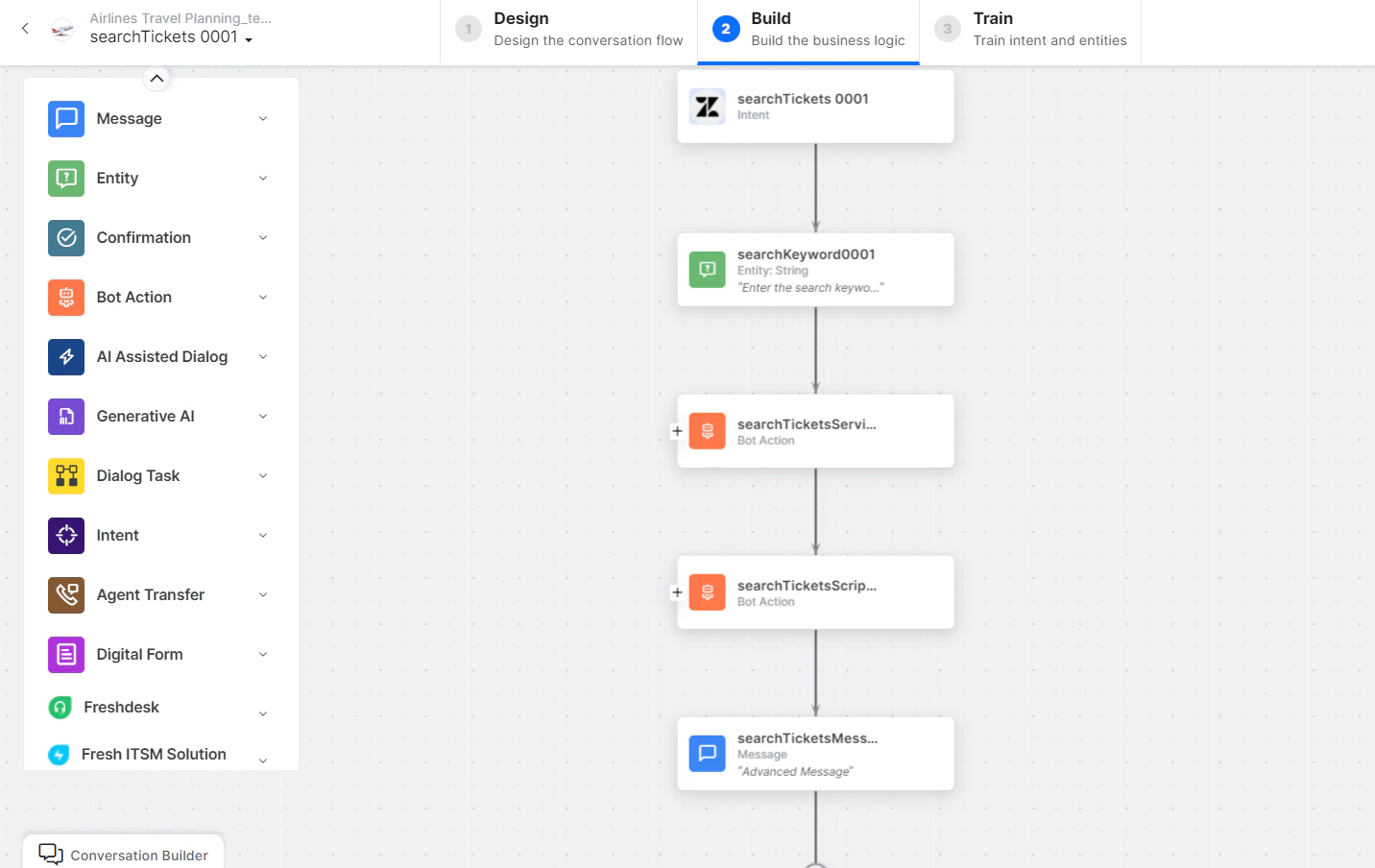 * **searchTickets** - User intent to search tickets.
* **searchKeywords** - Entity node for search keywords.
* **searchTicketService** - Bot action service to search tickets by keyword. Click **+Add Response**:
* **searchTickets** - User intent to search tickets.
* **searchKeywords** - Entity node for search keywords.
* **searchTicketService** - Bot action service to search tickets by keyword. Click **+Add Response**:
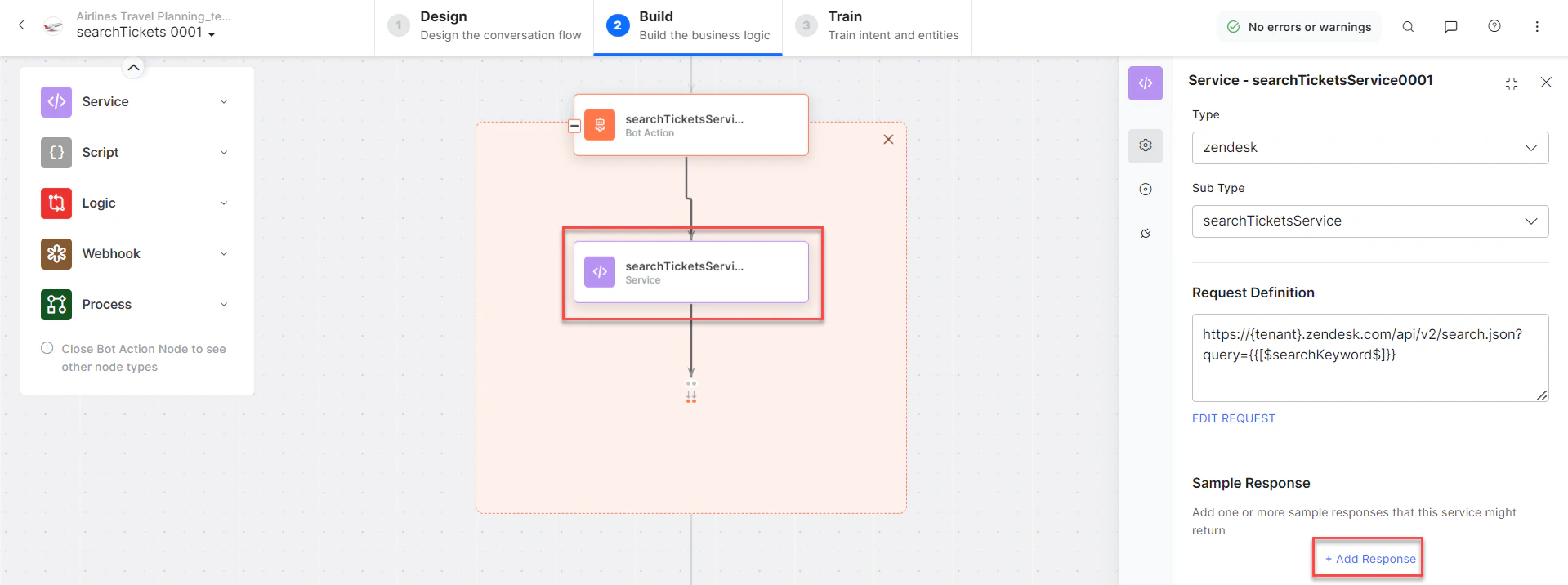 **Sample Response:** (truncated)
```json theme={null}
{
"results": [
{
"id": 31,
"subject": "POST request from postman",
"status": "open",
"result_type": "ticket"
}
],
"count": 12
}
```
* **searchTicketScript** - Bot action service to search tickets by field.
* **searchTicketMessage** - Message node to display responses.
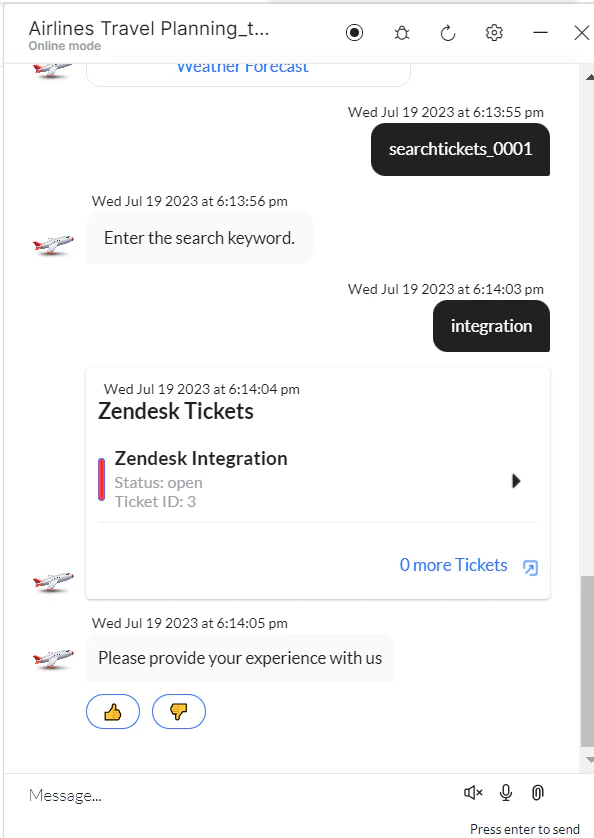
3. Click **Train**, then **Talk to Bot** to test:
**Sample Response:** (truncated)
```json theme={null}
{
"results": [
{
"id": 31,
"subject": "POST request from postman",
"status": "open",
"result_type": "ticket"
}
],
"count": 12
}
```
* **searchTicketScript** - Bot action service to search tickets by field.
* **searchTicketMessage** - Message node to display responses.
3. Click **Train**, then **Talk to Bot** to test:
 ***
### Delete a Ticket
This action template is not yet supported by the Zendesk Integration.
Built with [Mintlify](https://mintlify.com).
***
### Delete a Ticket
This action template is not yet supported by the Zendesk Integration.
Built with [Mintlify](https://mintlify.com).