> ## Documentation Index
> Fetch the complete documentation index at: https://koreai.mintlify.site/llms.txt
> Use this file to discover all available pages before exploring further.
# Adding the Unblu Channel
[Back to Agent Transfer Integrations](/ai-for-service/integrations/overview#agent-transfer)
Unblu is a Conversational Platform for Financial Services. To set up Unblu as a channel, create an External Integration AI Agent in Unblu, create a Named Area, and map it to your AI Agent.
***
## Channel Integration
### Step 1: Create a Named Area
Named Areas in Unblu identify the origins of chat requests from your website. Associate your AI Agent with a Named Area so it only responds to chats from the associated sections of your site. This mapping is optional when enabling Unblu for a single AI Agent.
1. Log in to your [Unblu Account Administration](https://latest.demo.unblu.com/).
2. Under the **Named Areas** module, select **New named area**.
3. Fill in the required information.
4. Note the name of the Named Area you created.
### Step 2: Create an Unblu AI Agent
The Unblu AI Agent can be created directly from the Platform.
1. Create or open the assistant in the Platform.
2. Go to **App Settings > Integrations > Agent Transfer** and select **Unblu**.
3. On the **Configurations** tab, enter:
| Field | Description |
| ---------------------- | ------------------------------------------------------------------------------------- |
| Unblu Host URL | URL of your Unblu application (for example, `https://www.unblu.com/` for Unblu cloud) |
| Unblu Account Username | Your Unblu account username |
| Unblu Account Password | Password for your Unblu username |
| Unblu Bot Name | Display name for the Unblu bot |
| Unblu Bot Description | Short description of the Unblu bot |
| Bot Person | Name to represent the Unblu bot to users |
| Secret Key | Confidential key to secure communication between Unblu and Kore.ai |
| Named Area | Named Area to associate with your assistant (optional for single assistant setup) |
4. Select **Enable** and click **Save**.
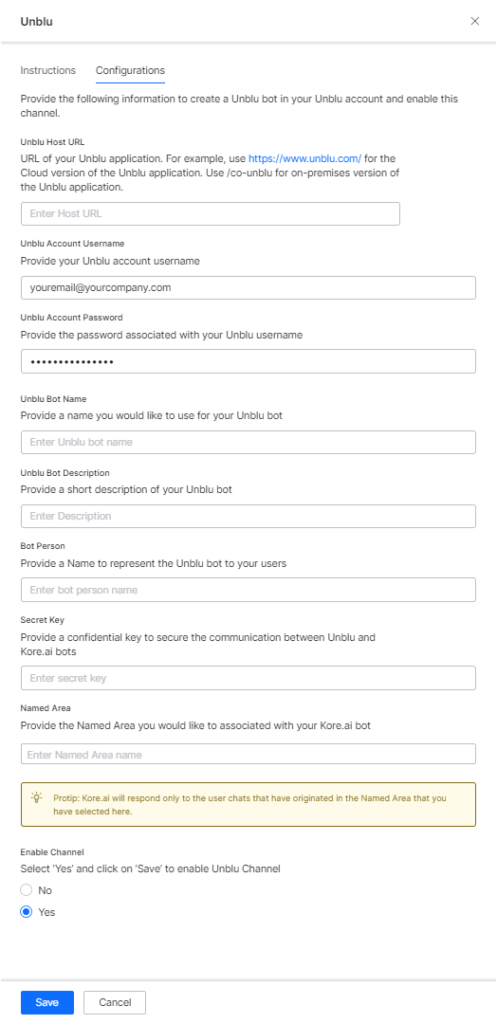 After enabling and verifying the channel configuration, publish the app to make it available for end-users. See [Publishing your App](/ai-for-service/deployment/publishing-app).
***
## Additional Setup (Unblu SDK)
For seamless information exchange from Unblu to Kore.ai, complete these additional steps. For full implementation details, see the [Kore-Unblu Integration guide](/ai-for-service/integrations/agents/kore-unblu-integration).
1. Add the host URL where the Unblu SDK will be hosted to the **Domain** section of your Unblu Account.
2. From your Unblu Account, **API Keys** section, note the **API Key**.
3. Configure the Unblu SDK HTML file with the following attributes:
* In ``, add the named area meta tag:
```html theme={null}
```
* Add the Unblu visitor API script pointing to your Unblu host:
```html theme={null}
```
* Invoke `setVisitorData` to pass visitor data to the AI Agent. The `visitorData` must be in string format; use `JSON.stringify()` for objects.
* Configure the API with your `apiKey` and `serverUrl`:
```javascript theme={null}
window.unblu.api
.configure({
apiKey: "",
serverUrl: ""
})
```
* Add the Unblu visitor script tag:
```html theme={null}
```
**Complete Unblu SDK HTML example:**
```html theme={null}
```
Visitor data is accessible from `usercontext.customData`, which includes `deviceInfo`, `authInfo`, and `joinedTime`. See [Context Object](/ai-for-service/automation/agent-flows#context-object).
***
## Notes
* Multiple named areas can be mapped to a single assistant, enabling it to accept Unblu dialog offer requests from different origins (SDKs or named areas).
* Named area mapping is optional when enabling Unblu for a single assistant.
* To redirect conversations to agents, add an Agent Transfer node in the dialog flow. No separate Agent Transfer or BotKit enablement is required for this channel.
***
## Unblu Message Templates
By default, Button/multi-choice and List templates are used. You can override card, list, and multi-choice/button message templates.
**Card Template:**
```javascript theme={null}
var unbluCardTemplate = {
"$_type": "CardPostMessageData",
"type": "CARD",
"imageUrl": "data:image/png;base64,",
"imageAltText": "test image",
"title": "Title",
"body": "This is the **body text** with markdown",
"bodyTextType": "MARKDOWN",
"actions": [
{
"$_type": "MessageAction",
"actionType": "LINK_INTERNAL",
"label": "Unblu homepage",
"value": "https://unblu.com"
},
{
"$_type": "MessageAction",
"actionType": "LINK_EXTERNAL",
"label": "Wikipedia",
"value": "https://www.wikipedia.org/"
},
{
"$_type": "MessageAction",
"actionType": "REPLY_MESSAGE",
"label": "More info",
"value": "Could you provide me with more info?"
}
]
};
print(JSON.stringify(unbluCardTemplate));
```
**List Template:**
```javascript theme={null}
var unbluListTemplate = {
"$_type": "ListPostMessageData",
"type": "LIST",
"header": {
"$_type": "MessageHeader",
"imageUrl": "data:image/png;base64,",
"imageAltText": "test image",
"title": "Title",
"body": "This is the **body text** with markdown",
"bodyTextType": "MARKDOWN"
},
"items": [
{
"$_type": "PostListMessageCardItemData",
"imageUrl": "data:image/png;base64,",
"imageAltText": "test image",
"title": "Title",
"body": "This is the **body text** with markdown",
"bodyTextType": "MARKDOWN",
"action": null
},
{
"$_type": "PostListMessageCardItemData",
"imageUrl": "data:image/png;base64,",
"imageAltText": "test image",
"title": "Title",
"body": "This is the **body text** with markdown",
"bodyTextType": "MARKDOWN",
"action": {
"$_type": "MessageAction",
"actionType": "LINK_INTERNAL",
"label": "Unblu homepage",
"value": "https://unblu.com"
}
}
],
"actions": [
{
"$_type": "MessageAction",
"actionType": "LINK_INTERNAL",
"label": "Unblu homepage",
"value": "https://unblu.com"
},
{
"$_type": "MessageAction",
"actionType": "LINK_EXTERNAL",
"label": "Wikipedia",
"value": "https://www.wikipedia.org/"
},
{
"$_type": "MessageAction",
"actionType": "REPLY_MESSAGE",
"label": "More info",
"value": "Could you provide me with more info?"
}
]
};
print(JSON.stringify(unbluListTemplate));
```
**Multi Choice Template:**
```javascript theme={null}
var unbluMultiChoiceTemplate = {
"$_type": "MultichoiceQuestionPostMessageData",
"type": "MULTICHOICE_QUESTION",
"text": "Choose one of the options",
"textType": "MARKDOWN",
"options": [
{
"$_type": "MultichoiceQuestionOption",
"label": "Option 1",
"value": "1",
"primary": true
},
{
"$_type": "MultichoiceQuestionOption",
"label": "Option 2",
"value": "2",
"primary": false
}
]
};
print(JSON.stringify(unbluMultiChoiceTemplate));
```
After enabling and verifying the channel configuration, publish the app to make it available for end-users. See [Publishing your App](/ai-for-service/deployment/publishing-app).
***
## Additional Setup (Unblu SDK)
For seamless information exchange from Unblu to Kore.ai, complete these additional steps. For full implementation details, see the [Kore-Unblu Integration guide](/ai-for-service/integrations/agents/kore-unblu-integration).
1. Add the host URL where the Unblu SDK will be hosted to the **Domain** section of your Unblu Account.
2. From your Unblu Account, **API Keys** section, note the **API Key**.
3. Configure the Unblu SDK HTML file with the following attributes:
* In ``, add the named area meta tag:
```html theme={null}
```
* Add the Unblu visitor API script pointing to your Unblu host:
```html theme={null}
```
* Invoke `setVisitorData` to pass visitor data to the AI Agent. The `visitorData` must be in string format; use `JSON.stringify()` for objects.
* Configure the API with your `apiKey` and `serverUrl`:
```javascript theme={null}
window.unblu.api
.configure({
apiKey: "",
serverUrl: ""
})
```
* Add the Unblu visitor script tag:
```html theme={null}
```
**Complete Unblu SDK HTML example:**
```html theme={null}
```
Visitor data is accessible from `usercontext.customData`, which includes `deviceInfo`, `authInfo`, and `joinedTime`. See [Context Object](/ai-for-service/automation/agent-flows#context-object).
***
## Notes
* Multiple named areas can be mapped to a single assistant, enabling it to accept Unblu dialog offer requests from different origins (SDKs or named areas).
* Named area mapping is optional when enabling Unblu for a single assistant.
* To redirect conversations to agents, add an Agent Transfer node in the dialog flow. No separate Agent Transfer or BotKit enablement is required for this channel.
***
## Unblu Message Templates
By default, Button/multi-choice and List templates are used. You can override card, list, and multi-choice/button message templates.
**Card Template:**
```javascript theme={null}
var unbluCardTemplate = {
"$_type": "CardPostMessageData",
"type": "CARD",
"imageUrl": "data:image/png;base64,",
"imageAltText": "test image",
"title": "Title",
"body": "This is the **body text** with markdown",
"bodyTextType": "MARKDOWN",
"actions": [
{
"$_type": "MessageAction",
"actionType": "LINK_INTERNAL",
"label": "Unblu homepage",
"value": "https://unblu.com"
},
{
"$_type": "MessageAction",
"actionType": "LINK_EXTERNAL",
"label": "Wikipedia",
"value": "https://www.wikipedia.org/"
},
{
"$_type": "MessageAction",
"actionType": "REPLY_MESSAGE",
"label": "More info",
"value": "Could you provide me with more info?"
}
]
};
print(JSON.stringify(unbluCardTemplate));
```
**List Template:**
```javascript theme={null}
var unbluListTemplate = {
"$_type": "ListPostMessageData",
"type": "LIST",
"header": {
"$_type": "MessageHeader",
"imageUrl": "data:image/png;base64,",
"imageAltText": "test image",
"title": "Title",
"body": "This is the **body text** with markdown",
"bodyTextType": "MARKDOWN"
},
"items": [
{
"$_type": "PostListMessageCardItemData",
"imageUrl": "data:image/png;base64,",
"imageAltText": "test image",
"title": "Title",
"body": "This is the **body text** with markdown",
"bodyTextType": "MARKDOWN",
"action": null
},
{
"$_type": "PostListMessageCardItemData",
"imageUrl": "data:image/png;base64,",
"imageAltText": "test image",
"title": "Title",
"body": "This is the **body text** with markdown",
"bodyTextType": "MARKDOWN",
"action": {
"$_type": "MessageAction",
"actionType": "LINK_INTERNAL",
"label": "Unblu homepage",
"value": "https://unblu.com"
}
}
],
"actions": [
{
"$_type": "MessageAction",
"actionType": "LINK_INTERNAL",
"label": "Unblu homepage",
"value": "https://unblu.com"
},
{
"$_type": "MessageAction",
"actionType": "LINK_EXTERNAL",
"label": "Wikipedia",
"value": "https://www.wikipedia.org/"
},
{
"$_type": "MessageAction",
"actionType": "REPLY_MESSAGE",
"label": "More info",
"value": "Could you provide me with more info?"
}
]
};
print(JSON.stringify(unbluListTemplate));
```
**Multi Choice Template:**
```javascript theme={null}
var unbluMultiChoiceTemplate = {
"$_type": "MultichoiceQuestionPostMessageData",
"type": "MULTICHOICE_QUESTION",
"text": "Choose one of the options",
"textType": "MARKDOWN",
"options": [
{
"$_type": "MultichoiceQuestionOption",
"label": "Option 1",
"value": "1",
"primary": true
},
{
"$_type": "MultichoiceQuestionOption",
"label": "Option 2",
"value": "2",
"primary": false
}
]
};
print(JSON.stringify(unbluMultiChoiceTemplate));
```