> ## Documentation Index
> Fetch the complete documentation index at: https://koreai.mintlify.site/llms.txt
> Use this file to discover all available pages before exploring further.
# Agent Transfer Integrations
[Back to Agent Transfer Integrations](/ai-for-service/integrations/overview#agent-transfer)
Agent Transfer lets you configure pre-built integrations to hand over conversations to live agents without using BotKit. These integrations are hosted by the platform — no custom BotKit hosting required.
Access agent transfer integrations at **App Settings > Integration > Agent Transfer**. You can enable multiple integrations simultaneously, set a default, and map channels to specific agent systems. These settings are also configurable within the Agent Transfer node in dialog tasks.
The Agent Transfer node supports IVR property configuration for call hand-off, enabling proper containment tracking for IVR channel transfers.
***
## Configure Agent Transfer in Voice Gateway
The Agent Transfer feature in Voice Gateway enables live call transfers from an AI Agent or IVR to a human agent — internal (within your contact center) or external (outside your network).
Voice Gateway supports agent transfers via **SIP INVITE** and **SIP REFER**.
### Supported Transfer Types
**Transfer to Internal Agent**
Transfers the Caller ↔ AI Agent session to an internal agent within the same network.
* **SIP Method**: SIP INVITE
* **Example**: AI Agent escalates a customer call to live support within the contact center.
**Transfer to External Agent**
Transfers the Caller ↔ Bot session to an external agent (remote agents, vendor support, partners).
* **SIP Methods**: SIP INVITE, SIP REFER, SIP BYE
* **Channel Options**: Phone Number (PSTN/mobile) or SIP Endpoint (SIP URI)
### Configure Agent Transfer Settings
1. Go to **Settings > Integrations > Agent Transfer**.
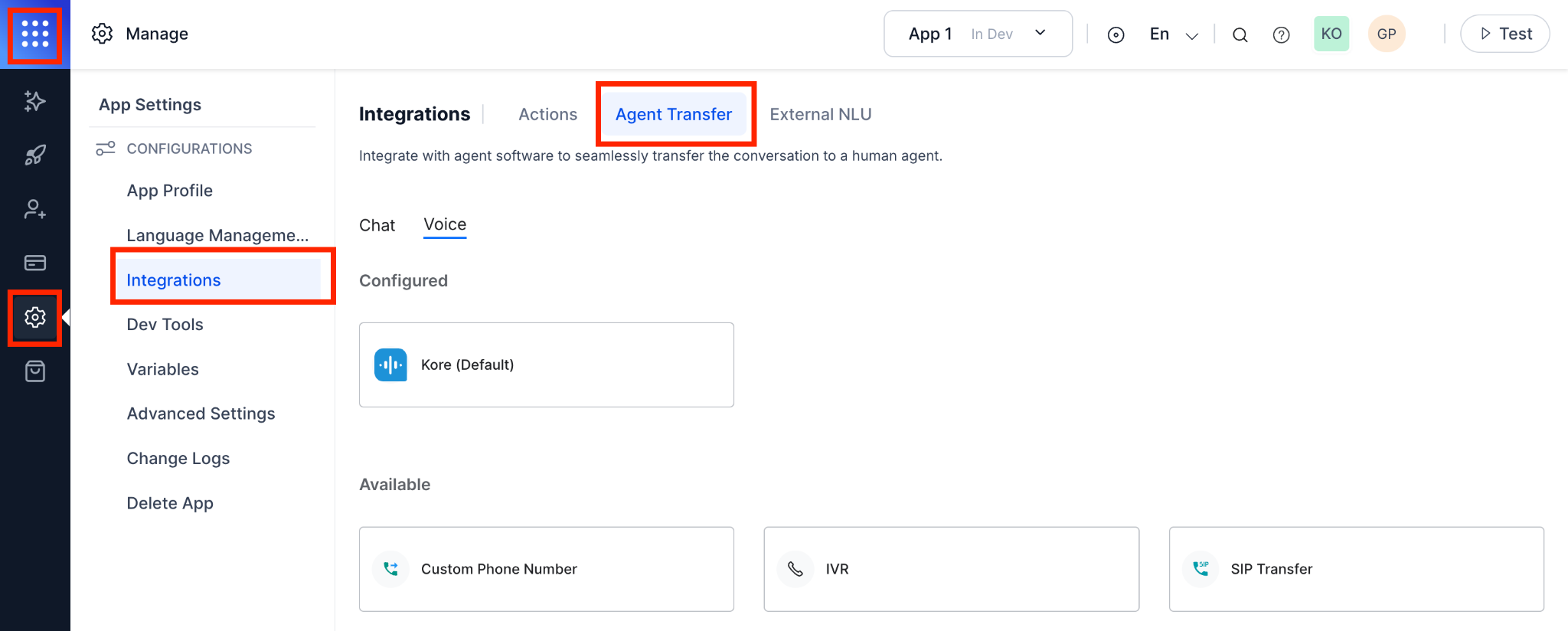 2. Select **Voice**.
3. Choose one of: **Custom Phone Number**, **SIP Transfer**, or **IVR**.
4. Open the **Configuration** tab.
2. Select **Voice**.
3. Choose one of: **Custom Phone Number**, **SIP Transfer**, or **IVR**.
4. Open the **Configuration** tab.
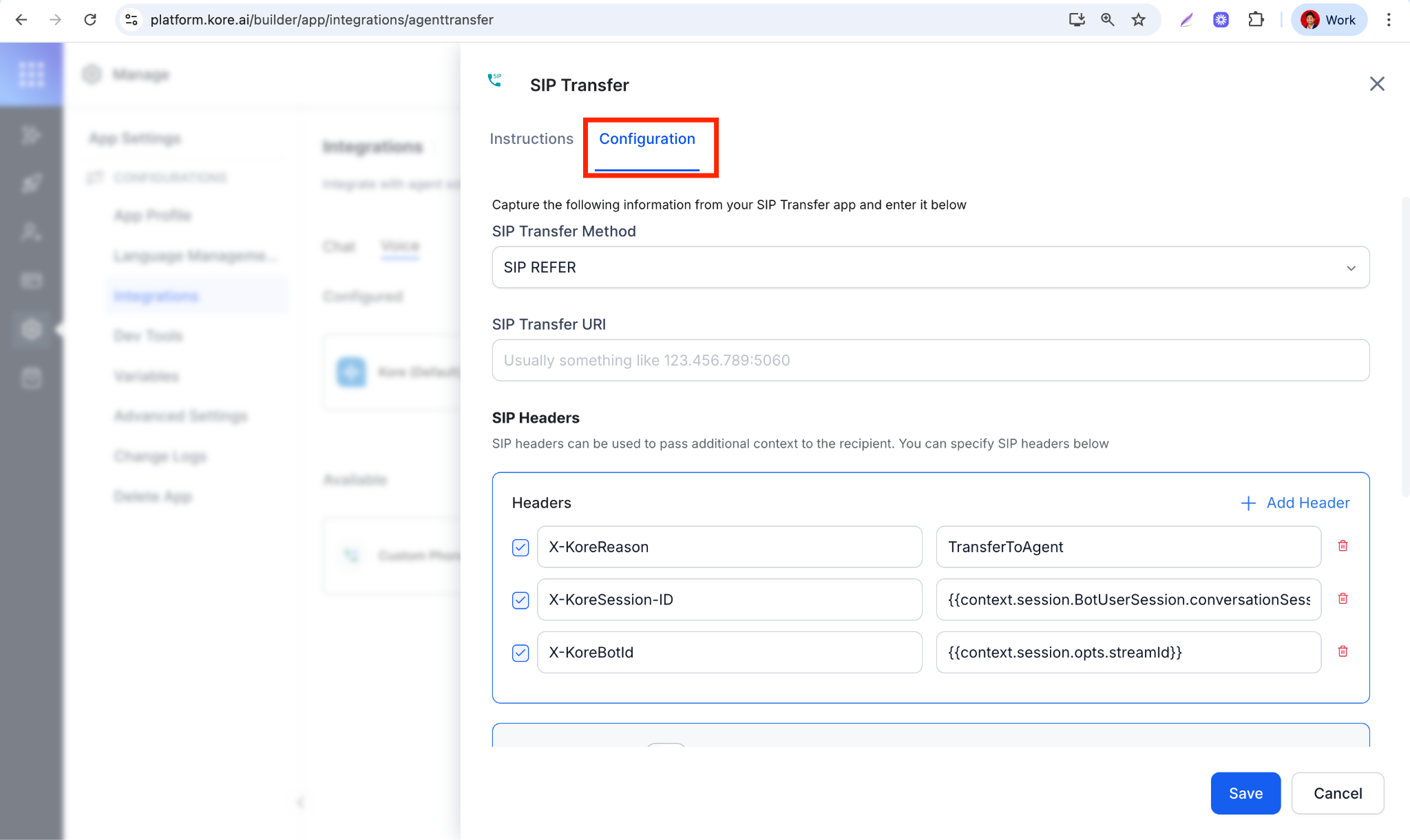 5. Click **Save**.
These settings apply to all flows with an Agent Transfer Node. To customize per call flow, use [AgentUtils](/ai-for-service/flows/node-types/utils#agent-utils).
### Configure Fallback for Failed Transfers
Define fallback behavior when a SIP REFER request fails with 4xx (client errors) or 5xx (server errors) codes.
**Fallback options:**
* Redirect to a specific node (for example, Apology or Retry node)
* Play an error message
* End the call with a user-friendly message
**Steps to configure fallback in Experience Flow:**
1. Open **Experience Designer**.
2. Select the flow where you want to add Agent Transfer logic.
3. Click **+ Add Node** → **Agent Transfer**.
4. Configure:
* **Transfer Target**: Internal or External Agent
* **SIP Method**: INVITE or REFER
* **Destination**: SIP URI or phone number
5. In the **Error Prompt** section, configure:
* **Message Type**: Message to play when transfer fails.
5. Click **Save**.
These settings apply to all flows with an Agent Transfer Node. To customize per call flow, use [AgentUtils](/ai-for-service/flows/node-types/utils#agent-utils).
### Configure Fallback for Failed Transfers
Define fallback behavior when a SIP REFER request fails with 4xx (client errors) or 5xx (server errors) codes.
**Fallback options:**
* Redirect to a specific node (for example, Apology or Retry node)
* Play an error message
* End the call with a user-friendly message
**Steps to configure fallback in Experience Flow:**
1. Open **Experience Designer**.
2. Select the flow where you want to add Agent Transfer logic.
3. Click **+ Add Node** → **Agent Transfer**.
4. Configure:
* **Transfer Target**: Internal or External Agent
* **SIP Method**: INVITE or REFER
* **Destination**: SIP URI or phone number
5. In the **Error Prompt** section, configure:
* **Message Type**: Message to play when transfer fails.
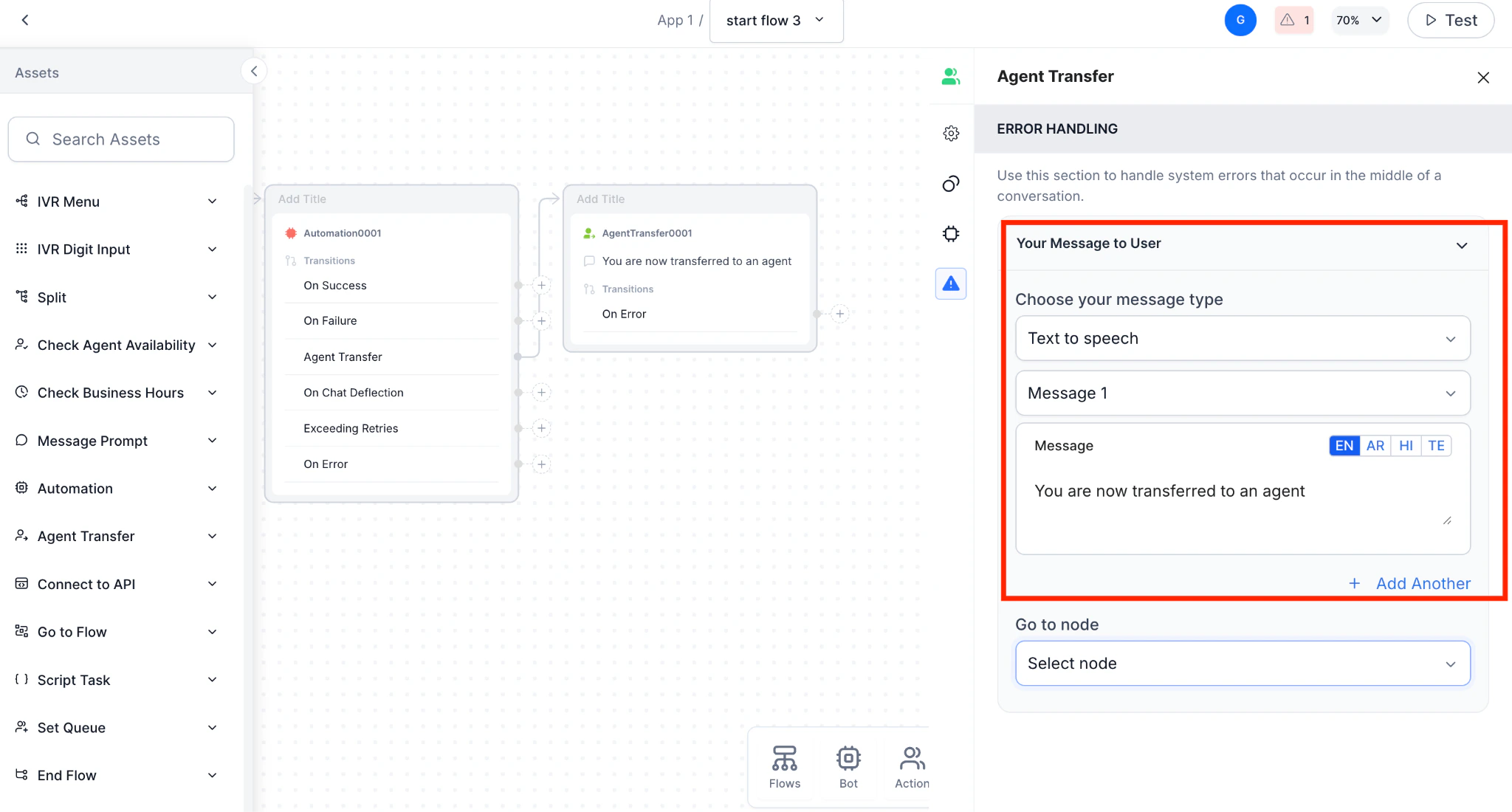 * **Go To Node**: Node to route to after failure (for example, Retry or Escalation).
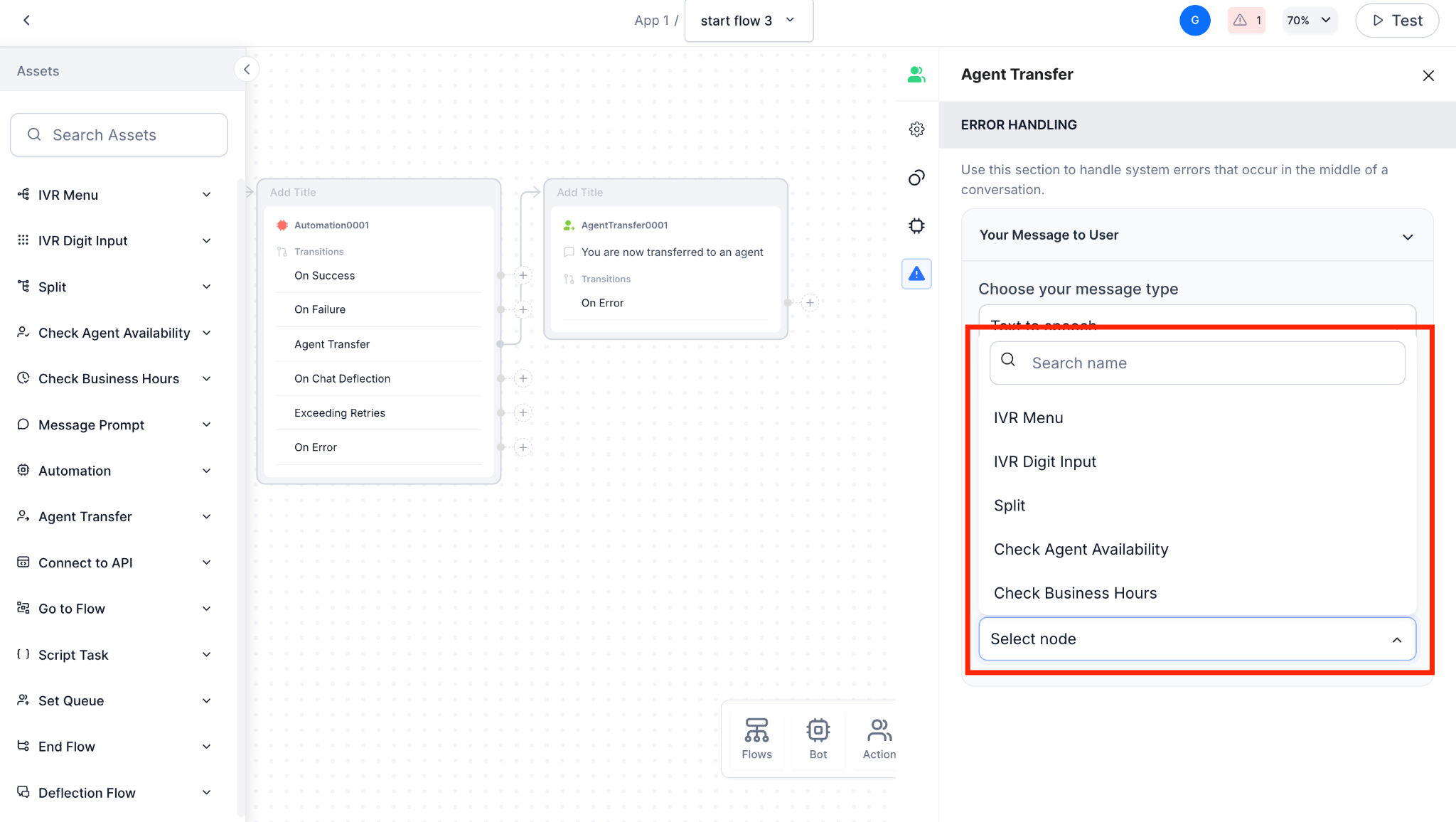 6. Click **Publish**.
### Best Practices
* Always configure fallback nodes to ensure reliability.
* Test transfers across different SIP networks for compatibility.
* Use descriptive node names (for example, `Agent_Transfer_Internal`, `Agent_Transfer_External`) to simplify debugging.
***
## Supported Agent Transfers
| Agent Transfer | Description | Documentation |
| ---------------------------- | -------------------------------------------------------------------------- | ---------------------------------------------------------------------------------------------------------------- |
| Custom | BotKit SDK agent provided by AI for Service. | [Learn more](/ai-for-service/integrations/agents/how-to-configure-agent-transfer) |
| Drift | For marketing and sales teams via Drift conversation chat. | [Learn more](/ai-for-service/integrations/agents/configuring-the-drift-agent) |
| Genesys | For Voice, Web, and VoIP telephony networks. | [Learn more](/ai-for-service/integrations/agents/configuring-the-genesys-agent) |
| Intercom | For Intercom Customer Communications Platform. | [Learn more](/ai-for-service/integrations/agents/configuring-the-intercom-agent) |
| NiceInContact | For Nice Customer Experience Platform. | [Learn more](/ai-for-service/integrations/agents/configuring-the-niceincontact) |
| Salesforce | For Salesforce chat module across marketing, sales, service, and IT teams. | [Learn more](/ai-for-service/integrations/agents/configuring-the-salesforce-agent) |
| ServiceNow (Tokyo and lower) | For ServiceNow digital workflows — Tokyo and lower versions. | [Learn more](/ai-for-service/integrations/agents/servicenow/configuring-the-servicenow-agent) |
| ServiceNow (Utah and higher) | For ServiceNow digital workflows — Utah and higher versions. | [Learn more](/ai-for-service/integrations/agents/servicenow/configuring-the-servicenow-agent-utah-and-vancouver) |
| Unblu | For Unblu conversational platform for financial services. | [Learn more](/ai-for-service/integrations/agents/kore-unblu-integration) |
***
## Limitations
* Attachment sharing is only supported for ServiceNow and Genesys integrations.
* The platform doesn't provide a built-in option for end-users to end a live agent chat, except when using Salesforce integration.
***
## Delete an Agent Transfer Integration
Deleting a configured integration removes it from the **Configured** list. You can re-add it from the **Available** list at any time.
**Important:**
* If you delete the default integration, the platform prompts you to select another configured agent as the default.
* If you delete the only configured integration, all configurations are removed from the agent transfer node in all dialog tasks.
**Steps:**
1. Go to **App Settings > Integration > Agent Transfer > Configured**, hover over the integration, and click the **Delete** icon.
6. Click **Publish**.
### Best Practices
* Always configure fallback nodes to ensure reliability.
* Test transfers across different SIP networks for compatibility.
* Use descriptive node names (for example, `Agent_Transfer_Internal`, `Agent_Transfer_External`) to simplify debugging.
***
## Supported Agent Transfers
| Agent Transfer | Description | Documentation |
| ---------------------------- | -------------------------------------------------------------------------- | ---------------------------------------------------------------------------------------------------------------- |
| Custom | BotKit SDK agent provided by AI for Service. | [Learn more](/ai-for-service/integrations/agents/how-to-configure-agent-transfer) |
| Drift | For marketing and sales teams via Drift conversation chat. | [Learn more](/ai-for-service/integrations/agents/configuring-the-drift-agent) |
| Genesys | For Voice, Web, and VoIP telephony networks. | [Learn more](/ai-for-service/integrations/agents/configuring-the-genesys-agent) |
| Intercom | For Intercom Customer Communications Platform. | [Learn more](/ai-for-service/integrations/agents/configuring-the-intercom-agent) |
| NiceInContact | For Nice Customer Experience Platform. | [Learn more](/ai-for-service/integrations/agents/configuring-the-niceincontact) |
| Salesforce | For Salesforce chat module across marketing, sales, service, and IT teams. | [Learn more](/ai-for-service/integrations/agents/configuring-the-salesforce-agent) |
| ServiceNow (Tokyo and lower) | For ServiceNow digital workflows — Tokyo and lower versions. | [Learn more](/ai-for-service/integrations/agents/servicenow/configuring-the-servicenow-agent) |
| ServiceNow (Utah and higher) | For ServiceNow digital workflows — Utah and higher versions. | [Learn more](/ai-for-service/integrations/agents/servicenow/configuring-the-servicenow-agent-utah-and-vancouver) |
| Unblu | For Unblu conversational platform for financial services. | [Learn more](/ai-for-service/integrations/agents/kore-unblu-integration) |
***
## Limitations
* Attachment sharing is only supported for ServiceNow and Genesys integrations.
* The platform doesn't provide a built-in option for end-users to end a live agent chat, except when using Salesforce integration.
***
## Delete an Agent Transfer Integration
Deleting a configured integration removes it from the **Configured** list. You can re-add it from the **Available** list at any time.
**Important:**
* If you delete the default integration, the platform prompts you to select another configured agent as the default.
* If you delete the only configured integration, all configurations are removed from the agent transfer node in all dialog tasks.
**Steps:**
1. Go to **App Settings > Integration > Agent Transfer > Configured**, hover over the integration, and click the **Delete** icon.
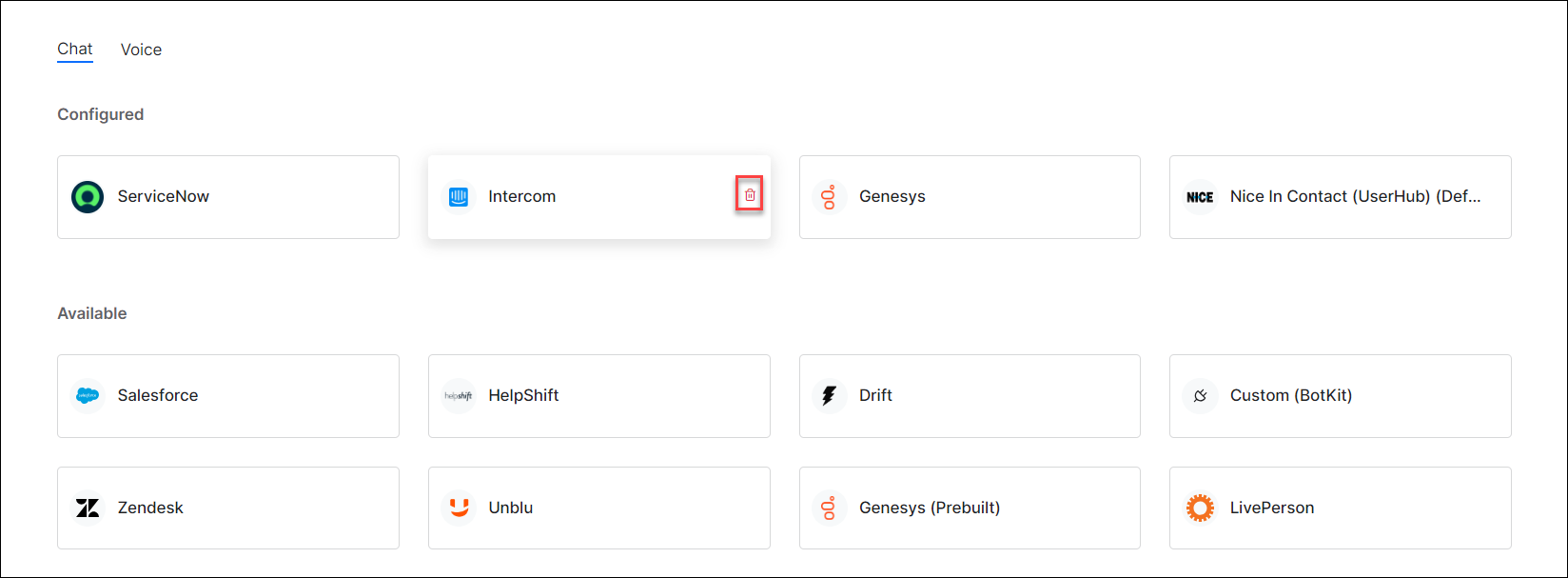 Deleting an integration removes all its configurations. You will be prompted to confirm and optionally select a new default agent.
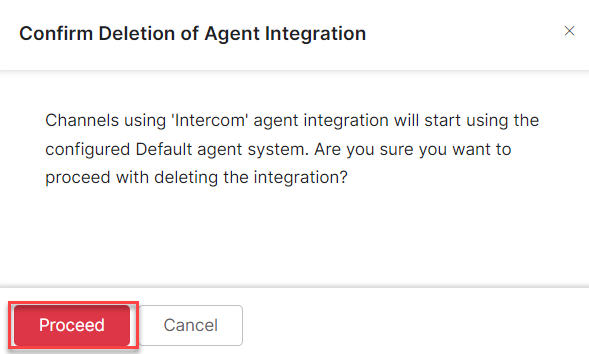
2. Click **Proceed** to confirm.
Deleting an integration removes all its configurations. You will be prompted to confirm and optionally select a new default agent.
2. Click **Proceed** to confirm.
 ***
## User-Bot Chat Transcript Link
When the platform transfers a user to a live agent, it can include a link to the user's prior conversation with the AI agent to provide context for the handoff. Enable or disable the conversation link in the [Agent Transfer node](/ai-for-service/flows/node-types/agent-transfer#general-settings). The link can be accessed up to 10 times.
***
## Conversation Summary for Live Agents
When transferring a user to a live agent, the platform can send an AI-generated summary of the conversation to the agent window, alongside the chat history link.
This feature is disabled by default. To enable it, open the Agent Transfer node in the dialog task, and toggle on **Conversation Summary** in the Instance Properties panel. Ensure [Conversation Summarization](/ai-for-service/generative-ai-tools/genai-features) is enabled in GenAI settings.
The Conversation Summary setting applies per agent transfer node instance. If the same node is used in multiple dialogs, configure it individually for each.
***
## Attachment Sharing with Live Agents
Users can send files to agents during conversations. Available for [ServiceNow](/ai-for-service/integrations/agents/servicenow/configuring-the-servicenow-agent-utah-and-vancouver) and [Genesys](/ai-for-service/integrations/agents/configuring-the-genesys-agent) integrations only, via the WebSDK channel.
* Up to 25 MB per file
* Up to 22 file formats
* Files can be downloaded up to 5 times within 48 hours of sharing
### Supported File Formats
| Category | ServiceNow | Genesys |
| ------------ | ----------------------------- | ----------------------------------- |
| Document | .pdf, .doc, .docx, .txt, .xml | .pdf, .doc, .docx, .txt |
| Spreadsheet | .xls, .xlsx, .csv | .xls, .xlsx, .csv |
| Presentation | .ppt, .pptx | .ppt, .pptx |
| Image | .jpg, .jpeg, .png, .gif | .jpg, .jpeg, .png, .gif, .bmp, .tif |
| Archive | .zip, .rar | .zip |
| Audio | .mp3, .wav | Not supported |
| Video | .mp4, .avi | Not supported |
| Web | .html, .htm | .htm, .html |
### Enable Attachment Sharing
* **Tokyo**: See [Enable Attachment Sharing with Live Agent](/ai-for-service/integrations/agents/servicenow/configuring-the-servicenow-agent#enable-attachment-sharing-with-live-agents)
* **Utah and Vancouver**: See [Enable Attachment Sharing with Live Agent](/ai-for-service/integrations/agents/servicenow/configuring-the-servicenow-agent-utah-and-vancouver#enable-attachment-sharing-with-live-agents)
***
## Read Receipts and Typing Indicator
The platform supports WhatsApp Cloud API read receipts for end users, providing visibility into message delivery and read status across bot and agent conversations. This capability is automatically available for all existing and new WhatsApp Cloud API integrations. End users can also see a typing indicator while an agent is composing a message.
Agents handling WhatsApp Cloud API conversations can now view real-time message delivery and read status for messages exchanged with end users.
## Post-Agent Conversation Settings
Post Agent Conversation defines what happens after a human agent interaction ends. It lets you either resume the automated experience flow or trigger a follow-up dialog. This helps continue the user journey seamlessly with actions like feedback or next steps. Available for Genesys Cloud, Salesforce MIAW, and ServiceNow integrations.
To configure Post-Agent Conversation, see [Agent Transfer Node](/ai-for-service/flows/node-types/agent-transfer#general-settings).
## Conversation End Message
When an agent ends the conversation, the user receives a session closure message, provided the Disable End Conversation Message setting is enabled in the agent integration.
When the user ends the conversation or closes the Web SDK chat window, the agent receives a conversation closure message in Genesys. This behavior is supported only for the Web SDK chat window and isn't applicable to prebuilt chat interfaces. Available for Genesys integrations only.
***
## User-Bot Chat Transcript Link
When the platform transfers a user to a live agent, it can include a link to the user's prior conversation with the AI agent to provide context for the handoff. Enable or disable the conversation link in the [Agent Transfer node](/ai-for-service/flows/node-types/agent-transfer#general-settings). The link can be accessed up to 10 times.
***
## Conversation Summary for Live Agents
When transferring a user to a live agent, the platform can send an AI-generated summary of the conversation to the agent window, alongside the chat history link.
This feature is disabled by default. To enable it, open the Agent Transfer node in the dialog task, and toggle on **Conversation Summary** in the Instance Properties panel. Ensure [Conversation Summarization](/ai-for-service/generative-ai-tools/genai-features) is enabled in GenAI settings.
The Conversation Summary setting applies per agent transfer node instance. If the same node is used in multiple dialogs, configure it individually for each.
***
## Attachment Sharing with Live Agents
Users can send files to agents during conversations. Available for [ServiceNow](/ai-for-service/integrations/agents/servicenow/configuring-the-servicenow-agent-utah-and-vancouver) and [Genesys](/ai-for-service/integrations/agents/configuring-the-genesys-agent) integrations only, via the WebSDK channel.
* Up to 25 MB per file
* Up to 22 file formats
* Files can be downloaded up to 5 times within 48 hours of sharing
### Supported File Formats
| Category | ServiceNow | Genesys |
| ------------ | ----------------------------- | ----------------------------------- |
| Document | .pdf, .doc, .docx, .txt, .xml | .pdf, .doc, .docx, .txt |
| Spreadsheet | .xls, .xlsx, .csv | .xls, .xlsx, .csv |
| Presentation | .ppt, .pptx | .ppt, .pptx |
| Image | .jpg, .jpeg, .png, .gif | .jpg, .jpeg, .png, .gif, .bmp, .tif |
| Archive | .zip, .rar | .zip |
| Audio | .mp3, .wav | Not supported |
| Video | .mp4, .avi | Not supported |
| Web | .html, .htm | .htm, .html |
### Enable Attachment Sharing
* **Tokyo**: See [Enable Attachment Sharing with Live Agent](/ai-for-service/integrations/agents/servicenow/configuring-the-servicenow-agent#enable-attachment-sharing-with-live-agents)
* **Utah and Vancouver**: See [Enable Attachment Sharing with Live Agent](/ai-for-service/integrations/agents/servicenow/configuring-the-servicenow-agent-utah-and-vancouver#enable-attachment-sharing-with-live-agents)
***
## Read Receipts and Typing Indicator
The platform supports WhatsApp Cloud API read receipts for end users, providing visibility into message delivery and read status across bot and agent conversations. This capability is automatically available for all existing and new WhatsApp Cloud API integrations. End users can also see a typing indicator while an agent is composing a message.
Agents handling WhatsApp Cloud API conversations can now view real-time message delivery and read status for messages exchanged with end users.
## Post-Agent Conversation Settings
Post Agent Conversation defines what happens after a human agent interaction ends. It lets you either resume the automated experience flow or trigger a follow-up dialog. This helps continue the user journey seamlessly with actions like feedback or next steps. Available for Genesys Cloud, Salesforce MIAW, and ServiceNow integrations.
To configure Post-Agent Conversation, see [Agent Transfer Node](/ai-for-service/flows/node-types/agent-transfer#general-settings).
## Conversation End Message
When an agent ends the conversation, the user receives a session closure message, provided the Disable End Conversation Message setting is enabled in the agent integration.
When the user ends the conversation or closes the Web SDK chat window, the agent receives a conversation closure message in Genesys. This behavior is supported only for the Web SDK chat window and isn't applicable to prebuilt chat interfaces. Available for Genesys integrations only.