> ## Documentation Index
> Fetch the complete documentation index at: https://koreai.mintlify.site/llms.txt
> Use this file to discover all available pages before exploring further.
# Configuring the NiceInContact Agent
[Back to Agent Transfer Integrations](/ai-for-service/integrations/overview#agent-transfer)
NiceInContact is a customer experience (CX) platform combining digital entry points, prepared agents, and performance tools. The NiceInContact Agent integration allows you to hand off AI Agent conversations to live agents on Nice Chat.
The AI Agent acts as a proxy between users and NiceInContact agents, facilitating seamless conversation handovers.
***
## Configuration
### Step 1: Create a User in NiceInContact
1. Log in to [https://login.incontact.com/](https://login.incontact.com/) with your NiceInContact credentials.
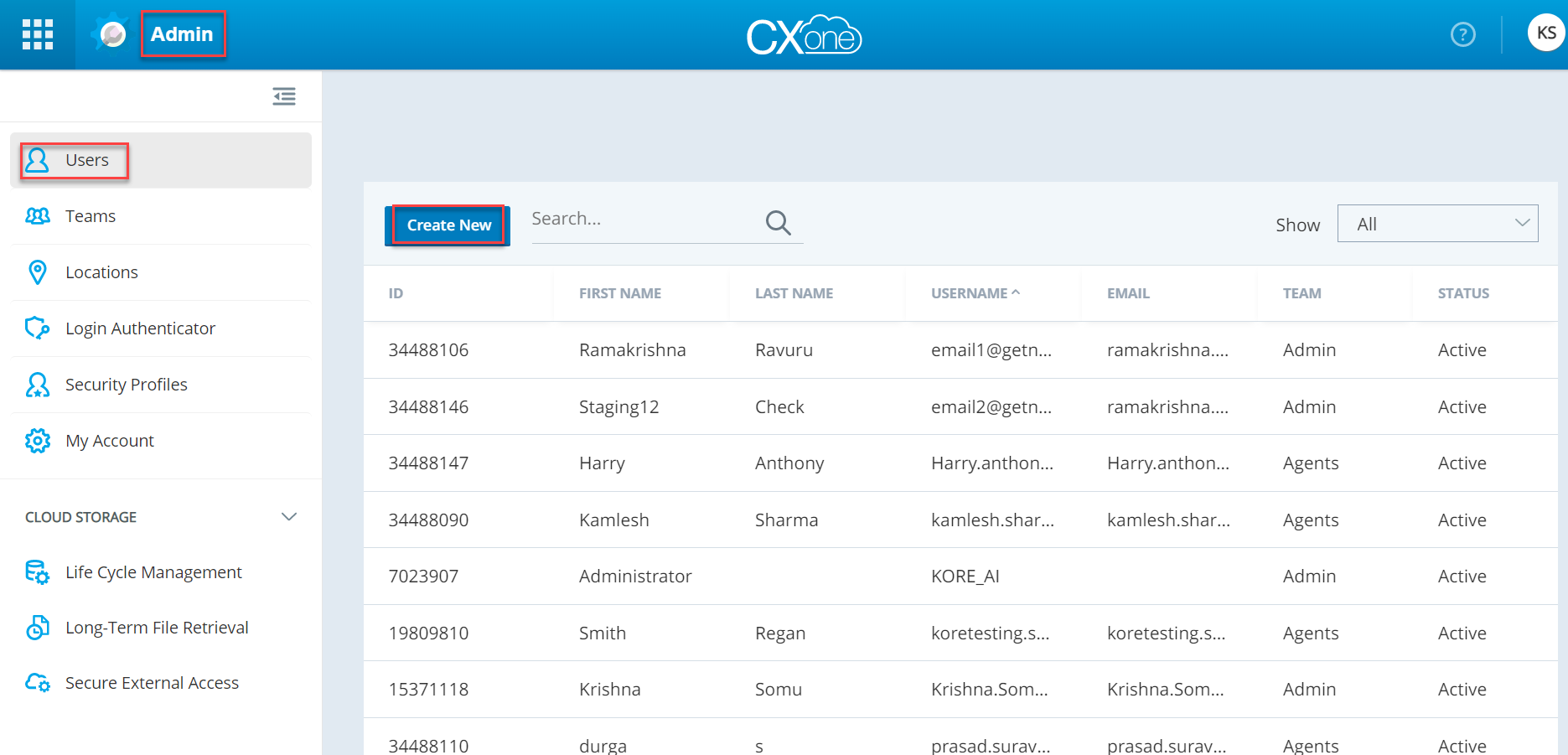
2. Navigate to **Admin > Users** and click **Create New > Single User**.
 3. Enter the following user details:
* First Name
* Last Name
* Email
* Username
3. Enter the following user details:
* First Name
* Last Name
* Email
* Username
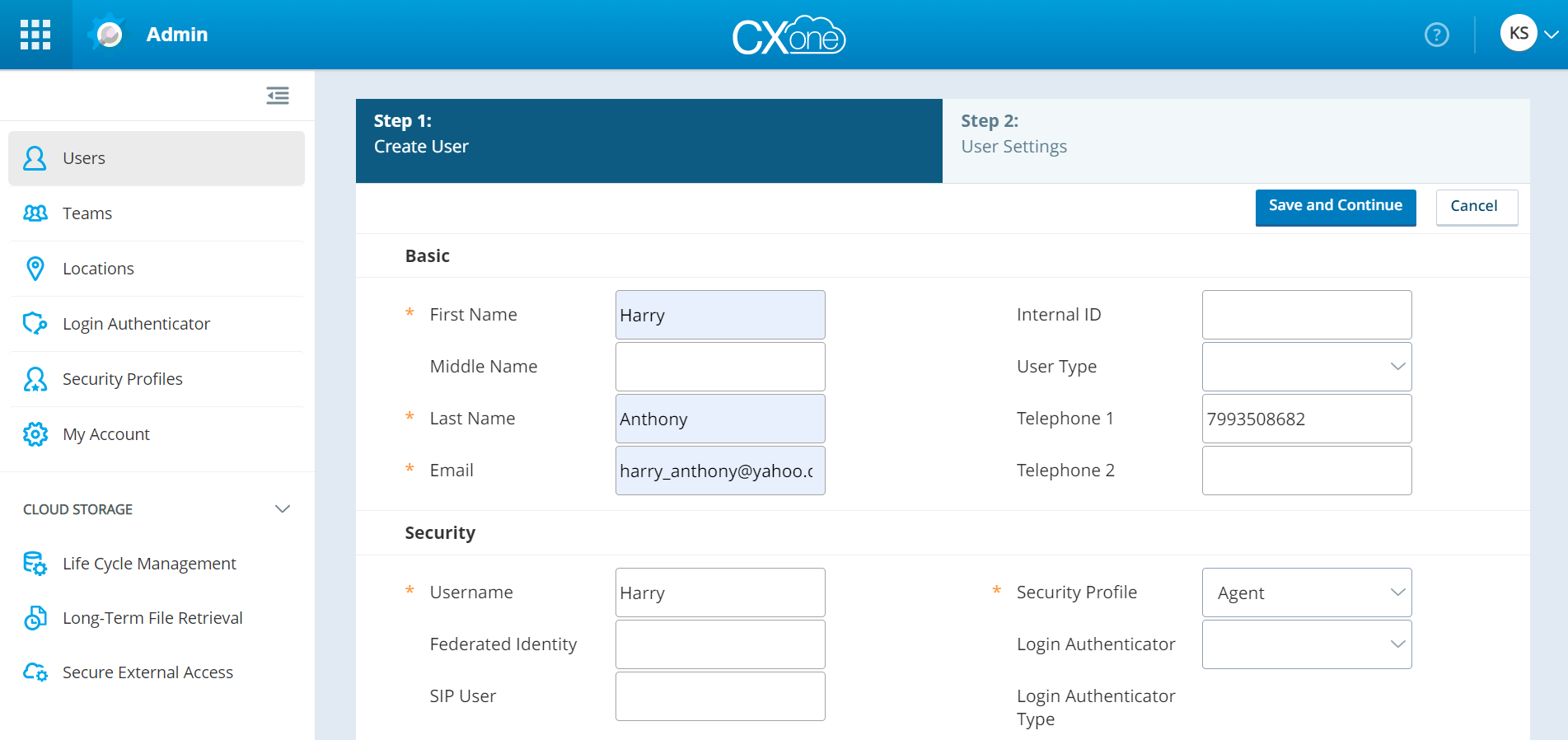 4. Click **Save and Continue**. Note the username and password.
### Step 2: Register an App and Retrieve an API Token
1. Log in to [https://login.incontact.com/](https://login.incontact.com/).
2. Navigate to **ACD > ACD Configuration > API Applications** and click **Create New**.
3. Enter:
* **Vendor Name**: `PlatformIntegration`
* **Application Name**: `PlatformInt`
4. Under **API scope**, select only **PatronApi**.
4. Click **Save and Continue**. Note the username and password.
### Step 2: Register an App and Retrieve an API Token
1. Log in to [https://login.incontact.com/](https://login.incontact.com/).
2. Navigate to **ACD > ACD Configuration > API Applications** and click **Create New**.
3. Enter:
* **Vendor Name**: `PlatformIntegration`
* **Application Name**: `PlatformInt`
4. Under **API scope**, select only **PatronApi**.
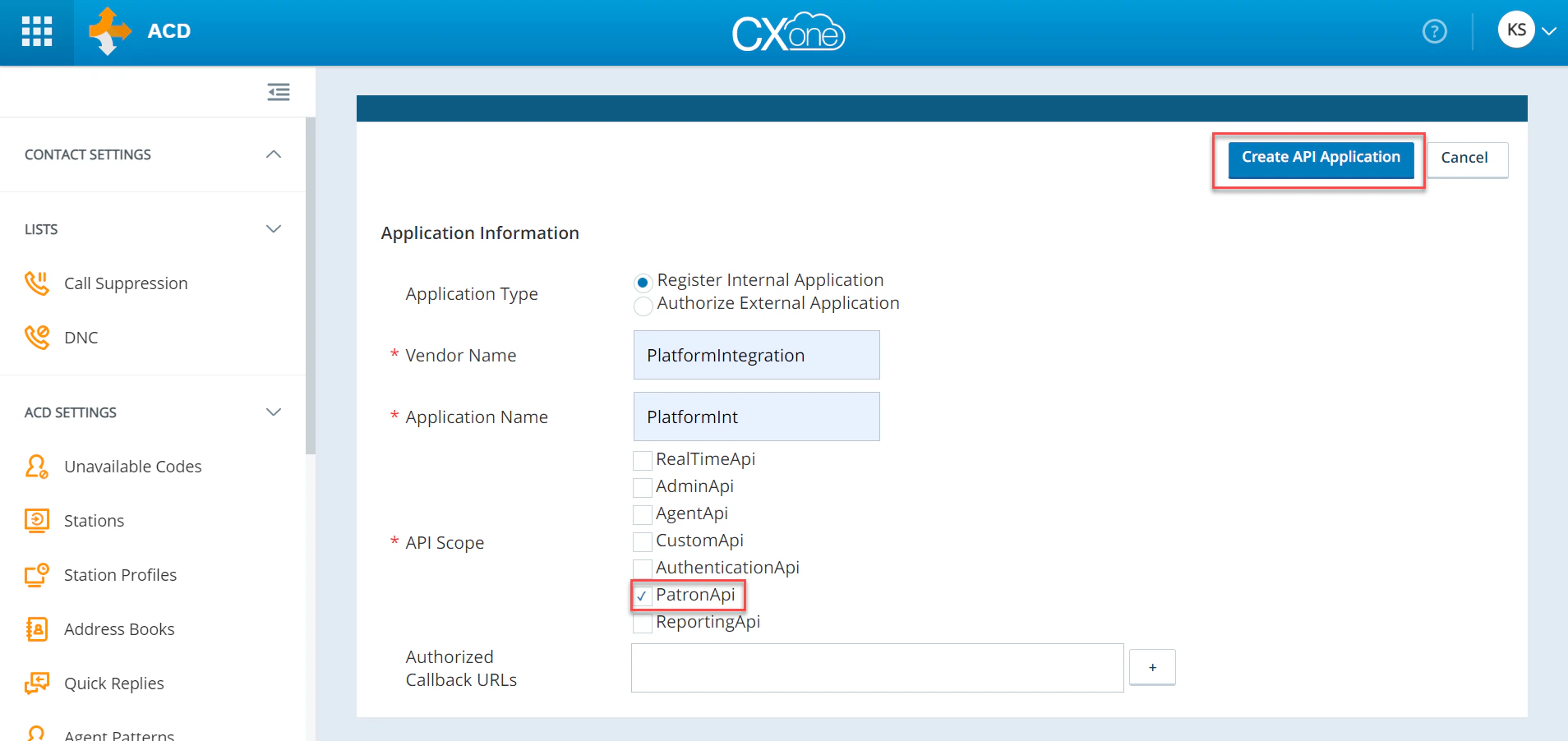 5. Click **Create API Application**.
6. Copy the **Application Secret** and save it.
### Step 3: Create a Point of Contact
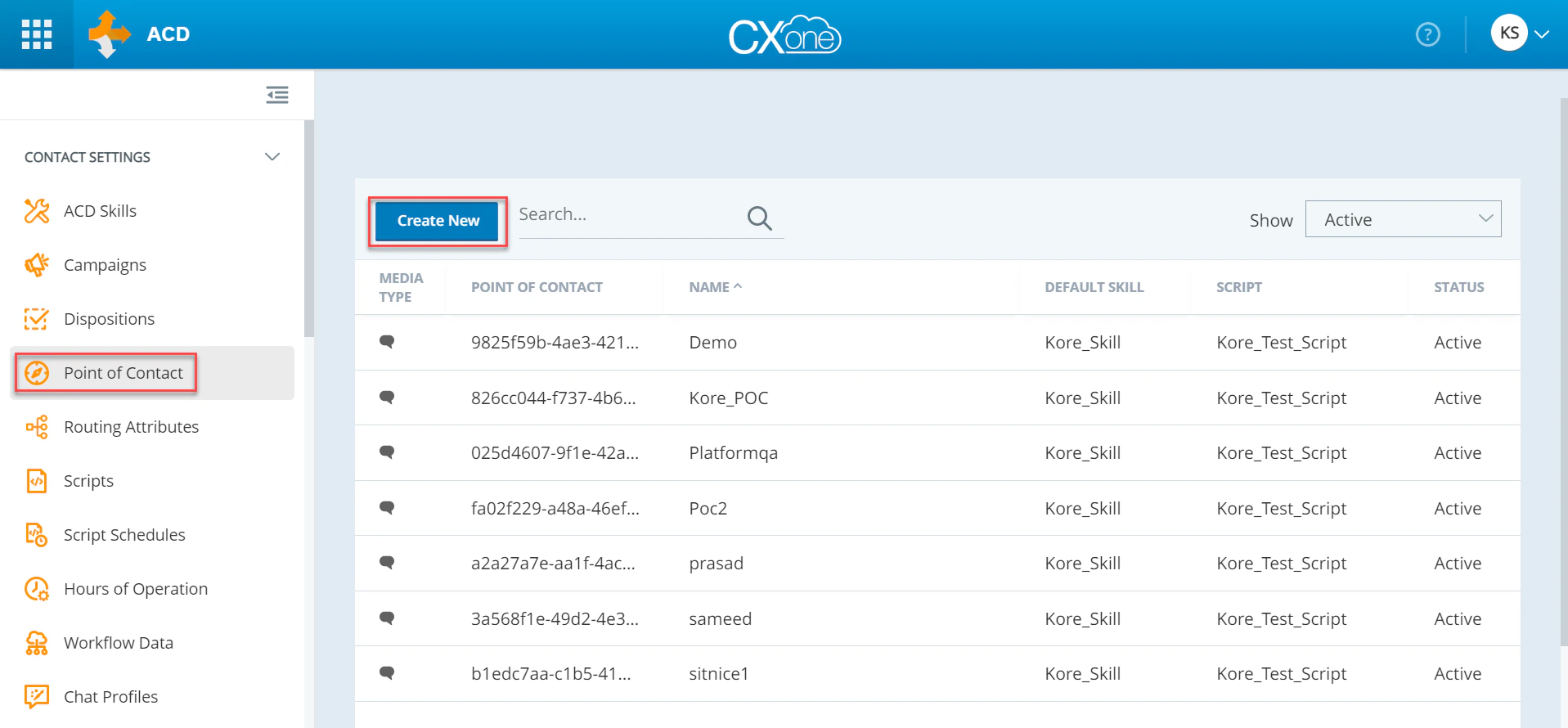
1. Navigate to **ACD > Contact > Point of Contact** and click **Create New > Single Point of Contact**.
5. Click **Create API Application**.
6. Copy the **Application Secret** and save it.
### Step 3: Create a Point of Contact
1. Navigate to **ACD > Contact > Point of Contact** and click **Create New > Single Point of Contact**.
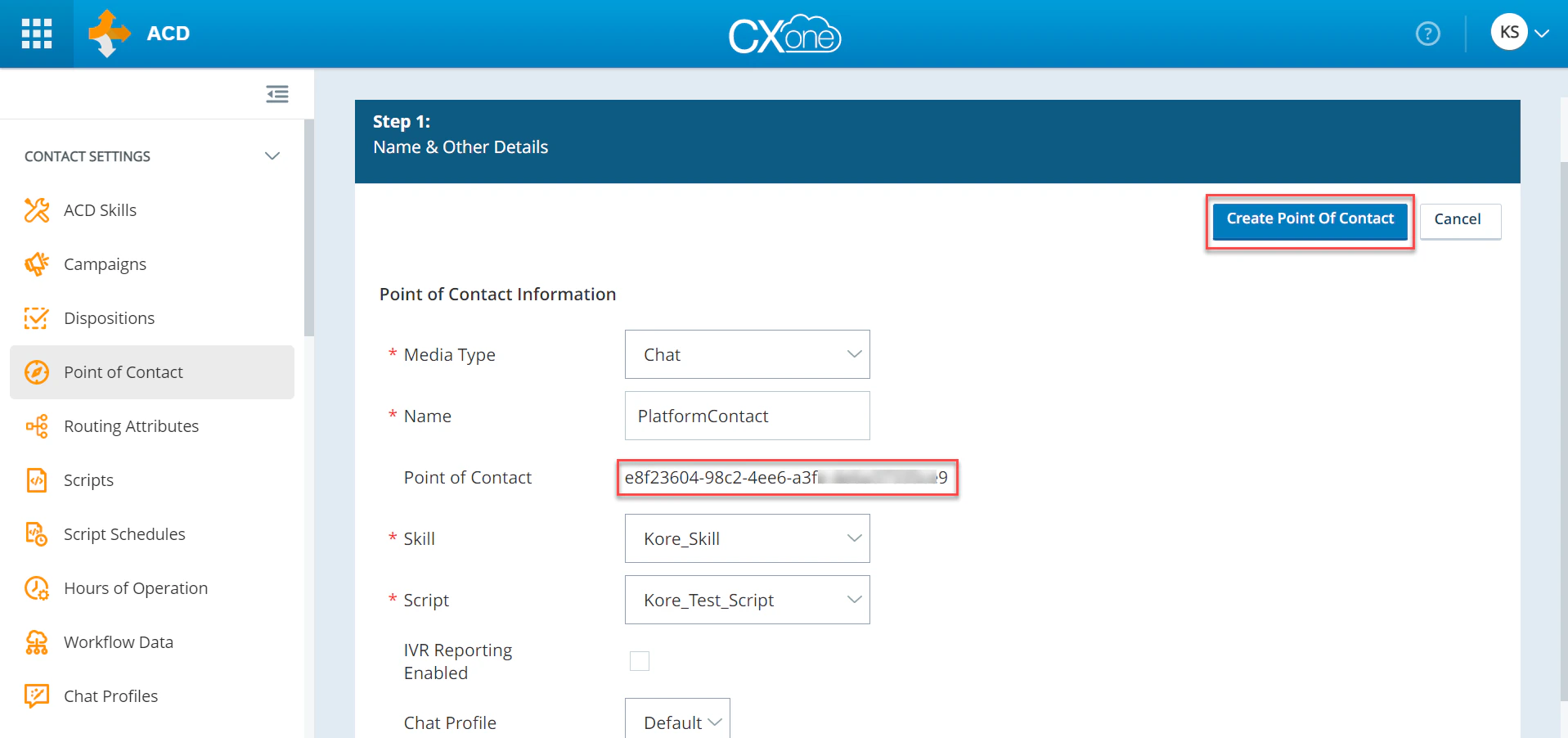
 2. Set **Media Type** to **Chat**.
3. Enter **Name**, select **Skills** and **Script**, then click **Create Point of Contact**.
4. Copy the **Point of Contact key** and save it.
2. Set **Media Type** to **Chat**.
3. Enter **Name**, select **Skills** and **Script**, then click **Create Point of Contact**.
4. Copy the **Point of Contact key** and save it.
 ### Step 4: Enable the NiceInContact Agent
1. Log in to the Platform.
2. Select the AI Agent to configure.
3. Navigate to **App Settings > Integrations > Agent Transfer** and click **NiceInContact**.
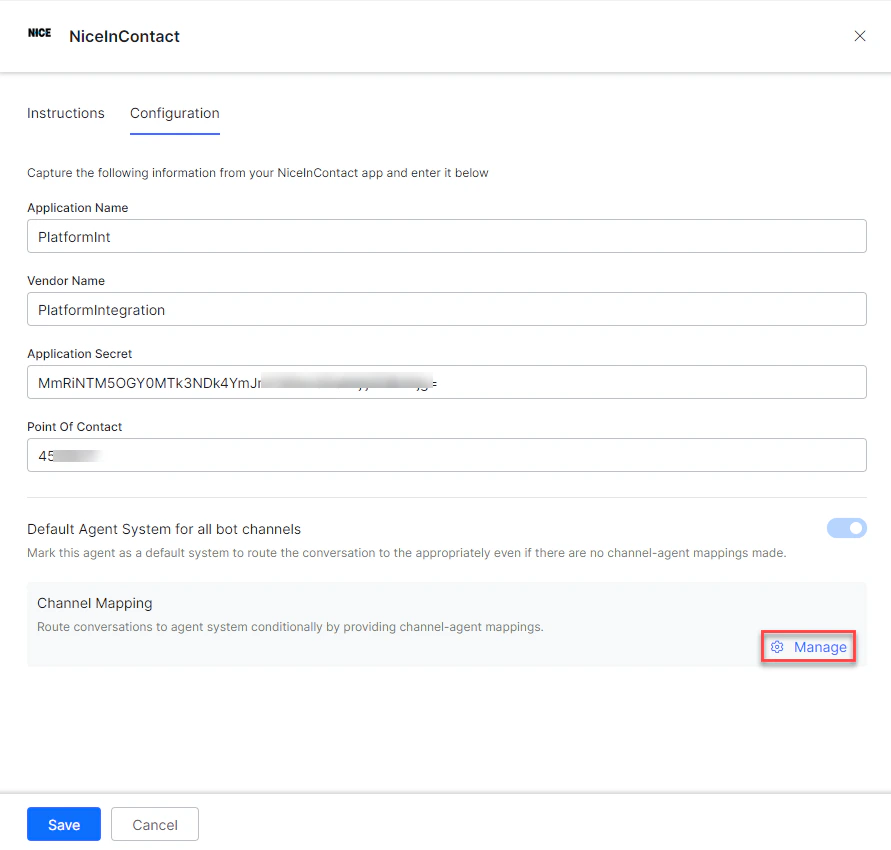
4. On the **Configurations** tab, enter:
| Field | Description |
| ---------------- | -------------------------------------- |
| Application Name | Name of the API application |
| Vendor Name | Vendor name entered in the application |
| Access Token | Application Secret from Step 2 |
| Point Of Contact | POC ID from Step 3 |
5. To make NiceInContact the default agent, enable **Default Agent System for all app channels**.
### Step 4: Enable the NiceInContact Agent
1. Log in to the Platform.
2. Select the AI Agent to configure.
3. Navigate to **App Settings > Integrations > Agent Transfer** and click **NiceInContact**.
4. On the **Configurations** tab, enter:
| Field | Description |
| ---------------- | -------------------------------------- |
| Application Name | Name of the API application |
| Vendor Name | Vendor name entered in the application |
| Access Token | Application Secret from Step 2 |
| Point Of Contact | POC ID from Step 3 |
5. To make NiceInContact the default agent, enable **Default Agent System for all app channels**.
 This option is only available when multiple agents are configured.
6. Click **Manage** to map channels.
This option is only available when multiple agents are configured.
6. Click **Manage** to map channels.
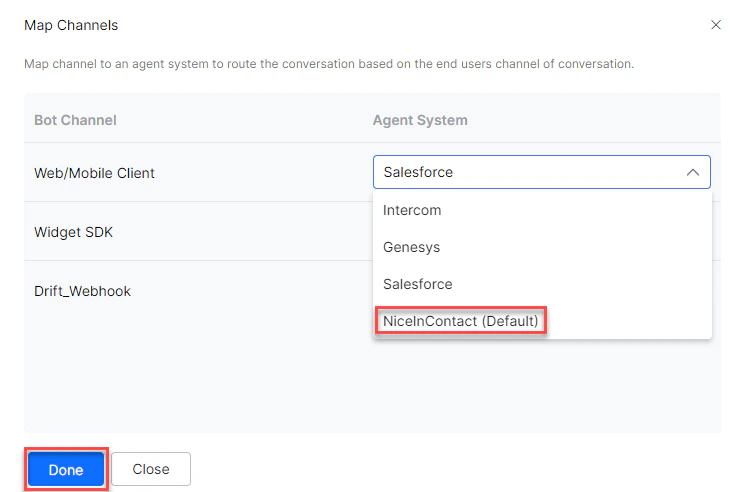
 7. Select the channels to use NiceInContact for handovers.
8. Click **Done**.
7. Select the channels to use NiceInContact for handovers.
8. Click **Done**.
 9. Click **Save** to enable the agent.
10. Publish the app. See [Publishing your App](/ai-for-service/deployment/publishing-app).
***
## Verify the Integration
1. Log in to [https://login.incontact.com/](https://login.incontact.com/) with the user credentials from Step 1.
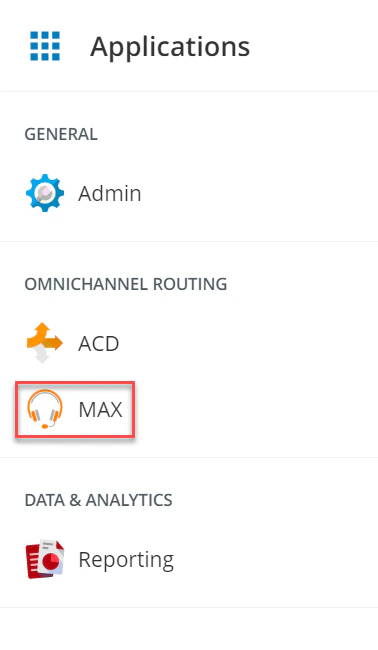
2. Navigate to **Applications > Max** to launch the Chat console.
9. Click **Save** to enable the agent.
10. Publish the app. See [Publishing your App](/ai-for-service/deployment/publishing-app).
***
## Verify the Integration
1. Log in to [https://login.incontact.com/](https://login.incontact.com/) with the user credentials from Step 1.
2. Navigate to **Applications > Max** to launch the Chat console.
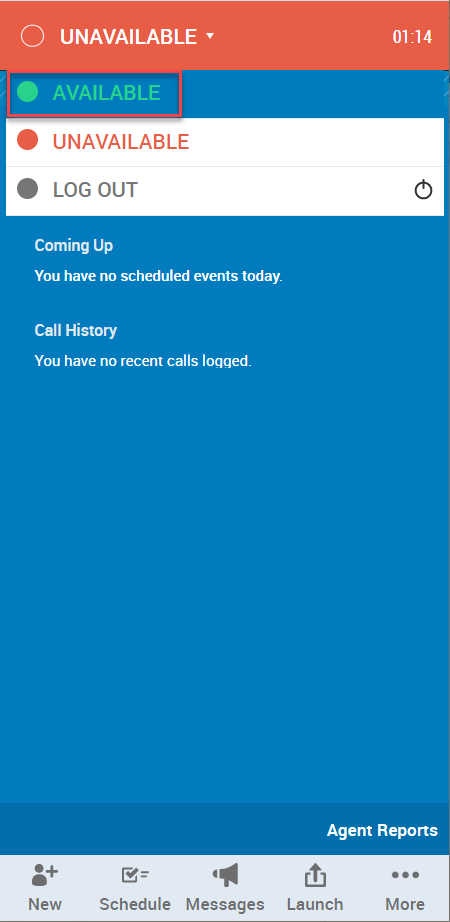
 3. Change status from **Unavailable** to **Available**.
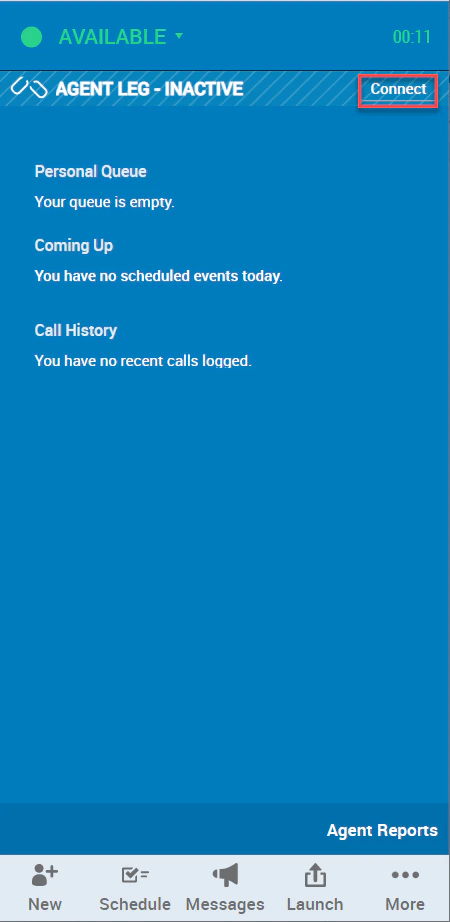
 4. Click **Connect**.
 5. Open the AI Agent with NiceInContact enabled.
6. Create an Agent Transfer Node task (for example, a **Talk to Live Agent** task with a **LiveChats** node configured to use Nice agent). See [Agent Transfer Node](/ai-for-service/automation/dialogs/node-types/agent-transfer-node).
5. Open the AI Agent with NiceInContact enabled.
6. Create an Agent Transfer Node task (for example, a **Talk to Live Agent** task with a **LiveChats** node configured to use Nice agent). See [Agent Transfer Node](/ai-for-service/automation/dialogs/node-types/agent-transfer-node).
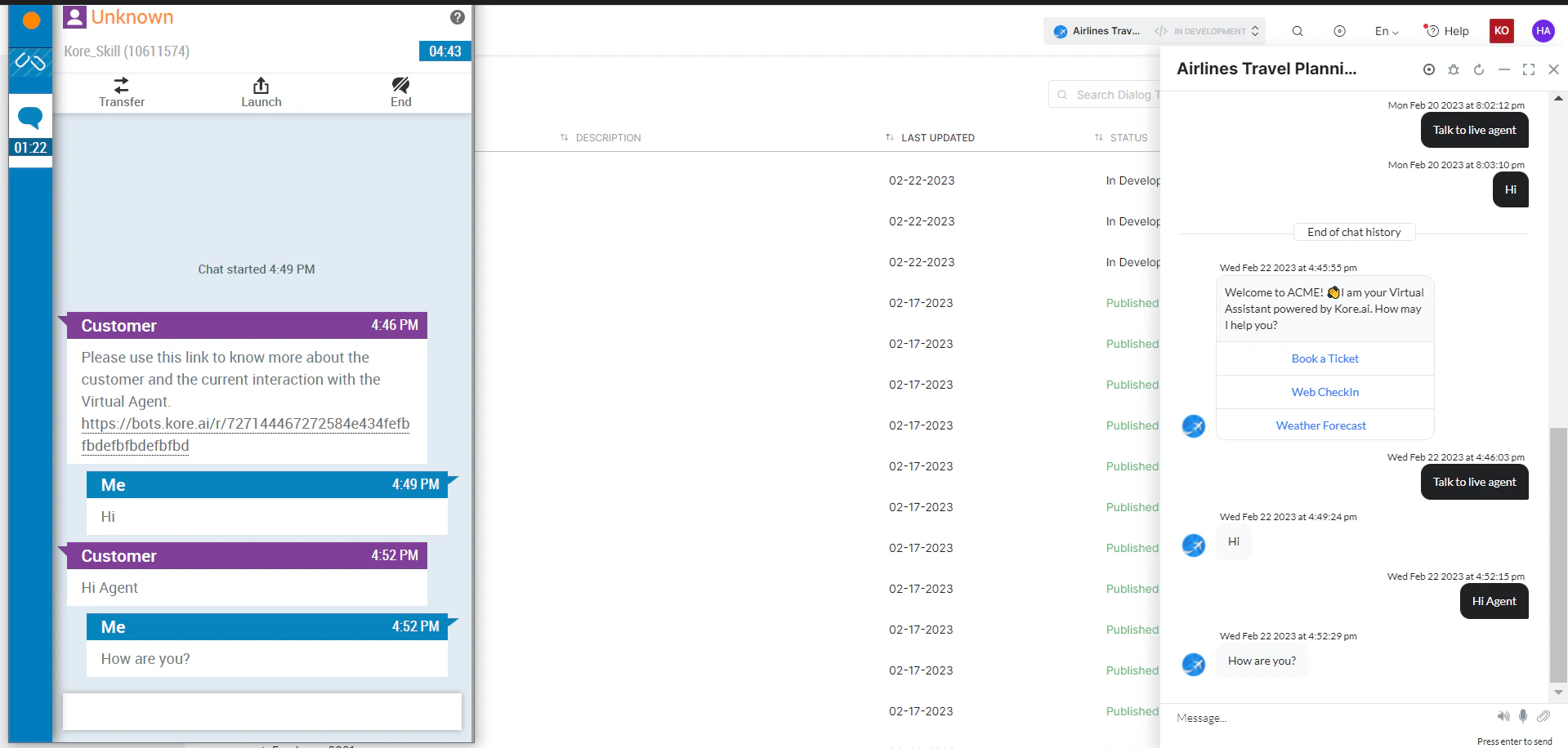
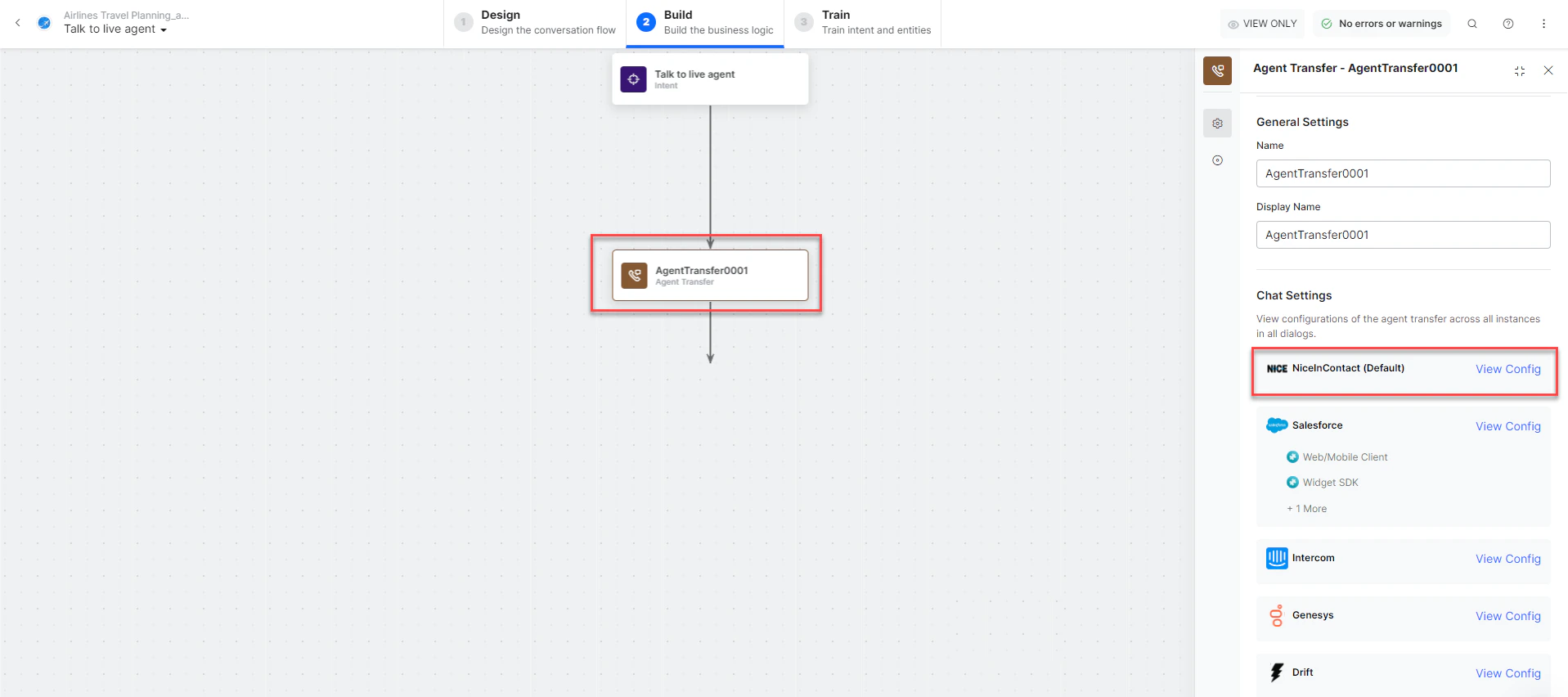 7. Click **Talk to Bot** and enter **Help**.
8. When the agent transfer dialog is invoked, NiceInContact Chat receives a notification.
9. The conversation transfers to the NiceInContact agent and the connection is established.
7. Click **Talk to Bot** and enter **Help**.
8. When the agent transfer dialog is invoked, NiceInContact Chat receives a notification.
9. The conversation transfers to the NiceInContact agent and the connection is established.