> ## Documentation Index
> Fetch the complete documentation index at: https://koreai.mintlify.site/llms.txt
> Use this file to discover all available pages before exploring further.
# Configuring Custom Agent Integration
[Back to Agent Transfer Integrations](/ai-for-service/integrations/overview#agent-transfer)
The Custom Integration uses the BotKit SDK to configure agent transfer for any system not covered by a pre-built integration.
BotKit source code is available at [https://github.com/Koredotcom/BotKit](https://github.com/Koredotcom/BotKit).
***
## Prerequisites
* A fully functional AI Agent (example uses a Banking App)
* [BotKit SDK](https://github.com/Koredotcom/BotKit) downloaded from GitHub
* Node.js v10 or above — install from `https://nodejs.org/en/download/` and verify with `node -v`
* [NGROK](https://dl.equinox.io/ngrok/ngrok/stable) to simulate the callback server:
* **Windows**: Download the zip, unzip, and run `ngrok.exe`
* **Mac**: Run `ruby -e "$(curl -fsSL https://raw.githubusercontent.com/Homebrew/install/master/install)" < /dev/null 2> /dev/null` in Terminal, then run `brew cask install ngrok`
* A live agent platform (example uses [LiveChatInc.com](https://www.livechatinc.com/) — free 30-day trial available)
***
## Design and Configuration
1. Open Platform.
2. Select the app to configure for Agent Transfer.
3. Open or create a dialog task (for example, `Support Call Back`) and add an **Agent Transfer** node.
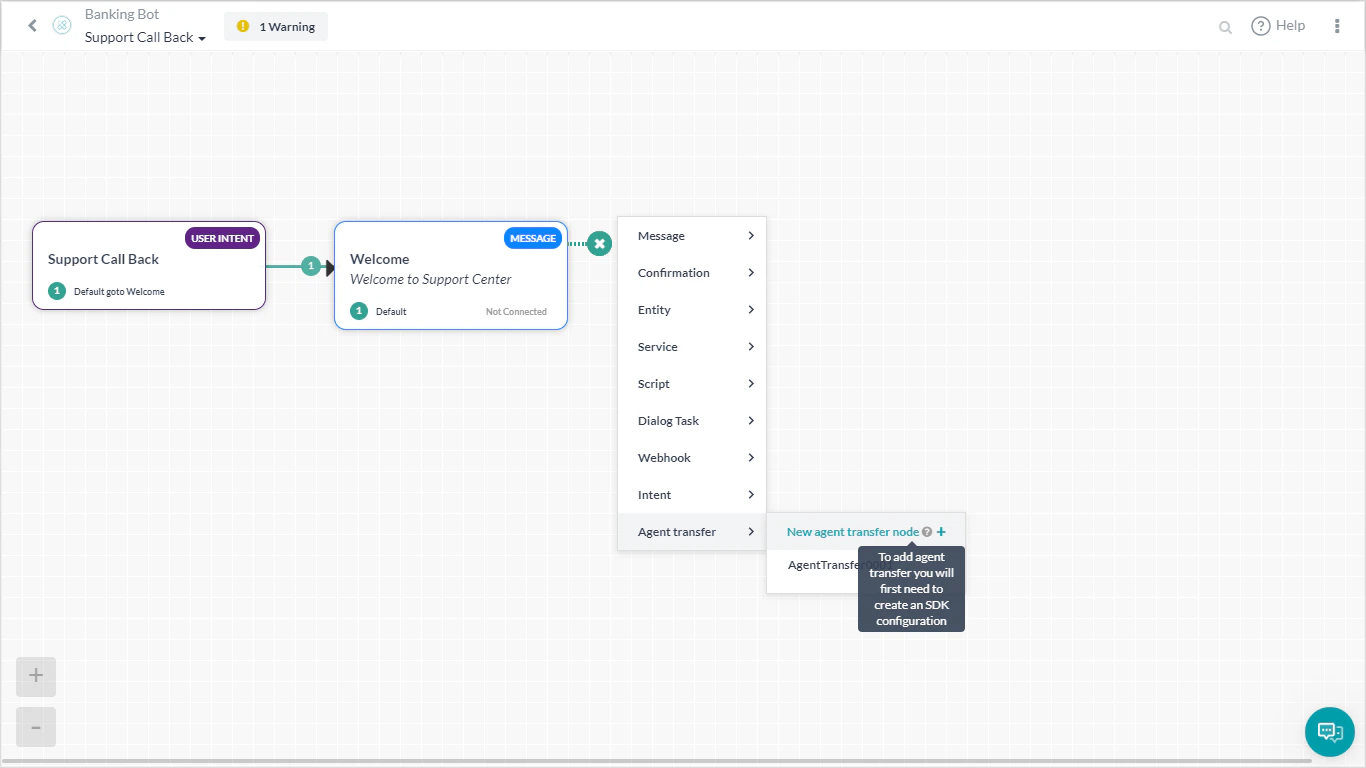 4. Enter a **Name** (for example, `LiveChat`) and **Description**. Click **Save**.
5. If you see a message about SDK not being configured, proceed — SDK configuration is covered below.
6. Go to **App Settings > Integration > Agent Transfer > Custom (BotKit)**.
7. In the **App Name** section, select an existing app or click **Create App** to create a new one.
Note the **App ID**, **Client ID**, and **Client Secret** keys. **RS256 and RS512** JWT signing algorithms are **not supported** for Custom BotKit.
8. Enter the Callback URL:
1. In a terminal, run `ngrok http 8003`.
2. Copy the ngrok forwarding URL (format: `https://XXXXXXaa.ngrok.io`).
4. Enter a **Name** (for example, `LiveChat`) and **Description**. Click **Save**.
5. If you see a message about SDK not being configured, proceed — SDK configuration is covered below.
6. Go to **App Settings > Integration > Agent Transfer > Custom (BotKit)**.
7. In the **App Name** section, select an existing app or click **Create App** to create a new one.
Note the **App ID**, **Client ID**, and **Client Secret** keys. **RS256 and RS512** JWT signing algorithms are **not supported** for Custom BotKit.
8. Enter the Callback URL:
1. In a terminal, run `ngrok http 8003`.
2. Copy the ngrok forwarding URL (format: `https://XXXXXXaa.ngrok.io`).
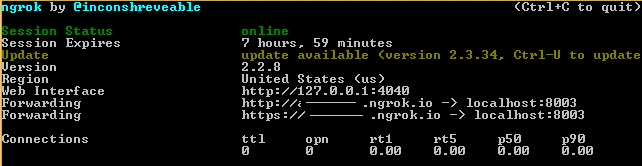 3. Use this URL as the Callback URL and save.
The ngrok forwarding URL changes on every restart. Update the Callback URL each time ngrok is restarted.
9. Open the dialog task and the agent transfer node to verify the configuration is saved. Select the required Events.
3. Use this URL as the Callback URL and save.
The ngrok forwarding URL changes on every restart. Update the Callback URL each time ngrok is restarted.
9. Open the dialog task and the agent transfer node to verify the configuration is saved. Select the required Events.
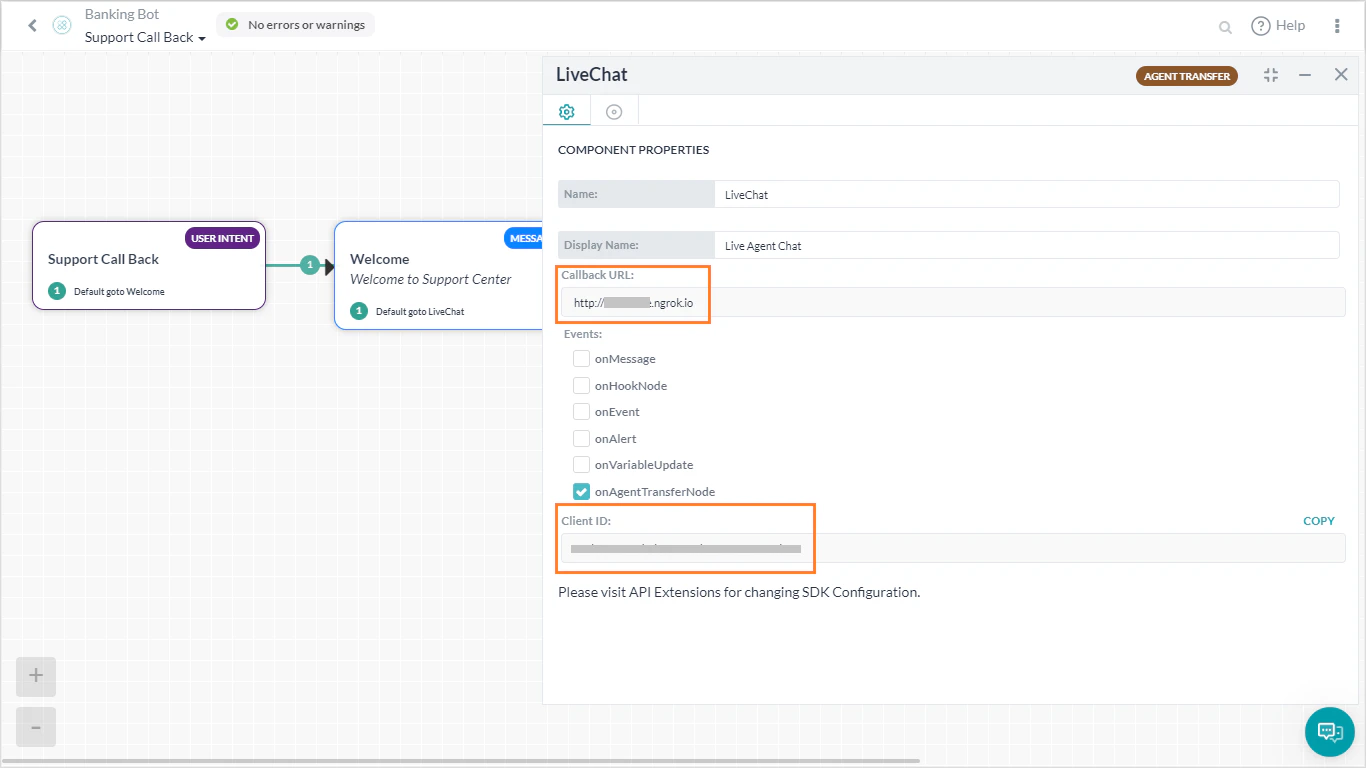 10. Get the LiveChat license code:
1. Sign in to your LiveChat account.
2. Go to **Settings** and select the **chat link**.
3. Copy the license code from the URL (for example, from `https://lc.chat/now/104xx297/`, the code is `104xx297`).
11. Edit the BotKit SDK files:
**`livechatapi.js`**
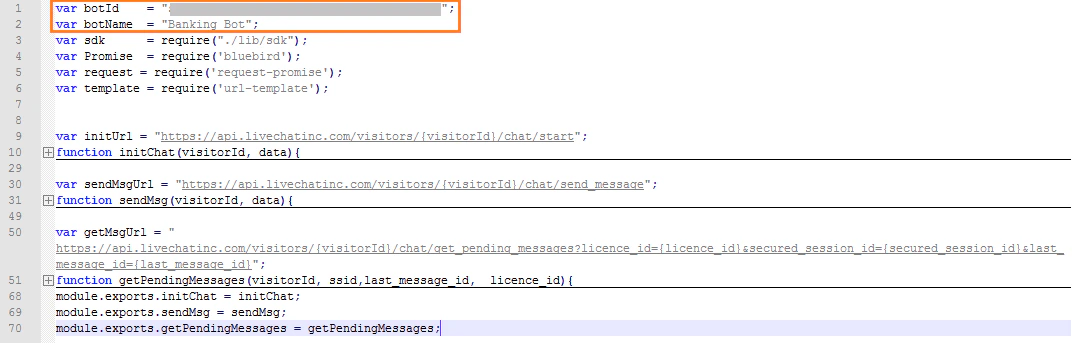
* Set the `appId` and `appName` from your app.
* This file contains the Kore Initialization, Send Message, and Get Message APIs. Add any new agent transfer APIs here.
10. Get the LiveChat license code:
1. Sign in to your LiveChat account.
2. Go to **Settings** and select the **chat link**.
3. Copy the license code from the URL (for example, from `https://lc.chat/now/104xx297/`, the code is `104xx297`).
11. Edit the BotKit SDK files:
**`livechatapi.js`**
* Set the `appId` and `appName` from your app.
* This file contains the Kore Initialization, Send Message, and Get Message APIs. Add any new agent transfer APIs here.
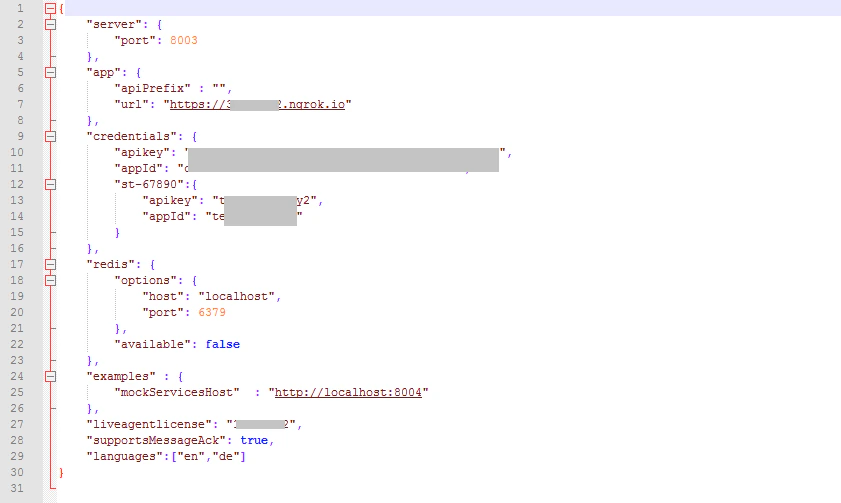
 **`config.json`**
* Set `Client ID`, `Client Secret`, server ports, and the live agent license.
* `Client ID` and `Client Secret` come from **Events and Extensions - Agent Transfer**.
* The ngrok URL is the Callback URL — enter it as the URL field.
* `liveagentlicense` is the LiveChat license code from the chat link.
**`config.json`**
* Set `Client ID`, `Client Secret`, server ports, and the live agent license.
* `Client ID` and `Client Secret` come from **Events and Extensions - Agent Transfer**.
* The ngrok URL is the Callback URL — enter it as the URL field.
* `liveagentlicense` is the LiveChat license code from the chat link.
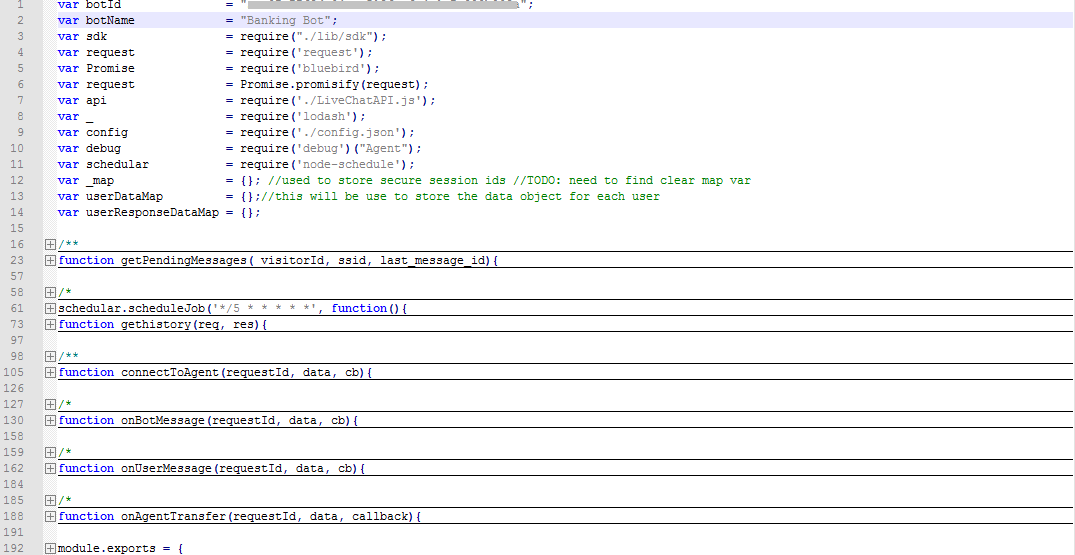
 **`LiveChat.js`**
* Set the `appId` and `appName` from your app.
**`LiveChat.js`**
* Set the `appId` and `appName` from your app.
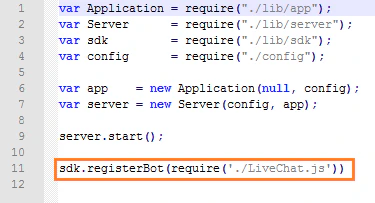
 **`app.js`**
* Add: `sdk.registerBot(require('./LiveChat.js'))`
* Remove any existing `sdk.registerBot` statements that aren't needed.
**`app.js`**
* Add: `sdk.registerBot(require('./LiveChat.js'))`
* Remove any existing `sdk.registerBot` statements that aren't needed.
 ***
## Execution
1. In a terminal, run the BotKit SDK:
```
node app.js
```
2. Install any missing modules if errors appear:
```
npm install # Windows
sudo npm install # Mac
```
3. ngrok and Node.js will be running in separate terminals.
4. When a user initiates chat, the app transfers to an agent and notifies the user.
***
## Execution
1. In a terminal, run the BotKit SDK:
```
node app.js
```
2. Install any missing modules if errors appear:
```
npm install # Windows
sudo npm install # Mac
```
3. ngrok and Node.js will be running in separate terminals.
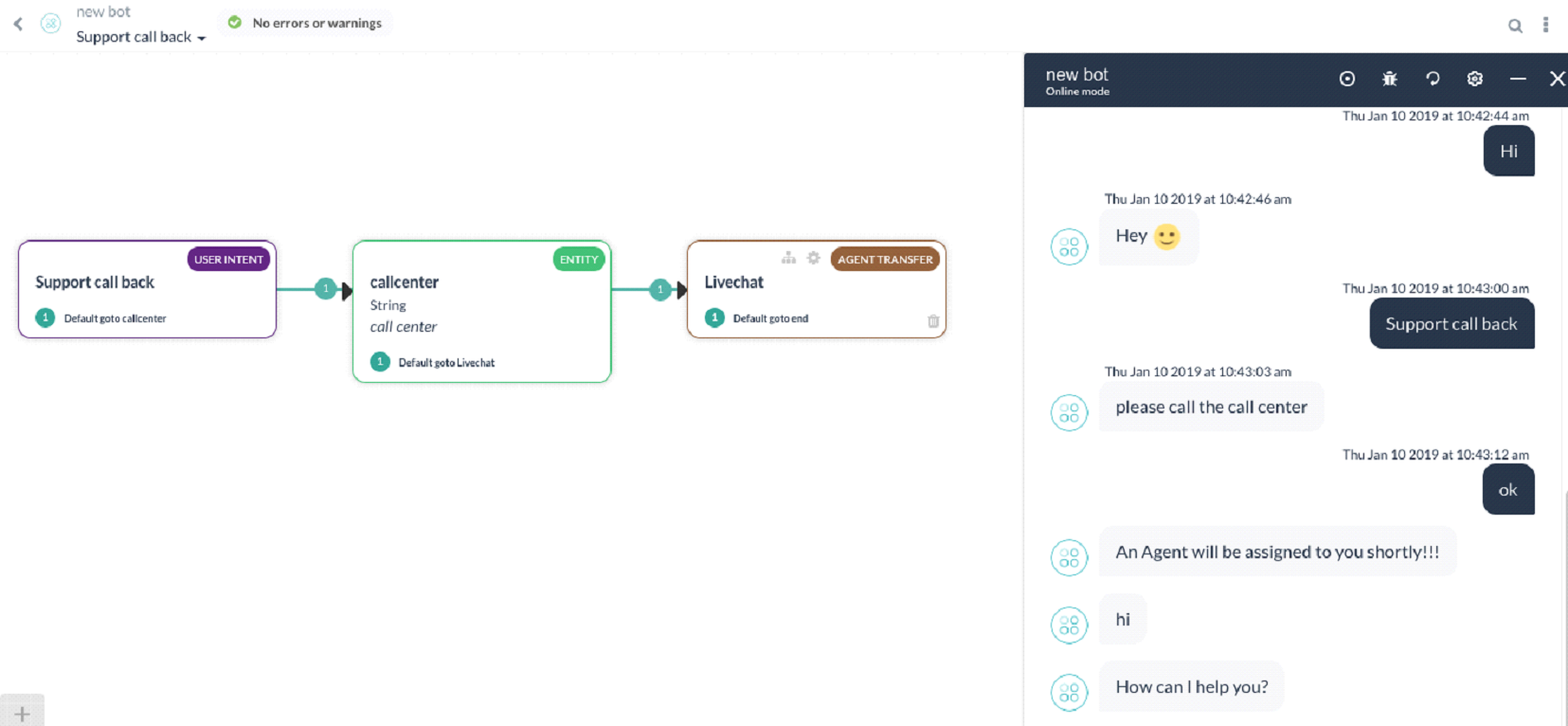
4. When a user initiates chat, the app transfers to an agent and notifies the user.
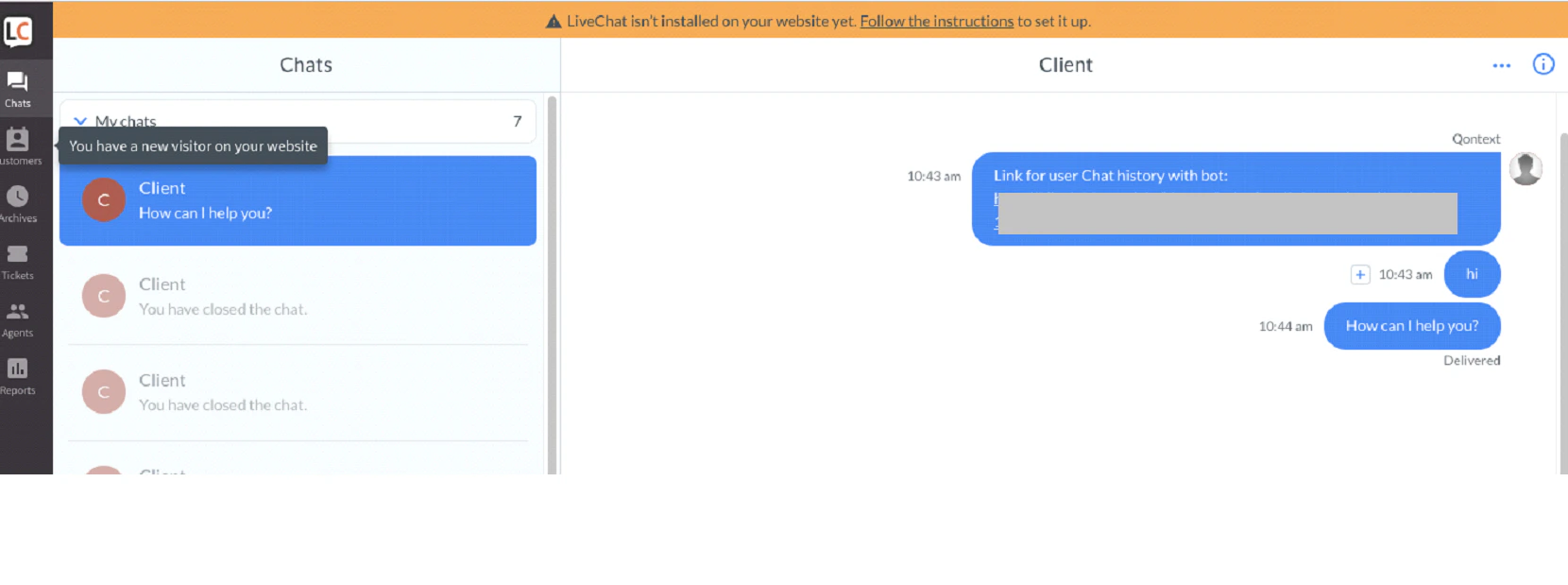
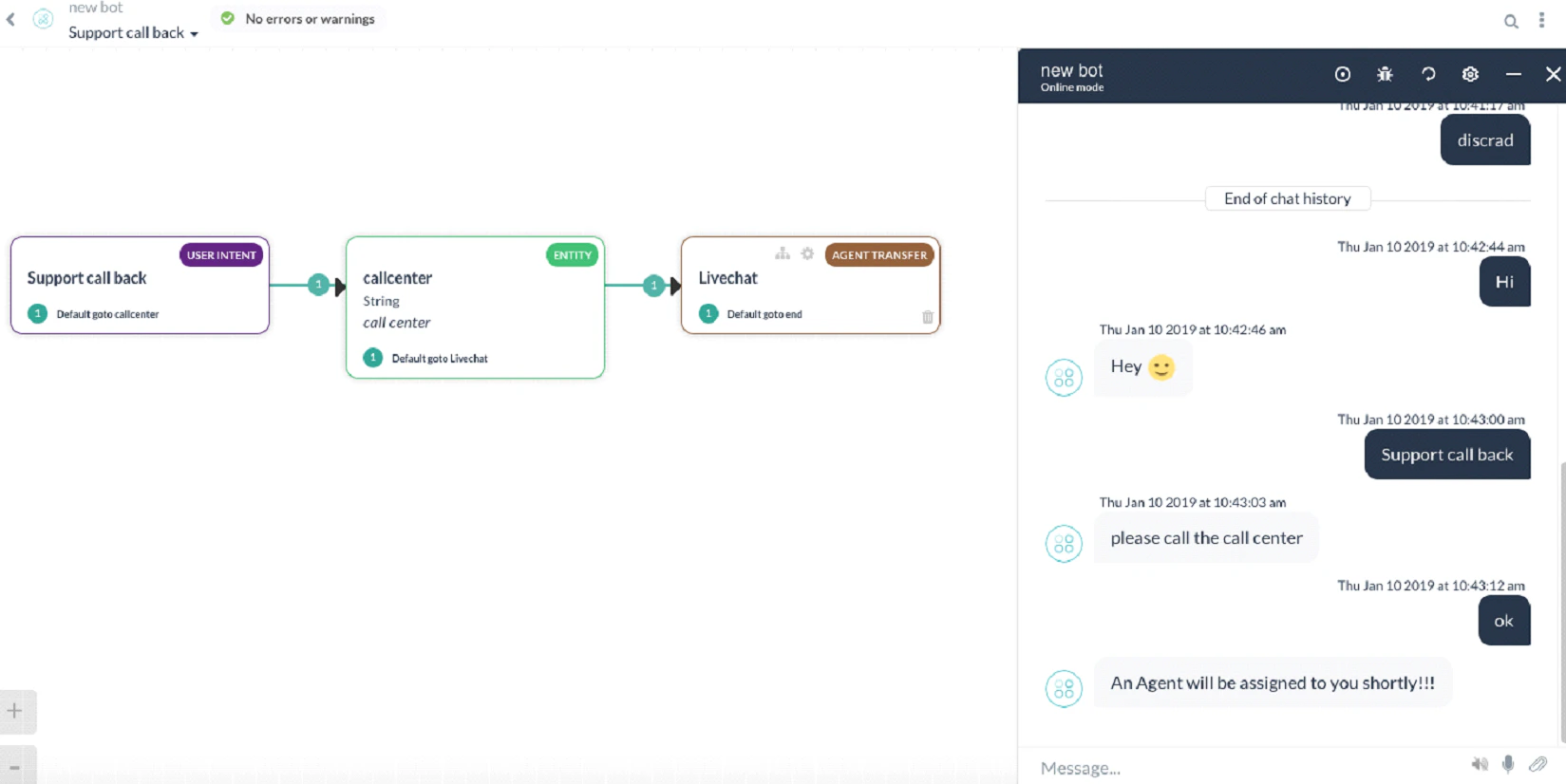 5. The agent receives a notification on LiveChat.
 6. The connection is established and the conversation continues.
 ***
## Events
The events and methods for sending messages between user, app, and agent are defined in `LiveChat.js`.
| Event / Method | Description |
| -------------------- | ----------------------------------------------------------------------------------------------------------------- |
| `on_user_message` | Triggered when a user sends a message. Sends it to the app via `sendBotMessage`. |
| `on_bot_message` | Triggered when the app sends a message. Delivers it to the user via `SendUserMessage`. |
| `on_agent_transfer` | Triggered when the agent transfer node fires. Connects to the agent via `connectToAgent`, which calls `initChat`. |
| `gethistory` | Provides the user's prior chat history with the app to the transferred agent. |
| `scheduleJob` | Polls for pending agent messages every 5 seconds via `getPendingMessages`. |
| `getPendingMessages` | Retrieves all pending messages from the agent and delivers them to the user. |
| `chat_closed` | Triggered when the agent closes the chat. |
***
## Events
The events and methods for sending messages between user, app, and agent are defined in `LiveChat.js`.
| Event / Method | Description |
| -------------------- | ----------------------------------------------------------------------------------------------------------------- |
| `on_user_message` | Triggered when a user sends a message. Sends it to the app via `sendBotMessage`. |
| `on_bot_message` | Triggered when the app sends a message. Delivers it to the user via `SendUserMessage`. |
| `on_agent_transfer` | Triggered when the agent transfer node fires. Connects to the agent via `connectToAgent`, which calls `initChat`. |
| `gethistory` | Provides the user's prior chat history with the app to the transferred agent. |
| `scheduleJob` | Polls for pending agent messages every 5 seconds via `getPendingMessages`. |
| `getPendingMessages` | Retrieves all pending messages from the agent and delivers them to the user. |
| `chat_closed` | Triggered when the agent closes the chat. |