> ## Documentation Index
> Fetch the complete documentation index at: https://koreai.mintlify.site/llms.txt
> Use this file to discover all available pages before exploring further.
# Billing and Payments
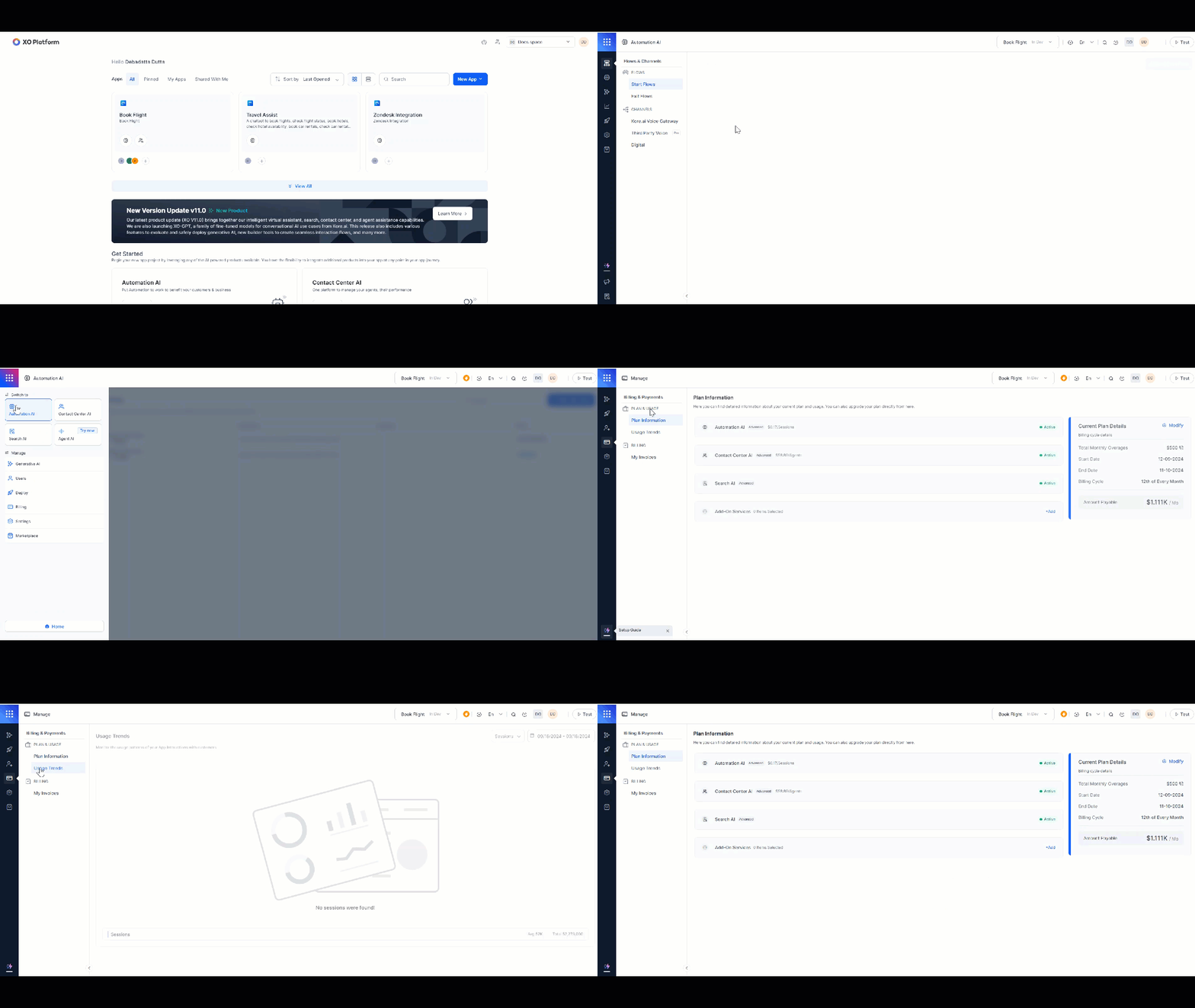
**Plan and Usage** lets you monitor billing, track app usage, manage subscriptions, and access invoices — all from a single location.
To access it, navigate to **Product Switcher** > **Billing** > **Manage** > **Plan and Usage**.
 ## Plans
The platform offers the following plans:
| Plan | Description |
| -------------- | ----------------------------------------------------------------------------------------- |
| **Essential** | Core features to get started building an AI chatbot. |
| **Advanced** | Everything in Essential, plus higher limits and more advanced features. |
| **Enterprise** | Everything in Advanced, plus enterprise features, custom pricing, and the highest limits. |
## How Billing Works
Billing is calculated differently depending on the product.
### Automation AI
* Billed per 15-minute billing session of user conversation.
* Example: A 31-minute conversation = 3 sessions (0-15 min, 16-30 min, 31-end).
* Sessions are tracked per app. In dynamic routing, the Parent app has its own sessions; sessions routed to a linked app are attributed to that linked app only.
### Search AI
* Included in Automation AI; uses the same 15-minute billing session.
* Enterprise users can ingest up to 1 GB of data by default, with an additional 1% allowance. Contract-specific limits override this default.
### Contact Center AI
Billed per agent seat:
| Seat Type | How It's Counted |
| -------------------- | --------------------------------------------------------------------------------------------------------------- |
| **Named Seats** | One seat per agent, regardless of shifts. 100 agents across 3 shifts = 100 seats. |
| **Concurrent Seats** | Based on the maximum number of agents logged in simultaneously. 50 agents per shift across 3 shifts = 50 seats. |
### Agent AI
Billed per agent seat, same as Contact Center AI.
### Add-ons
Billed separately from the base plan.
## Plan Information
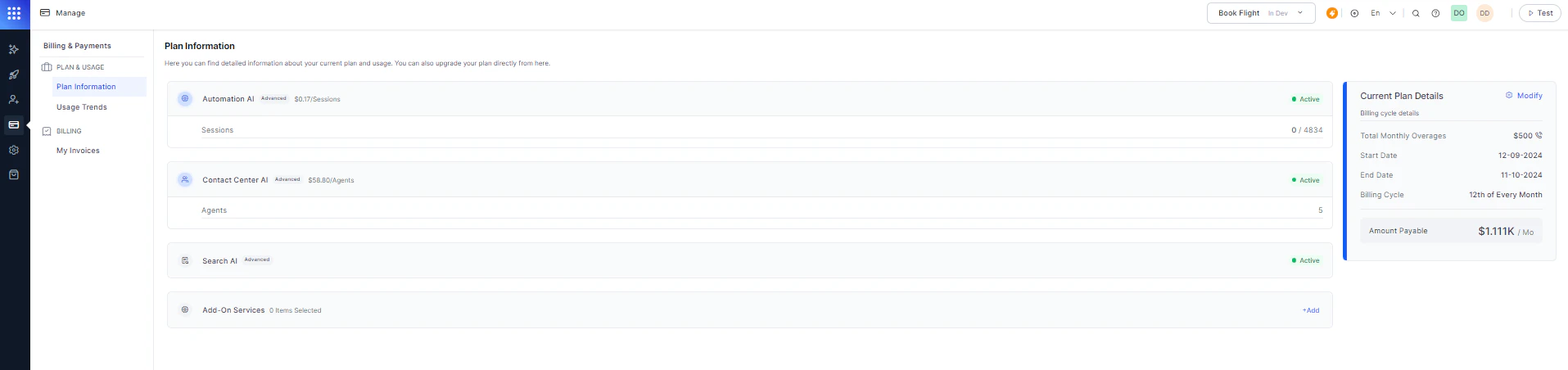
The **Plan Information** section shows your current plan and product usage. You can upgrade or modify your plan directly from here.
## Plans
The platform offers the following plans:
| Plan | Description |
| -------------- | ----------------------------------------------------------------------------------------- |
| **Essential** | Core features to get started building an AI chatbot. |
| **Advanced** | Everything in Essential, plus higher limits and more advanced features. |
| **Enterprise** | Everything in Advanced, plus enterprise features, custom pricing, and the highest limits. |
## How Billing Works
Billing is calculated differently depending on the product.
### Automation AI
* Billed per 15-minute billing session of user conversation.
* Example: A 31-minute conversation = 3 sessions (0-15 min, 16-30 min, 31-end).
* Sessions are tracked per app. In dynamic routing, the Parent app has its own sessions; sessions routed to a linked app are attributed to that linked app only.
### Search AI
* Included in Automation AI; uses the same 15-minute billing session.
* Enterprise users can ingest up to 1 GB of data by default, with an additional 1% allowance. Contract-specific limits override this default.
### Contact Center AI
Billed per agent seat:
| Seat Type | How It's Counted |
| -------------------- | --------------------------------------------------------------------------------------------------------------- |
| **Named Seats** | One seat per agent, regardless of shifts. 100 agents across 3 shifts = 100 seats. |
| **Concurrent Seats** | Based on the maximum number of agents logged in simultaneously. 50 agents per shift across 3 shifts = 50 seats. |
### Agent AI
Billed per agent seat, same as Contact Center AI.
### Add-ons
Billed separately from the base plan.
## Plan Information
The **Plan Information** section shows your current plan and product usage. You can upgrade or modify your plan directly from here.
 ## Usage Trends
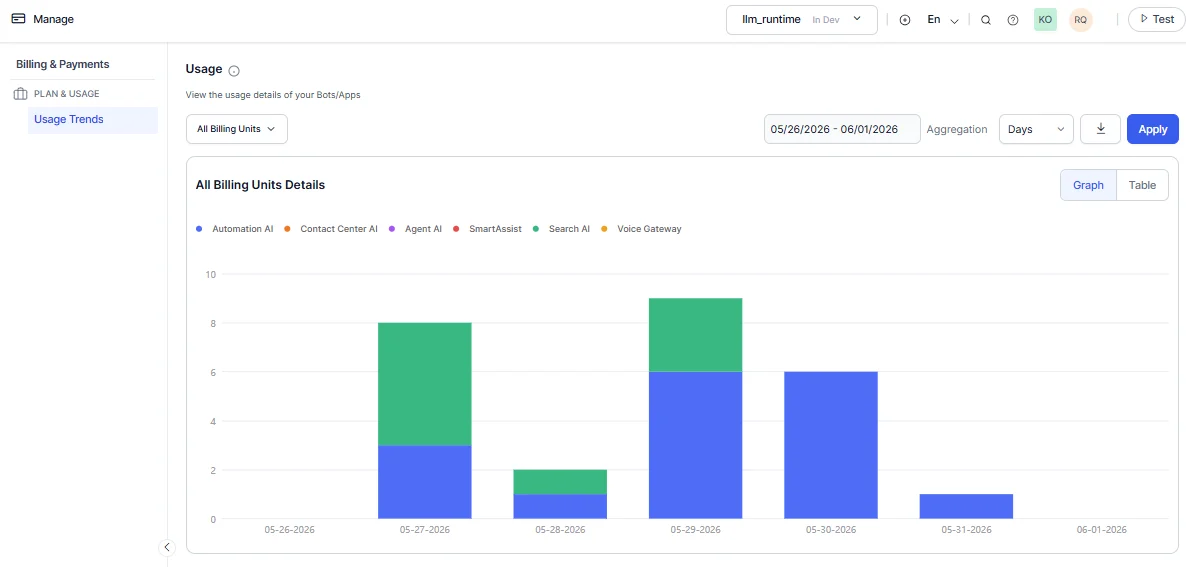
The Usage Trends dashboard provides a consolidated view of billing data across all your apps, such as Automation AI, Contact Center AI, Agent AI, Search AI, SmartAssist, and Voice Gateway.
**Filtering options:**
* Filter by individual app.
* Select a predefined range: 24 hours, 7 days, 30 days, or 90 days.
* Set a custom date range.
The dashboard lets you fetch billings for specific dates and timezones by selecting the date (beyond 7 days or custom), then **Apply** and select timezone from the dropdown. By default, the system displays UTC +5:30. The dashboard also displays monthly bar graph labels by displaying periods in YYYY format.
## Usage Trends
The Usage Trends dashboard provides a consolidated view of billing data across all your apps, such as Automation AI, Contact Center AI, Agent AI, Search AI, SmartAssist, and Voice Gateway.
**Filtering options:**
* Filter by individual app.
* Select a predefined range: 24 hours, 7 days, 30 days, or 90 days.
* Set a custom date range.
The dashboard lets you fetch billings for specific dates and timezones by selecting the date (beyond 7 days or custom), then **Apply** and select timezone from the dropdown. By default, the system displays UTC +5:30. The dashboard also displays monthly bar graph labels by displaying periods in YYYY format.
 ## Payment Methods
The following payment methods are available when adding funds.
### PayPal
Link your PayPal email account to the platform's payment gateway.
## Payment Methods
The following payment methods are available when adding funds.
### PayPal
Link your PayPal email account to the platform's payment gateway.
.png?fit=max&auto=format&n=-GAZofn7EPpSChWQ&q=85&s=b0d871bb01f6ec74f384b4507a8842f3) ### Credit / Debit Card
Enter your card number, account holder name, expiry date, and CVV. Confirm with an OTP.
### Credit / Debit Card
Enter your card number, account holder name, expiry date, and CVV. Confirm with an OTP.
.png?fit=max&auto=format&n=-GAZofn7EPpSChWQ&q=85&s=086557176a5b341a1e25daf873f698b4) ### Wire Transfer
Transfers funds directly from one bank account to another.
### Wire Transfer
Transfers funds directly from one bank account to another.
.png?fit=max&auto=format&n=-GAZofn7EPpSChWQ&q=85&s=fa96797b9a79134cb1c1f0626d00a420) **Important notes for wire transfers:**
* When you place a wire transfer order, it's registered with a **pending payment clearance** status. You receive an email from Paypro with steps to complete the transfer.
**Important notes for wire transfers:**
* When you place a wire transfer order, it's registered with a **pending payment clearance** status. You receive an email from Paypro with steps to complete the transfer.
.png?fit=max&auto=format&n=-GAZofn7EPpSChWQ&q=85&s=0a1b672335acf2d5744554b8d578efe8) * Wire transfers take 4-8 business days. The Platform loads the paid credits after a successful wire transfer. If your balance is low and your wire transfer is pending, add funds using an alternative method (credit card or PayPal).
## Subscribe or Modify a Plan
1. Navigate to **Manage** > **Plan & Usage**.
2. In Plan Information, click **Subscribe** (for a new plan) or **Modify** (to change your current plan).
* Wire transfers take 4-8 business days. The Platform loads the paid credits after a successful wire transfer. If your balance is low and your wire transfer is pending, add funds using an alternative method (credit card or PayPal).
## Subscribe or Modify a Plan
1. Navigate to **Manage** > **Plan & Usage**.
2. In Plan Information, click **Subscribe** (for a new plan) or **Modify** (to change your current plan).
.png?fit=max&auto=format&n=-GAZofn7EPpSChWQ&q=85&s=dce95abceac55368b4b9d3e65733e4d4)
.png?fit=max&auto=format&n=-GAZofn7EPpSChWQ&q=85&s=aca2e3e089e4b30d6e75ae5a62ad1886) 3. Select a plan and click **Proceed and Modify**.
3. Select a plan and click **Proceed and Modify**.
.png?fit=max&auto=format&n=-GAZofn7EPpSChWQ&q=85&s=931965dbc21d45aa9cff90f364abbe76) 4. Enter your Billing Information, select a Payment Method, and enter payment details.
5. Click **SUBMIT ORDER**.
4. Enter your Billing Information, select a Payment Method, and enter payment details.
5. Click **SUBMIT ORDER**.
.png?fit=max&auto=format&n=-GAZofn7EPpSChWQ&q=85&s=34a1194adb10dc79cd9b19ee41ecfa5c) ## Deployment Flow
The following rules govern app deployment approvals in a Standard Workspace.
| Workspace State | Admin Action |
| -------------------------- | ---------------------------------------------------------------- |
| **Free credits available** | Admin can approve deployment without any additional steps. |
| **Free credits exhausted** | Admin can't approve deployment until funds or credits are added. |
| **Paid credits available** | Admin can approve deployment. |
## Invoices
Invoices are available for Standard Accounts only (subscriptions to Usage Plans and Support Plans). Enterprise Account invoices aren't displayed.
### View Invoices
1. Log in to the Platform and select the app for which you need the invoice.
2. Navigate to **Product Switcher** > **Billing** > **Manage** > **My Invoices**.
## Deployment Flow
The following rules govern app deployment approvals in a Standard Workspace.
| Workspace State | Admin Action |
| -------------------------- | ---------------------------------------------------------------- |
| **Free credits available** | Admin can approve deployment without any additional steps. |
| **Free credits exhausted** | Admin can't approve deployment until funds or credits are added. |
| **Paid credits available** | Admin can approve deployment. |
## Invoices
Invoices are available for Standard Accounts only (subscriptions to Usage Plans and Support Plans). Enterprise Account invoices aren't displayed.
### View Invoices
1. Log in to the Platform and select the app for which you need the invoice.
2. Navigate to **Product Switcher** > **Billing** > **Manage** > **My Invoices**.
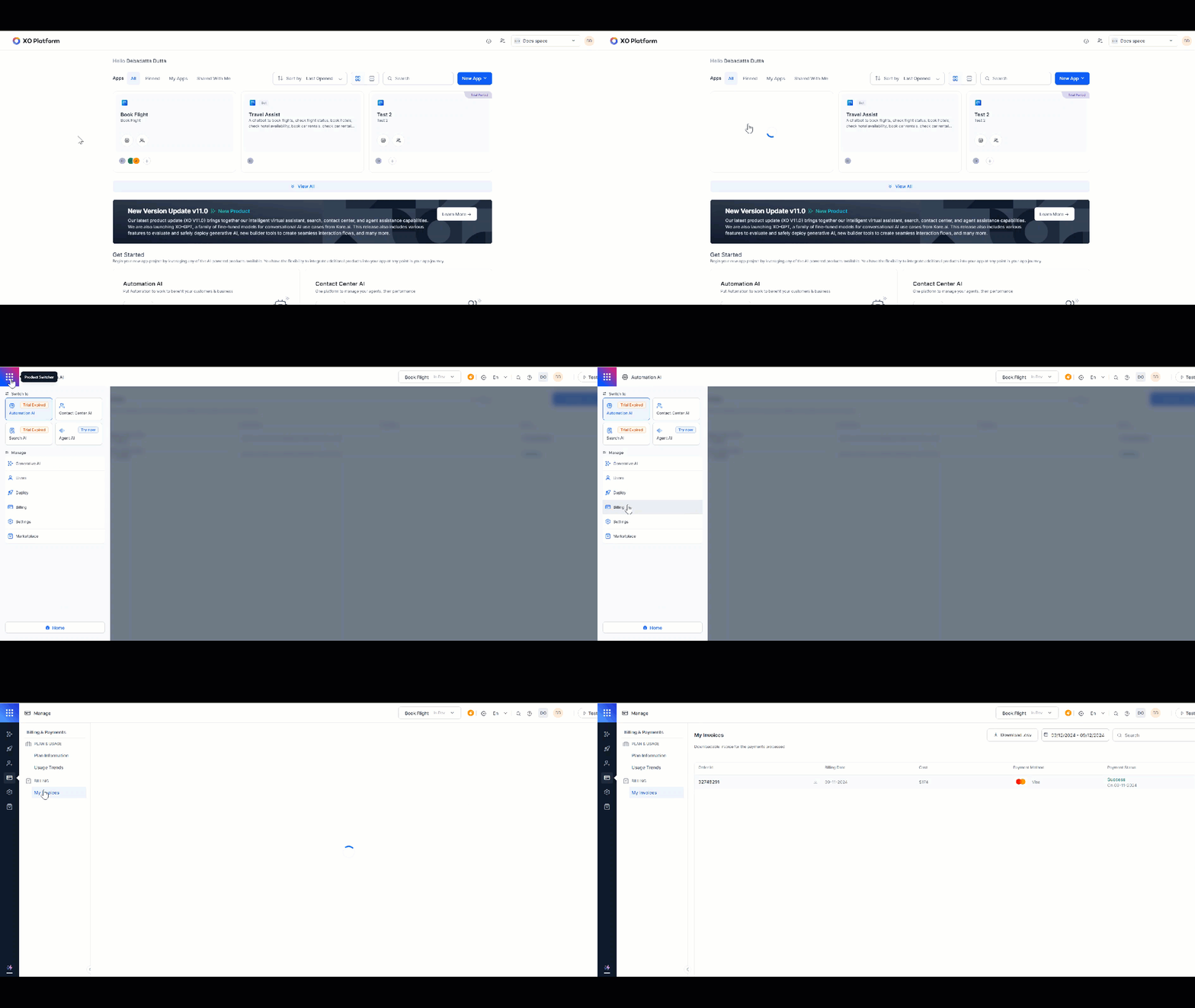 3. Invoices are listed in chronological order with the following fields:
* Order ID
* Billing Date
* Cost
* Payment Method
* Payment Status
4. Select the **Download** icon to download an invoice as a PDF. You can also export the billing report as a `.csv` file.
3. Invoices are listed in chronological order with the following fields:
* Order ID
* Billing Date
* Cost
* Payment Method
* Payment Status
4. Select the **Download** icon to download an invoice as a PDF. You can also export the billing report as a `.csv` file.
 ## Email Notifications
The platform sends emails to app developers and account owners when specific events occur.
### Product Emails
| Email | Description |
| ------------------------------------------------------- | ------------------------------------------------------------------------------------------------------------------ |
| **Sign-up OTP / Resend OTP** | Provides an OTP to complete the self-signup process. |
| **Forgot Password** | Provides a verification link to reset the password. |
| **Two-Factor OTP / Resend OTP** | Provides an OTP for two-factor authentication (2FA). |
| **Workspace Approval Request** | Notifies the account owner of an access request, asking for approval or denial. |
| **Workspace Approval Accepted** | Confirms that an access request to the workspace has been approved. |
| **Workspace Approval Rejected** | Informs the requester that their access request was declined. |
| **Invite New User (Admin Console)** | Invites a new user to join a platform workspace. |
| **Invite Existing User (Admin Console)** | Invites an existing user to join a platform workspace. |
| **Invite New User (from bot)** | Invites a new user to join an app on the platform. |
| **Invite Existing User from Bot (not part of account)** | Invites an existing user to join an app, with steps to access its features. |
| **Invite Existing User from Bot (part of account)** | Invites an account member to join an app via bot invitation. |
| **Bot Publish** | Confirms the successful publication of a bot. |
| **Free Tokens Exhausted** | Informs the user that free tokens for Generative AI features are exhausted, with steps to configure their own LLM. |
### Pricing Emails
| Email | Description |
| --------------------------------------------------- | ------------------------------------------------------------------------------------------ |
| **Automation AI Subscription** | Confirms activation of the Automation AI subscription and successful payment. |
| **Contact Center AI Subscription** | Confirms activation of the Contact Center AI subscription and successful payment. |
| **Automation AI & Contact Center AI Subscription** | Confirms activation of both subscriptions and successful payment. |
| **Add-on: Voice Gateway with ASR and TTS** | Confirms activation of the Voice Gateway add-on with ASR and TTS. |
| **Single Add-on Subscription** such as Advanced RAG | Confirms activation of a single add-on subscription. |
| **Multiple Add-ons** | Confirms activation of multiple add-on subscriptions. |
| **Auto-Renewal Successful** | Confirms successful subscription renewal with plan, billing amount, and next billing date. |
| **Auto-Renewal Unsuccessful** | Alerts the user of a renewal failure and the number of days before services stop. |
| **Trial Expired** | Informs the user that their trial has ended and prompts an upgrade to a paid plan. |
| **Subscription Expired** | Informs the user that their subscription has expired and prompts renewal. |
| **Subscription Canceled** | Confirms that the subscription cancellation has been processed and billing has stopped. |
## Email Notifications
The platform sends emails to app developers and account owners when specific events occur.
### Product Emails
| Email | Description |
| ------------------------------------------------------- | ------------------------------------------------------------------------------------------------------------------ |
| **Sign-up OTP / Resend OTP** | Provides an OTP to complete the self-signup process. |
| **Forgot Password** | Provides a verification link to reset the password. |
| **Two-Factor OTP / Resend OTP** | Provides an OTP for two-factor authentication (2FA). |
| **Workspace Approval Request** | Notifies the account owner of an access request, asking for approval or denial. |
| **Workspace Approval Accepted** | Confirms that an access request to the workspace has been approved. |
| **Workspace Approval Rejected** | Informs the requester that their access request was declined. |
| **Invite New User (Admin Console)** | Invites a new user to join a platform workspace. |
| **Invite Existing User (Admin Console)** | Invites an existing user to join a platform workspace. |
| **Invite New User (from bot)** | Invites a new user to join an app on the platform. |
| **Invite Existing User from Bot (not part of account)** | Invites an existing user to join an app, with steps to access its features. |
| **Invite Existing User from Bot (part of account)** | Invites an account member to join an app via bot invitation. |
| **Bot Publish** | Confirms the successful publication of a bot. |
| **Free Tokens Exhausted** | Informs the user that free tokens for Generative AI features are exhausted, with steps to configure their own LLM. |
### Pricing Emails
| Email | Description |
| --------------------------------------------------- | ------------------------------------------------------------------------------------------ |
| **Automation AI Subscription** | Confirms activation of the Automation AI subscription and successful payment. |
| **Contact Center AI Subscription** | Confirms activation of the Contact Center AI subscription and successful payment. |
| **Automation AI & Contact Center AI Subscription** | Confirms activation of both subscriptions and successful payment. |
| **Add-on: Voice Gateway with ASR and TTS** | Confirms activation of the Voice Gateway add-on with ASR and TTS. |
| **Single Add-on Subscription** such as Advanced RAG | Confirms activation of a single add-on subscription. |
| **Multiple Add-ons** | Confirms activation of multiple add-on subscriptions. |
| **Auto-Renewal Successful** | Confirms successful subscription renewal with plan, billing amount, and next billing date. |
| **Auto-Renewal Unsuccessful** | Alerts the user of a renewal failure and the number of days before services stop. |
| **Trial Expired** | Informs the user that their trial has ended and prompts an upgrade to a paid plan. |
| **Subscription Expired** | Informs the user that their subscription has expired and prompts renewal. |
| **Subscription Canceled** | Confirms that the subscription cancellation has been processed and billing has stopped. |