> ## Documentation Index
> Fetch the complete documentation index at: https://koreai.mintlify.app/llms.txt
> Use this file to discover all available pages before exploring further.
# Conversation Intelligence
The Conversation Intelligence dashboard provides post-interaction analytics to help admins and supervisors understand agent performance, customer experience, and interaction details.
You can filter data by date and time range and by channel: **All**, **Voice**, **Chat**, or **Email**. Use the **Compare** toggle to highlight performance changes between the selected period and the previous one.
Navigate to **Quality AI** > **ANALYZE** > **Conversation Intelligence**.
 **Dashboard sections:**
| Section | What it shows |
| ----------------------------- | --------------------------------------------------------------------------------------------- |
| **Contact Center Efficiency** | Average Speed to Answer, Abandonment Rate, CSAT, Transfer Rate. |
| **Agent Efficacy** | Empathy Score, CSAT, Crutch Word Score, Agent Performance Monitor, Agent Occupancy. |
| **Customer Experience** | Average Wait Time, NPS, Churn Risk, Sentiment Score, Customer Churn Monitor. |
| **Insights Mining** | Topic vs. Sentiment bubbles, Keyword Cloud, Emotions. |
| **Interaction Details** | Session date/time, Call ID, Agent Name/ID, Call Reason/Intent, Sentiment Score, Dispositions. |
***
## Filters
### Create a Filter
1. Select **Filters**.
**Dashboard sections:**
| Section | What it shows |
| ----------------------------- | --------------------------------------------------------------------------------------------- |
| **Contact Center Efficiency** | Average Speed to Answer, Abandonment Rate, CSAT, Transfer Rate. |
| **Agent Efficacy** | Empathy Score, CSAT, Crutch Word Score, Agent Performance Monitor, Agent Occupancy. |
| **Customer Experience** | Average Wait Time, NPS, Churn Risk, Sentiment Score, Customer Churn Monitor. |
| **Insights Mining** | Topic vs. Sentiment bubbles, Keyword Cloud, Emotions. |
| **Interaction Details** | Session date/time, Call ID, Agent Name/ID, Call Reason/Intent, Sentiment Score, Dispositions. |
***
## Filters
### Create a Filter
1. Select **Filters**.
 2. Select **+ Add New Filter**.
 3. Choose relevant **Queues** or **Agents**, then select **Apply**.
 Selecting **Apply** saves the filter to the **Unsaved Filter** category, letting you review before saving permanently.
4. Enter a **Filter Name** under **Save Filter**.
5. Enable **Make this the default view** if needed.
6. Select **Save & Apply**.
Selecting **Apply** saves the filter to the **Unsaved Filter** category, letting you review before saving permanently.
4. Enter a **Filter Name** under **Save Filter**.
5. Enable **Make this the default view** if needed.
6. Select **Save & Apply**.
 ### Manage Saved Filters
Select the **Filters** tab to view saved filters.
### Manage Saved Filters
Select the **Filters** tab to view saved filters.
 Hover over a saved filter to access these options:
 | Option | Action |
| ------------------- | -------------------------------- |
| **Duplicate** | Creates a copy of the filter. |
| **Mark as Default** | Sets this filter as the default. |
| **Delete** | Removes the filter. |
| **Edit** | Modifies the filter. |
#### Duplicate a Filter
1. Select **Duplicate**.
| Option | Action |
| ------------------- | -------------------------------- |
| **Duplicate** | Creates a copy of the filter. |
| **Mark as Default** | Sets this filter as the default. |
| **Delete** | Removes the filter. |
| **Edit** | Modifies the filter. |
#### Duplicate a Filter
1. Select **Duplicate**.
 2. Enter a name and select **SAVE**.
 A confirmation message appears after the copy is created.
 #### Mark as Default
Select **Mark as Default** to set the filter as default.
#### Mark as Default
Select **Mark as Default** to set the filter as default.

 #### Delete a Filter
1. Select **Delete**.
#### Delete a Filter
1. Select **Delete**.
 2. Confirm by selecting **Delete** in the pop-up.
 #### Edit a Filter
1. Select **Edit**.
#### Edit a Filter
1. Select **Edit**.
 2. Make your changes, then select **Save & Apply**.
 ### Clear Filters
Select **Clear Filters** to reset all filters and show only the current day's data.
### Clear Filters
Select **Clear Filters** to reset all filters and show only the current day's data.
 ***
## Date and Time Range
Filter data by date and time range. The dashboard shows the current day's data by default. Select a range and select **Apply**.
***
## Date and Time Range
Filter data by date and time range. The dashboard shows the current day's data by default. Select a range and select **Apply**.
 ***
## Compare Toggle
Enable **Compare** to view metric changes between the selected period and the previous equivalent period. The toggle is on by default.
* **Green upward arrow**: Positive change.
* **Red downward arrow**: Negative change.
Spike and dip indicators appear across metrics showing percentage change from the prior period.
***
## Compare Toggle
Enable **Compare** to view metric changes between the selected period and the previous equivalent period. The toggle is on by default.
* **Green upward arrow**: Positive change.
* **Red downward arrow**: Negative change.
Spike and dip indicators appear across metrics showing percentage change from the prior period.
 ***
## Channel Filter
Filter data by channel: **All**, **Voice**, **Chat**, or **Email**. This applies to the entire dashboard except Agent Occupancy (not tracked per channel).
***
## Channel Filter
Filter data by channel: **All**, **Voice**, **Chat**, or **Email**. This applies to the entire dashboard except Agent Occupancy (not tracked per channel).
 ***
## Contact Center Efficiency
### Key Performance Indicators (KPIs)
| KPI | Channels | Description |
| --------------------------------- | ------------------ | ------------------------------------------------------------------------------------- |
| **Average Speed to Answer (ASA)** | Voice, Chat, Email | Average time an agent takes to answer inbound calls from when callers join the queue. |
| **Abandonment Rate** | Voice, Chat | Percentage of customers who disconnect before reaching an agent. |
| **Transfer Rate** | Voice, Chat, Email | Percentage of interactions transferred to another resource. |
| **CSAT** | Voice, Chat | Customer Satisfaction score calculated from survey responses. |
### Default Color Zones
| KPI | Green | Yellow | Red |
| -------------------- | --------- | ------ | -------- |
| **ASA (Voice)** | Up to 28s | 28–40s | 40s+ |
| **ASA (Chat)** | Up to 35s | 35–50s | 50s+ |
| **Transfer Rate** | Up to 10% | — | Over 10% |
| **Abandonment Rate** | Up to 6% | — | Over 6% |
| **CSAT** | 8–10 | 6–8 | 1–6 |
The dashboard shows the KPI average for the selected period alongside a percentage change from the previous period. Hover over a color zone to see call distribution by percentage and count.
***
## Contact Center Efficiency
### Key Performance Indicators (KPIs)
| KPI | Channels | Description |
| --------------------------------- | ------------------ | ------------------------------------------------------------------------------------- |
| **Average Speed to Answer (ASA)** | Voice, Chat, Email | Average time an agent takes to answer inbound calls from when callers join the queue. |
| **Abandonment Rate** | Voice, Chat | Percentage of customers who disconnect before reaching an agent. |
| **Transfer Rate** | Voice, Chat, Email | Percentage of interactions transferred to another resource. |
| **CSAT** | Voice, Chat | Customer Satisfaction score calculated from survey responses. |
### Default Color Zones
| KPI | Green | Yellow | Red |
| -------------------- | --------- | ------ | -------- |
| **ASA (Voice)** | Up to 28s | 28–40s | 40s+ |
| **ASA (Chat)** | Up to 35s | 35–50s | 50s+ |
| **Transfer Rate** | Up to 10% | — | Over 10% |
| **Abandonment Rate** | Up to 6% | — | Over 6% |
| **CSAT** | 8–10 | 6–8 | 1–6 |
The dashboard shows the KPI average for the selected period alongside a percentage change from the previous period. Hover over a color zone to see call distribution by percentage and count.
 ***
## Agent Efficacy
### Empathy Score
Measures whether agents respond empathetically when customers express distress. The system classifies customer utterances as empathy-seeking or non-empathy-seeking, then evaluates agent responses accordingly.
### CSAT
Displays the average customer satisfaction score on a scale of 1 to 5.
### Crutch Word Score
Measures how often agents use filler words (for example, `um`, `uh`, `like`, `you know`, `so`, `basically`). The system detects these across multilingual conversations. [Learn more](../../quality-ai/configure/language-settings.md).
***
## Agent Performance Monitor
Visualizes relationships among Empathy Score, Crutch Word Score, CSAT Score, and Sentiment Score to help supervisors make data-driven decisions.
* **Y-axis**: Agent performance metrics (select one or more).
* **X-axis**: Customer experience metrics (CSAT and Sentiment Score).
***
## Agent Efficacy
### Empathy Score
Measures whether agents respond empathetically when customers express distress. The system classifies customer utterances as empathy-seeking or non-empathy-seeking, then evaluates agent responses accordingly.
### CSAT
Displays the average customer satisfaction score on a scale of 1 to 5.
### Crutch Word Score
Measures how often agents use filler words (for example, `um`, `uh`, `like`, `you know`, `so`, `basically`). The system detects these across multilingual conversations. [Learn more](../../quality-ai/configure/language-settings.md).
***
## Agent Performance Monitor
Visualizes relationships among Empathy Score, Crutch Word Score, CSAT Score, and Sentiment Score to help supervisors make data-driven decisions.
* **Y-axis**: Agent performance metrics (select one or more).
* **X-axis**: Customer experience metrics (CSAT and Sentiment Score).
 ### Agent Occupancy
Tracks the percentage of time agents spend handling interactions or performing work-related tasks.
**Formula:**
**Agent Occupancy (%)** = (Total talk/chat time + Total ACW time) ÷ Total logged-in time × 100
| Component | Description |
| ------------------------ | ----------------------------------------------------------------- |
| **Total talk/chat time** | Total duration of active customer interactions. |
| **Total ACW time** | Total time spent on post-call activities (notes, record updates). |
| **Total logged-in time** | Total time agents are logged in to Agent AI. |
Agent statuses include `Available`, `Busy`, `Away`, `Break`, and any custom codes configured by the administrator. A pie chart shows distribution across these statuses.
### Agent Occupancy
Tracks the percentage of time agents spend handling interactions or performing work-related tasks.
**Formula:**
**Agent Occupancy (%)** = (Total talk/chat time + Total ACW time) ÷ Total logged-in time × 100
| Component | Description |
| ------------------------ | ----------------------------------------------------------------- |
| **Total talk/chat time** | Total duration of active customer interactions. |
| **Total ACW time** | Total time spent on post-call activities (notes, record updates). |
| **Total logged-in time** | Total time agents are logged in to Agent AI. |
Agent statuses include `Available`, `Busy`, `Away`, `Break`, and any custom codes configured by the administrator. A pie chart shows distribution across these statuses.
 ### Script and Playbook Adherence
Tracks how consistently agents follow predefined scripts. Adherence displays as a bar graph, with each attribute showing a compliance percentage for the selected period, plus a comparison to the previous equivalent period.
If no Agent AI playbooks are configured, the system measures adherence against these default conversation etiquettes:
| Script | Example |
| ------------------------- | ------------------------------------------------------------------------------------------- |
| **Greeting** | "Hello, My name is John Doe, and I am your customer support executive. How may I help you?" |
| **Branding** | "Thank you for contacting Mr. John." |
| **Privacy Policy** | "This call gets recorded for quality and training purposes." |
| **Hold Etiquette** | "May I place you on hold for a few minutes while I pull up some information?" |
| **Customer Verification** | "May I know your date of birth?" |
| **Proper Sign Off** | "Thank you for reaching out. It was a pleasure to assist you. Have a great day!" |
### Script and Playbook Adherence
Tracks how consistently agents follow predefined scripts. Adherence displays as a bar graph, with each attribute showing a compliance percentage for the selected period, plus a comparison to the previous equivalent period.
If no Agent AI playbooks are configured, the system measures adherence against these default conversation etiquettes:
| Script | Example |
| ------------------------- | ------------------------------------------------------------------------------------------- |
| **Greeting** | "Hello, My name is John Doe, and I am your customer support executive. How may I help you?" |
| **Branding** | "Thank you for contacting Mr. John." |
| **Privacy Policy** | "This call gets recorded for quality and training purposes." |
| **Hold Etiquette** | "May I place you on hold for a few minutes while I pull up some information?" |
| **Customer Verification** | "May I know your date of birth?" |
| **Proper Sign Off** | "Thank you for reaching out. It was a pleasure to assist you. Have a great day!" |
 Supervisors can select a custom playbook from the dropdown to view adherence to its specific steps.
 Administrators can configure playbook attributes. [Learn more](../../console/monitor-queues-agents-and-interactions.md).
The **Playbook Adherence** tab is available only when playbooks are configured in Agent AI.
***
## Customer Experience
Filter customer experience data by language and date range. Available metrics:
| Metric | Description |
| --------------------- | ------------------------------------------------------------------------------------------ |
| **All Languages** | Multi-select filter; defaults to all languages. Shows only metrics for selected languages. |
| **Average Wait Time** | Total customer wait time ÷ customers served in the period. |
| **NPS Score** | Net Promoter Score measuring customer loyalty (scale: 0–10). |
| **Churn Risk** | Number of customers who stopped using your services in the selected period. |
| **Sentiment Score** | Average sentiment score per interaction, normalized on a 1–10 scale. |
Administrators can configure playbook attributes. [Learn more](../../console/monitor-queues-agents-and-interactions.md).
The **Playbook Adherence** tab is available only when playbooks are configured in Agent AI.
***
## Customer Experience
Filter customer experience data by language and date range. Available metrics:
| Metric | Description |
| --------------------- | ------------------------------------------------------------------------------------------ |
| **All Languages** | Multi-select filter; defaults to all languages. Shows only metrics for selected languages. |
| **Average Wait Time** | Total customer wait time ÷ customers served in the period. |
| **NPS Score** | Net Promoter Score measuring customer loyalty (scale: 0–10). |
| **Churn Risk** | Number of customers who stopped using your services in the selected period. |
| **Sentiment Score** | Average sentiment score per interaction, normalized on a 1–10 scale. |
 ### Sentiment Monitor
Classifies interactions as Positive, Neutral, or Negative and infers the likely emotion (for example, Happy, Satisfied, Disappointed).
The bar chart shows sentiment distribution across intents or topics:
| Color | Sentiment |
| ------ | --------- |
| Green | Positive |
| Yellow | Neutral |
| Red | Negative |
### Sentiment Monitor
Classifies interactions as Positive, Neutral, or Negative and infers the likely emotion (for example, Happy, Satisfied, Disappointed).
The bar chart shows sentiment distribution across intents or topics:
| Color | Sentiment |
| ------ | --------- |
| Green | Positive |
| Yellow | Neutral |
| Red | Negative |
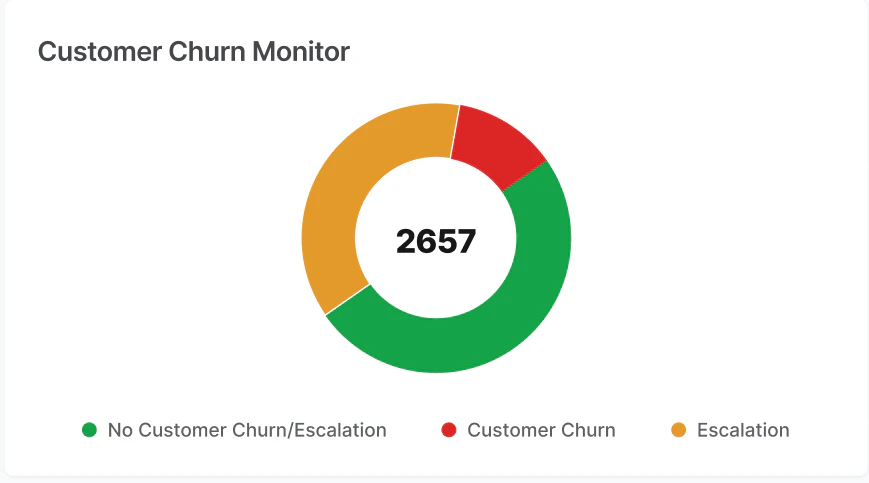
 ### Customer Churn Monitor
Displays churn risk in a pie chart, comparing churn percentage with total calls and escalations. Hover over a section to see its value; select a section to view related calls.
| Category | Description |
| ----------------------- | ---------------------------------------------------------------- |
| **No Churn/Escalation** | Interactions with no churn or escalation. |
| **Customer Churn** | Interactions where customer churn was detected. |
| **Escalation** | Interactions where the customer requested supervisor assistance. |
### Customer Churn Monitor
Displays churn risk in a pie chart, comparing churn percentage with total calls and escalations. Hover over a section to see its value; select a section to view related calls.
| Category | Description |
| ----------------------- | ---------------------------------------------------------------- |
| **No Churn/Escalation** | Interactions with no churn or escalation. |
| **Customer Churn** | Interactions where customer churn was detected. |
| **Escalation** | Interactions where the customer requested supervisor assistance. |
 ***
## Insights Mining
Shows the top 30 topics by volume. Use this to identify topics associated with sentiment, keywords, and emotions for the selected date range and channel.
***
## Insights Mining
Shows the top 30 topics by volume. Use this to identify topics associated with sentiment, keywords, and emotions for the selected date range and channel.
 By default, this widget is blank. Select a date range and topic to populate sentiment scores.
### All Languages
Use the **All Languages** dropdown to filter by language. The system updates interaction sentiment scores and bubble plots across all widgets when you change language or channel.
### Topics
Displays graded sentiment scores (1–10) as bubbles. Each bubble represents a topic's volume and sentiment distribution. Hovering over a bubble shows the average emotion label (for example, angry, frustrated).
**Bubble color by sentiment:**
| Color | Sentiment Range | Meaning |
| ----- | --------------- | -------- |
| Green | 6–10 | Positive |
| Grey | 4–6 | Neutral |
| Red | 1–4 | Negative |
Bubble size reflects interaction volume relative to the minimum and maximum for the selected period.
Only the top 30 topics (by interaction volume) appear on the widget.
**Example**: The **Payment** bubble shows Positive 68% (green), Neutral 10% (gray), Negative 22% (red). The circumference represents these percentages. Hovering shows the average emotion index.
By default, this widget is blank. Select a date range and topic to populate sentiment scores.
### All Languages
Use the **All Languages** dropdown to filter by language. The system updates interaction sentiment scores and bubble plots across all widgets when you change language or channel.
### Topics
Displays graded sentiment scores (1–10) as bubbles. Each bubble represents a topic's volume and sentiment distribution. Hovering over a bubble shows the average emotion label (for example, angry, frustrated).
**Bubble color by sentiment:**
| Color | Sentiment Range | Meaning |
| ----- | --------------- | -------- |
| Green | 6–10 | Positive |
| Grey | 4–6 | Neutral |
| Red | 1–4 | Negative |
Bubble size reflects interaction volume relative to the minimum and maximum for the selected period.
Only the top 30 topics (by interaction volume) appear on the widget.
**Example**: The **Payment** bubble shows Positive 68% (green), Neutral 10% (gray), Negative 22% (red). The circumference represents these percentages. Hovering shows the average emotion index.
 ***
## Keyword Cloud and Emotions
Shows relevant keywords for the selected topic, excluding stop words and common terms.
***
## Keyword Cloud and Emotions
Shows relevant keywords for the selected topic, excluding stop words and common terms.
 ### Keyword Search
Use keyword search to find and analyze keywords across interactions by topic:
* Select one topic or **All Topics**, then enter a keyword.
* Hover over a keyword to see total mentions and unique interactions.
* Select a topic bubble or use the dropdown to filter related keywords.
* Select **All Topics** to view keywords across all topics.
* Select a semantic variation to view its related interactions in the Interaction Details panel.
### Keyword Search
Use keyword search to find and analyze keywords across interactions by topic:
* Select one topic or **All Topics**, then enter a keyword.
* Hover over a keyword to see total mentions and unique interactions.
* Select a topic bubble or use the dropdown to filter related keywords.
* Select **All Topics** to view keywords across all topics.
* Select a semantic variation to view its related interactions in the Interaction Details panel.
 ***
## Interaction Details
Displays interaction data based on your selections. If no topic or keyword is selected, data is shown based on the highest sentiment score.
| Field | Description |
| ------------------ | -------------------------------------------------- |
| Date/Time | Session date and time. |
| Call ID | Unique call identifier. |
| Agent Name/ID | Select from a dropdown of agent groups and agents. |
| Description | Text reference to the keyword cloud. |
| Call Reason/Intent | The topic or intent of the call. |
| Sentiment Score | Configurable from high to low. |
| Dispositions | Call outcome or disposition. |
***
## Interaction Details
Displays interaction data based on your selections. If no topic or keyword is selected, data is shown based on the highest sentiment score.
| Field | Description |
| ------------------ | -------------------------------------------------- |
| Date/Time | Session date and time. |
| Call ID | Unique call identifier. |
| Agent Name/ID | Select from a dropdown of agent groups and agents. |
| Description | Text reference to the keyword cloud. |
| Call Reason/Intent | The topic or intent of the call. |
| Sentiment Score | Configurable from high to low. |
| Dispositions | Call outcome or disposition. |
 ***
Built with [Mintlify](https://mintlify.com).
***
Built with [Mintlify](https://mintlify.com).