> ## Documentation Index
> Fetch the complete documentation index at: https://koreai.mintlify.site/llms.txt
> Use this file to discover all available pages before exploring further.
# Coaching Assignments and Monitor
The **Coaching Assignments** feature in Quality AI helps supervisors and QA users identify performance gaps, create targeted coaching plans, notify agents, track completion, and measure improvement over time.
Supervisors and QA users create coaching assignments for individual agents or groups based on evaluation metrics, scorecards, agent attributes, or a combination of these factors. This allows them to target specific improvement areas at the metric level instead of using broad coaching categories.
During conversation reviews, QA users mark interactions that need coaching as coaching candidates. Quality AI collects these candidates in the Marked for Coaching workspace, where users organize candidates, create coaching groups, and assign coaching individually or in group coaching assignments (in bulk).
When users create a coaching assignment, the system automatically notifies assigned agents by email with assignment details and completion instructions. For group coaching, Quality AI creates separate assignments and sends individual notifications to each agent. Agents can complete only their own assignments and cannot view group membership or group-level information.
## Coaching Components
Coaching includes the following components:
| **Component** | **Who Uses It** | **Purpose** | **Navigation** |
| --------------------------------------------------------------------------------------------------------------- | ----------------------- | ------------------------------------------------------------------------------------------------------------------------------------------------------------------------------------- | ------------------------------------------------------------------------------------ |
| [**Agent Dashboard – Evaluation**](/ai-for-service/quality-ai/analyze/agent-dashboard-supervisor-evaluation) | Supervisor | Review evaluated interactions, identify coaching opportunities, and create coaching assignments from selected conversations. | **Quality AI** > **AutoQA** > **Dashboard** > **Agent Leaderboard** > **Evaluation** |
| [**Marked for Coaching**](#marked-for-coaching) | QA Users | Organize coaching candidates, create coaching groups, manage marked interactions, and dispatch individual or group coaching assignments. | **Quality AI** > **Coaching** > **Coaching Assignments** > **Marked for Coaching** |
| [**Coaching Assignments**](#create-a-new-coaching-assignment) | Supervisor and QA Users | Manage active coaching assignments, track progress, review assignment details, and monitor completion for individual and group coaching assignments. | **Quality AI** > **Coaching** > **Coaching Assignments** > **Assignments** |
| [**Coaching Assignments Notification**](#step-7-notify-agents) | Agents | Receive an automatic email notification when a coaching assignment is created, including assignment details and a reminder to review and complete the assignment before the due date. | Not applicable (system-generated email notification) |
| [**My Dashboard - Coaching Assignments**](/ai-for-service/quality-ai/analyze/my-dashboard-coaching-assignments) | Agents | Review assigned coaching sessions, interactions, feedback, action plans, best-response examples, and coaching progress. | **Quality AI** > **AutoQA** > **Coaching Assignments** |
| [**Coaching Monitor**](#coaching-monitor) | Supervisor and QA Users | Monitor coaching effectiveness, compare score trends, and track agent progress after coaching assignments. | **Quality AI** > **Coaching** > **Coaching Monitor** |
***
## Permissions
Access to coaching capabilities depends on the user's role and assigned permissions.
***
### Role-Based Access
| **Area** | **Agent** | **Supervisor / QA User** | **Required Permission** |
| -------------------------------- | -------------------------------------------------------------- | -------------------------------------------------------------------------------------------------- | ------------------------- |
| **Agent Dashboard – Evaluation** | No access | Review evaluated interactions, identified coaching opportunities, and created coaching assignments | Agent Dashboard |
| **Coaching Assignments** | View and complete assigned coaching sessions | Create, manage, and monitor individual and group coaching assignments | — |
| **Marked for Coaching** | No access | Manage coaching candidates, create coaching groups, and assign coaching in bulk | QA Functionalities Access |
| **Coaching Monitor** | No access | Monitor coaching effectiveness, score trends, and assignment progress | — |
| **Group Coaching Assignments** | Can view only assigned coaching sessions (no group visibility) | Create and manage group coaching assignments and related workflows | QA Functionalities Access |
Only users with [QA Functionalities Access](/ai-for-service/user-management/users-and-role#other-modules) can manage coaching candidates, create coaching groups, assign coaching, or monitor group-level progress.
***
## Access Coaching Assignments
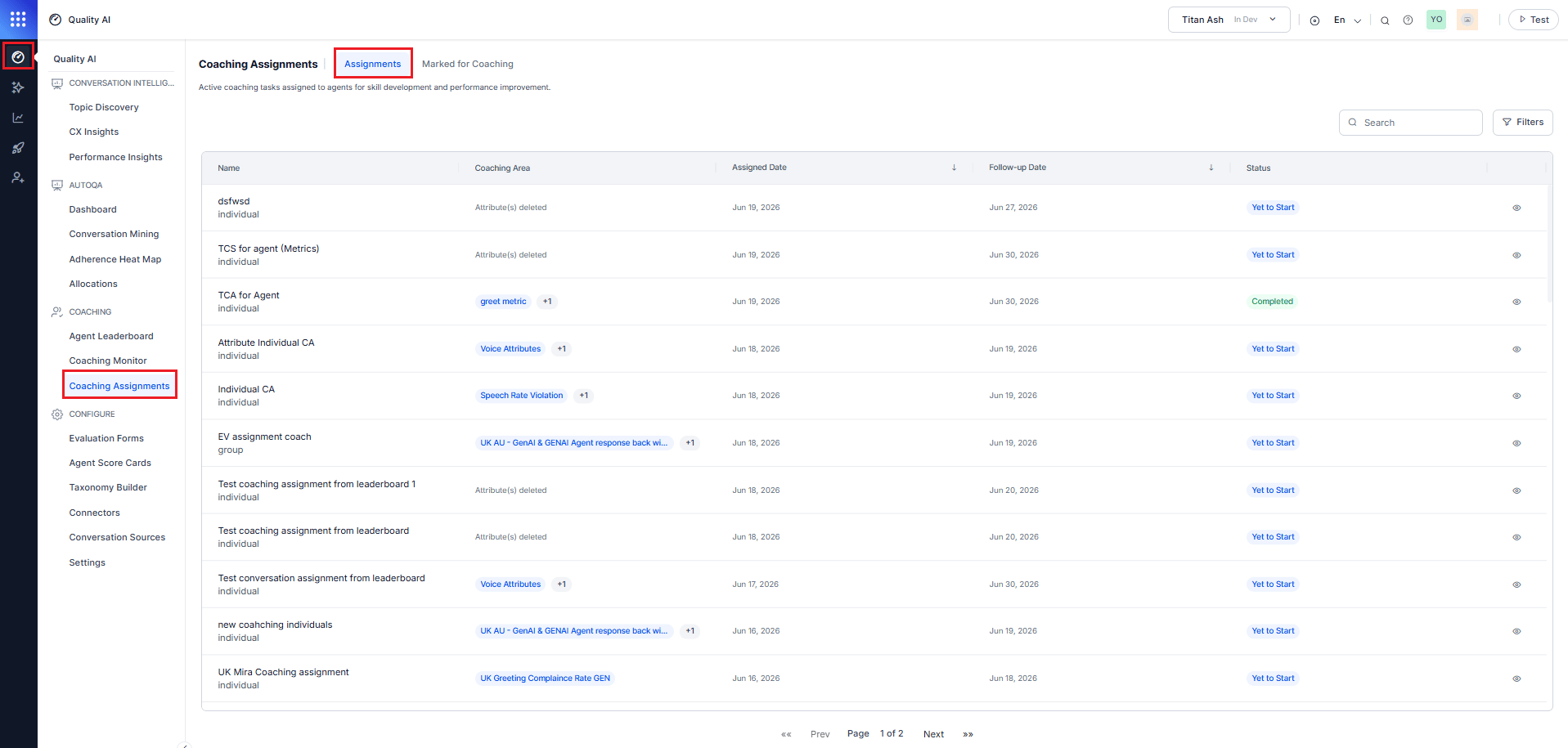
Navigate to **Quality AI** > **Coaching** > **Coaching Assignments** > **Assignments**.
 ### Workspace Tabs
The **Coaching Assignments** workspace has two tabs:
| Tab | Description |
| ----------------------- | --------------------------------------------------------------------------------------------------------------------------------------- |
| **Assignments** | View and manage all active coaching assignments assigned to agents, including both individual and group coaching. |
| **Marked for Coaching** | View and manage agents marked as coaching candidates during interaction reviews. Form groups and dispatch coaching assignments in bulk. |
***
## Coaching Workflow
The coaching workflow provides an end-to-end process for identifying improvement opportunities, creating coaching assignments, notifying agents, and measuring coaching effectiveness.
### Identify Coaching Opportunities
Supervisors review evaluated interactions in the Agent Dashboard, and QA users review audit conversations to identify coaching opportunities. Agents access their coaching assignments from the dashboard, where they can review coaching sessions, feedback, action plans, coaching interactions, and progress.
For more information, refer to:
* [Agent Dashboard – Evaluation](/ai-for-service/quality-ai/analyze/agent-dashboard-supervisor-evaluation)
* [My Dashboard – Coaching Assignments](/ai-for-service/quality-ai/analyze/my-dashboard-coaching-assignments)
### View Assignments
The Assignments tab lists all active coaching tasks assigned to agents for skill development and performance improvement. Each assignment displays an Individual or Group label under the name for visual distinction.
### Assignment List
| Column | Description |
| ------------------ | ------------------------------------------------------------------------------------------------------------------------------------------------------------------------------------------------------------- |
| **Name** | Coaching assignment name. Displays an Individual or Group label under the name. |
| **Coaching Area** | Coaching topics assigned including evaluation metrics and agent attributes — displayed as tags with a +N overflow count for additional items. For example, AU update Jan2, Attribute4 AU, and Attributes5 CU. |
| **Assigned Date** | Assignment creation date. Select the column header to sort ascending or descending. |
| **Follow-up Date** | Scheduled follow-up date for the coaching review (sortable). |
| **Status** | Current completion state of the coaching assignment. |
| **View** | Opens the coaching assignment summary or the agent and conversation list for the selected assignment. |
***
### Assignment Status
| Status | Who sees it | Meaning |
| ---------------- | ----------- | ------------------------------------------------------------- |
| **Yet to Start** | Supervisor | Agent hasn't reviewed any interactions. |
| **In Progress** | Both | Agent has reviewed at least one interaction. |
| **Completed** | Both | Agent completed all assigned interactions and best responses. |
***
### Assignment Detail Flow
The **Eye** (View) icon provides progressive access from a coaching assignment summary to conversation-level details and then to full audit information.
| **Level** | **Screen** | **What You See** | **Description** |
| --------- | ---------------------------------------- | ----------------------------------------------------------------------------------------------------------- | ---------------------------------------------------------------------------- |
| **1** | **Assignment Details (Assignments tab)** | List of assigned agents, coaching areas, assigned date, follow-up date, and status. | Opens the list of interactions or conversations for the selected assignment. |
| **2** | **Assignment Interaction View** | Date and time, queue, Kore evaluation score, supervisor audit score. | Opens the full audit evaluation for the selected conversation. |
| **3** | **Audit Details** | Conversation transcript, evaluation results, scoring breakdown, comments, coaching feedback, audit history. | No further drill-down action available. |
### Workspace Tabs
The **Coaching Assignments** workspace has two tabs:
| Tab | Description |
| ----------------------- | --------------------------------------------------------------------------------------------------------------------------------------- |
| **Assignments** | View and manage all active coaching assignments assigned to agents, including both individual and group coaching. |
| **Marked for Coaching** | View and manage agents marked as coaching candidates during interaction reviews. Form groups and dispatch coaching assignments in bulk. |
***
## Coaching Workflow
The coaching workflow provides an end-to-end process for identifying improvement opportunities, creating coaching assignments, notifying agents, and measuring coaching effectiveness.
### Identify Coaching Opportunities
Supervisors review evaluated interactions in the Agent Dashboard, and QA users review audit conversations to identify coaching opportunities. Agents access their coaching assignments from the dashboard, where they can review coaching sessions, feedback, action plans, coaching interactions, and progress.
For more information, refer to:
* [Agent Dashboard – Evaluation](/ai-for-service/quality-ai/analyze/agent-dashboard-supervisor-evaluation)
* [My Dashboard – Coaching Assignments](/ai-for-service/quality-ai/analyze/my-dashboard-coaching-assignments)
### View Assignments
The Assignments tab lists all active coaching tasks assigned to agents for skill development and performance improvement. Each assignment displays an Individual or Group label under the name for visual distinction.
### Assignment List
| Column | Description |
| ------------------ | ------------------------------------------------------------------------------------------------------------------------------------------------------------------------------------------------------------- |
| **Name** | Coaching assignment name. Displays an Individual or Group label under the name. |
| **Coaching Area** | Coaching topics assigned including evaluation metrics and agent attributes — displayed as tags with a +N overflow count for additional items. For example, AU update Jan2, Attribute4 AU, and Attributes5 CU. |
| **Assigned Date** | Assignment creation date. Select the column header to sort ascending or descending. |
| **Follow-up Date** | Scheduled follow-up date for the coaching review (sortable). |
| **Status** | Current completion state of the coaching assignment. |
| **View** | Opens the coaching assignment summary or the agent and conversation list for the selected assignment. |
***
### Assignment Status
| Status | Who sees it | Meaning |
| ---------------- | ----------- | ------------------------------------------------------------- |
| **Yet to Start** | Supervisor | Agent hasn't reviewed any interactions. |
| **In Progress** | Both | Agent has reviewed at least one interaction. |
| **Completed** | Both | Agent completed all assigned interactions and best responses. |
***
### Assignment Detail Flow
The **Eye** (View) icon provides progressive access from a coaching assignment summary to conversation-level details and then to full audit information.
| **Level** | **Screen** | **What You See** | **Description** |
| --------- | ---------------------------------------- | ----------------------------------------------------------------------------------------------------------- | ---------------------------------------------------------------------------- |
| **1** | **Assignment Details (Assignments tab)** | List of assigned agents, coaching areas, assigned date, follow-up date, and status. | Opens the list of interactions or conversations for the selected assignment. |
| **2** | **Assignment Interaction View** | Date and time, queue, Kore evaluation score, supervisor audit score. | Opens the full audit evaluation for the selected conversation. |
| **3** | **Audit Details** | Conversation transcript, evaluation results, scoring breakdown, comments, coaching feedback, audit history. | No further drill-down action available. |
 ***
### Filter Assignments
Select **Filters** to open the filter panel and narrow the assignment list.
| Filter | Description |
| ----------------- | --------------------------------------------------------------------------------------------------- |
| **Coaching Type** | Filter by **Individual Agent** or **Group Agents**. |
| **Status** | Filter results by one or more status values. Type to search and select one or more statuses. |
| **Coaching Area** | Filter results by one or more coaching areas. Type to search and select one or more coaching areas. |
Select **Apply** to confirm and apply the selected filters.
***
### Create Individual Coaching Assignments
Supervisors can create or add individual coaching assignments from the agent's dashboard.
For more information, refer to the [Add Coaching Assignment](/ai-for-service/quality-ai/analyze/agent-dashboard-supervisor-evaluation).
***
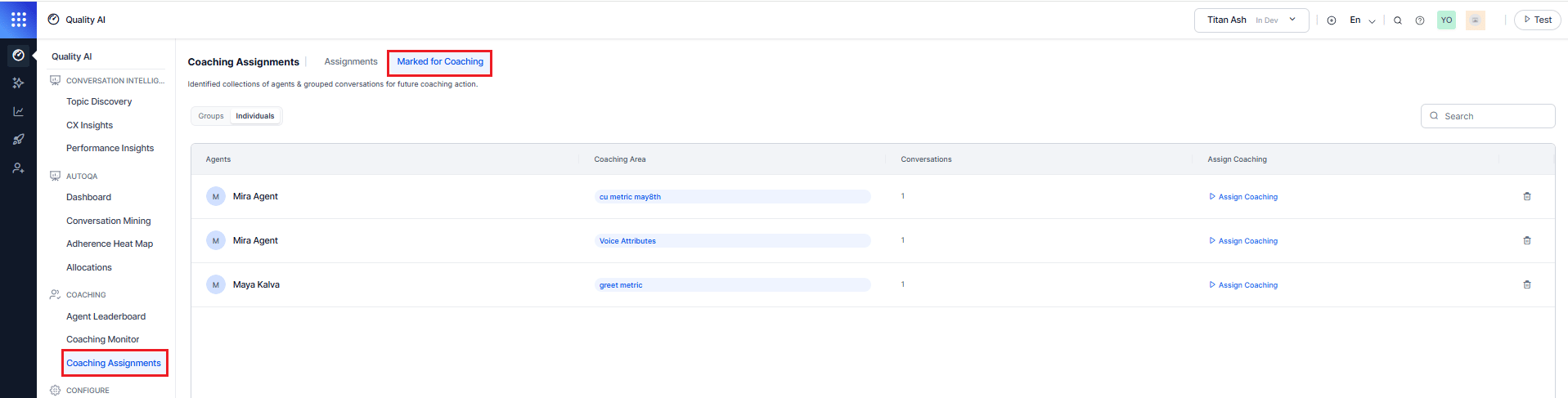
## Marked for Coaching
The **Marked for Coaching** workspace helps supervisors manage agents identified for coaching during interaction reviews. Supervisors can organize coaching candidates into groups or individuals, create coaching assignments, add reference interactions, provide feedback, define action plans, and schedule follow-up reviews.
## Access Marked for Coaching
Navigate to **Quality AI** > **Coaching** > **Coaching Assignments** > **Marked for Coaching**
***
### Filter Assignments
Select **Filters** to open the filter panel and narrow the assignment list.
| Filter | Description |
| ----------------- | --------------------------------------------------------------------------------------------------- |
| **Coaching Type** | Filter by **Individual Agent** or **Group Agents**. |
| **Status** | Filter results by one or more status values. Type to search and select one or more statuses. |
| **Coaching Area** | Filter results by one or more coaching areas. Type to search and select one or more coaching areas. |
Select **Apply** to confirm and apply the selected filters.
***
### Create Individual Coaching Assignments
Supervisors can create or add individual coaching assignments from the agent's dashboard.
For more information, refer to the [Add Coaching Assignment](/ai-for-service/quality-ai/analyze/agent-dashboard-supervisor-evaluation).
***
## Marked for Coaching
The **Marked for Coaching** workspace helps supervisors manage agents identified for coaching during interaction reviews. Supervisors can organize coaching candidates into groups or individuals, create coaching assignments, add reference interactions, provide feedback, define action plans, and schedule follow-up reviews.
## Access Marked for Coaching
Navigate to **Quality AI** > **Coaching** > **Coaching Assignments** > **Marked for Coaching**
 ### Create a New Coaching Assignment
You can create a coaching assignment from either the **Groups** or **Individuals** sub-tab. The assignment workflow is similar for both options, but the coaching candidates reviewed during assignment creation differ.
The **Marked for Coaching** workspace contains the following tabs:
| Sub-tab | Description |
| --------------- | ------------------------------------------------------------------------------------------------------------------------------------------- |
| **Groups** | Lists coaching groups in a pending state. Use this tab to create coaching assignments for multiple agents who share similar coaching areas. |
| **Individuals** | Lists agents marked for coaching who don't belong to a coaching group and don't have an active coaching assignment. |
***
#### Step 1: Select a Coaching Candidate
1. Select either the **Groups** or **Individuals** sub-tab.
2. Review the available coaching candidates.
3. Select **Assign Coaching**.
***
### Groups
In the Group Assignments, the system creates an individual coaching assignment for each agent in the coaching group.
The Groups list displays the following information:
| **Column** | **Description** |
| ------------------- | ---------------------------------------------------------------------- |
| **Group Name** | Name of the coaching group. |
| **Agents** | Agents included in the coaching group. |
| **Coaching Area** | Evaluation metrics or agent attributes associated with the group. |
| **Conversations** | Total interactions marked for coaching across all agents in the group. |
| **Assign Coaching** | Opens the group coaching assignment form. |
The Assign Coaching action is available only when the group contains one or more interactions.
### Create a New Coaching Assignment
You can create a coaching assignment from either the **Groups** or **Individuals** sub-tab. The assignment workflow is similar for both options, but the coaching candidates reviewed during assignment creation differ.
The **Marked for Coaching** workspace contains the following tabs:
| Sub-tab | Description |
| --------------- | ------------------------------------------------------------------------------------------------------------------------------------------- |
| **Groups** | Lists coaching groups in a pending state. Use this tab to create coaching assignments for multiple agents who share similar coaching areas. |
| **Individuals** | Lists agents marked for coaching who don't belong to a coaching group and don't have an active coaching assignment. |
***
#### Step 1: Select a Coaching Candidate
1. Select either the **Groups** or **Individuals** sub-tab.
2. Review the available coaching candidates.
3. Select **Assign Coaching**.
***
### Groups
In the Group Assignments, the system creates an individual coaching assignment for each agent in the coaching group.
The Groups list displays the following information:
| **Column** | **Description** |
| ------------------- | ---------------------------------------------------------------------- |
| **Group Name** | Name of the coaching group. |
| **Agents** | Agents included in the coaching group. |
| **Coaching Area** | Evaluation metrics or agent attributes associated with the group. |
| **Conversations** | Total interactions marked for coaching across all agents in the group. |
| **Assign Coaching** | Opens the group coaching assignment form. |
The Assign Coaching action is available only when the group contains one or more interactions.
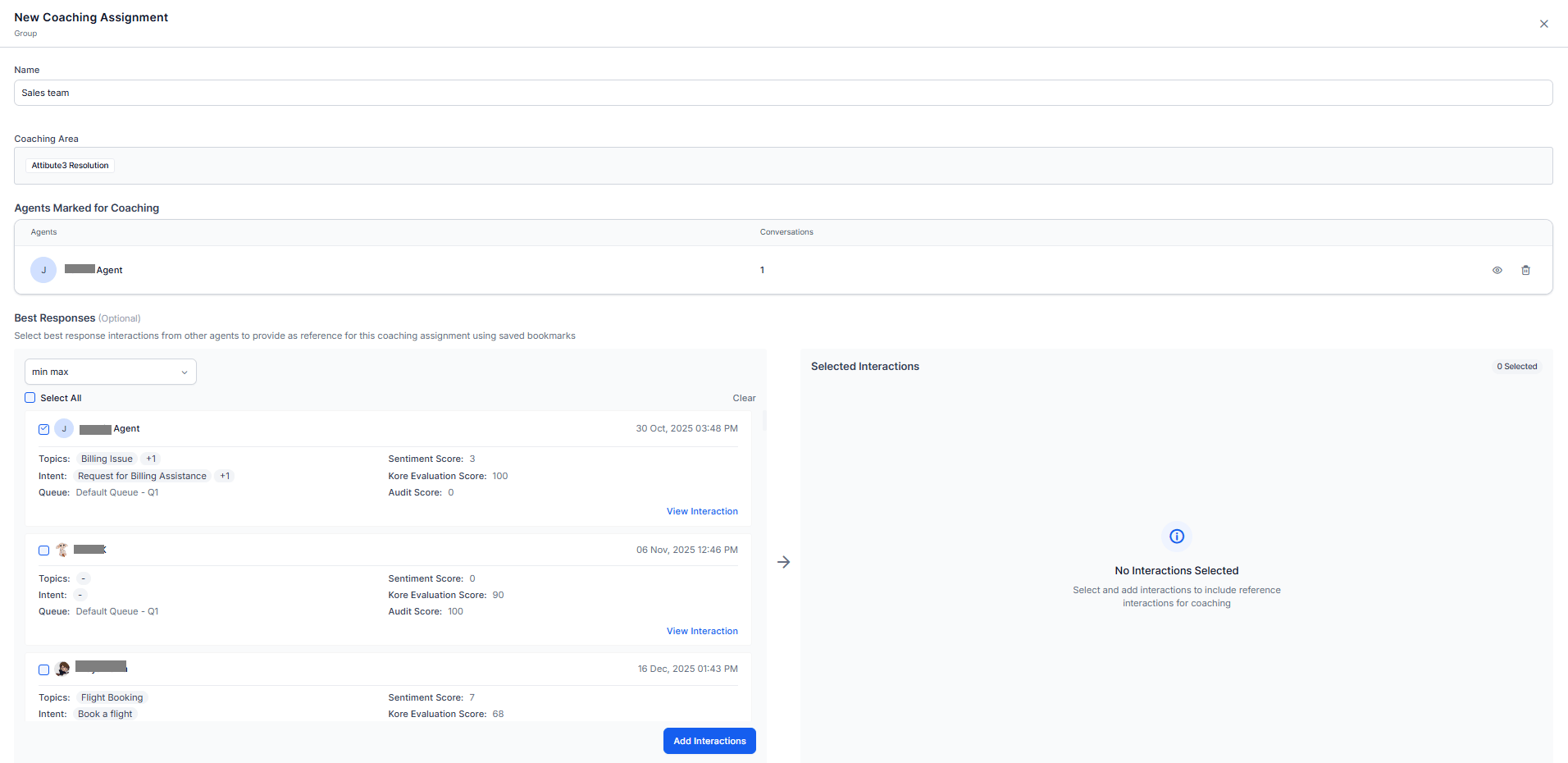 ***
#### Agents Marked for Coaching (Groups)
The Agents Marked for Coaching section lists the agents included in the selected coaching group.
| **Column** | **Description** |
| ----------------- | ------------------------------------------------------------------------------------------------------------------ |
| **Agents** | Displays the agent name and avatar. |
| **Conversations** | Number of interactions marked for coaching for the agent. |
| **Actions** | Select **View** to review the agent's interactions or **Delete** to remove the agent from the coaching assignment. |
***
#### Review Agent Interactions
1. Select the View icon for an agent.
2. Review the interactions associated with the selected agent.
3. Use the search field to locate a specific interaction.
4. Select View beside an interaction to open the audit review page.
The interaction list displays the following information:
| **Column** | **Description** |
| -------------------------- | -------------------------------------------------------------------------------------- |
| **Date** | Date and time of the interaction. |
| **Queues** | Queue associated with the interaction. |
| **Kore Evaluation Score** | Evaluation score assigned to the interaction. |
| **Supervisor Audit Score** | Supervisor audit score, when available. |
| **Actions** | Select **View** to review interaction details or **Delete** to remove the interaction. |
***
#### Individuals
In the Individual Assignments, the system creates a coaching assignment for the selected agent.
The Individuals list displays the following information:
| **Column** | **Description** |
| ------------------- | ----------------------------------------------------------------------------------- |
| **Agent** | Name of the agent. |
| **Coaching Area** | Evaluation metrics or agent attributes associated with the coaching recommendation. |
| **Conversations** | Number of interactions marked for coaching for the agent. |
| **Assign Coaching** | Opens the individual coaching assignment form. |
***
#### Agents Marked for Coaching (Groups)
The Agents Marked for Coaching section lists the agents included in the selected coaching group.
| **Column** | **Description** |
| ----------------- | ------------------------------------------------------------------------------------------------------------------ |
| **Agents** | Displays the agent name and avatar. |
| **Conversations** | Number of interactions marked for coaching for the agent. |
| **Actions** | Select **View** to review the agent's interactions or **Delete** to remove the agent from the coaching assignment. |
***
#### Review Agent Interactions
1. Select the View icon for an agent.
2. Review the interactions associated with the selected agent.
3. Use the search field to locate a specific interaction.
4. Select View beside an interaction to open the audit review page.
The interaction list displays the following information:
| **Column** | **Description** |
| -------------------------- | -------------------------------------------------------------------------------------- |
| **Date** | Date and time of the interaction. |
| **Queues** | Queue associated with the interaction. |
| **Kore Evaluation Score** | Evaluation score assigned to the interaction. |
| **Supervisor Audit Score** | Supervisor audit score, when available. |
| **Actions** | Select **View** to review interaction details or **Delete** to remove the interaction. |
***
#### Individuals
In the Individual Assignments, the system creates a coaching assignment for the selected agent.
The Individuals list displays the following information:
| **Column** | **Description** |
| ------------------- | ----------------------------------------------------------------------------------- |
| **Agent** | Name of the agent. |
| **Coaching Area** | Evaluation metrics or agent attributes associated with the coaching recommendation. |
| **Conversations** | Number of interactions marked for coaching for the agent. |
| **Assign Coaching** | Opens the individual coaching assignment form. |
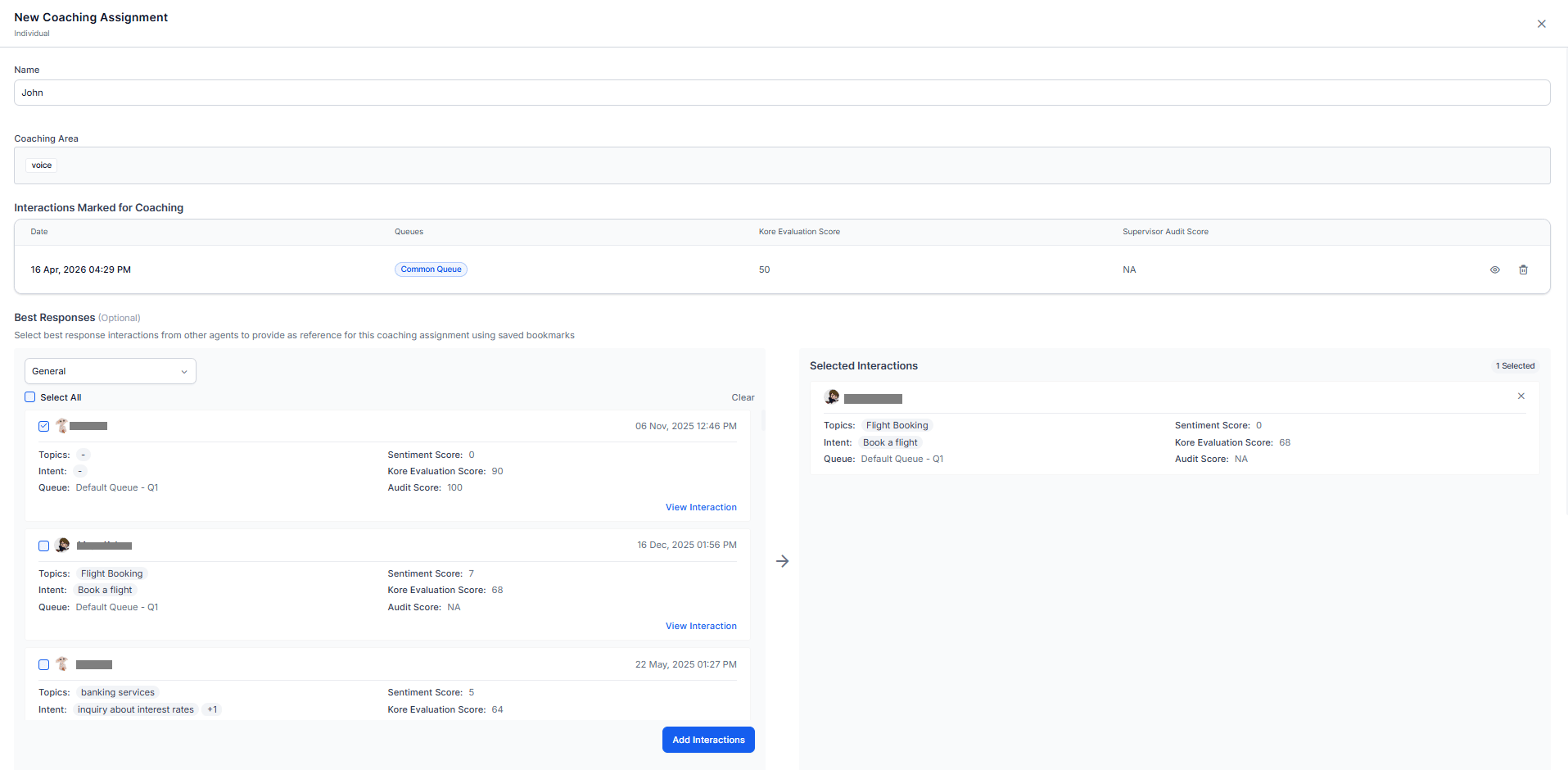 ***
#### Interactions Marked for Coaching (Individuals)
The Interactions Marked for Coaching section lists the interactions selected for the coaching assignment.
| **Column** | **Description** |
| -------------------------- | ---------------------------------------------------------------------------------------------------------- |
| **Date** | Date and time of the interaction. |
| **Queues** | Queue associated with the interaction. |
| **Kore Evaluation Score** | Evaluation score assigned to the interaction. |
| **Supervisor Audit Score** | Supervisor audit score assigned to the interaction. |
| **Actions** | Select **View** to review interaction details or **Delete** to remove the interaction from the assignment. |
The interactions displayed in this section correspond to the value displayed in the Conversations column on the **Individuals** page.
***
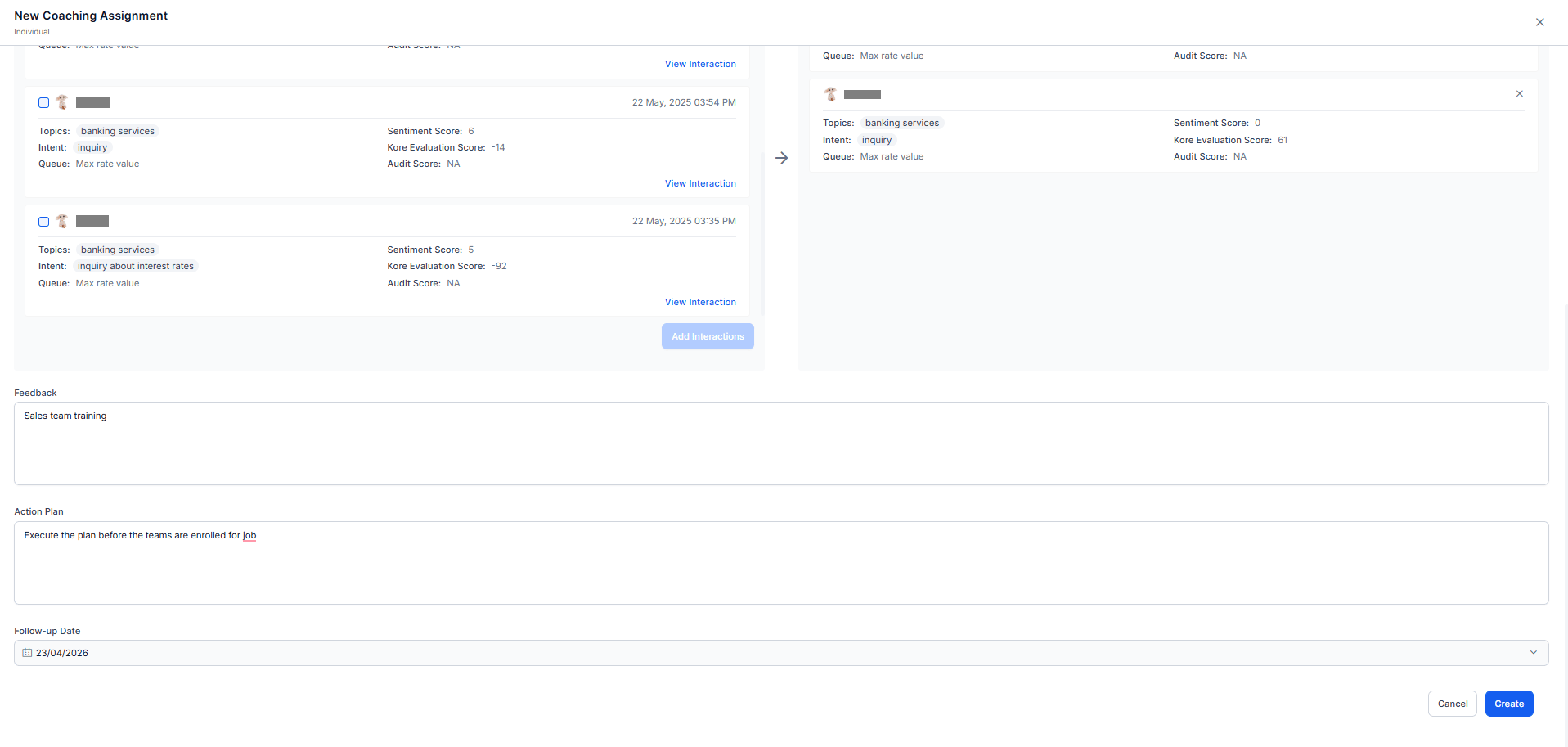
#### Step 2: Complete Assignment Information
The New Coaching Assignment dialog opens.
1. Enter a **Name** for Groups or Individuals coaching assignment.
2. Review the **Coaching Area** of Groups or Individuals associated with the coaching recommendation.
| **Field** | **Description** |
| ----------------- | ----------------------------------------------------------------------------------- |
| **Name** | Coaching assignment name. |
| **Coaching Area** | Evaluation metrics or agent attributes associated with the coaching recommendation. |
#### Step 3: Review Coaching Candidates
The information displayed in this section varies depending on whether the assignment originates from the Groups or Individuals sub-tab.
***
#### Step 4: Review Interaction Details
For both Groups and Individuals, selecting the **View** icon opens the audit review page. The audit review page provides detailed information about the interaction.
***
#### Step 5: Add Best Responses (Optional)
Use **Best Responses** to add bookmarked interactions from other agents as coaching examples.
1. Select a bookmark from **Select Bookmark**.
2. Review the available bookmarked interactions.
3. Select the required interactions.
4. Move the selected interactions to **Selected Interactions**.
The selected interactions become coaching references for the assignment.
Supervisors can select View Interaction to review a bookmarked interaction before adding it. Reviewing the interaction provides additional context through evaluation results, topics, sentiment analysis, audit findings, and conversation details.
Best Responses provide examples of expected behaviors and outcomes that agents can reference during coaching.
***
#### Step 6: Add Coaching Guidance
Complete the coaching details for the assignment.
| **Field** | **Description** |
| ------------------ | ------------------------------------------------------------------------------------------------------------------ |
| **Feedback** | Supervisor observations, strengths, performance gaps, and development opportunities related to the coaching focus. |
| **Action Plan** | Recommended improvement actions, expected behaviors, and coaching goals. |
| **Follow-up Date** | Date for reviewing coaching progress and outcomes. |
For group coaching assignments, the system applies the same Best Responses, Feedback, Action Plan, and Follow-up Date to all coaching assignments created from the group.
***
#### Interactions Marked for Coaching (Individuals)
The Interactions Marked for Coaching section lists the interactions selected for the coaching assignment.
| **Column** | **Description** |
| -------------------------- | ---------------------------------------------------------------------------------------------------------- |
| **Date** | Date and time of the interaction. |
| **Queues** | Queue associated with the interaction. |
| **Kore Evaluation Score** | Evaluation score assigned to the interaction. |
| **Supervisor Audit Score** | Supervisor audit score assigned to the interaction. |
| **Actions** | Select **View** to review interaction details or **Delete** to remove the interaction from the assignment. |
The interactions displayed in this section correspond to the value displayed in the Conversations column on the **Individuals** page.
***
#### Step 2: Complete Assignment Information
The New Coaching Assignment dialog opens.
1. Enter a **Name** for Groups or Individuals coaching assignment.
2. Review the **Coaching Area** of Groups or Individuals associated with the coaching recommendation.
| **Field** | **Description** |
| ----------------- | ----------------------------------------------------------------------------------- |
| **Name** | Coaching assignment name. |
| **Coaching Area** | Evaluation metrics or agent attributes associated with the coaching recommendation. |
#### Step 3: Review Coaching Candidates
The information displayed in this section varies depending on whether the assignment originates from the Groups or Individuals sub-tab.
***
#### Step 4: Review Interaction Details
For both Groups and Individuals, selecting the **View** icon opens the audit review page. The audit review page provides detailed information about the interaction.
***
#### Step 5: Add Best Responses (Optional)
Use **Best Responses** to add bookmarked interactions from other agents as coaching examples.
1. Select a bookmark from **Select Bookmark**.
2. Review the available bookmarked interactions.
3. Select the required interactions.
4. Move the selected interactions to **Selected Interactions**.
The selected interactions become coaching references for the assignment.
Supervisors can select View Interaction to review a bookmarked interaction before adding it. Reviewing the interaction provides additional context through evaluation results, topics, sentiment analysis, audit findings, and conversation details.
Best Responses provide examples of expected behaviors and outcomes that agents can reference during coaching.
***
#### Step 6: Add Coaching Guidance
Complete the coaching details for the assignment.
| **Field** | **Description** |
| ------------------ | ------------------------------------------------------------------------------------------------------------------ |
| **Feedback** | Supervisor observations, strengths, performance gaps, and development opportunities related to the coaching focus. |
| **Action Plan** | Recommended improvement actions, expected behaviors, and coaching goals. |
| **Follow-up Date** | Date for reviewing coaching progress and outcomes. |
For group coaching assignments, the system applies the same Best Responses, Feedback, Action Plan, and Follow-up Date to all coaching assignments created from the group.
 ***
#### Step 7: Notify Agents
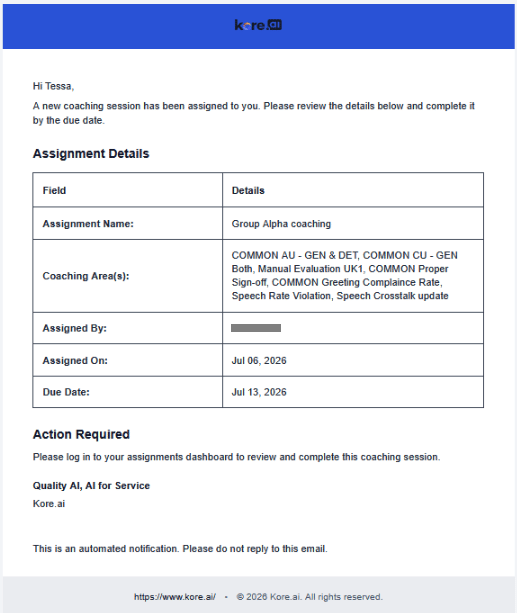
When a coaching assignment is created, Quality AI automatically sends an email notification to the assigned agent. For group coaching assignments, each assigned agent receives an individual notification containing assignment details and instructions to access the coaching assignment. This eliminates the need for agents to periodically check the Assignments dashboard.
**Notification Trigger**
| **Event** | **Triggered By** | **Notification Sent To** |
| --------------------- | ------------------------------ | ------------------------------------------------------------------ |
| **Coaching Assigned** | Individual coaching assignment | The assigned agent. |
| **Coaching Assigned** | Group coaching assignment | Each assigned agent in the group (individual email notifications). |
**Email Contents**
The notification email includes the following assignment details:
| **Field** | **Description** |
| ------------------- | ----------------------------------------------------------------------------------- |
| **Assignment Name** | Displays the name of the coaching assignment. |
| **Coaching Areas** | Displays the evaluation metrics or agent attributes associated with the assignment. |
| **Assigned By** | Displays the name of the supervisor or QA user who created the assignment. |
| **Assigned On** | Displays the date the coaching assignment was created. |
| **Due Date** | Displays the date by which the agent must complete the coaching assignment. |
The email directs the agent to sign in to the **Assignments** dashboard to review and complete the coaching assignment.
Coaching assignment email notifications are sent to the email address configured on the agent's user account. Verify that all agents have a valid email address in User Management before creating coaching assignments.
**Email Template**
***
#### Step 7: Notify Agents
When a coaching assignment is created, Quality AI automatically sends an email notification to the assigned agent. For group coaching assignments, each assigned agent receives an individual notification containing assignment details and instructions to access the coaching assignment. This eliminates the need for agents to periodically check the Assignments dashboard.
**Notification Trigger**
| **Event** | **Triggered By** | **Notification Sent To** |
| --------------------- | ------------------------------ | ------------------------------------------------------------------ |
| **Coaching Assigned** | Individual coaching assignment | The assigned agent. |
| **Coaching Assigned** | Group coaching assignment | Each assigned agent in the group (individual email notifications). |
**Email Contents**
The notification email includes the following assignment details:
| **Field** | **Description** |
| ------------------- | ----------------------------------------------------------------------------------- |
| **Assignment Name** | Displays the name of the coaching assignment. |
| **Coaching Areas** | Displays the evaluation metrics or agent attributes associated with the assignment. |
| **Assigned By** | Displays the name of the supervisor or QA user who created the assignment. |
| **Assigned On** | Displays the date the coaching assignment was created. |
| **Due Date** | Displays the date by which the agent must complete the coaching assignment. |
The email directs the agent to sign in to the **Assignments** dashboard to review and complete the coaching assignment.
Coaching assignment email notifications are sent to the email address configured on the agent's user account. Verify that all agents have a valid email address in User Management before creating coaching assignments.
**Email Template**
 #### Step 8: Create the Assignment
1. Review the assignment details.
2. Select **Create**.
***
### Common Actions
For both Groups and Individuals:
* Review the interactions included in the coaching assignment.
* Use the search box to locate a specific interaction.
* Select View to review the interaction details.
* Select Delete to remove the interaction from the coaching assignment.
The **Audit** page provides detailed interaction information, including transcripts, evaluation results, scores, topics, sentiment analysis, audit progress, and conversation history. After reviewing the interaction, you can return to the coaching assignment to continue creating the coaching plan.
After Assignment Creation, the system:
* Creates a coaching recommendation.
* Links the recommendation to the audited interaction.
* Associate the recommendation with the selected coaching areas.
* Associate the recommendation with the selected coaching group, when applicable.
* Makes the recommendation available for coaching assignment tracking and follow-up.
### Validation Rules
The system creates the assignment only when:
* All required fields contain values.
* At least one interaction remains in the assignment.
* The selected coaching areas are valid for the associated interactions and agents.
* Each agent in a group assignment has at least one eligible interaction.
### Create a Coaching Group
Select **+ Add New Group** from the Groups sub-tab or from the Mark for Coaching dialog.
| **Field** | **Description** |
| ------------------- | ------------------------------------------------------------------------------------------- |
| **Group Name** | Unique group name. The system validates the name for existing pending groups. |
| **Description** | Enter a description of the coaching purpose. |
| **Coaching Method** | Select the **Evaluation Form** or **Agent Scorecard** to associate with this group. |
| **Coaching Area** | Select required evaluation metrics or agent attributes associated with the coaching method. |
Select **Save** to create the group. The system creates the group in a pending state and adds it to the group list.
### Invalid Coaching Area
The system validates coaching areas before it creates the coaching mark.
If a coaching area doesn’t apply to the selected interaction or agent, the system displays an Invalid Coaching Area warning.
| **Option** | **Description** |
| ----------- | --------------------------------------------- |
| **Confirm** | Removes invalid coaching areas and continues. |
| **Cancel** | Returns to the Mark for Coaching dialog. |
After you save, the system:
* Creates a coaching recommendation.
* Links the recommendation to the audited interaction.
* Associate the recommendation with the selected coaching areas.
* Associate the recommendation with the selected coaching group, when applicable.
* Makes the recommendation available for coaching assignment creation and tracking.
### Agent View of Coaching Assignments
Agents can access their coaching assignments from their dashboard. This provides a centralized workspace to review assigned coaching sessions, feedback, action plans, coaching interactions, and progress.
The system doesn't show group membership or other group-level information to agents, even when assignments are created through a group coaching workflow.
For more information, refer to the [**Agent Dashboard – Evaluation**](/ai-for-service/quality-ai/analyze/my-dashboard-coaching-assignments).
***
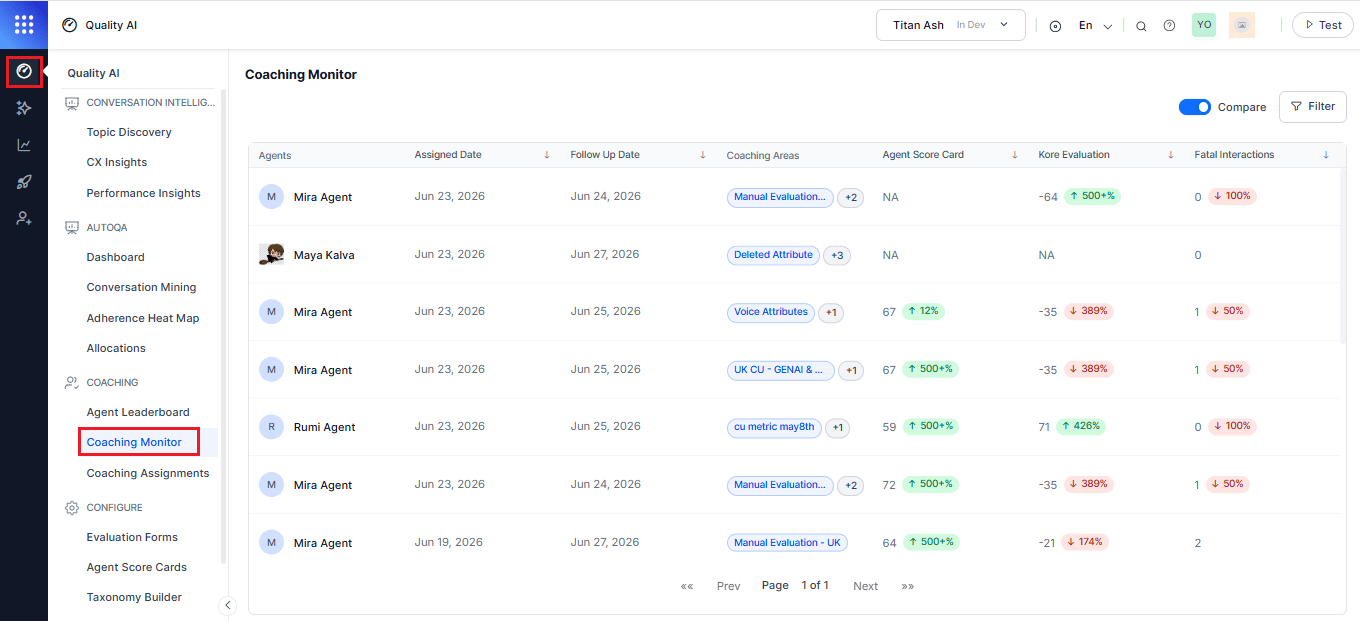
## Coaching Monitor
The Coaching Monitor provides supervisors with a consolidated view of coaching effectiveness across agents and assignments, showing progress and score trends by coaching area (evaluation metrics and agent attributes). It enables the supervisors tracking of coaching outcomes, evaluation scores, and agent performance trends, with filters to focus on specific areas and support informed follow-up discussions without reviewing each agent in detail.
Navigate to **Quality AI** > **Coaching** > **Coaching Monitor**.
#### Step 8: Create the Assignment
1. Review the assignment details.
2. Select **Create**.
***
### Common Actions
For both Groups and Individuals:
* Review the interactions included in the coaching assignment.
* Use the search box to locate a specific interaction.
* Select View to review the interaction details.
* Select Delete to remove the interaction from the coaching assignment.
The **Audit** page provides detailed interaction information, including transcripts, evaluation results, scores, topics, sentiment analysis, audit progress, and conversation history. After reviewing the interaction, you can return to the coaching assignment to continue creating the coaching plan.
After Assignment Creation, the system:
* Creates a coaching recommendation.
* Links the recommendation to the audited interaction.
* Associate the recommendation with the selected coaching areas.
* Associate the recommendation with the selected coaching group, when applicable.
* Makes the recommendation available for coaching assignment tracking and follow-up.
### Validation Rules
The system creates the assignment only when:
* All required fields contain values.
* At least one interaction remains in the assignment.
* The selected coaching areas are valid for the associated interactions and agents.
* Each agent in a group assignment has at least one eligible interaction.
### Create a Coaching Group
Select **+ Add New Group** from the Groups sub-tab or from the Mark for Coaching dialog.
| **Field** | **Description** |
| ------------------- | ------------------------------------------------------------------------------------------- |
| **Group Name** | Unique group name. The system validates the name for existing pending groups. |
| **Description** | Enter a description of the coaching purpose. |
| **Coaching Method** | Select the **Evaluation Form** or **Agent Scorecard** to associate with this group. |
| **Coaching Area** | Select required evaluation metrics or agent attributes associated with the coaching method. |
Select **Save** to create the group. The system creates the group in a pending state and adds it to the group list.
### Invalid Coaching Area
The system validates coaching areas before it creates the coaching mark.
If a coaching area doesn’t apply to the selected interaction or agent, the system displays an Invalid Coaching Area warning.
| **Option** | **Description** |
| ----------- | --------------------------------------------- |
| **Confirm** | Removes invalid coaching areas and continues. |
| **Cancel** | Returns to the Mark for Coaching dialog. |
After you save, the system:
* Creates a coaching recommendation.
* Links the recommendation to the audited interaction.
* Associate the recommendation with the selected coaching areas.
* Associate the recommendation with the selected coaching group, when applicable.
* Makes the recommendation available for coaching assignment creation and tracking.
### Agent View of Coaching Assignments
Agents can access their coaching assignments from their dashboard. This provides a centralized workspace to review assigned coaching sessions, feedback, action plans, coaching interactions, and progress.
The system doesn't show group membership or other group-level information to agents, even when assignments are created through a group coaching workflow.
For more information, refer to the [**Agent Dashboard – Evaluation**](/ai-for-service/quality-ai/analyze/my-dashboard-coaching-assignments).
***
## Coaching Monitor
The Coaching Monitor provides supervisors with a consolidated view of coaching effectiveness across agents and assignments, showing progress and score trends by coaching area (evaluation metrics and agent attributes). It enables the supervisors tracking of coaching outcomes, evaluation scores, and agent performance trends, with filters to focus on specific areas and support informed follow-up discussions without reviewing each agent in detail.
Navigate to **Quality AI** > **Coaching** > **Coaching Monitor**.
 To track coaching area score trends across agents in the **Coaching Monitor**, enable **AutoQA** in **Quality AI General Settings** for automated interaction scoring.
## Key Features
* Monitor coaching effectiveness across agents and assignments.
* Compare performance at the time of assignment with current performance.
* Track coaching progress by evaluation metric and agent attribute.
* Review follow-up schedules and coaching outcomes.
* Filter coaching assignments by date, coaching area, agent group, and agent.
* Coaching impact analysis excludes separate review of individual assignments.
## Coaching Monitor Dashboard
The Coaching Monitor dashboard lists all coaching assignments and displays coaching progress metrics for each agent.
### Dashboard Columns
The following table displays key coaching assignment details.
| **Column** | **Description** |
| ------------------------- | ------------------------------------------------------------------------------------------------------------------------------------------------------------------- |
| **Agents** | Displays the agent who received the coaching assignment. |
| **Assigned Date** | Displays the date when the system assigns the coaching session. |
| **Follow-Up Date** | Indicates the next scheduled coaching review date. |
| **Coaching Areas** | Displays coaching areas mapped from evaluation metrics or agent attributes. If multiple areas exist, the system shows with a **+N** indicator for additional items. |
| **Agent Score Card** | Shows the agent’s current default scorecard score. |
| **Kore Evaluation Score** | Displays the Auto QA evaluation score derived from the associated evaluation form. |
| **Fatal Interactions** | Shows the number of interactions containing fatal failures. |
### Compare View
Enable the **Compare** option to compare current performance with performance at the time the system created the coaching assignment.
When users enable the Compare option, trend indicators (Spike) appear for the Agent Score Card, Kore Evaluation Score, and Fatal Interactions and highlight performance changes between the assignment date and the current date. Selecting these indicators displays performance improvements or declines between the assignment date and the current date.
To track coaching area score trends across agents in the **Coaching Monitor**, enable **AutoQA** in **Quality AI General Settings** for automated interaction scoring.
## Key Features
* Monitor coaching effectiveness across agents and assignments.
* Compare performance at the time of assignment with current performance.
* Track coaching progress by evaluation metric and agent attribute.
* Review follow-up schedules and coaching outcomes.
* Filter coaching assignments by date, coaching area, agent group, and agent.
* Coaching impact analysis excludes separate review of individual assignments.
## Coaching Monitor Dashboard
The Coaching Monitor dashboard lists all coaching assignments and displays coaching progress metrics for each agent.
### Dashboard Columns
The following table displays key coaching assignment details.
| **Column** | **Description** |
| ------------------------- | ------------------------------------------------------------------------------------------------------------------------------------------------------------------- |
| **Agents** | Displays the agent who received the coaching assignment. |
| **Assigned Date** | Displays the date when the system assigns the coaching session. |
| **Follow-Up Date** | Indicates the next scheduled coaching review date. |
| **Coaching Areas** | Displays coaching areas mapped from evaluation metrics or agent attributes. If multiple areas exist, the system shows with a **+N** indicator for additional items. |
| **Agent Score Card** | Shows the agent’s current default scorecard score. |
| **Kore Evaluation Score** | Displays the Auto QA evaluation score derived from the associated evaluation form. |
| **Fatal Interactions** | Shows the number of interactions containing fatal failures. |
### Compare View
Enable the **Compare** option to compare current performance with performance at the time the system created the coaching assignment.
When users enable the Compare option, trend indicators (Spike) appear for the Agent Score Card, Kore Evaluation Score, and Fatal Interactions and highlight performance changes between the assignment date and the current date. Selecting these indicators displays performance improvements or declines between the assignment date and the current date.
 Each row follows the same assignment type classification used in the Assignments tab.
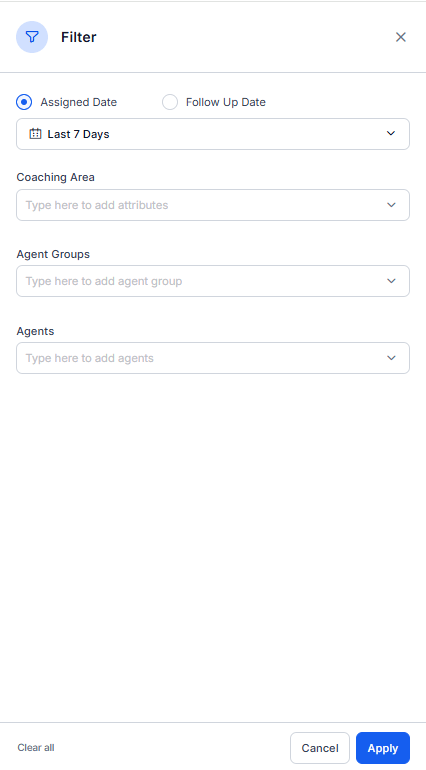
### Filter Criteria
Use the **Filter** option to narrow the list of coaching assignments based on date, coaching area, agent group, or agent. This helps supervisors to find and review relevant coaching assignments.
| **Field** | **Description** | **Default** |
| ------------------ | -------------------------------------------------------------------------------------------------------------------------------- | ------------ |
| **Assigned Date** | Filters coaching assignments by assignment date. Select a date range using the Assigned Date filter. | Last 7 days |
| **Follow-Up Date** | Filters coaching assignments by scheduled follow-up date. Select a date range using the Follow-Up Date filter. | Current date |
| **Coaching Area** | Filters assignments by coaching areas such as evaluation metrics or agent attributes. Supports multi-select with removable tags. | All |
| **Agent Groups** | Filters assignments by one or more agent groups. | All |
| **Agents** | Filters assignments by specific agents. | All |
Select **Apply** to apply the selected filter criteria to the dashboard.
Each row follows the same assignment type classification used in the Assignments tab.
### Filter Criteria
Use the **Filter** option to narrow the list of coaching assignments based on date, coaching area, agent group, or agent. This helps supervisors to find and review relevant coaching assignments.
| **Field** | **Description** | **Default** |
| ------------------ | -------------------------------------------------------------------------------------------------------------------------------- | ------------ |
| **Assigned Date** | Filters coaching assignments by assignment date. Select a date range using the Assigned Date filter. | Last 7 days |
| **Follow-Up Date** | Filters coaching assignments by scheduled follow-up date. Select a date range using the Follow-Up Date filter. | Current date |
| **Coaching Area** | Filters assignments by coaching areas such as evaluation metrics or agent attributes. Supports multi-select with removable tags. | All |
| **Agent Groups** | Filters assignments by one or more agent groups. | All |
| **Agents** | Filters assignments by specific agents. | All |
Select **Apply** to apply the selected filter criteria to the dashboard.
 Select **Apply** to apply the selected filters and refresh the results.
### Coaching Progress
Select an agent record in the **Coaching Monitor** dashboard to view the agent's coaching progress.
The **Coaching Progress** dialog compares performance at the time of coaching assignment with current performance for each coaching area.
| **Metric** | **Description** |
| -------------------------- | --------------------------------------------------------------------------------------------------------------------------------- |
| **Attributes** | All attributes assigned for coaching. |
| **Coaching Areas** | Coaching areas assigned to the agent as part of the coaching assignment. |
| **Score at Assigned Date** | Performance value recorded at the time the system created the coaching assignment. |
| **Current Score** | Latest performance value for the coaching area. |
| **Progress Indicator** | Visual comparison between performance at assignment date and current performance. |
| **Trend (%)** | Percentage increase or decrease between assigned-date score and current score. |
| **Fatal Interactions** | Fatal Interactions compares fatal interaction counts at the assigned date with the current count and shows the percentage change. |
Select **Apply** to apply the selected filters and refresh the results.
### Coaching Progress
Select an agent record in the **Coaching Monitor** dashboard to view the agent's coaching progress.
The **Coaching Progress** dialog compares performance at the time of coaching assignment with current performance for each coaching area.
| **Metric** | **Description** |
| -------------------------- | --------------------------------------------------------------------------------------------------------------------------------- |
| **Attributes** | All attributes assigned for coaching. |
| **Coaching Areas** | Coaching areas assigned to the agent as part of the coaching assignment. |
| **Score at Assigned Date** | Performance value recorded at the time the system created the coaching assignment. |
| **Current Score** | Latest performance value for the coaching area. |
| **Progress Indicator** | Visual comparison between performance at assignment date and current performance. |
| **Trend (%)** | Percentage increase or decrease between assigned-date score and current score. |
| **Fatal Interactions** | Fatal Interactions compares fatal interaction counts at the assigned date with the current count and shows the percentage change. |
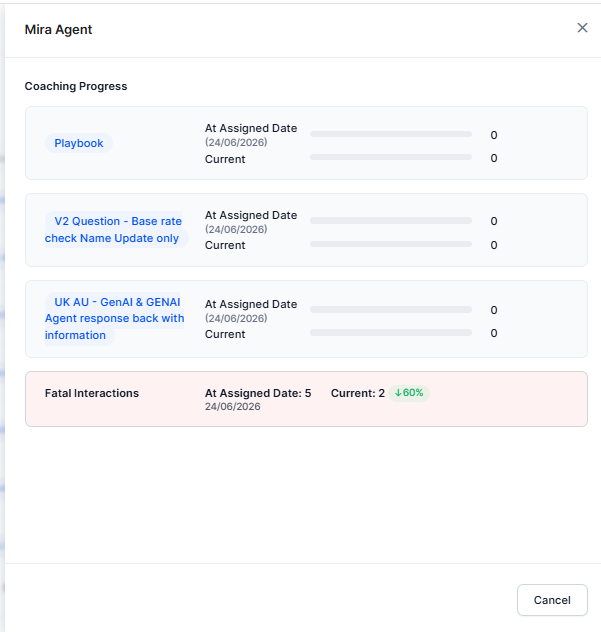 The progress view helps supervisors evaluate improvements or declines in coaching areas and track changes in fatal interactions over time.
The score toggle recomputes scores based on the selected source. Switching the toggle updates both the Score at Assigned Date and Current Score columns to reflect the chosen score type.
***
The progress view helps supervisors evaluate improvements or declines in coaching areas and track changes in fatal interactions over time.
The score toggle recomputes scores based on the selected source. Switching the toggle updates both the Score at Assigned Date and Current Score columns to reflect the chosen score type.
***